Chapter 1
What a visitor finds
Kijilimo shows what actually pays in farming, from farmers' own books.
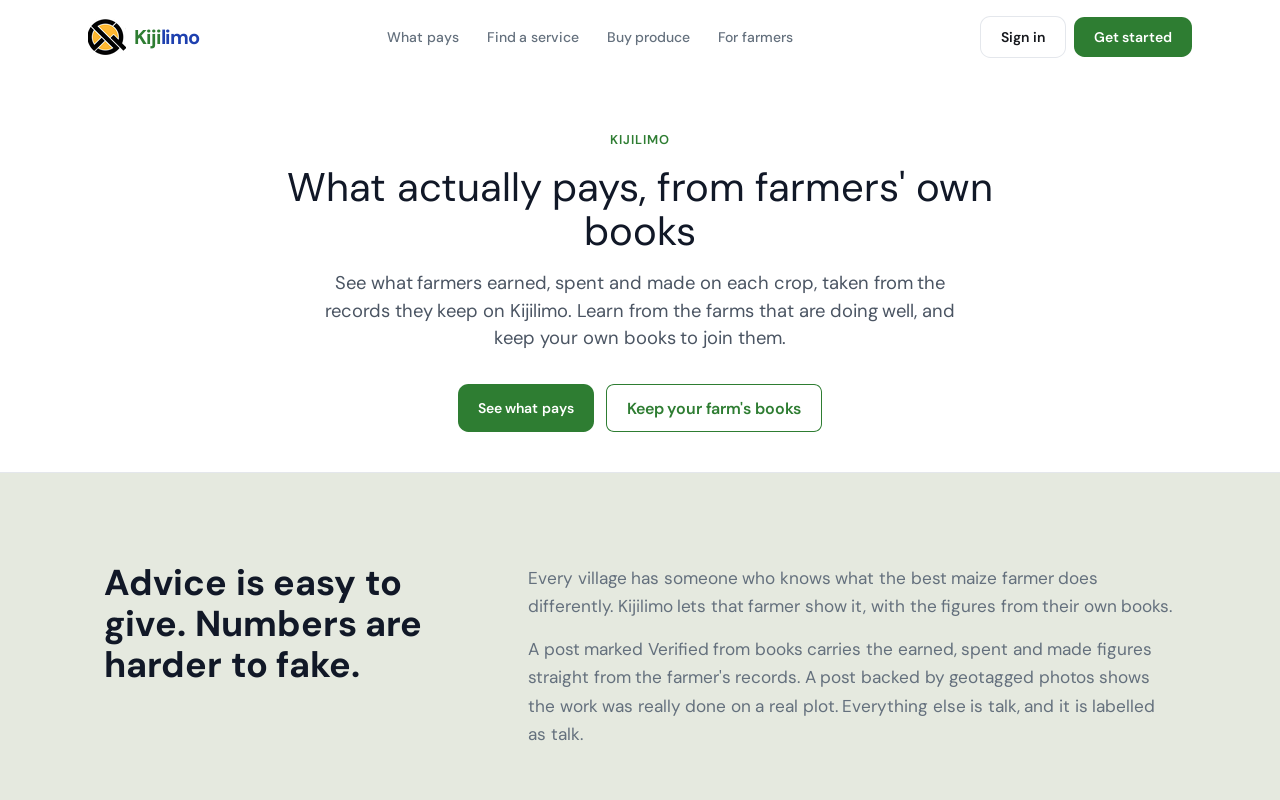
Farmers keep their farm's records on it. Those who choose to share a crop's results let everyone see what that crop earned, spent and made.
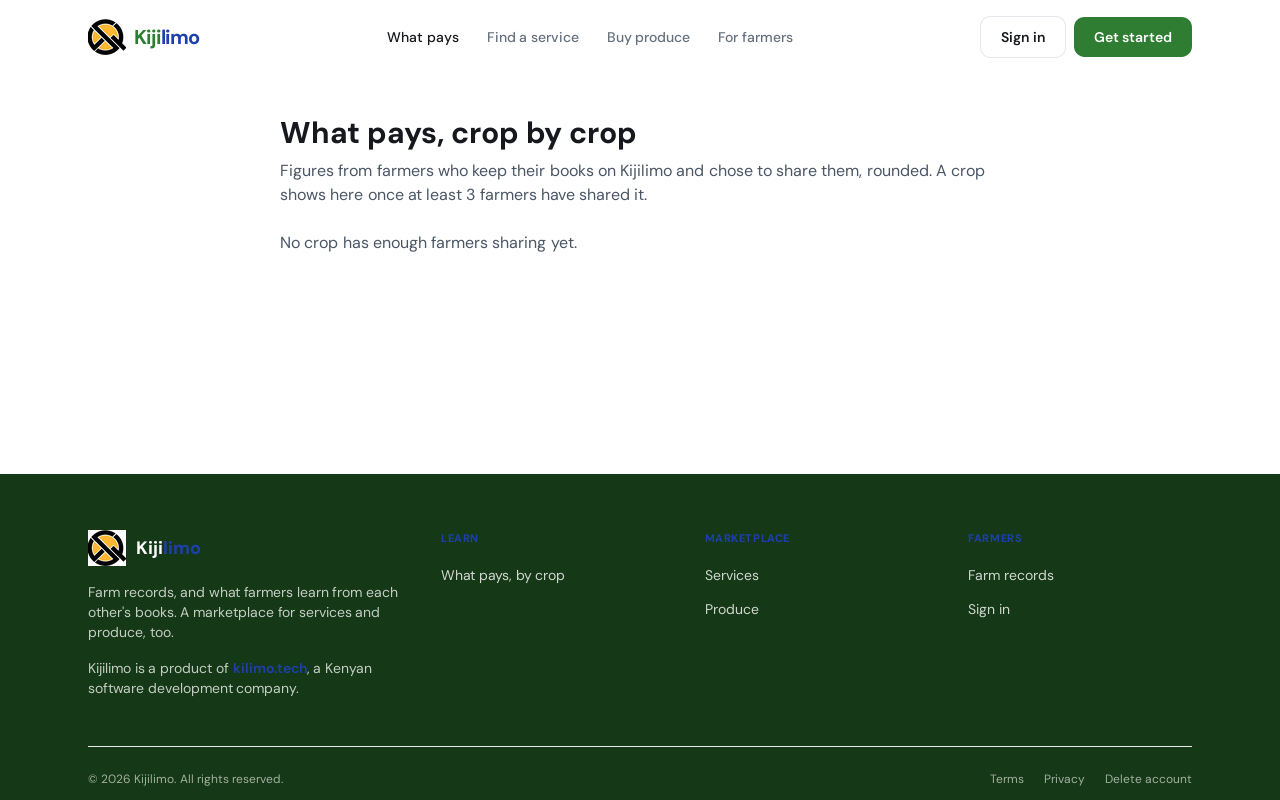
What pays, at the top, lists the crops.
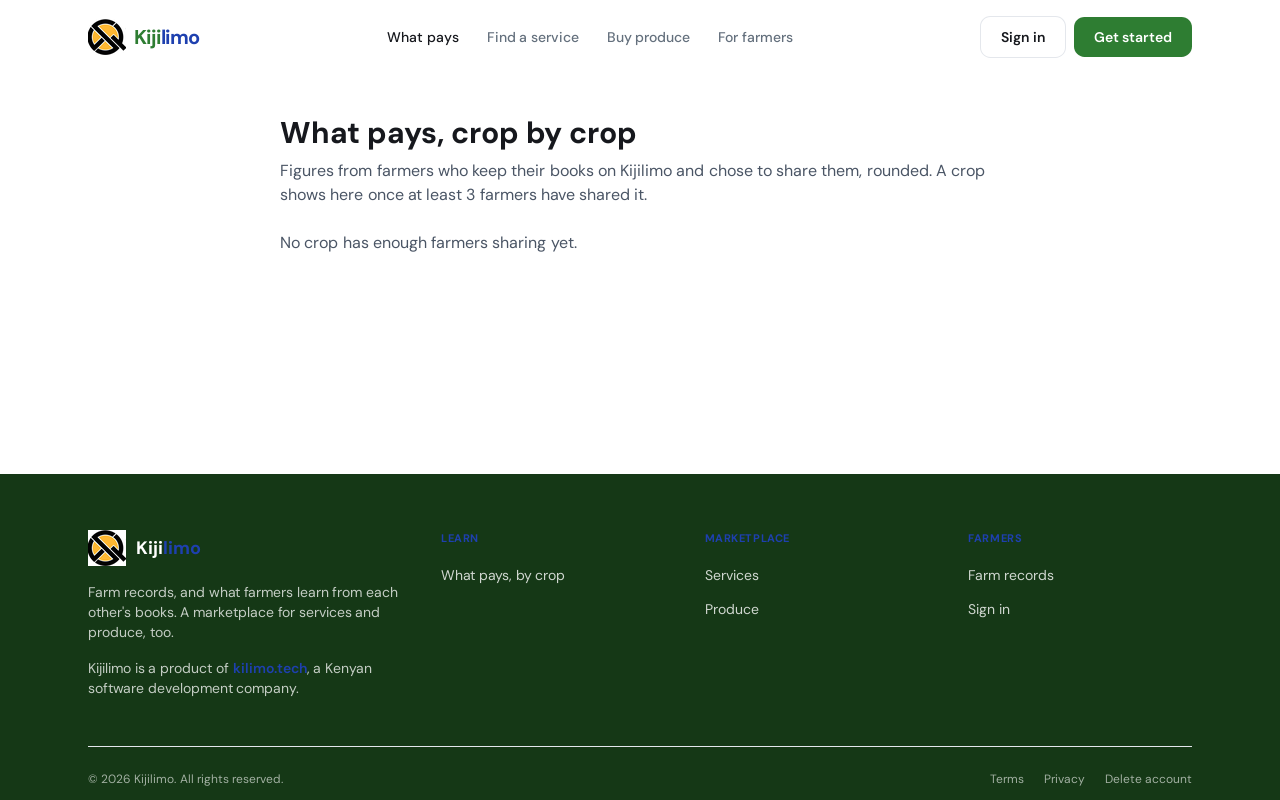
The figures come from farmers who shared them, rounded. A crop shows once at least three farmers have shared it. None has yet.
Find a service lists tractors, vets, transport and more.
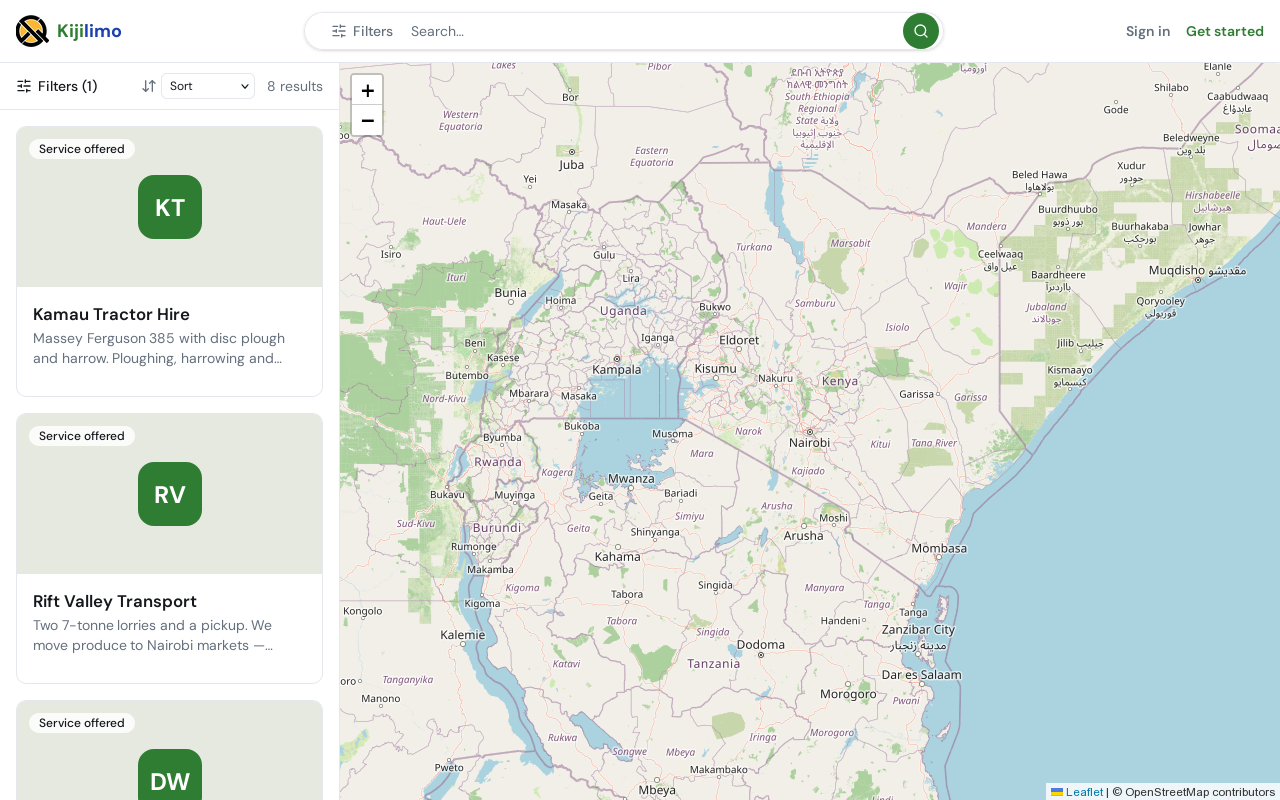
Each card says who they are and what they do.
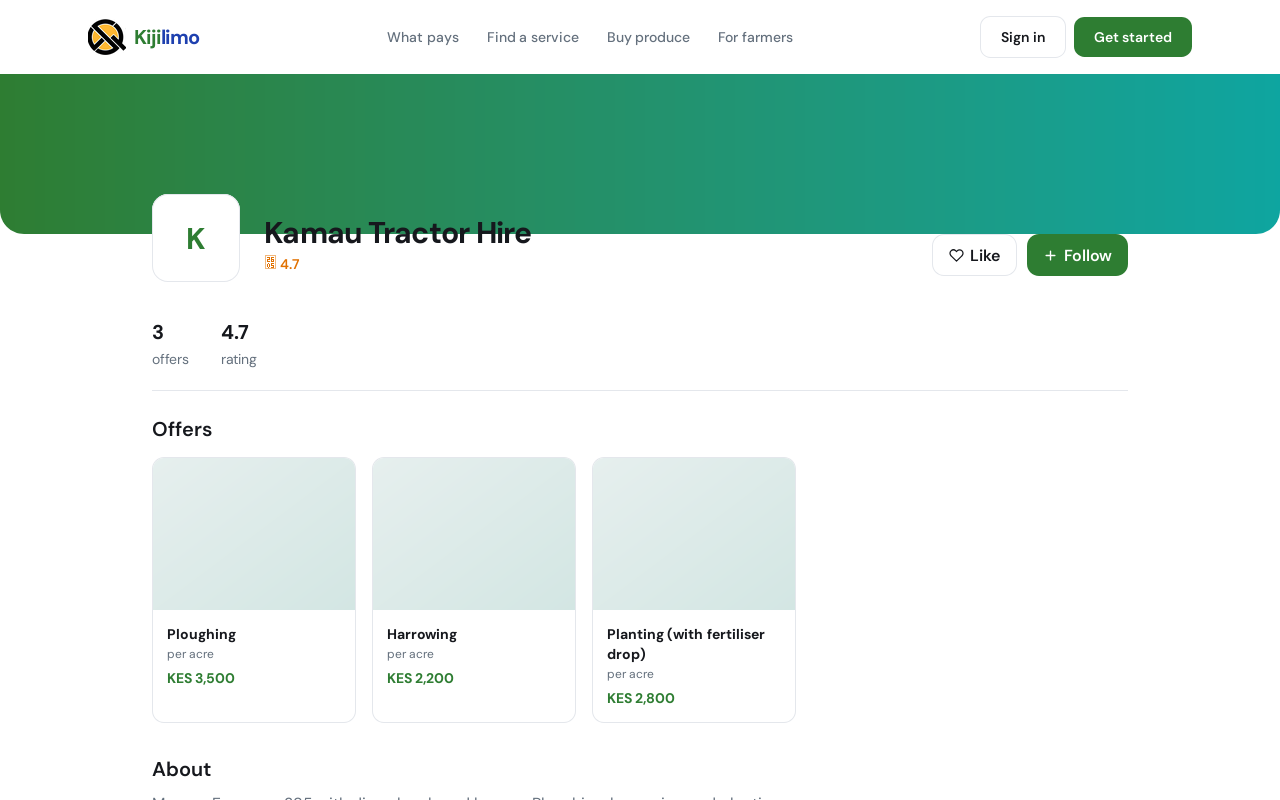
Open one to see its page.
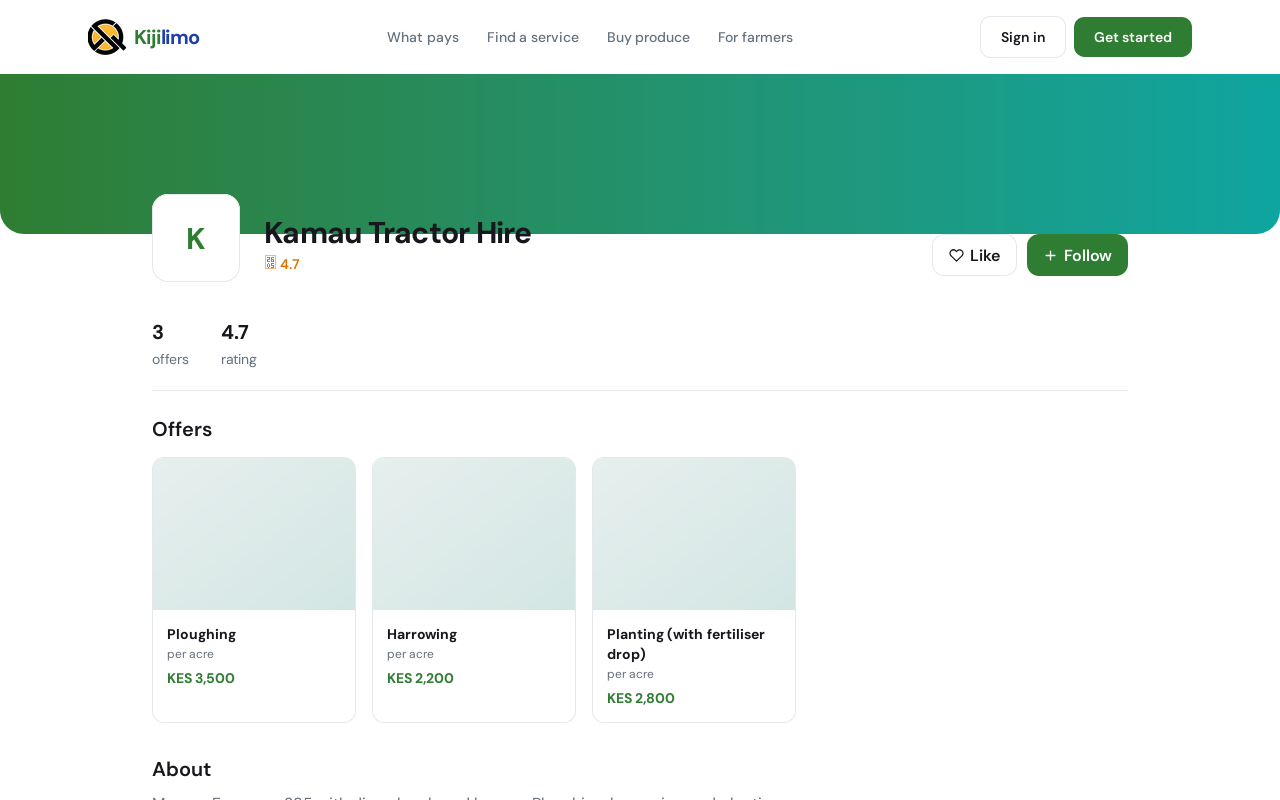
A provider's page shows what they offer and at what rate, their reviews, and how to reach them. You call them directly.
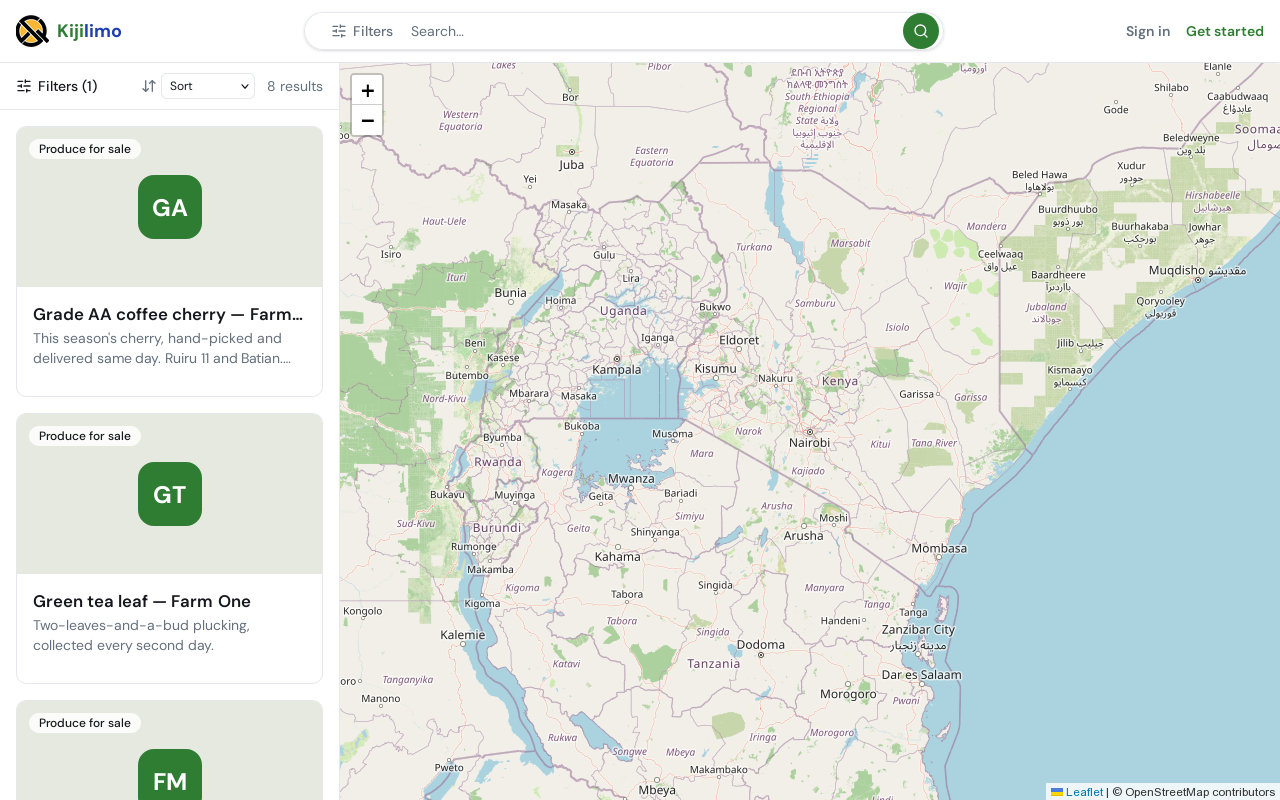
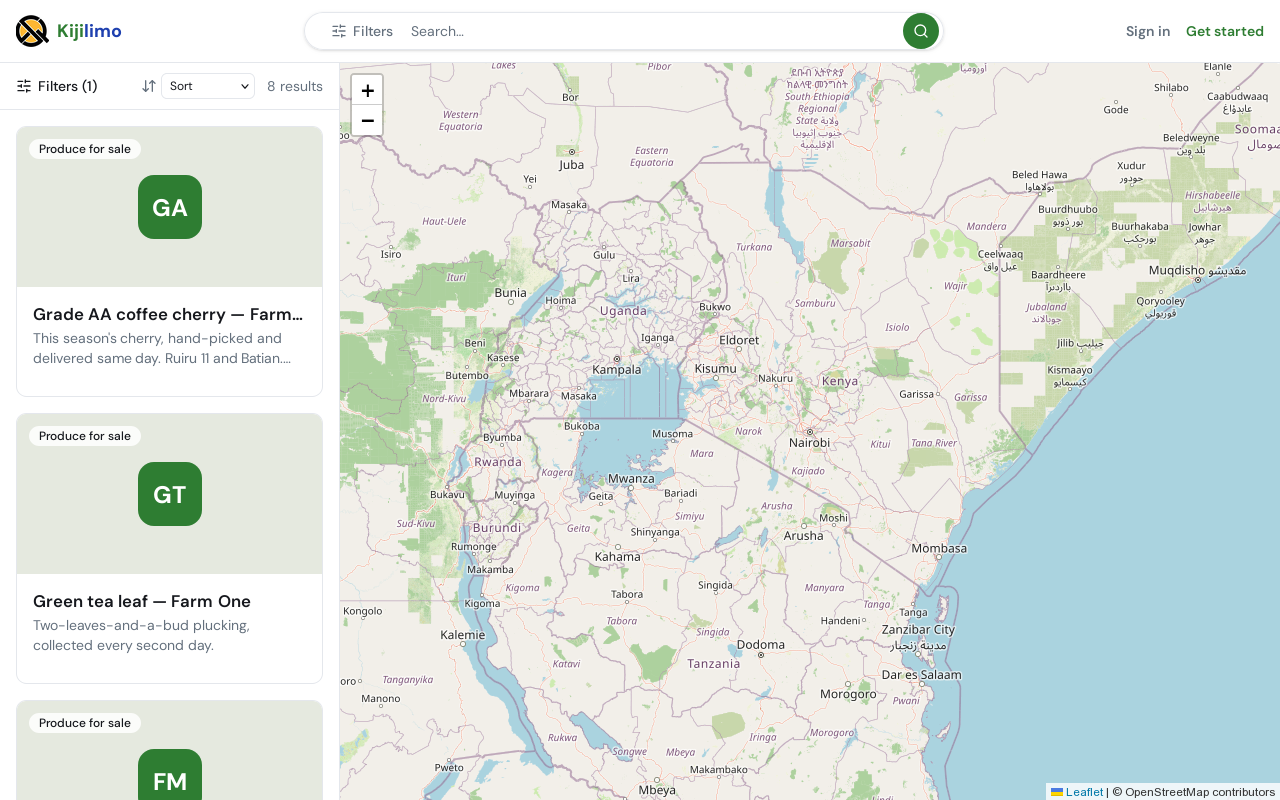
Buy produce lists what farmers have for sale.
To keep your own farm's books, choose Get started. Making your account is in the account guide.
Chapter 2
Your business and its first farm
The first time you sign in, Kijilimo asks you to set up your business.
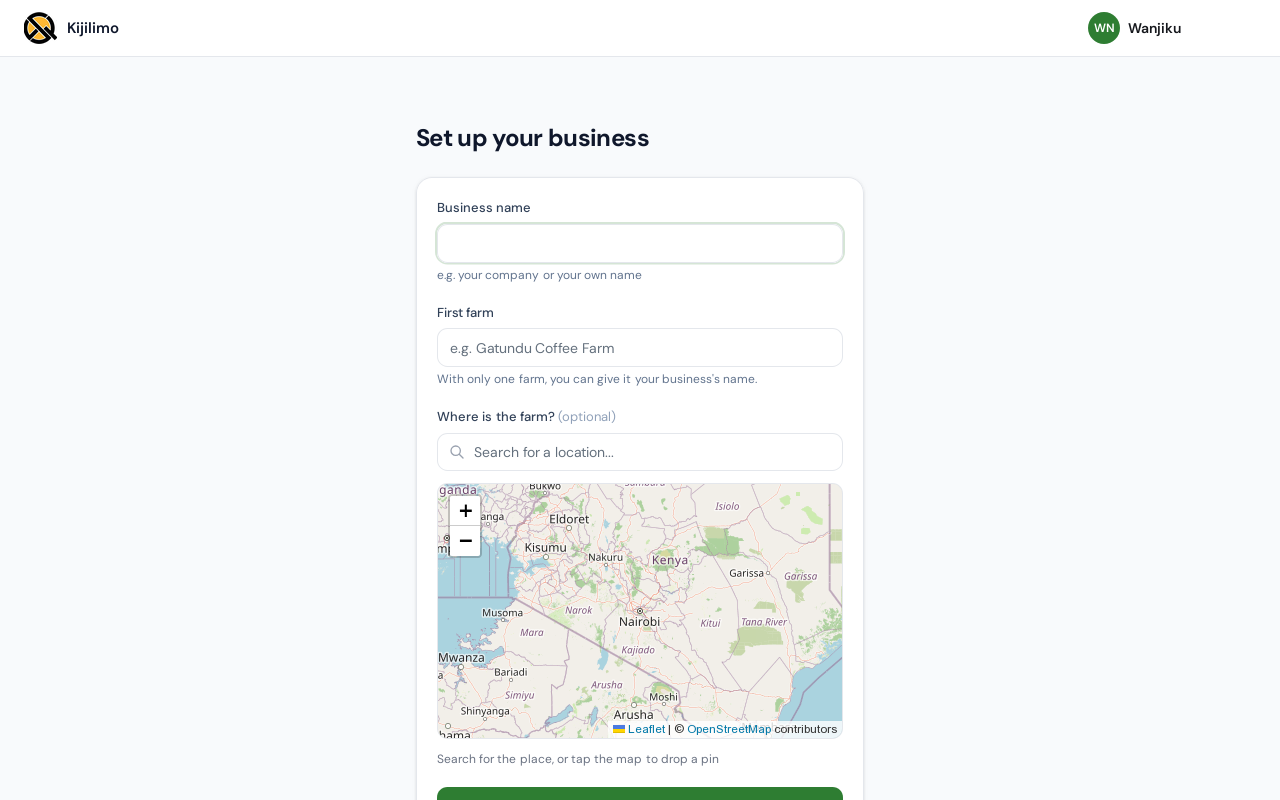
Type the business's name. It can be your company, or your own name.
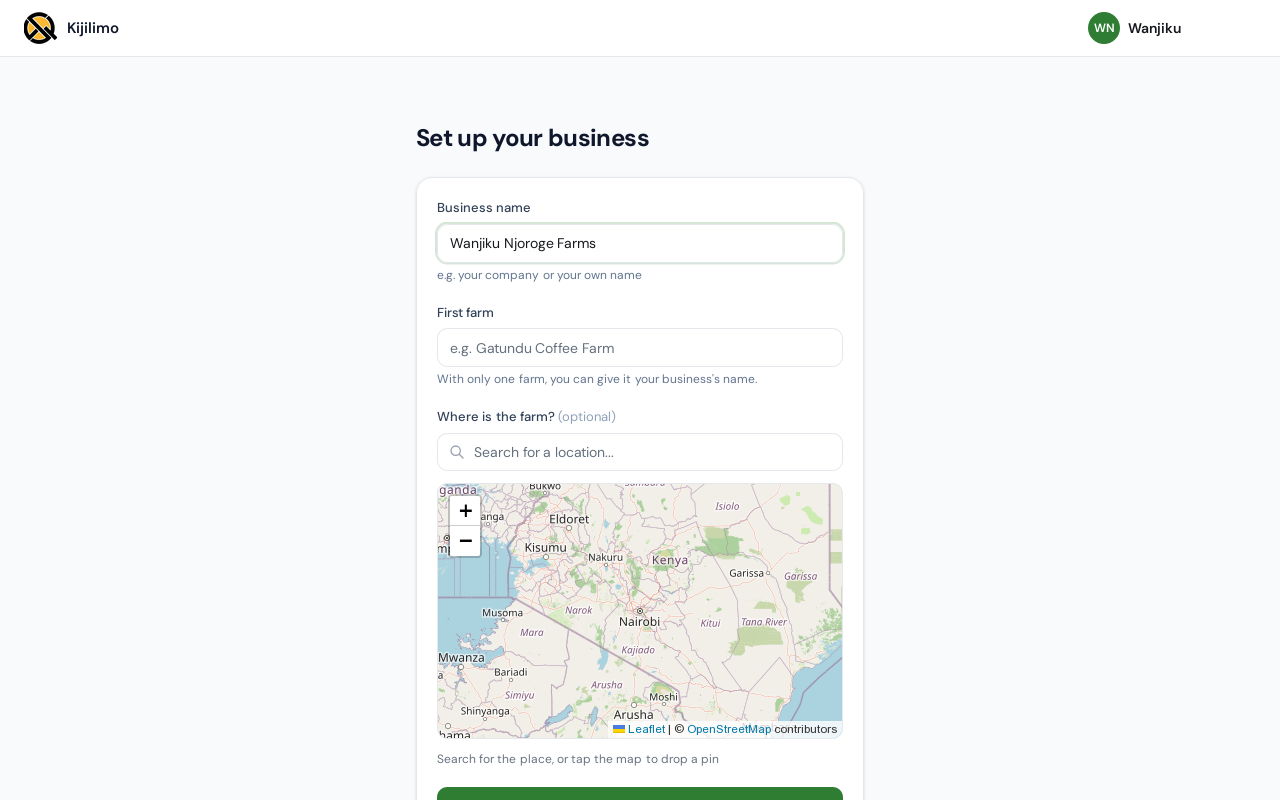
Then the first farm. With only one farm, you can give it the business's name.
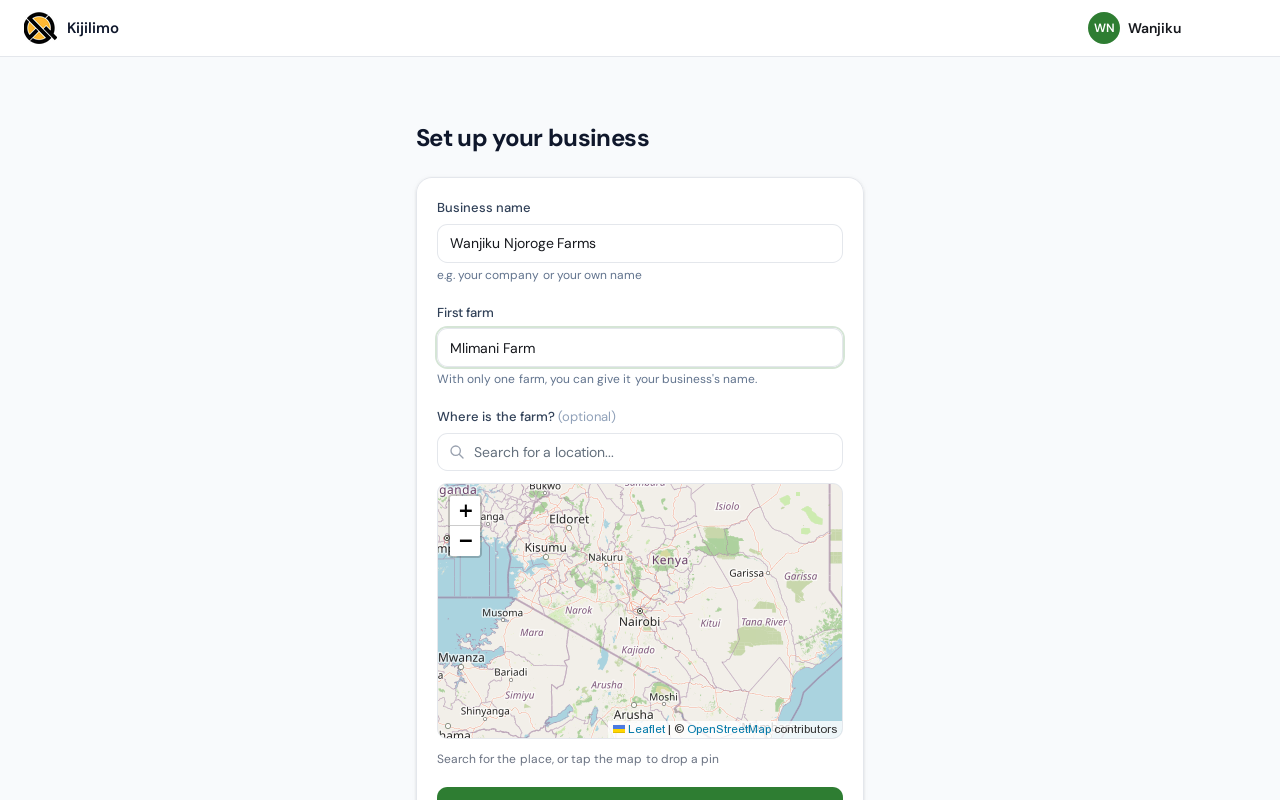
Where the farm is, is optional. Search for the place, or tap the map to drop a pin.
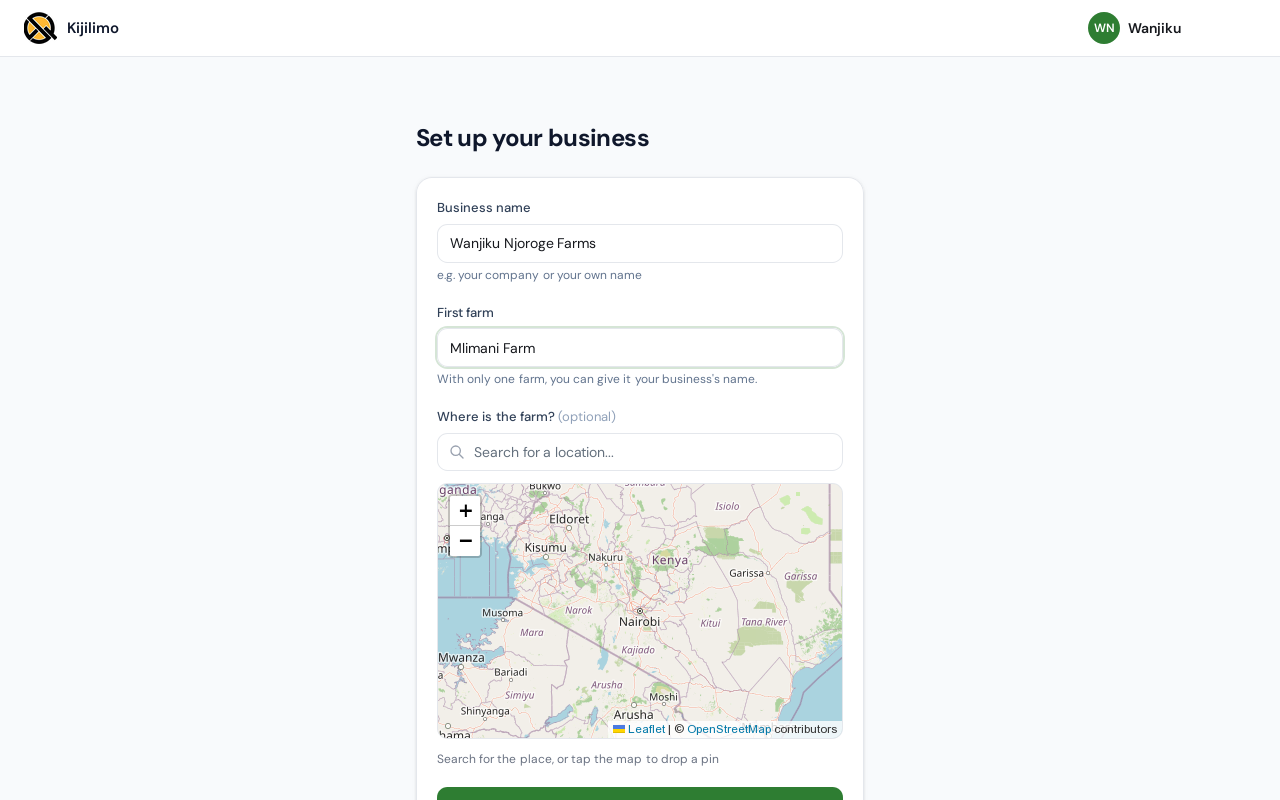
Choose Create farm.
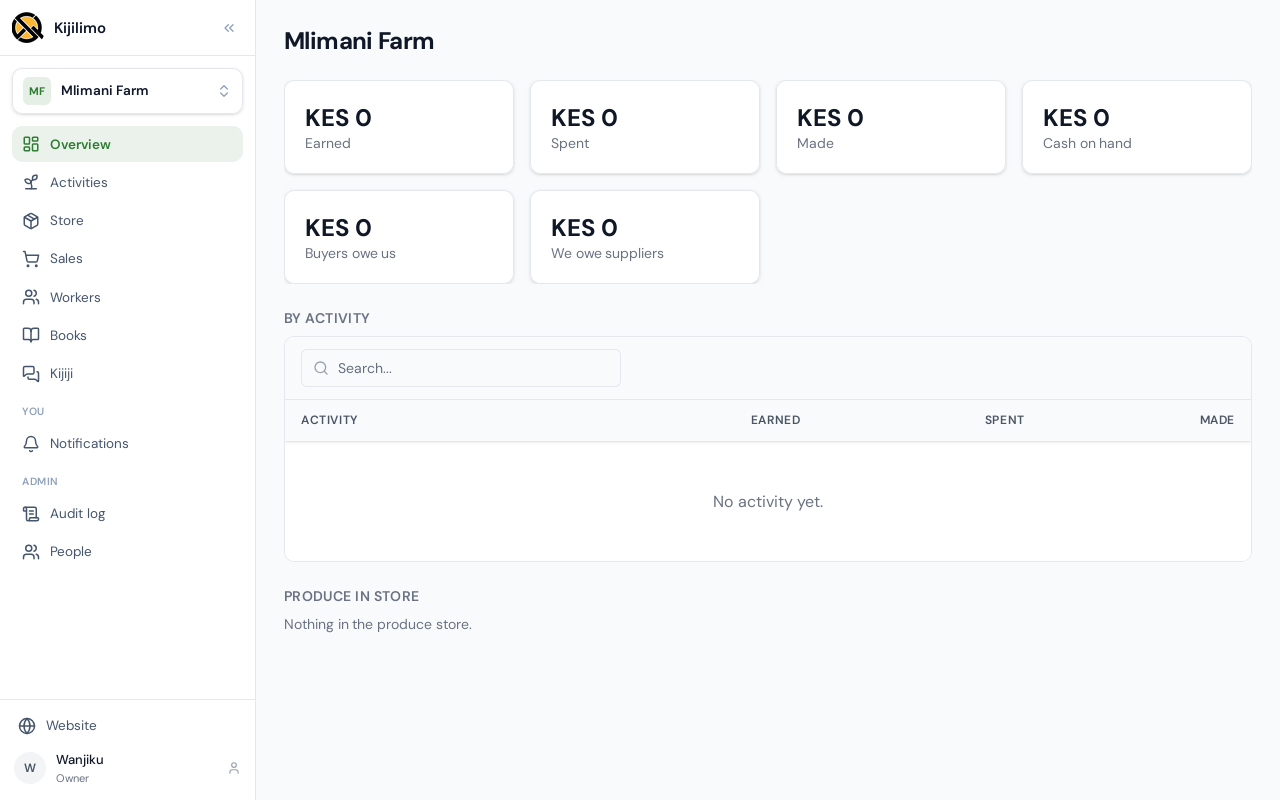
Kijilimo opens on the farm. Its name is at the top of the menu.
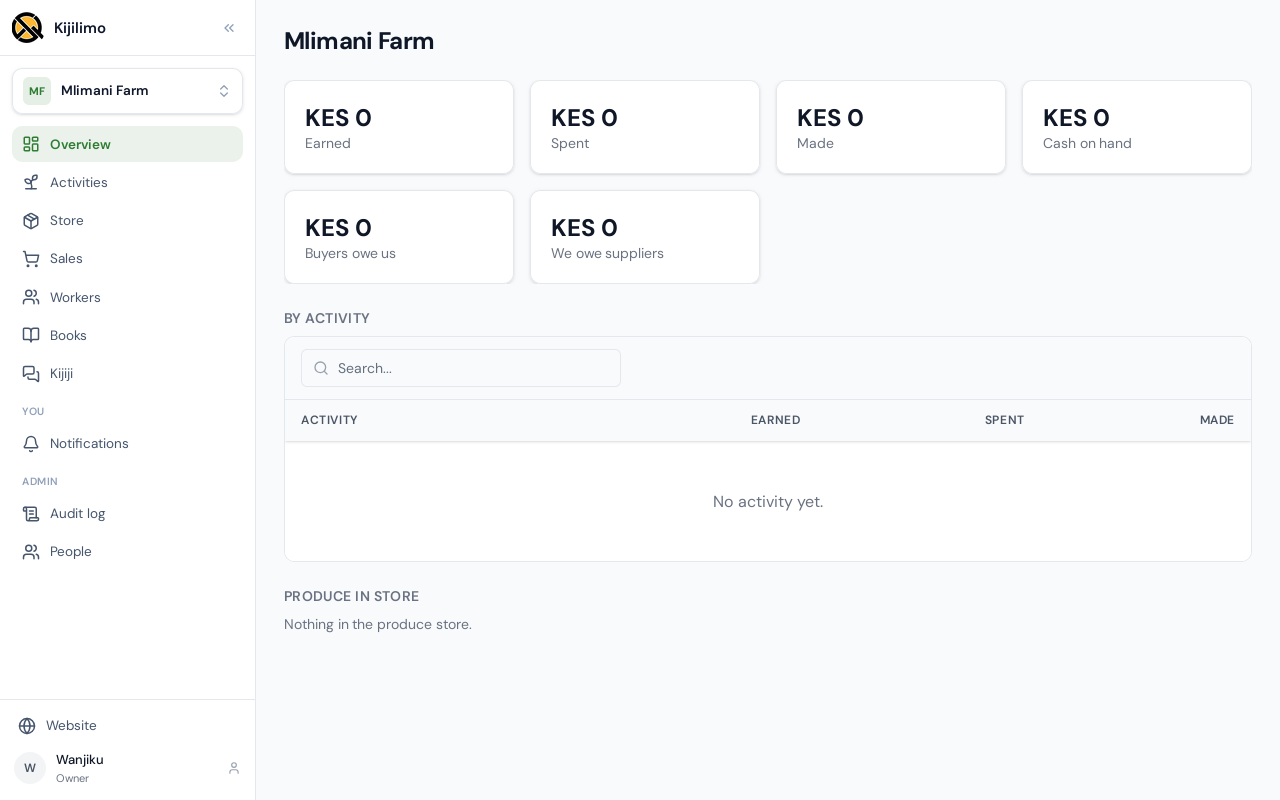
Overview is the farm at a glance. Activities, Store, Sales, Workers and Books hold the farm's work and money. Kijiji is where farmers learn from each other.
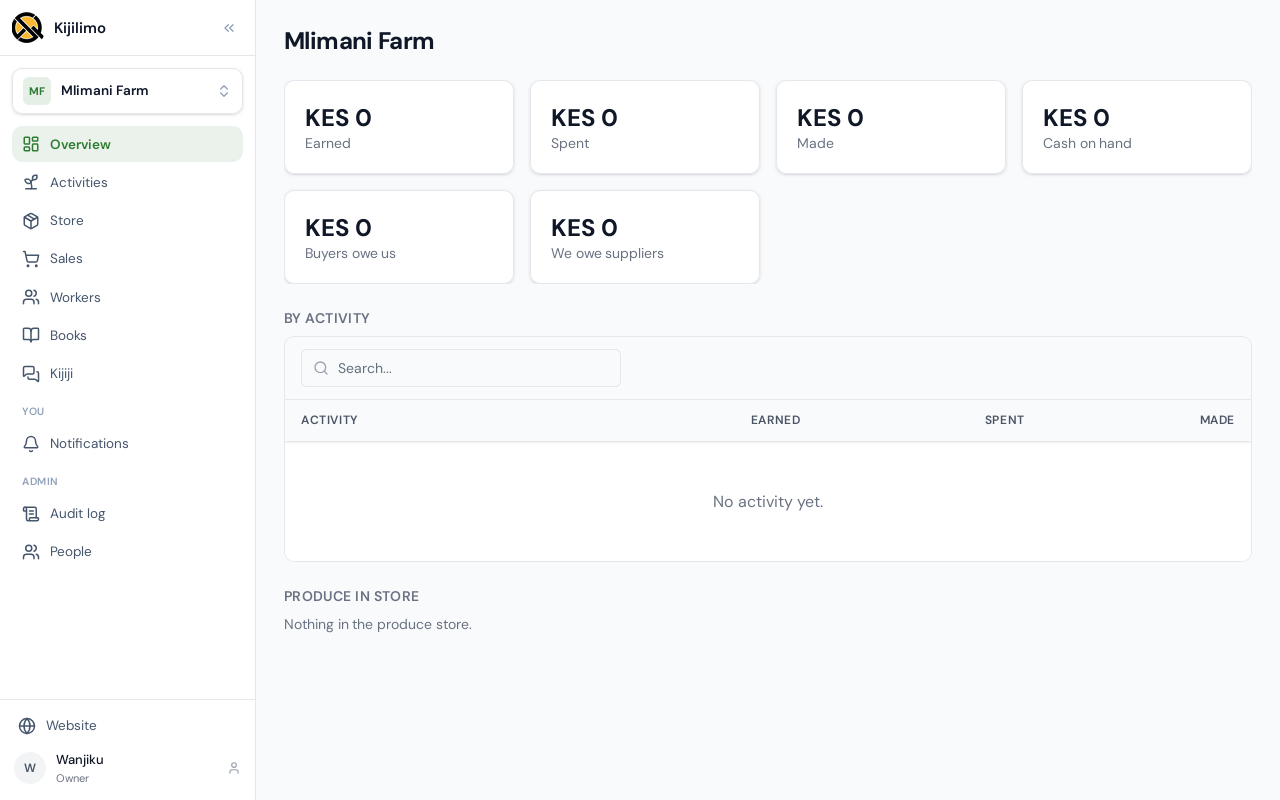
Under You are your notifications. Under Admin, the audit log and the People who work with you.
Chapter 3
Its activities: what it grows or keeps
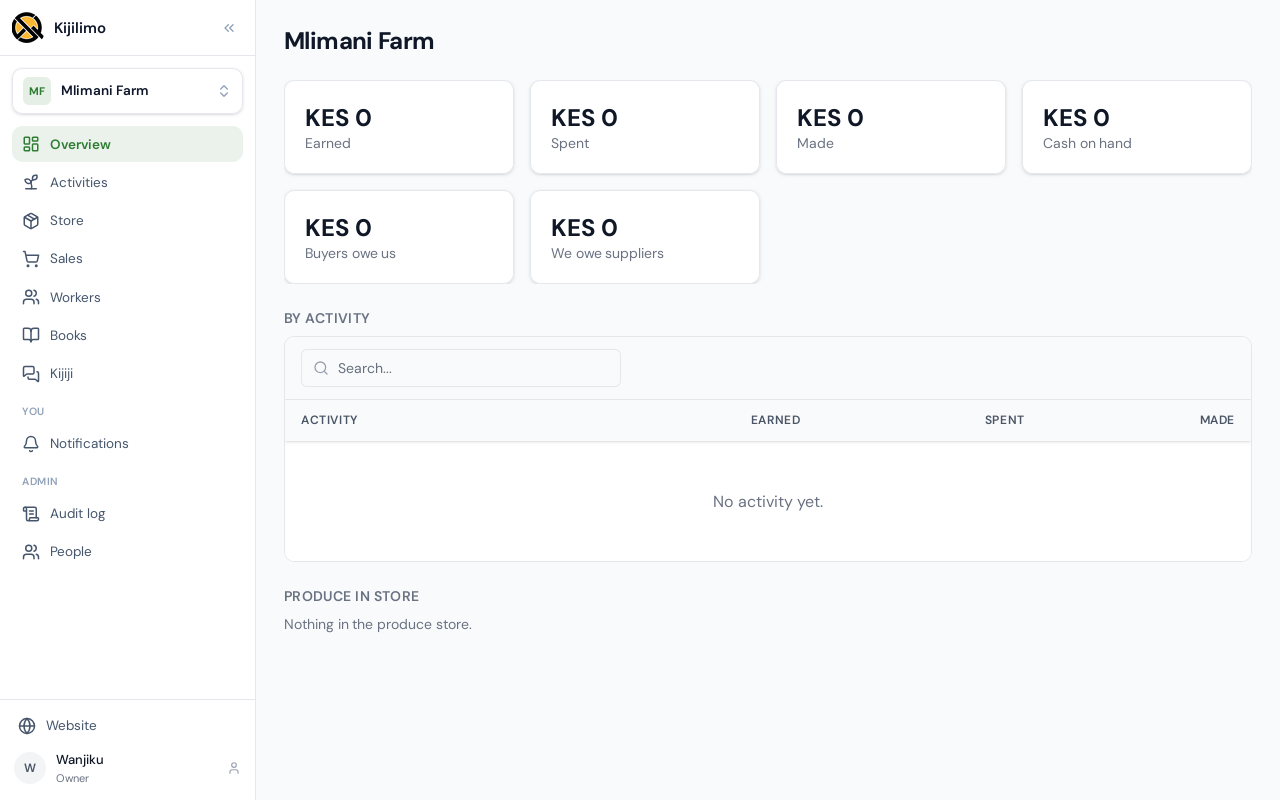
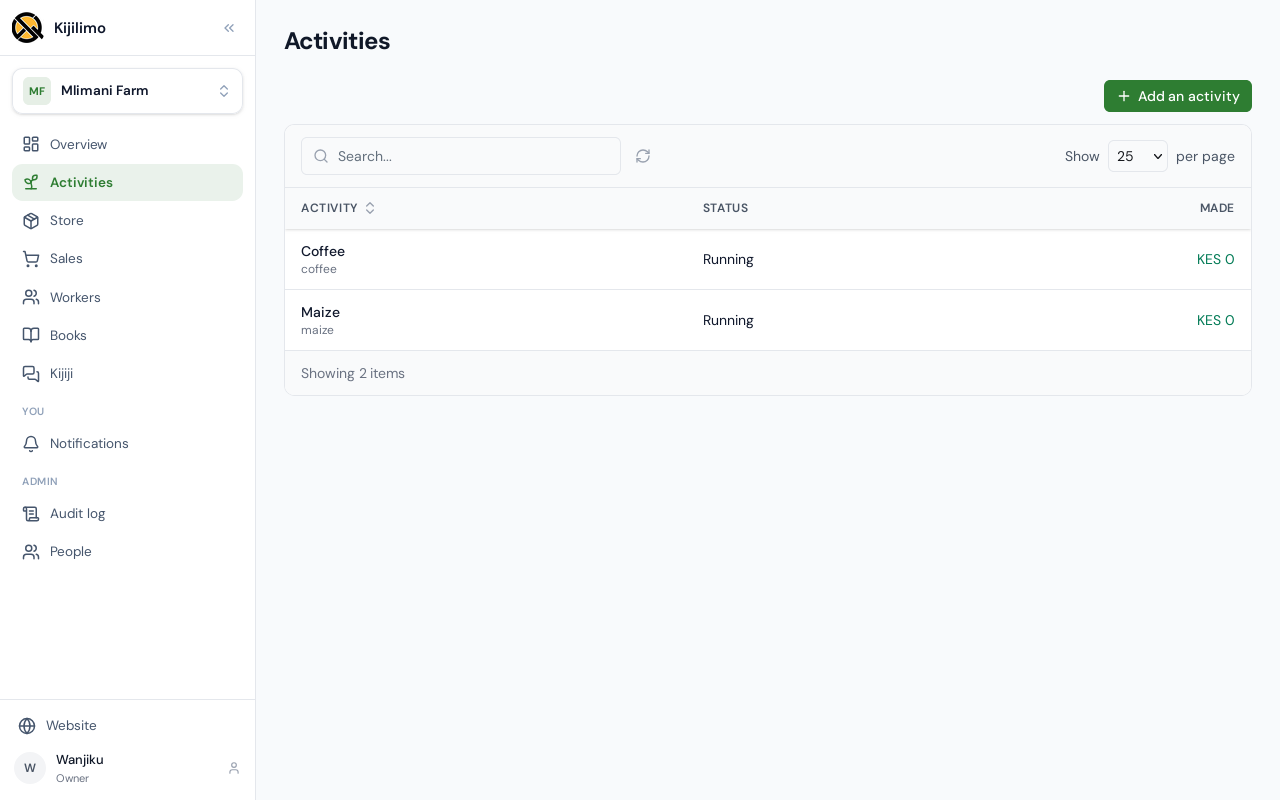
Activities are what the farm does: a crop it grows, or animals it keeps. The farm's overview shows what each one earned, spent and made.
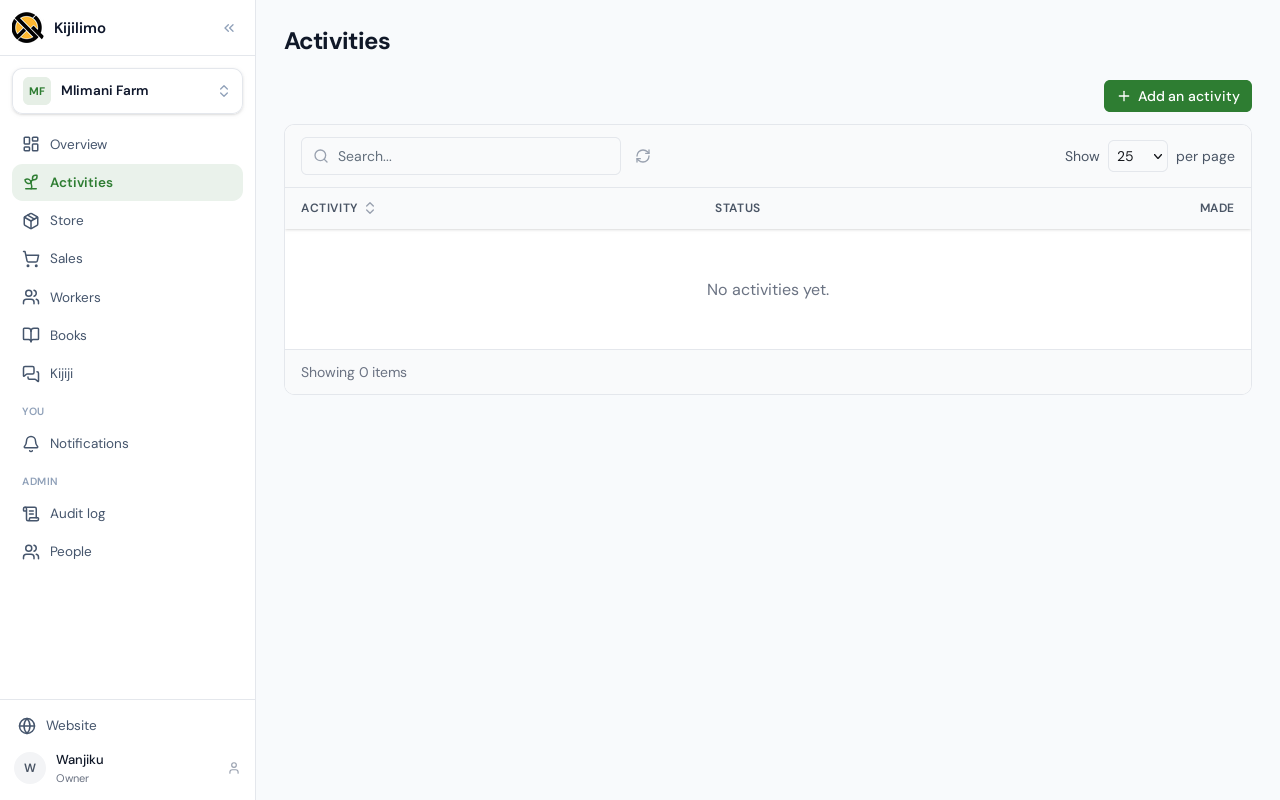
Choose Add an activity.
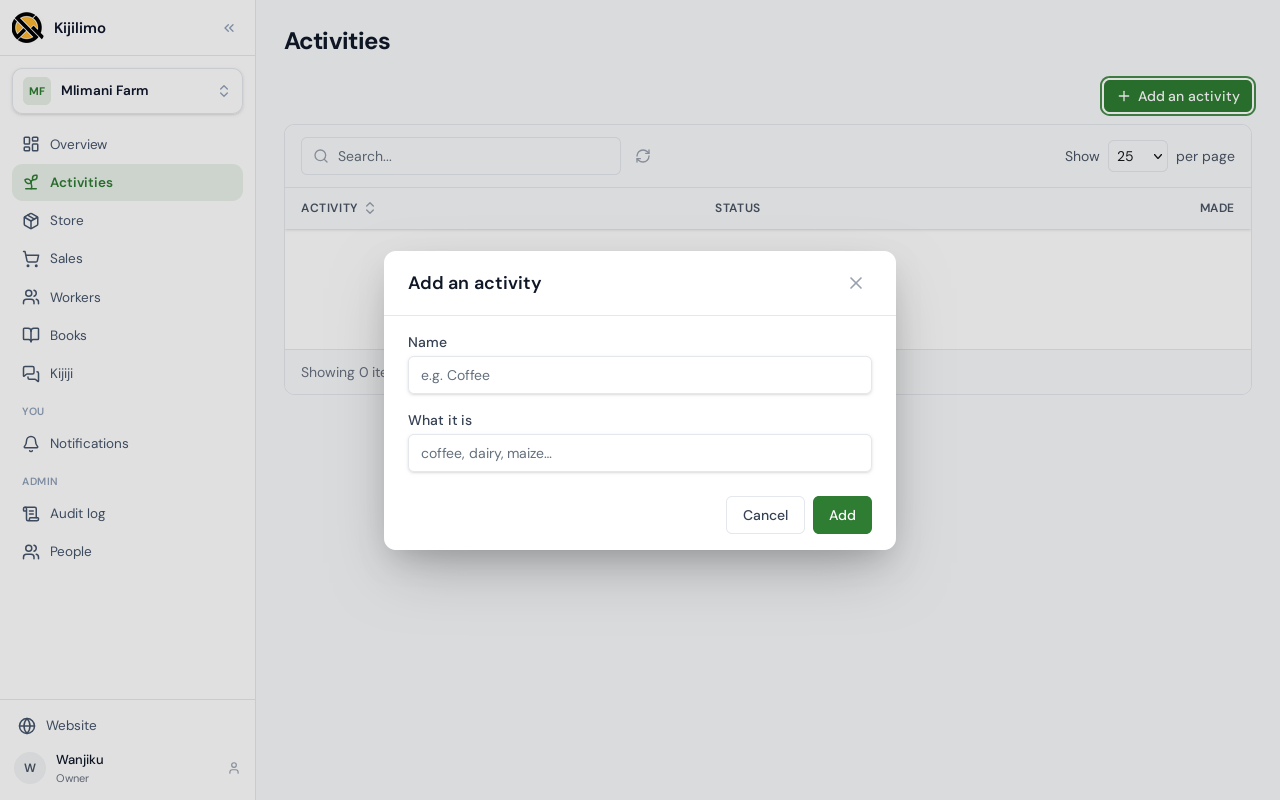
Give it a name, here Coffee, and say what it is.
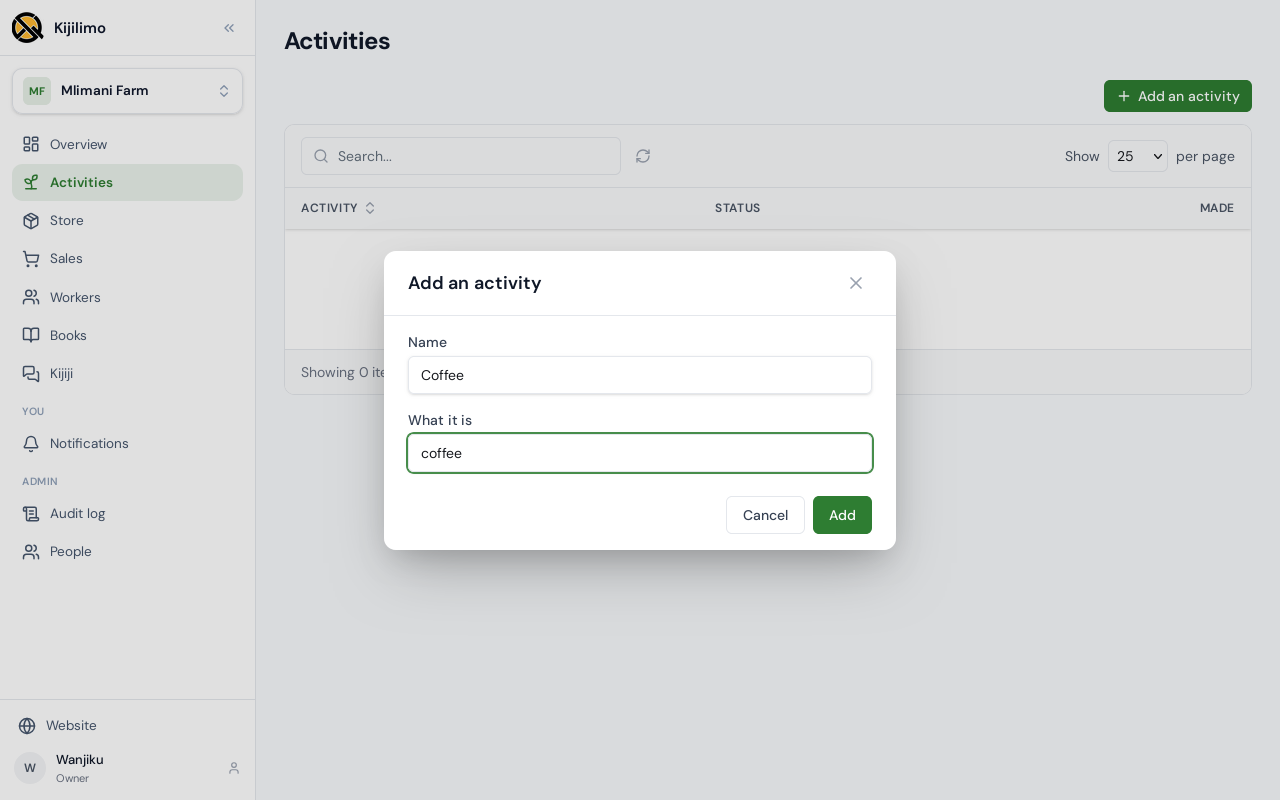
Choose Add.
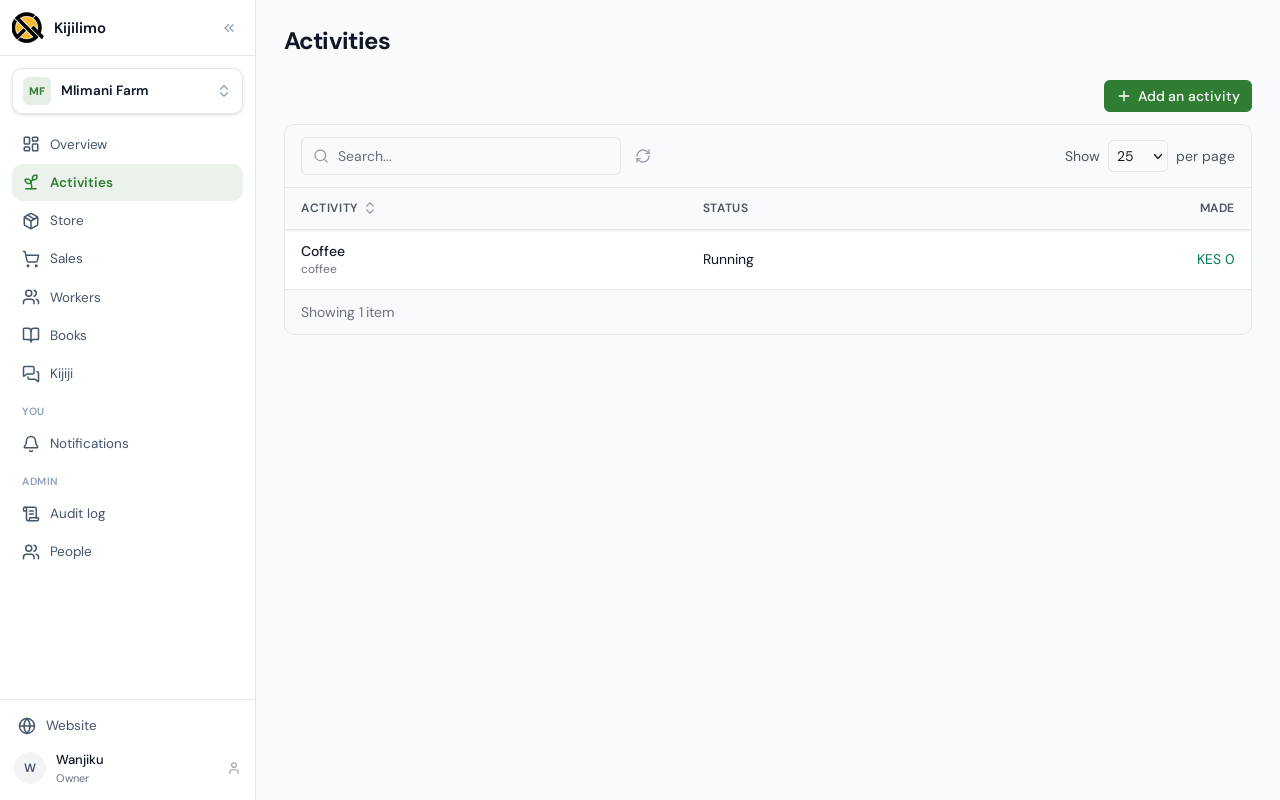
Add each of the farm's activities the same way. Maize next.
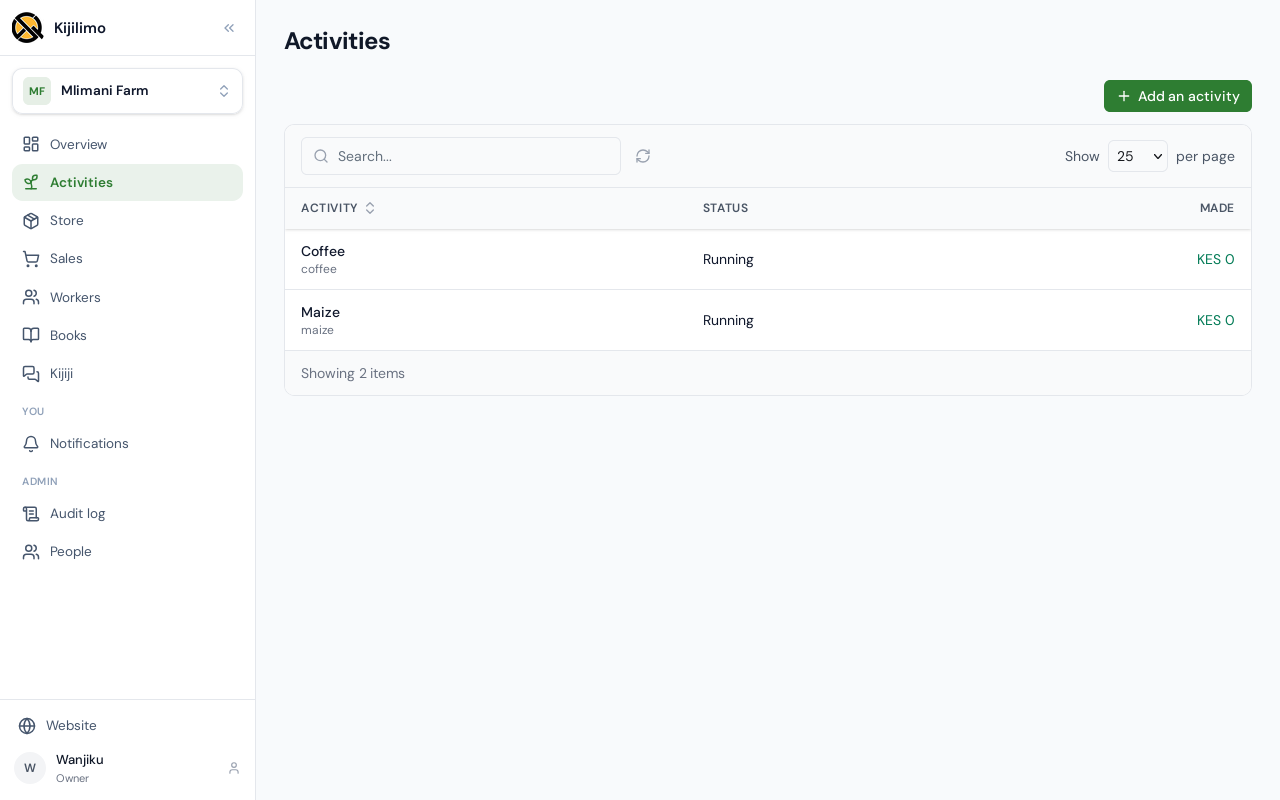
Both are on the list now. As the farm sells and spends, each shows what it made.
Chapter 4
The people who work the land, and what they're owed
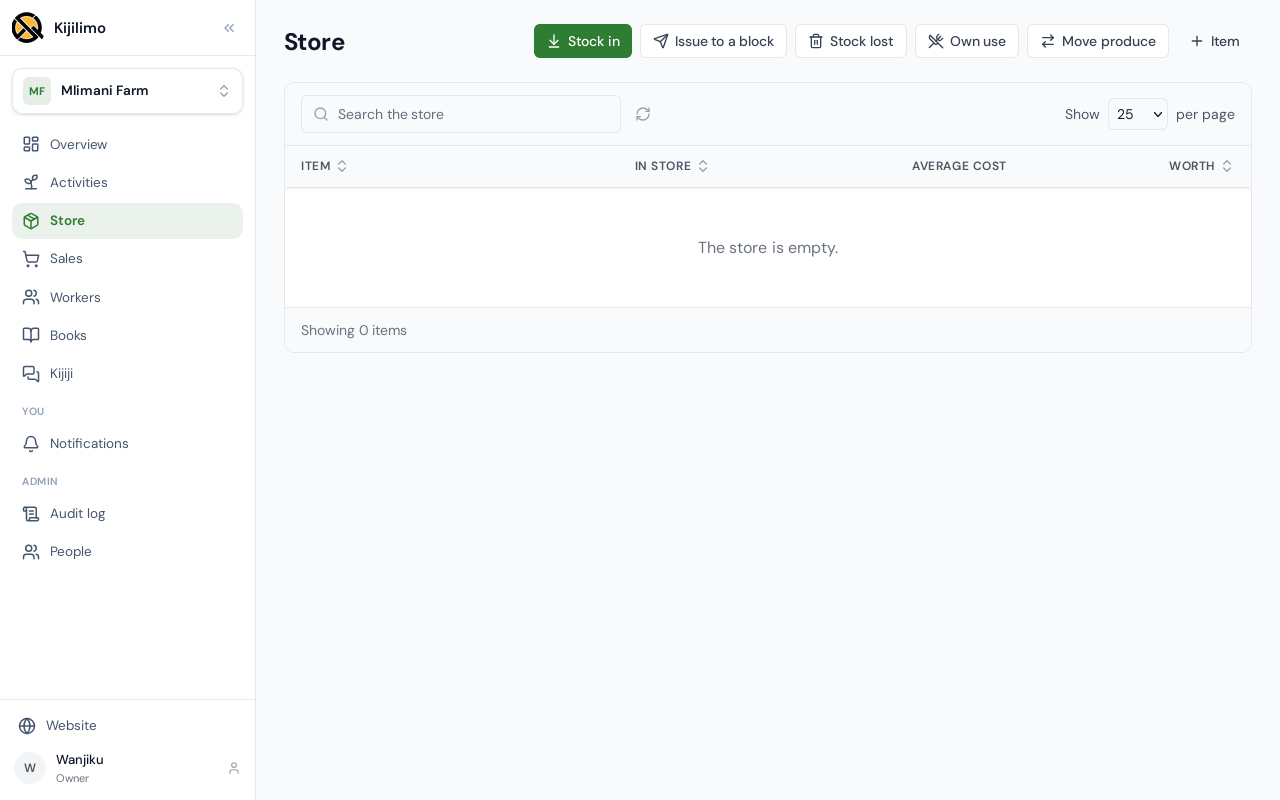
Pickers bring in produce, so the store needs to know it first. On the Store page, choose Item.
Name it, here Coffee cherry. It is produce: something the farm grows and sells. It is counted in kilos.
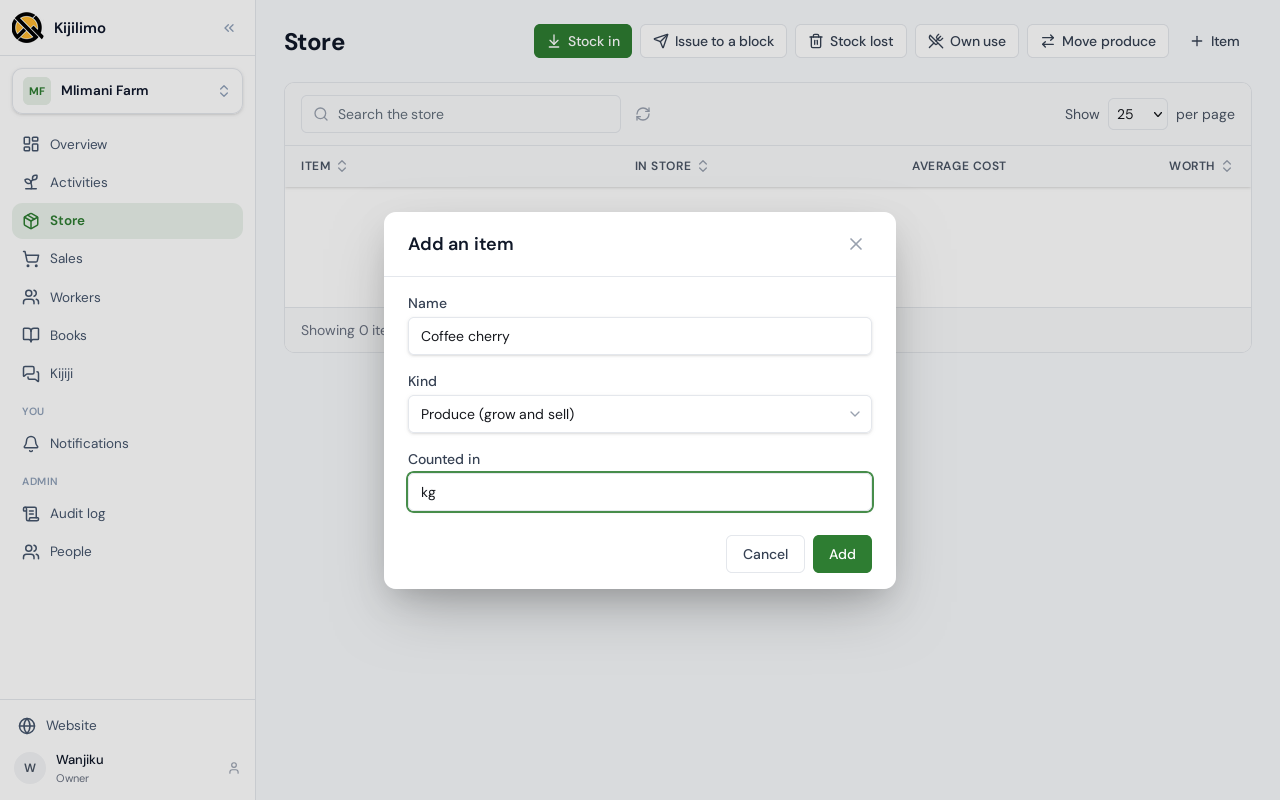
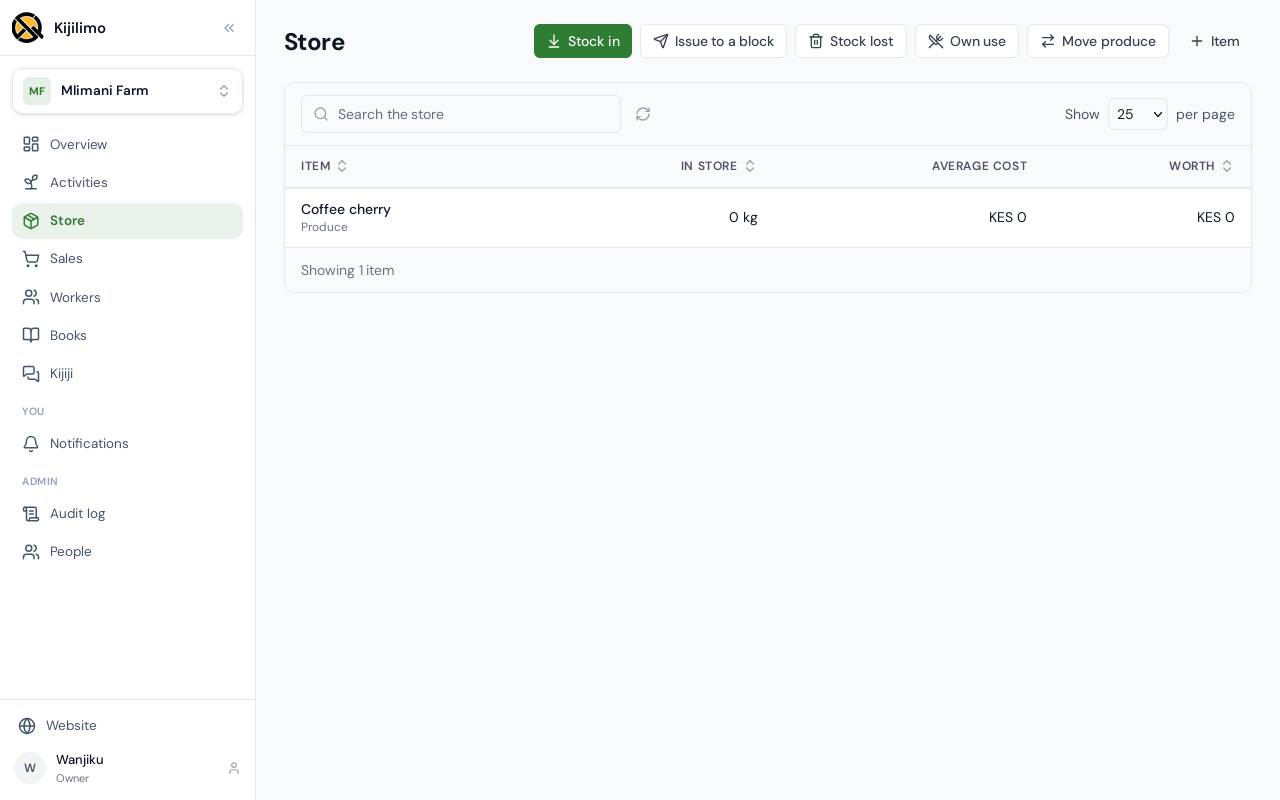
Choose Add.
The Workers page holds the people, the tasks they are paid for, and what the farm owes them.
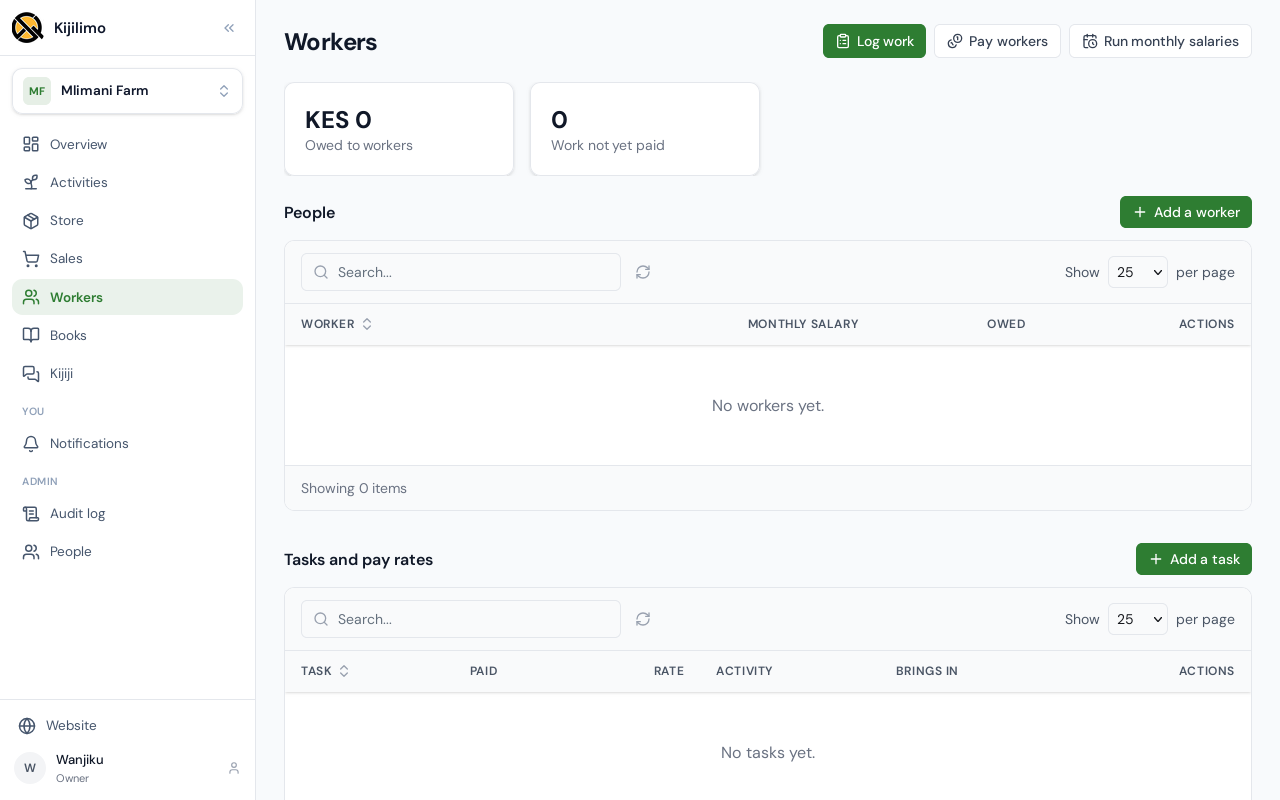
Choose Add a worker. A name and a phone number are enough.
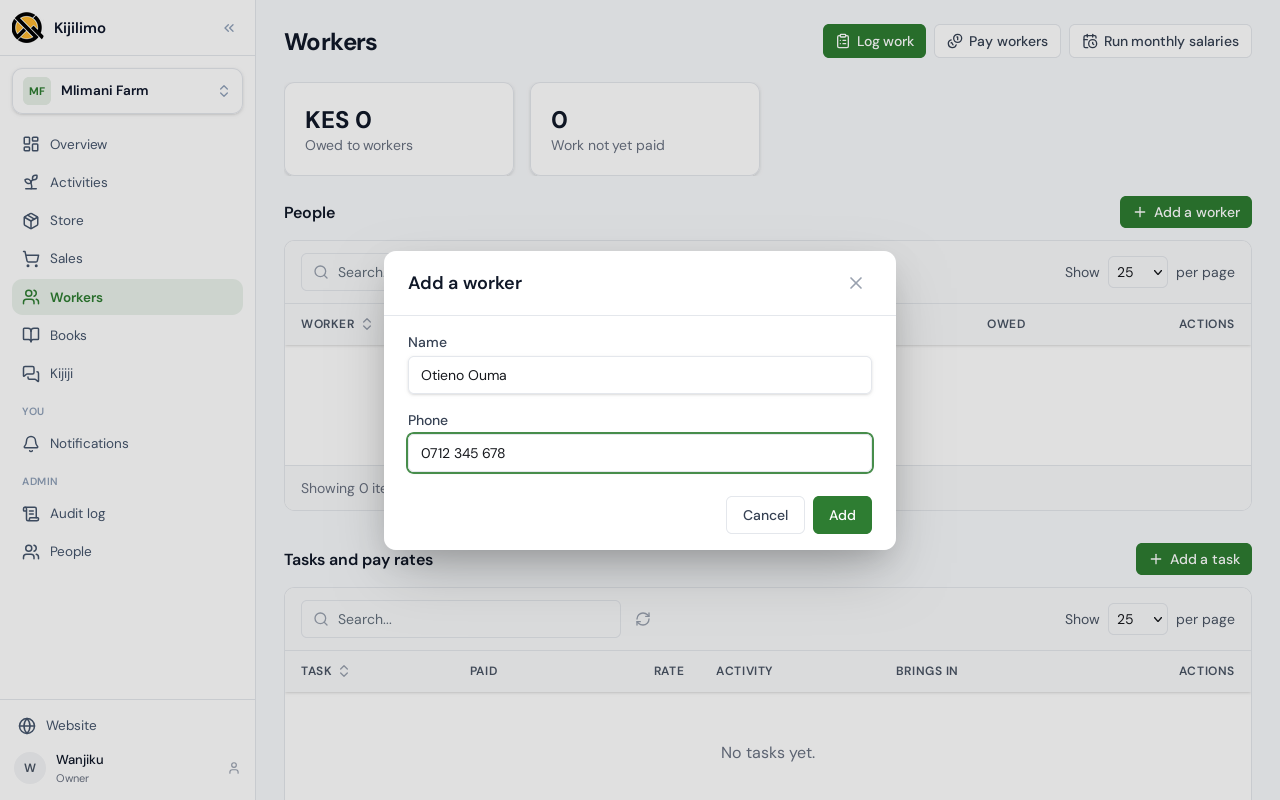
Choose Add.
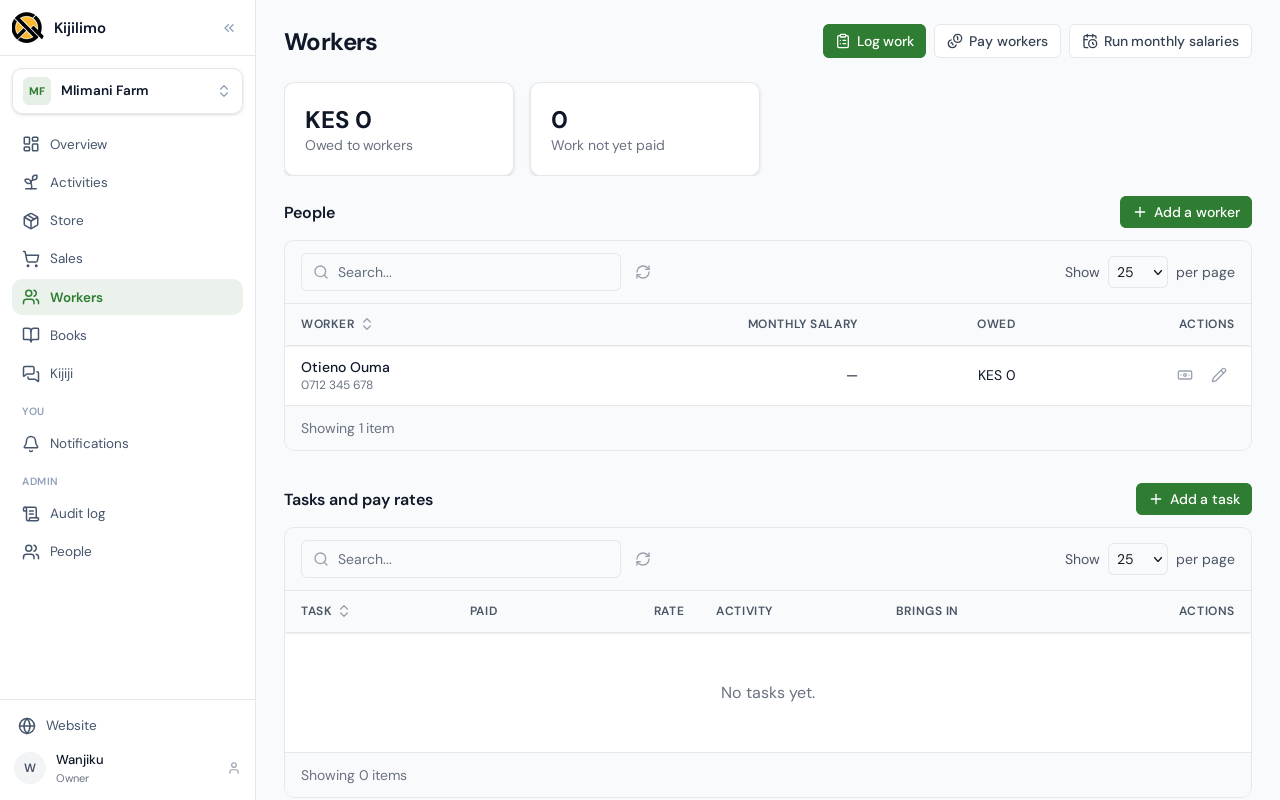
Next, the task they are paid for. Choose Add a task, and name it: Coffee picking.
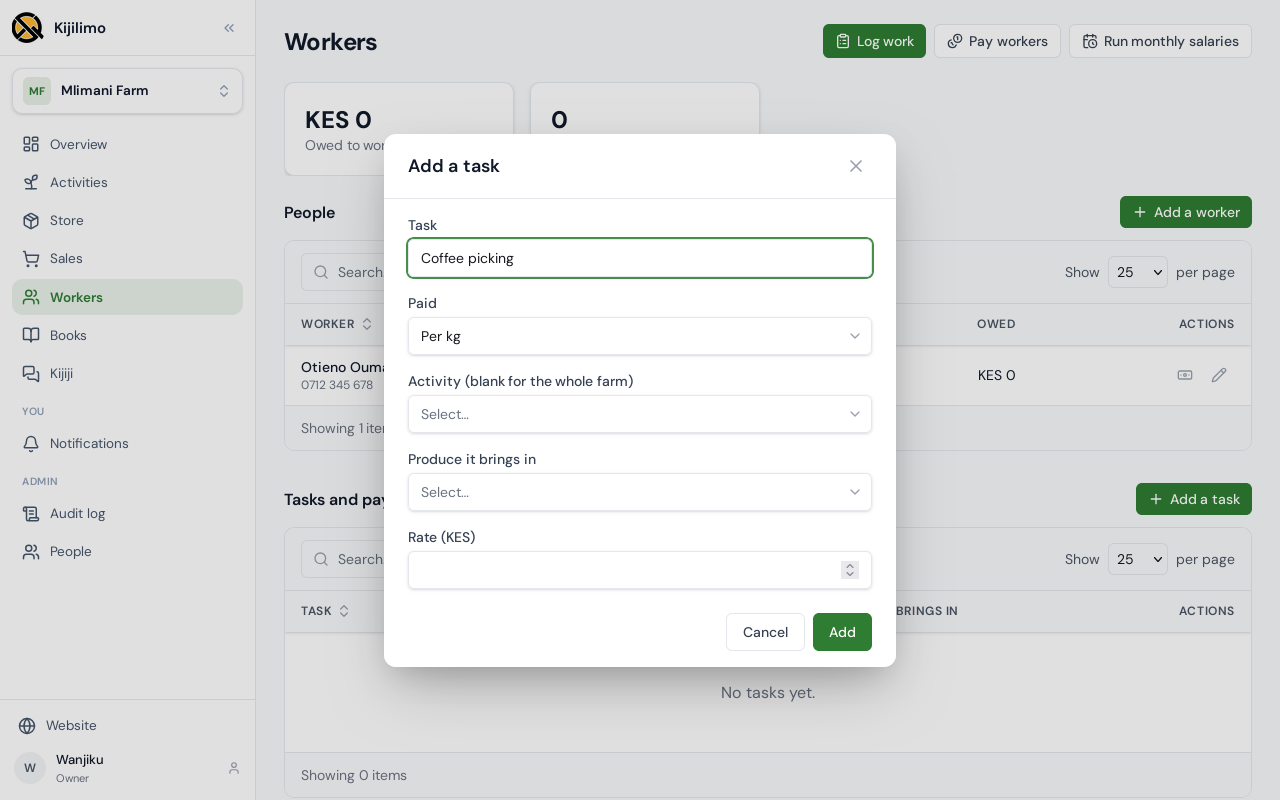
Picking is paid by the kilo. Other tasks can be paid by the day, by the tree, or a fixed amount.
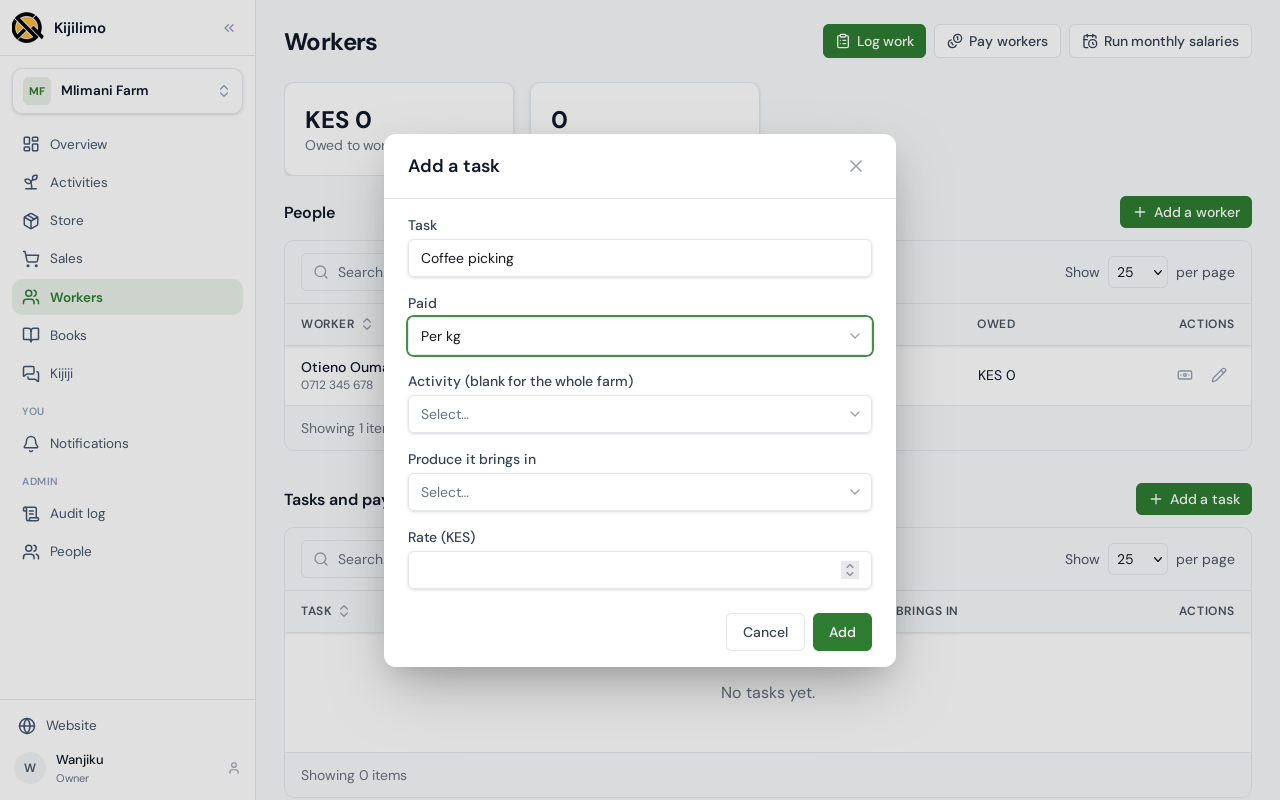
It belongs to the Coffee activity, and brings Coffee cherry into the store.
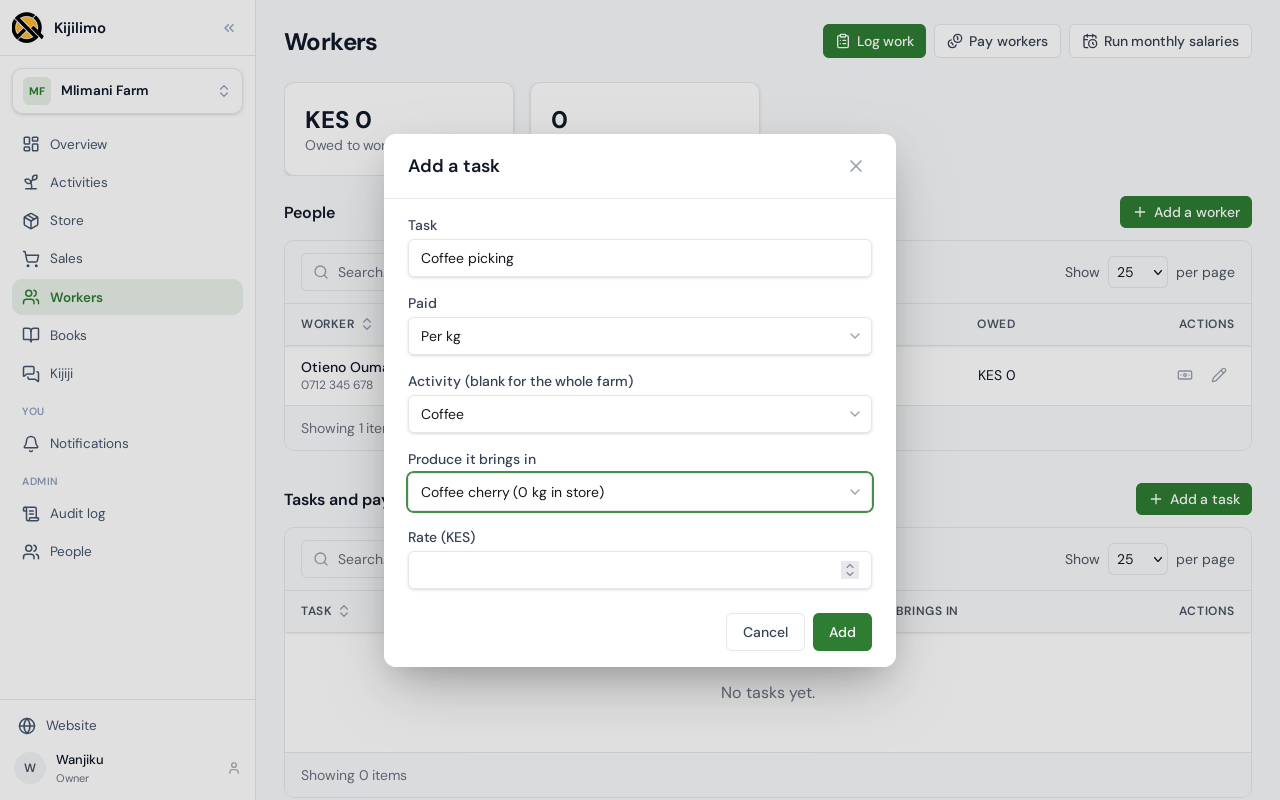
The rate is ten shillings a kilo. Choose Add.
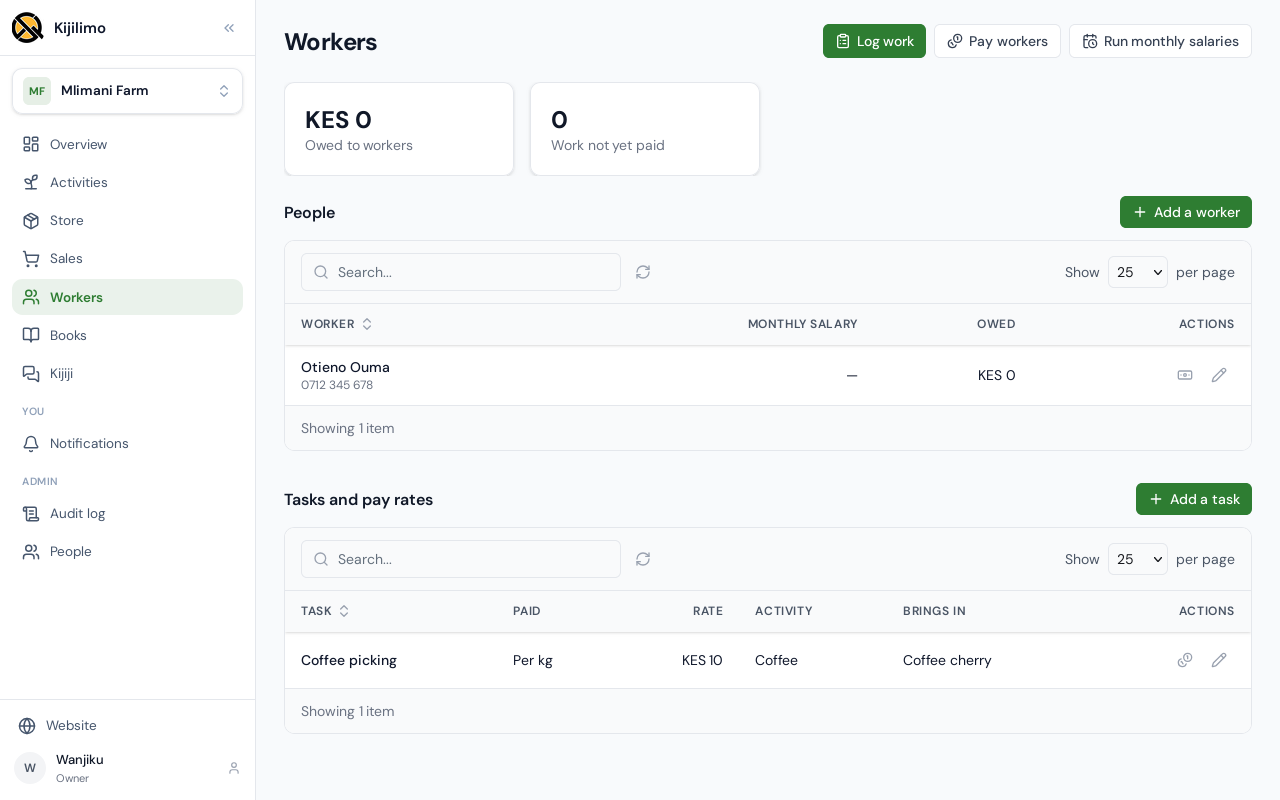
At the end of the day, choose Log work.
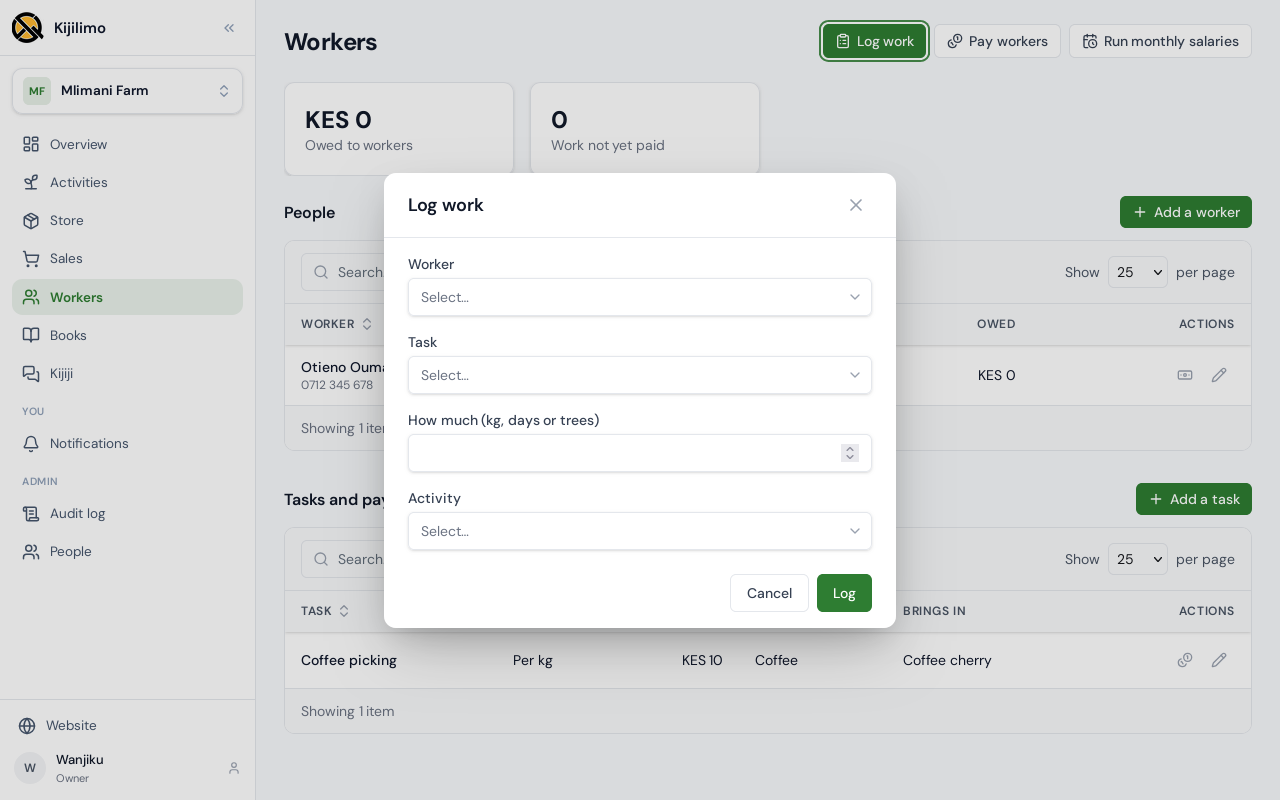
Choose the worker and the task, and how much: here 42 kilos.
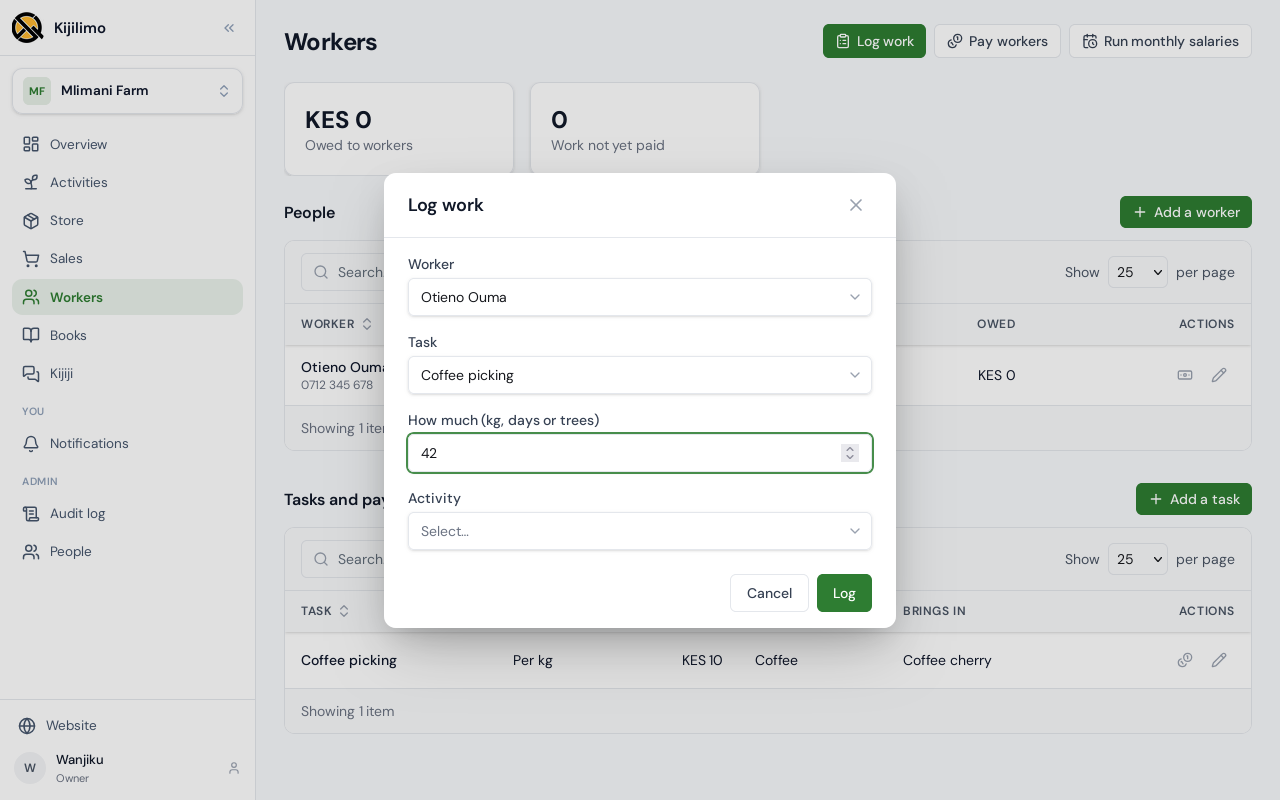
Choose Log.
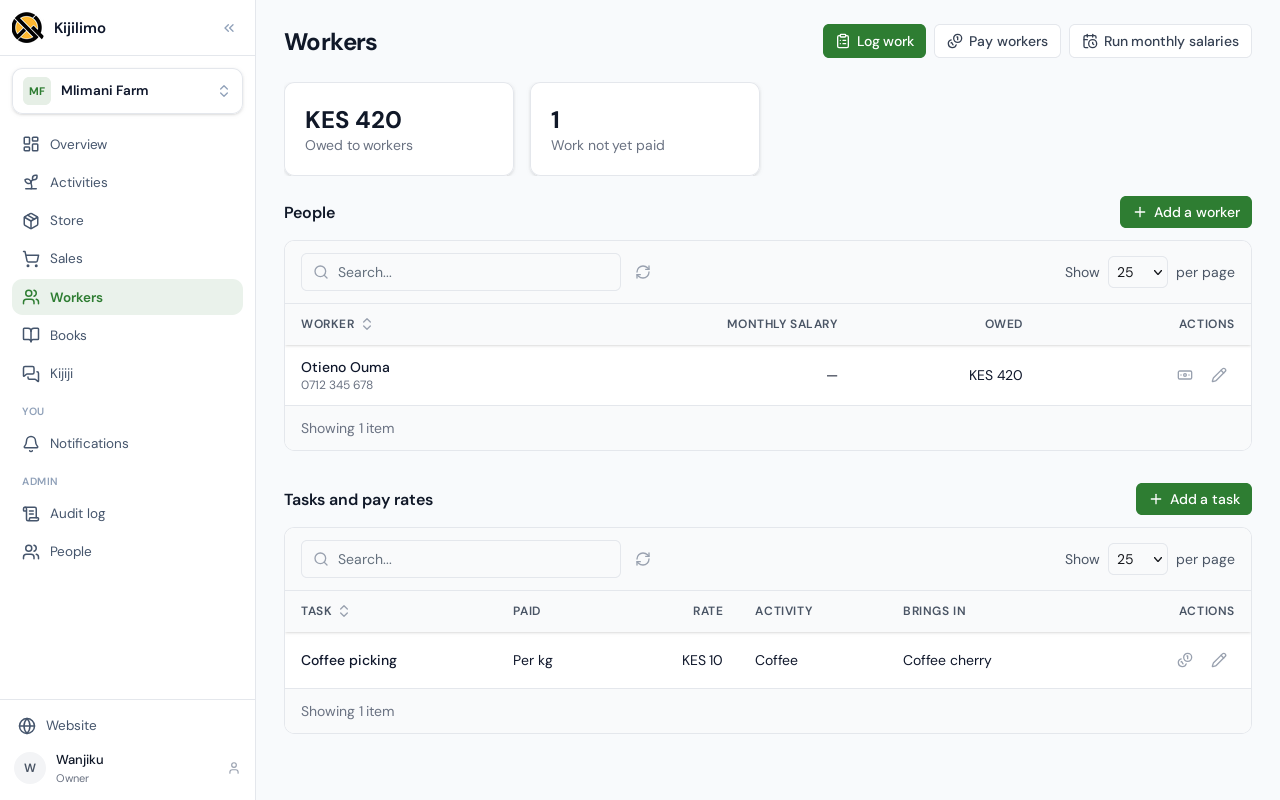
What the farm owes its workers goes up by the pay for that work, and the cherry is in the store.
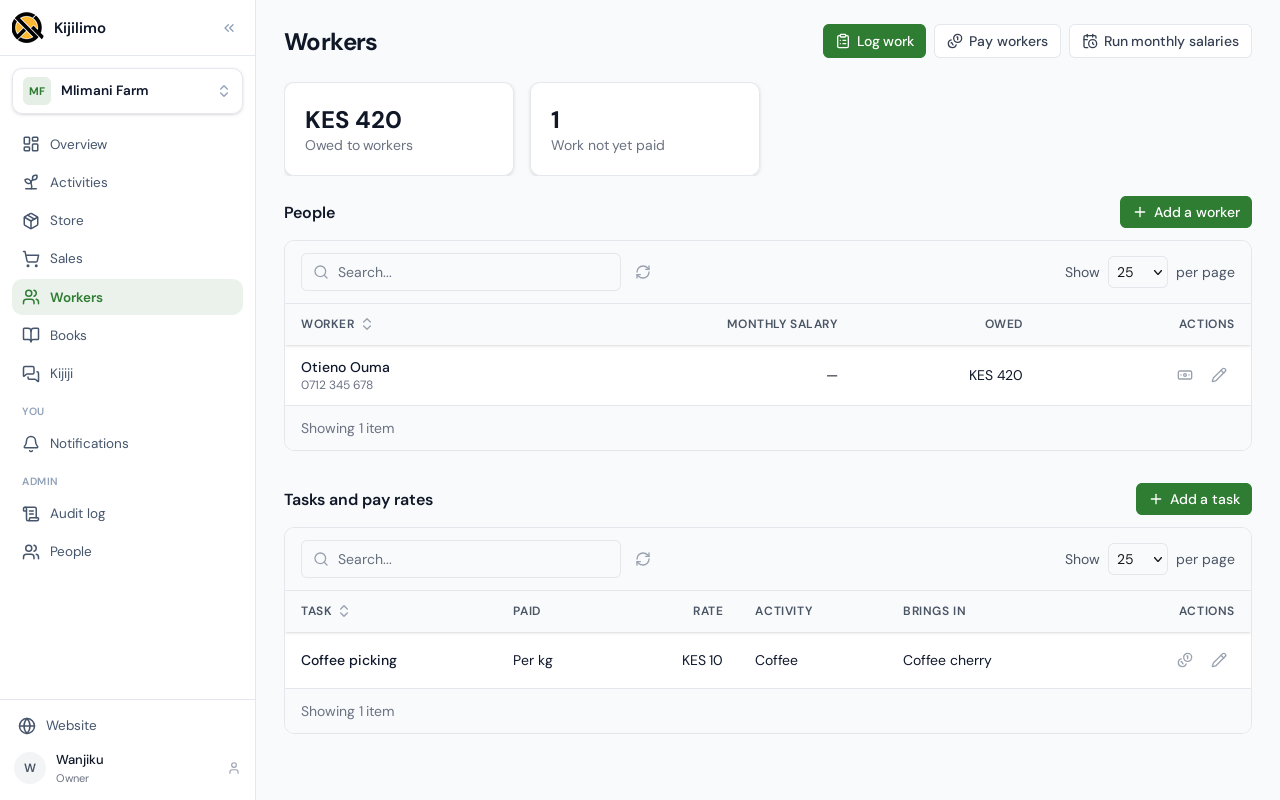
When you pay them, choose Pay workers. Monthly staff are paid with Run monthly salaries.
Chapter 5
What the farm holds, and selling it
The Store shows what the farm holds. The 42 kilos of coffee cherry picked in the last chapter are here.
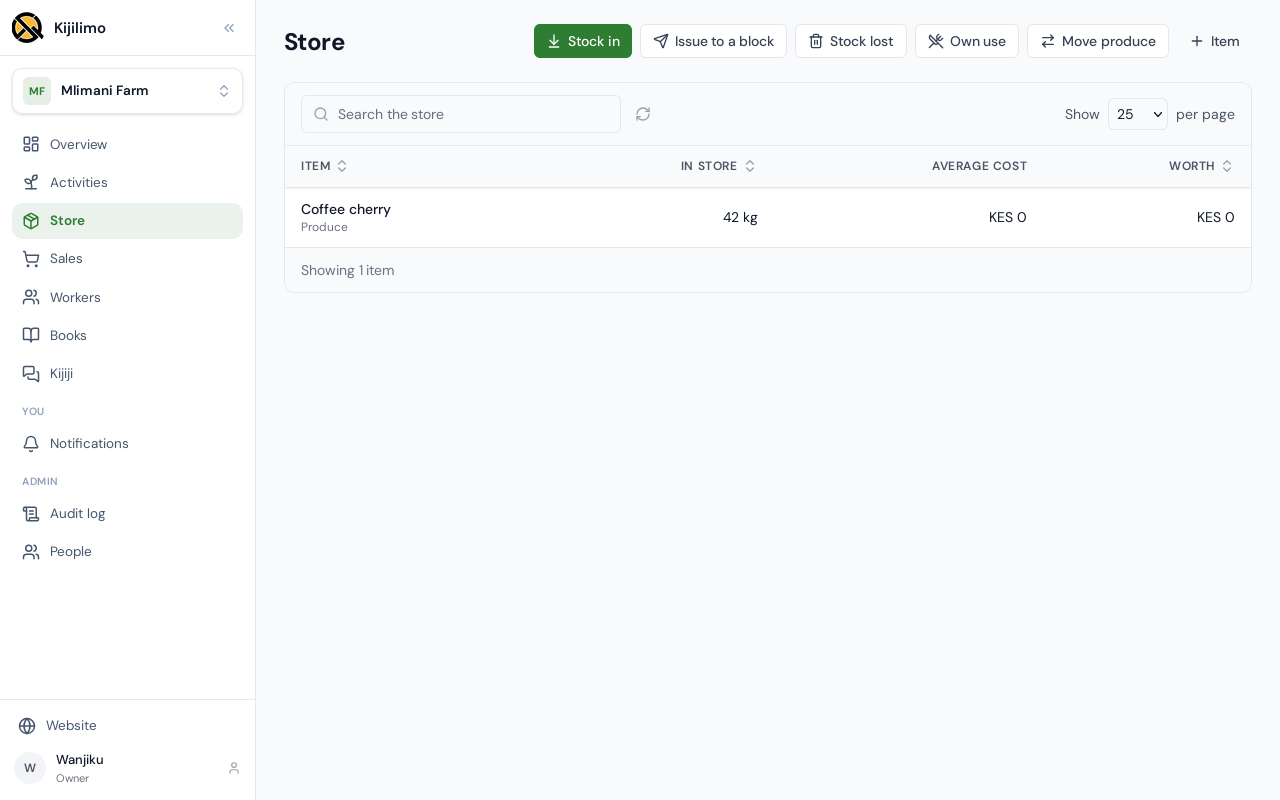
Stock in records what the farm buys, and from which supplier. The other buttons move things out of the store: issued to a block, lost, kept for the farm's own use, or moved.
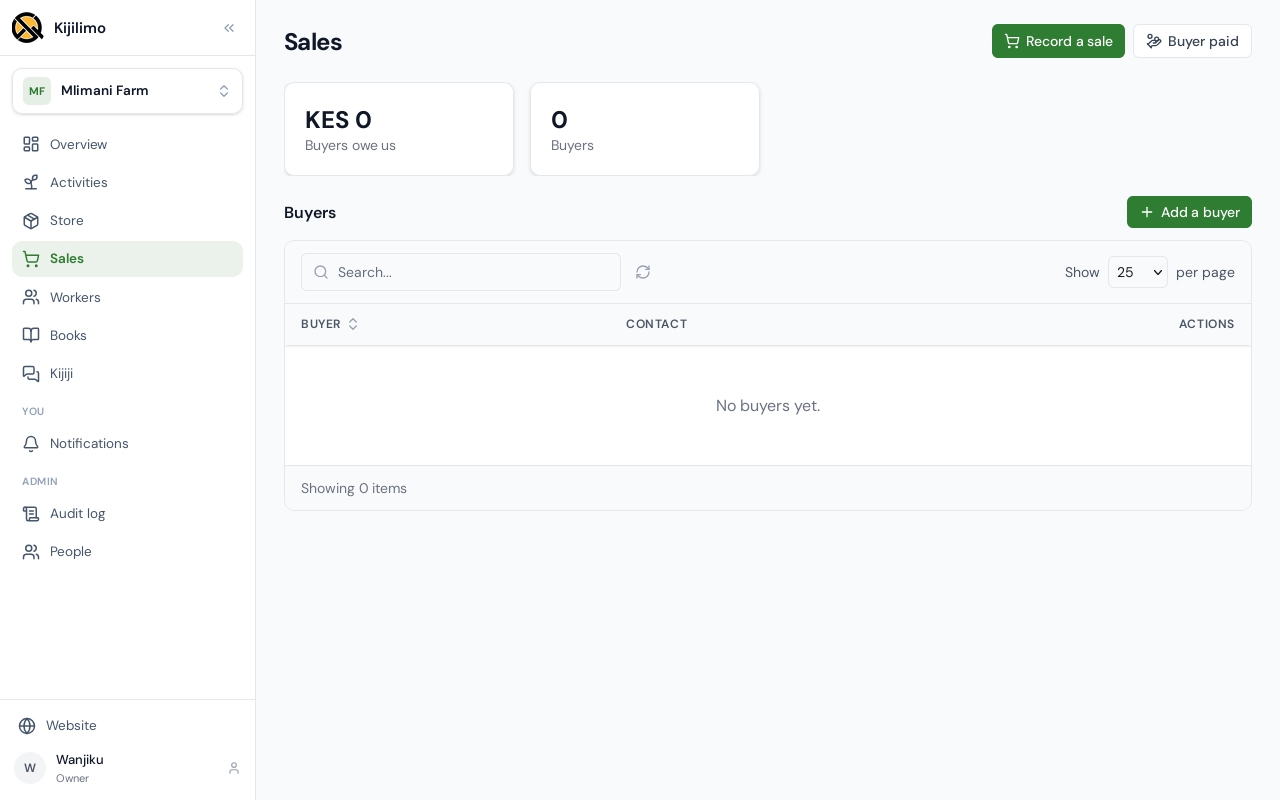
Sales starts with the buyers. Choose Add a buyer.
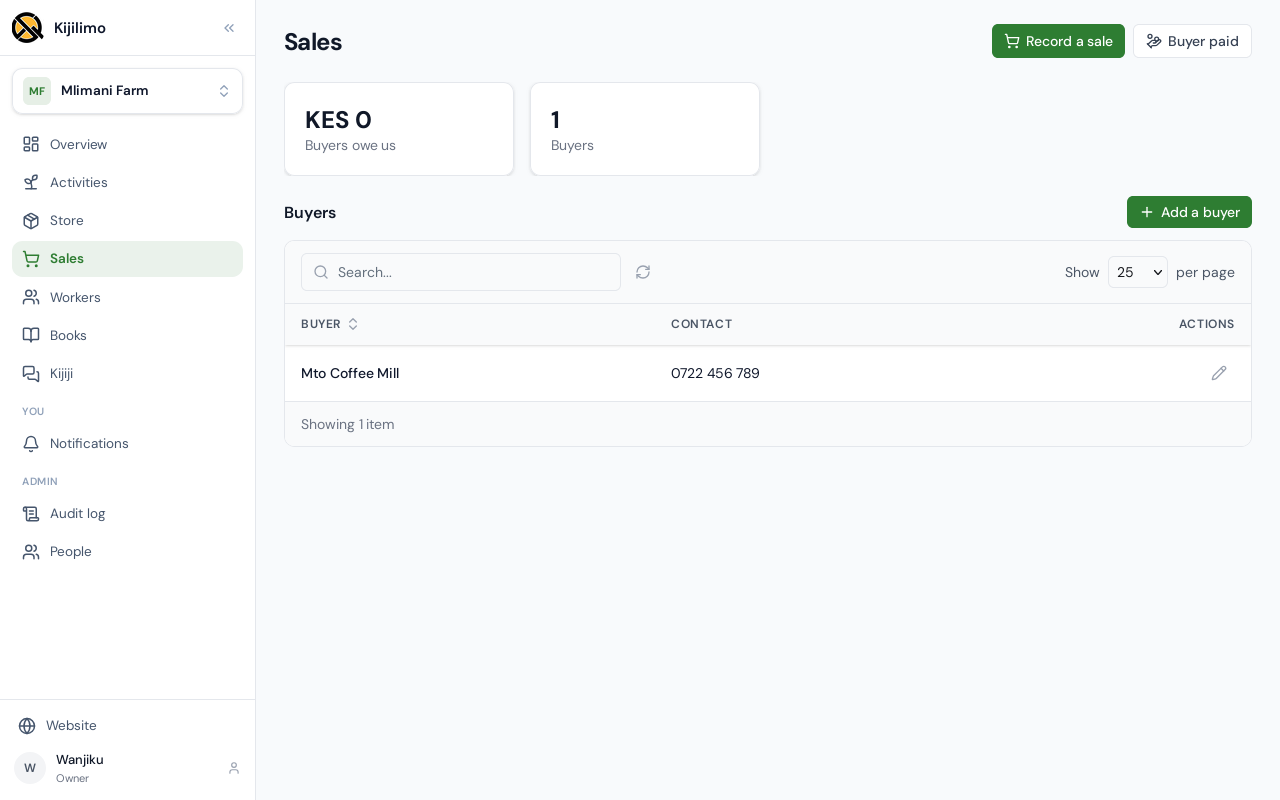
Their name, and a phone number or an email. Choose Add.
Choose Record a sale. Pick the buyer, the produce, and the activity it came from.
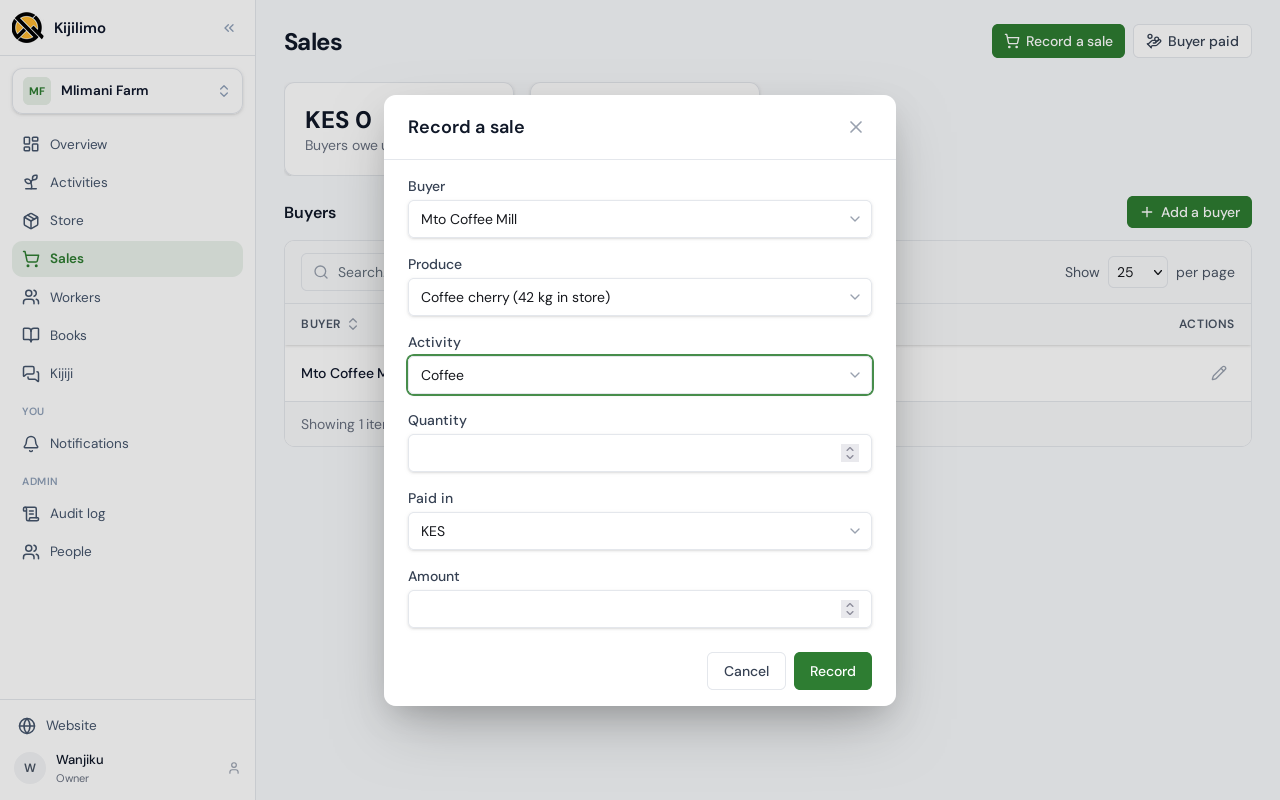
Say how much went, and what it was sold for.
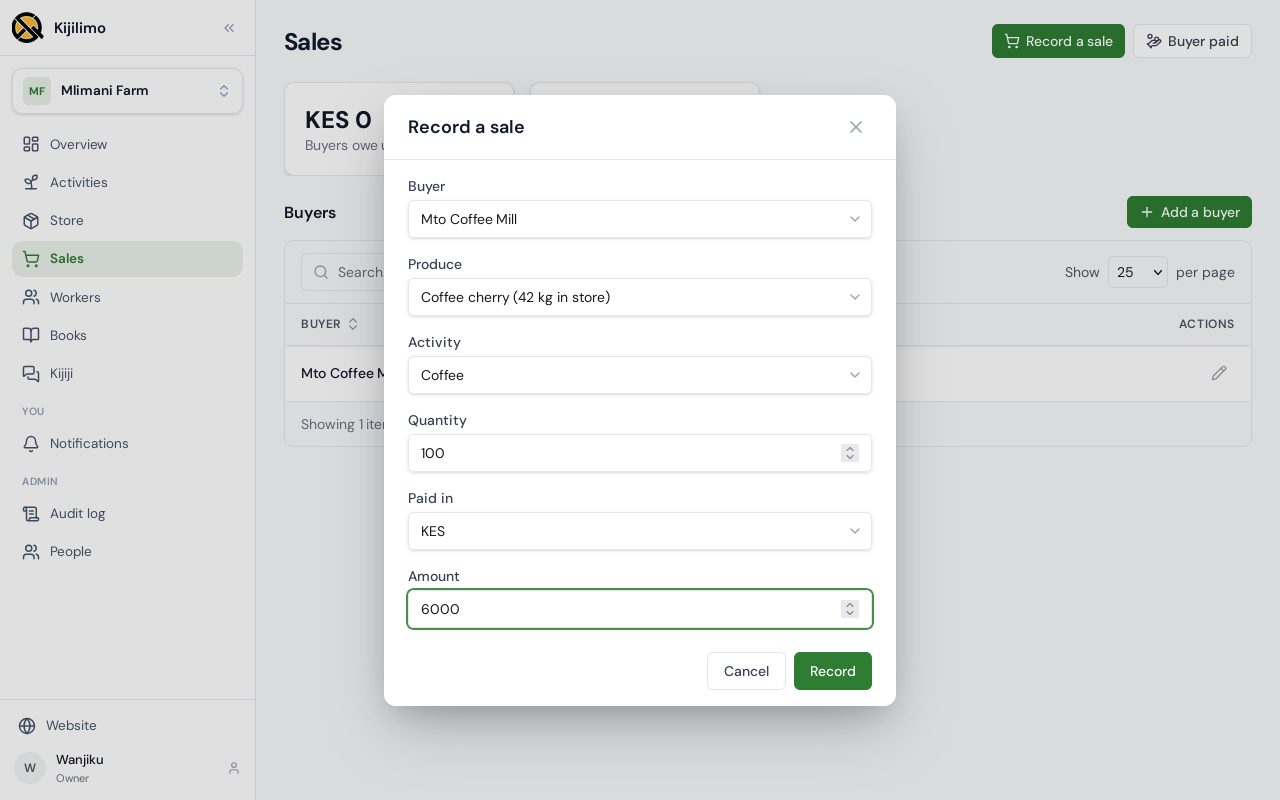
Choose Record.
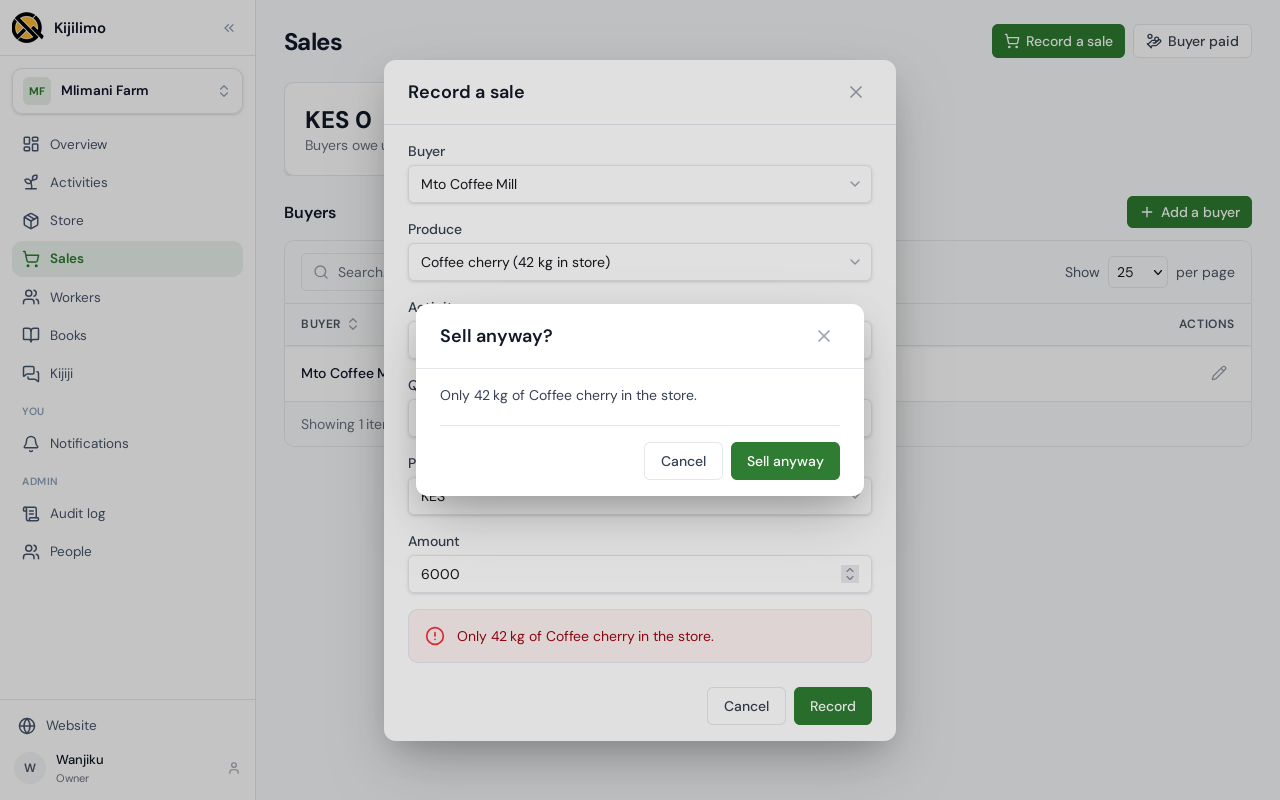
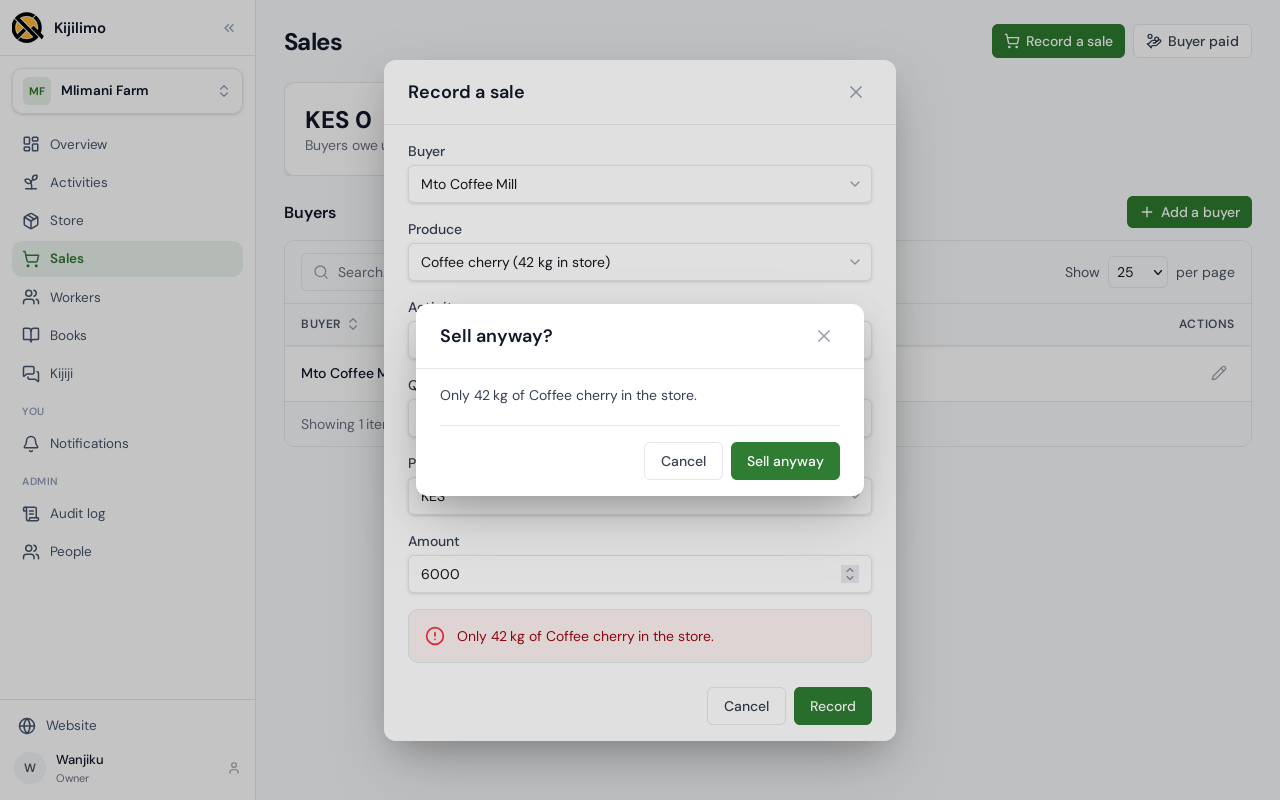
A hundred kilos is more than the store holds, so Kijilimo asks before recording it. Cancel, and put the right amount.
Forty kilos, for 2,400 shillings. Choose Record.
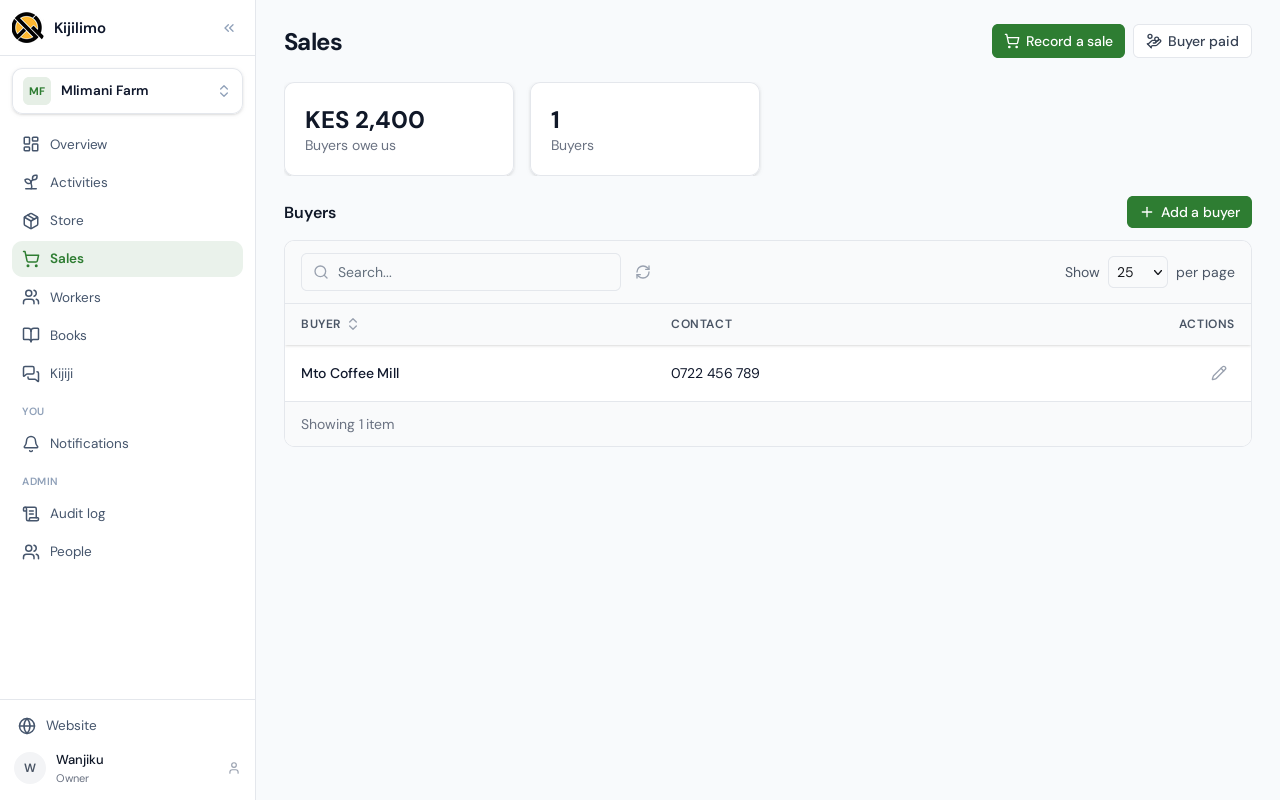
The buyer now owes the farm for the sale.
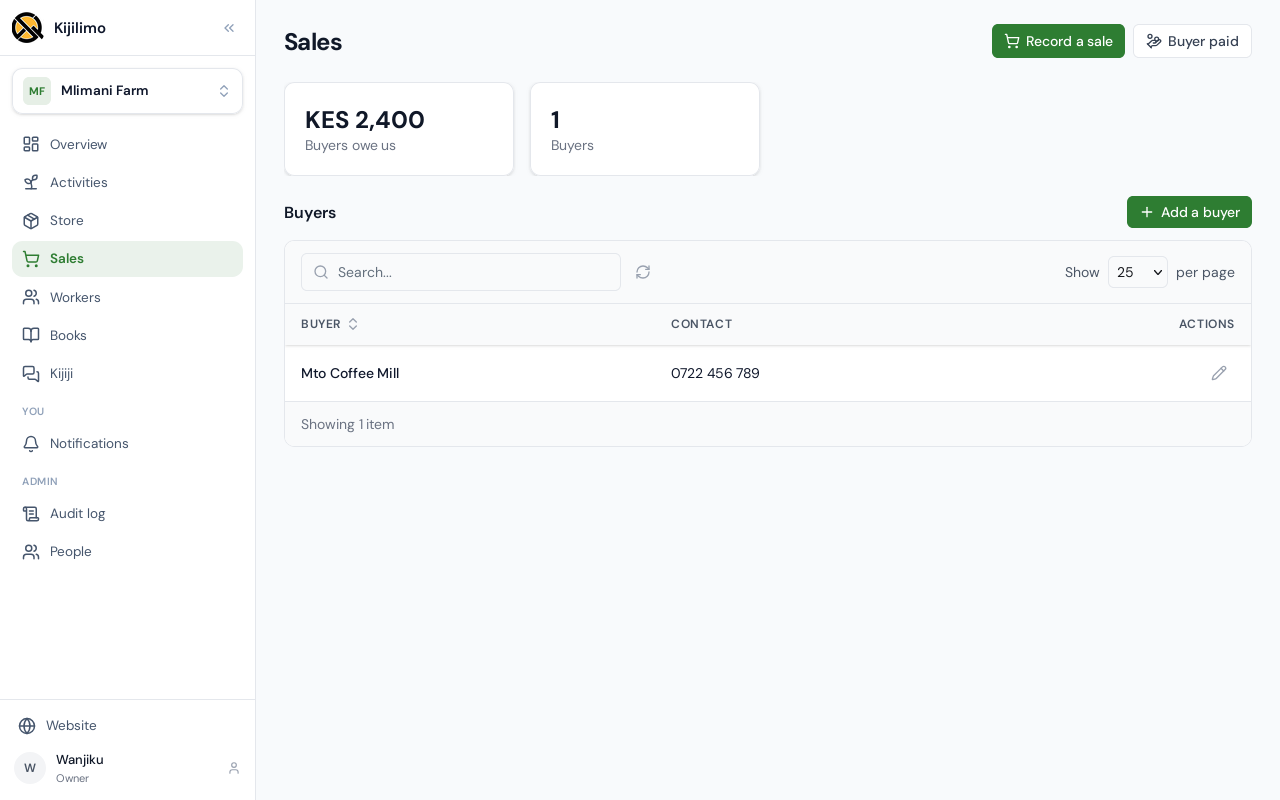
When the money comes, choose Buyer paid. Pick the buyer, and type what came in.
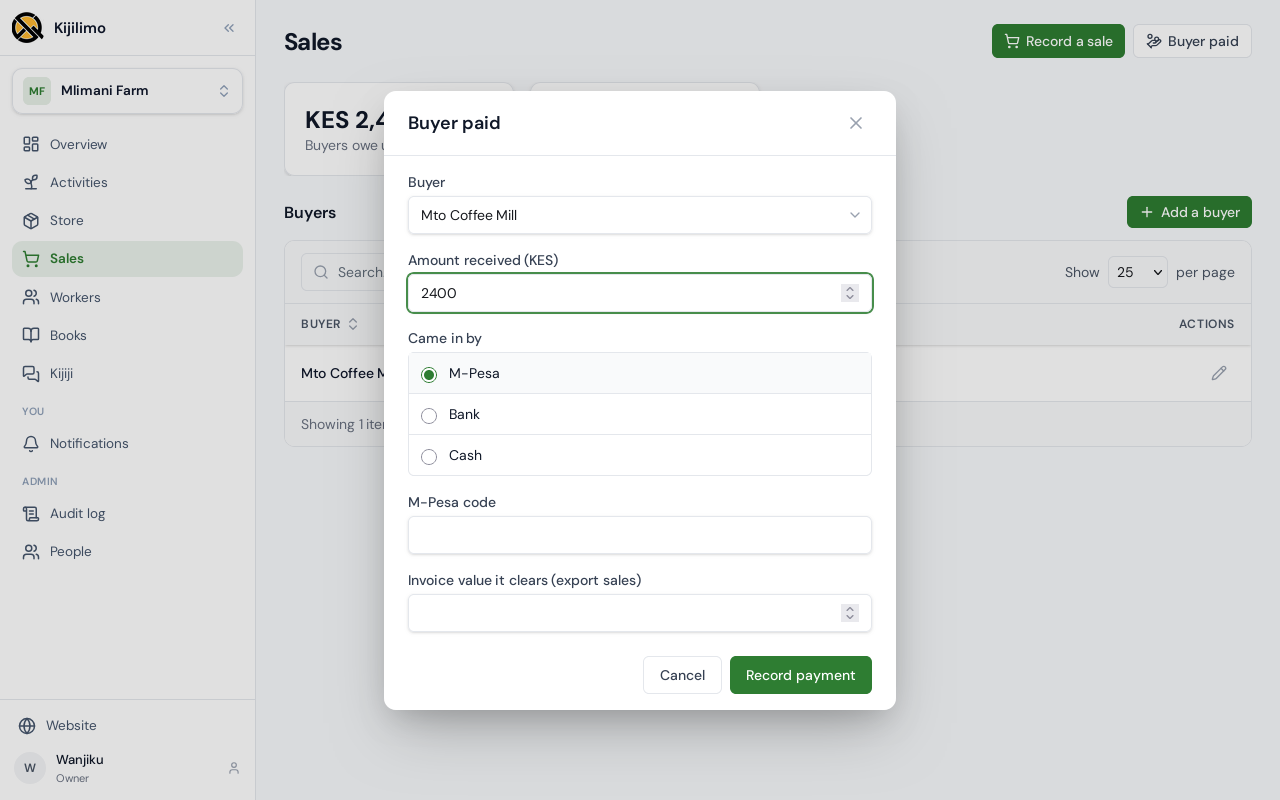
Say how it came in. For M-Pesa, the code from the message.
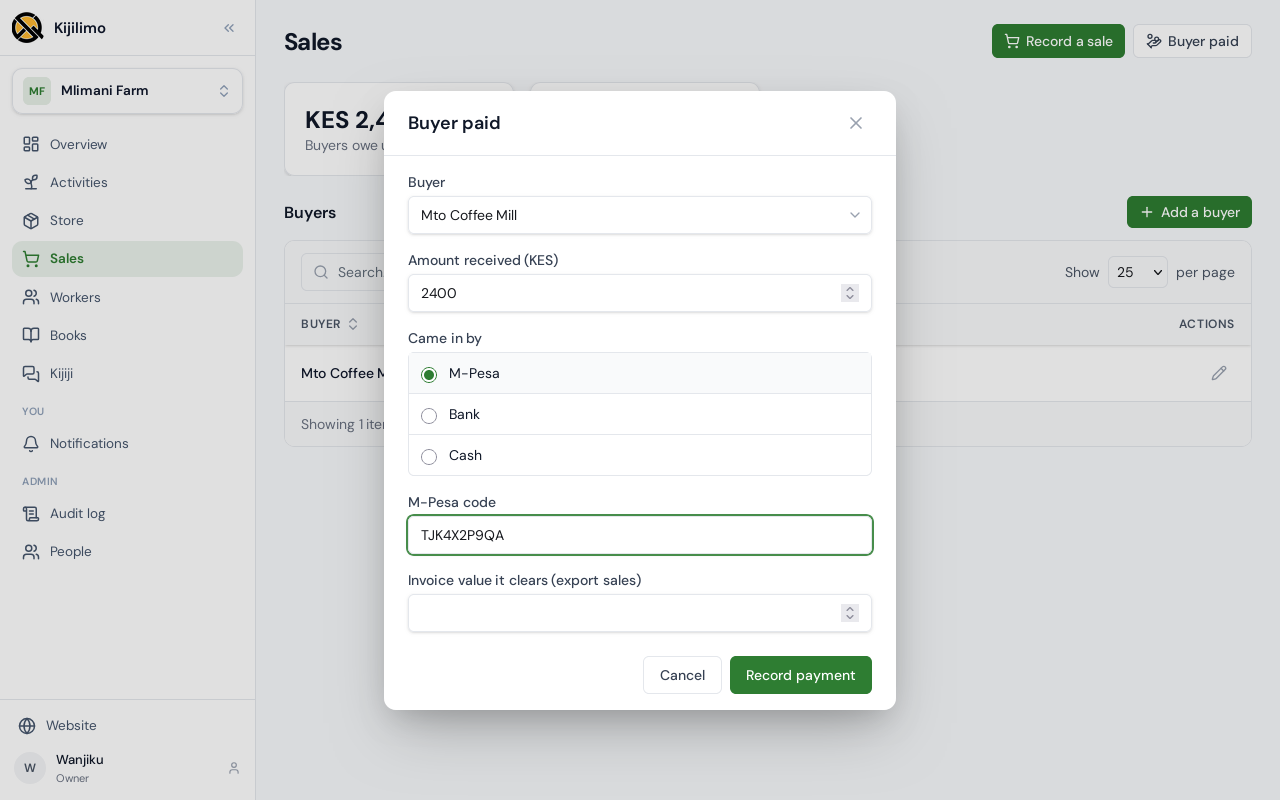
Choose Record payment.
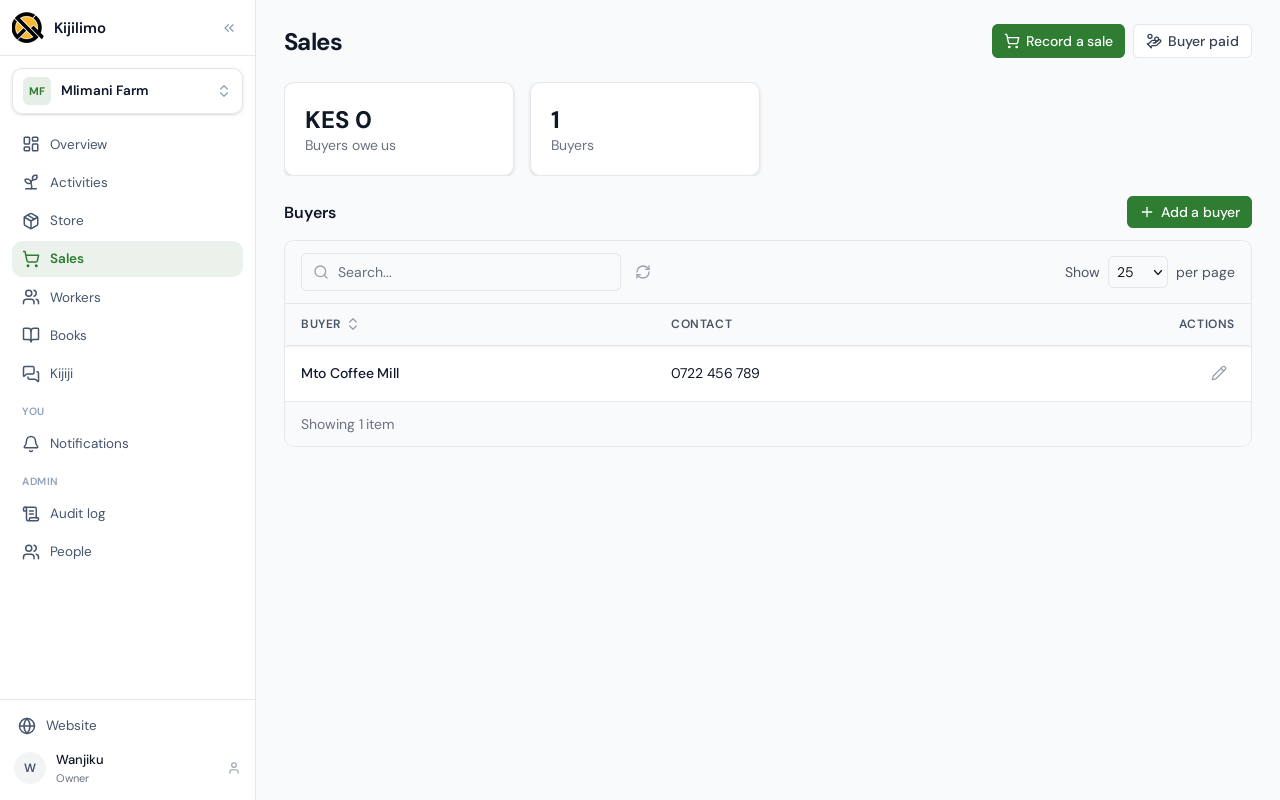
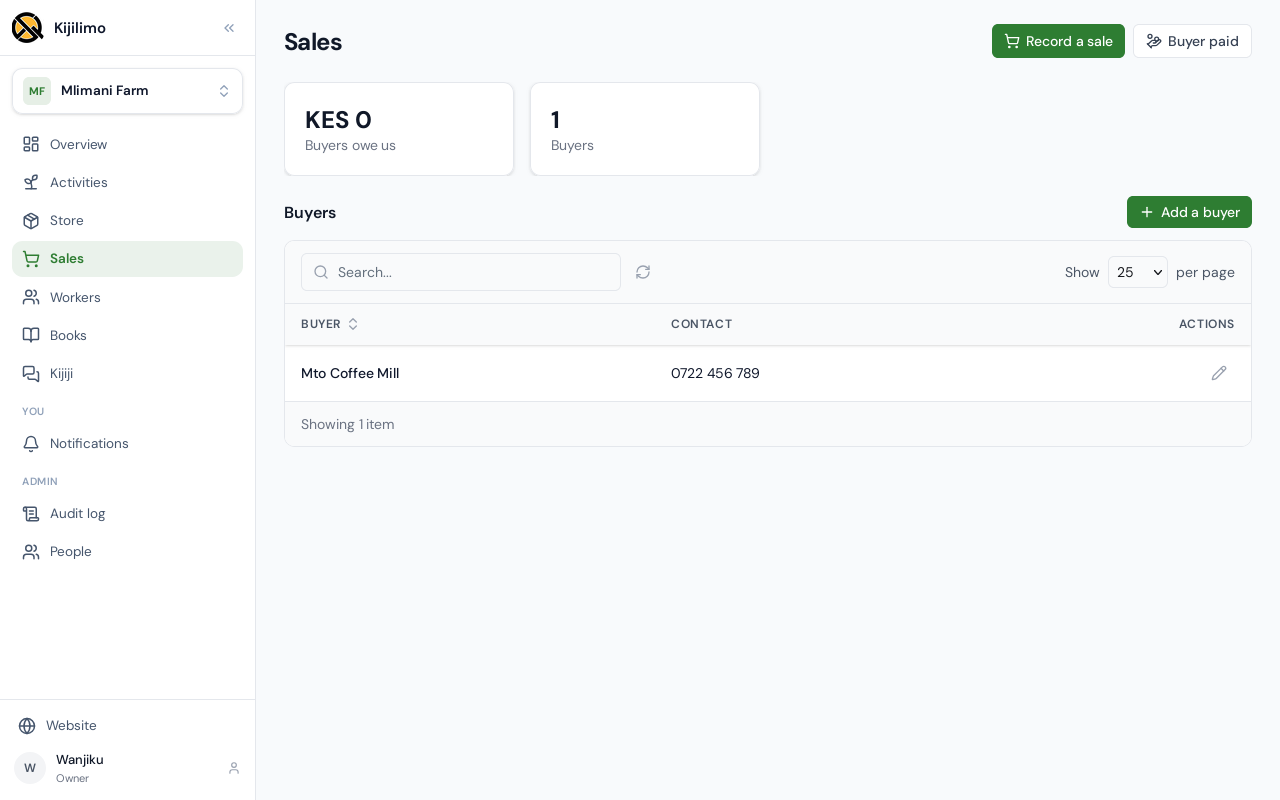
What buyers owe goes back down, and the payment shows in the books: the next chapter.
Chapter 6
Where the farm's money is
Everything the farm records lands in its books. You never post an entry by hand: a sale, a payment or a day's work does it.
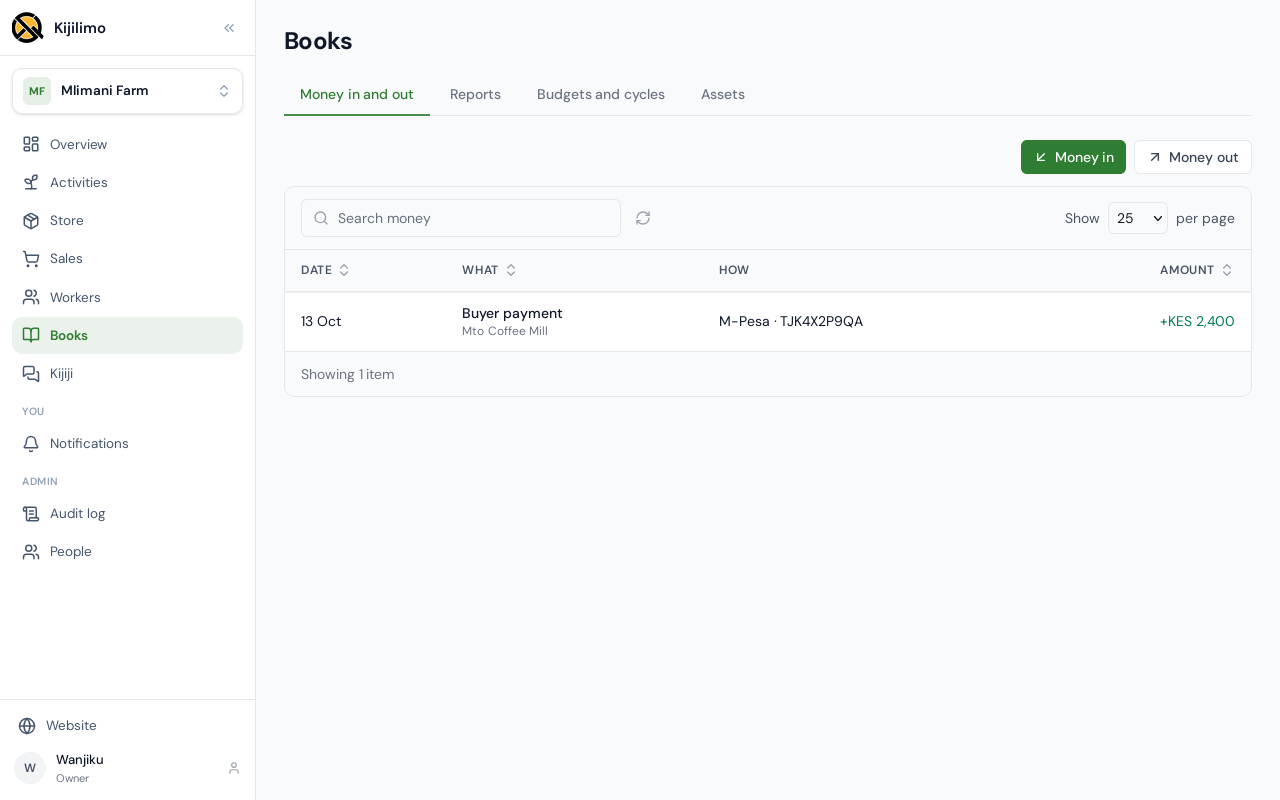
Money in and out lists what came in and what went out. The buyer's M-Pesa payment is here.
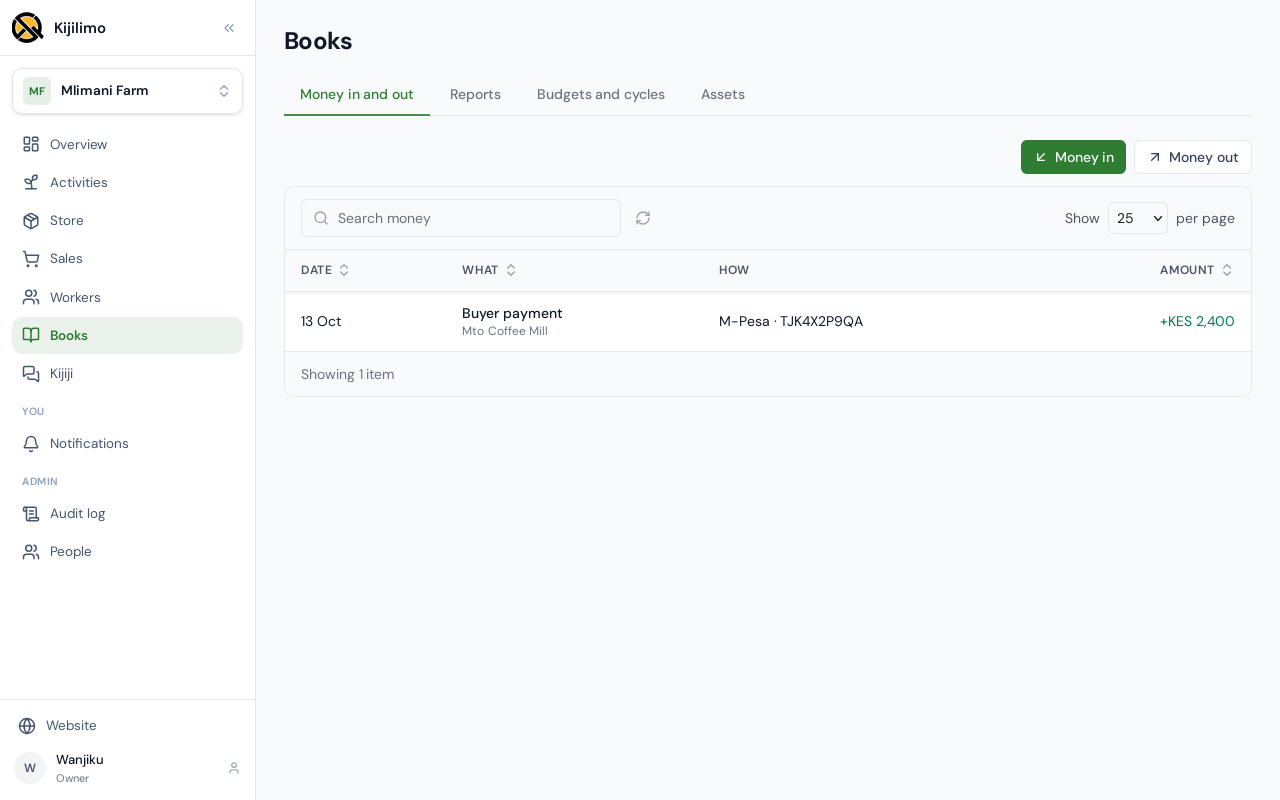
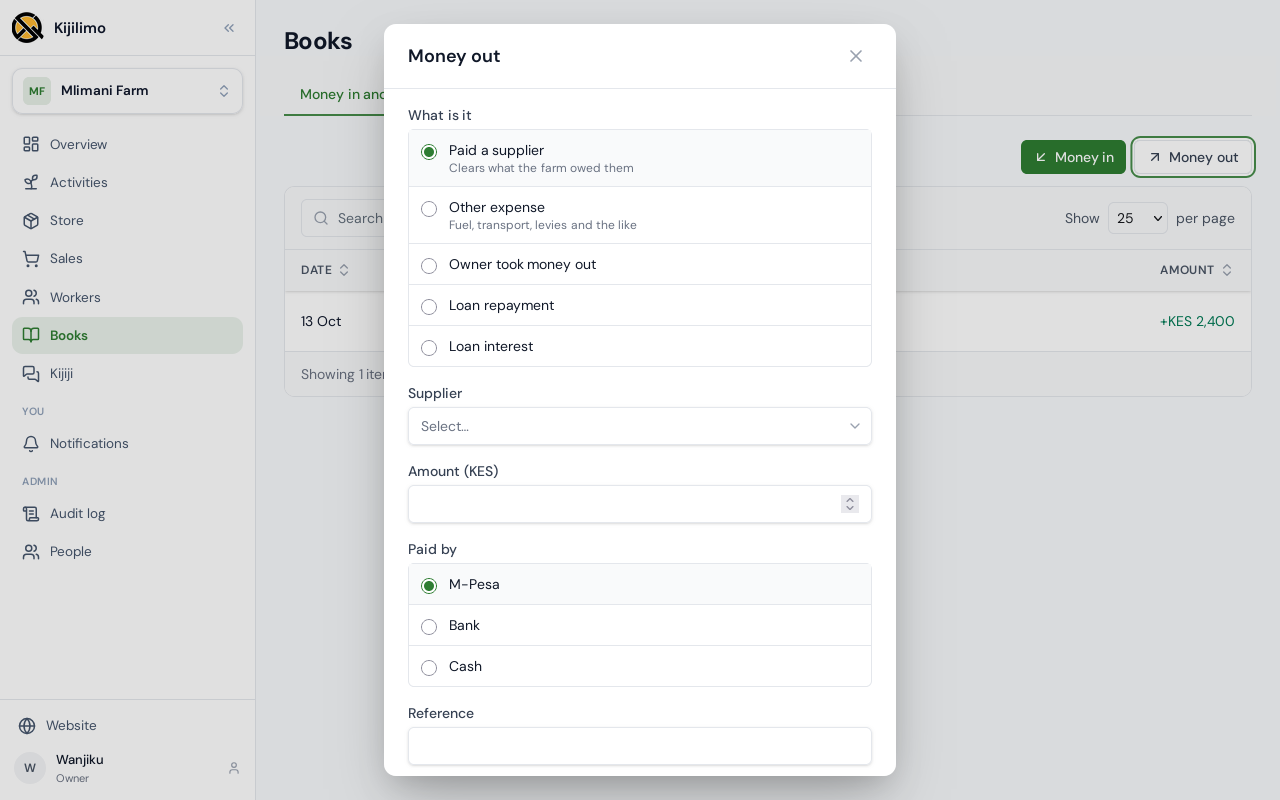
Money that isn't a sale or wages is recorded here too. Choose Money out.
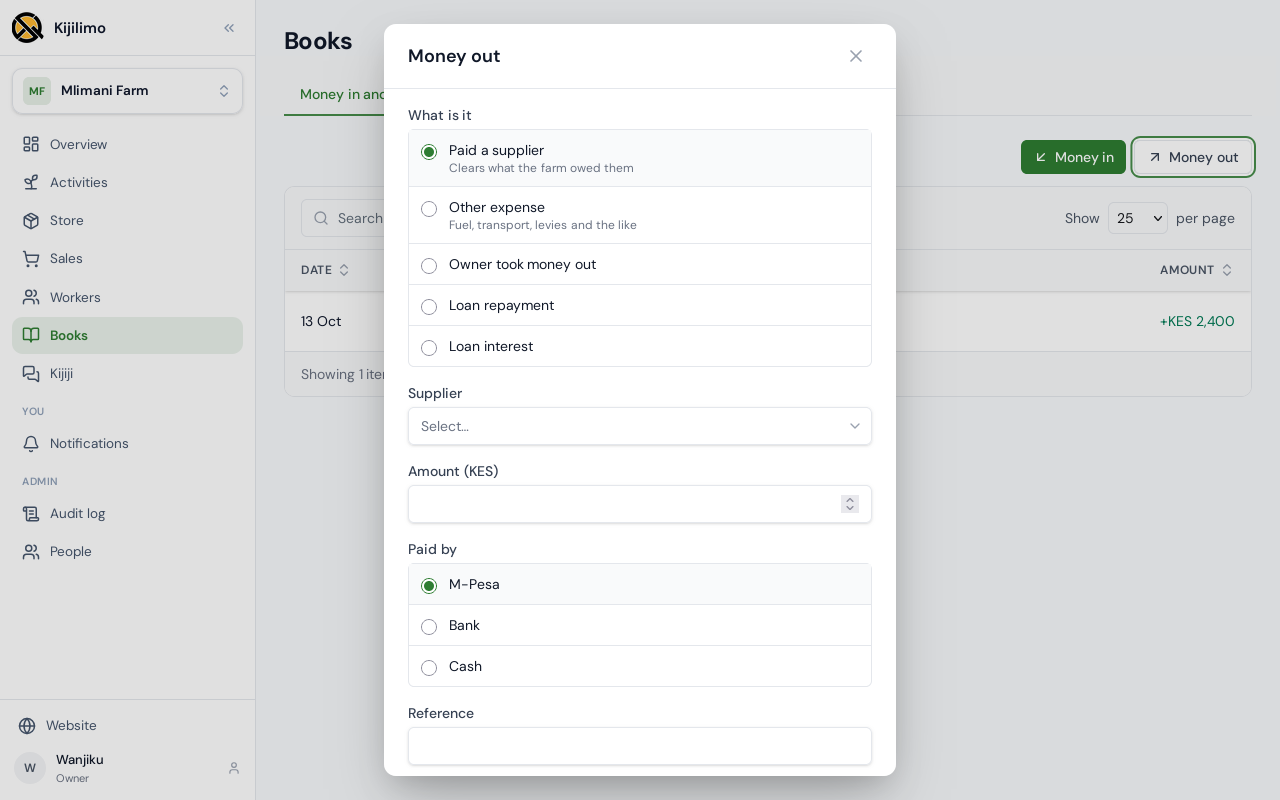
It covers paying a supplier, other costs such as fuel or levies, the owner taking money out, and loan repayments and interest. Money in works the same way. Cancel for now.
Reports sum it up.
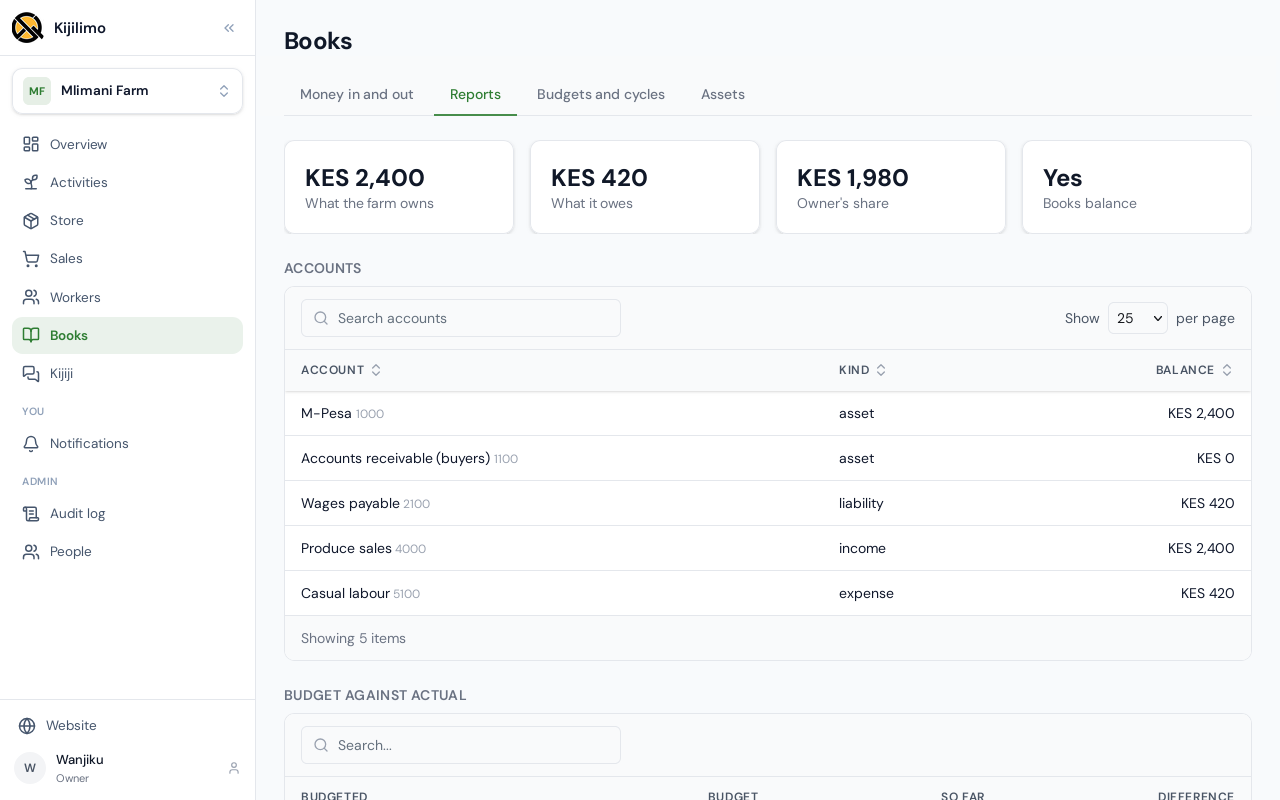
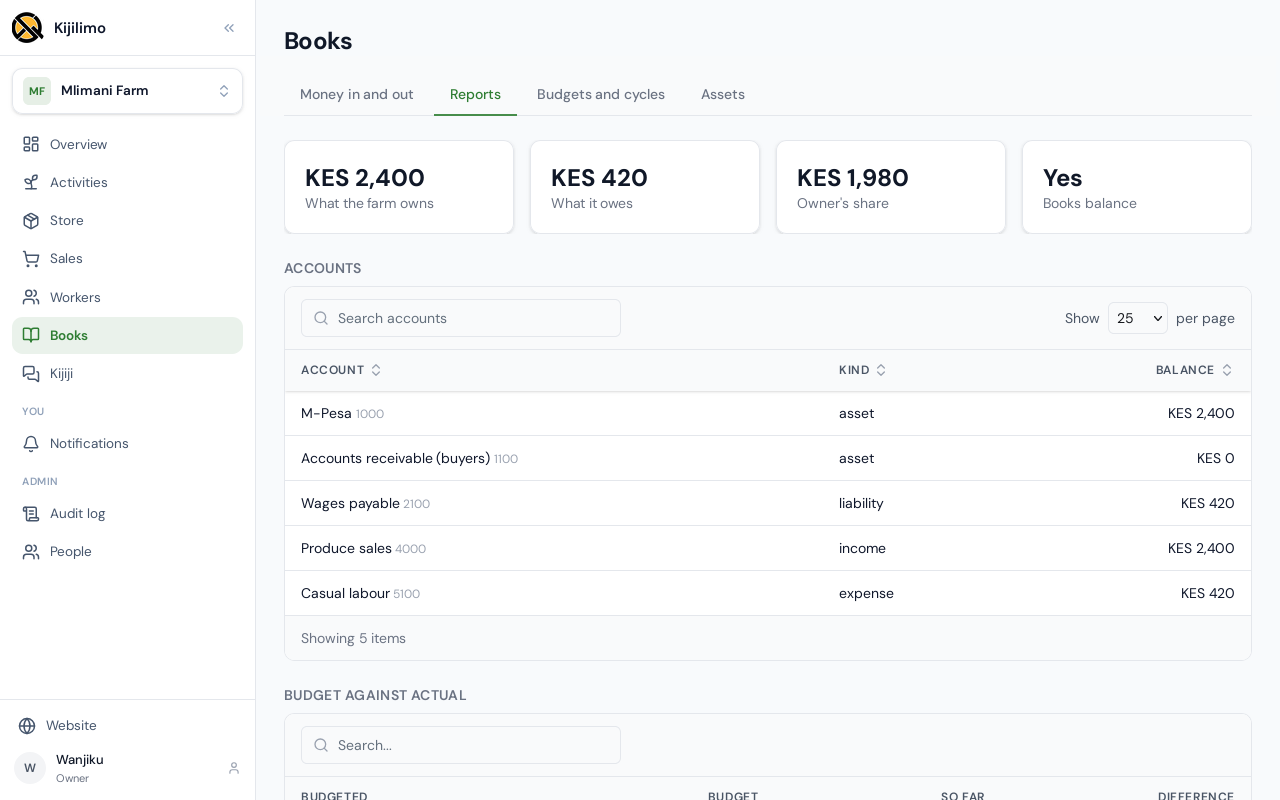
What the farm owns: the 2,400 shillings on M-Pesa. What it owes: 420 to its picker. The rest is the owner's share.
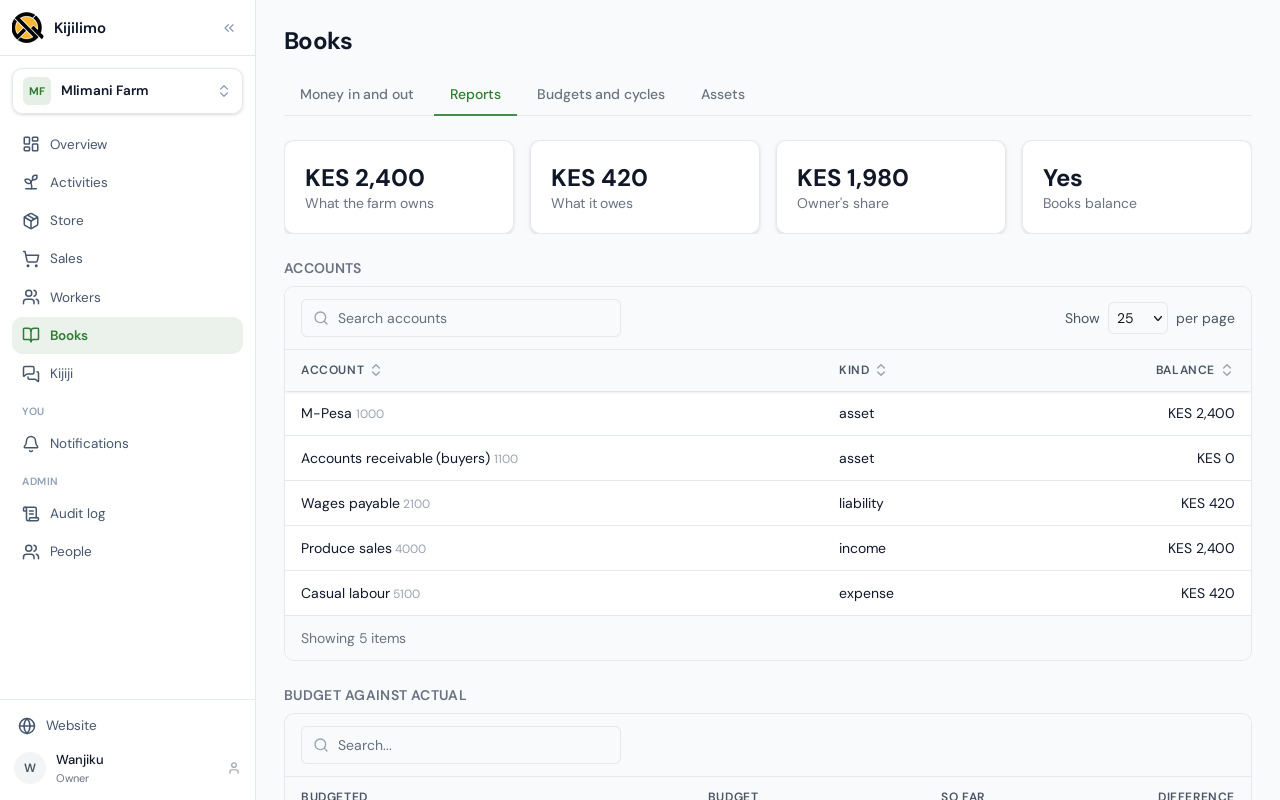
Below, every account and its balance, and the budget against what has really happened.
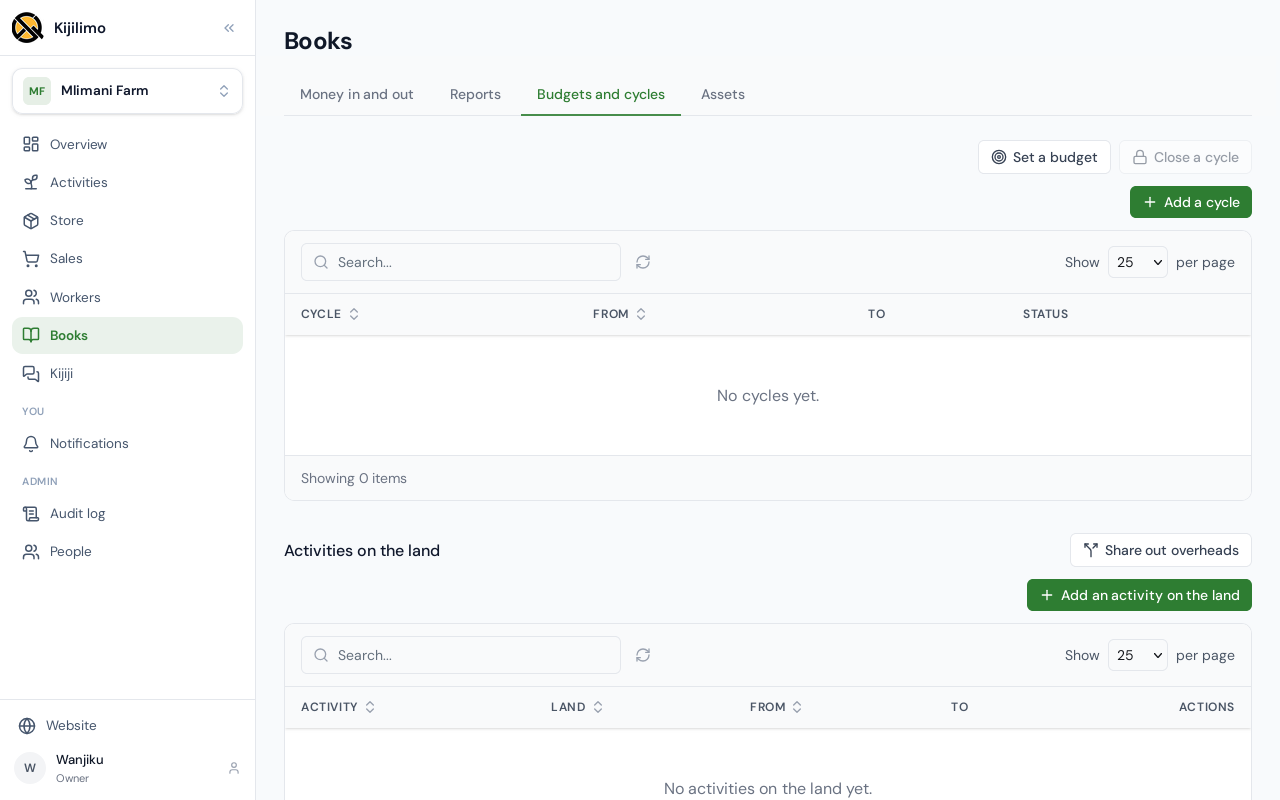
Budgets and cycles is where you set a budget and run the farm in cycles, such as a season.
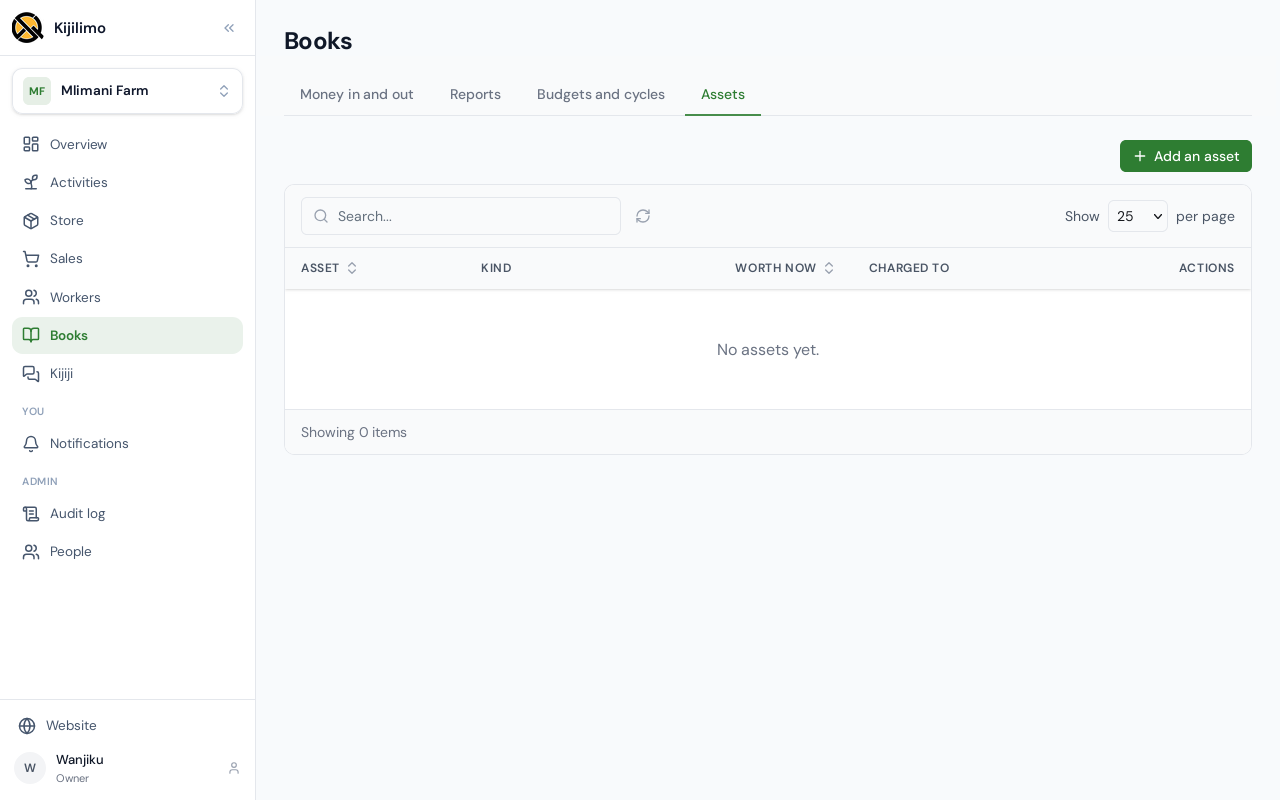
Assets holds what the farm owns for the long run, such as a tractor or a pump, and what each is worth now.
That is the farm's money. Next, Kijiji, where farmers learn from each other.
Chapter 7
Where farmers learn from each other
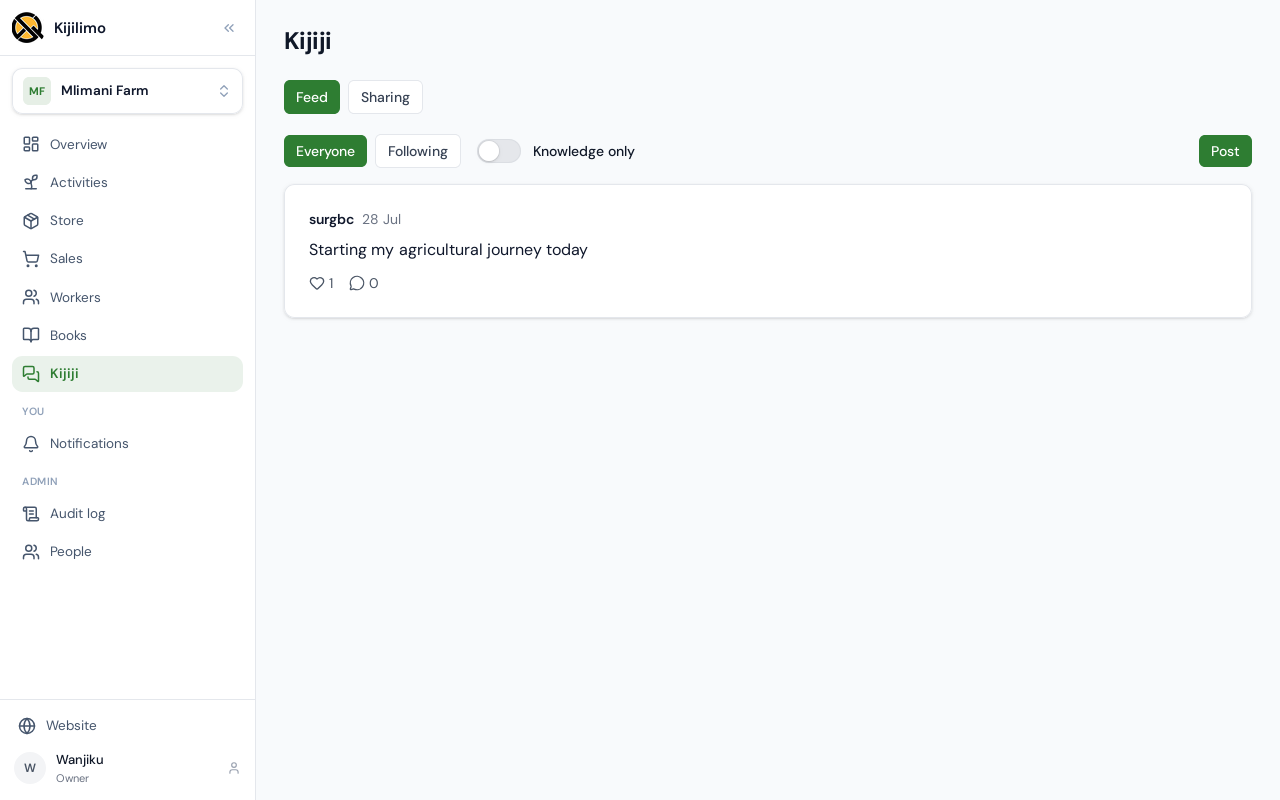
Kijiji is where farmers learn from each other. The feed shows what other farms post.
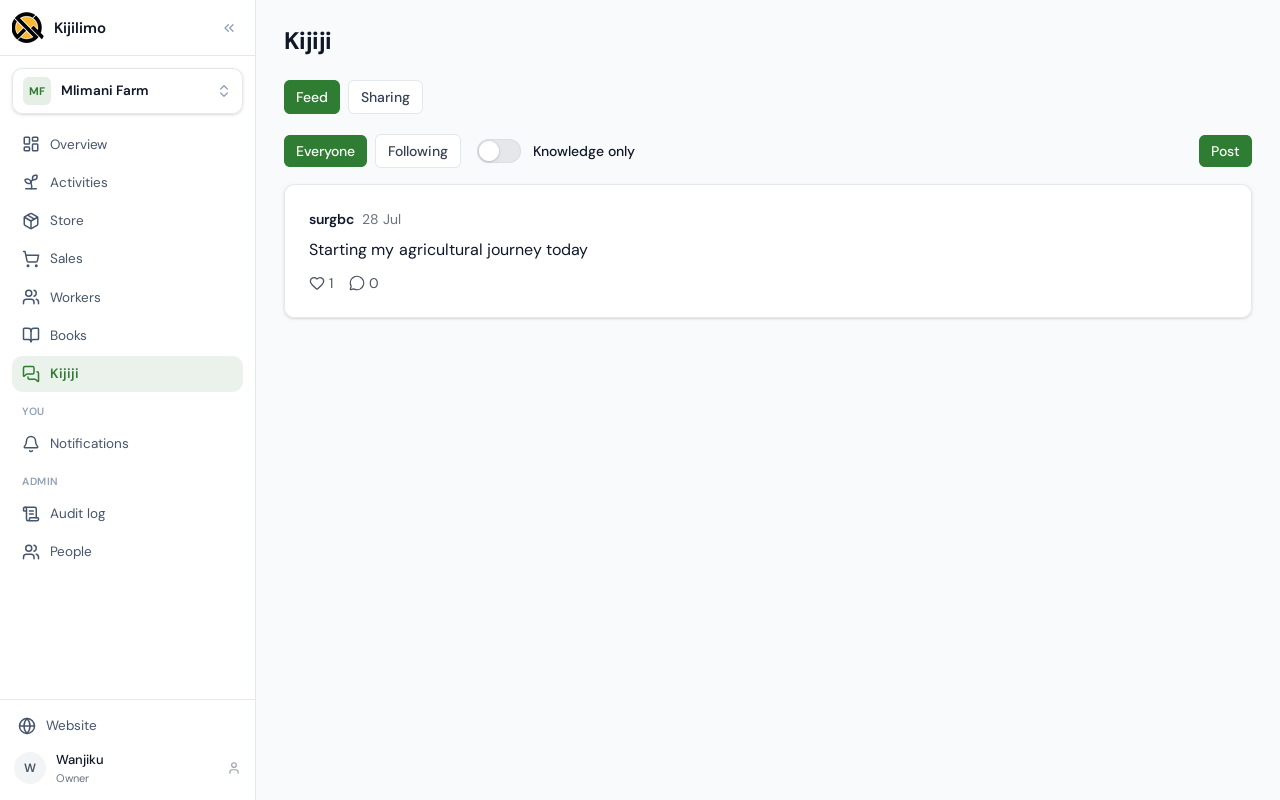
See everyone's posts, only the farms you follow, or only posts backed by real numbers from a farm's books.
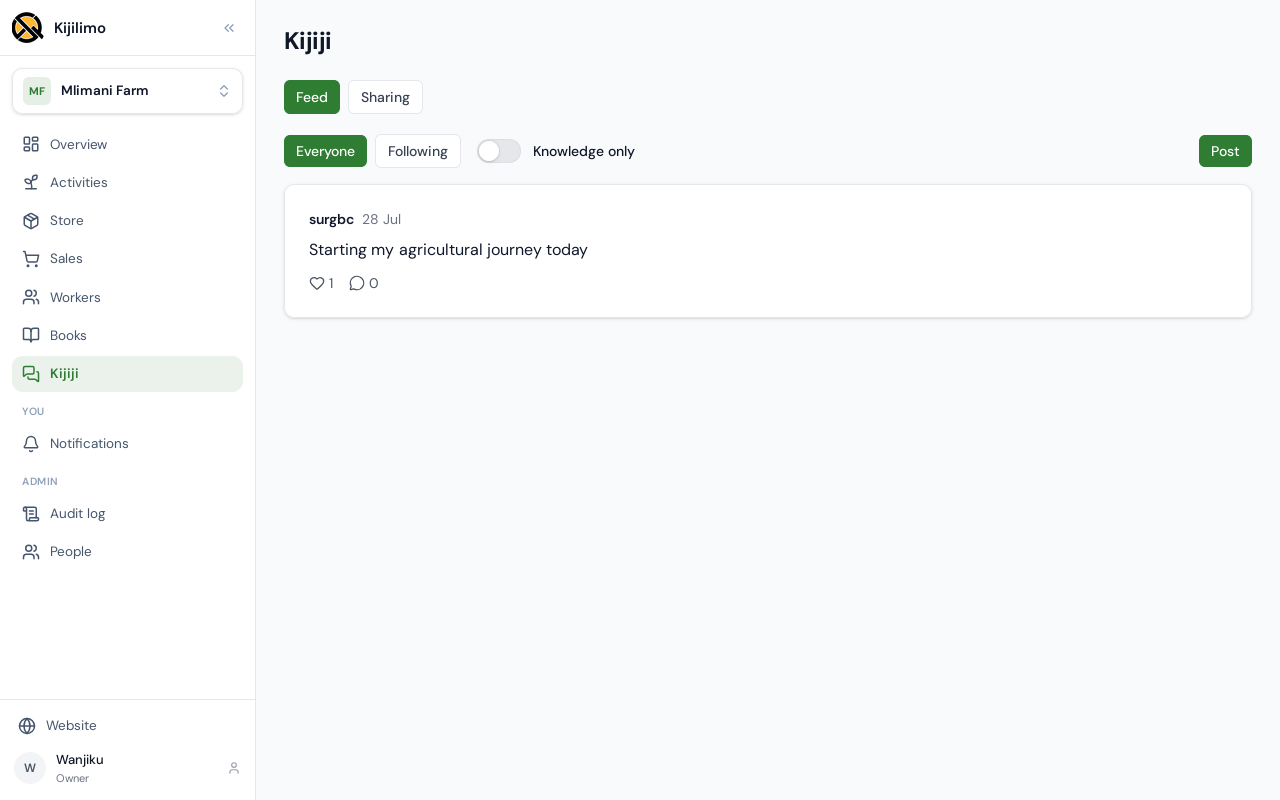
To post, choose Post, and say what you want to say.
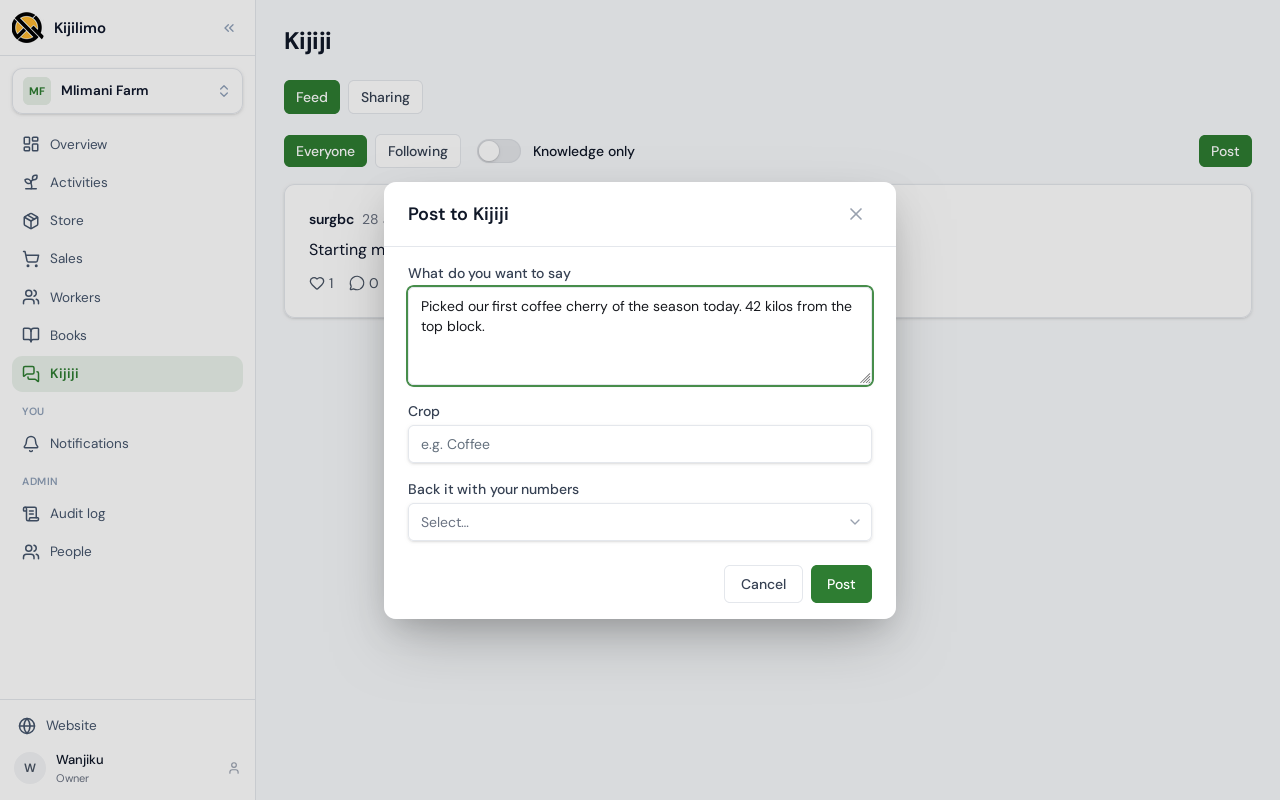
You can name the crop, and back the post with your farm's numbers.
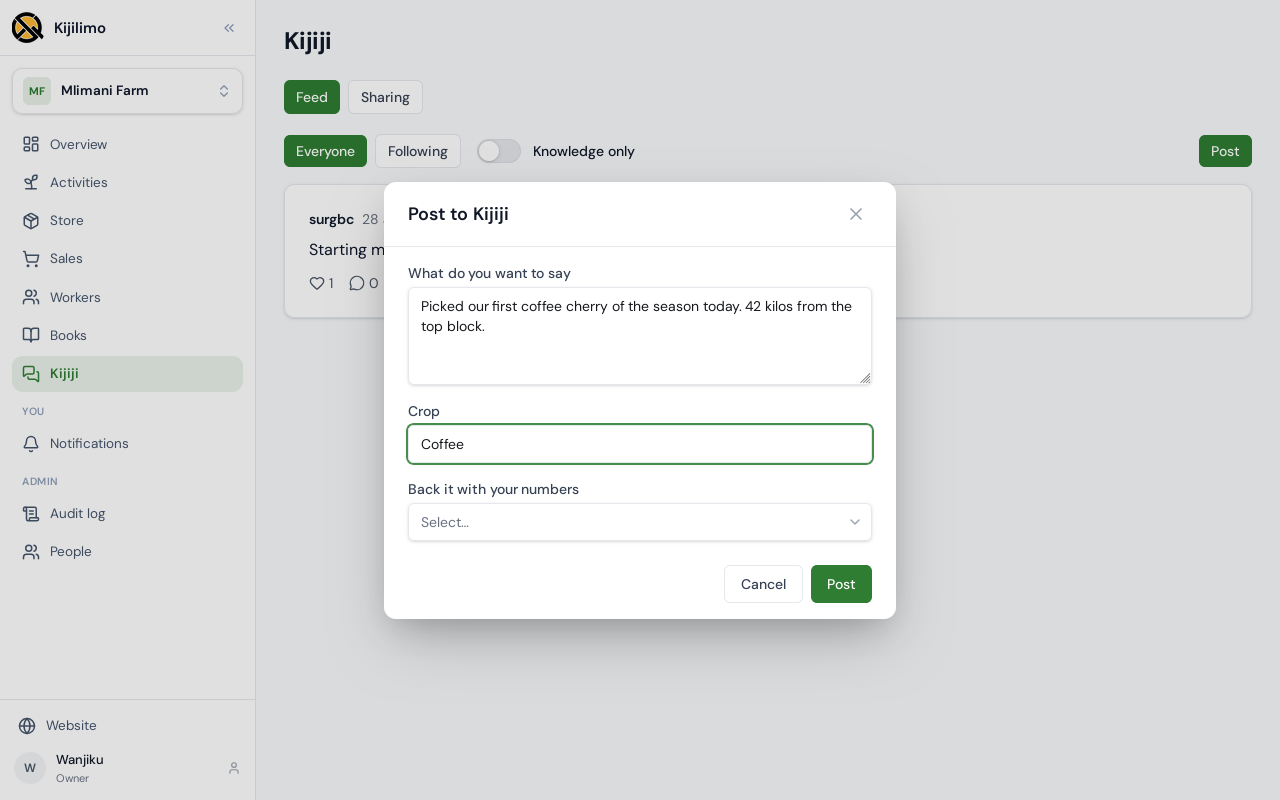
Choose Post.
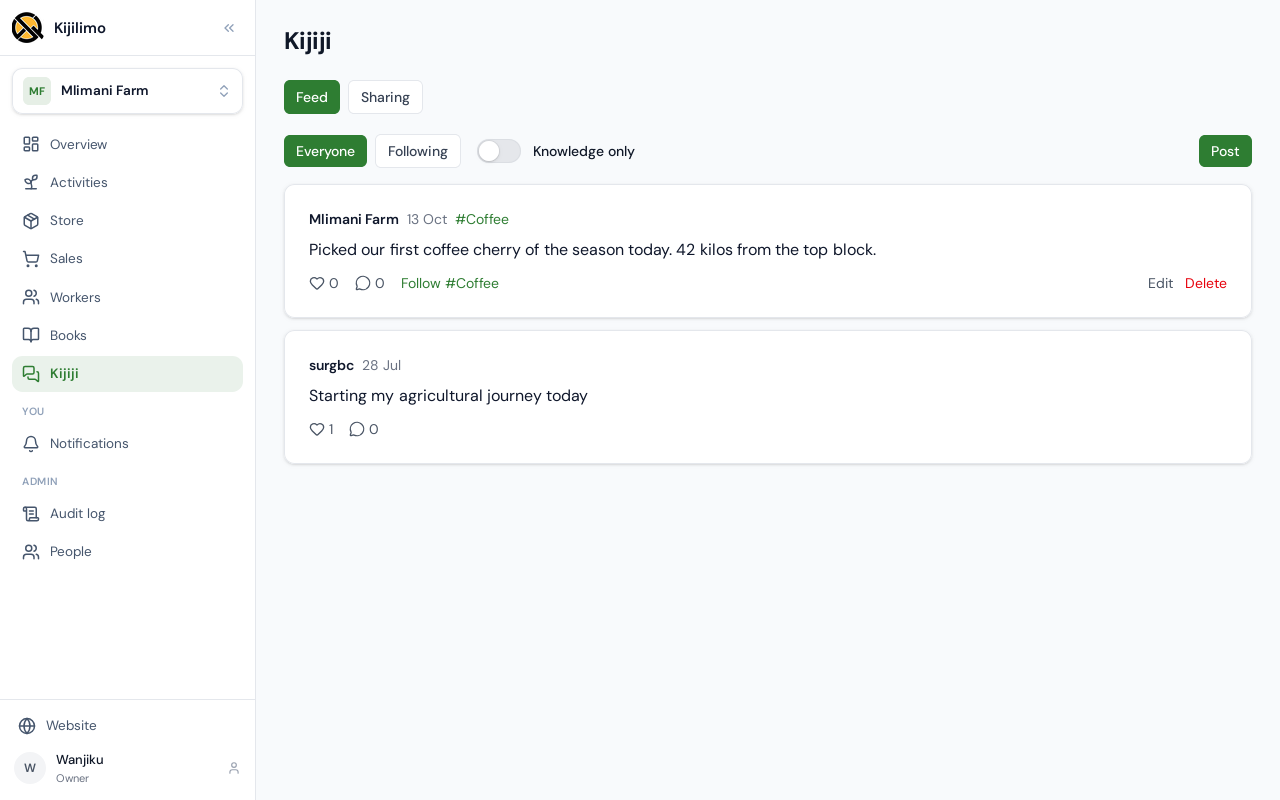
The post is in the feed, under the farm's name.
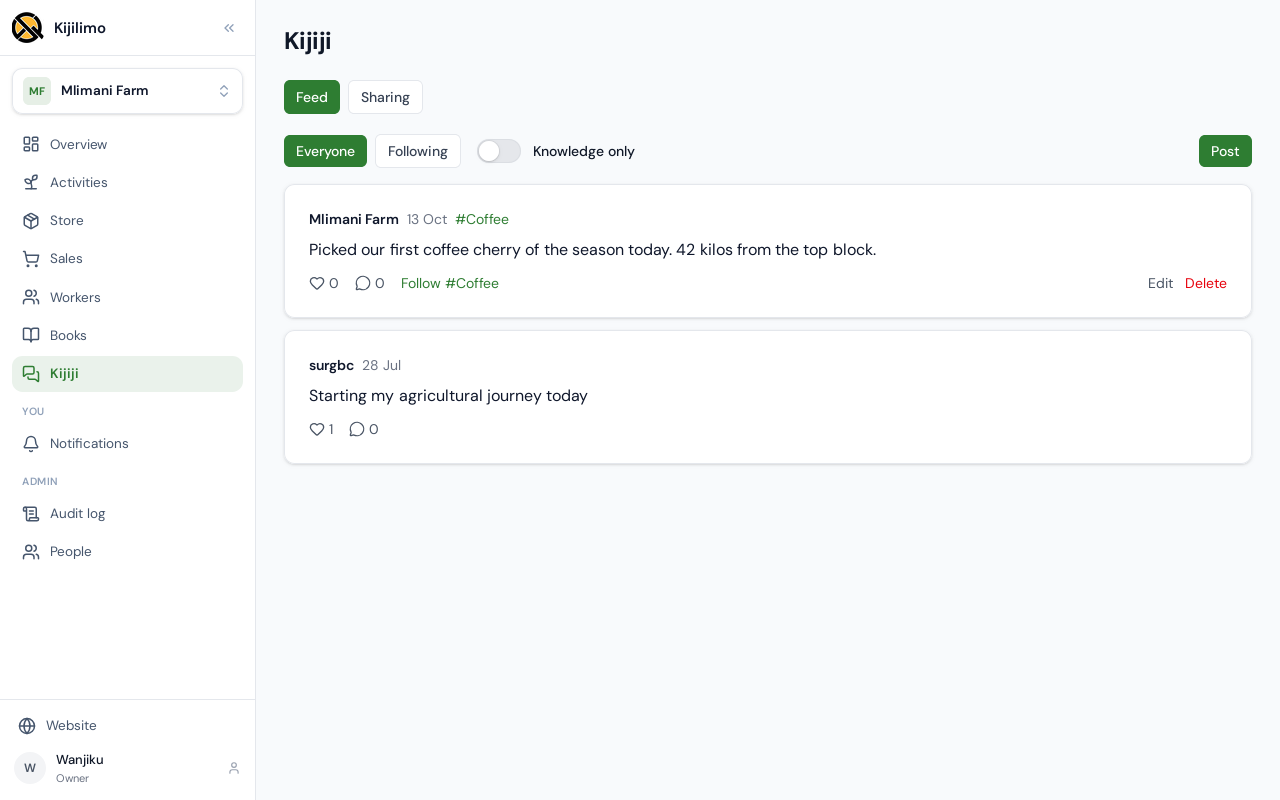
Your own posts can be deleted. Choose Delete, and confirm.
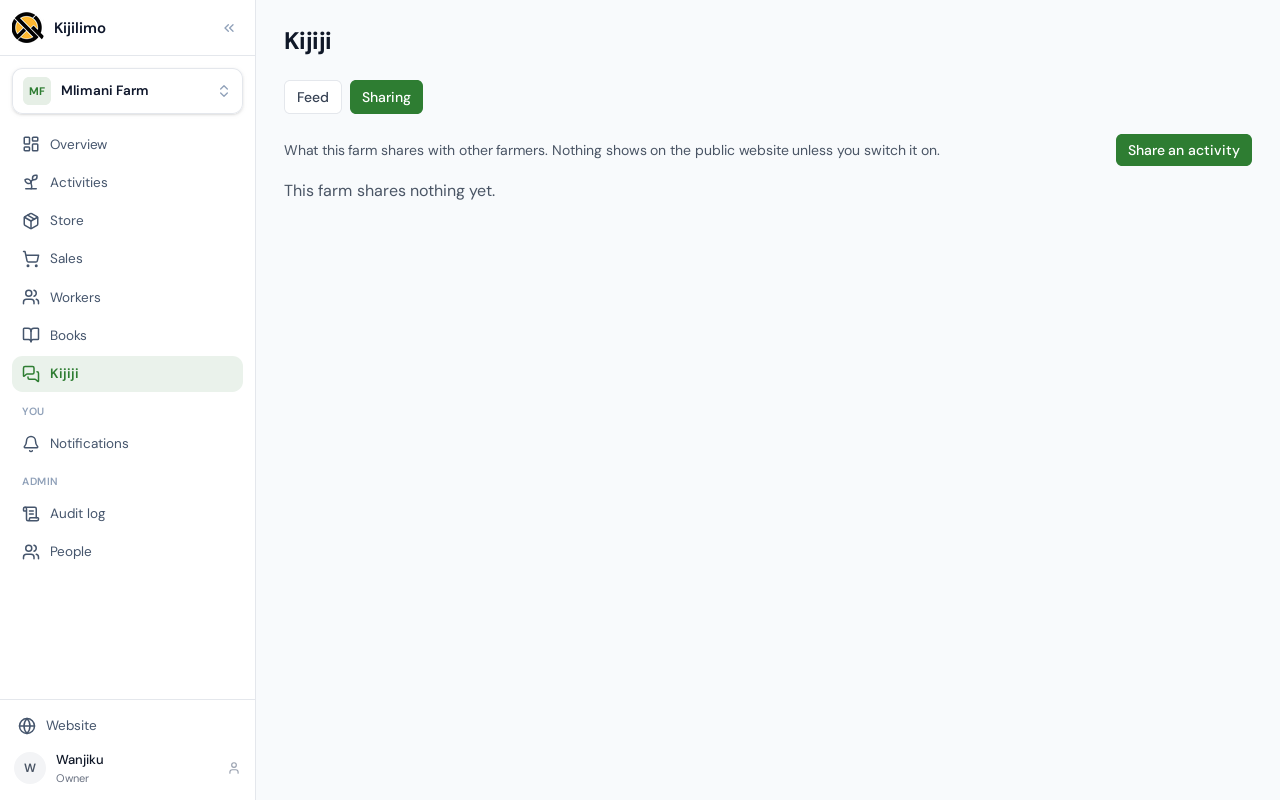
Sharing is what this farm shares with other farmers. Nothing shows on the public website unless you switch it on.
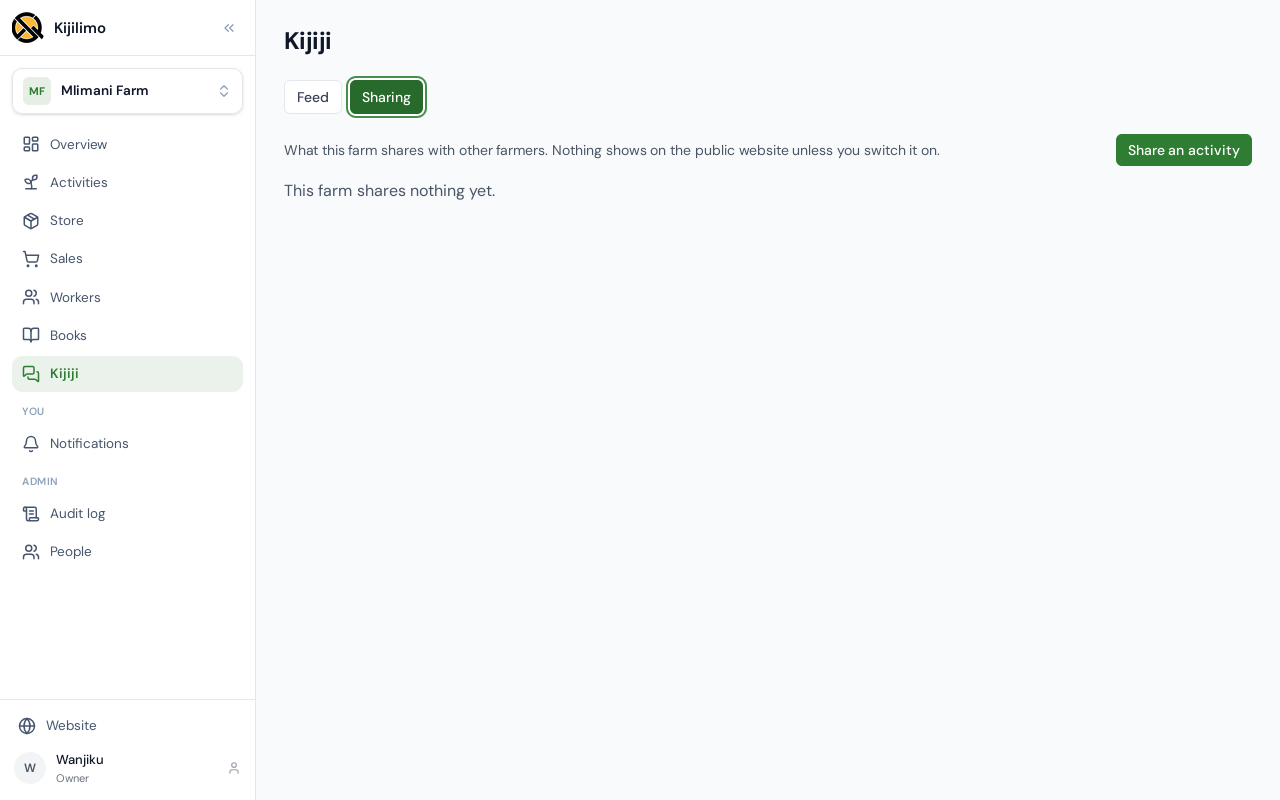
Choose Share an activity.
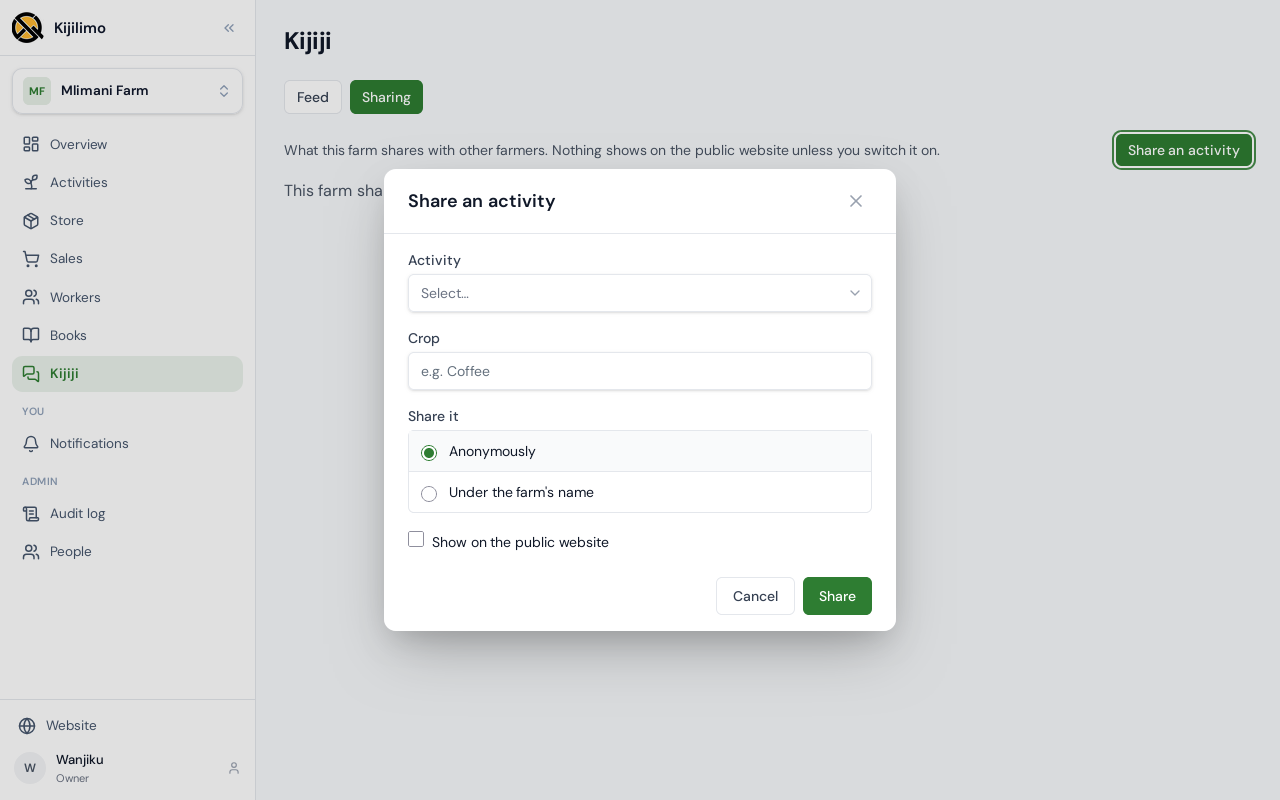
Pick the activity, and share it anonymously or under the farm's name. Show on the public website is a separate choice.
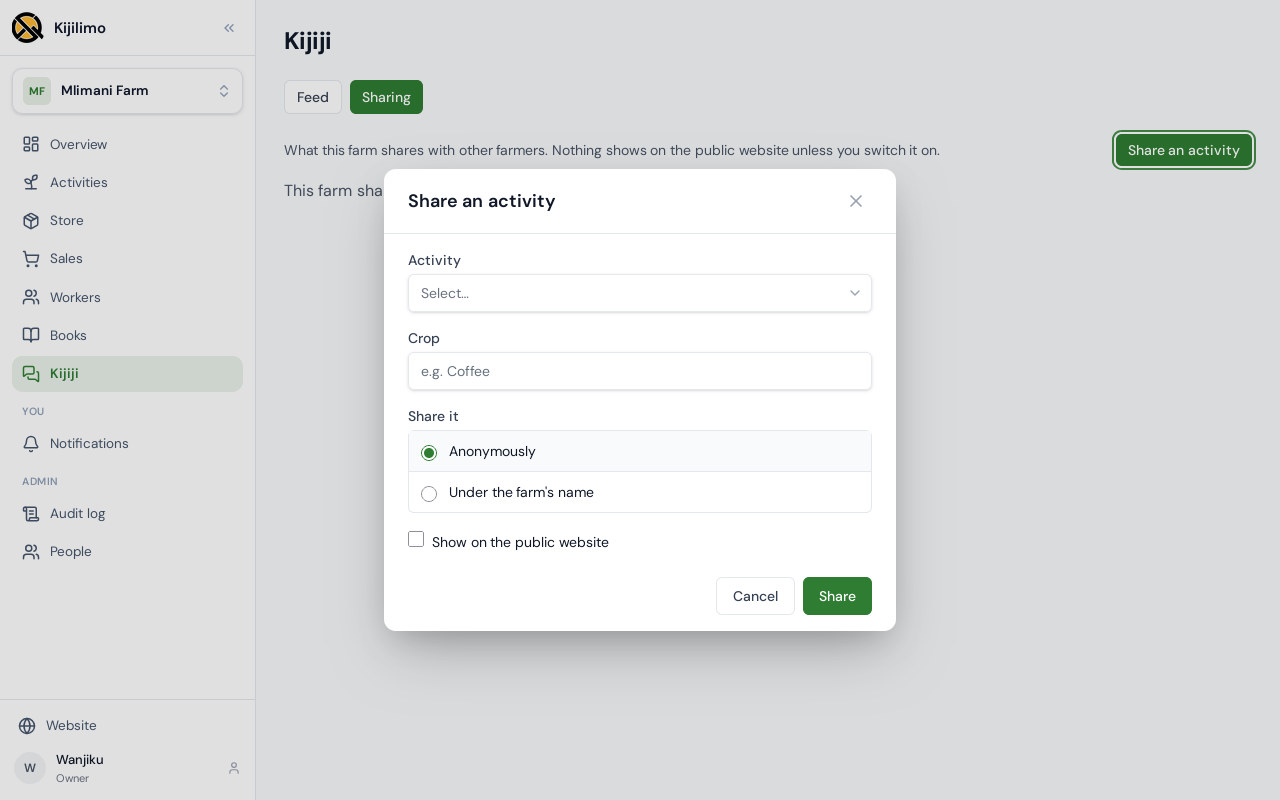
This farm isn't sharing yet, so Cancel.
Chapter 8
The people who work with you
People, under Admin, is who works on the farm with you. Nobody yet.
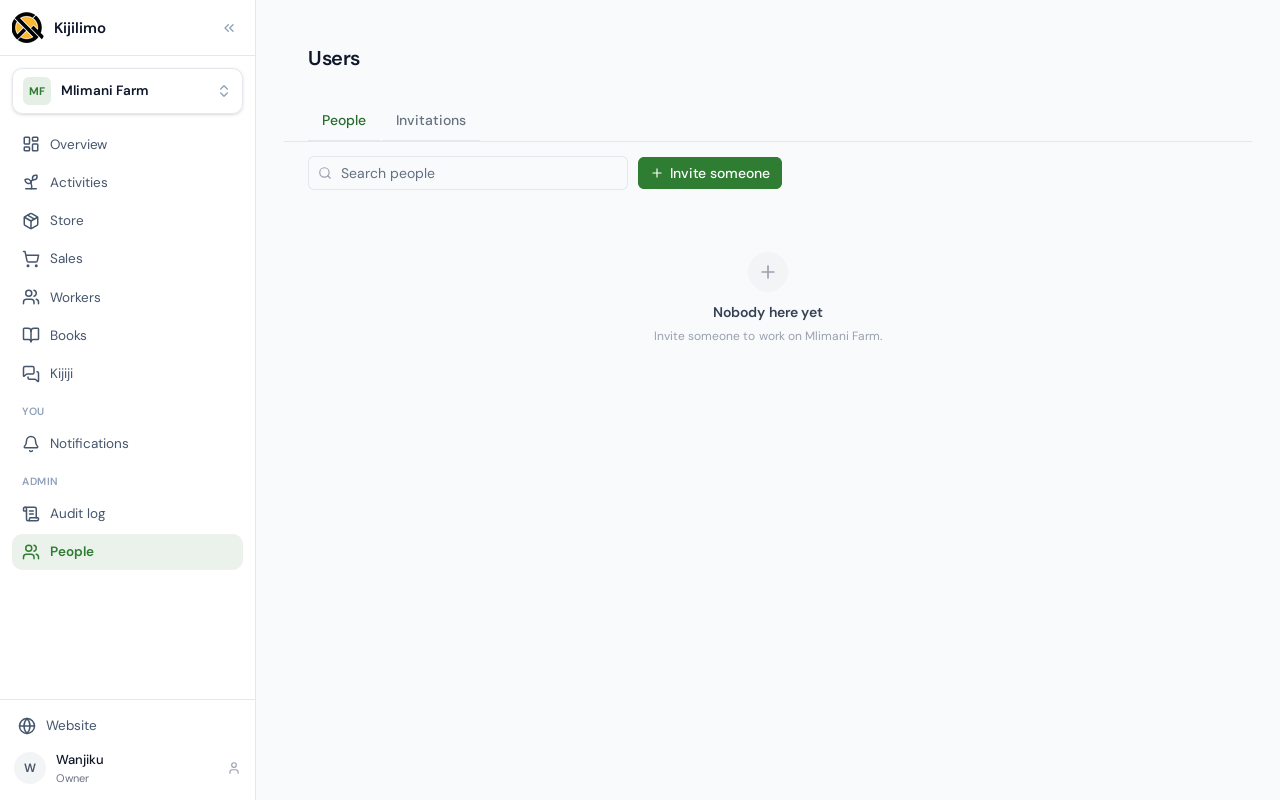
Choose Invite someone. Type their email address.
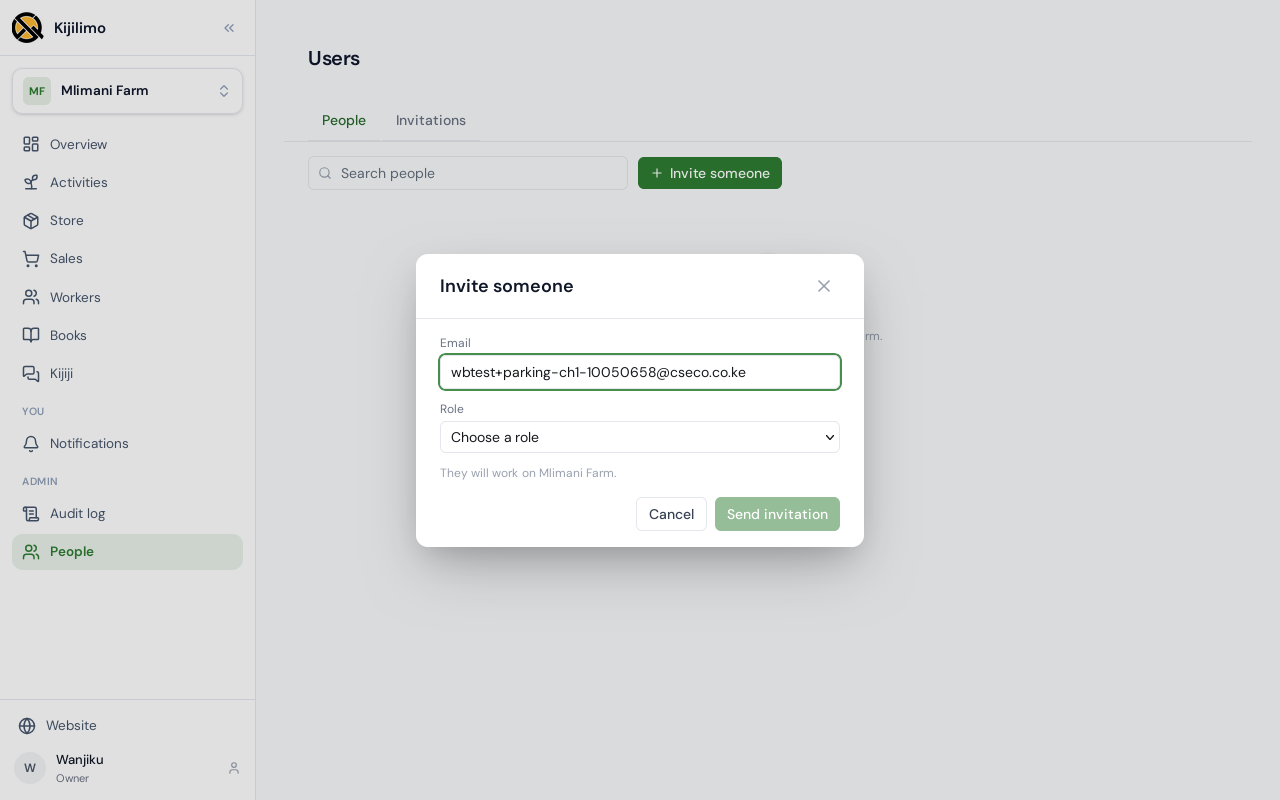
Then their role: accounts, farm manager, picker, supervisor or worker. Each sees only its part of the farm.
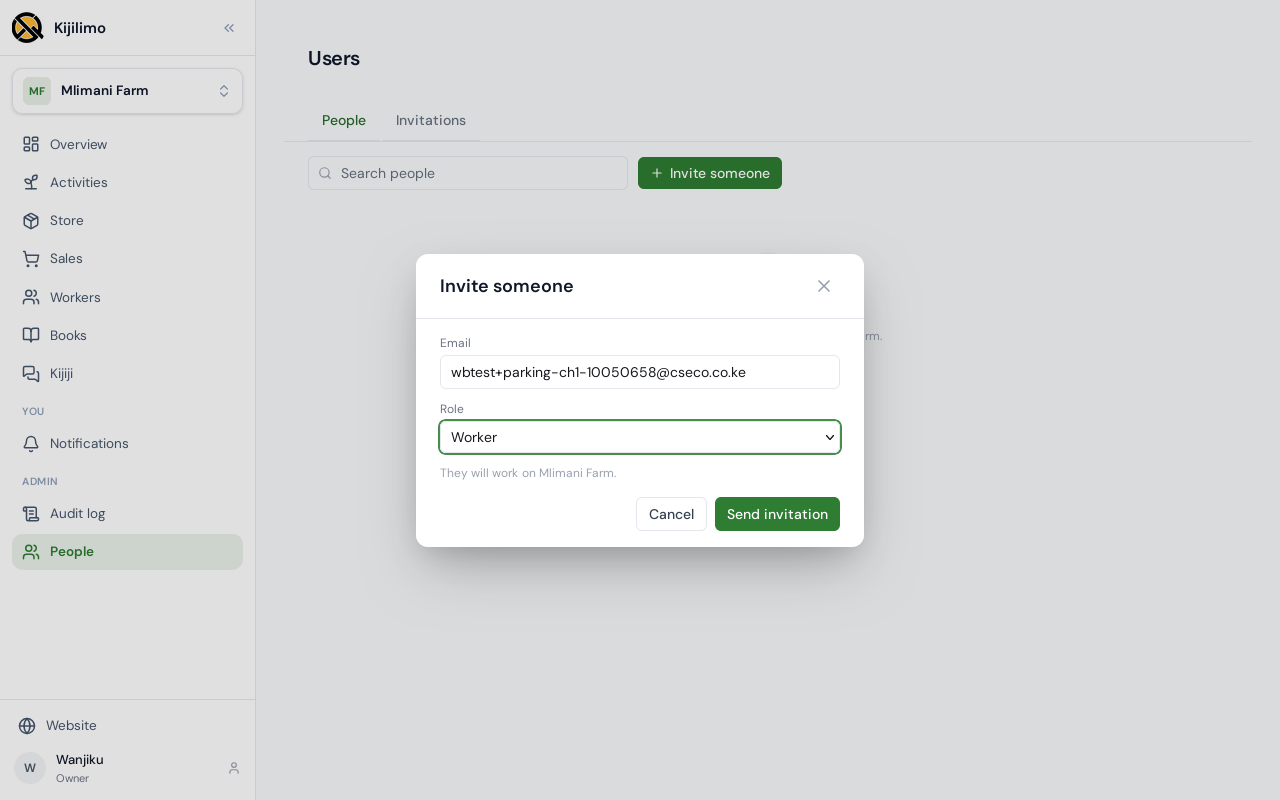
Choose Send invitation. They get an email.
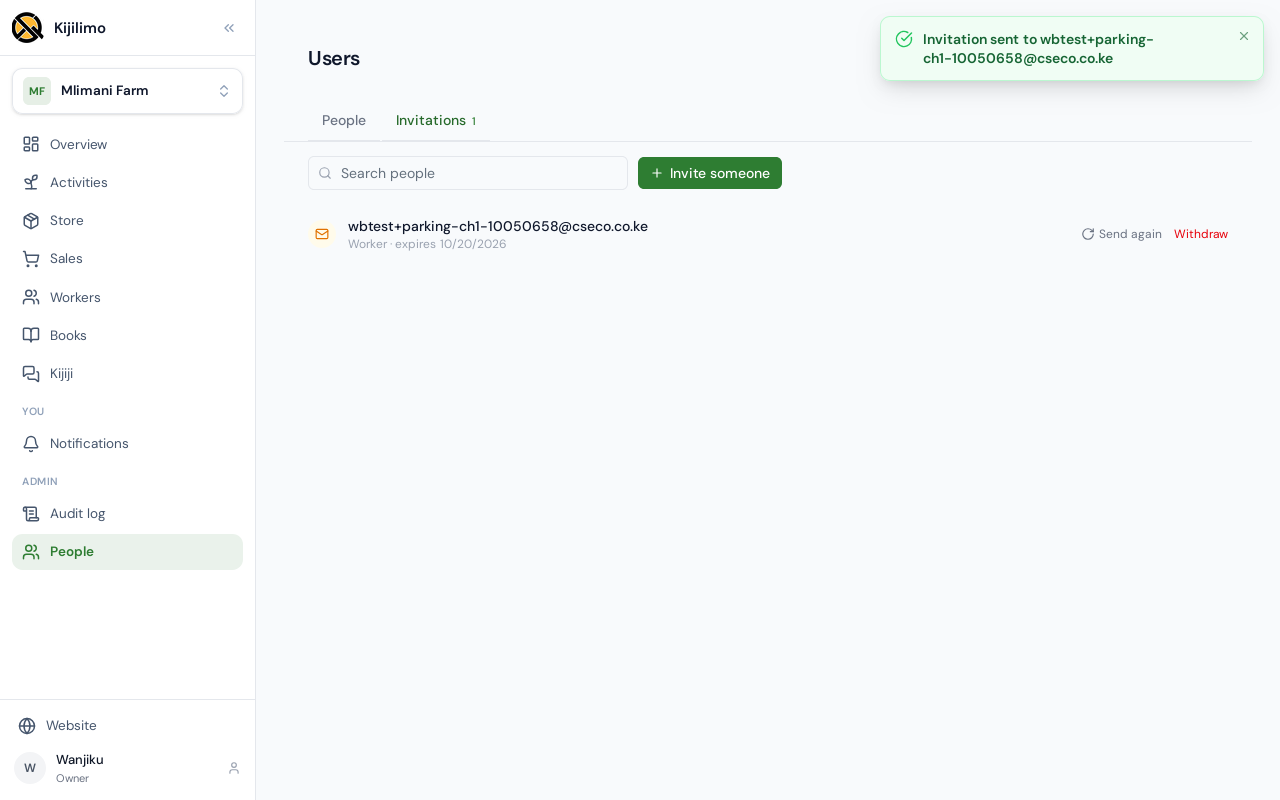
Until they accept, the invitation waits under Invitations.
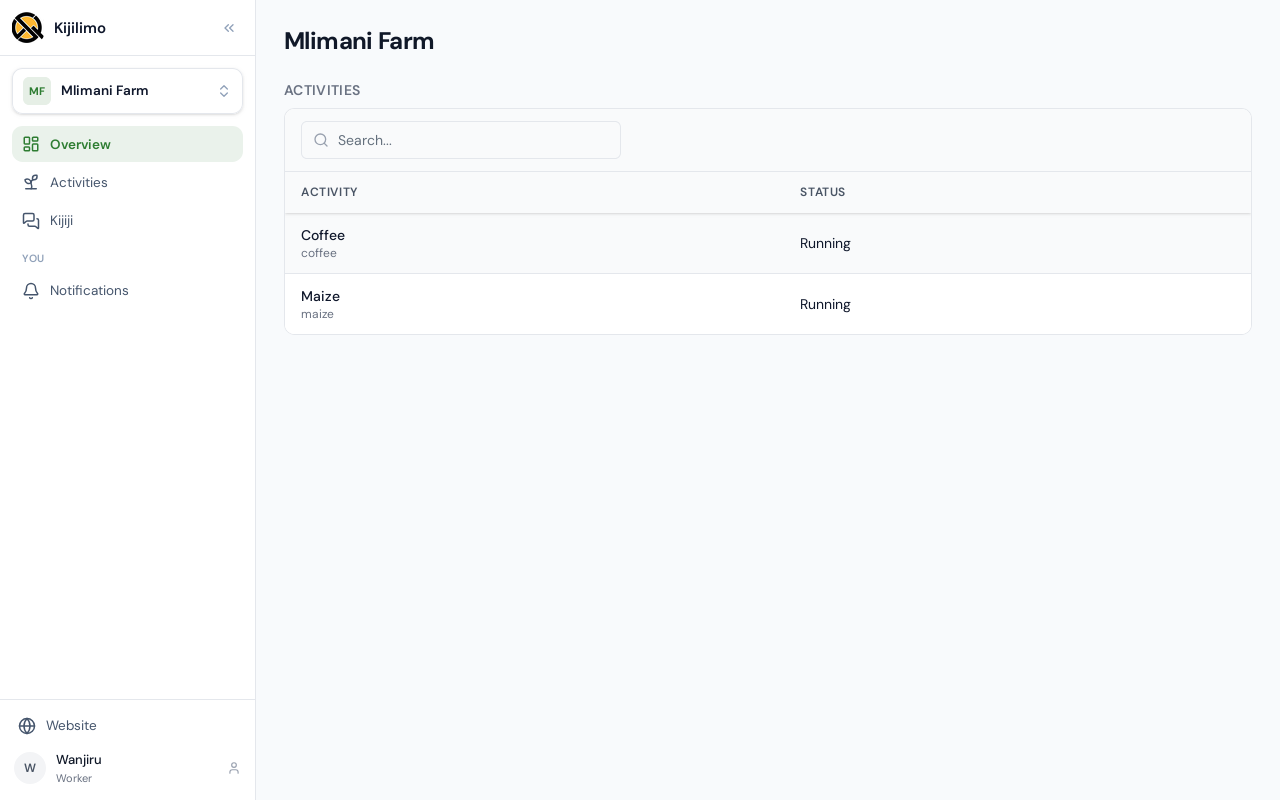
Once they accept, a worker opens on the farm's activities, with no money. Their menu holds only what a worker may use: the farm's pay, books and people stay with the owner.
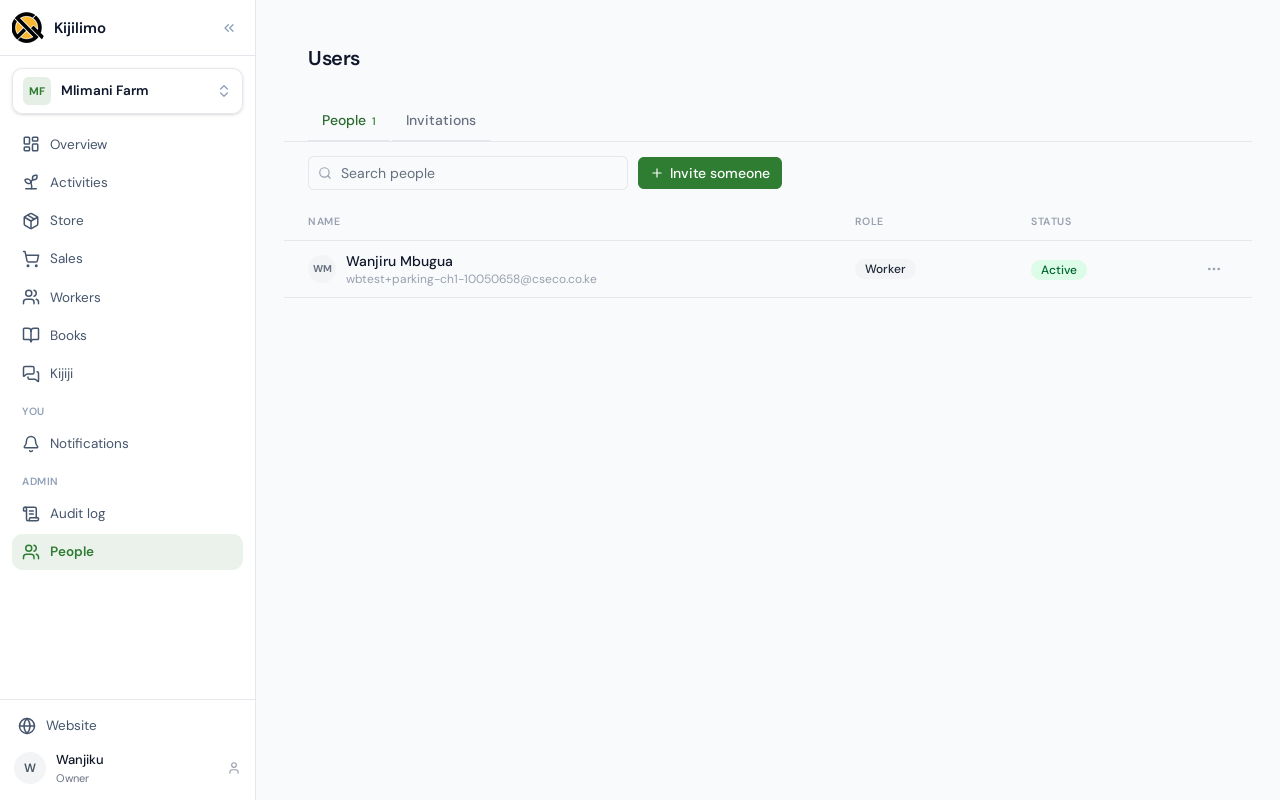
Back as the owner, they're on the People list.
When someone leaves, open their row's menu and choose Remove, then confirm.
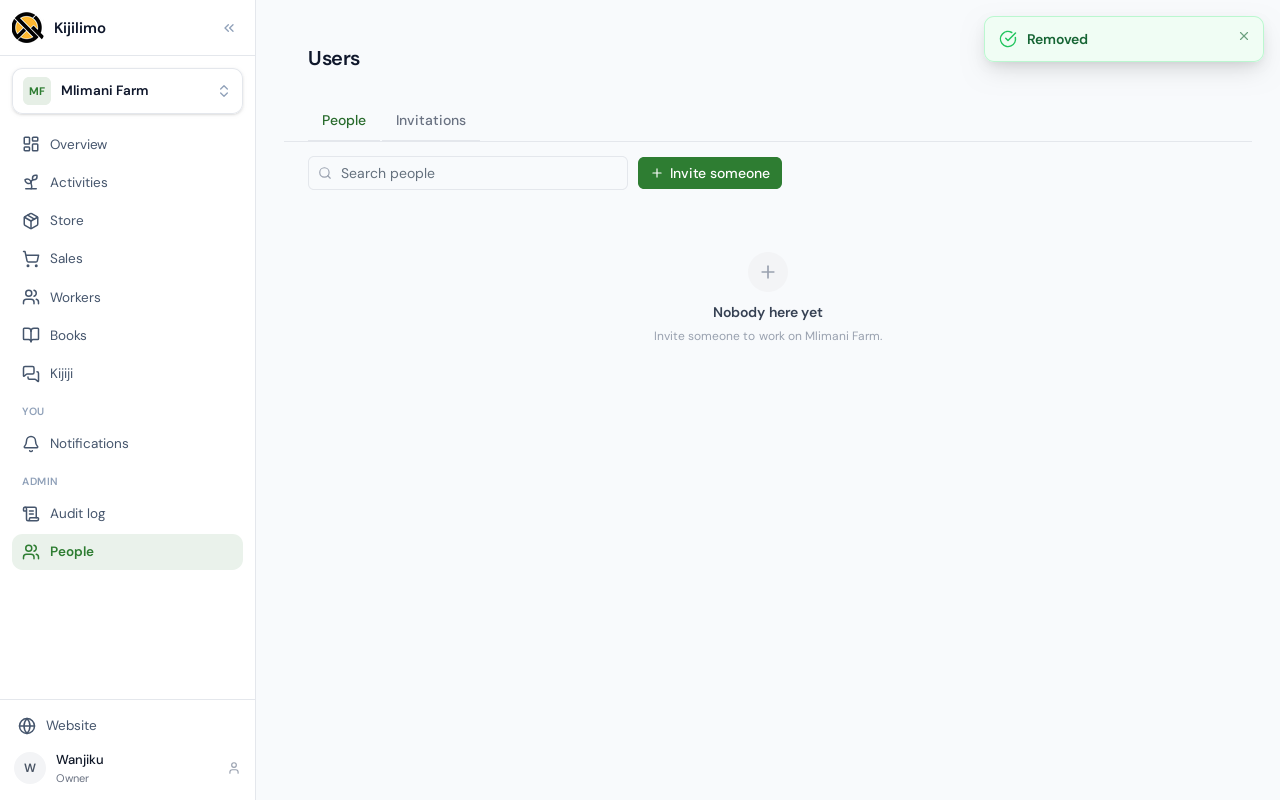
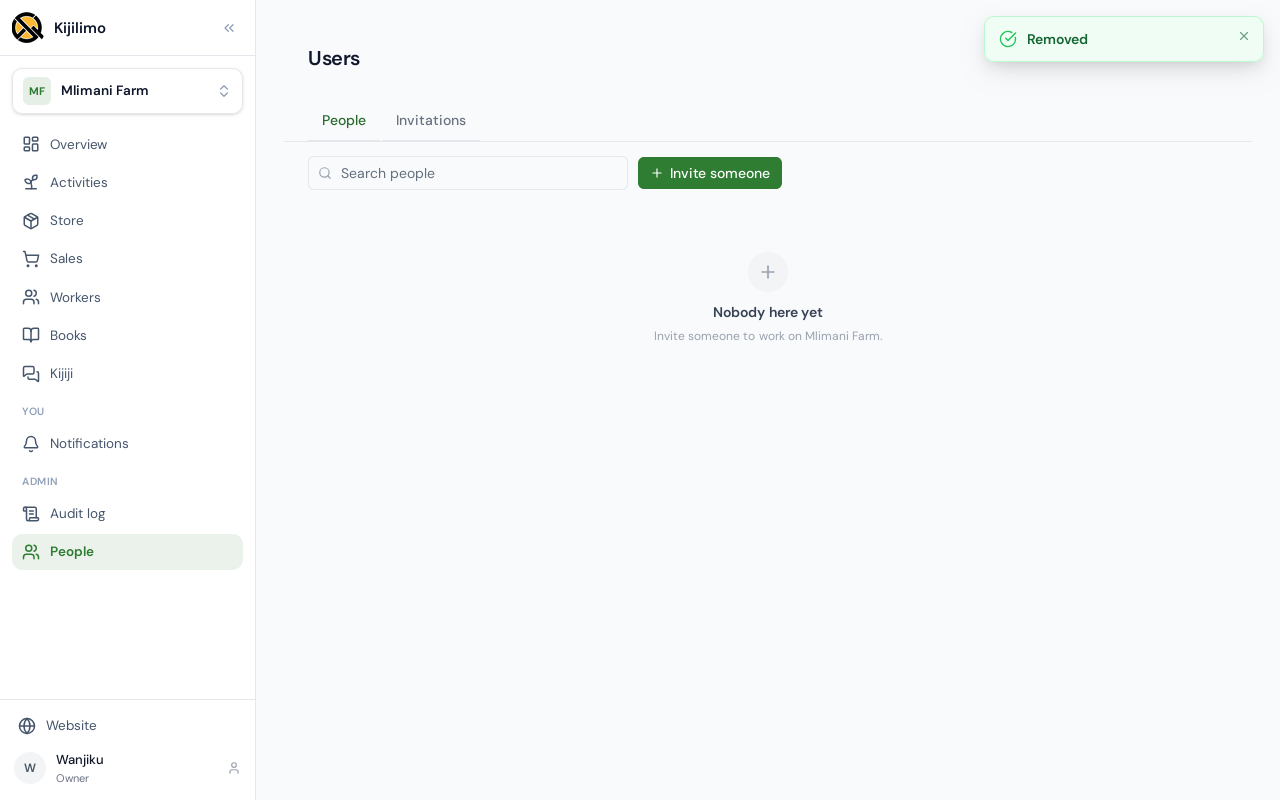
They're off the farm. Their account stays theirs.
Chapter 9
Rating a farm or a provider, and answering
Anyone signed in can rate a farm or a provider. Here, a buyer rates a farm's produce listing.
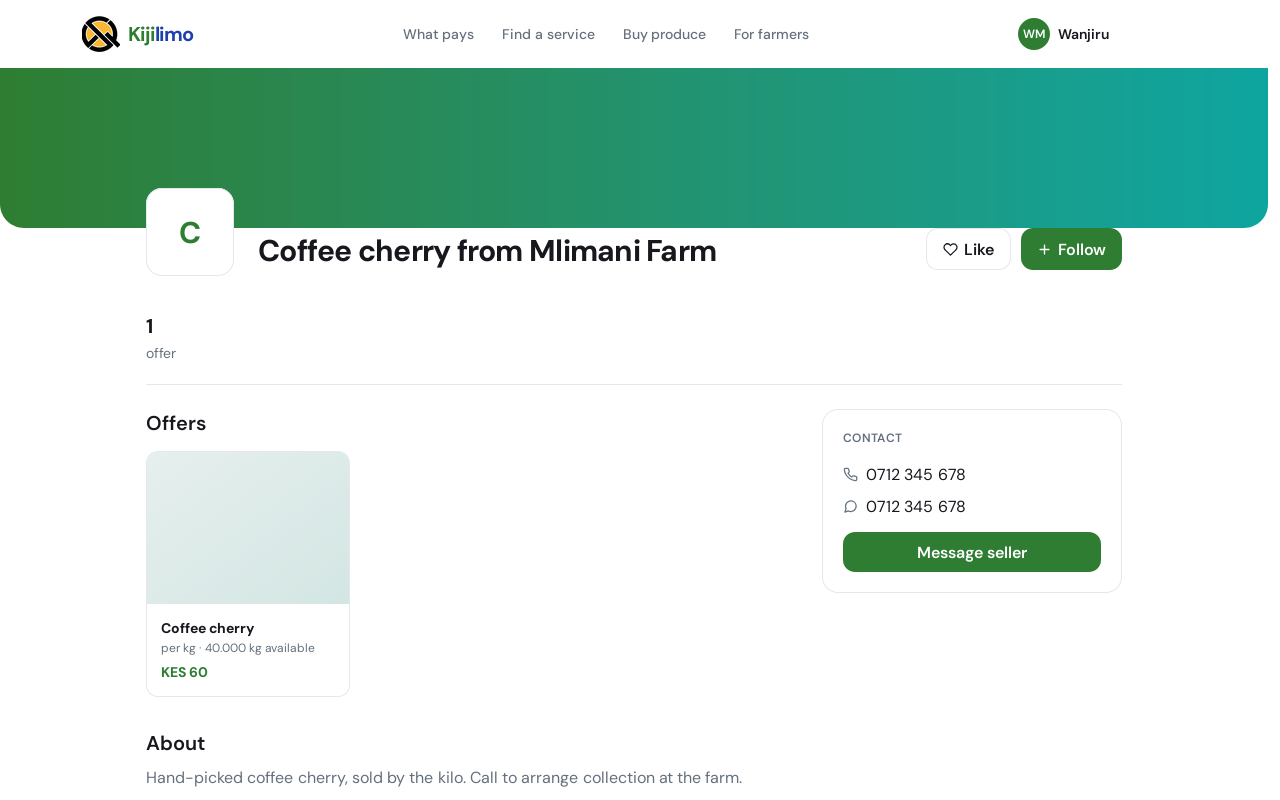
Choose the stars, say what it was like, and choose Post my review.
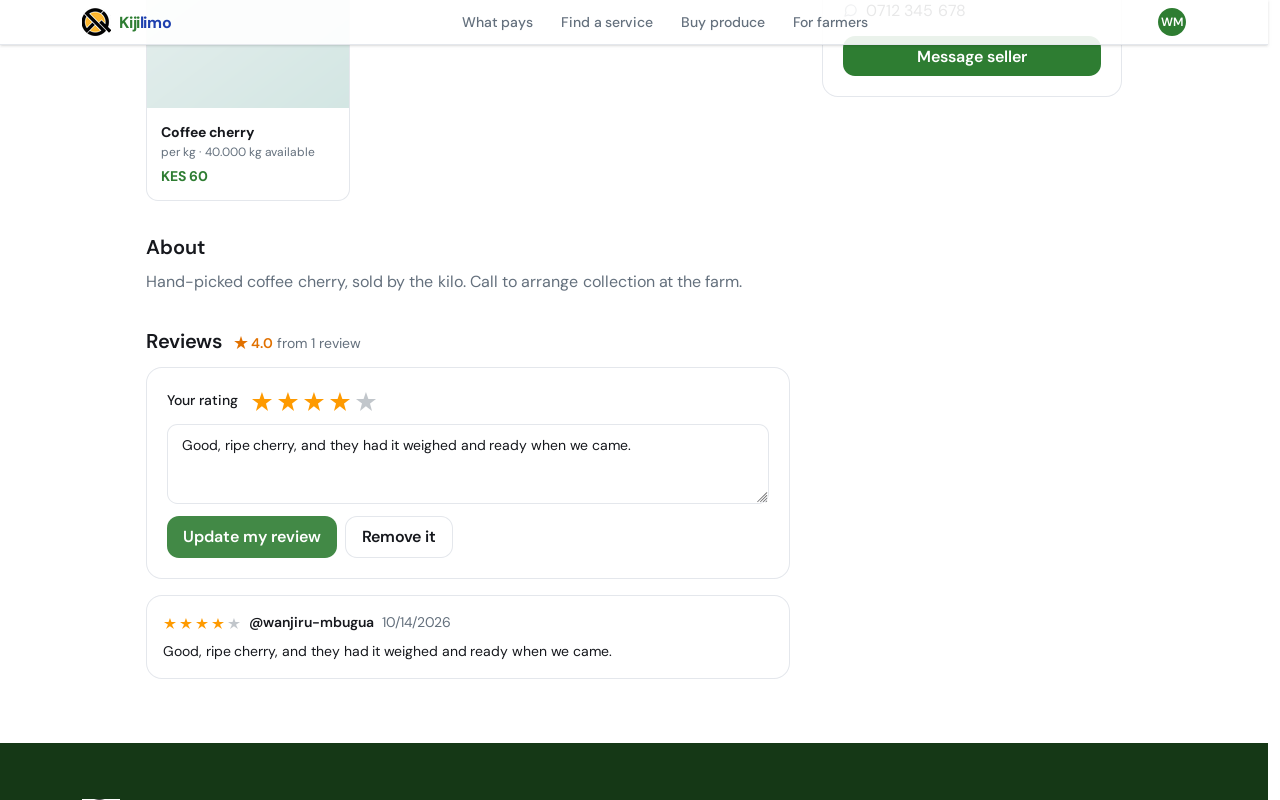
The review shows on the listing, with the stars and the buyer's name.
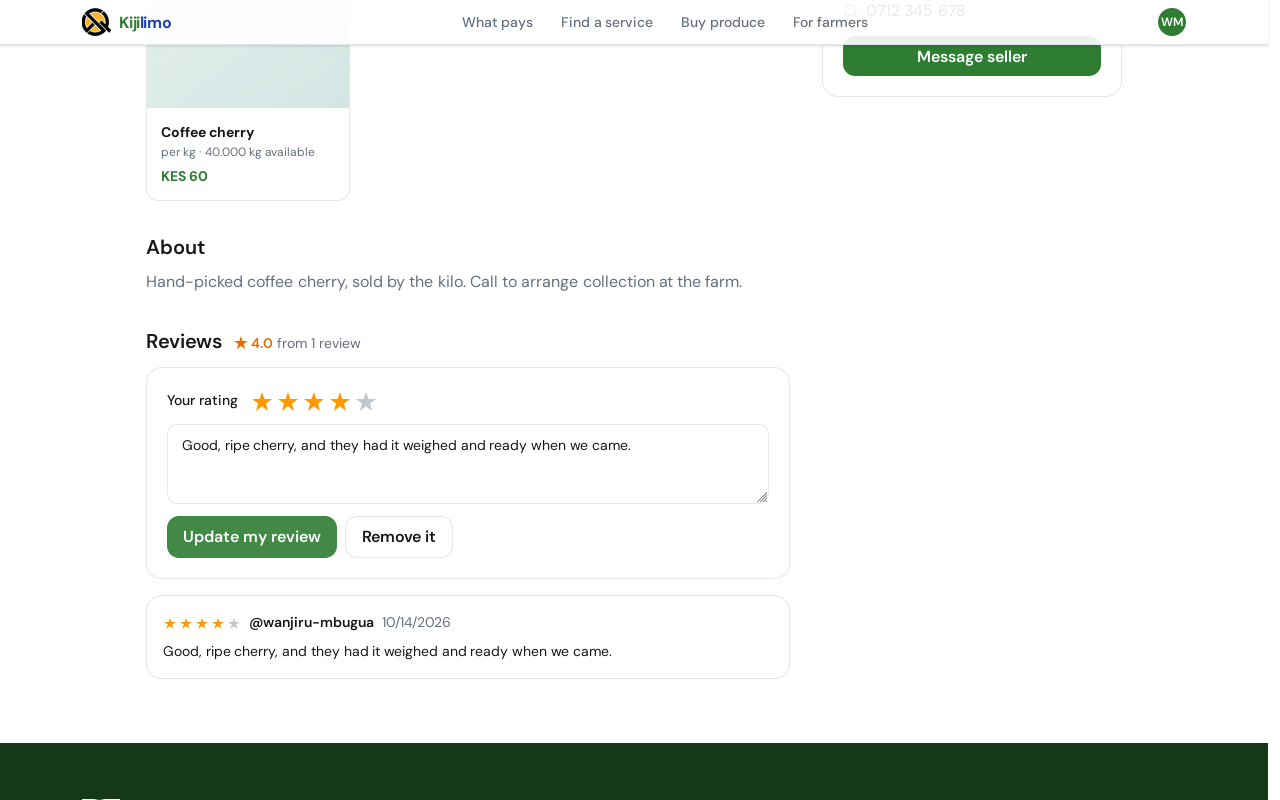
The farm that owns the listing sees a note above the reviews: it can answer each one.
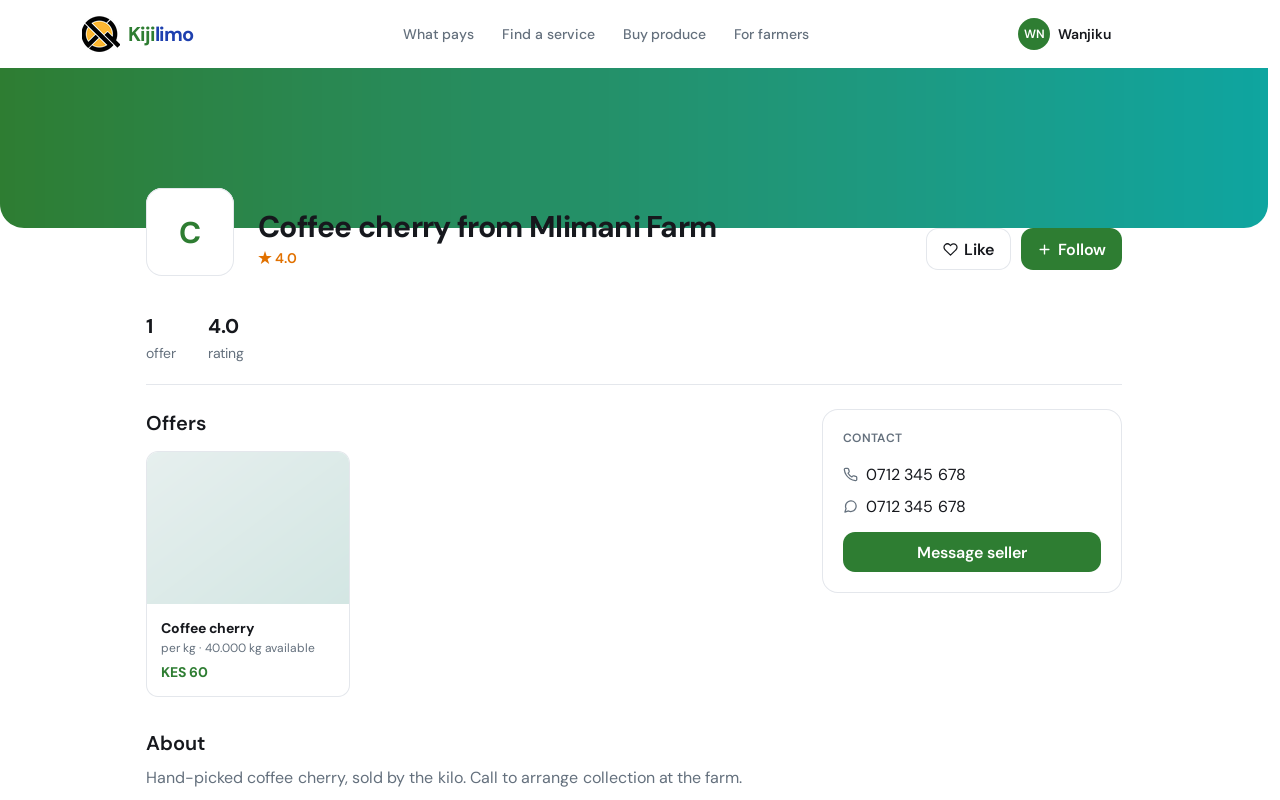
Choose Reply under the review, write your answer, and choose Post reply.
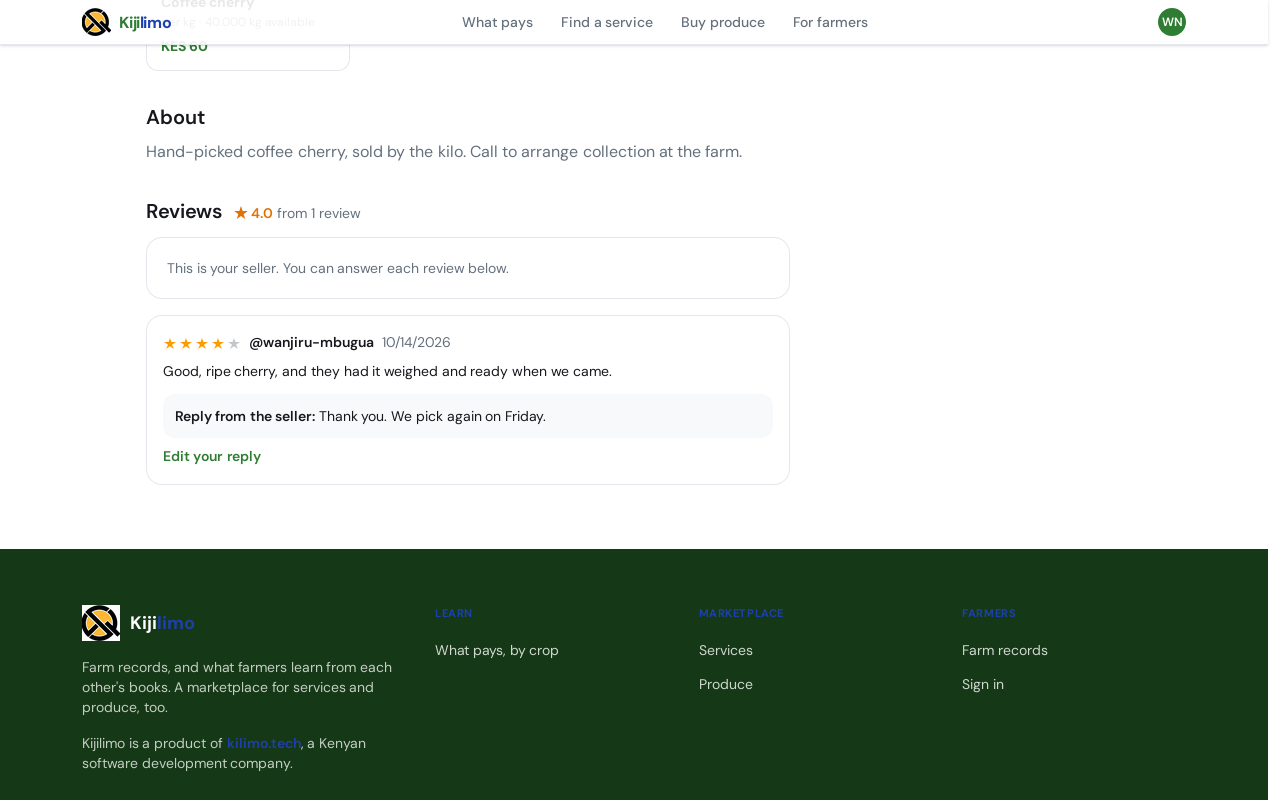
The answer shows under the review, for everyone who reads it.