Chapter 1
Finding a tailor, and running a tailoring shop
Washoni does two things. For customers, it finds a tailor. For tailoring shops, it runs the shop: orders, customers and their measurements, staff, and getting paid.
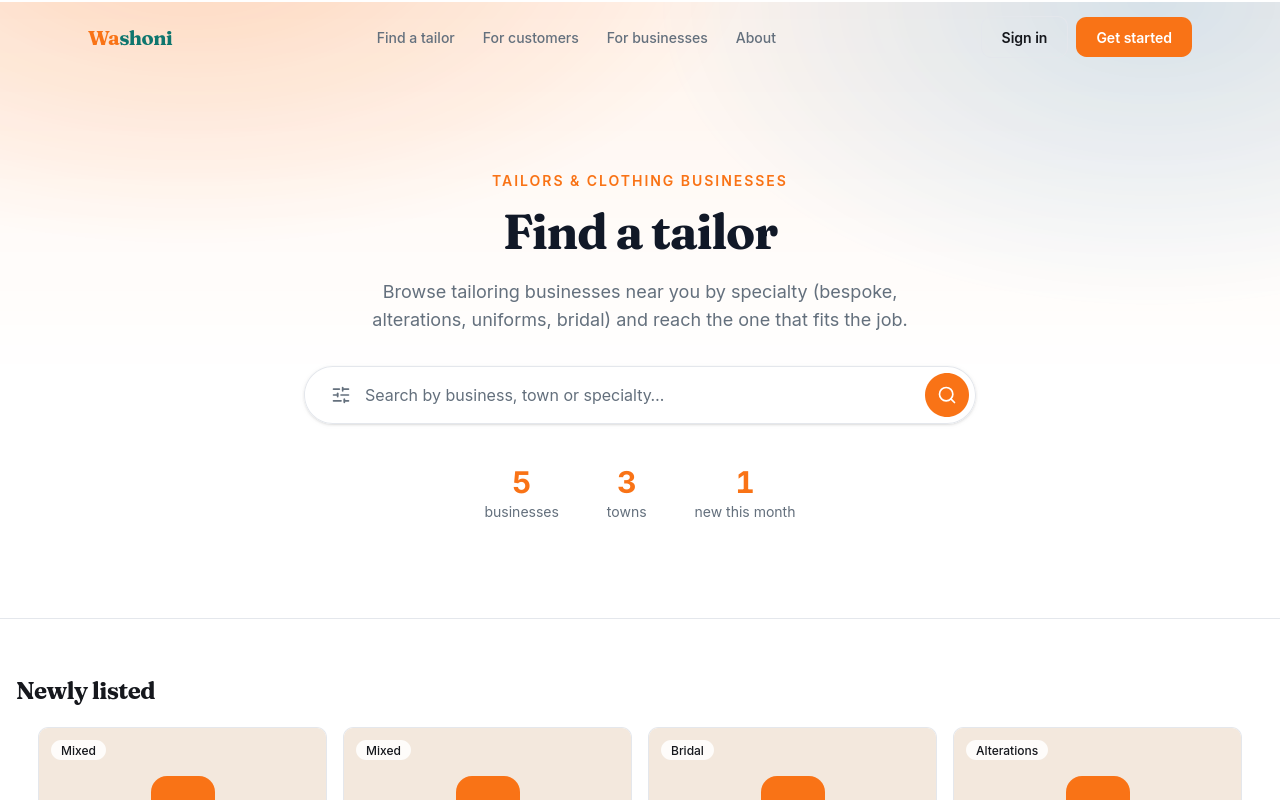
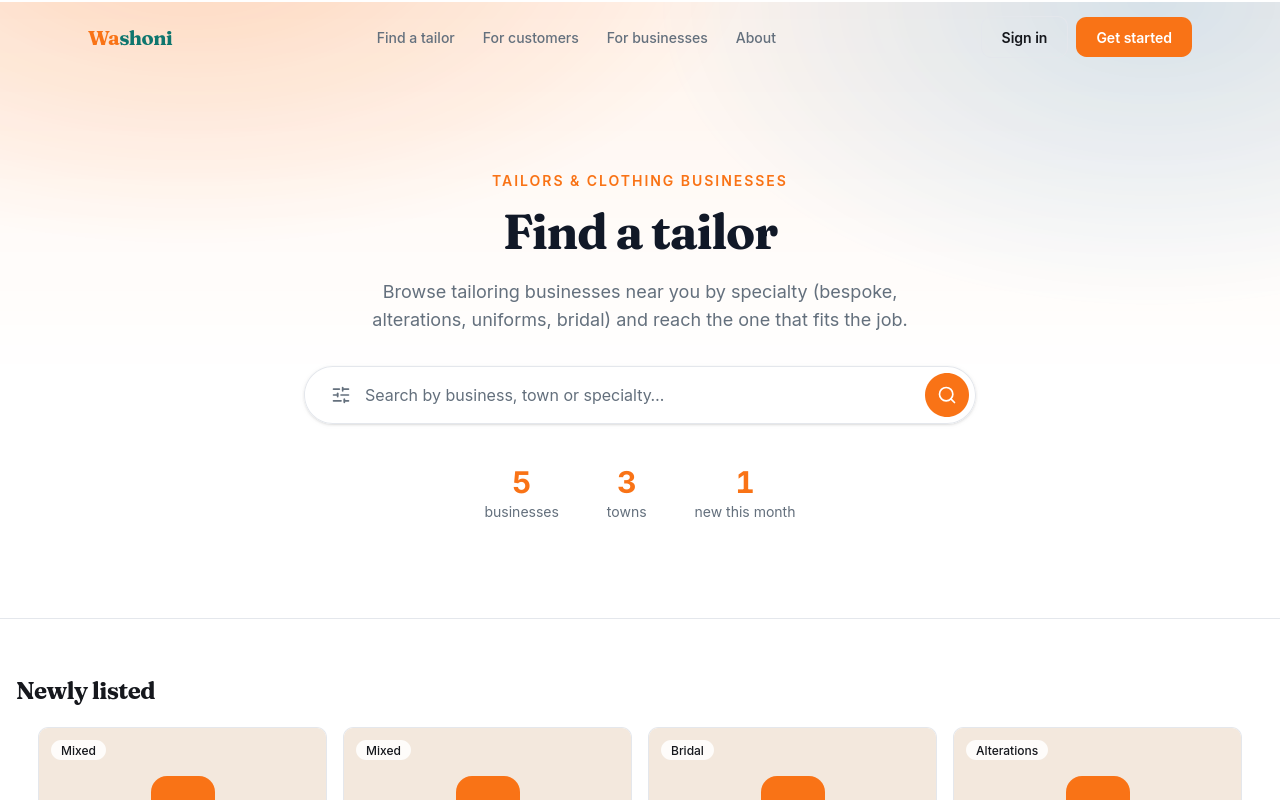
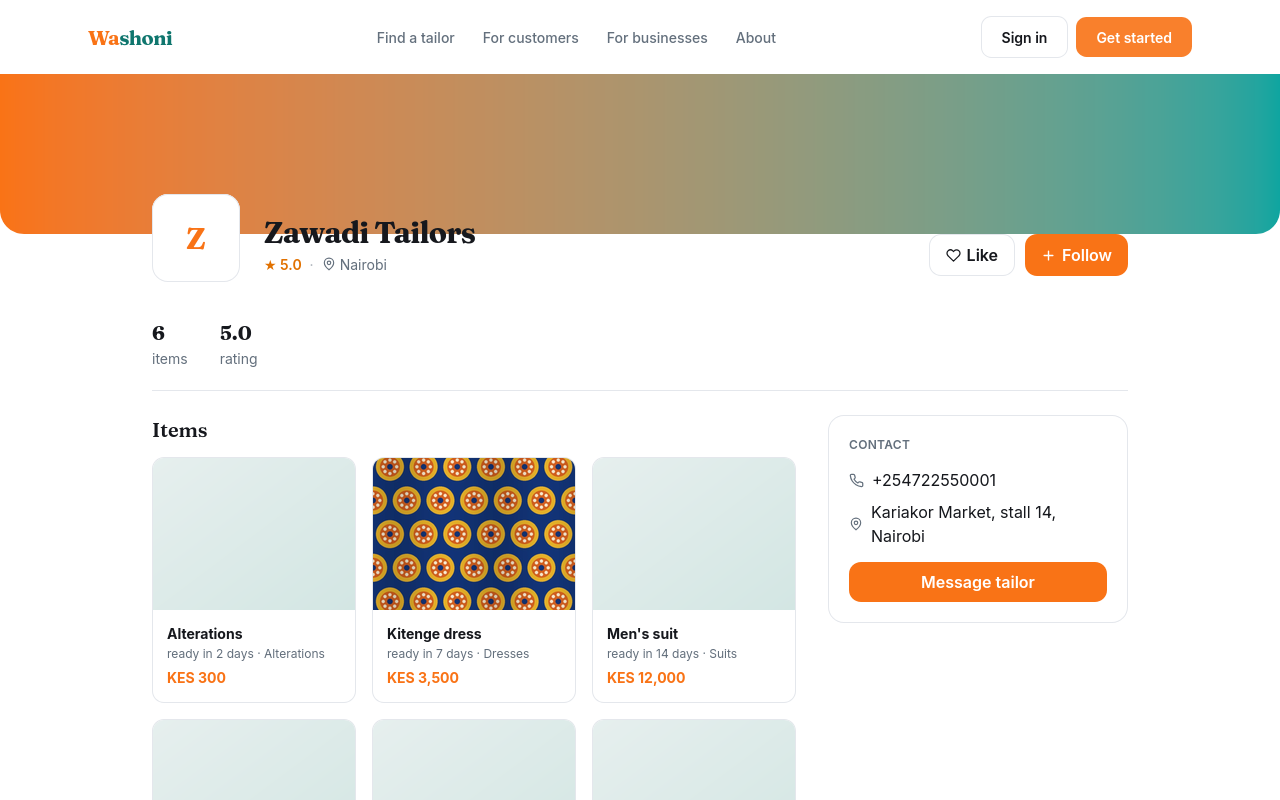
Anyone can look, without an account. The home page lists the tailors, newest first.
Open a tailor to see their page.
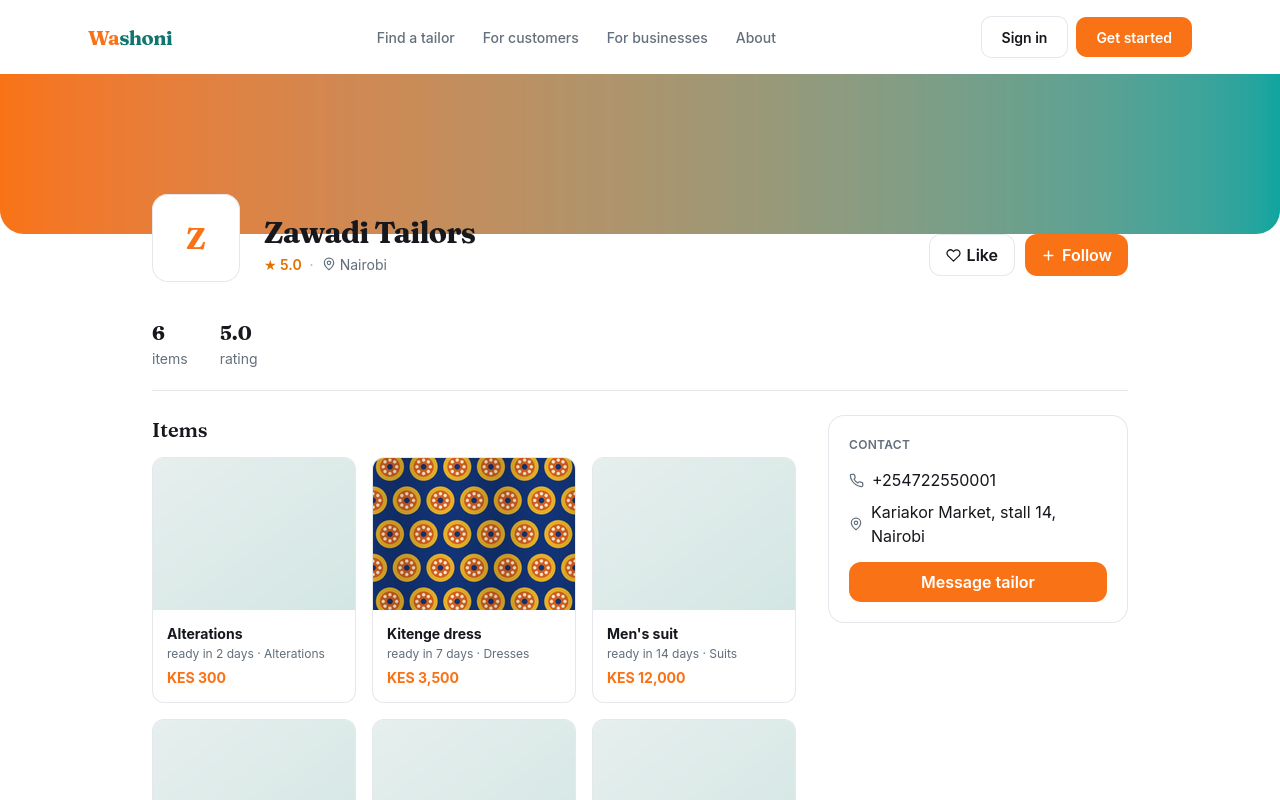
It shows what the shop makes, with a photo where the shop added one, the price each starts from, and how long each takes.
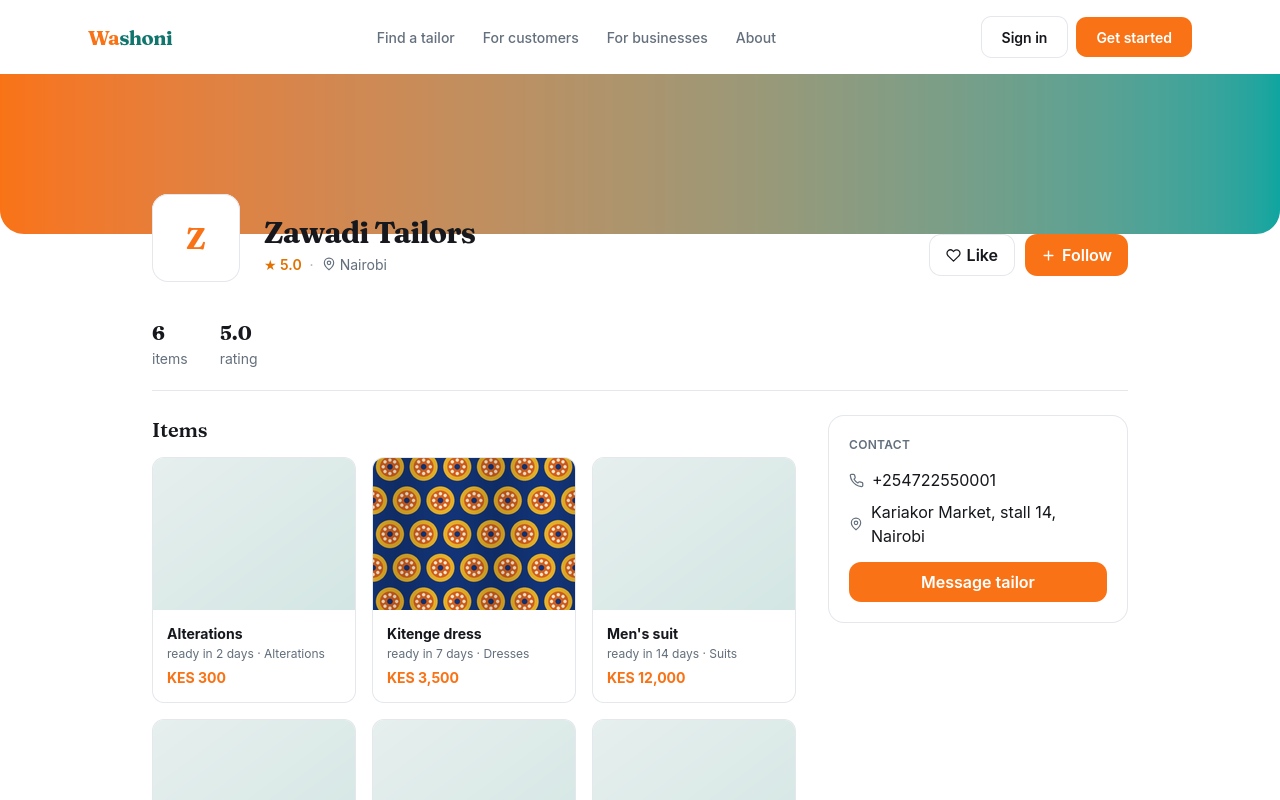
About the shop, and where it is, are in its owner's words.
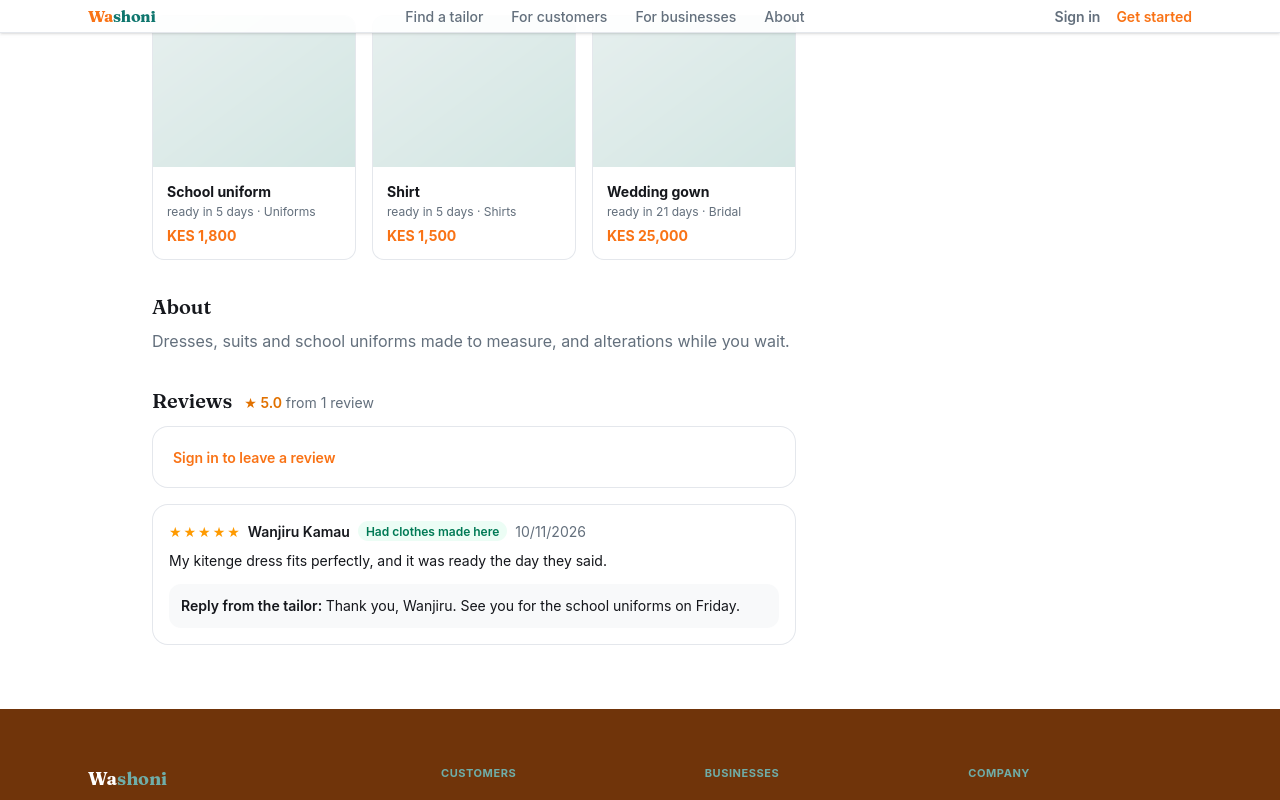
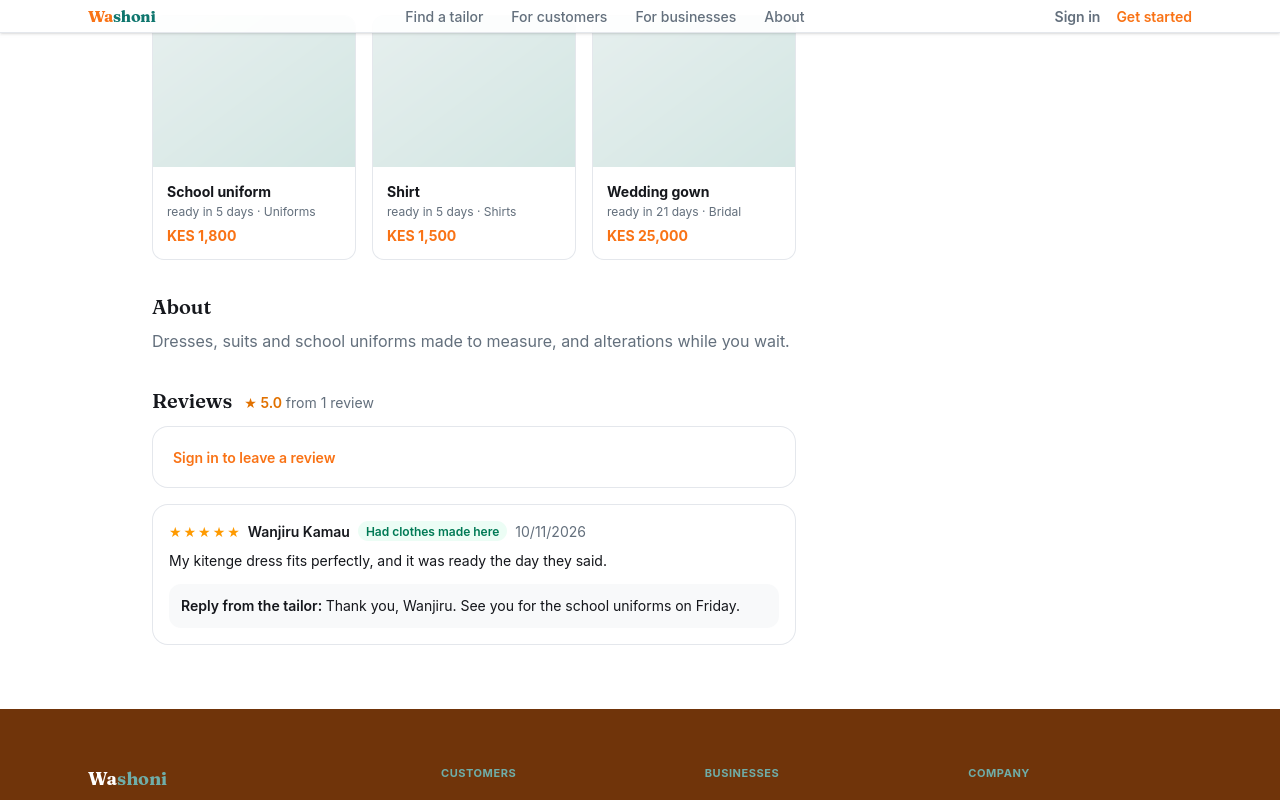
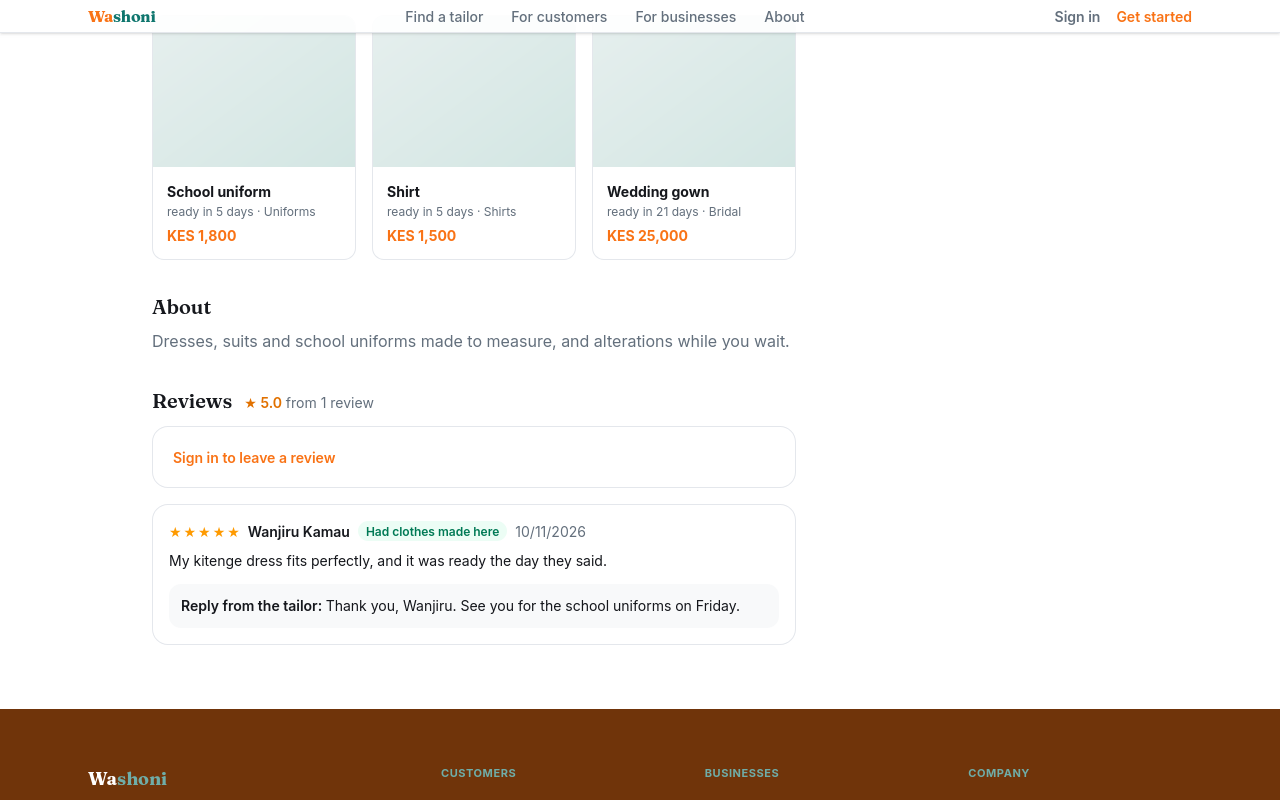
Reviews come from customers. Those marked Had clothes made here are from people who collected an order at the shop.
To get in touch, a customer calls, or messages the shop from their own phone.
A shop starts from Get started: an account, then your business. The next chapters show each step.
Chapter 2
Your organisation, your first business, and its details
The first time you sign in, Washoni asks what you are here for.
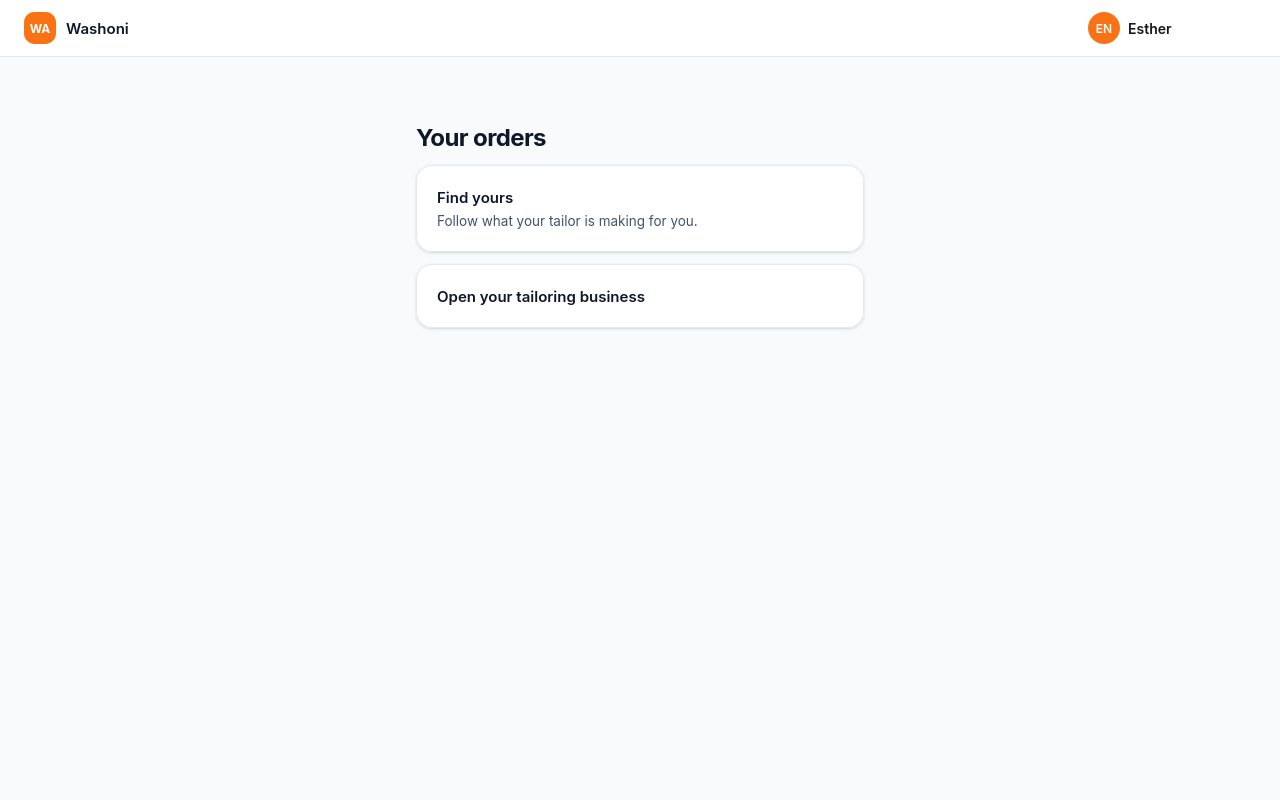
Find yours is for customers: it opens the orders your tailor is making for you. To run a tailoring business, choose Open your tailoring business.
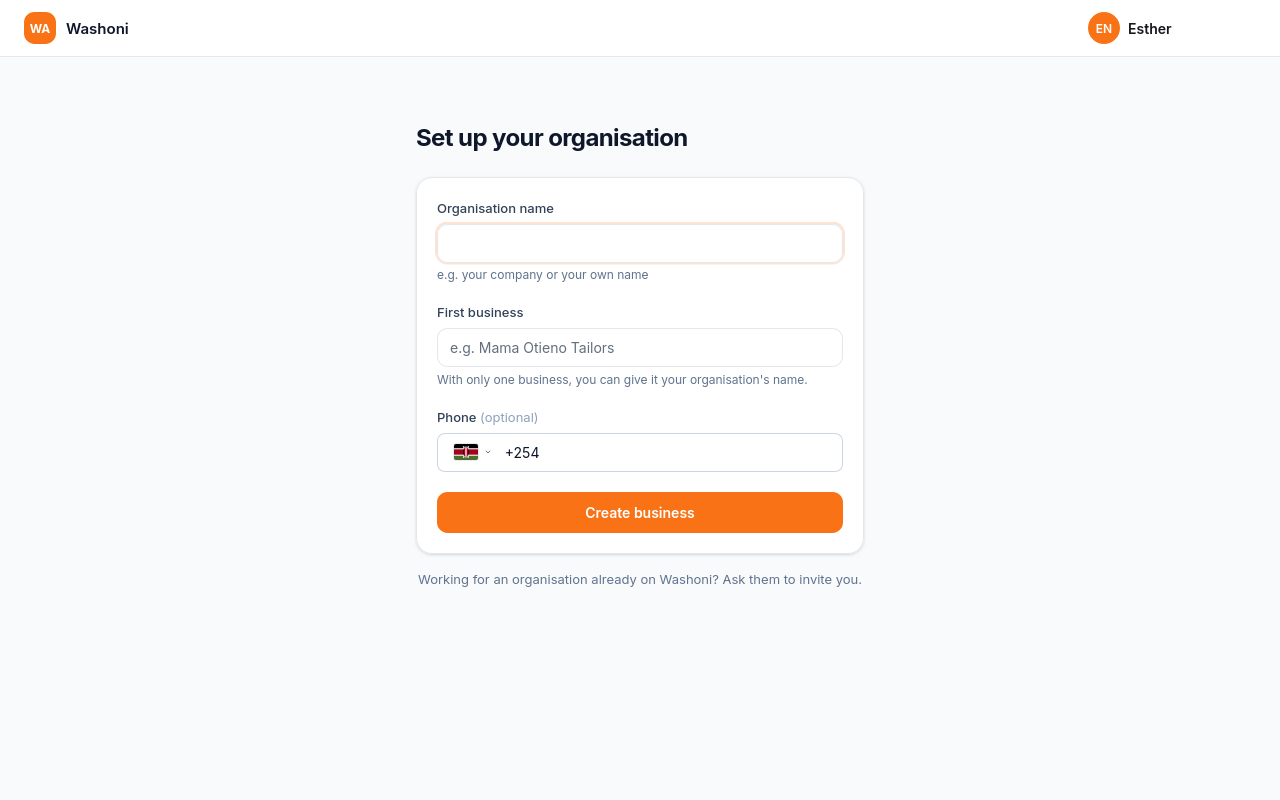
First, your organisation. It can be your company, or your own name.
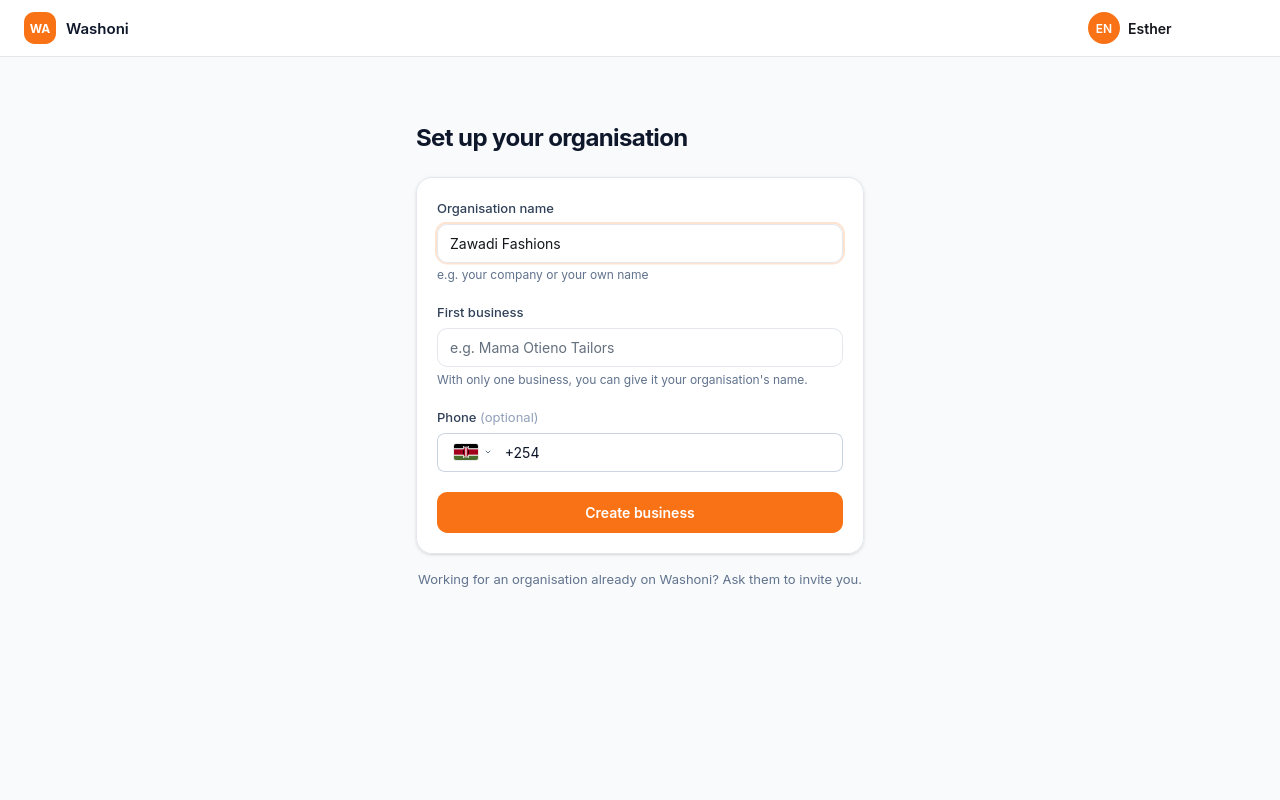
Then your first business: the shop. With only one, it can carry the organisation's name.
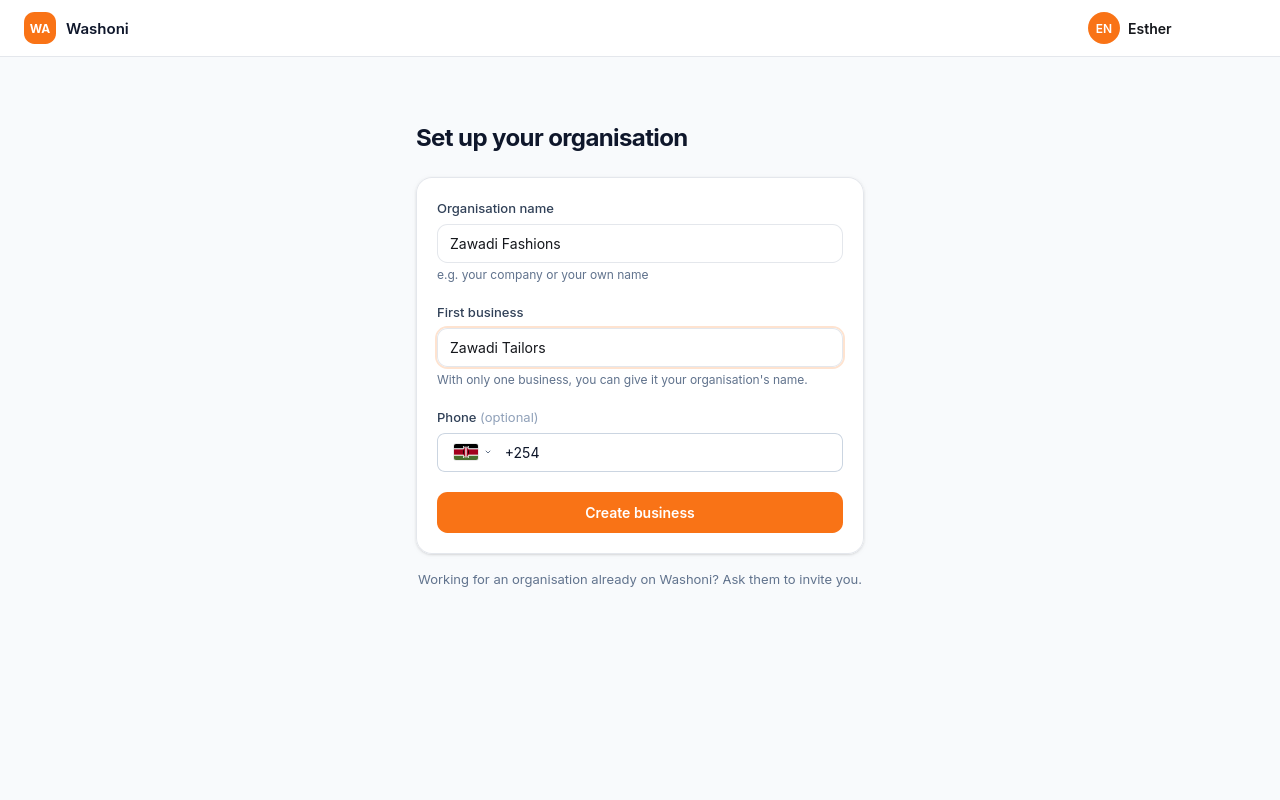
A phone number for the shop is optional.
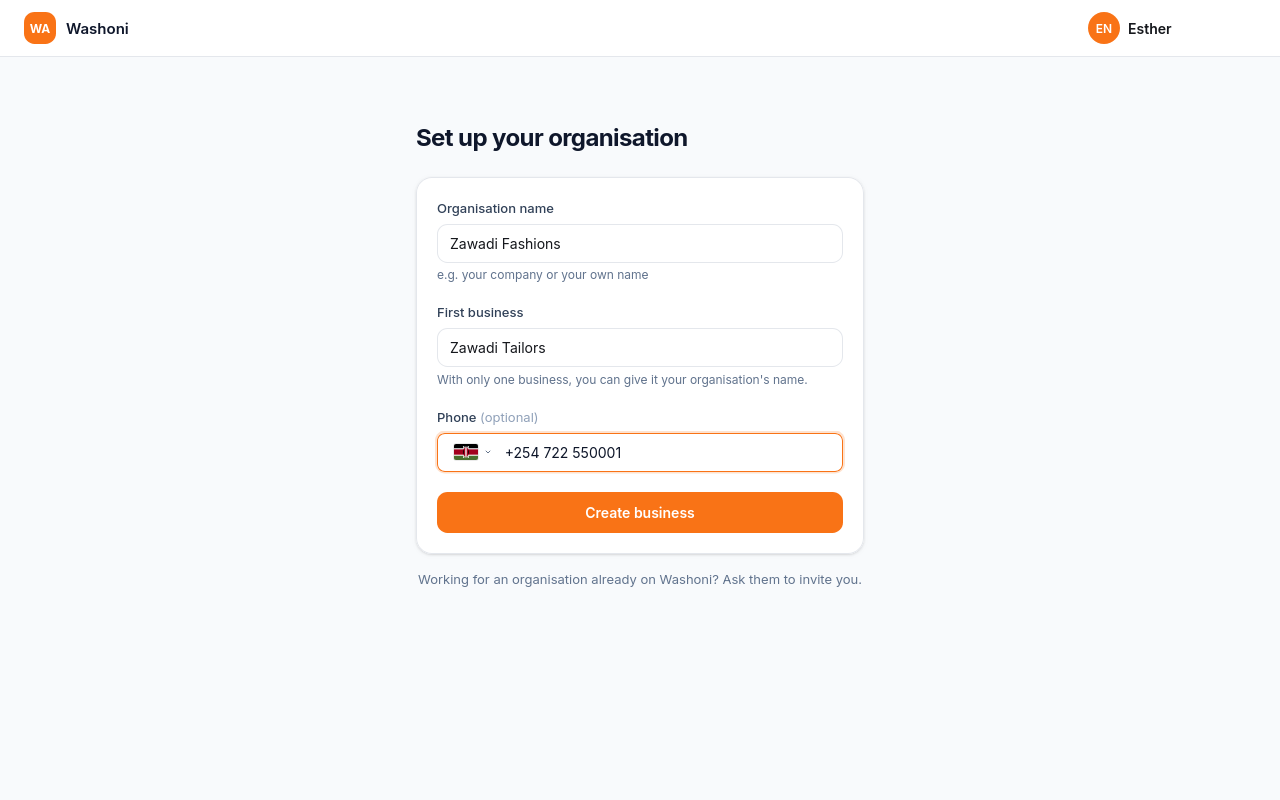
Choose Create business.
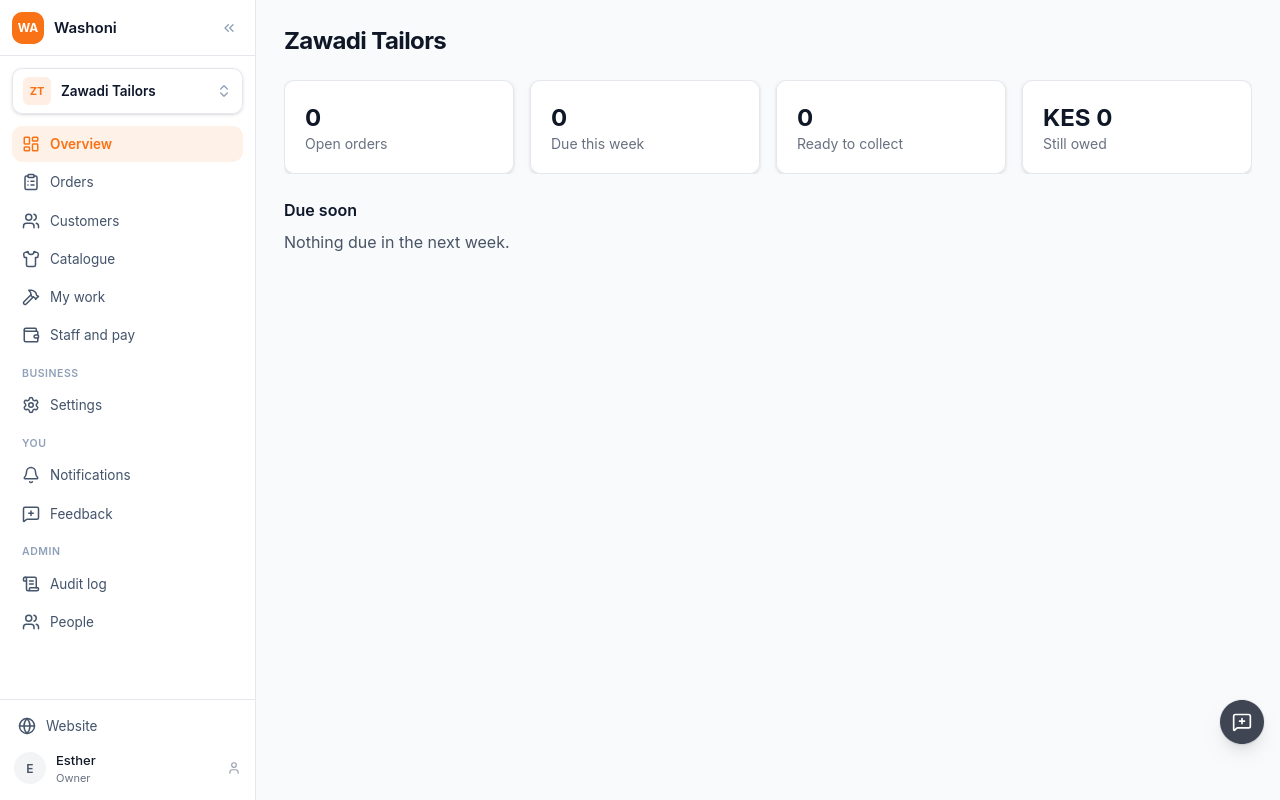
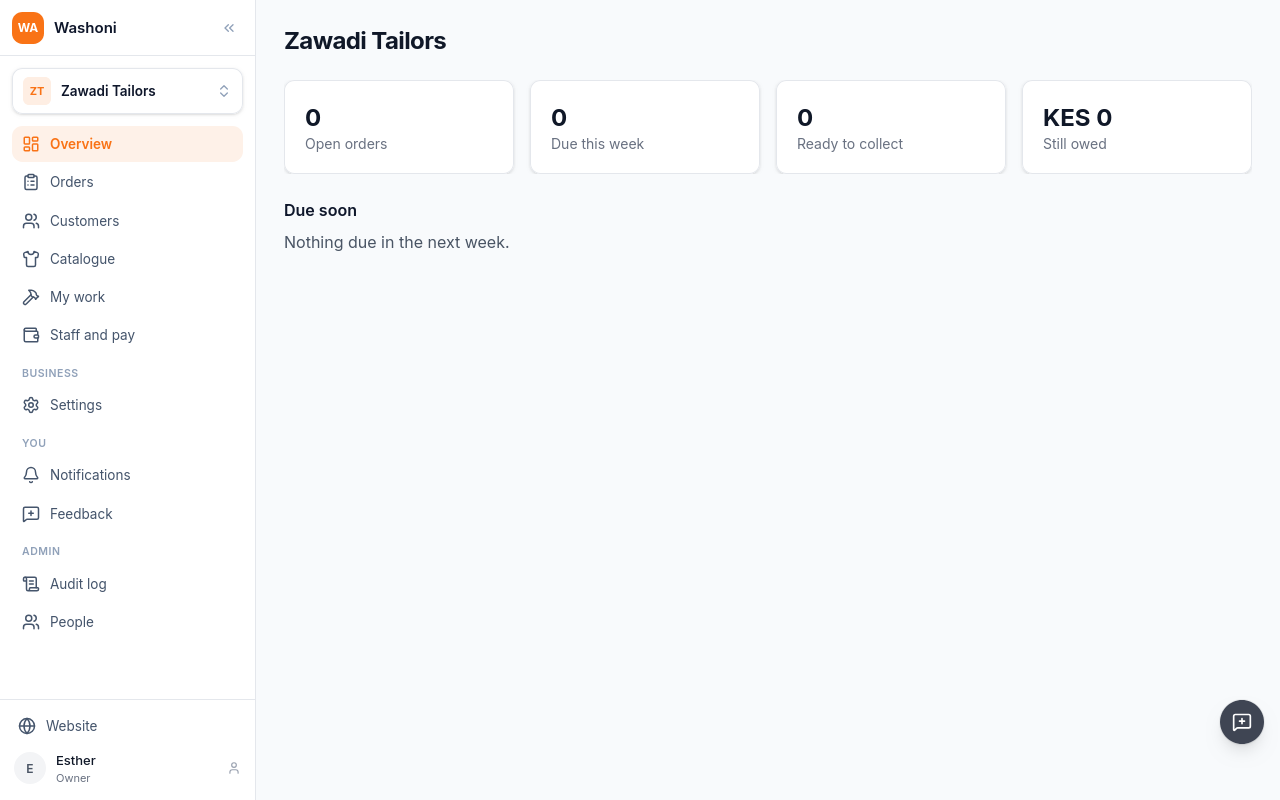
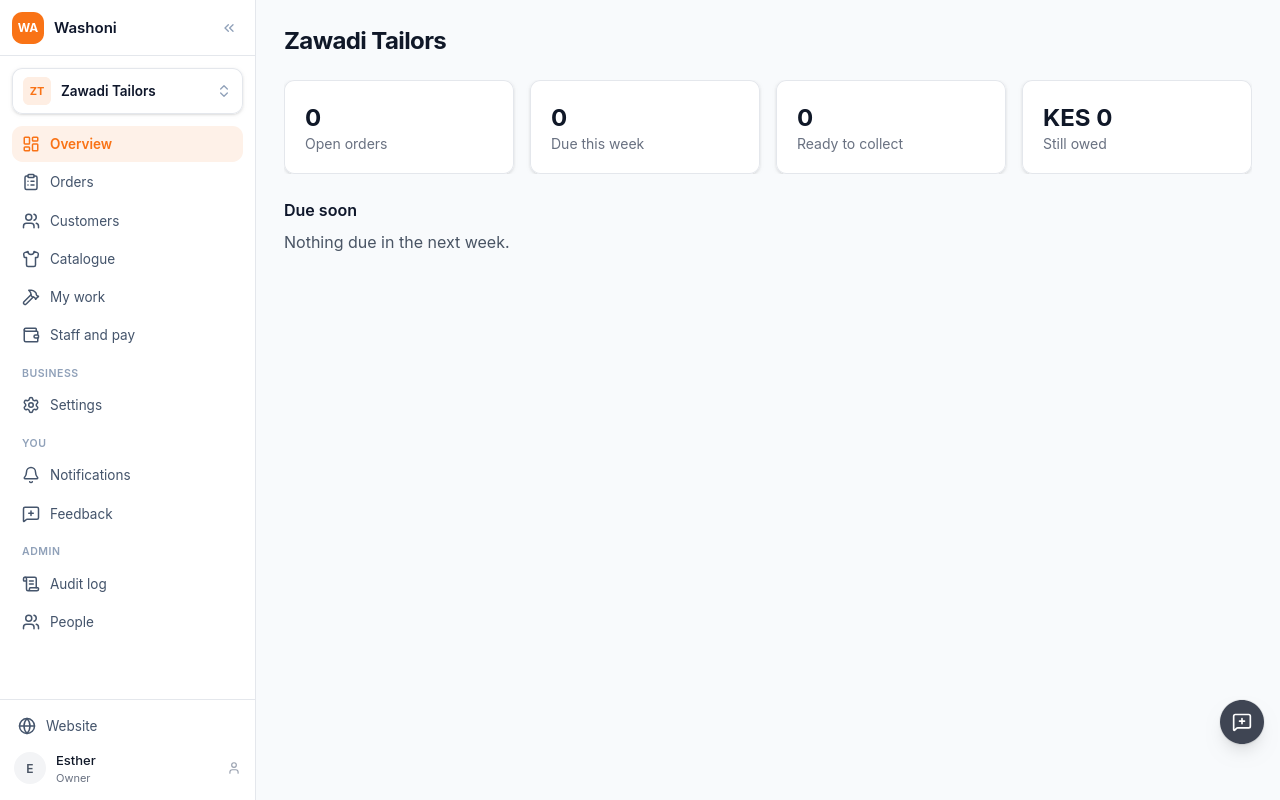
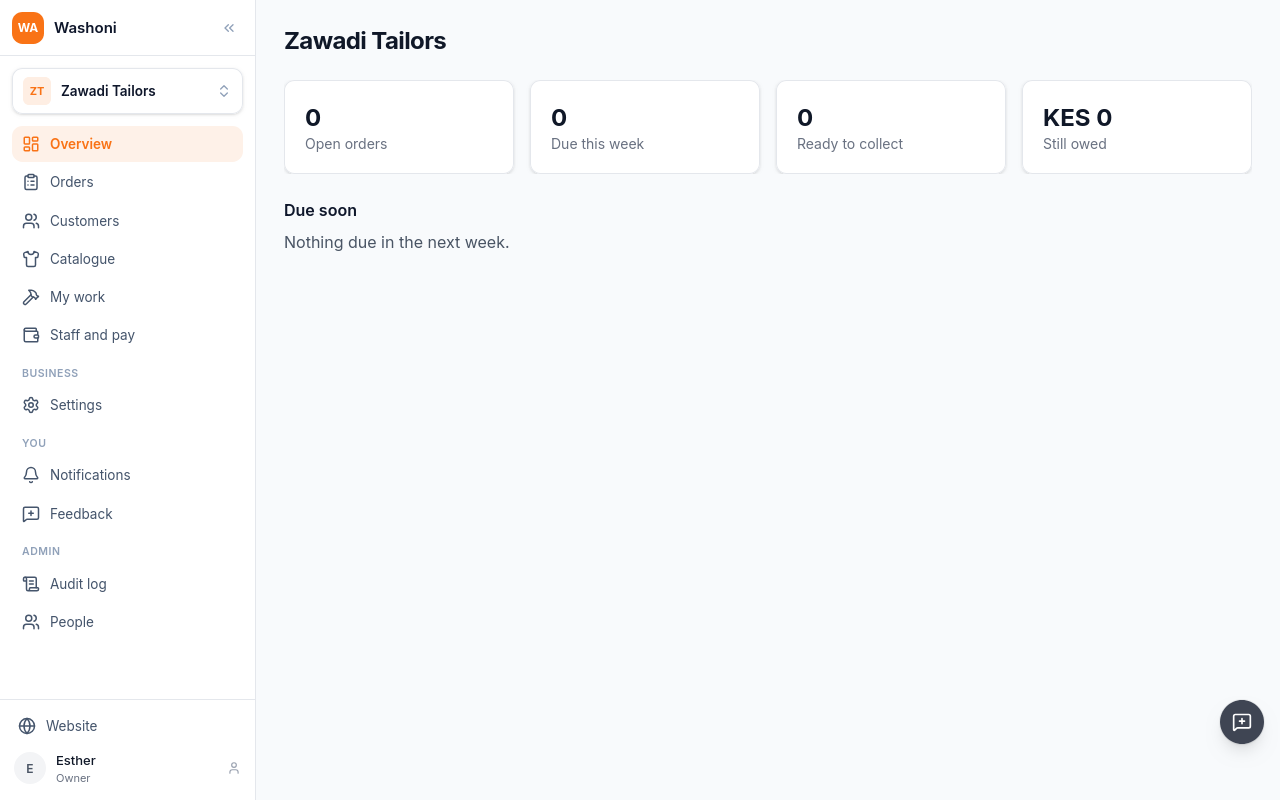
Washoni opens on the business's overview: the open orders, those due this week, those ready to collect, and what customers still owe.
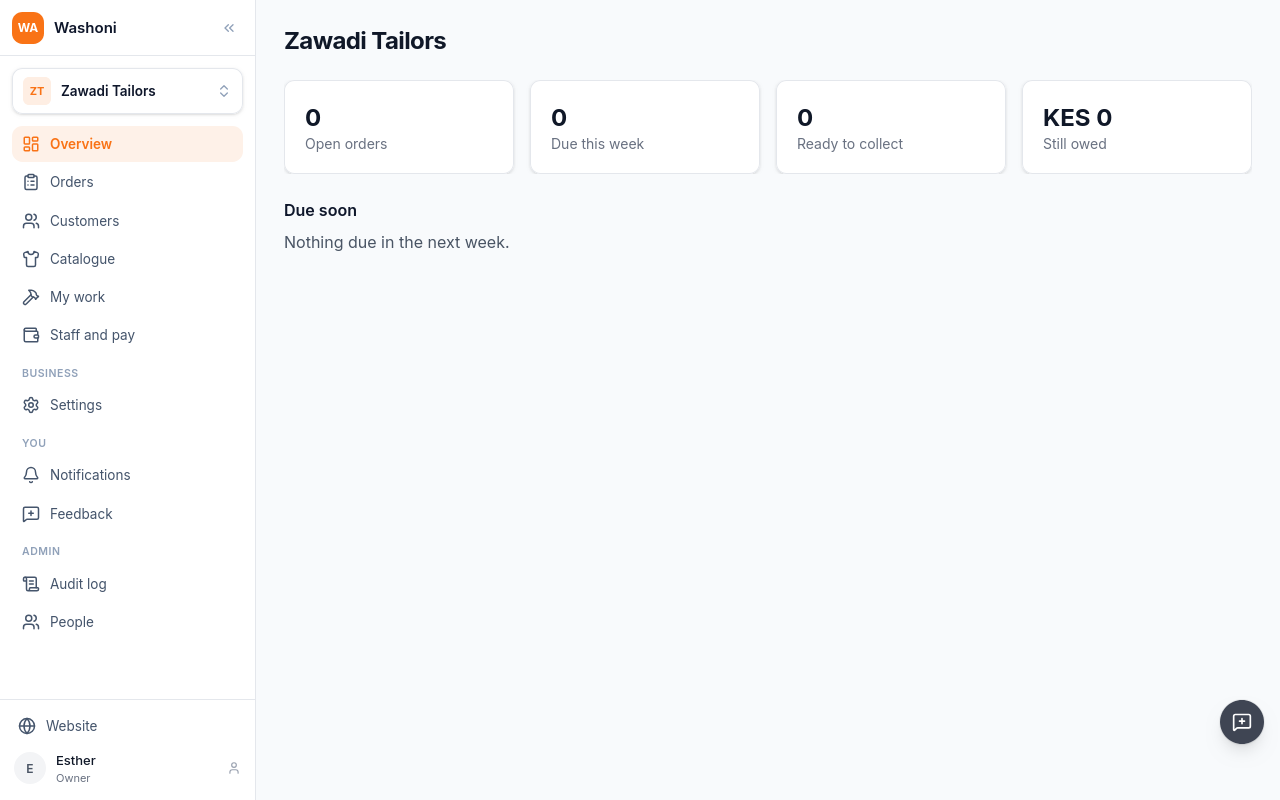
Due soon lists the orders coming up. It fills as you take orders.
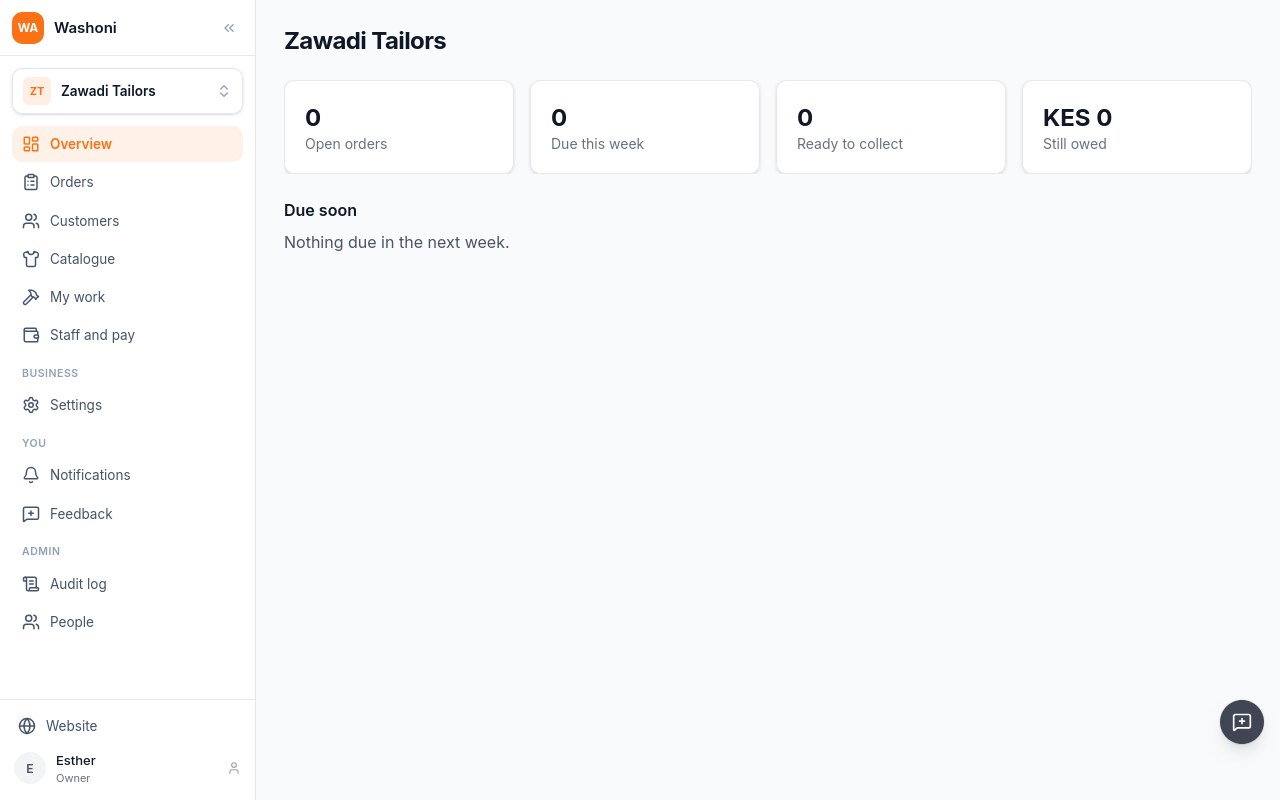
The menu has the shop's orders, customers and catalogue, the work given out, and staff and pay. People, under Admin, is where you invite your staff.
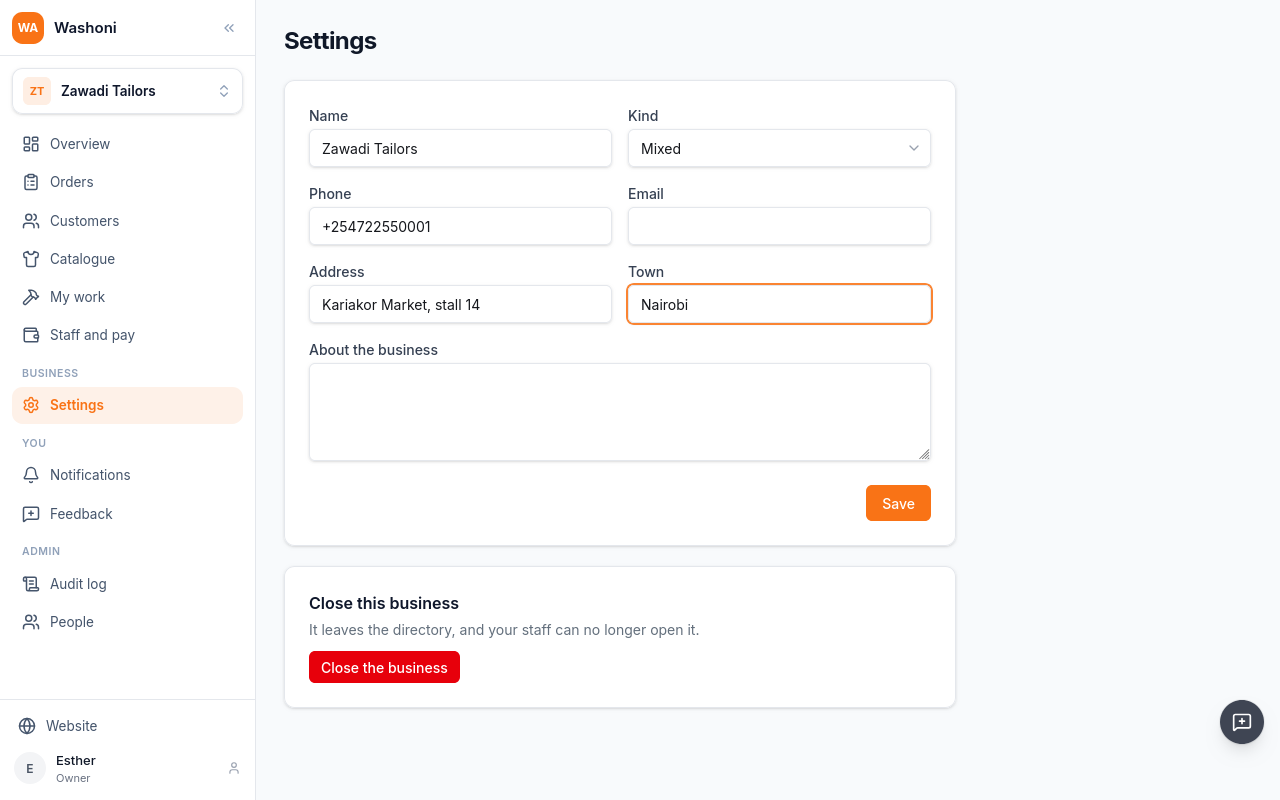
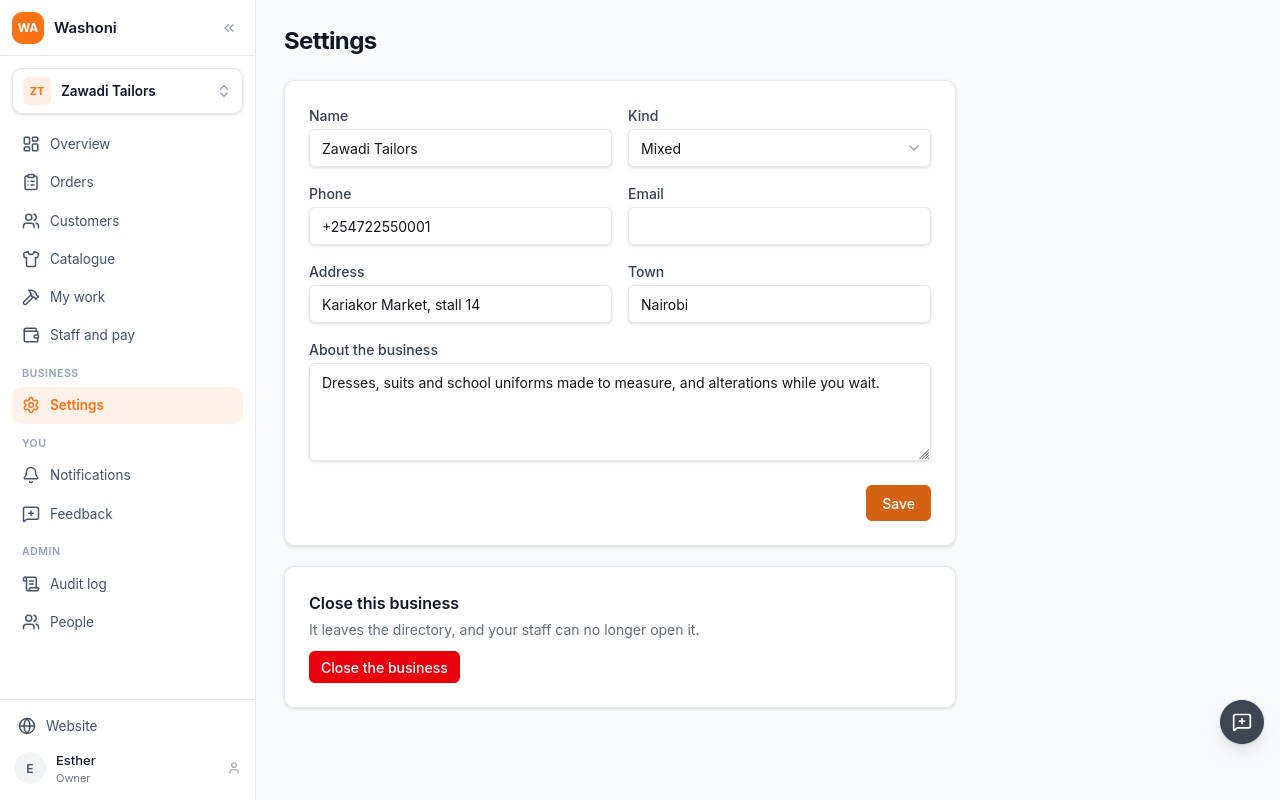
The shop's details are in Settings.
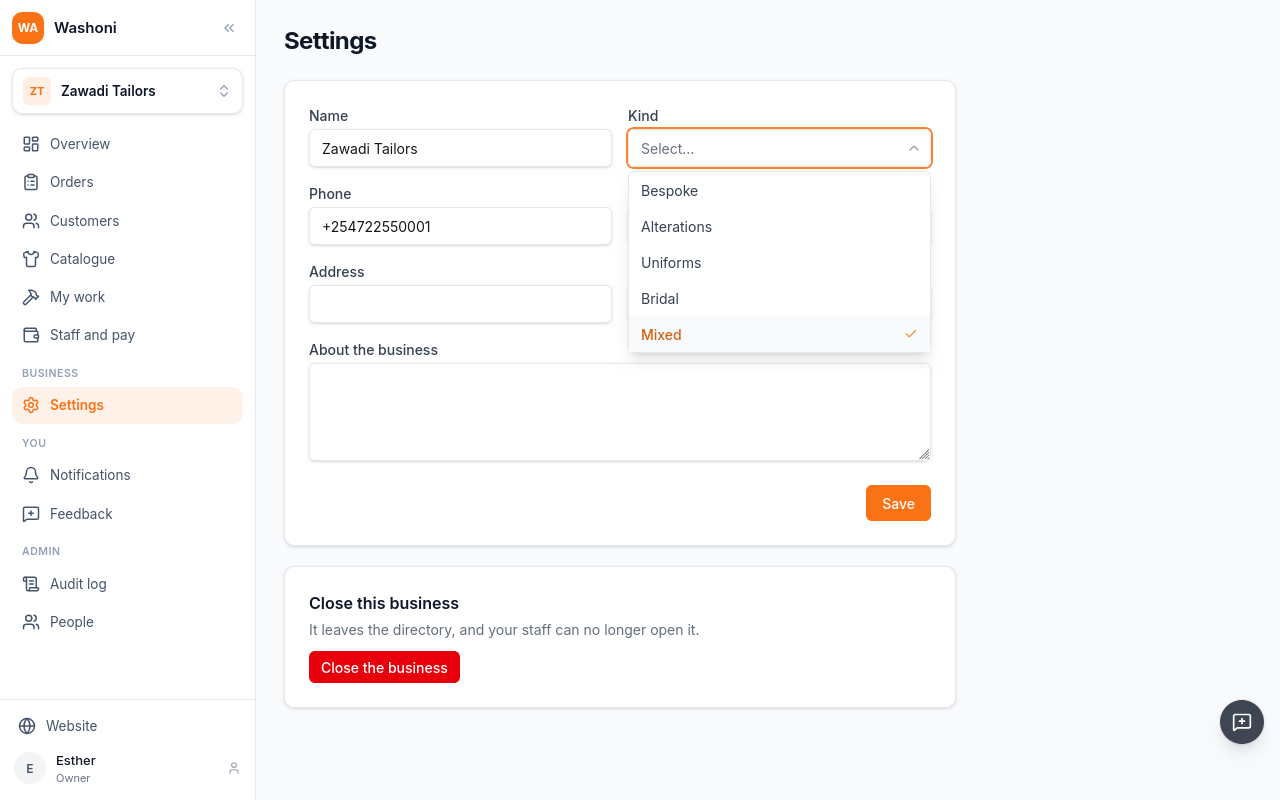
Kind says what the shop does: bespoke, alterations, uniforms, bridal, or a mix. Zawadi does a bit of everything, so it stays Mixed.
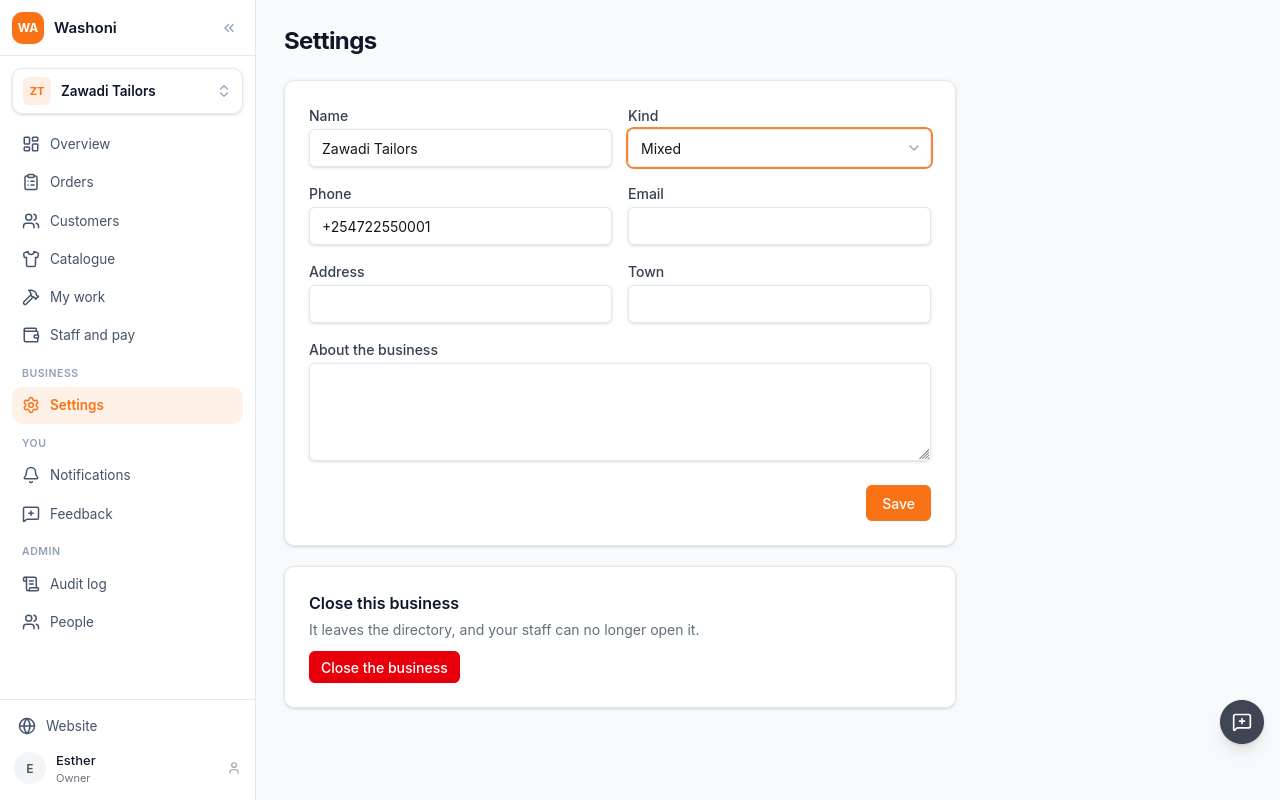
Give the address and the town, so customers can find you.
About the business is shown on its public page.
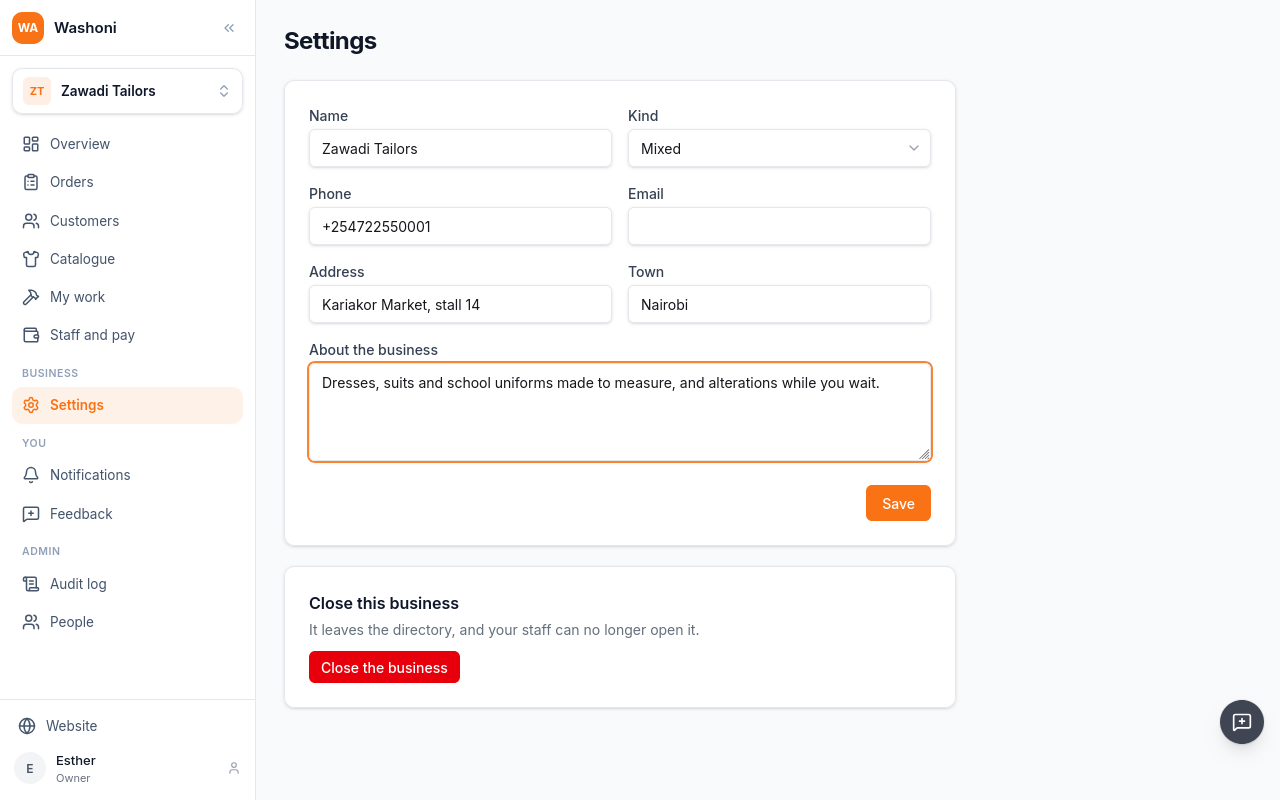
Choose Save.
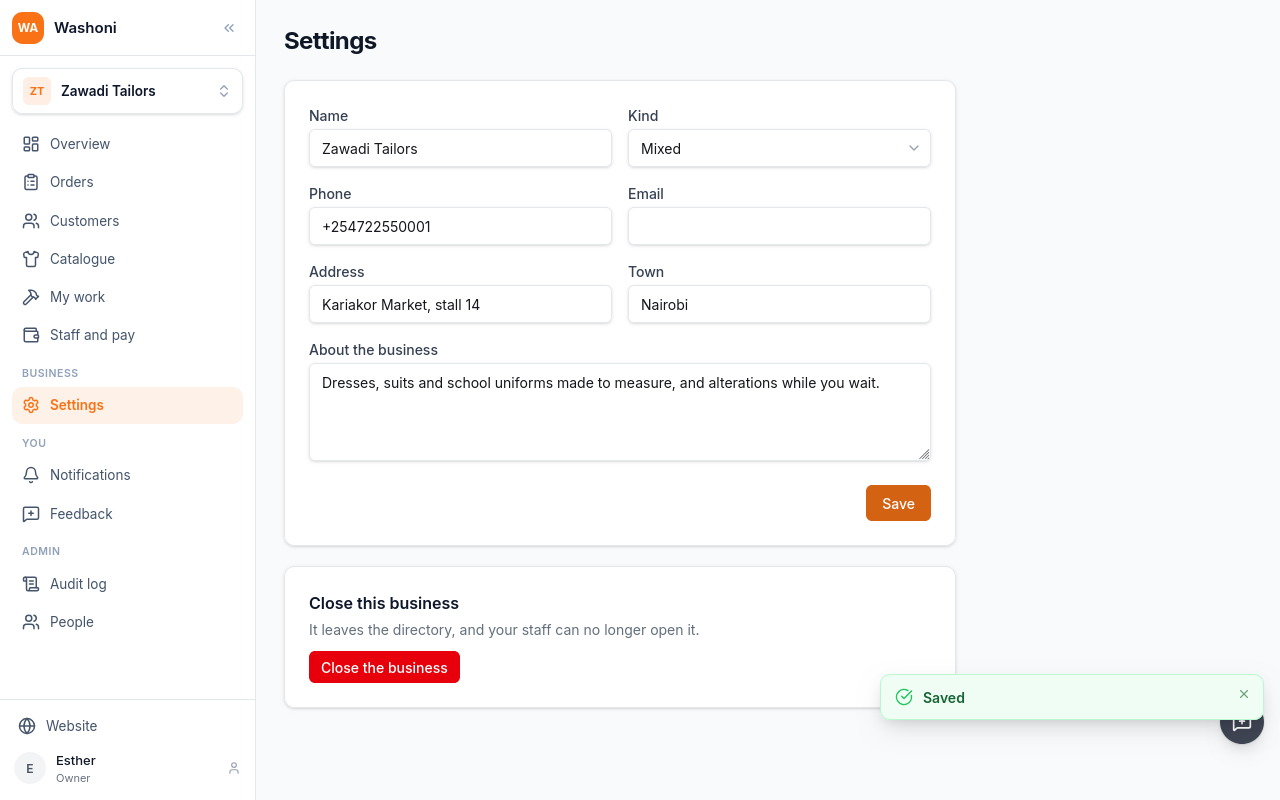
A message says it is saved.
Under the form, the owner can close the business. Its records are kept.
Chapter 3
What the shop makes, and the price each starts from
The catalogue is what the shop makes, and the price each starts from. Open Catalogue in the menu.
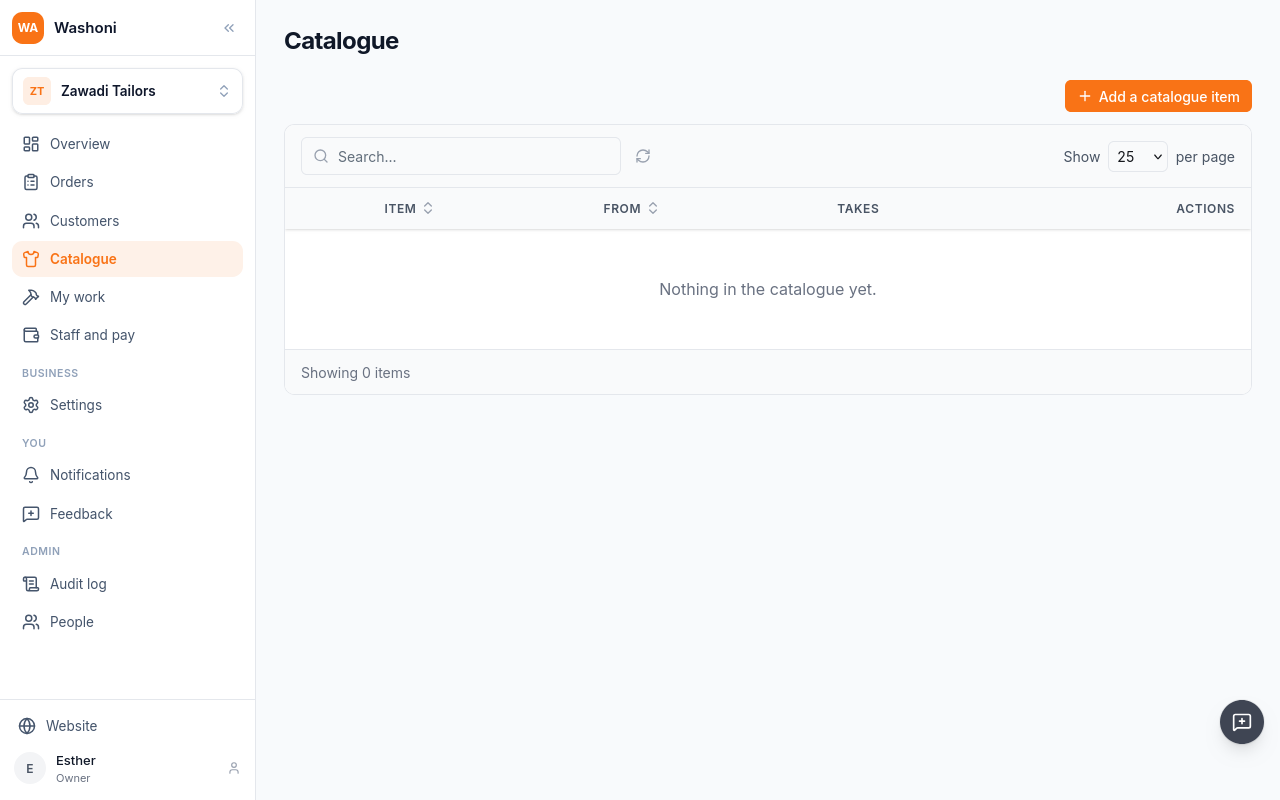
Choose Add a catalogue item.
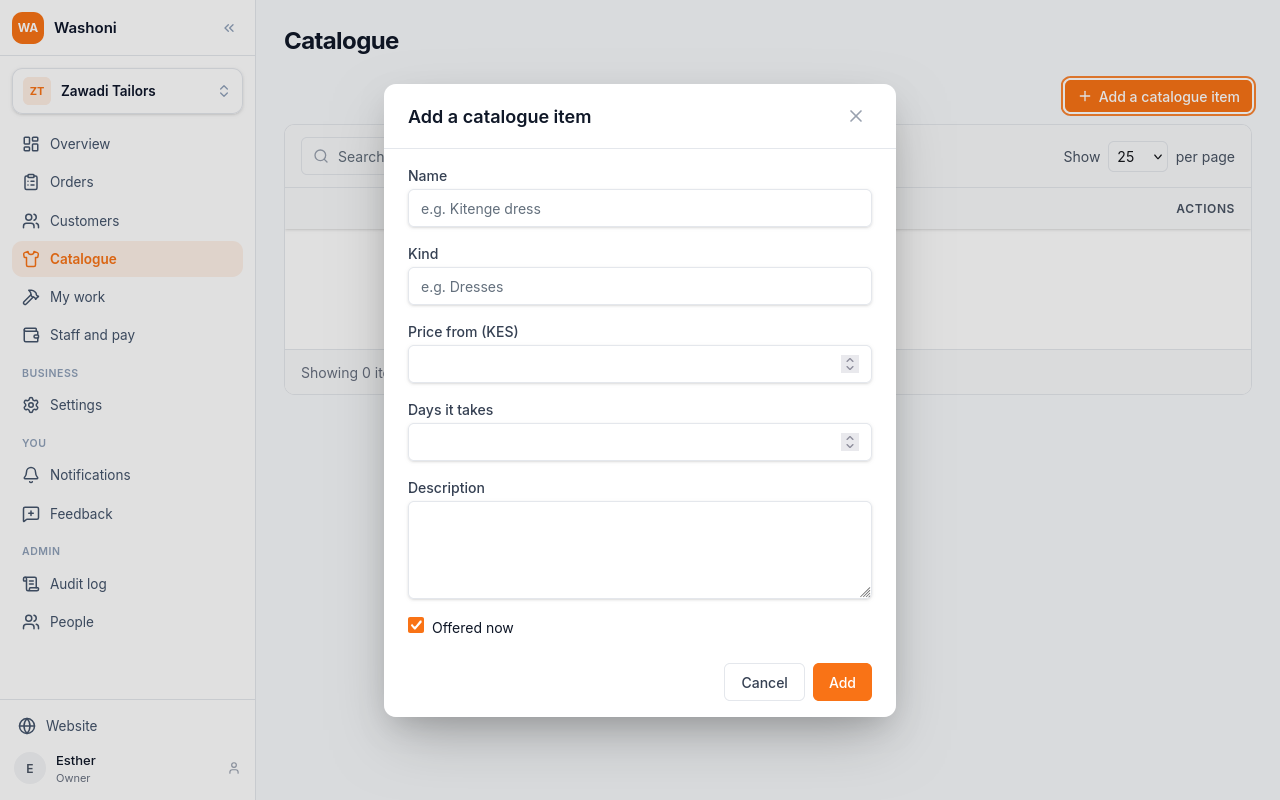
Give it a name, a kind to group it by, the price it starts from, and how many days it usually takes. A description is optional.
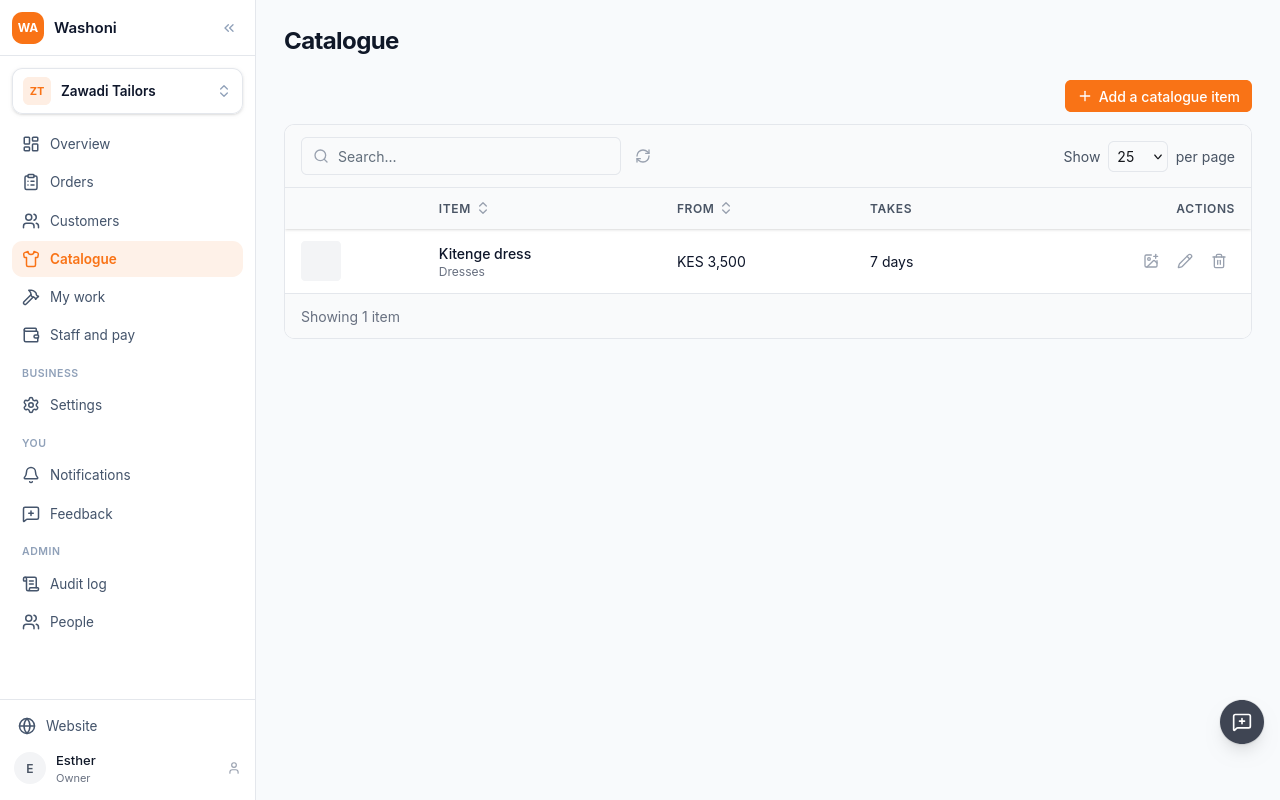
Choose Add. The item is in the list, offered now.
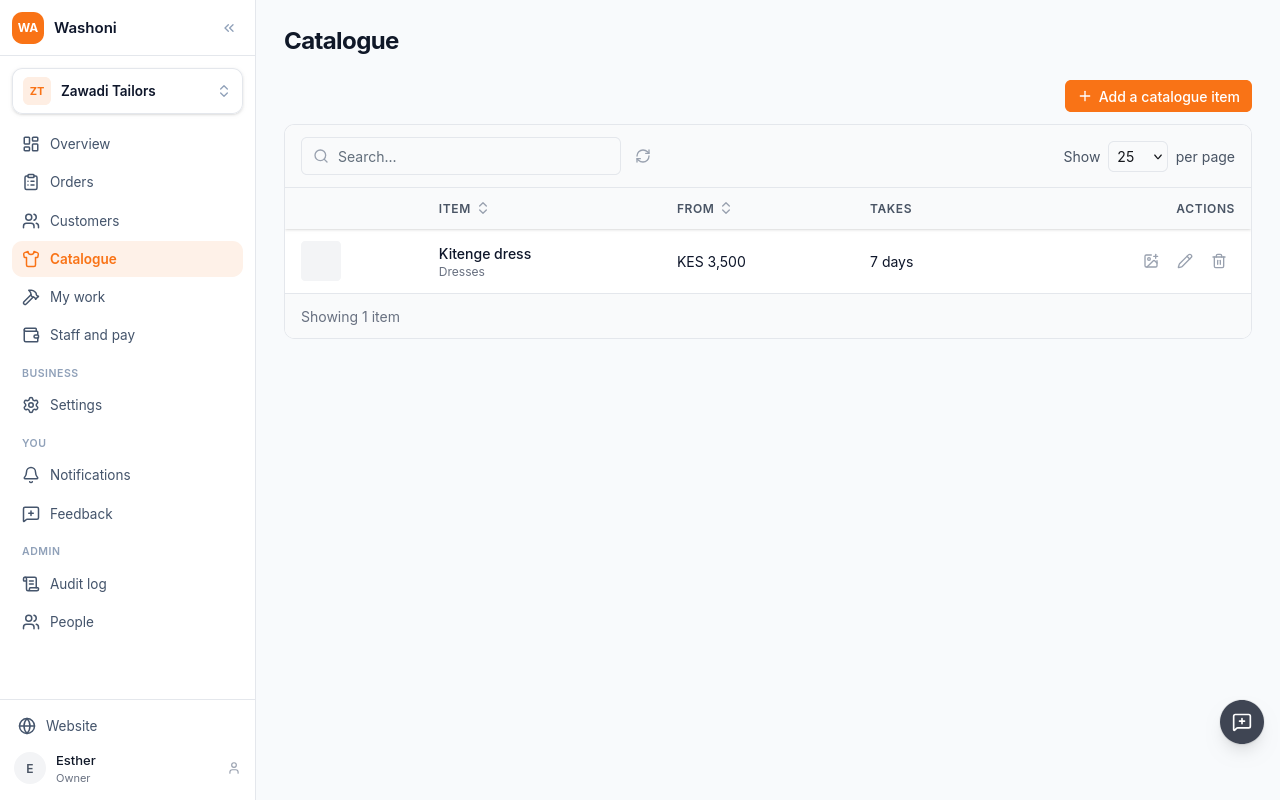
Give it a photo: choose the picture button on its row.
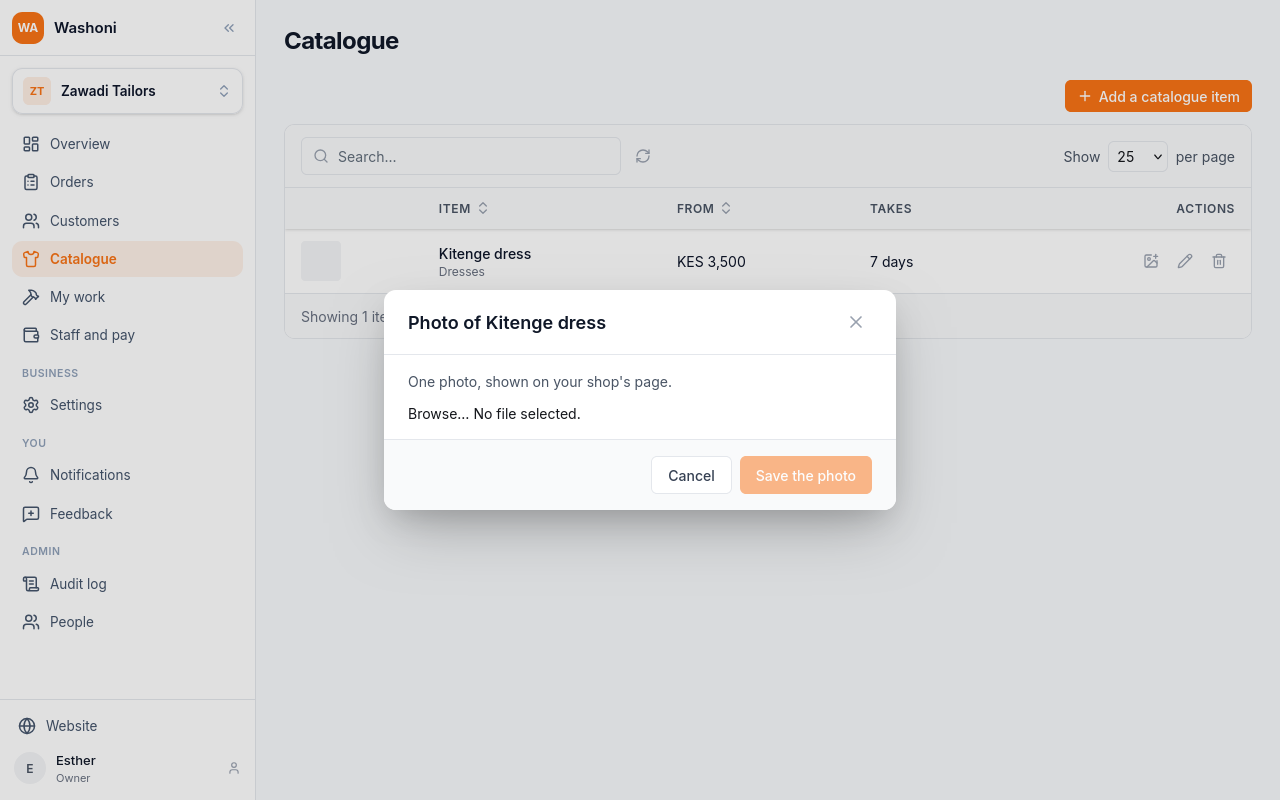
Choose a photo from the computer or phone, and Save the photo. Where and when it was taken is not kept.
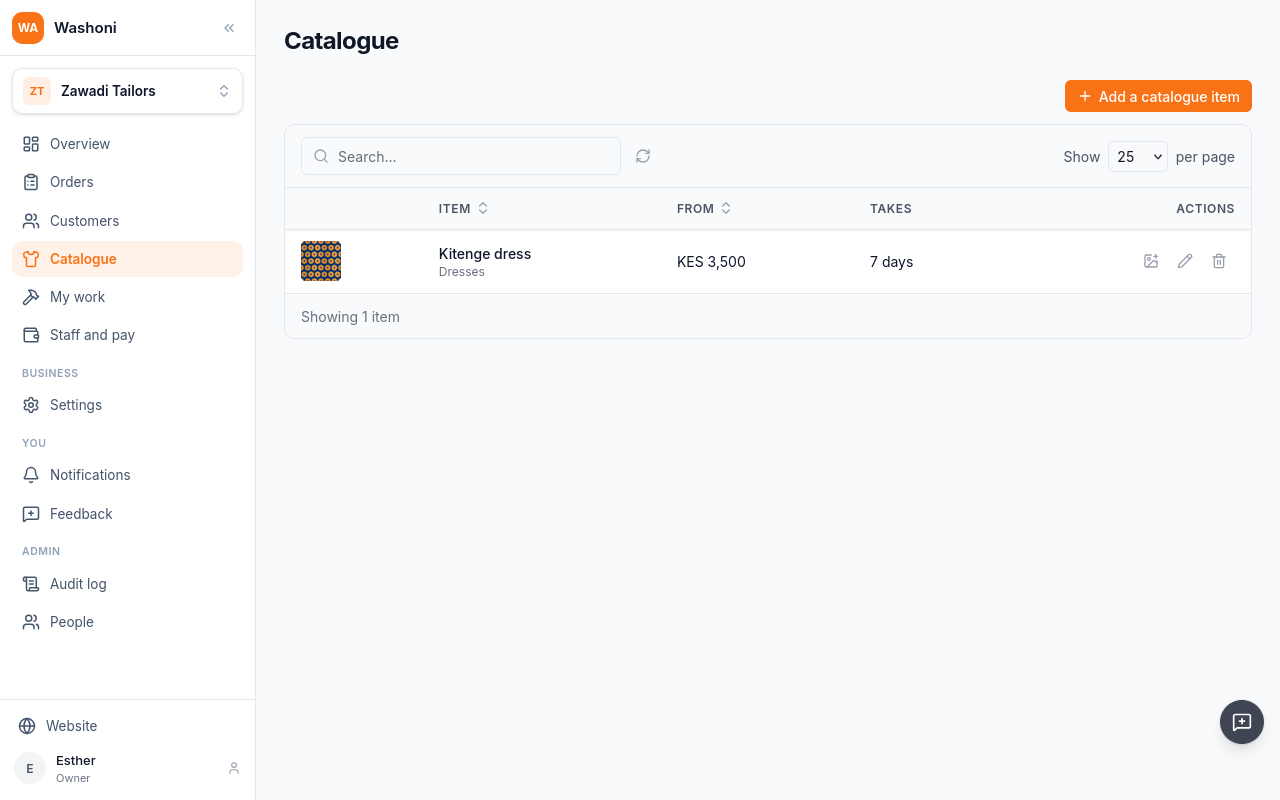
The photo is on the item, and on the shop's page.
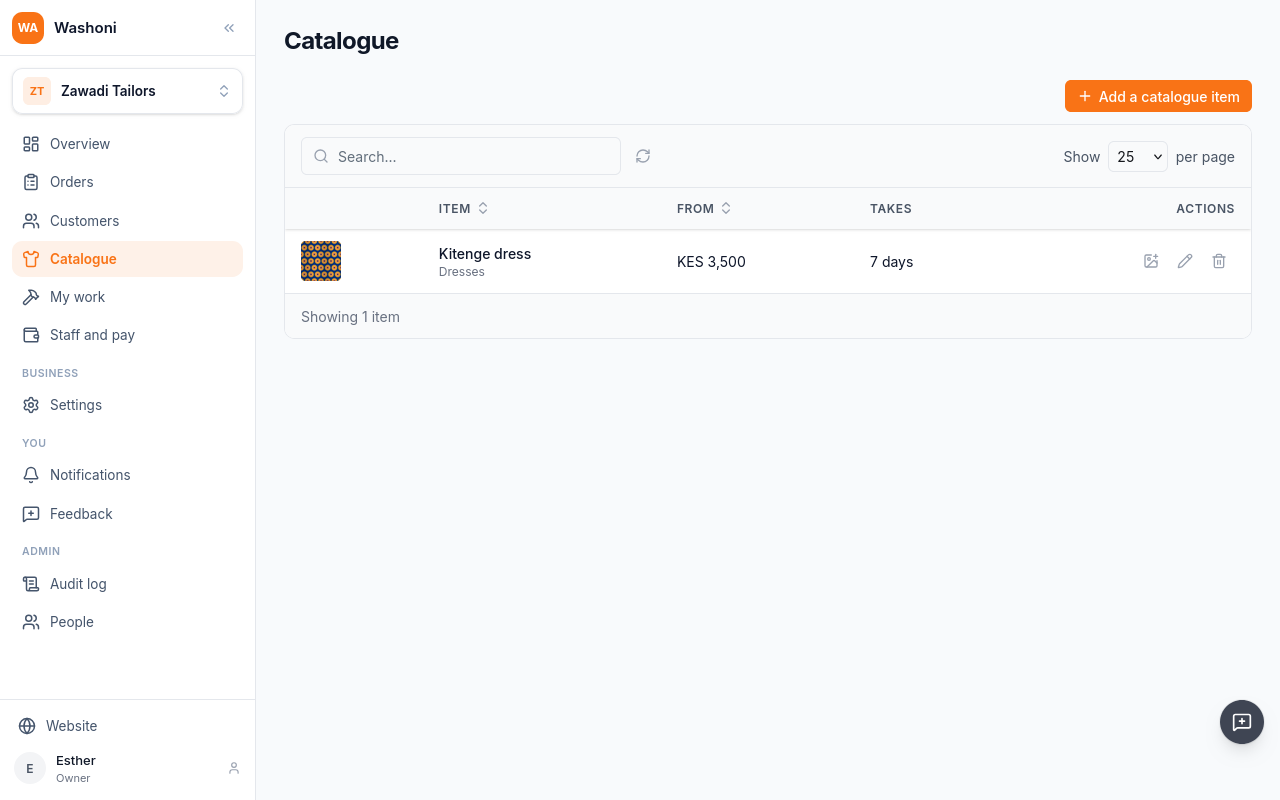
Add the rest the same way: a men's suit, a shirt, a school uniform.
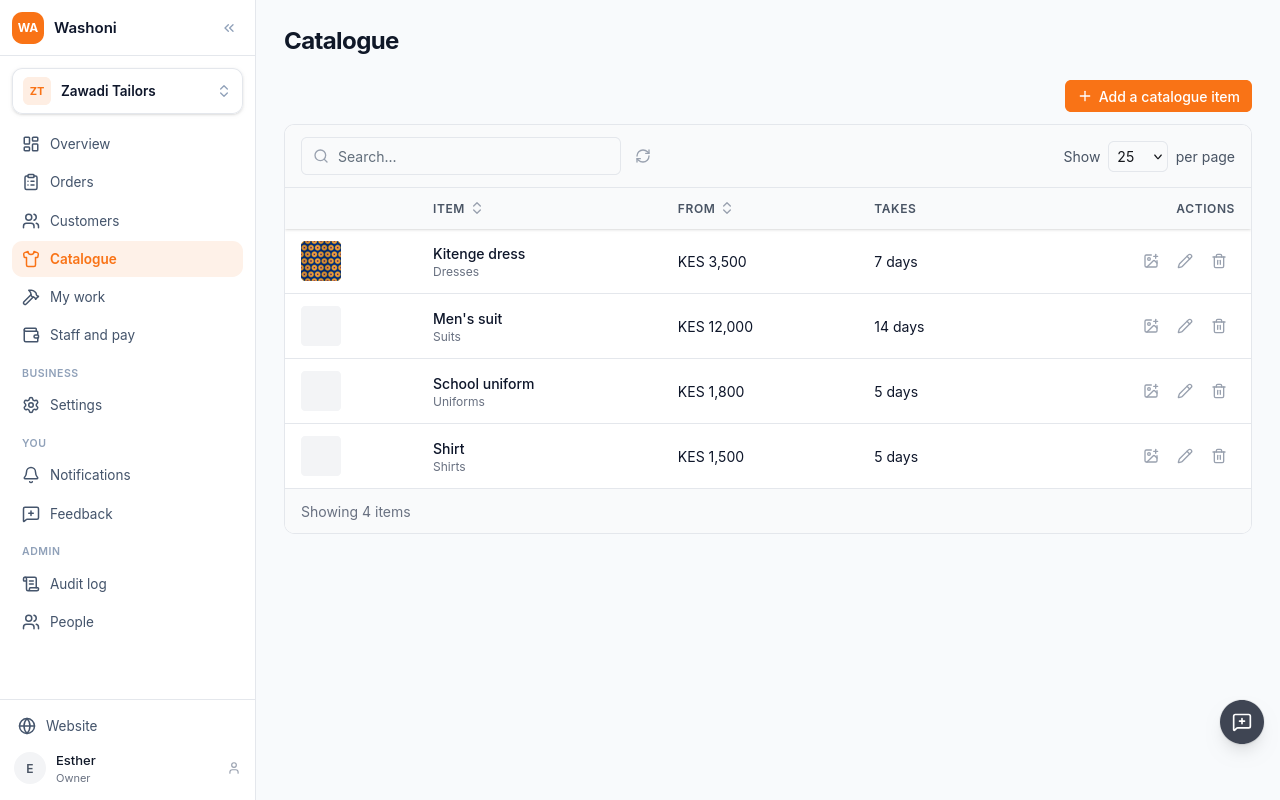
Alterations take two days, from three hundred shillings.
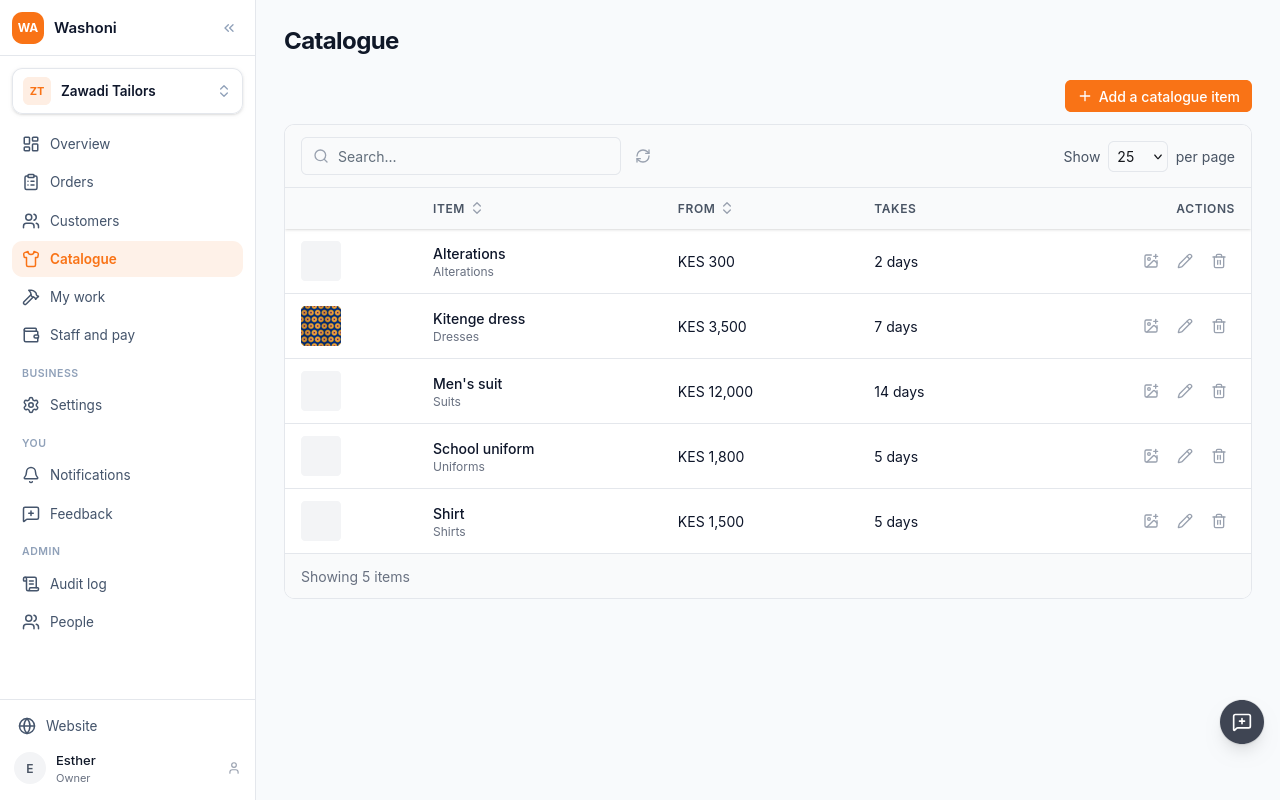
And a wedding gown, from twenty-five thousand, in three weeks.
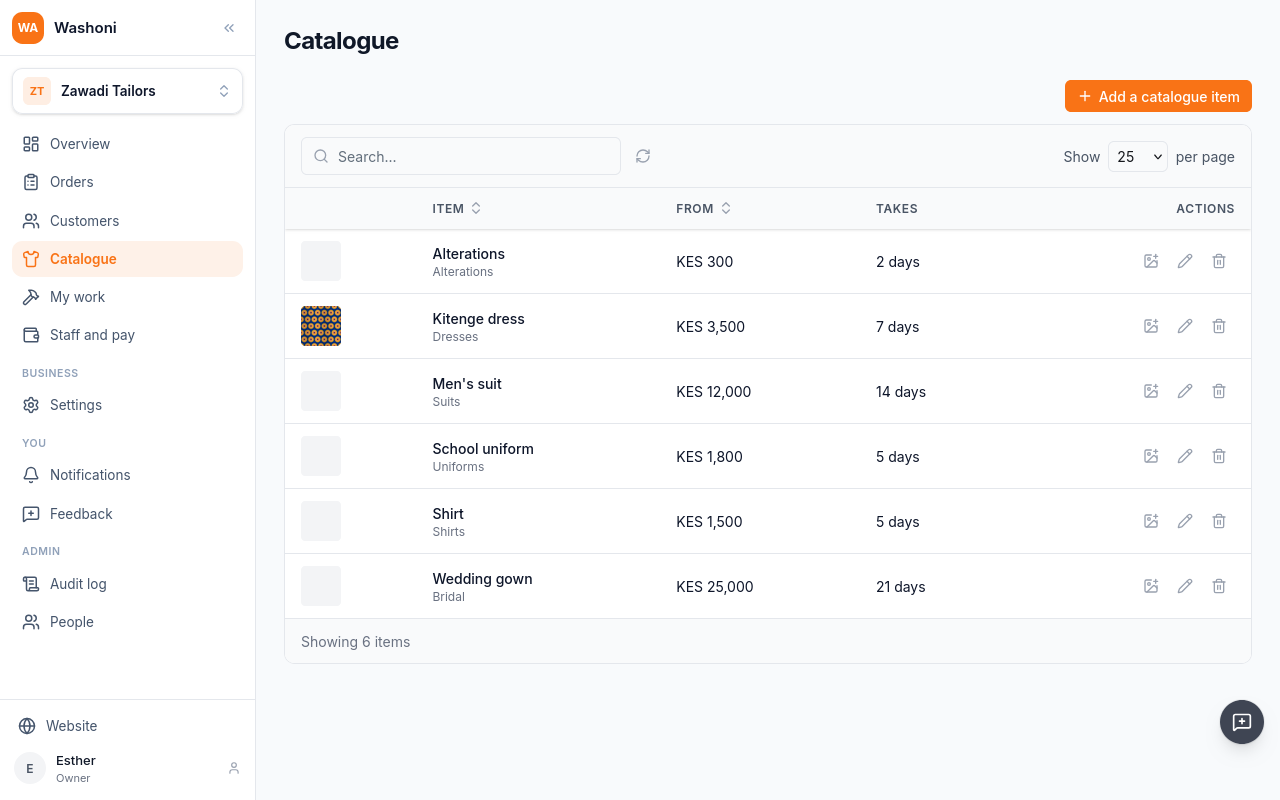
To change an item, choose the pencil on its row. A new price applies to new orders; orders already taken keep theirs.
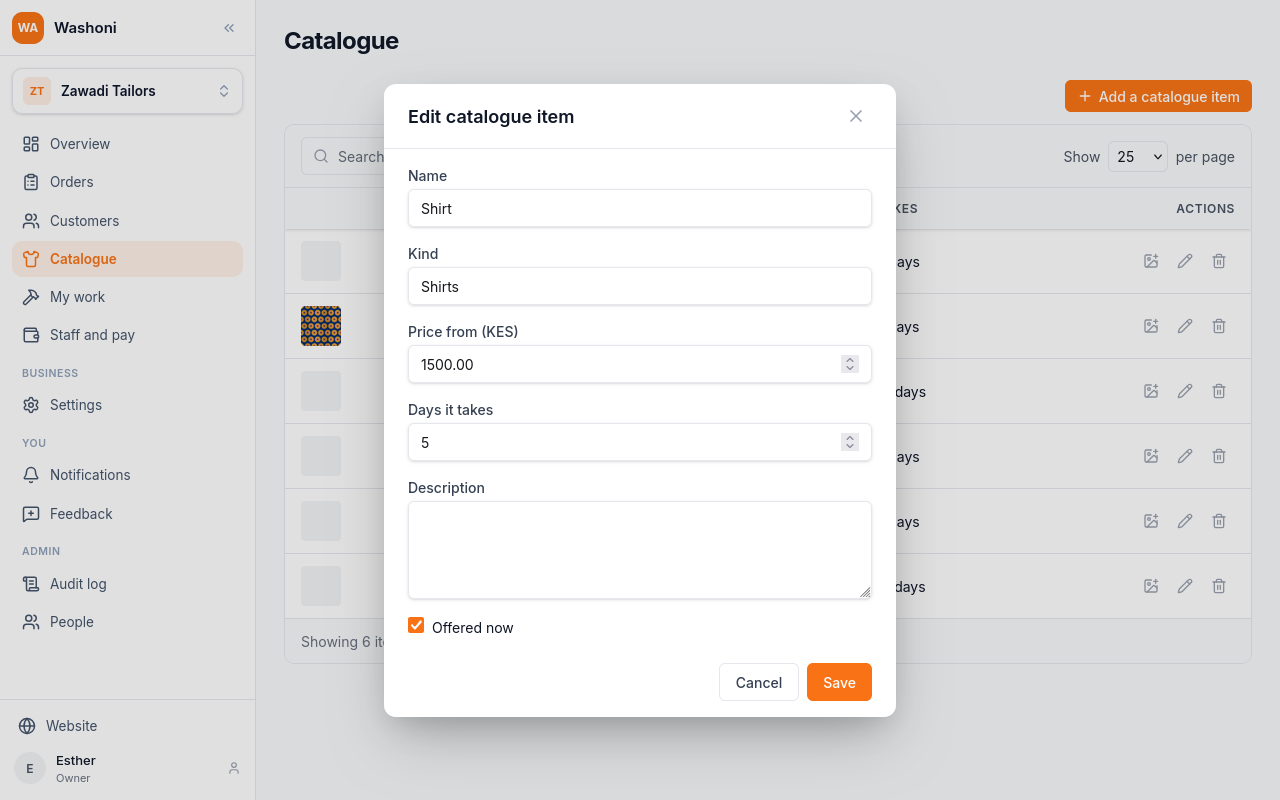
Untick Offered now to keep an item off the shop's page without losing it.
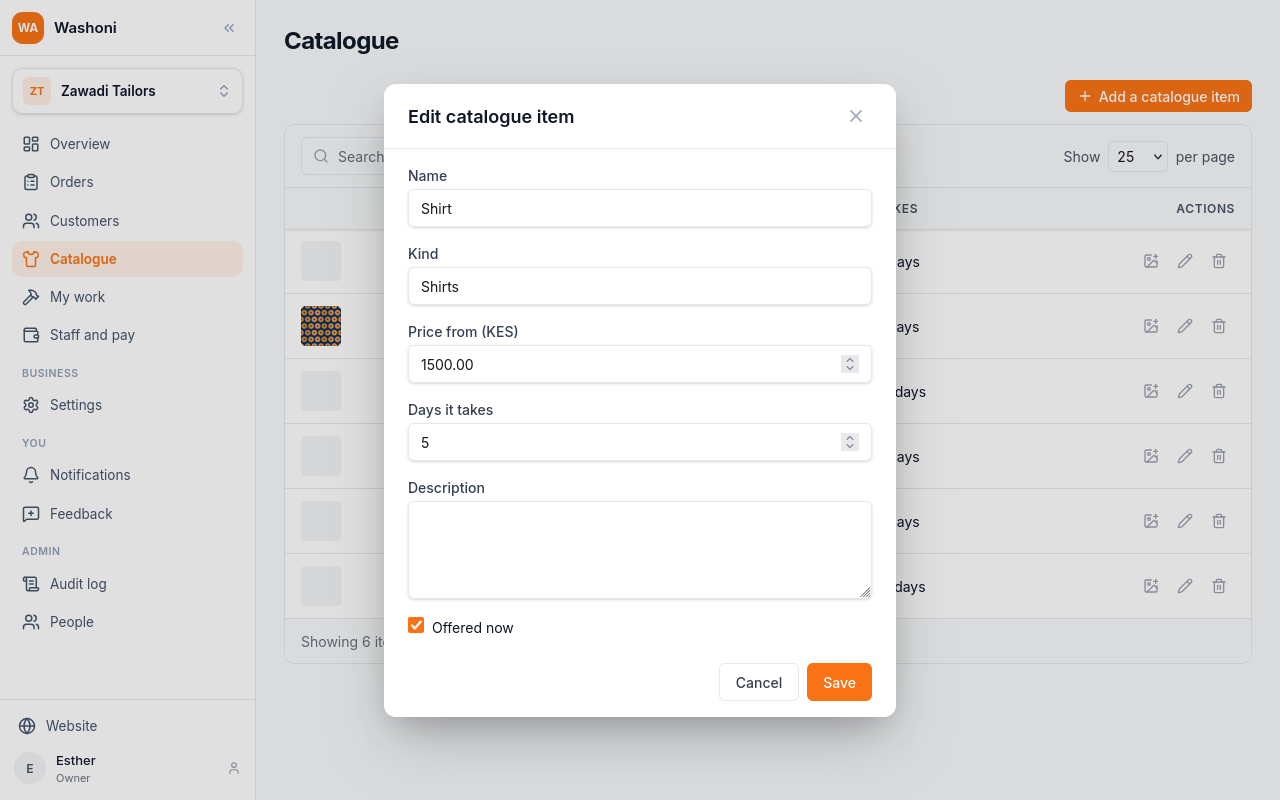
Here, nothing changes. Choose Cancel.
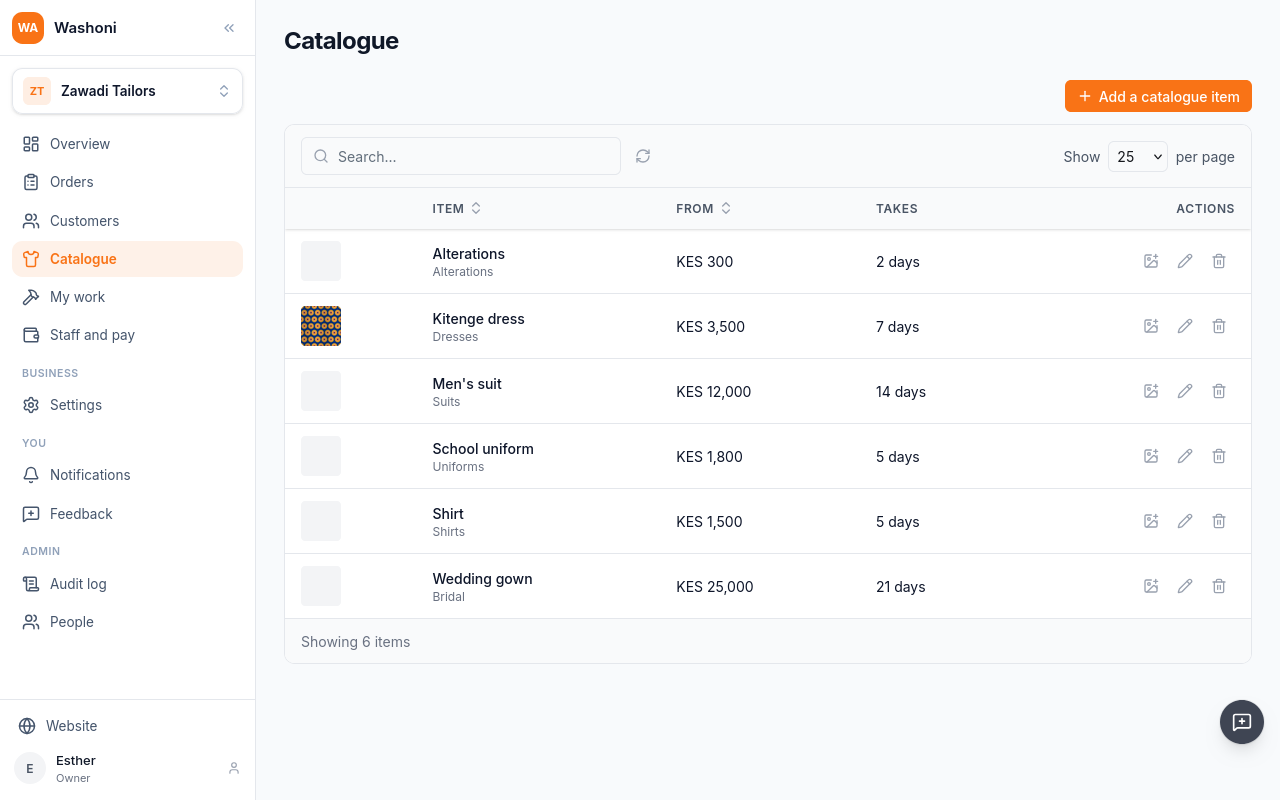
Customers see the items on offer, with their prices, on the shop's page.
Chapter 4
Who the shop makes for, and their measurements over time
Customers are the people the shop makes for. Open Customers in the menu, and choose Add a customer.
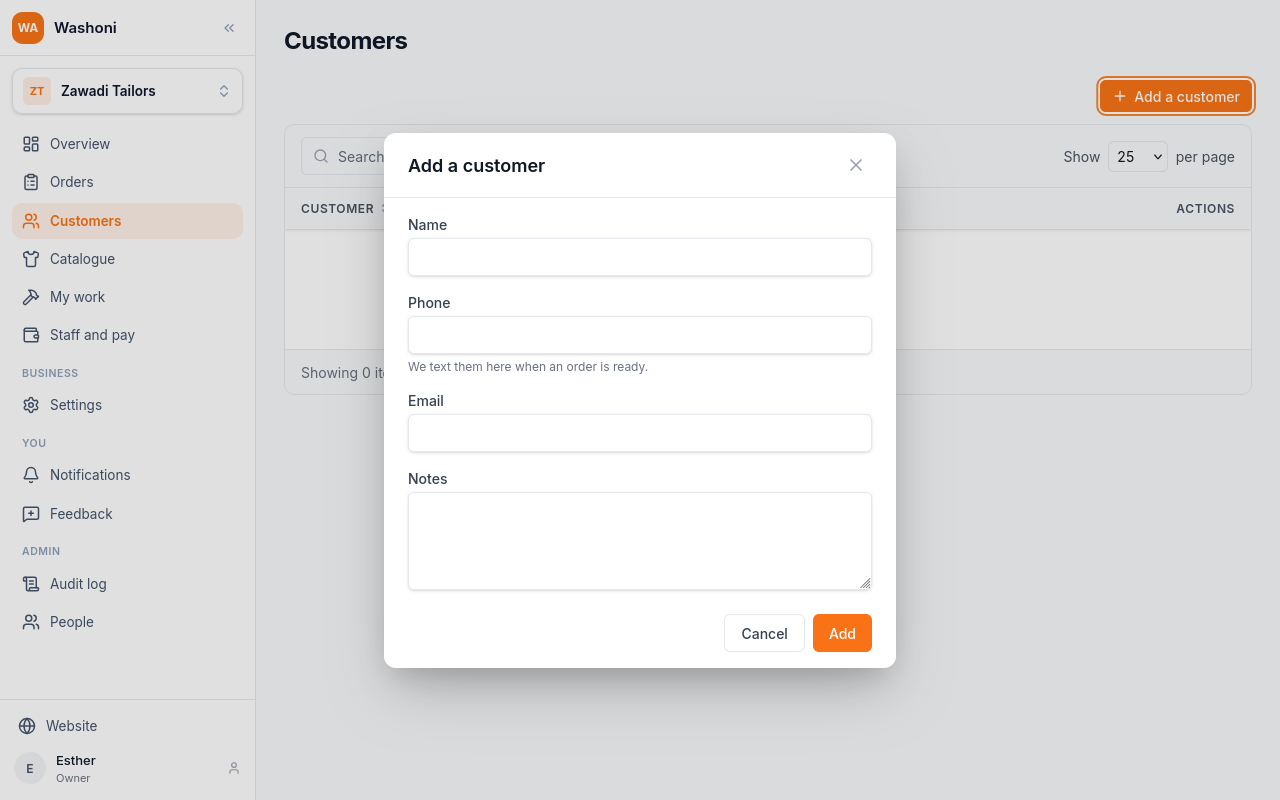
A name, and a phone number. The phone is where the shop's texts about an order go.
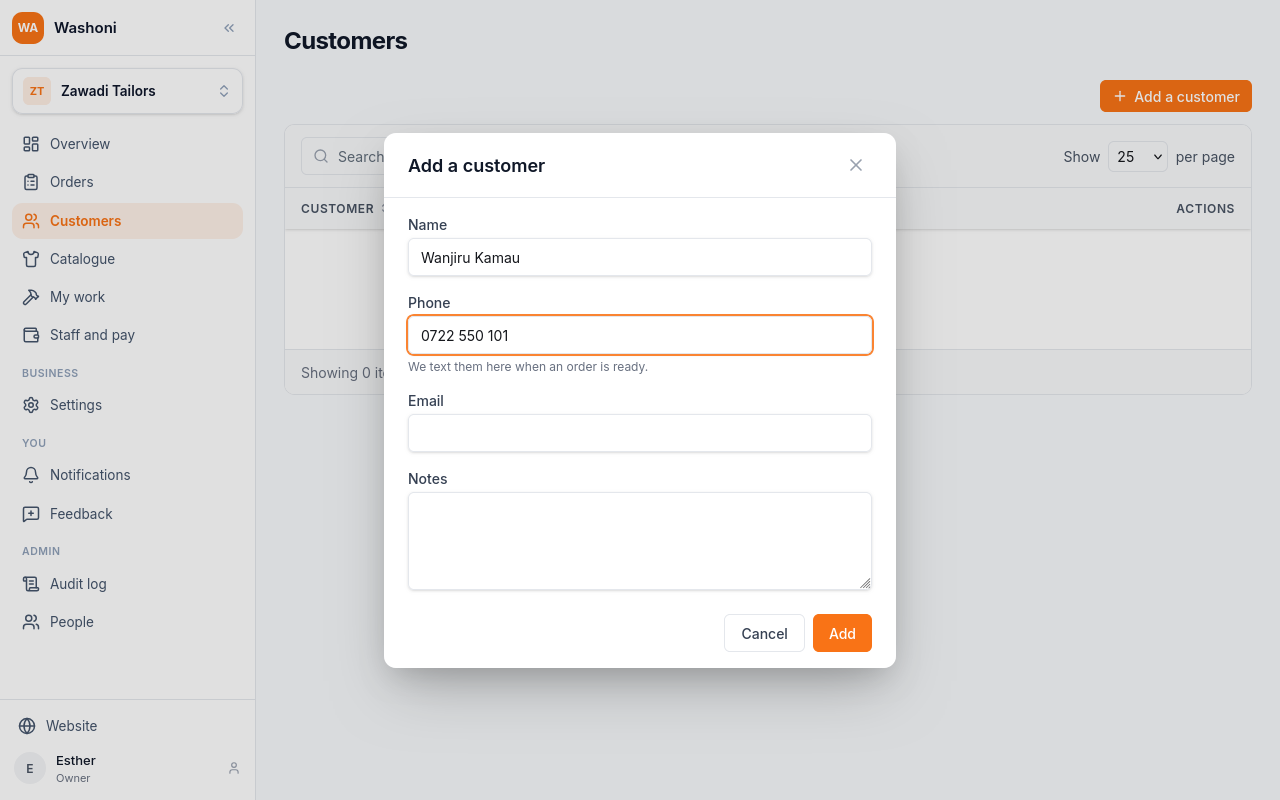
An email and notes are optional. Choose Add.
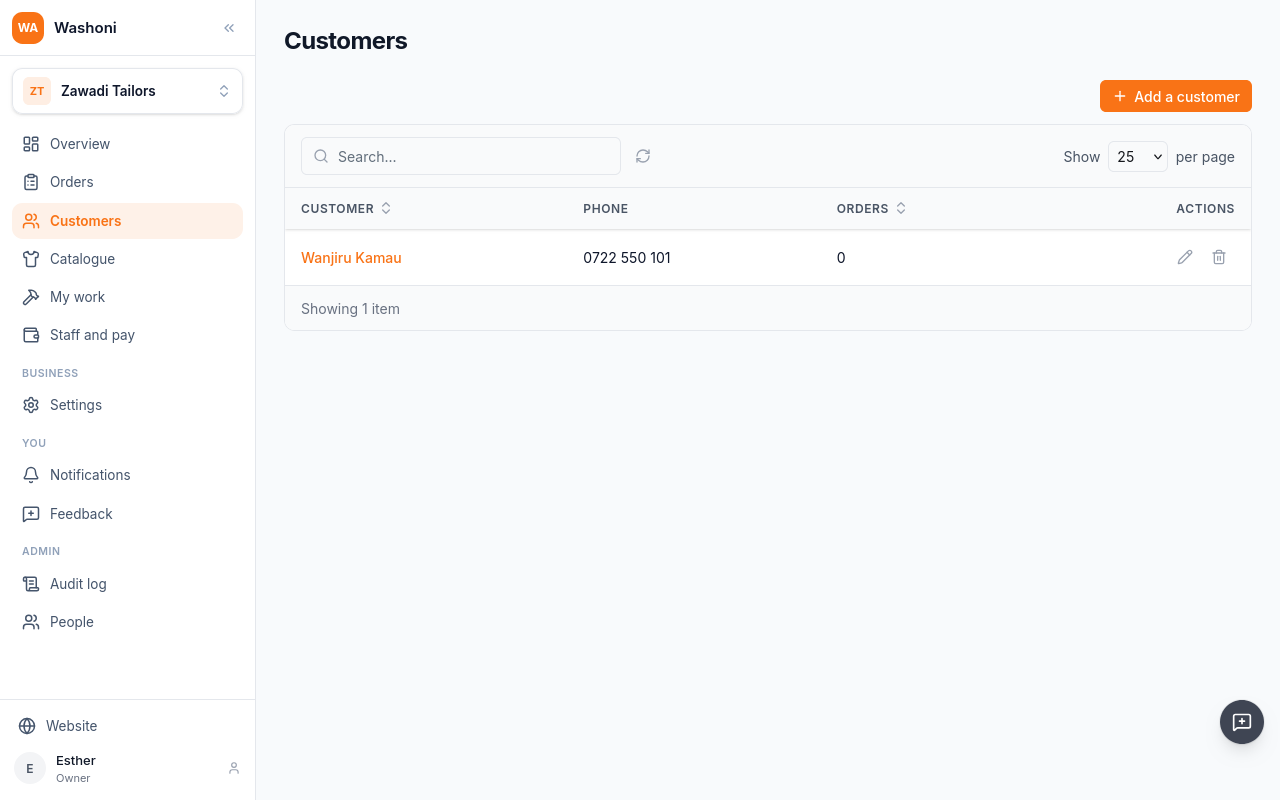
Add the others the same way.
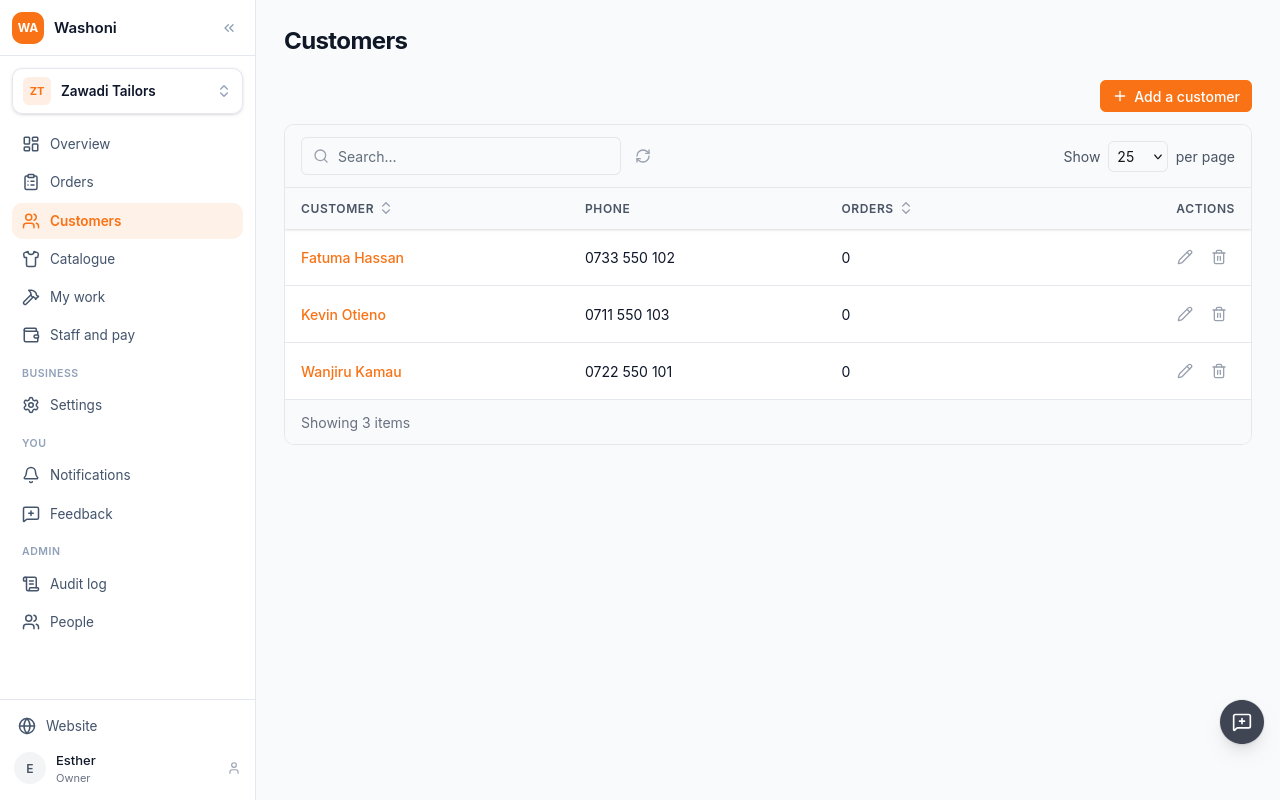
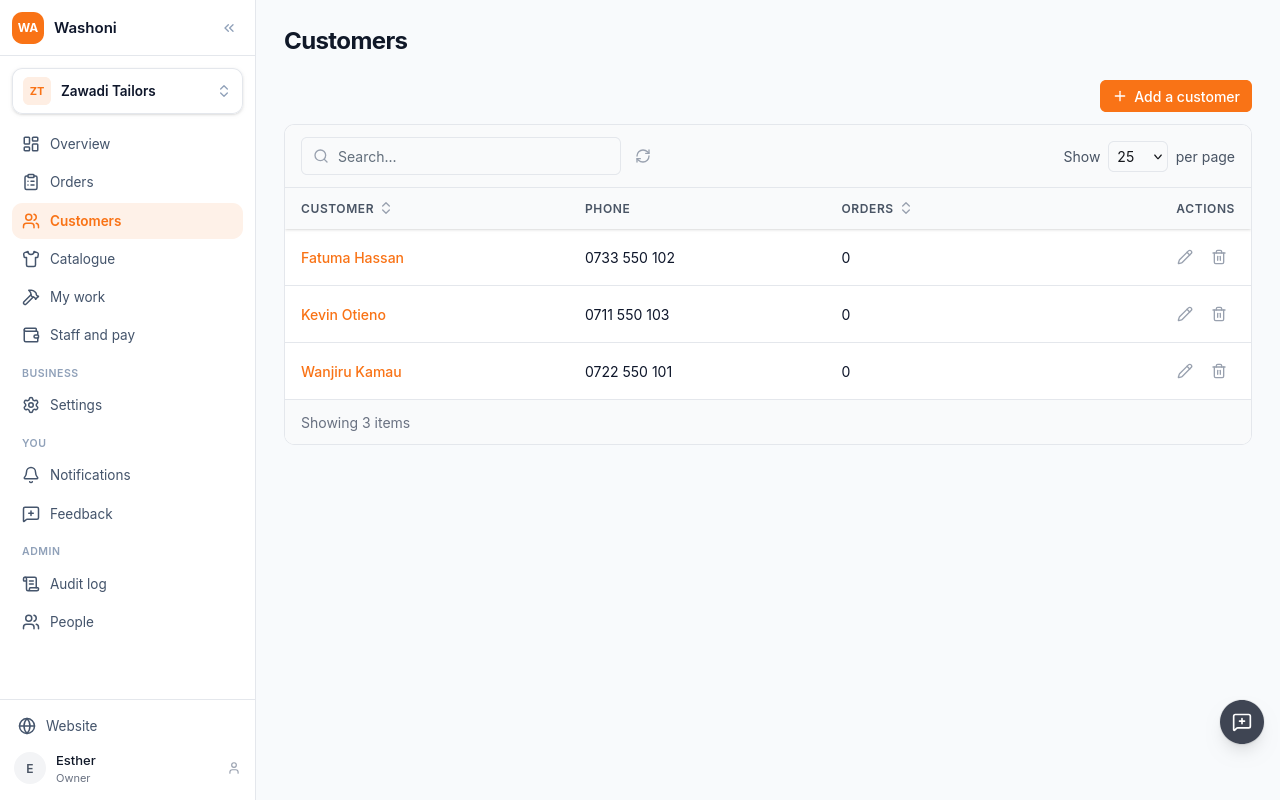
The list shows each customer's phone, and how many orders they have. Search finds them by name or phone.
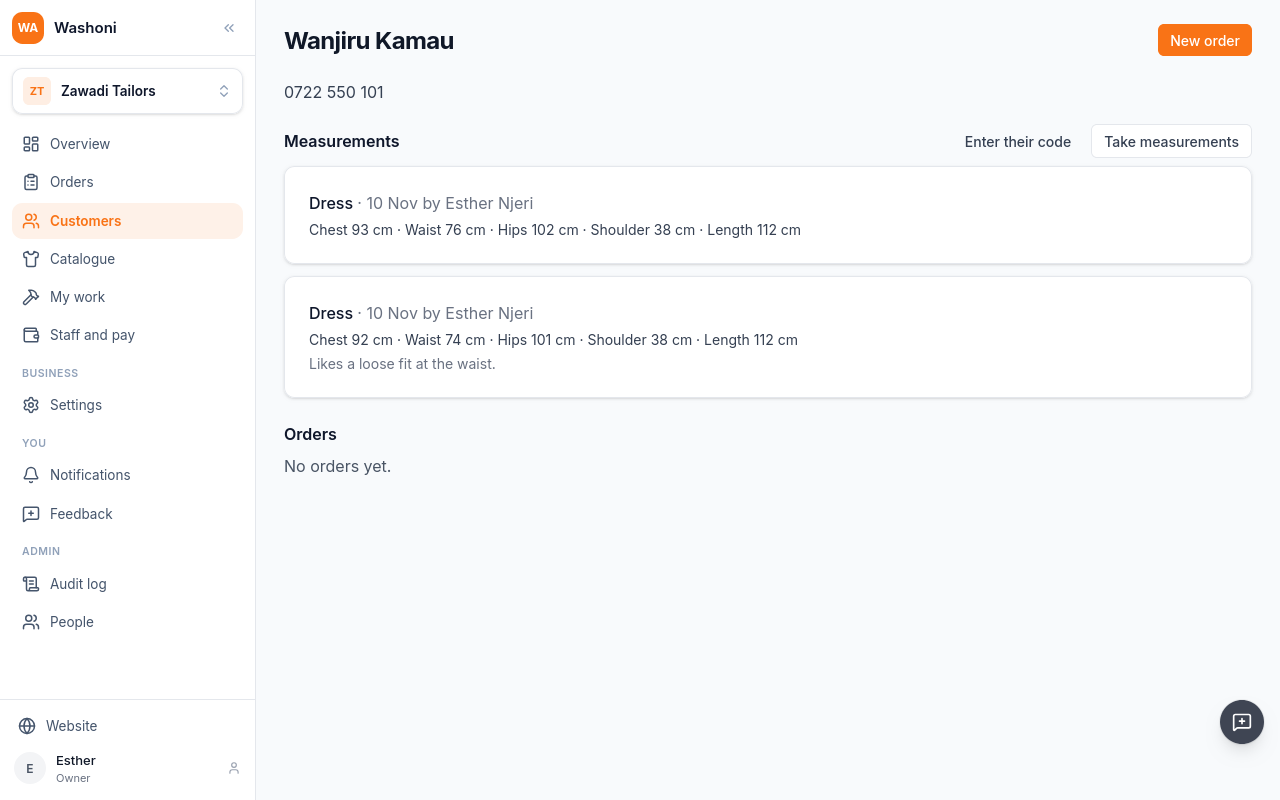
Open a customer to see their measurements and their orders.
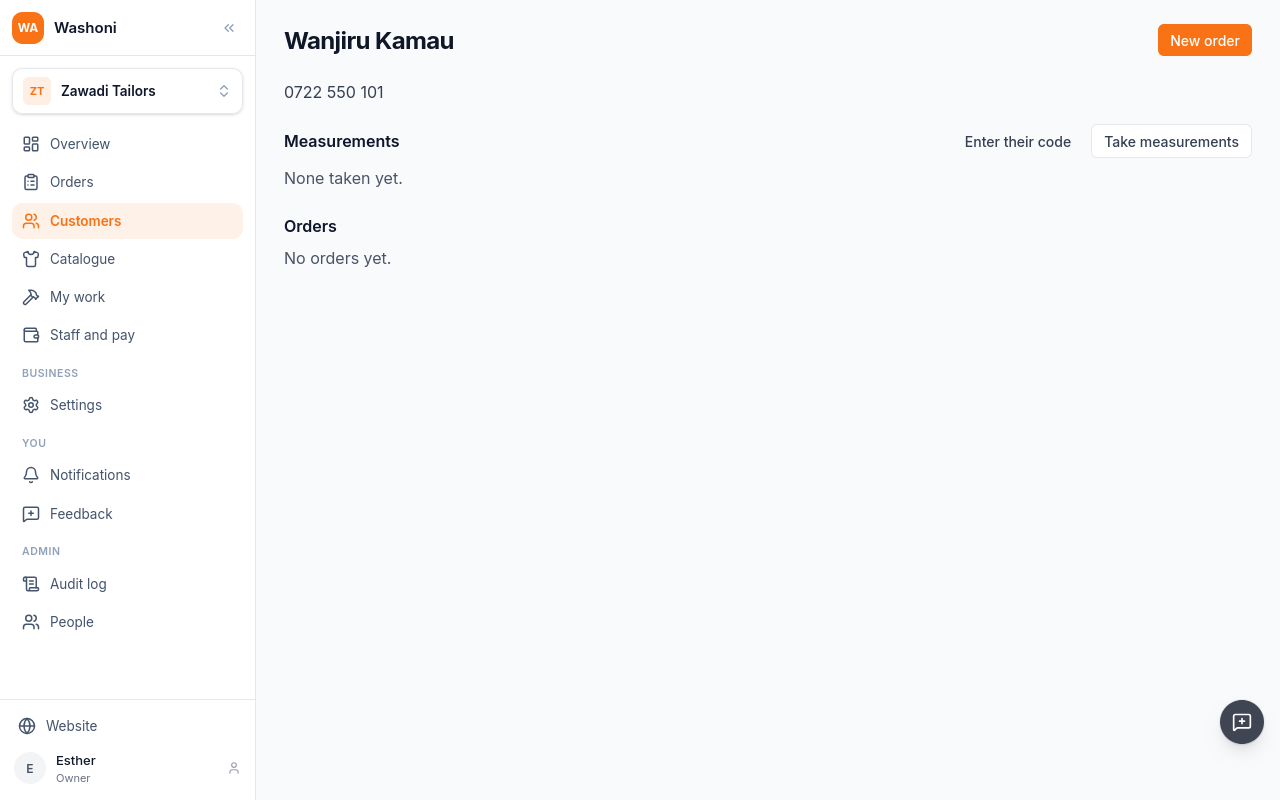
Choose Take measurements. For says what they are for, here a dress. They are in centimetres, or inches.
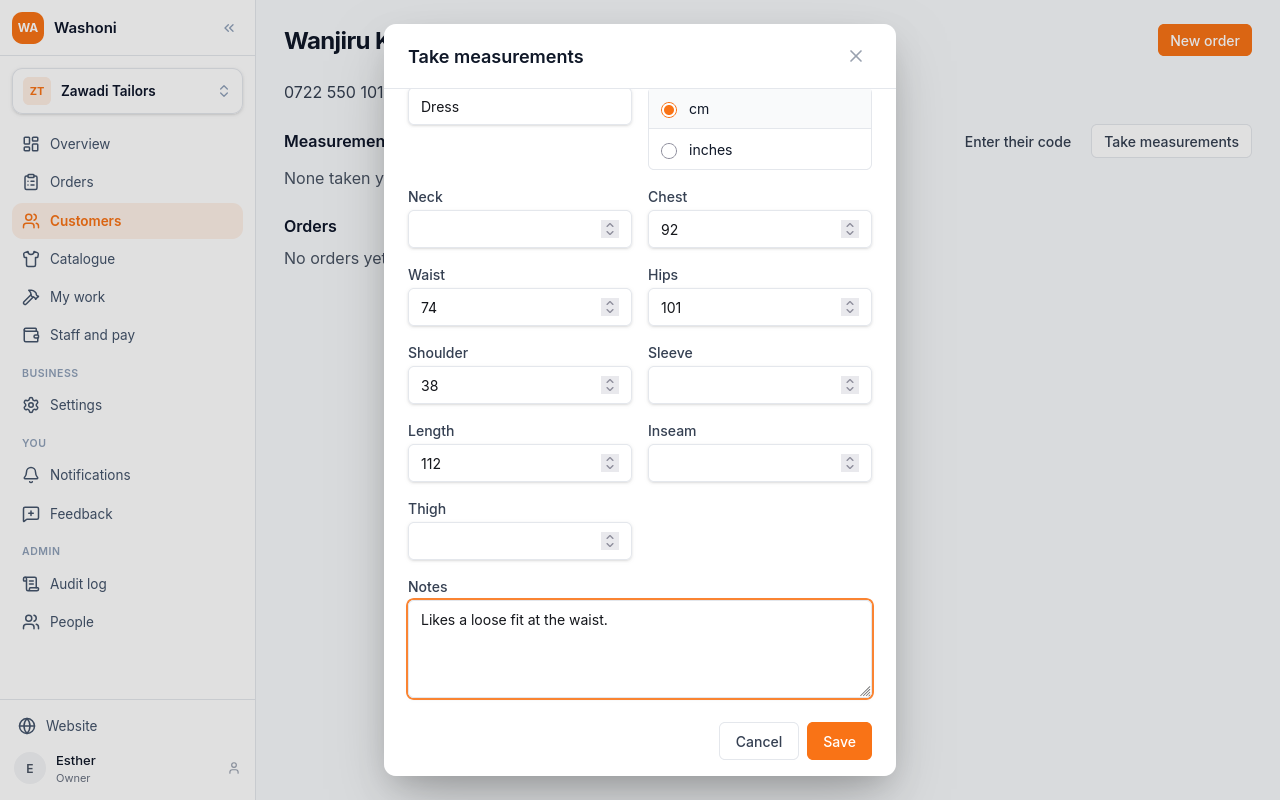
Fill in only the ones the garment needs; any left empty are not recorded. Choose Save.
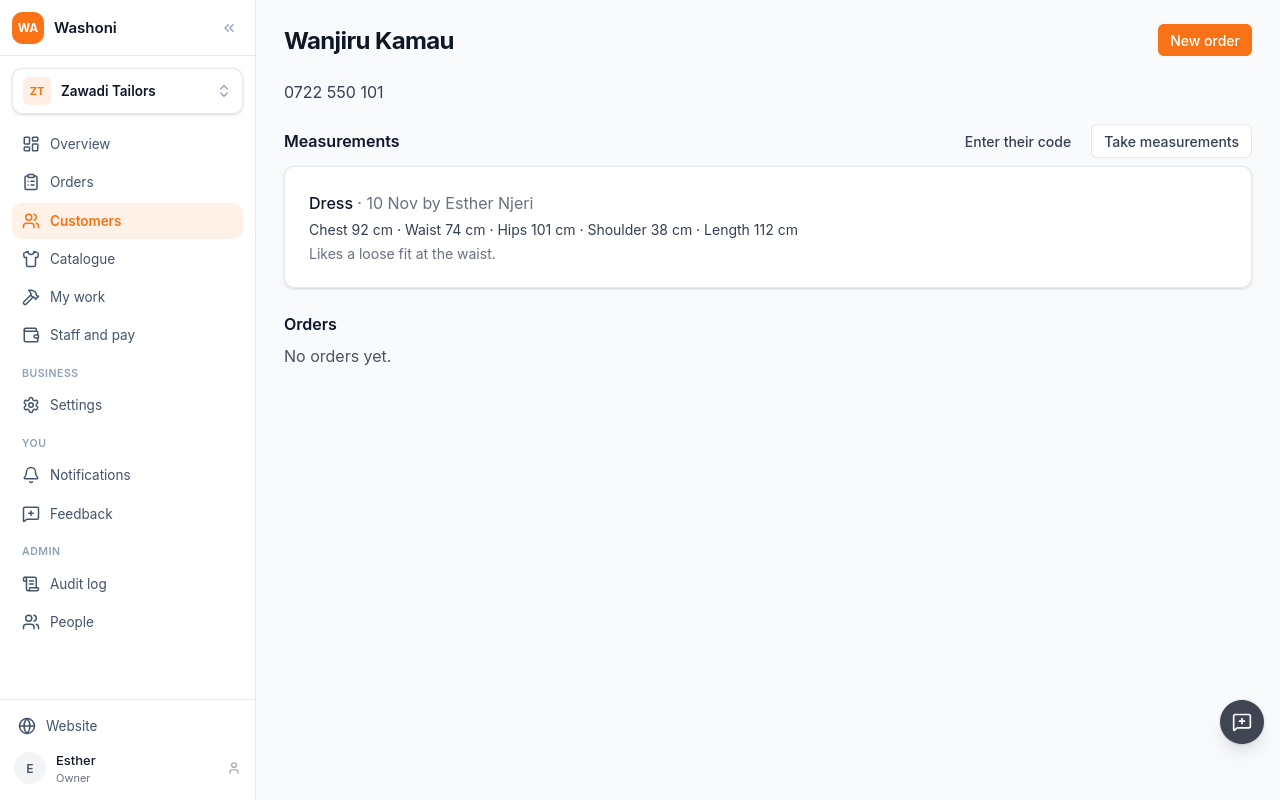
They are dated, with who took them.
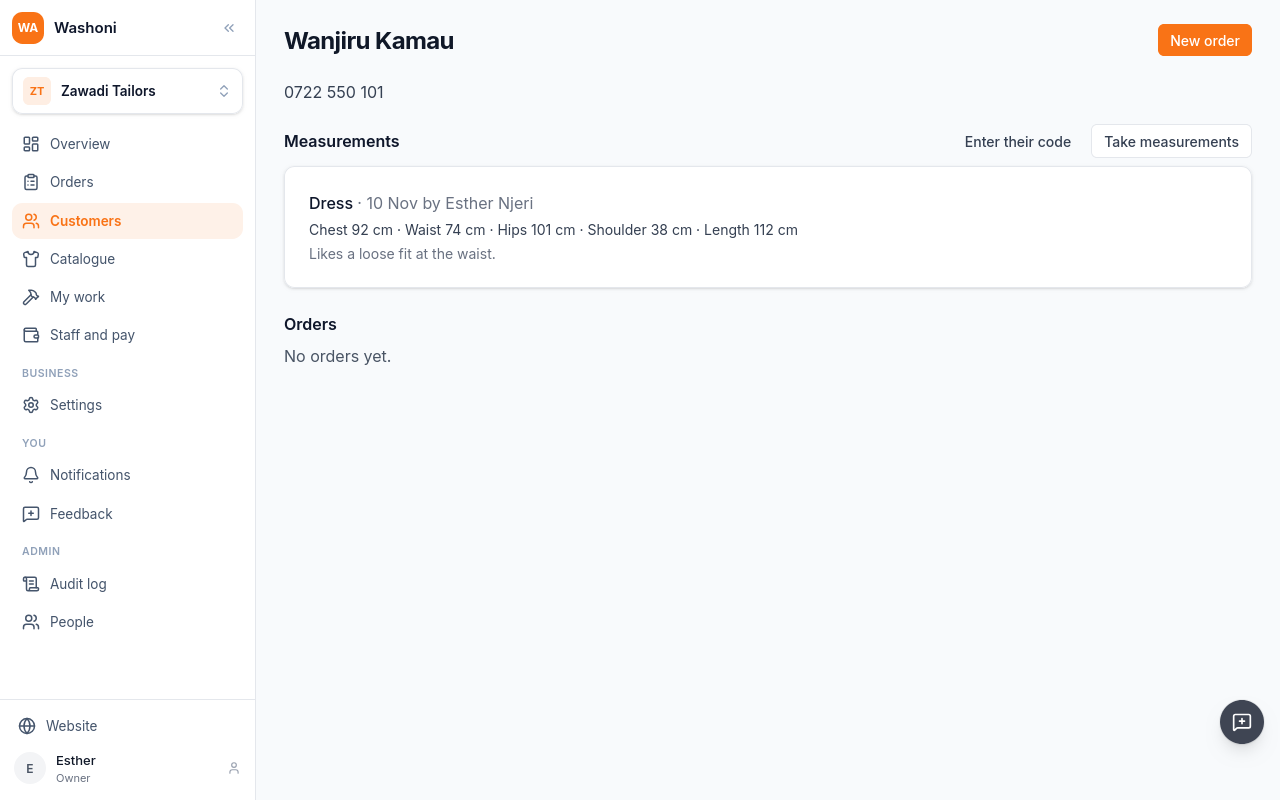
Measuring again adds a new set, and the old one stays, so you can see how a customer's measurements change. An order keeps the set it was cut to.
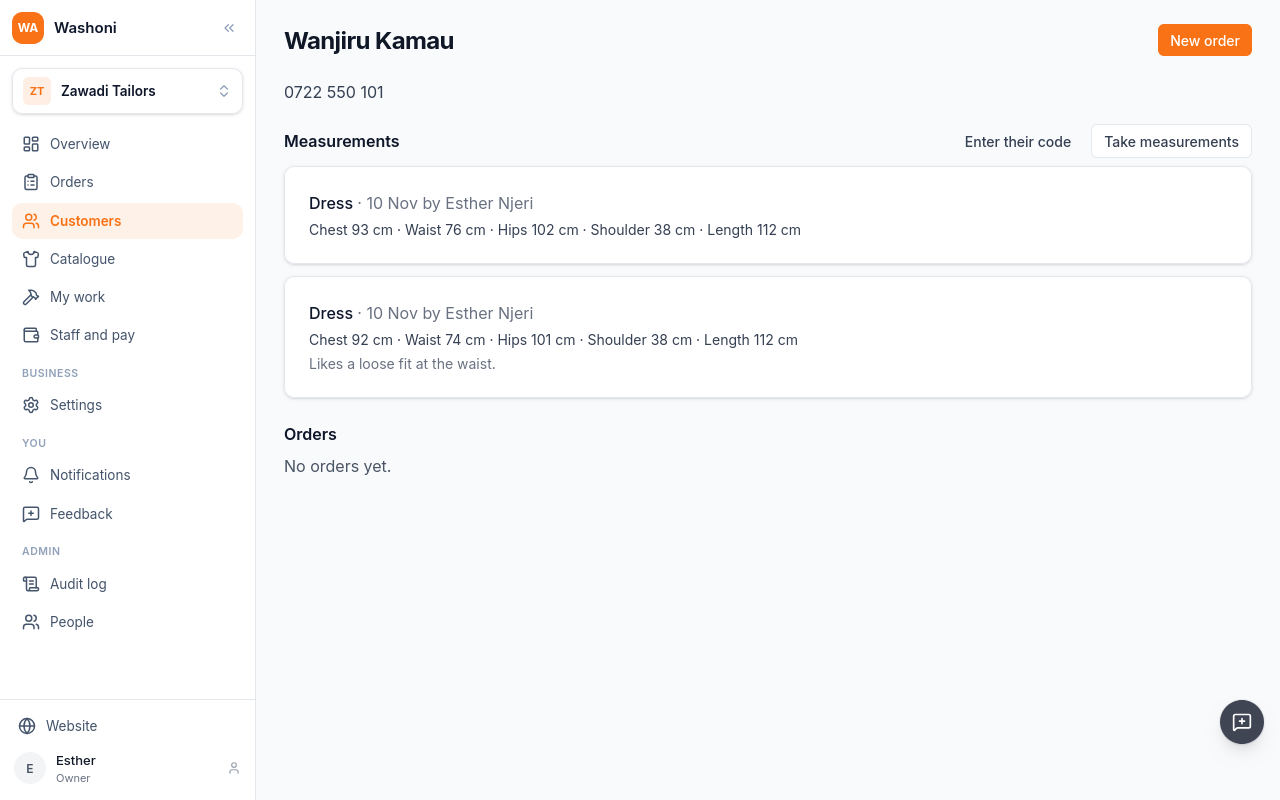
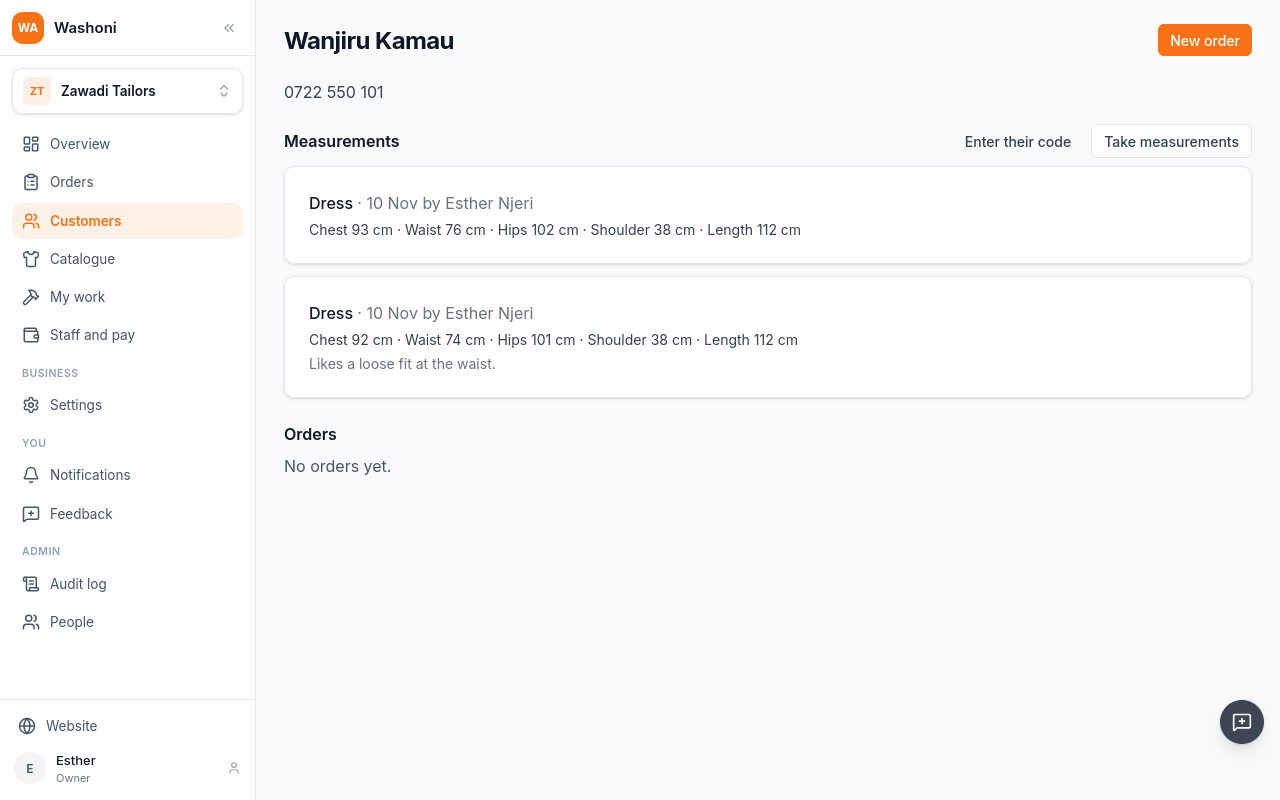
Both sets are on her page, newest first.
A customer with a Washoni account can keep their own measurements and share them with a shop. They read out a code, and you choose Enter their code.
Chapter 5
What is being made, cut to which measurements, by when, and a deposit
An order starts from the customer. On Wanjiru Kamau's page, choose New order.
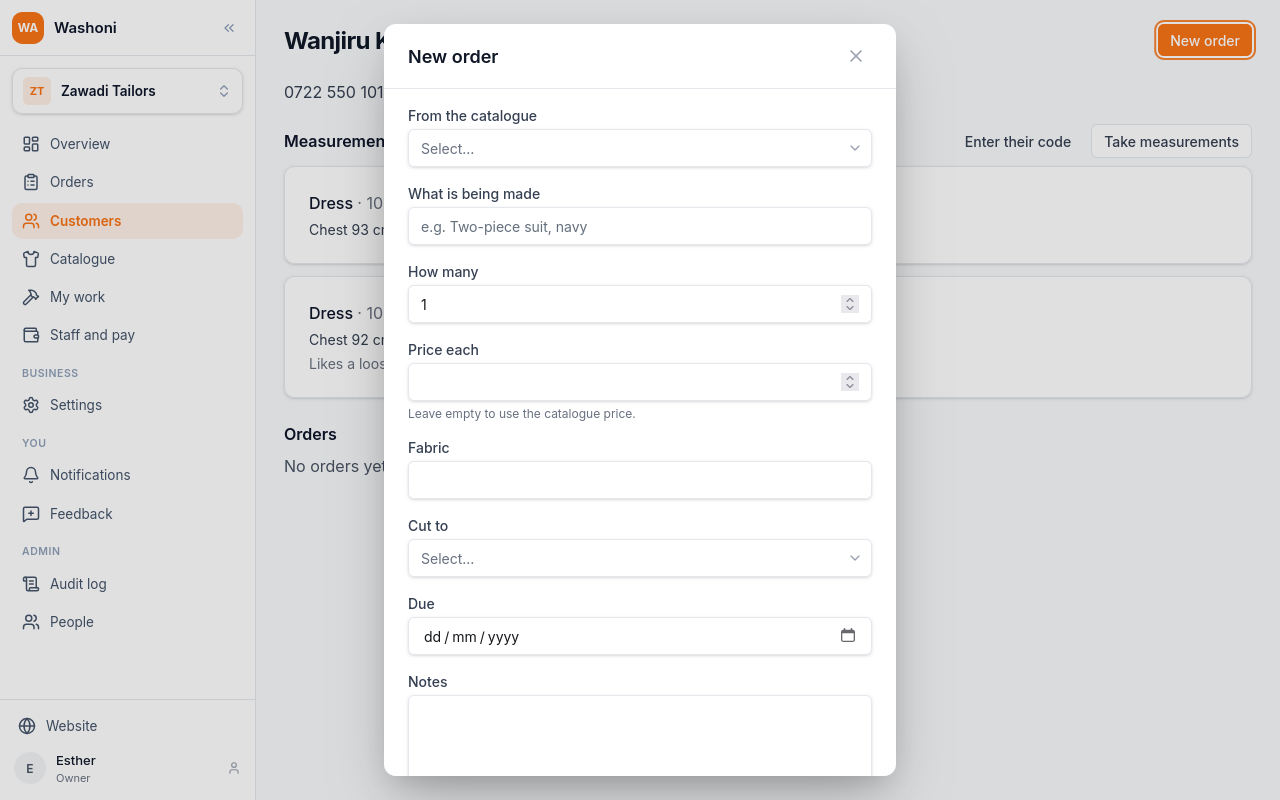
Pick what is being made from the catalogue: a kitenge dress.
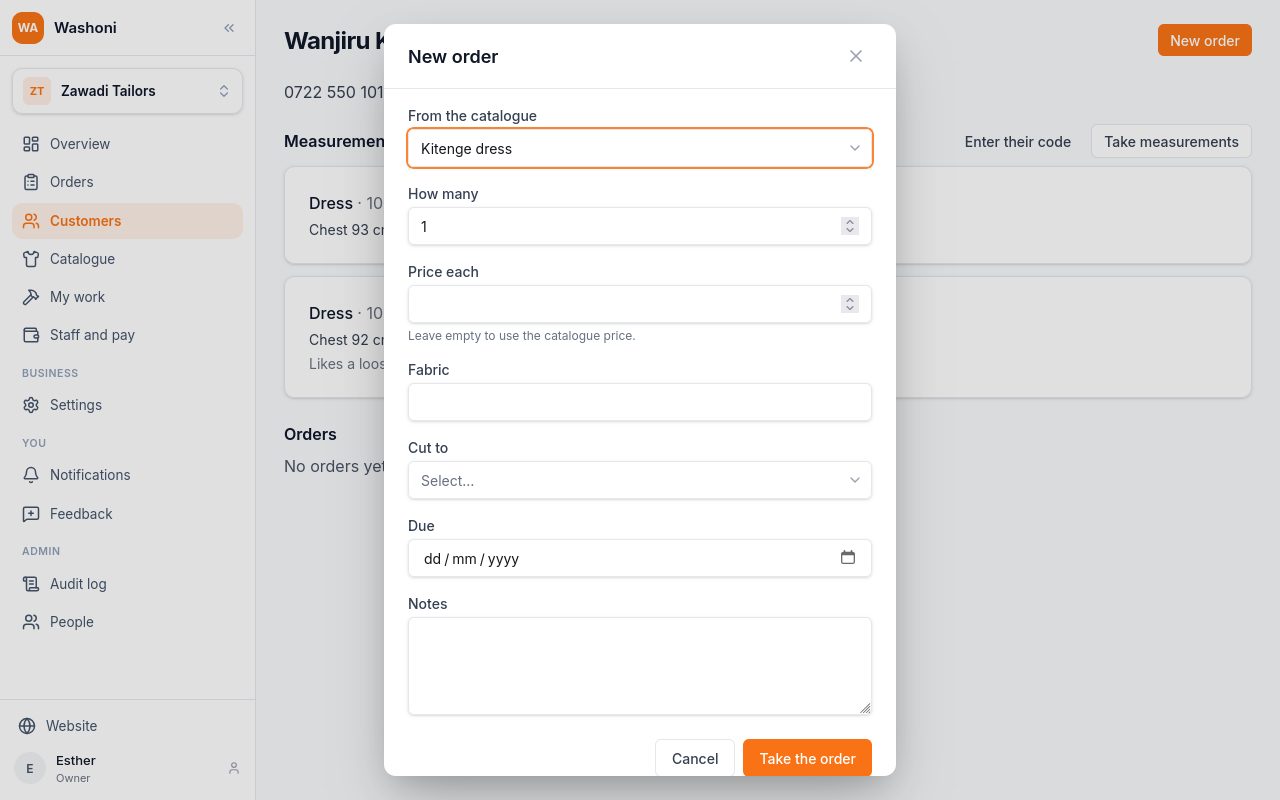
Leave the price empty to use the catalogue's, or type the price agreed with her.
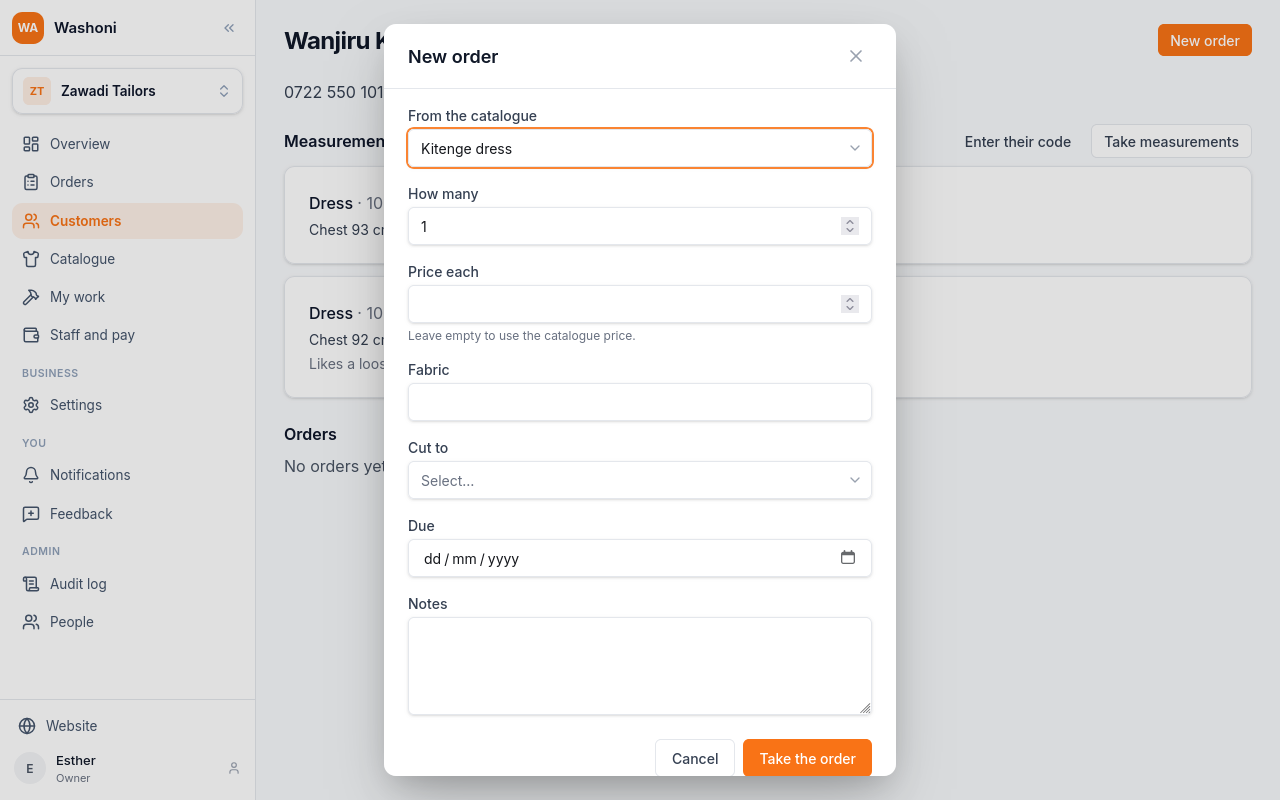
Fabric says what it is made from. Here, her own kitenge.
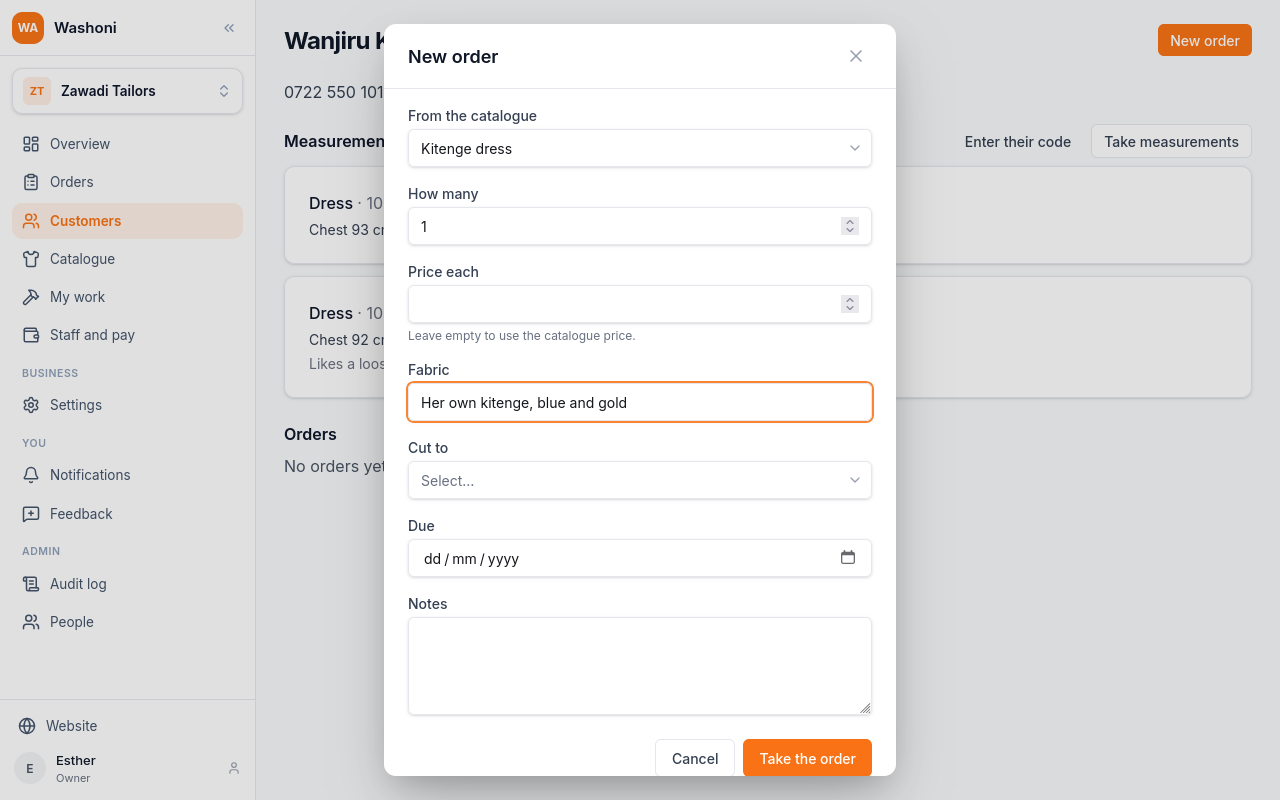
Cut to picks the measurements the dress is made to. The order keeps them as they are today.
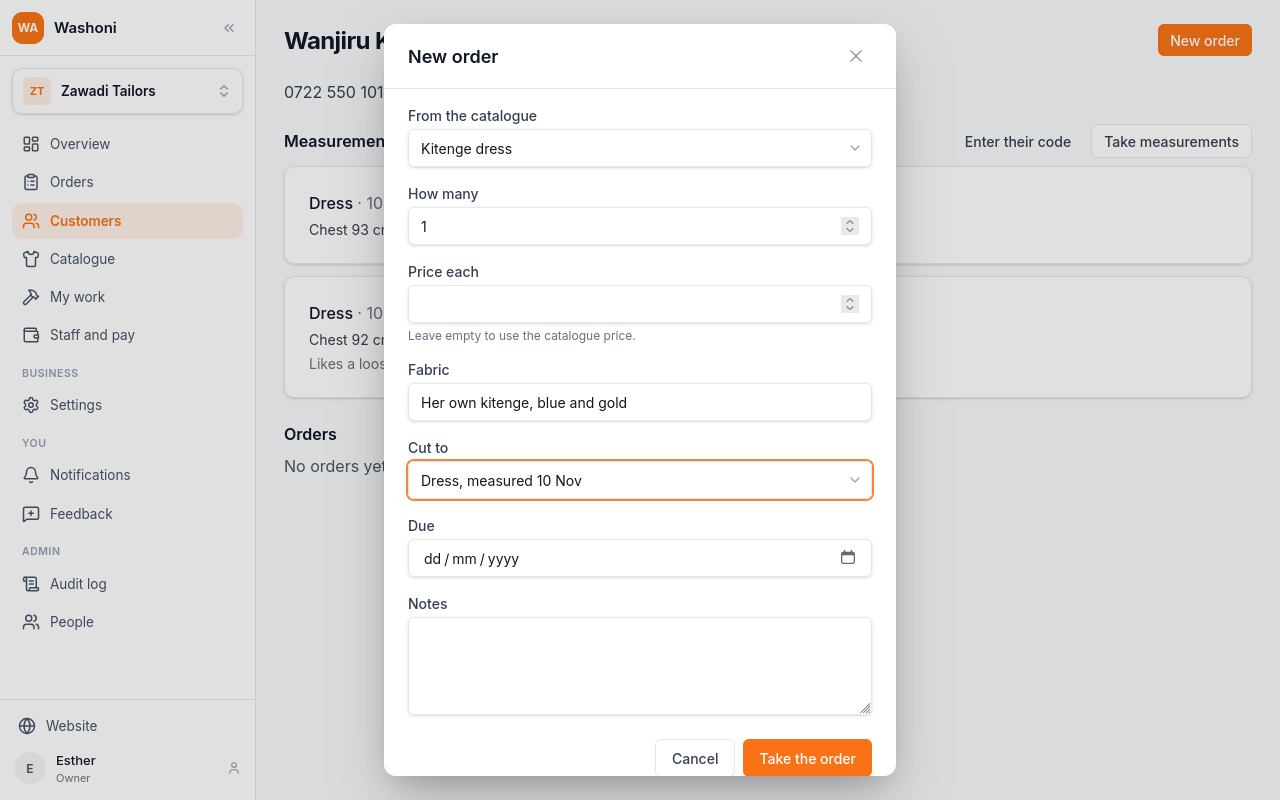
Due is the day she is told it will be ready.
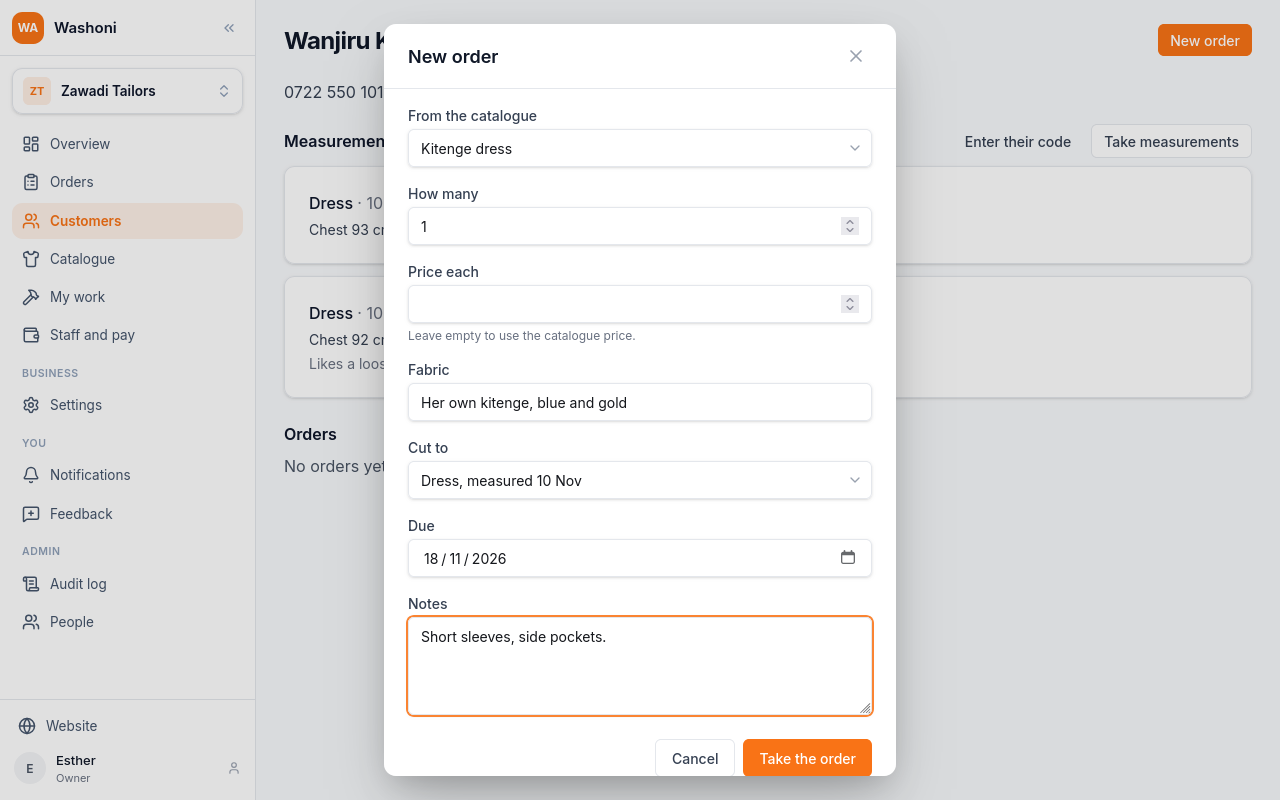
Choose Take the order.
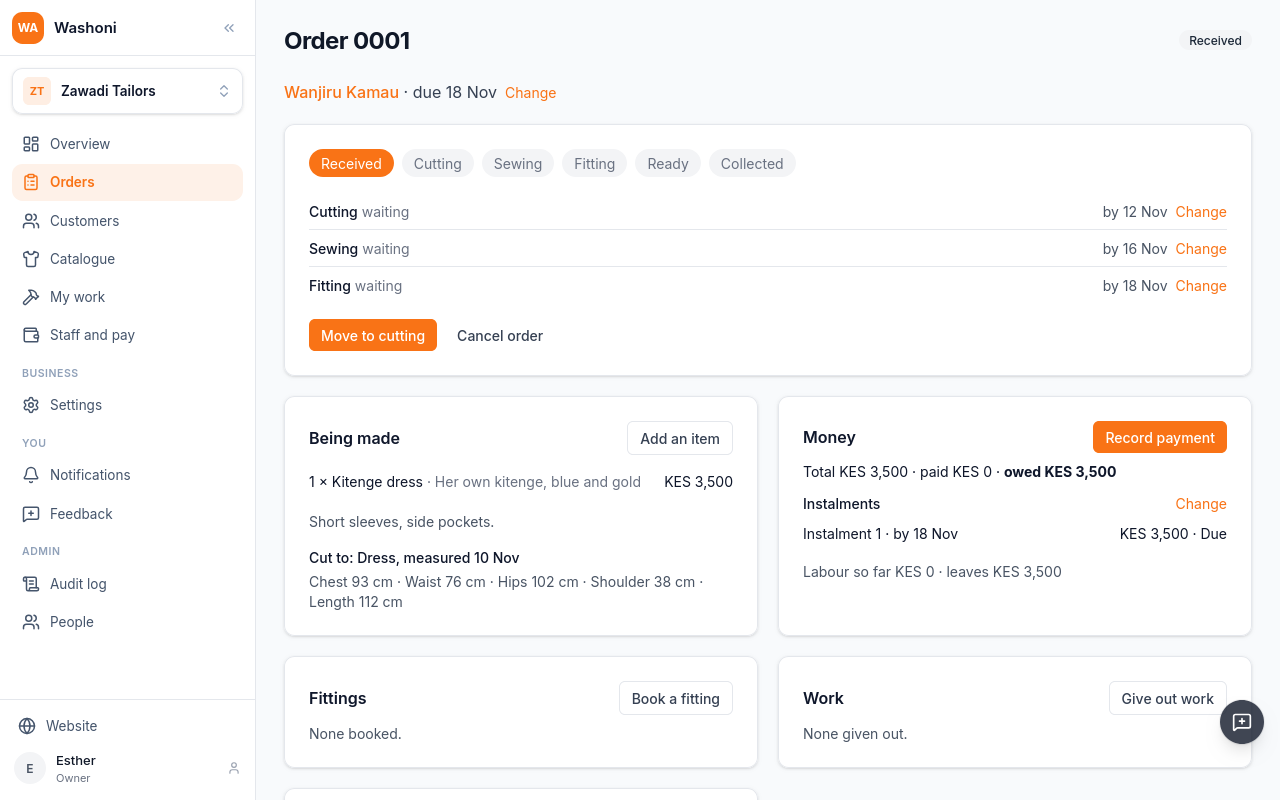
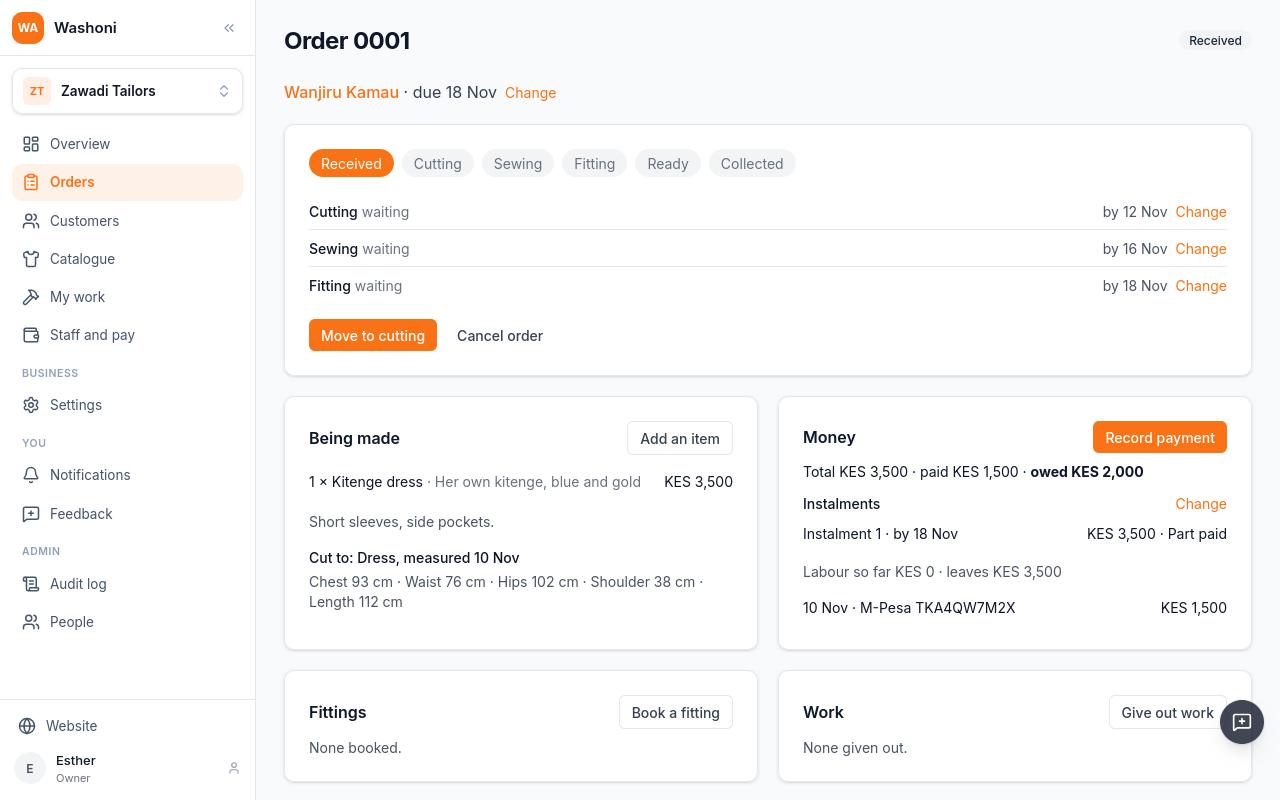
The order has its number, its stage, received, and what is being made, with the price from the catalogue.
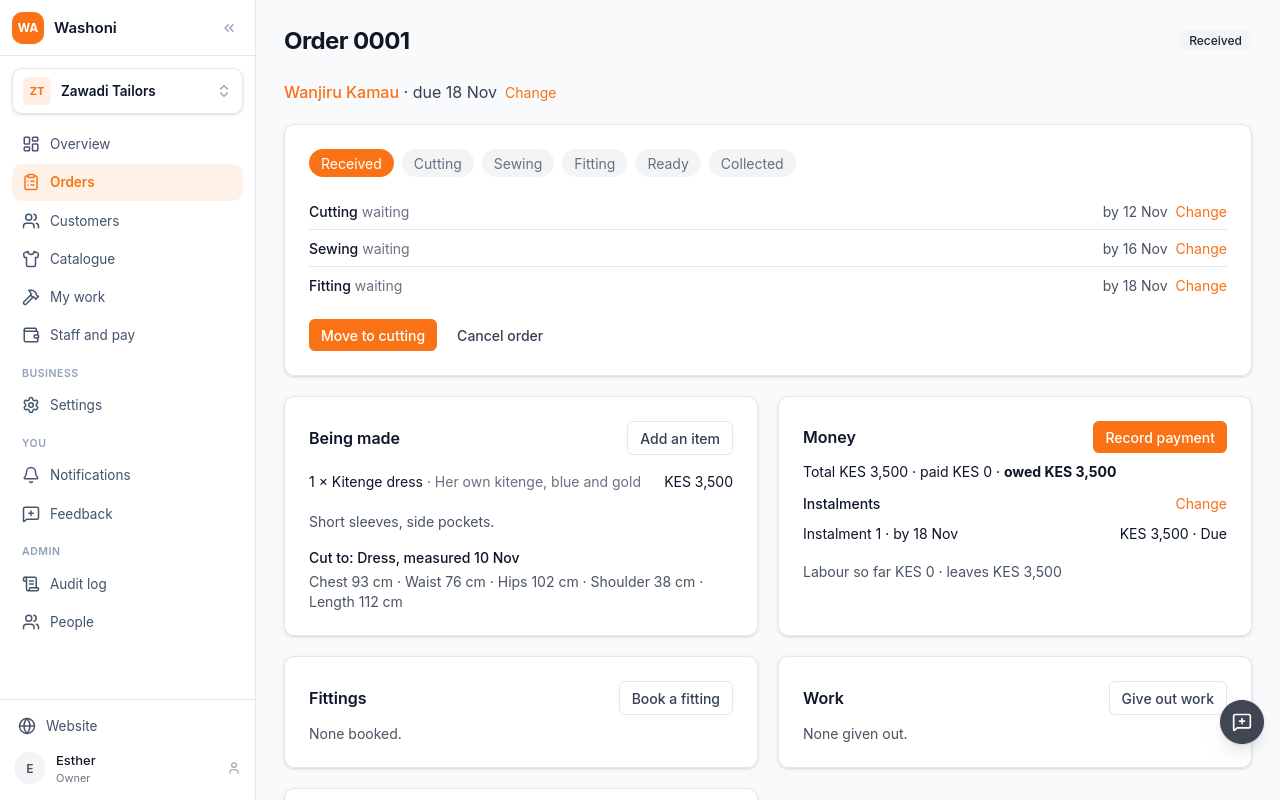
Money shows the total, what is paid, and what is still owed.
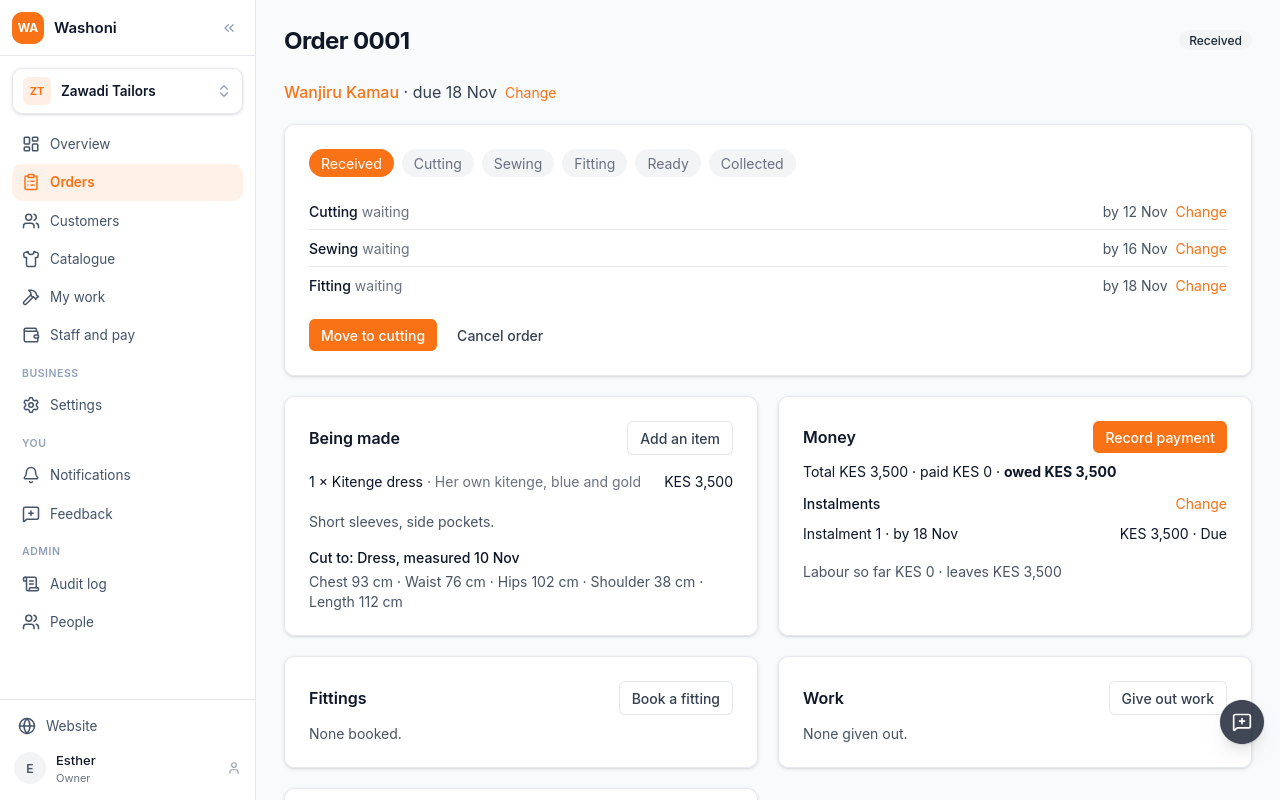
She pays a deposit by M-Pesa. Choose Record payment.
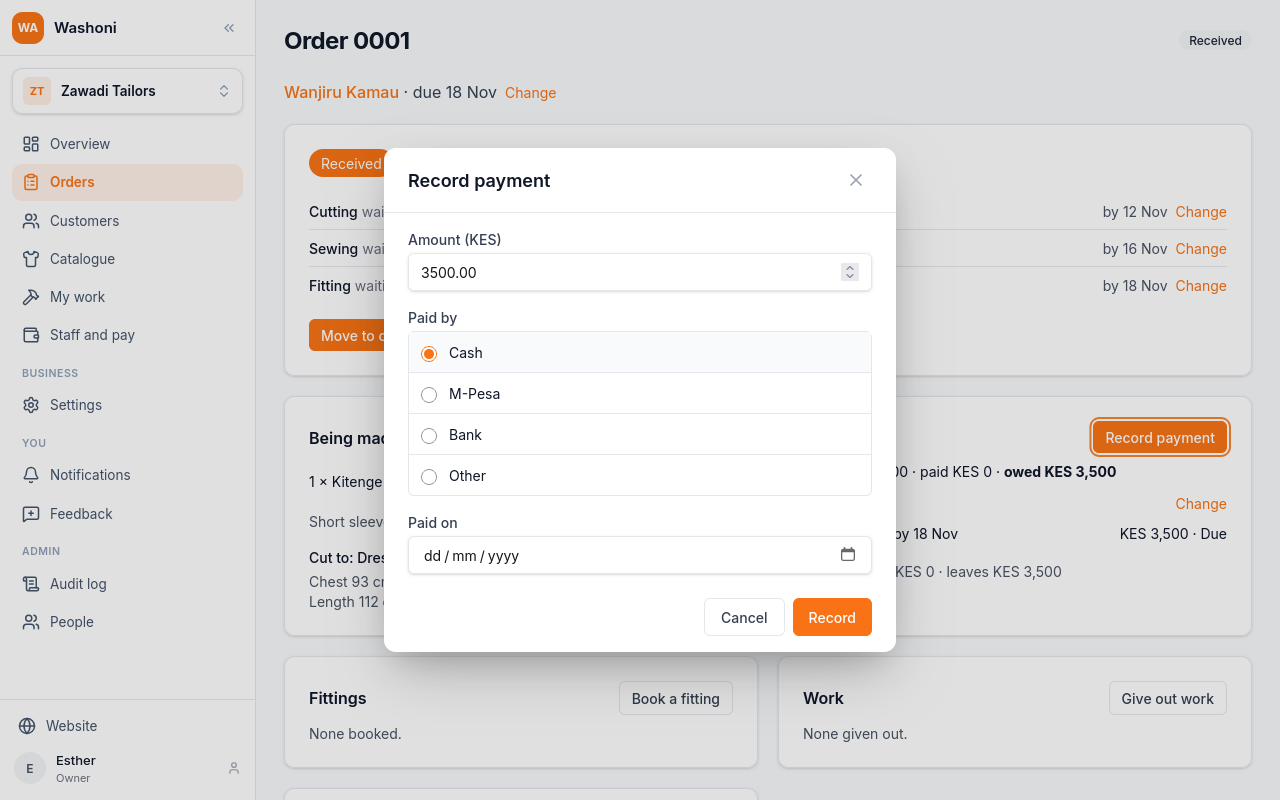
The amount starts at all that is owed. Type the deposit, fifteen hundred.
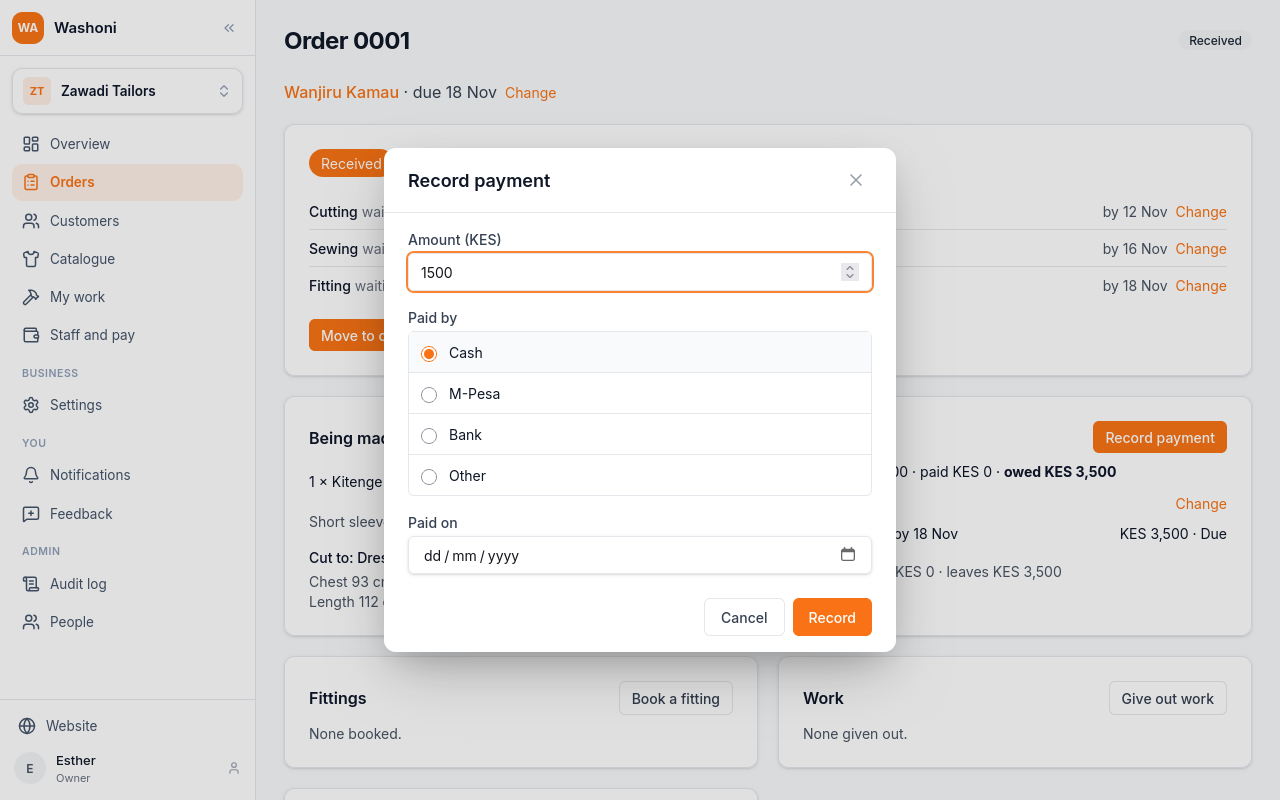
Paid by M-Pesa, with the code from her message as the reference.
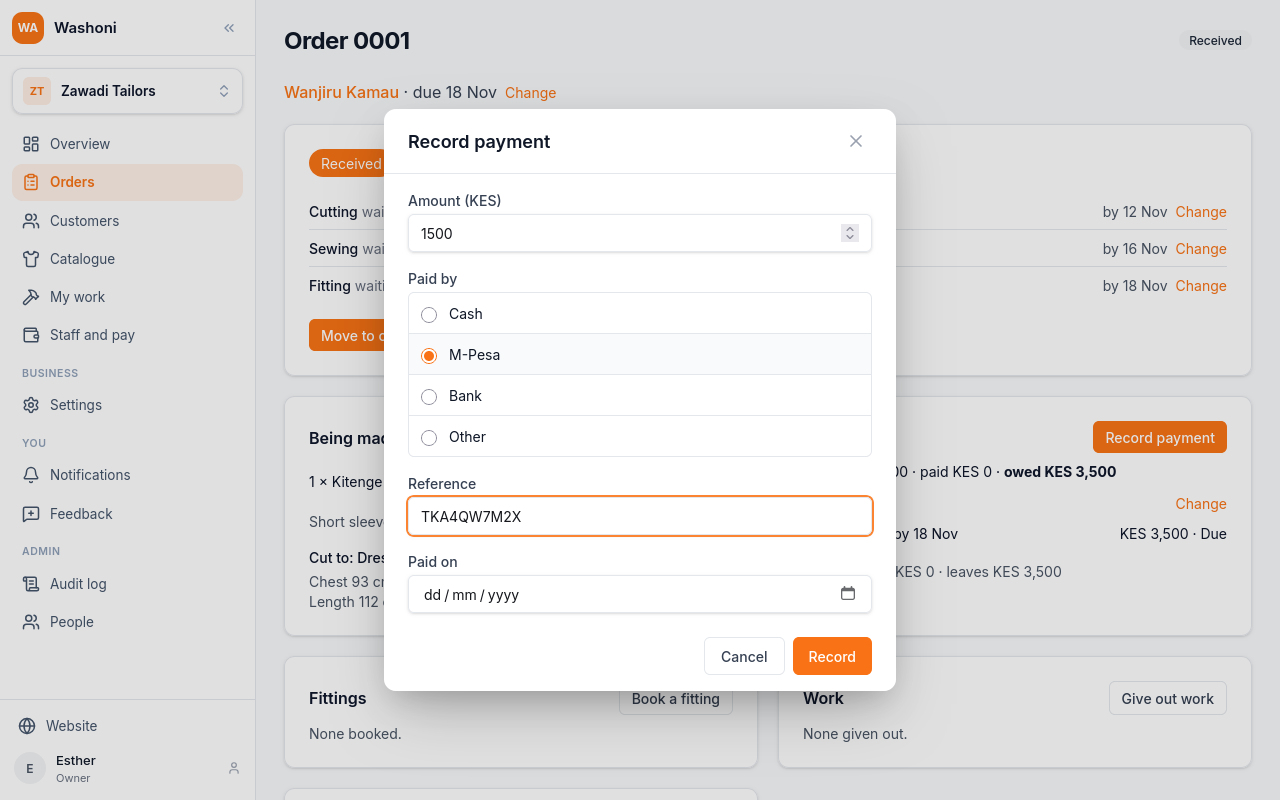
Choose Record.
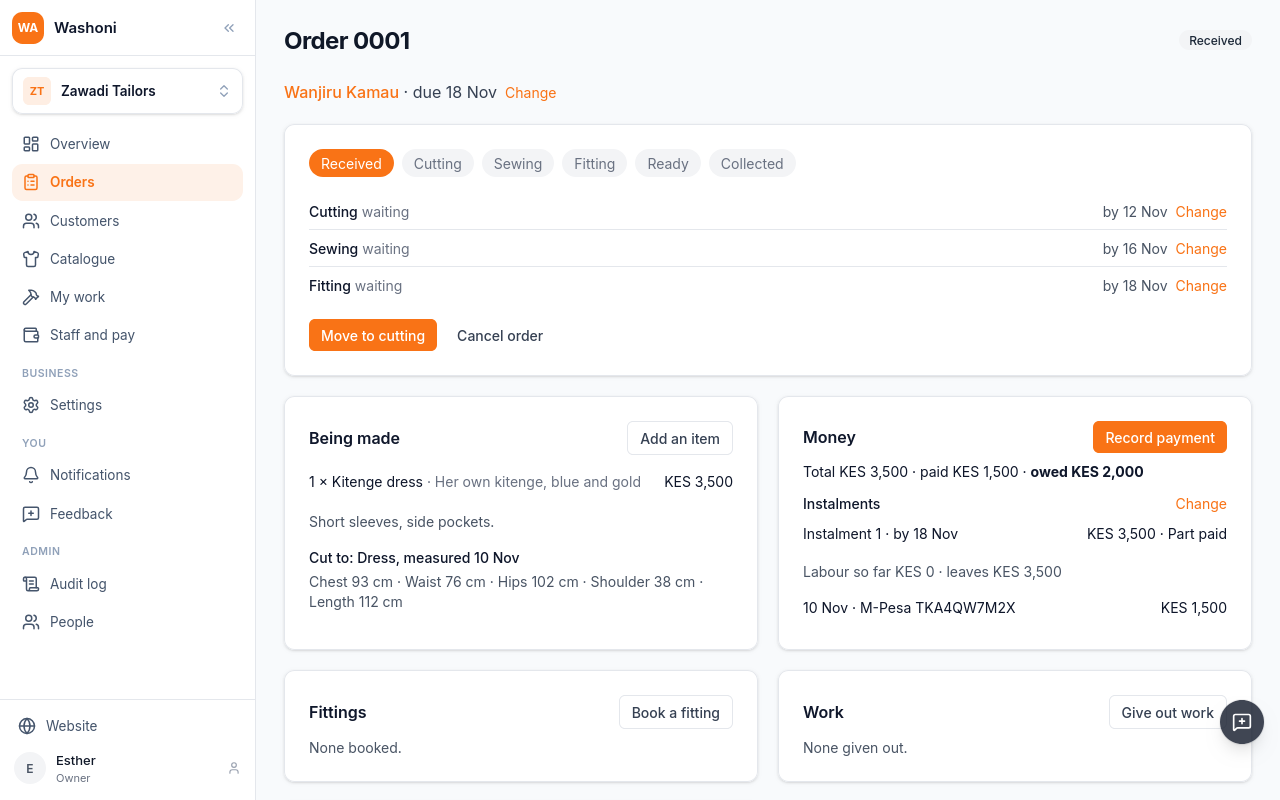
The deposit is on the order, and what is owed has gone down to two thousand.
Chapter 6
Stages, a date that slips, a fitting, and ready
An order moves through the workshop in stages: received, cutting, sewing, fitting, ready, and collected.
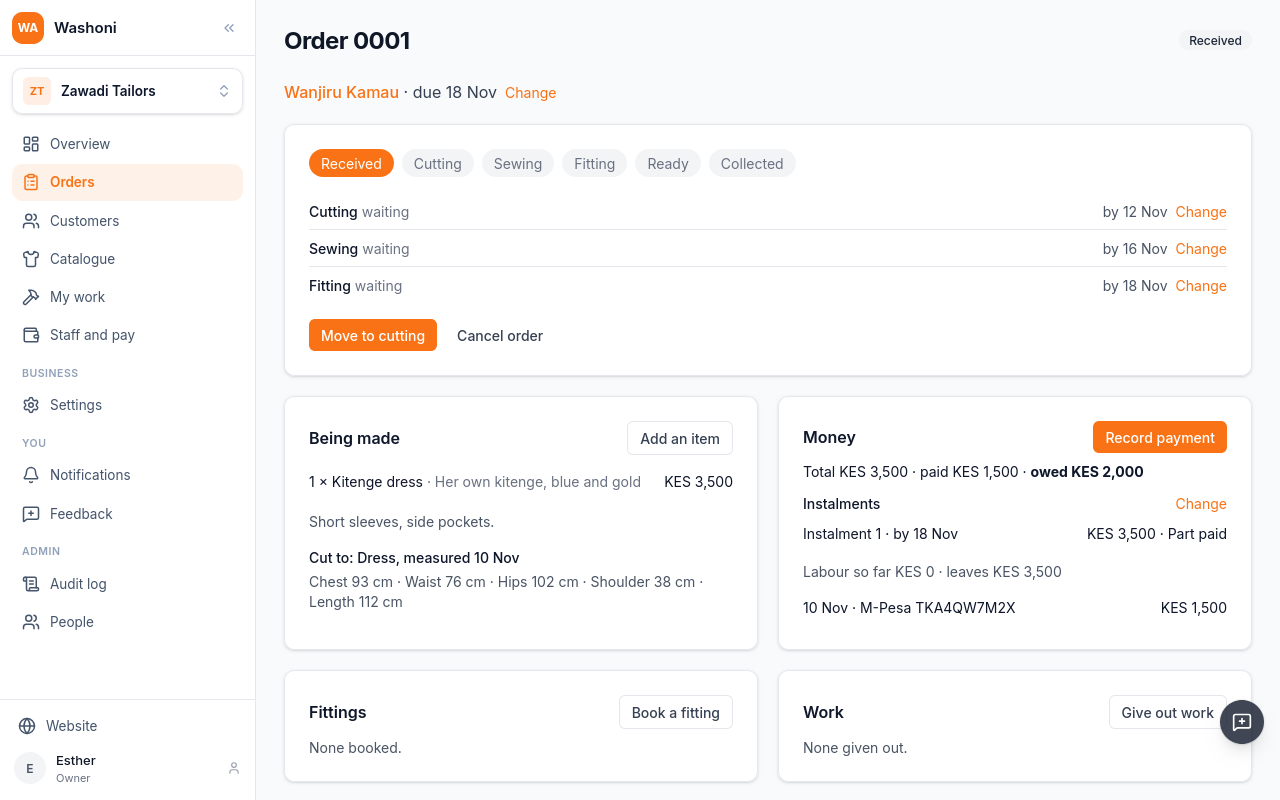
Under the stages, each step of the work has the date it should be done by, shared out up to the day the customer was told.
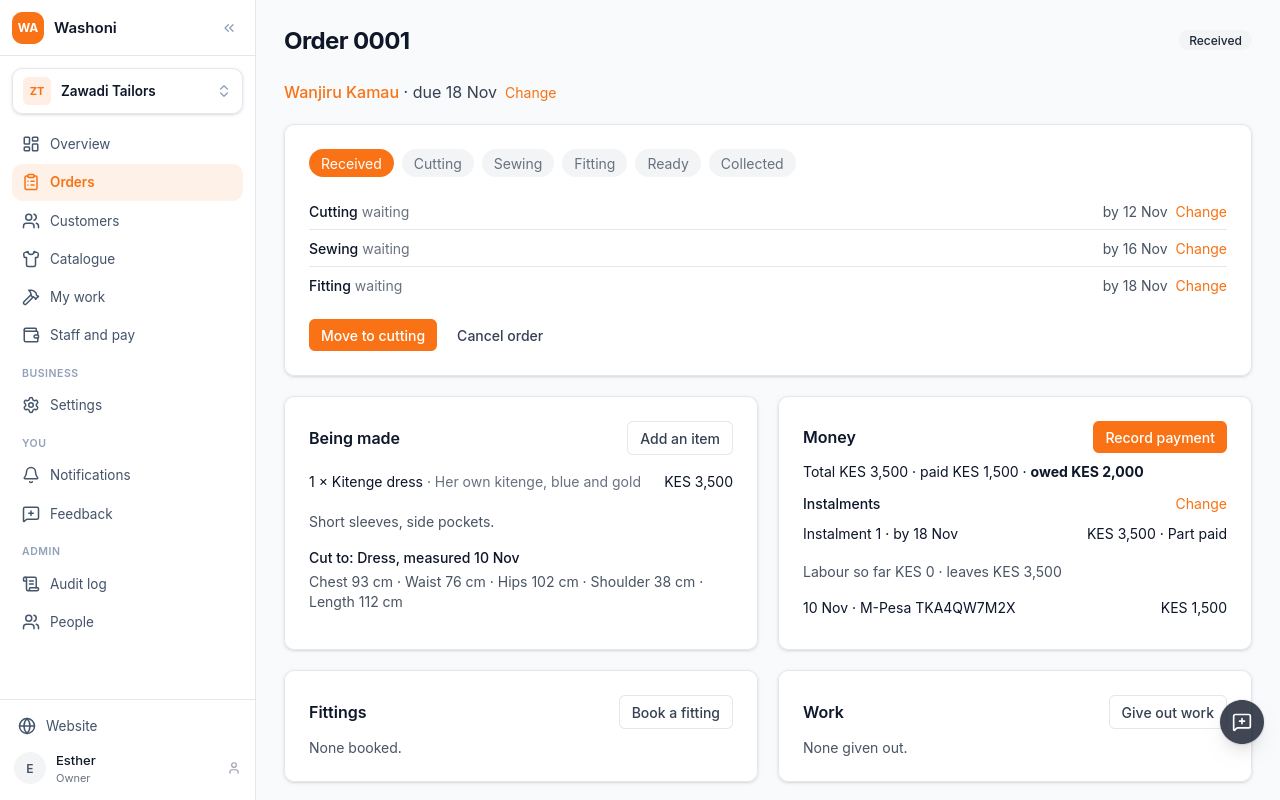
When the cloth is cut, choose Move to cutting.
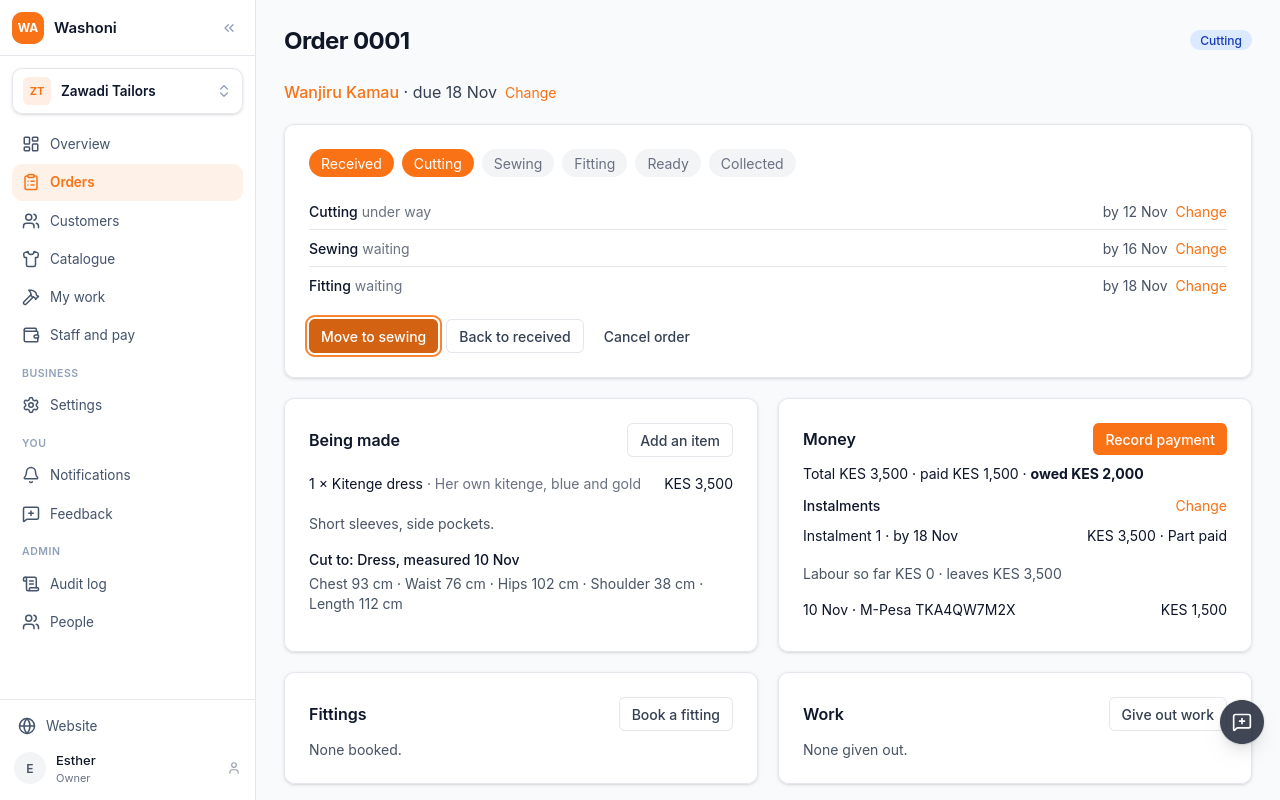
Cutting is under way. Then Move to sewing.
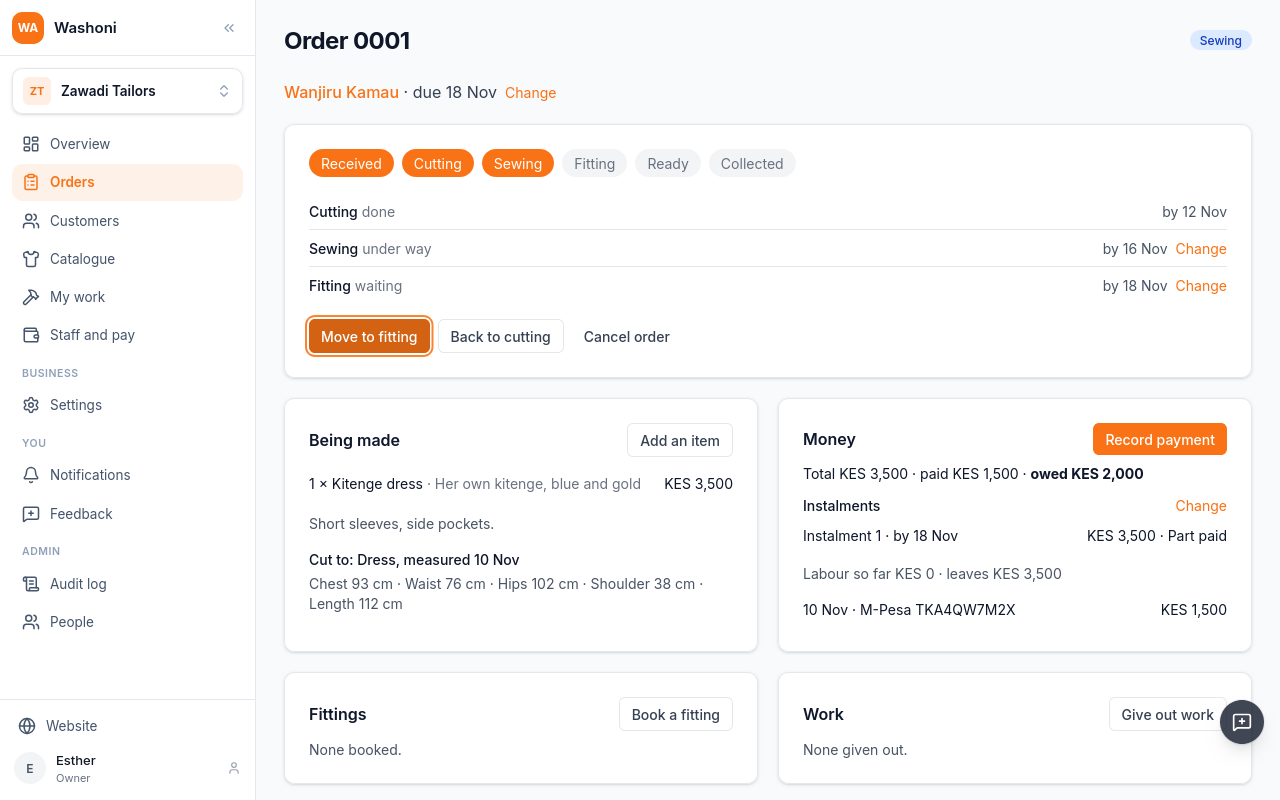
Sewing will take a day longer. Choose Change beside it.
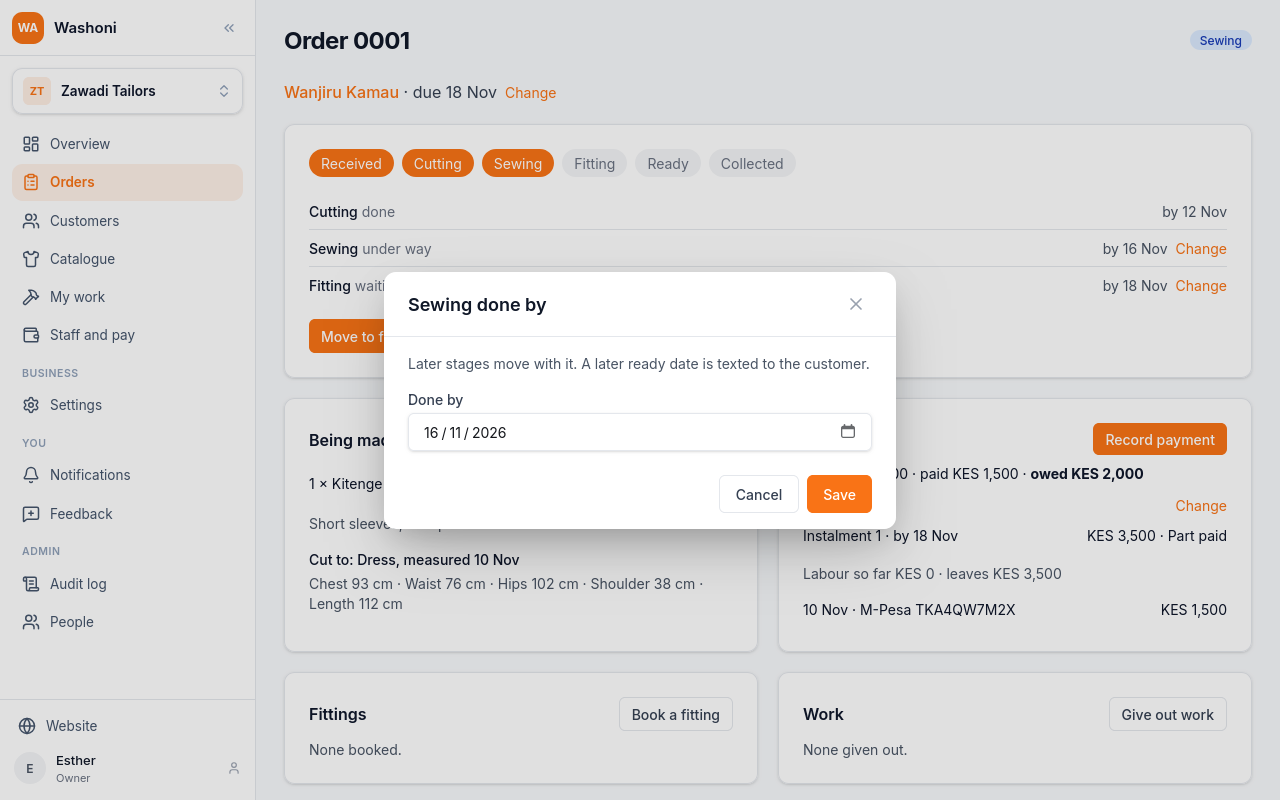
Give the new date, Tuesday the seventeenth. Later stages move with it.
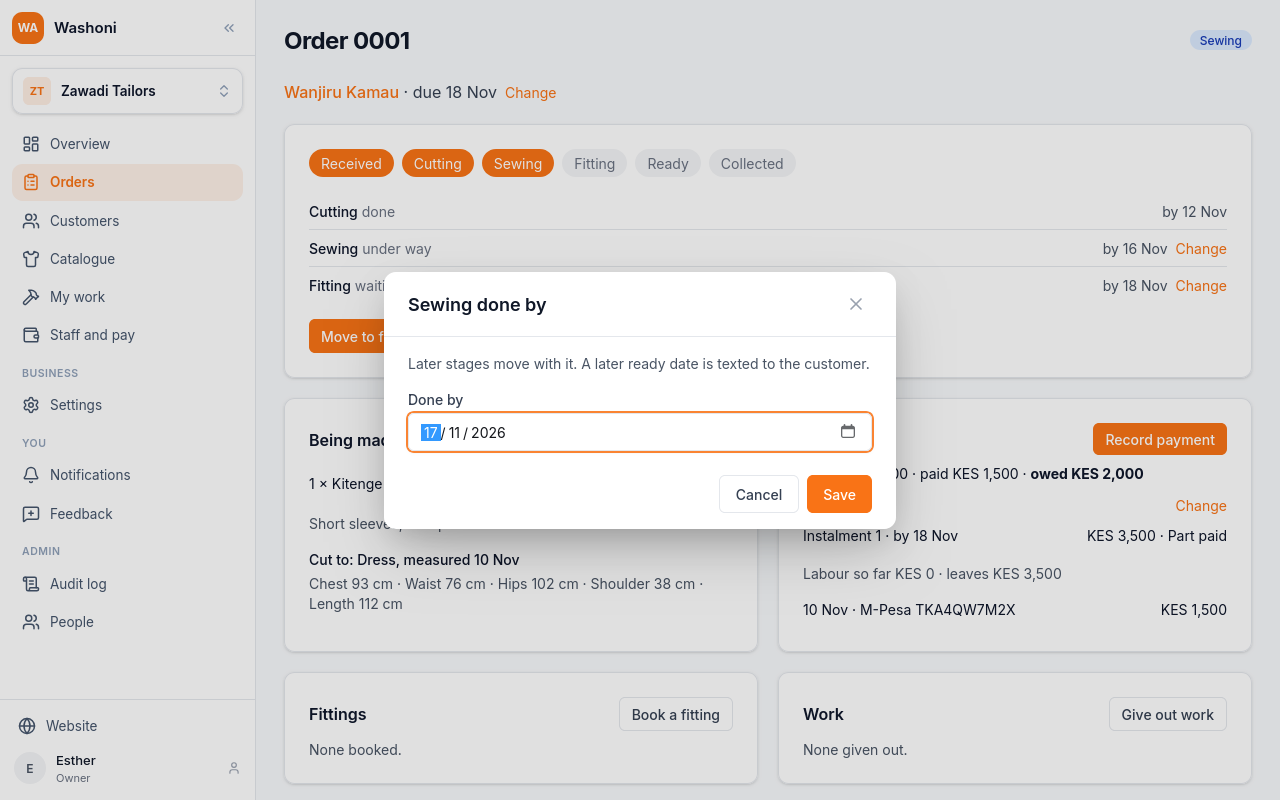
Choose Save.
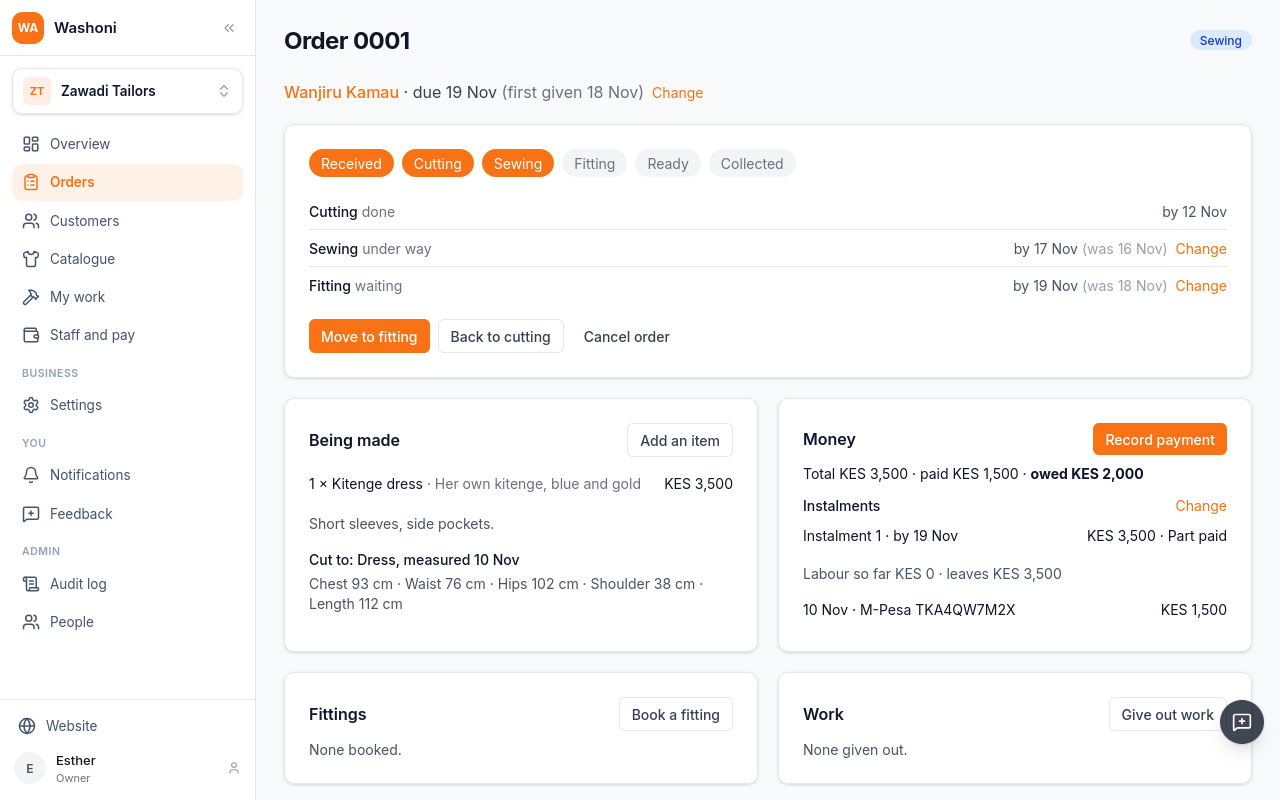
Fitting, and the order, now fall a day later, and each shows the date it was before.
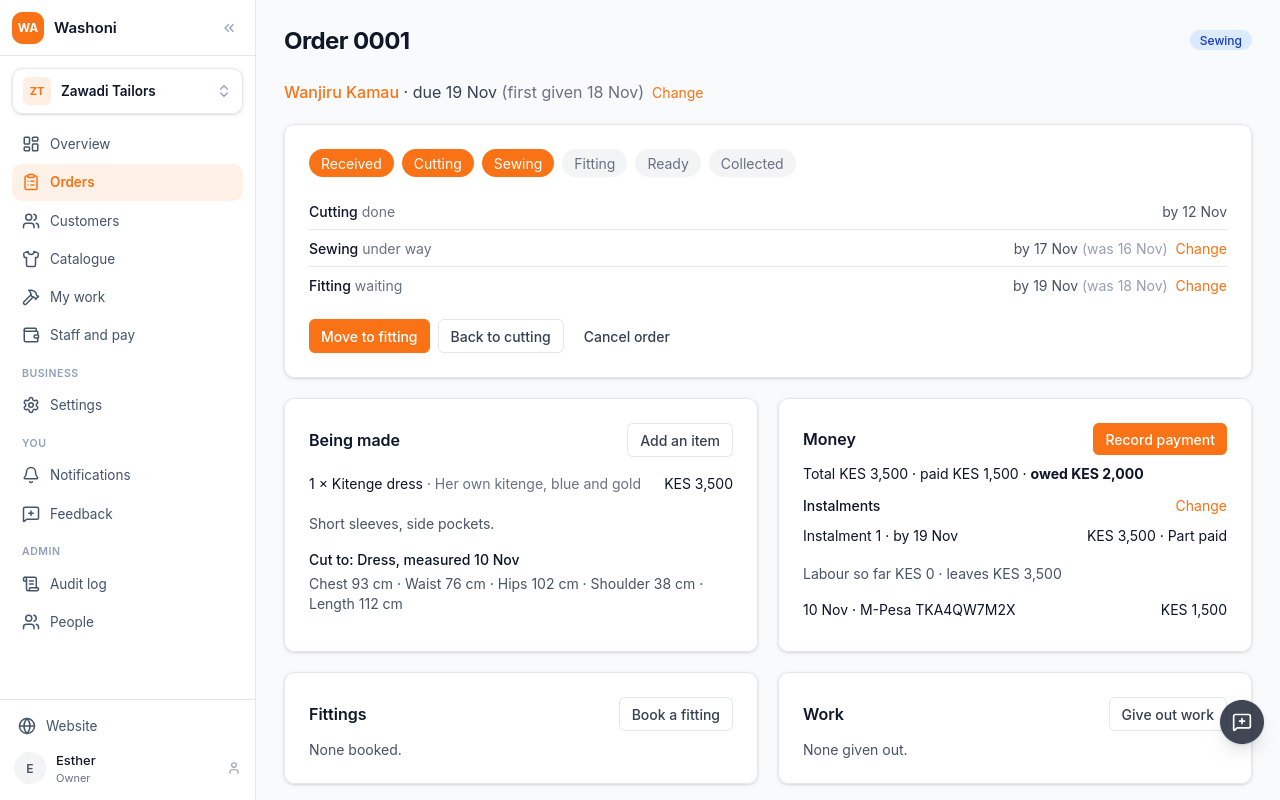
The ready date is now later than she was told, so Washoni sends her one text with the new date. The history notes whether the text went.
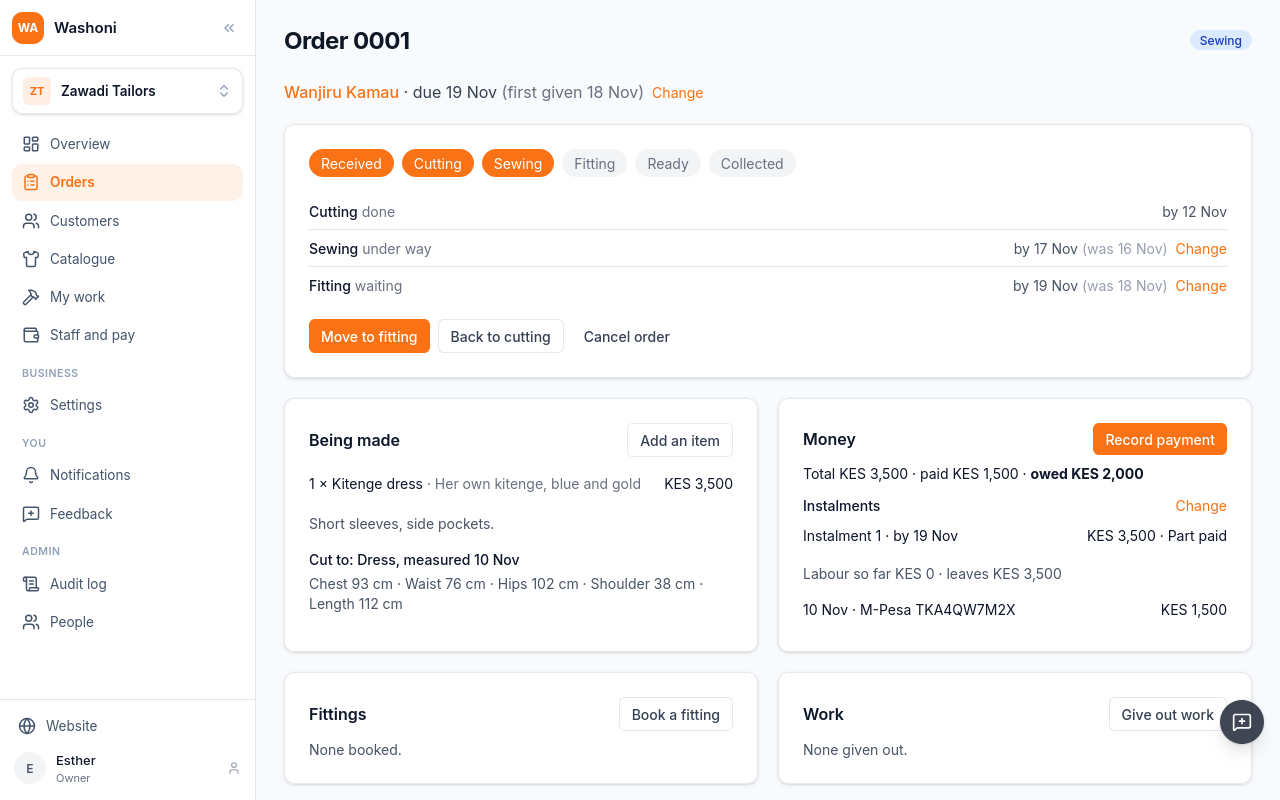
Book her fitting from the order: choose Book a fitting, and give the day and time.
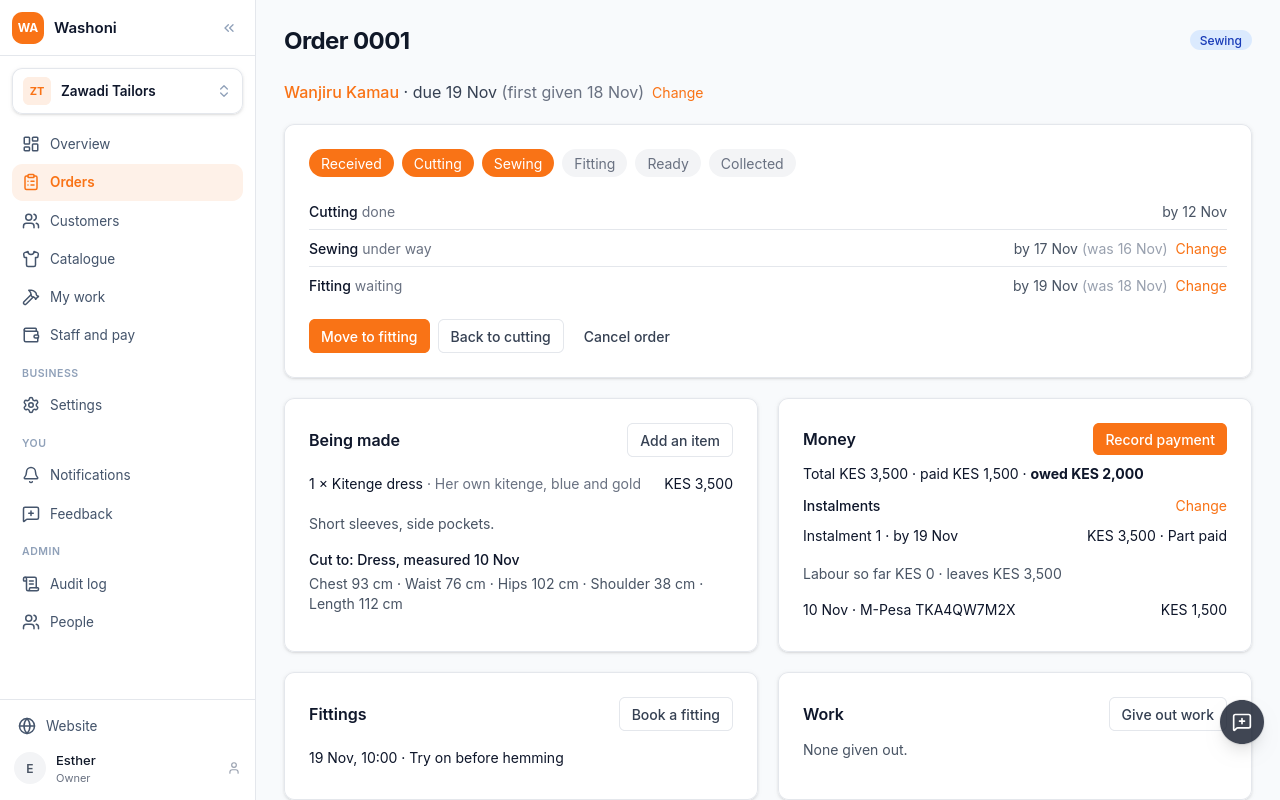
It is on the order, under Fittings.
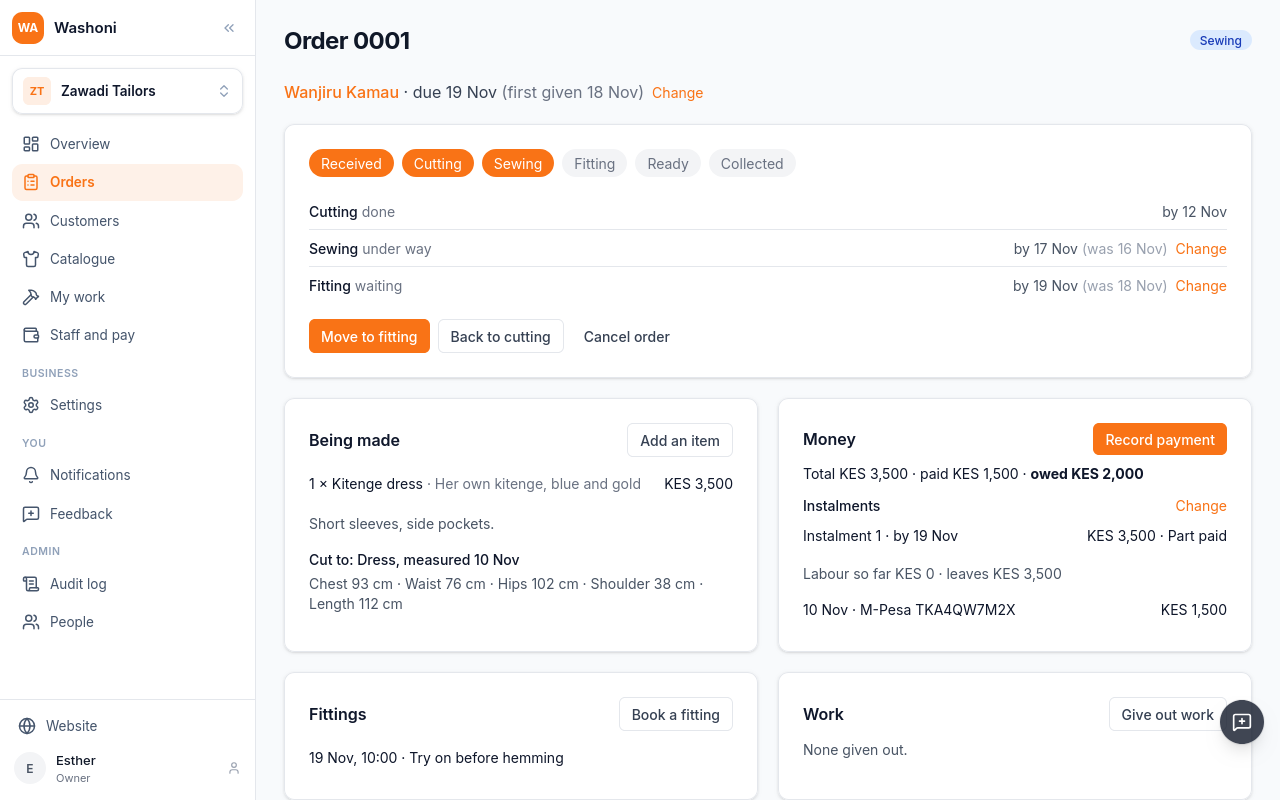
After the fitting, Move to fitting, then Move to ready.
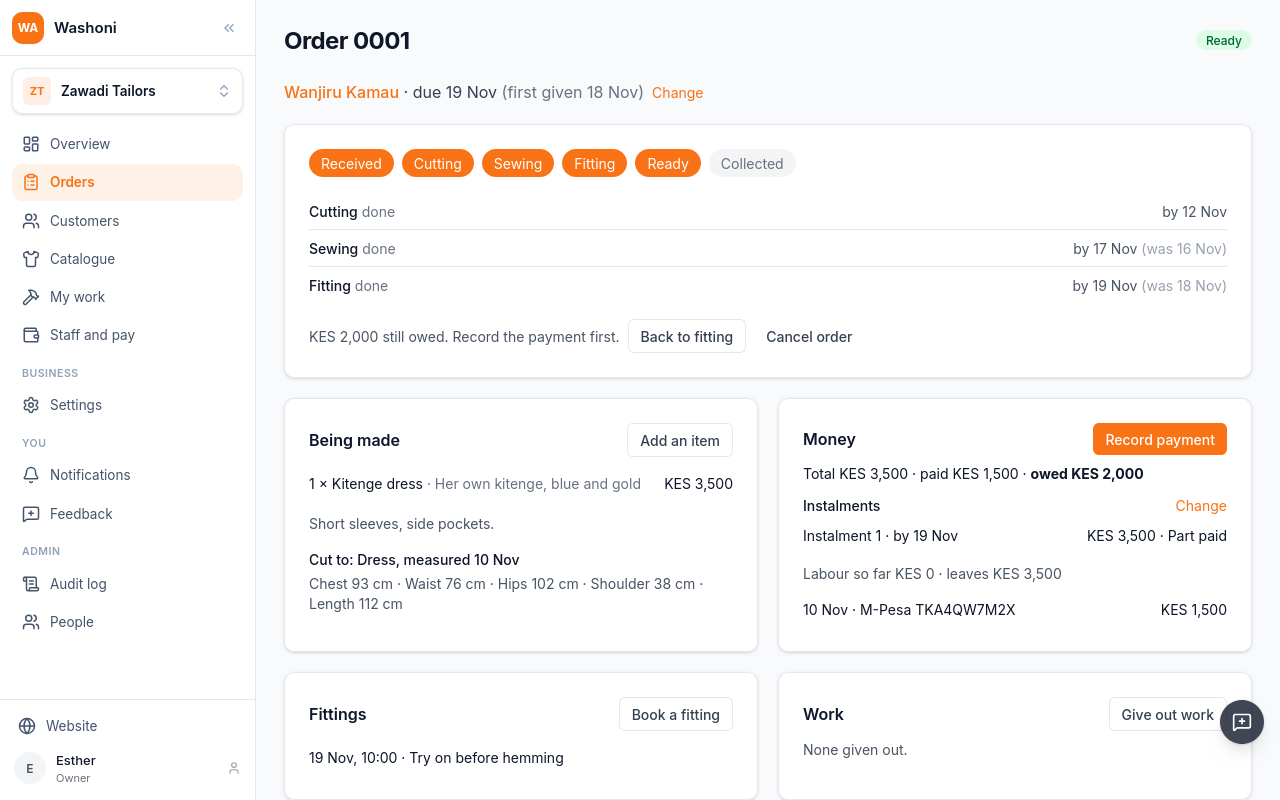
Ready sends her a text that it is ready to collect. Collecting it is in the next chapter, with the money.
Chapter 7
Payments on an order, what is still owed, and collecting
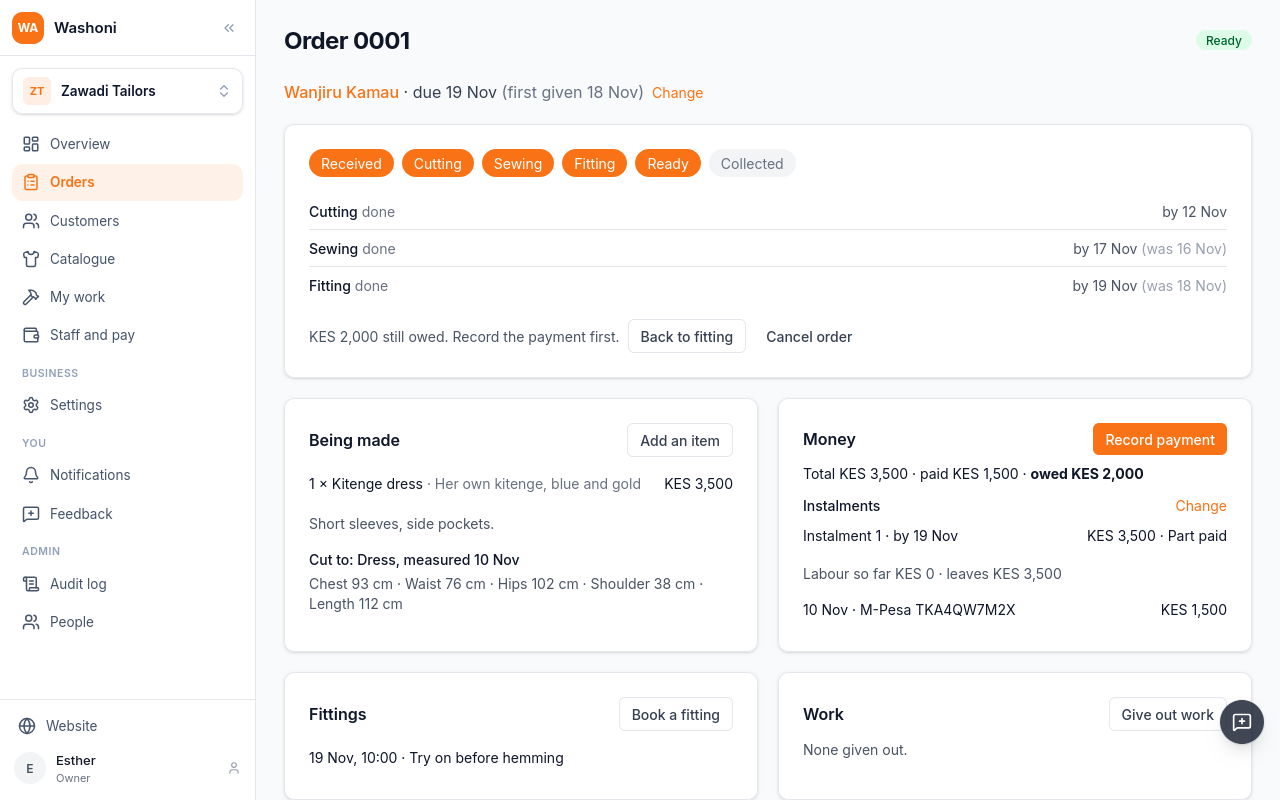
Wanjiru's dress is ready. Money shows the total, three thousand five hundred, her deposit, and two thousand still owed.
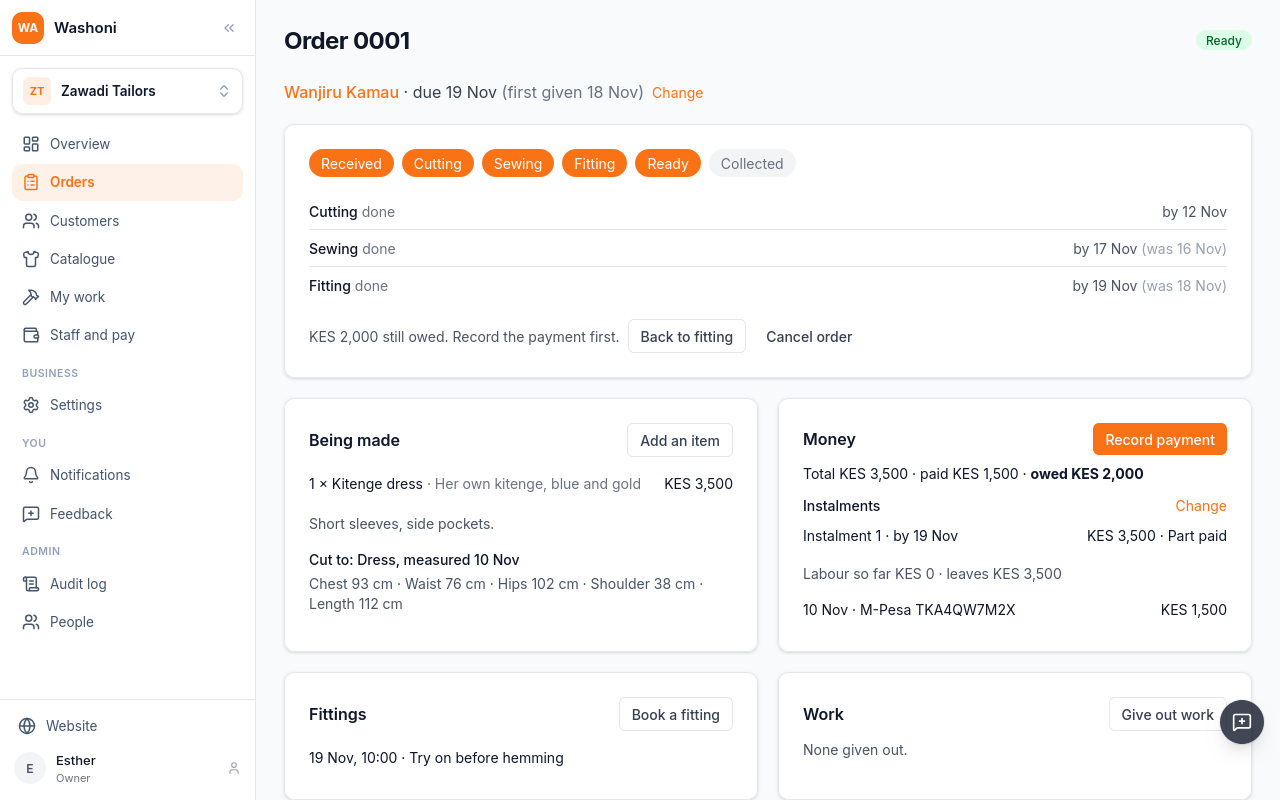
An order can't be collected while money is owed. In place of Move to collected, it says what is still owed.
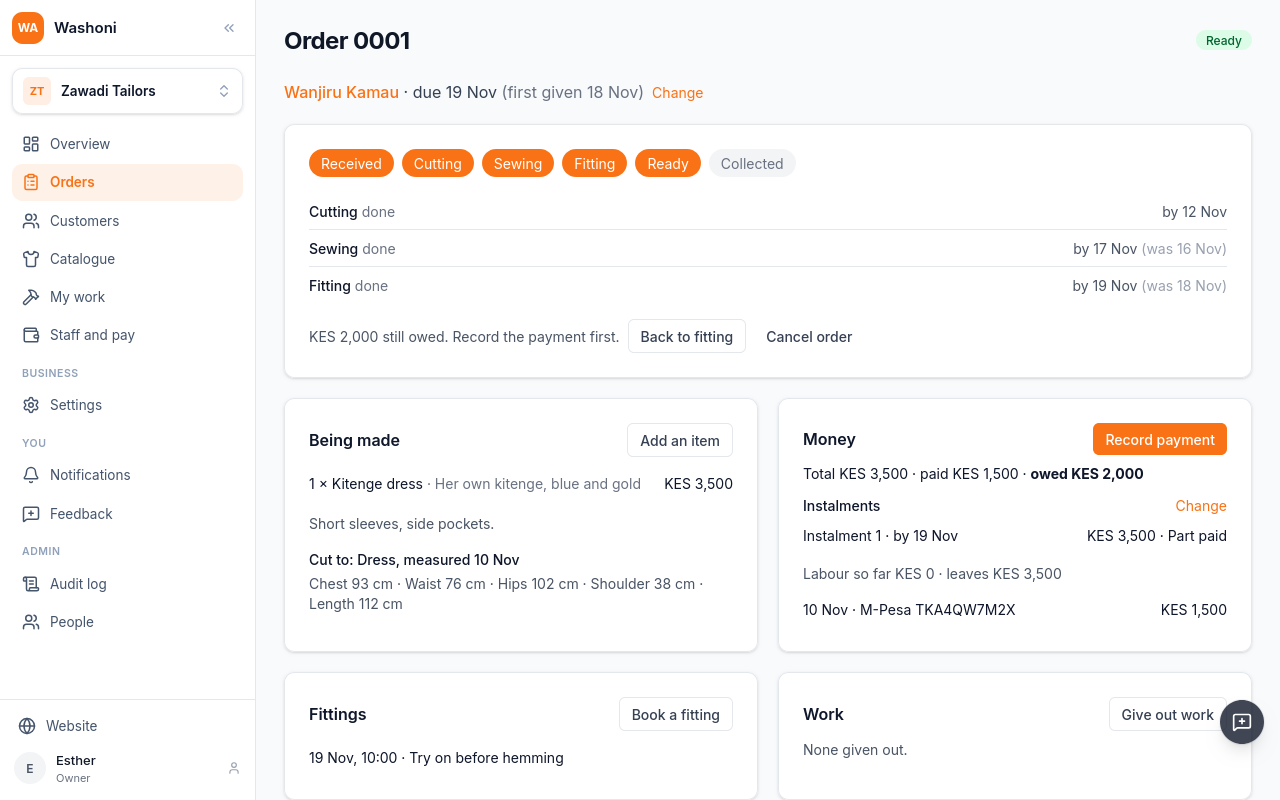
She pays the rest in cash. Choose Record payment.
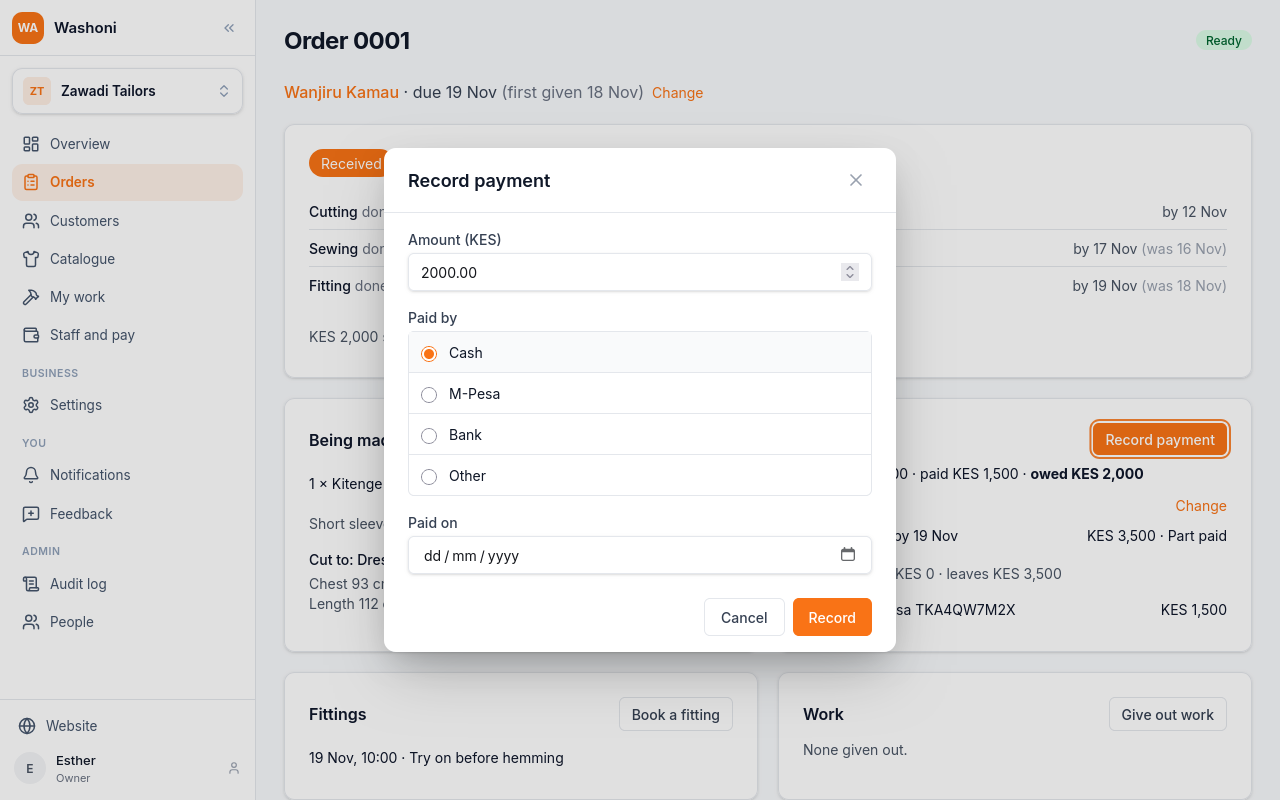
The amount starts at all that is owed, and Paid by at cash. Choose Record.
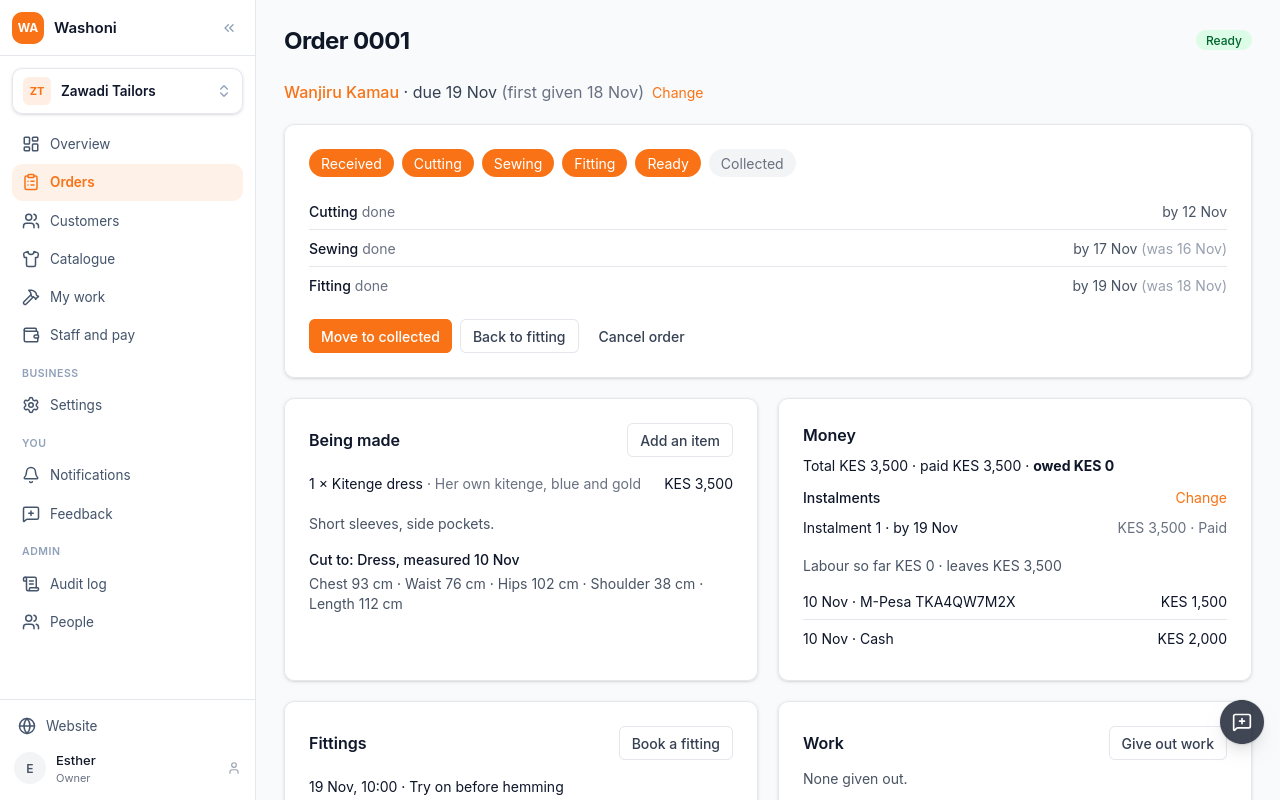
Nothing is owed now. Each payment is listed under Money, with the day and how it was paid.
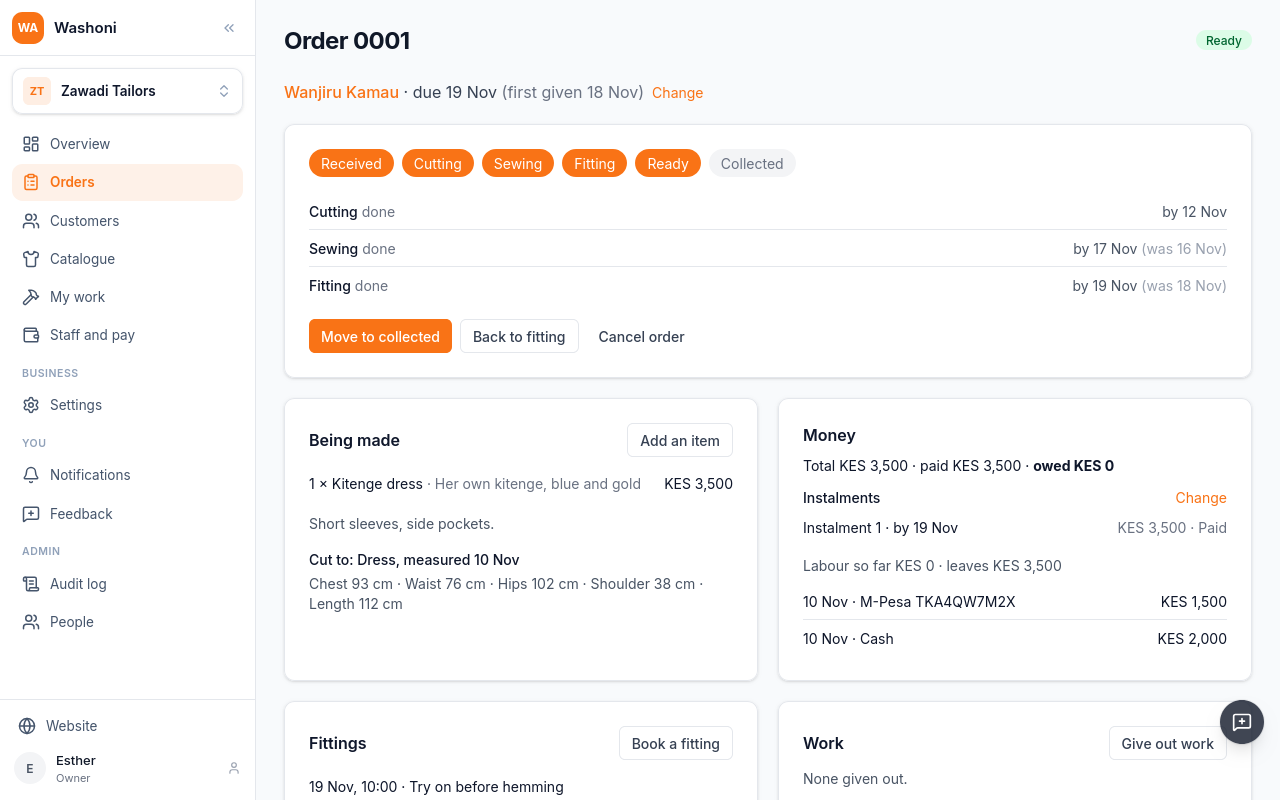
When she takes the dress, choose Move to collected.
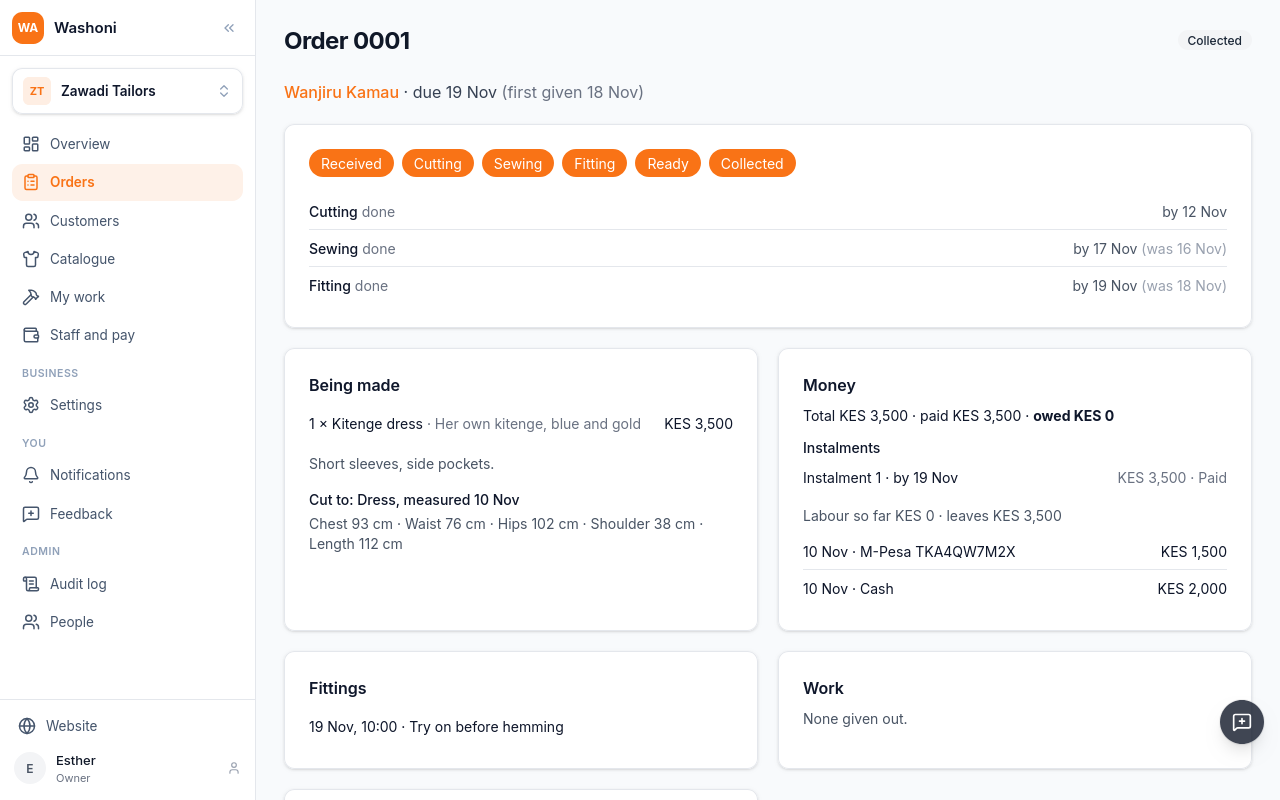
The order is collected, and done.
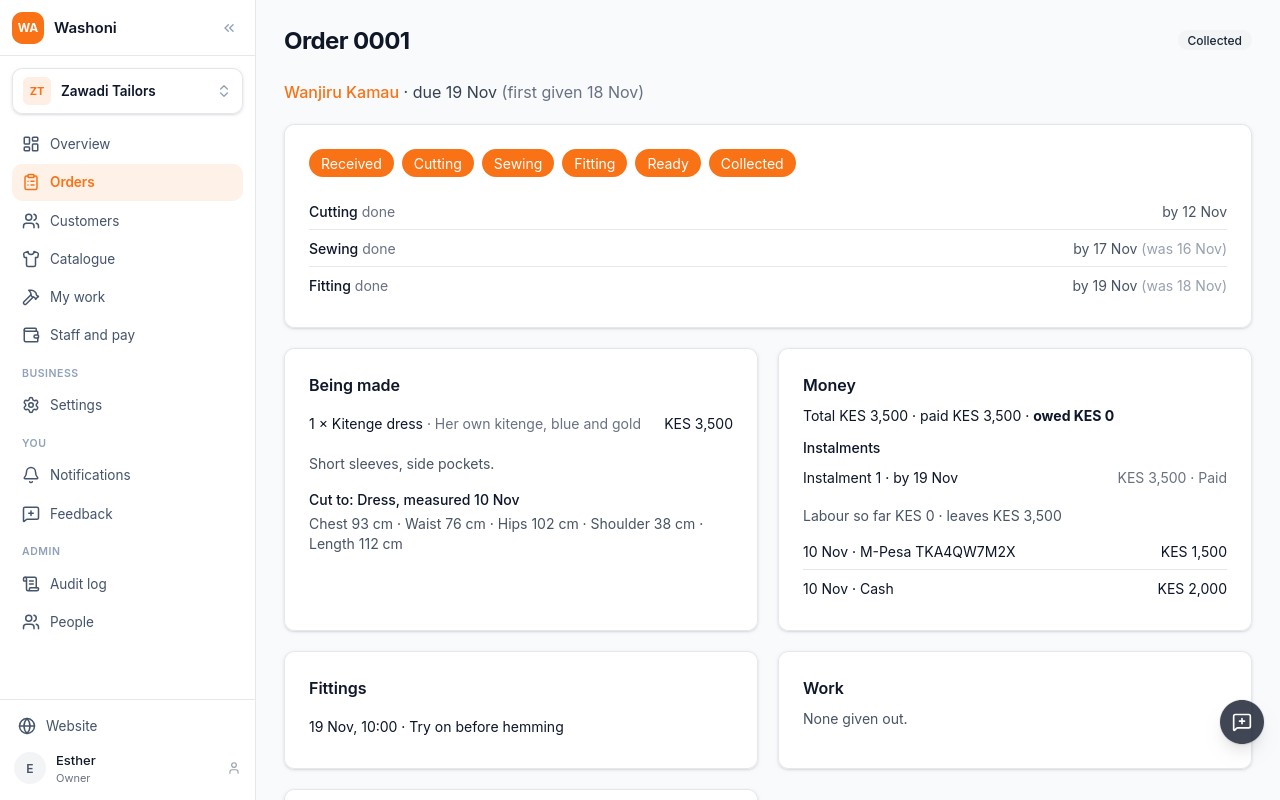
The overview adds up what customers still owe on open orders.
A tailor sees what is owed on an order, but can't take money: Record payment is not there for them. Your staff, a later chapter, shows a tailor's side.
Chapter 8
Inviting a tailor, what a tailor does, and paying for work
Staff who work in the shop get their own sign-in. Under Admin, open People.
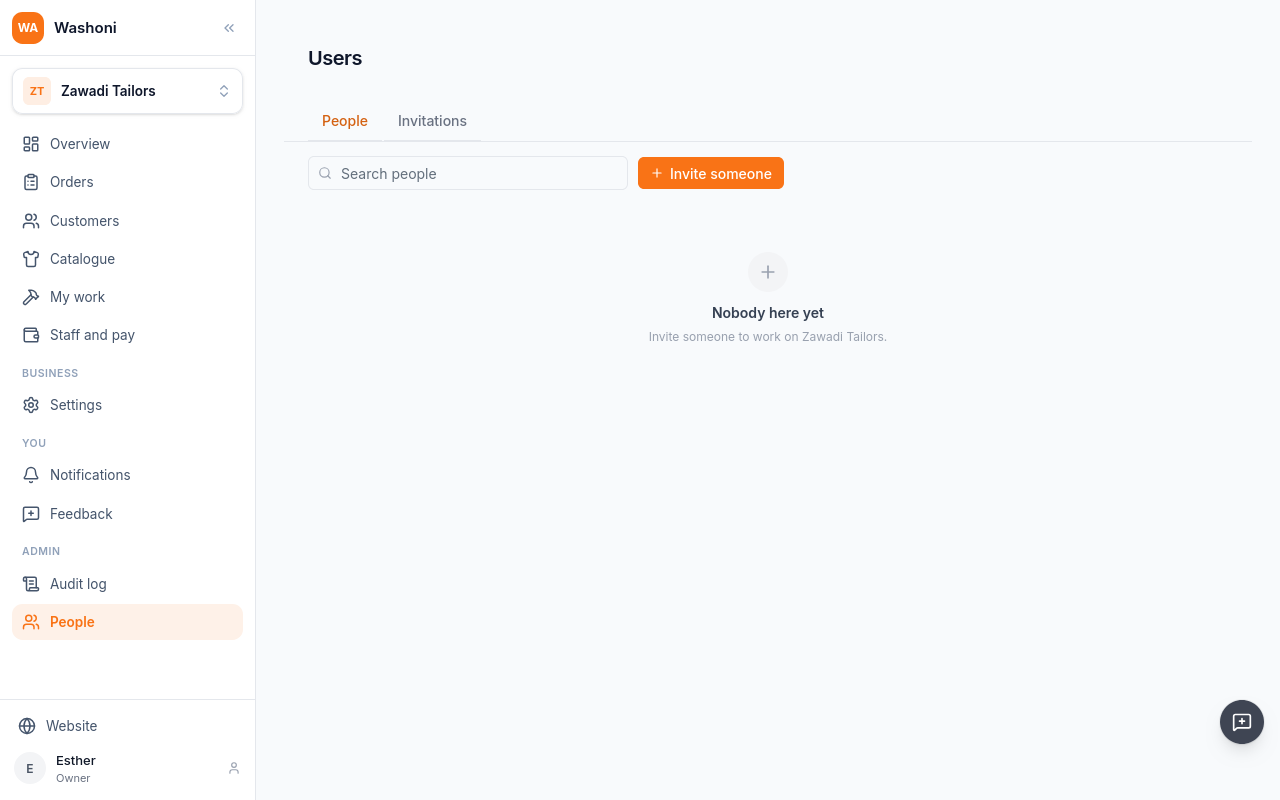
Choose Invite someone.
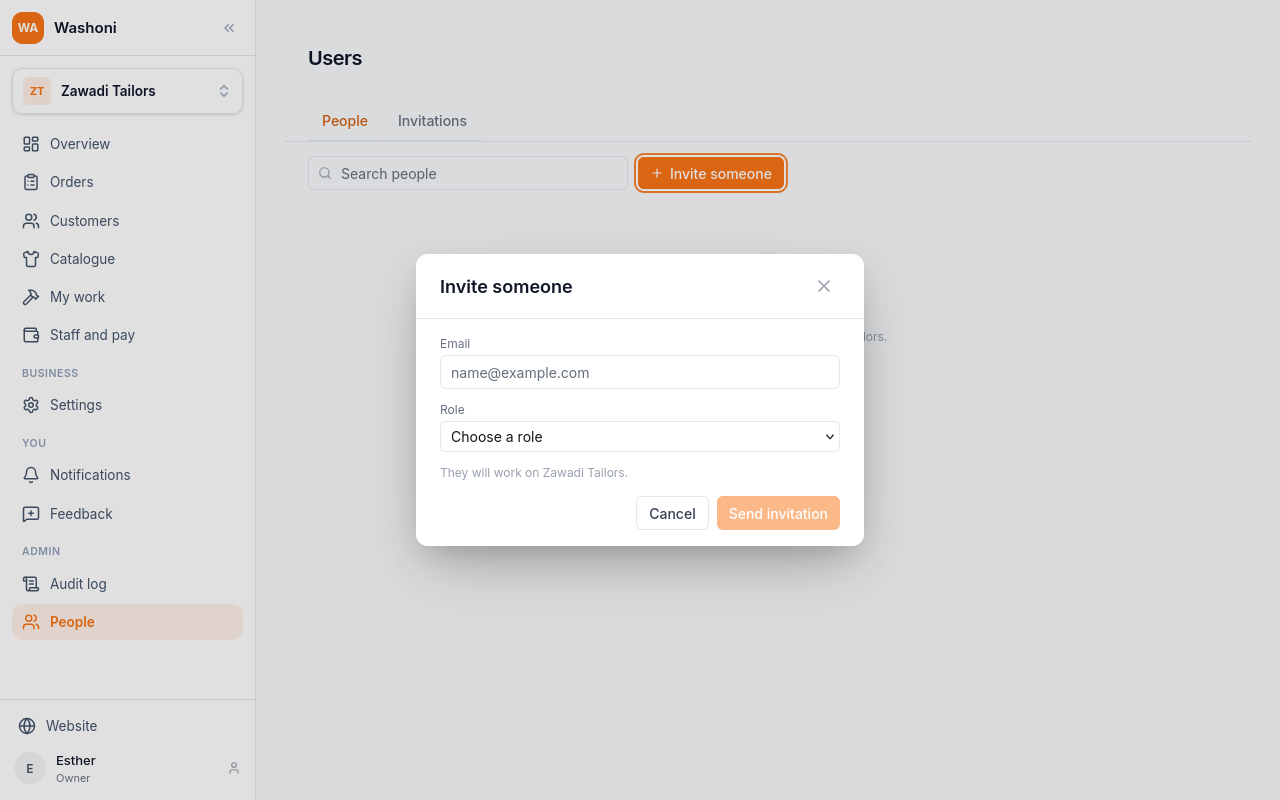
Give their email, and their role: Tailor Staff, for someone who works the orders.
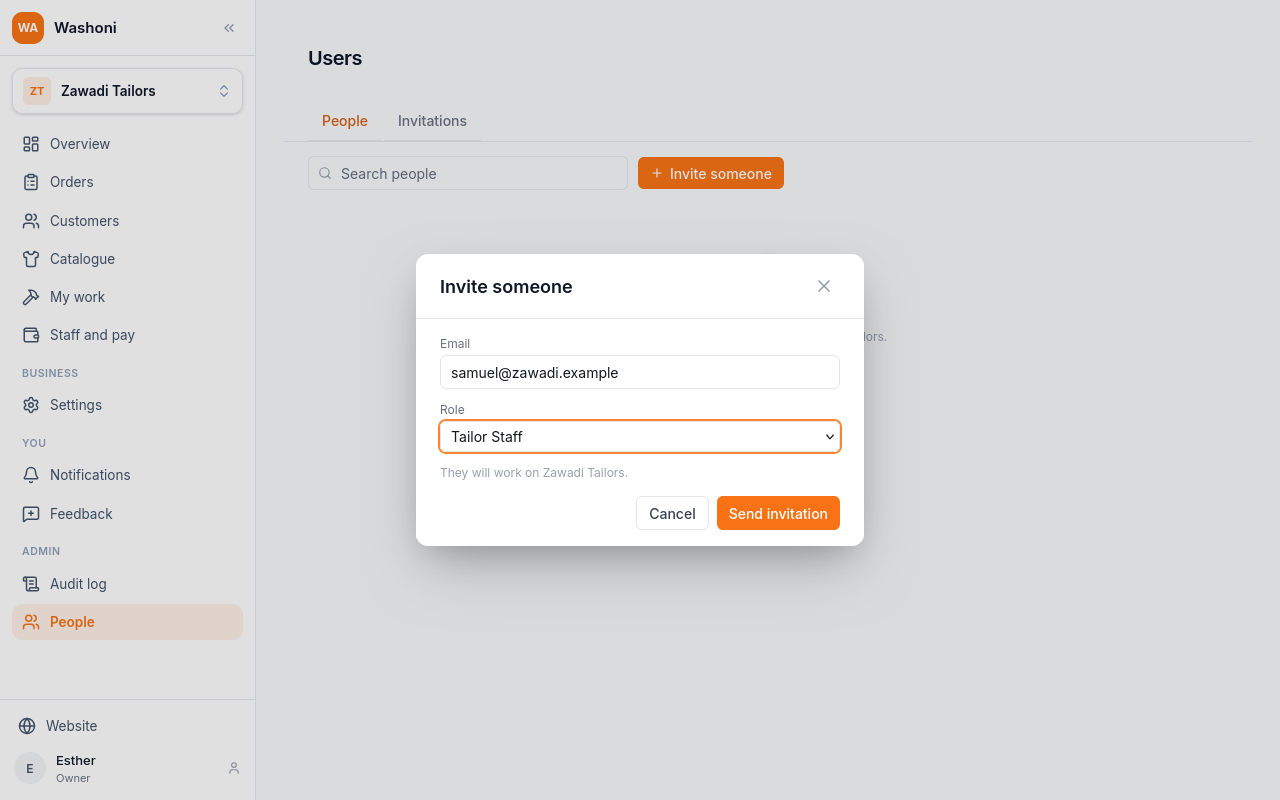
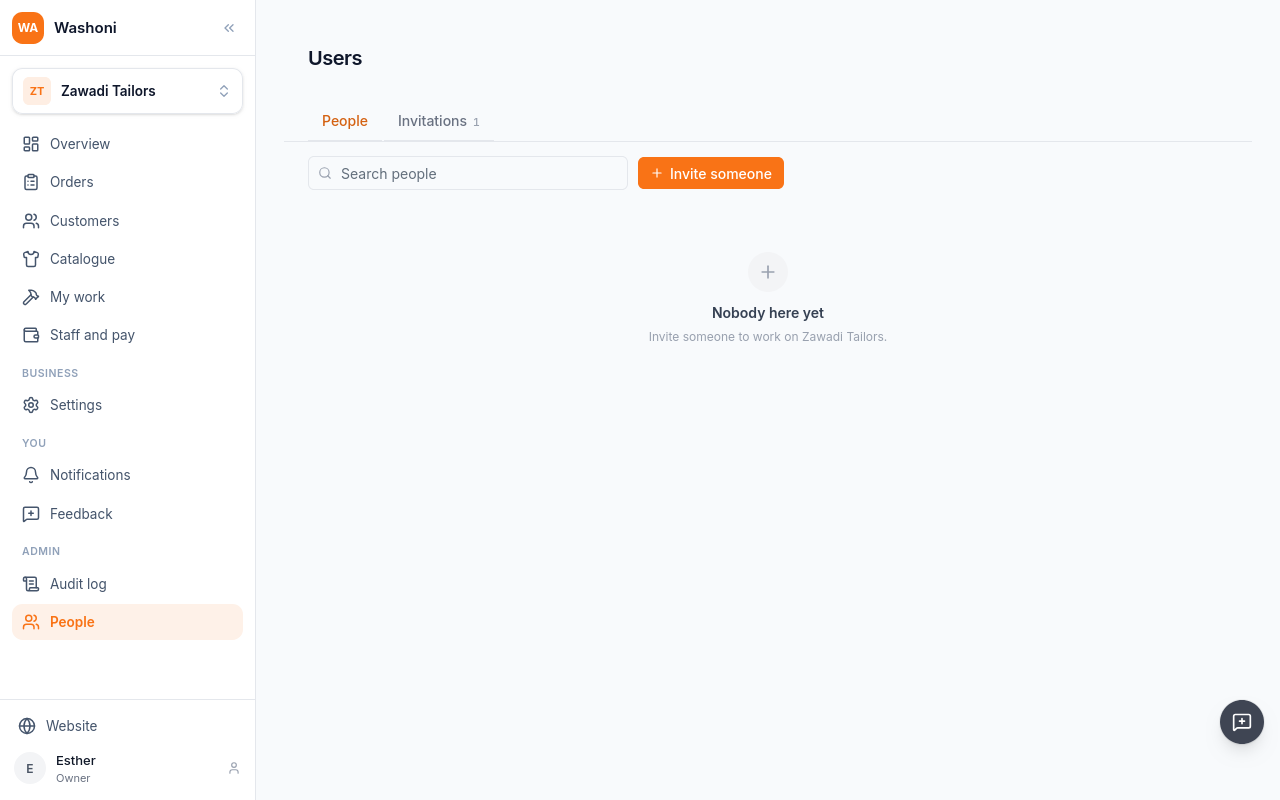
Choose Send invitation. It waits here until he accepts.
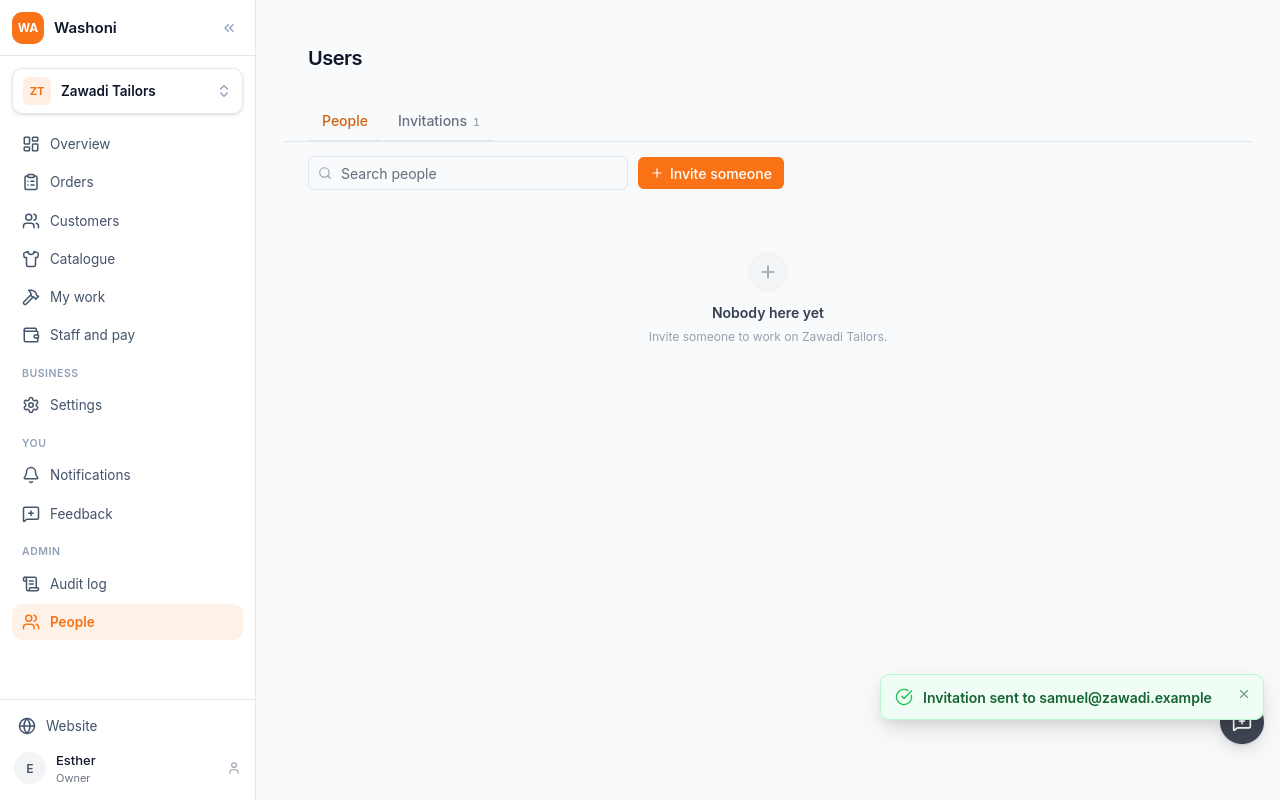
Washoni sends him the invitation by email. Signed in to Washoni, he finds it under Invitations, and accepts.
He now works at Zawadi Tailors. His menu has orders, customers, the catalogue, and his own work. Staff and pay, and Settings, are not there: they are the owner's.
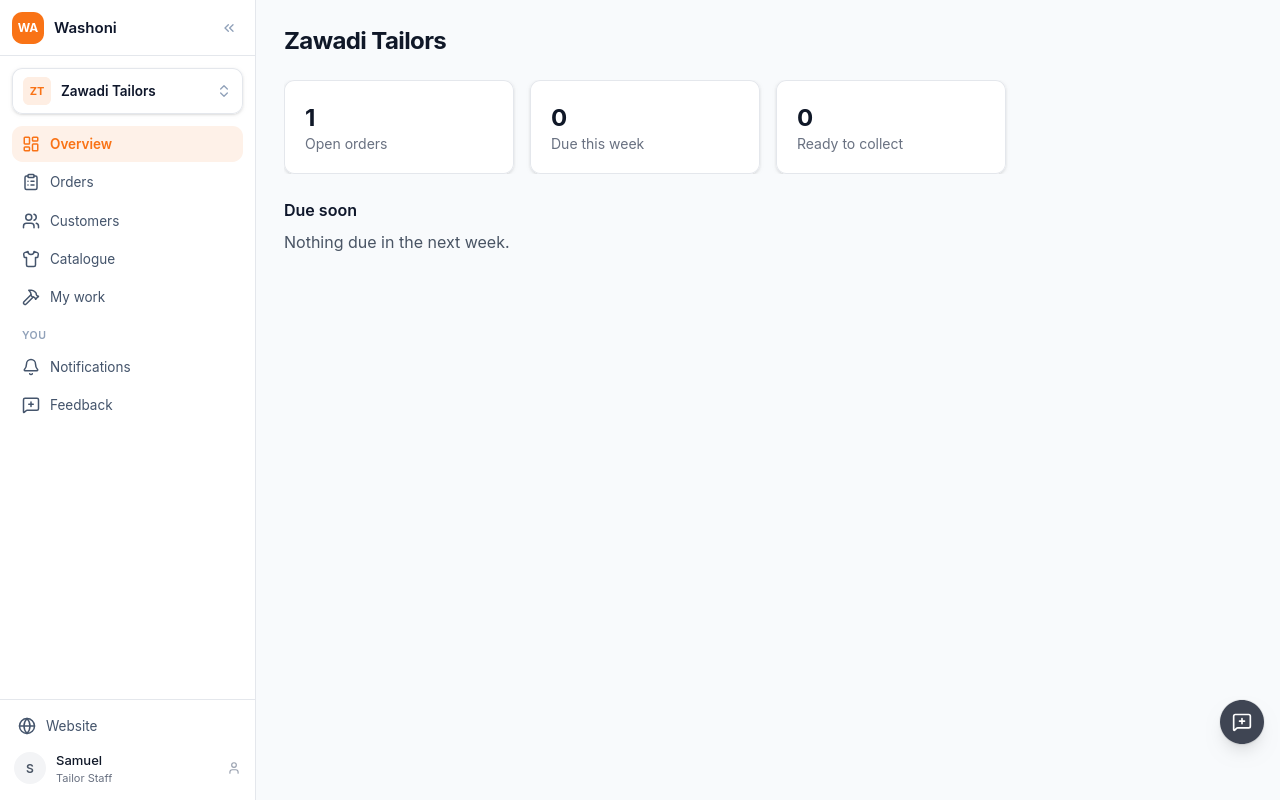
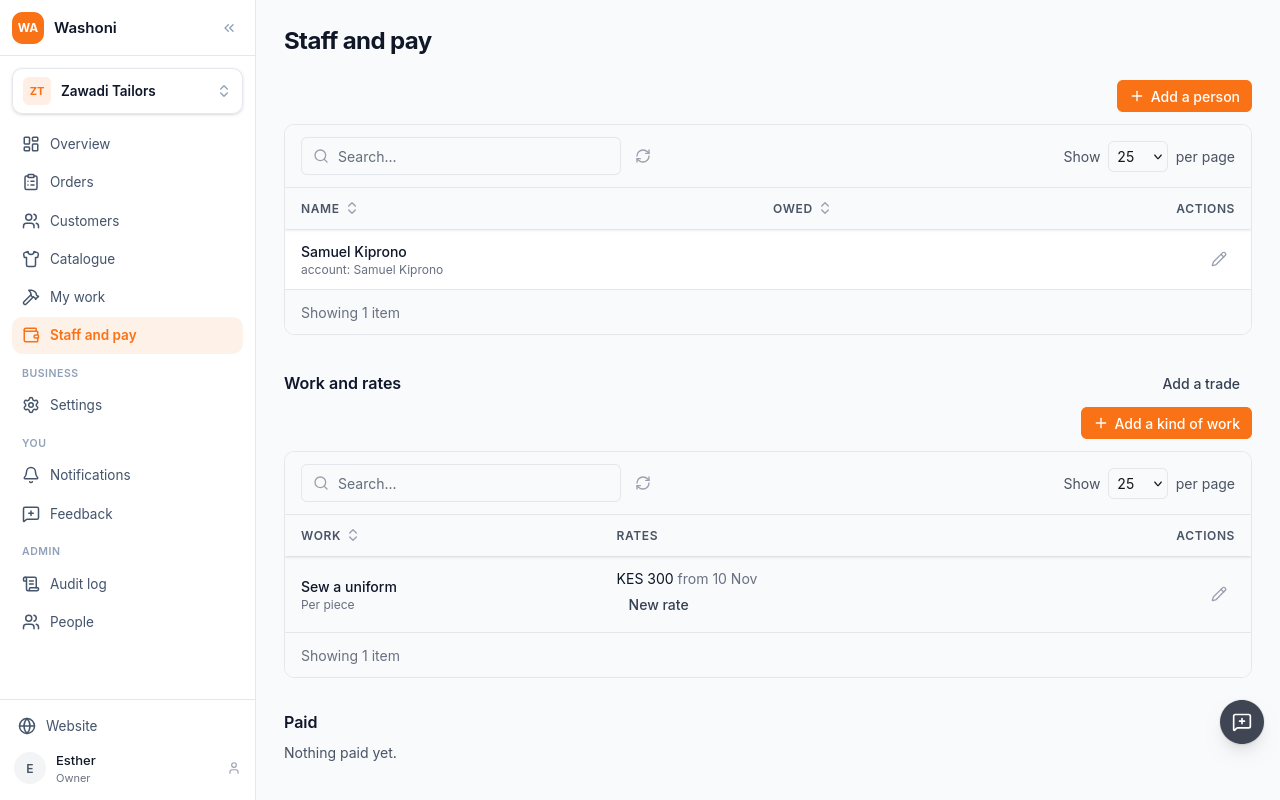
Back as the owner: Staff and pay is who the shop pays for work. Choose Add a person.
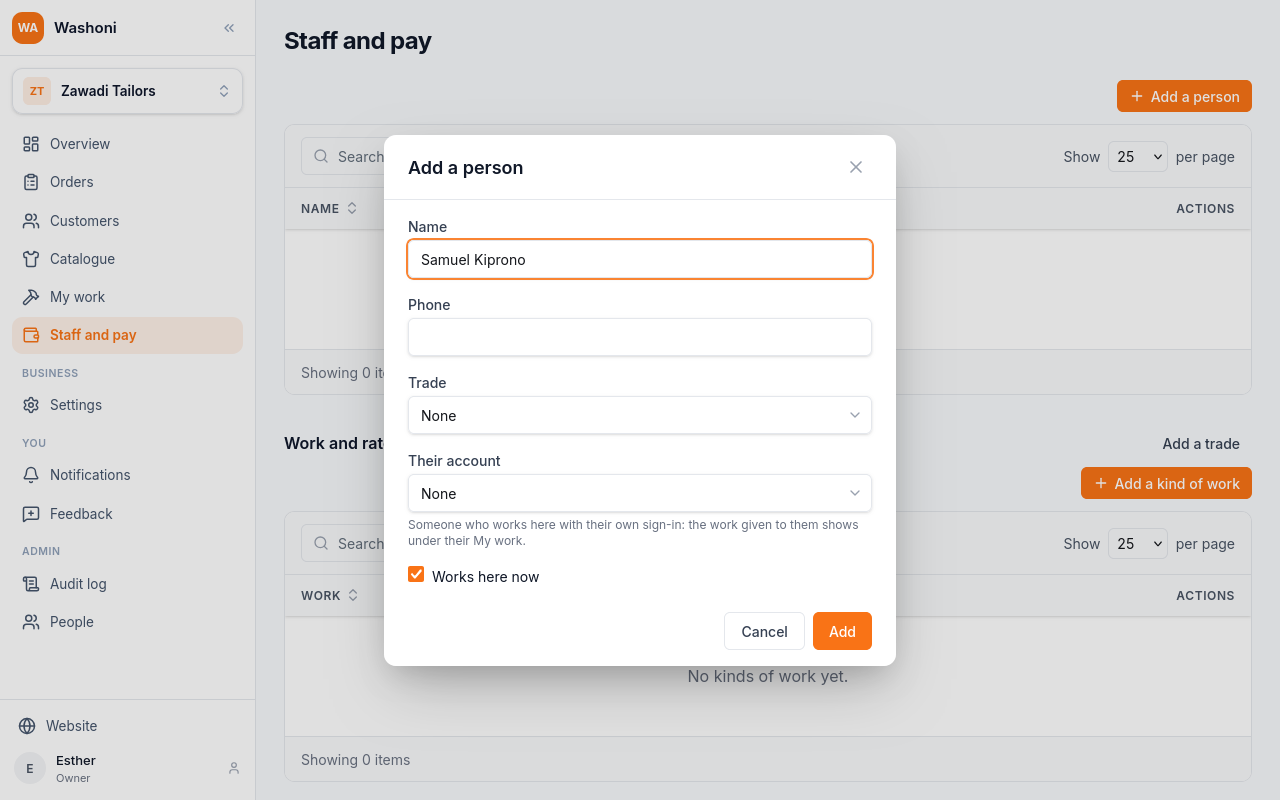
Their account links him to his sign-in, so the work he is given shows under his My work.
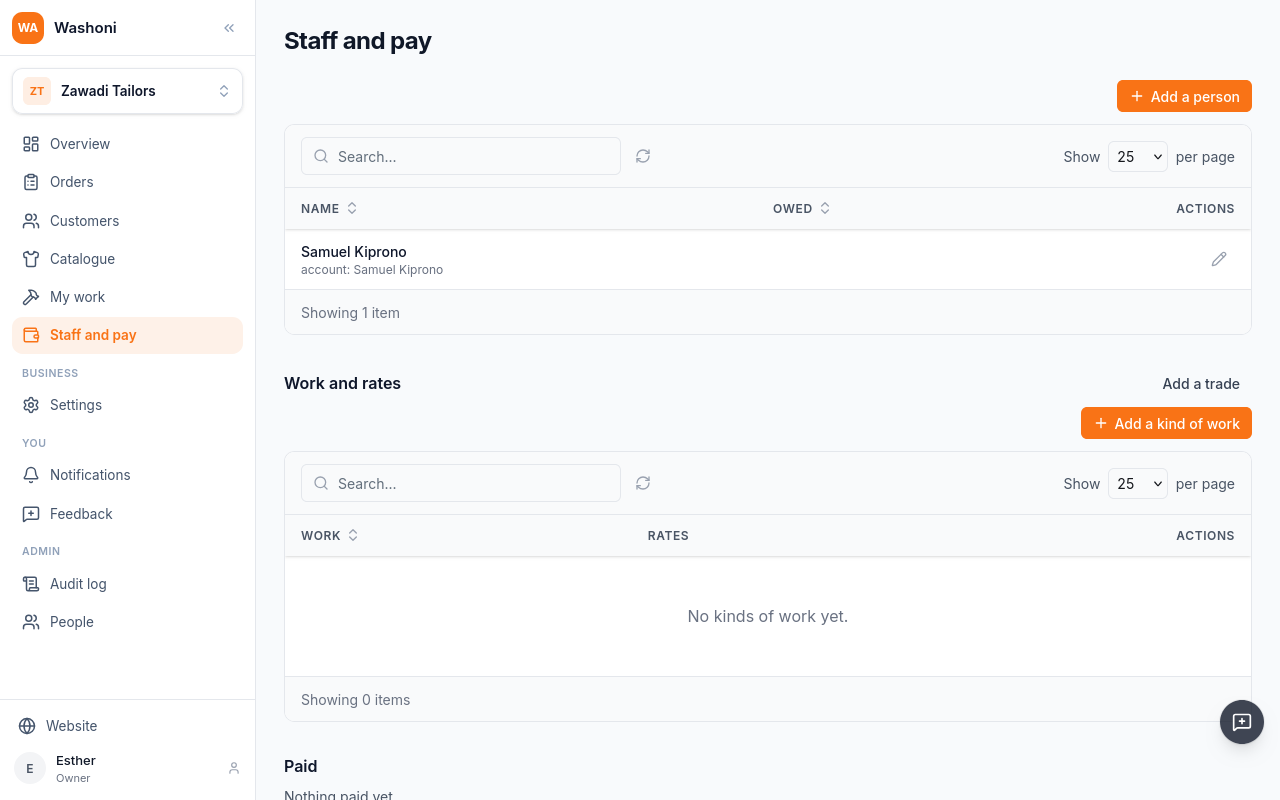
Under Work and rates, add the kinds of work the shop pays for, and what each pays.
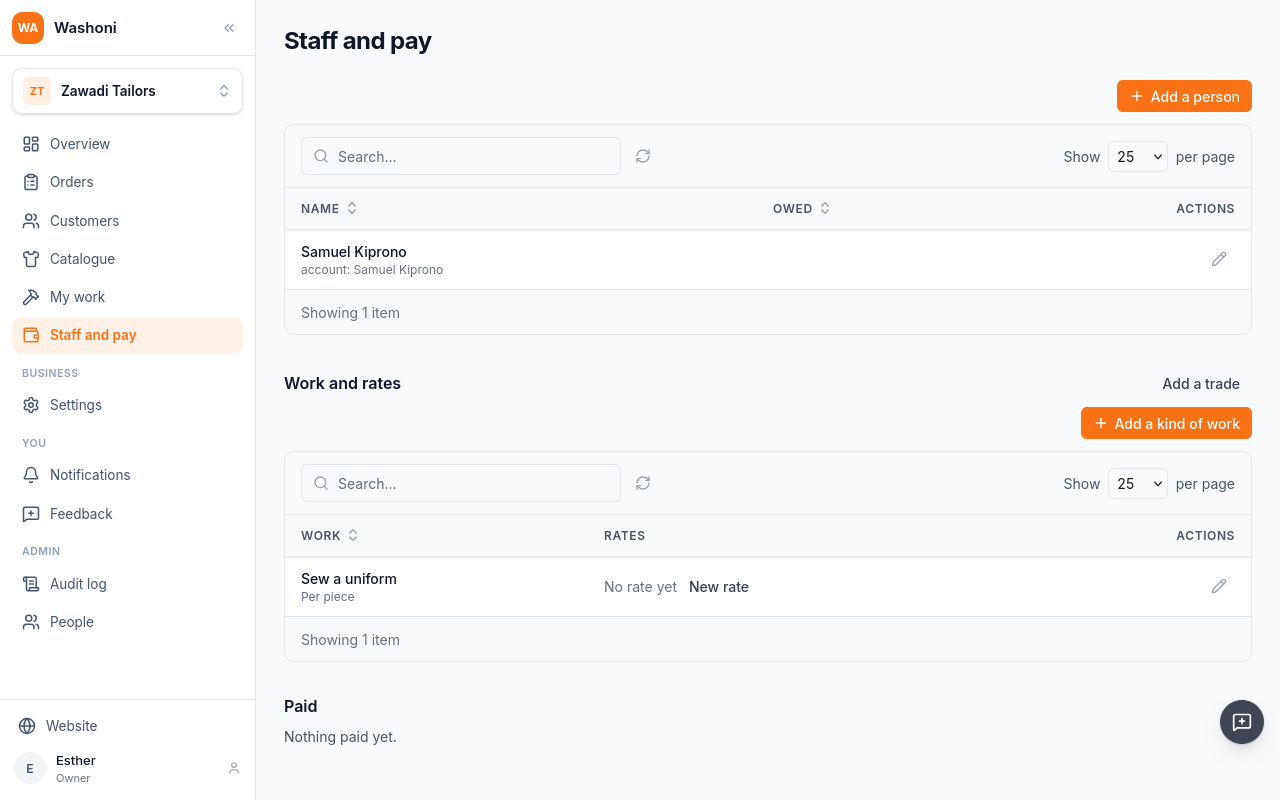
Then New rate: three hundred shillings a piece, from today.
Work is given out on the order. Open Wanjiru's school uniforms, and choose Give out work.
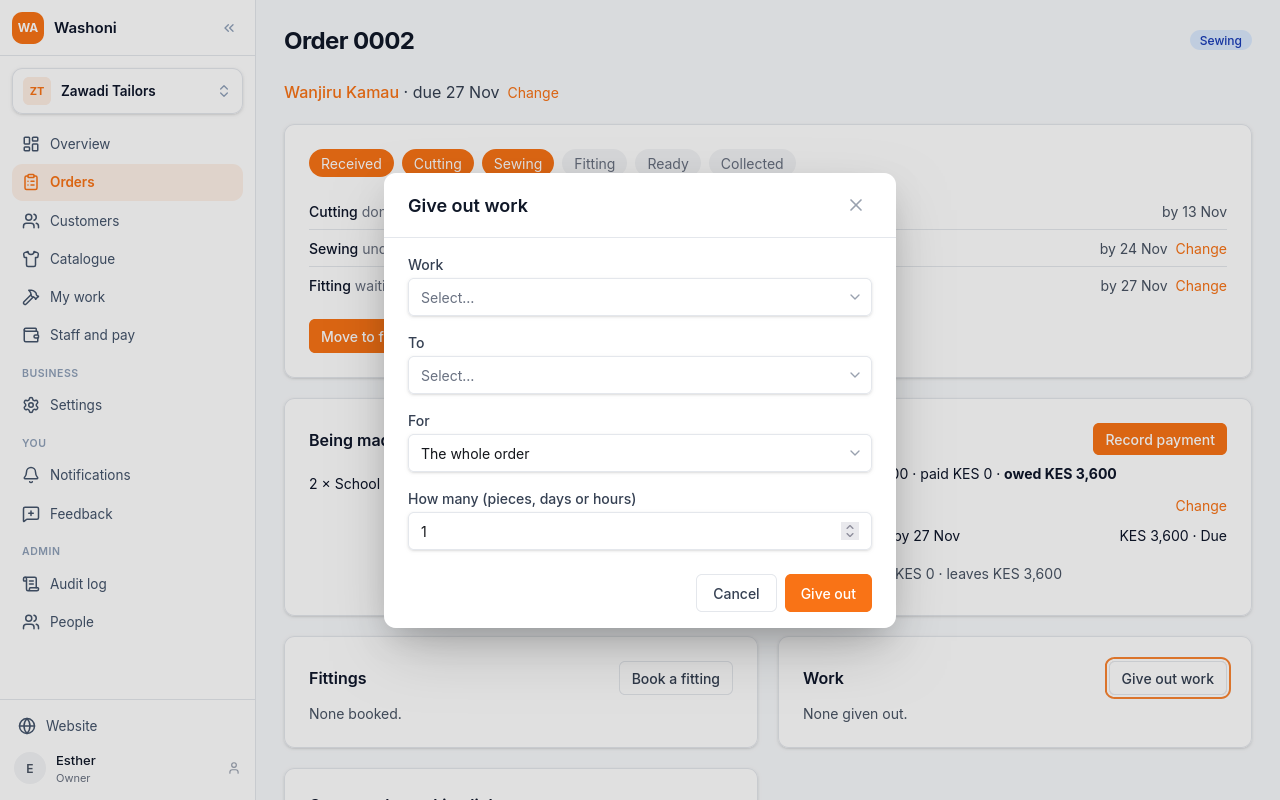
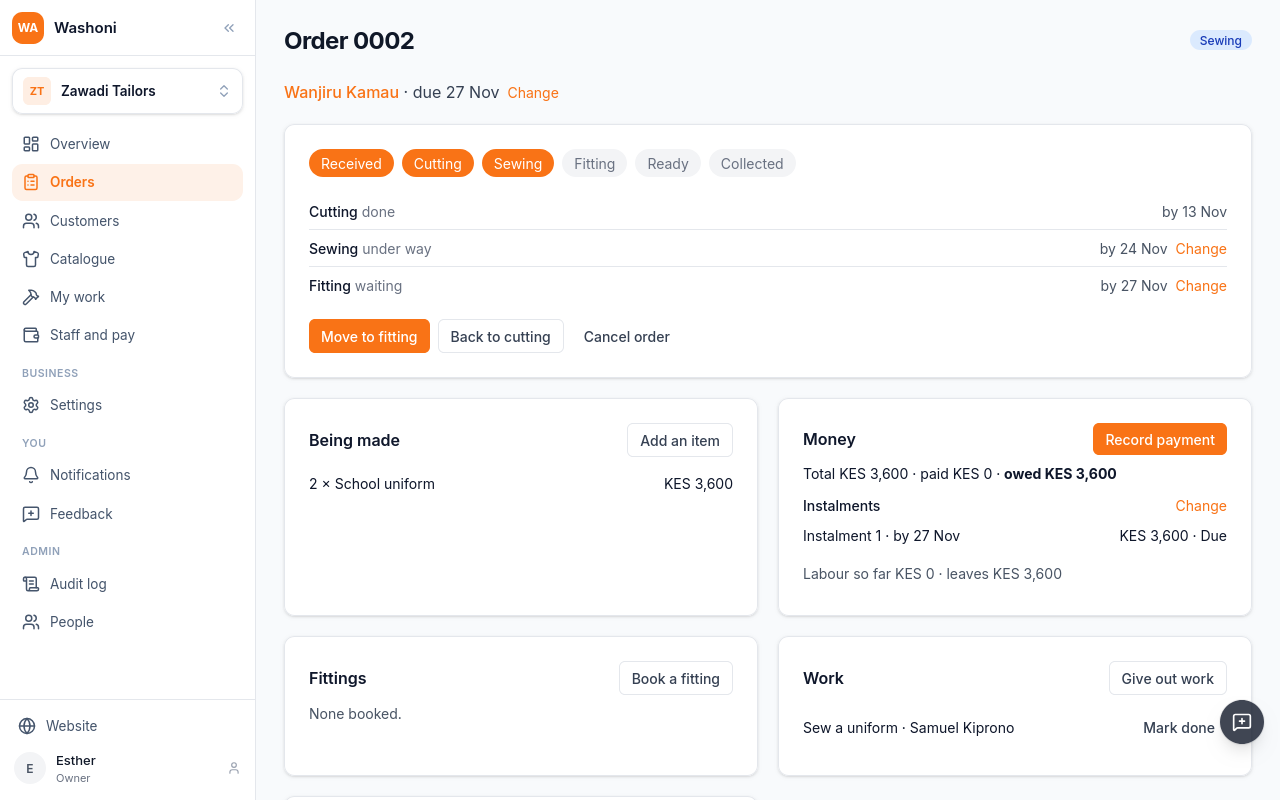
Sew a uniform, to Samuel, two pieces.
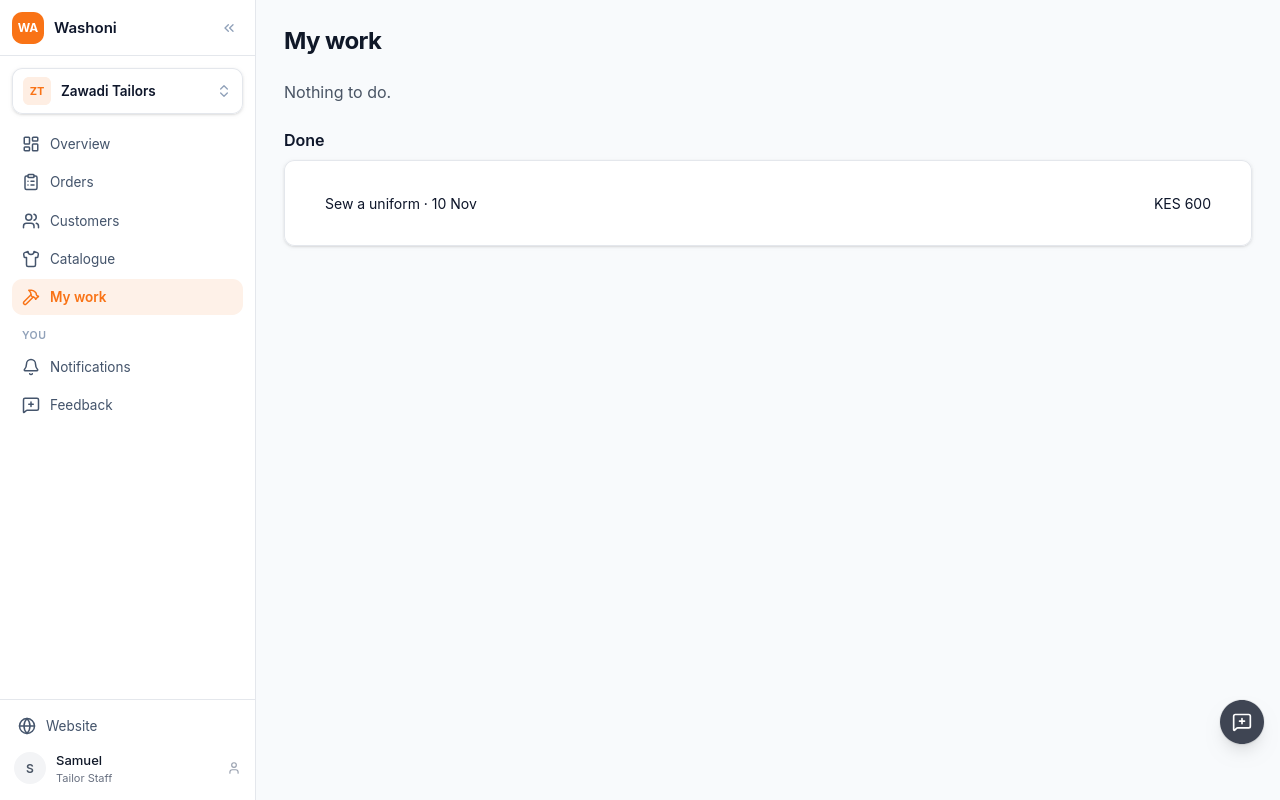
Samuel's My work lists what he has been given. When he finishes, he chooses Done, and it is logged at the rate of the day.
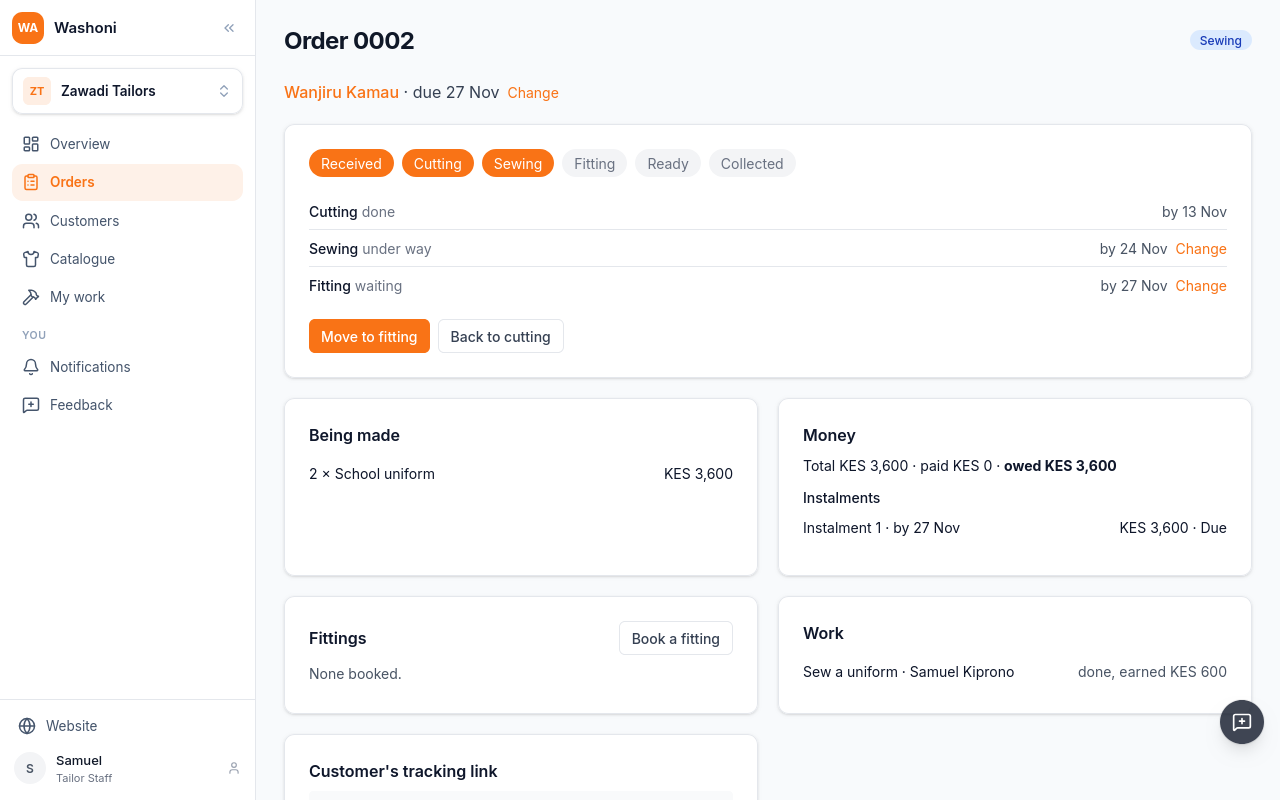
On an order, a tailor moves the work along and books fittings. He sees what is owed, but Record payment is not there for him: the money is the owner's and manager's.
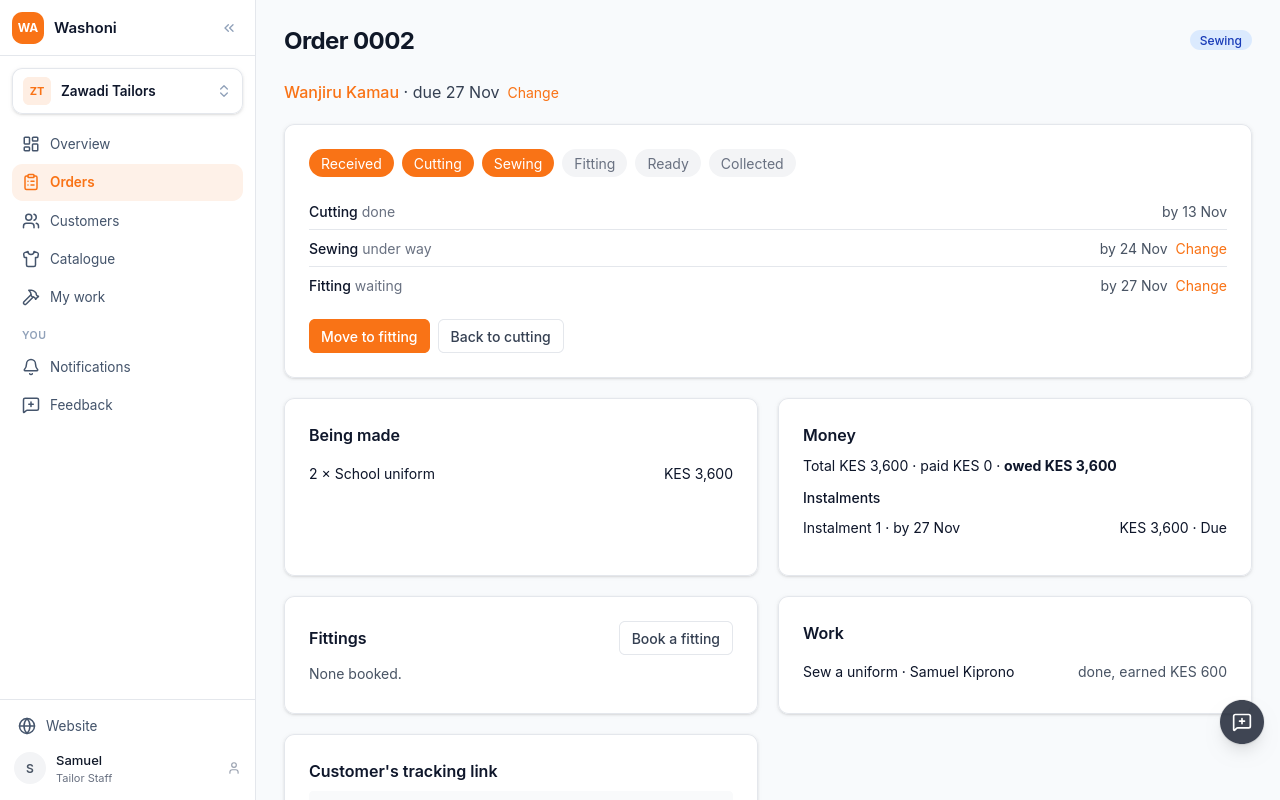
What the work earned shows to him and to the owner, who pays it under Staff and pay.
Chapter 9
The tracking link, keeping an order, and My orders
Every order has a tracking link for the customer. On the order, Copy takes it, to send her by text or WhatsApp.
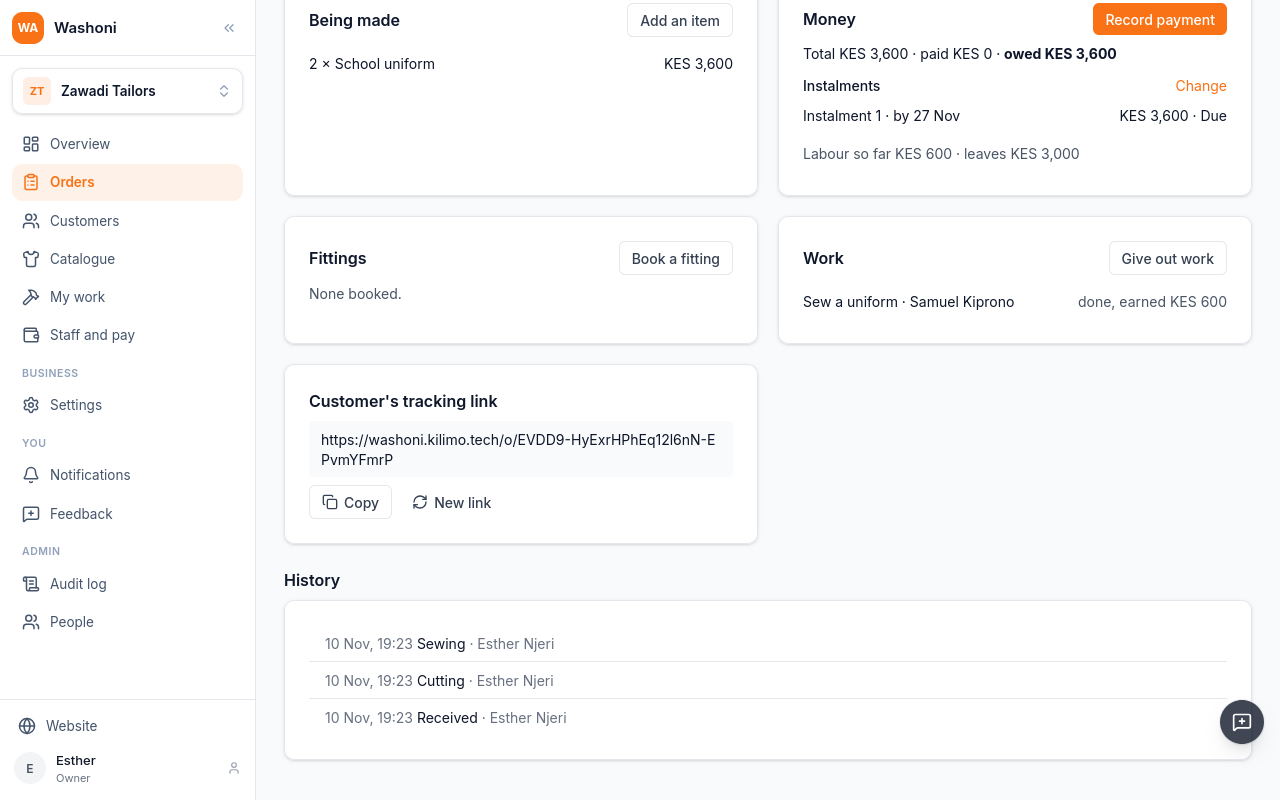
Anyone with the link can follow the order. It needs no account.
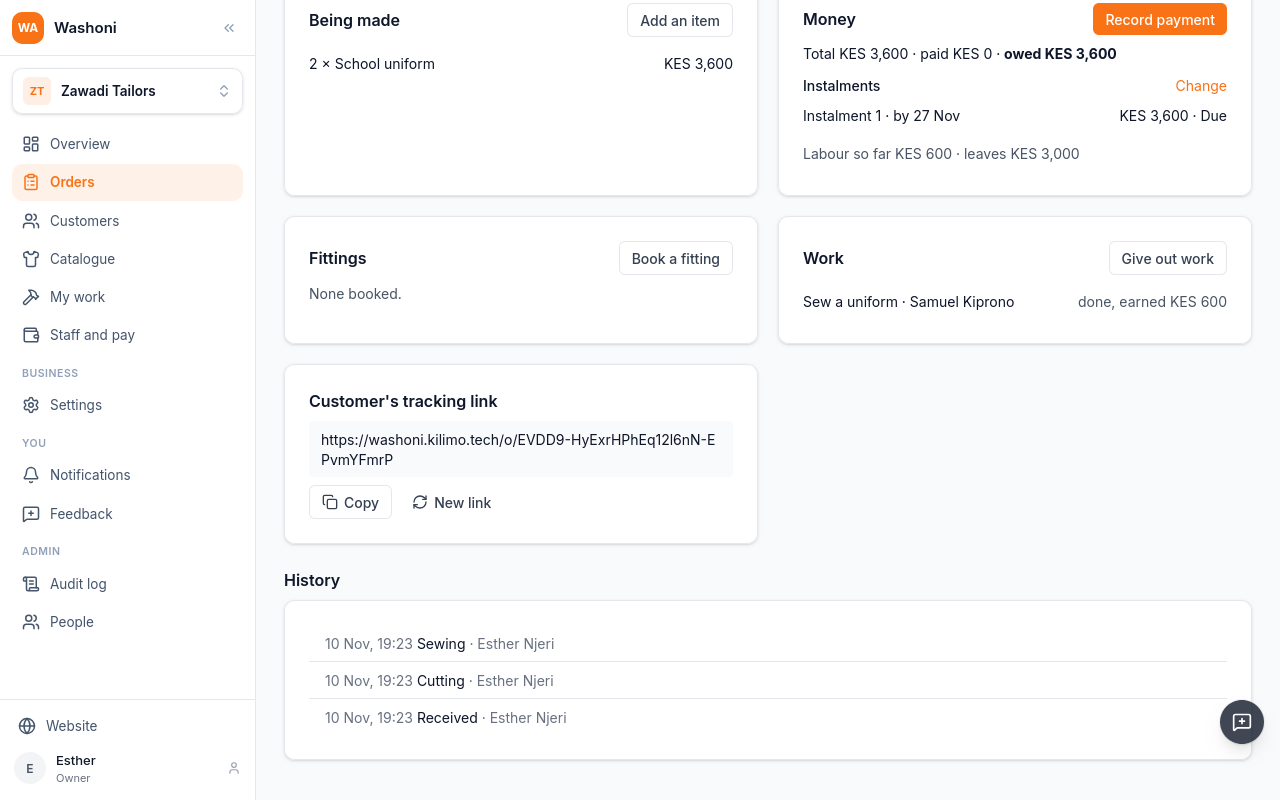
This is what Wanjiru sees: the order, the stage it is at, what is being made, and the money.
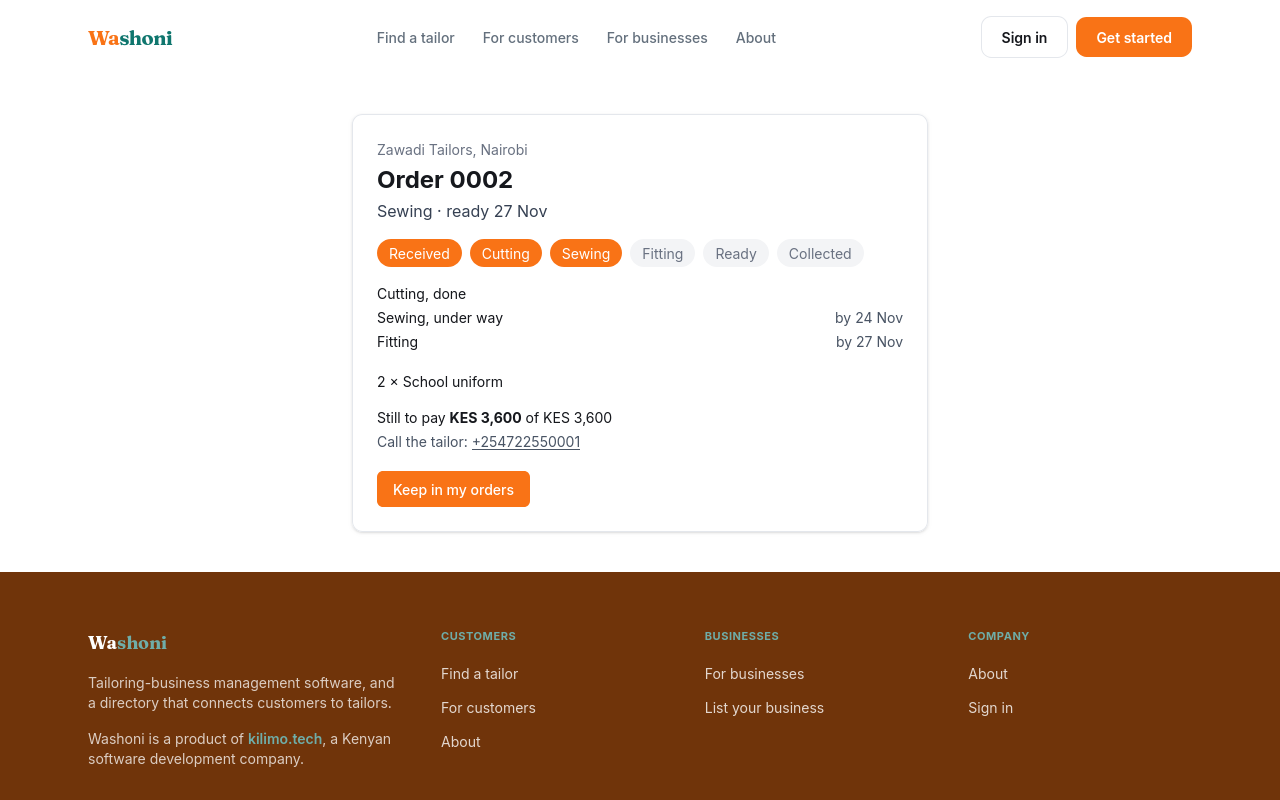
When it moves on, the page shows it next time she opens the link.
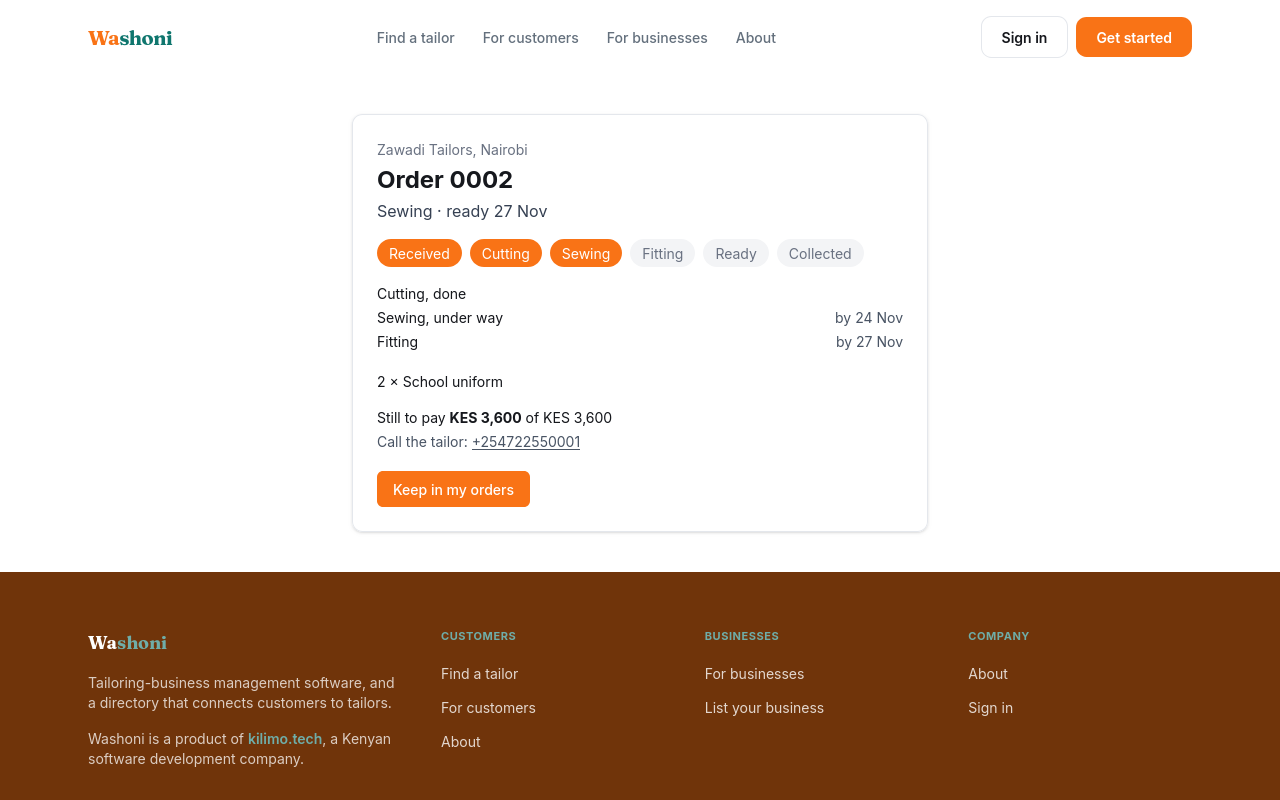
With a Washoni account, she can keep the order, so she does not need the link again.
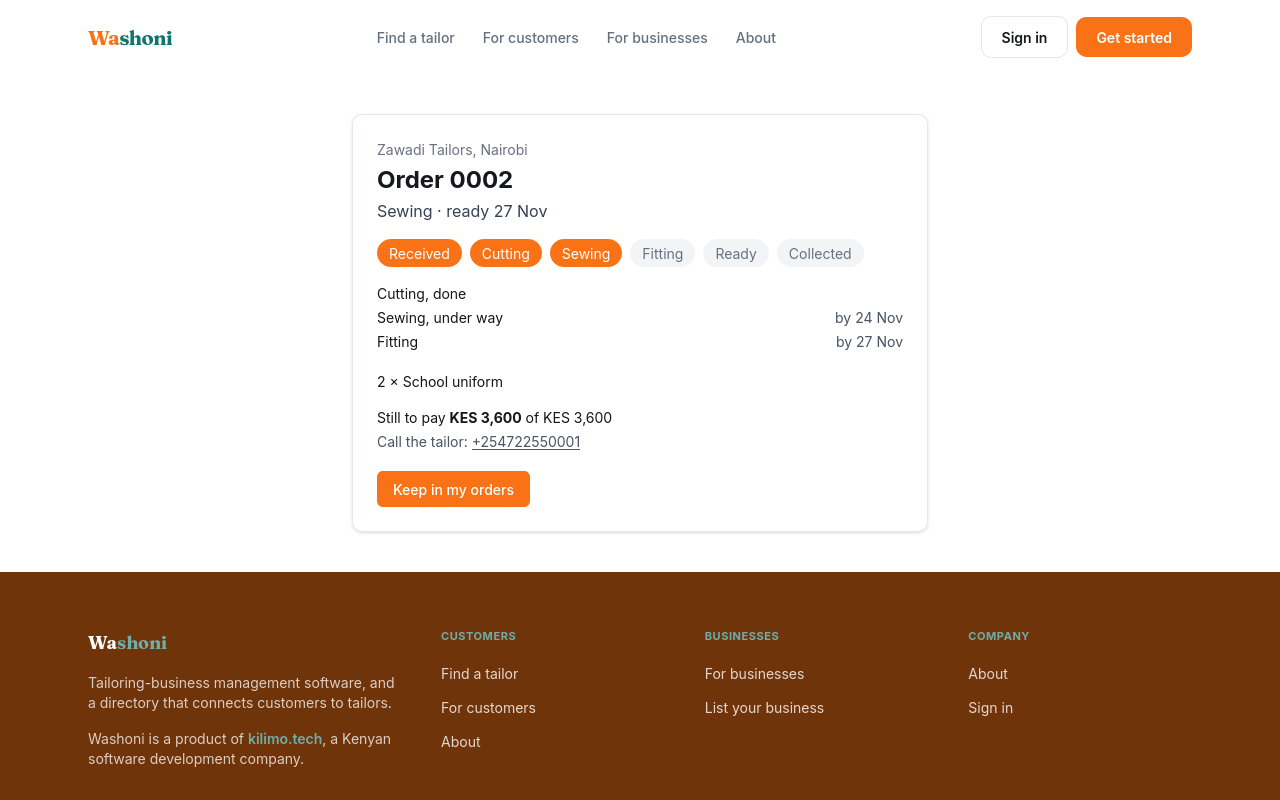
Signed in, she chooses Keep in my orders.
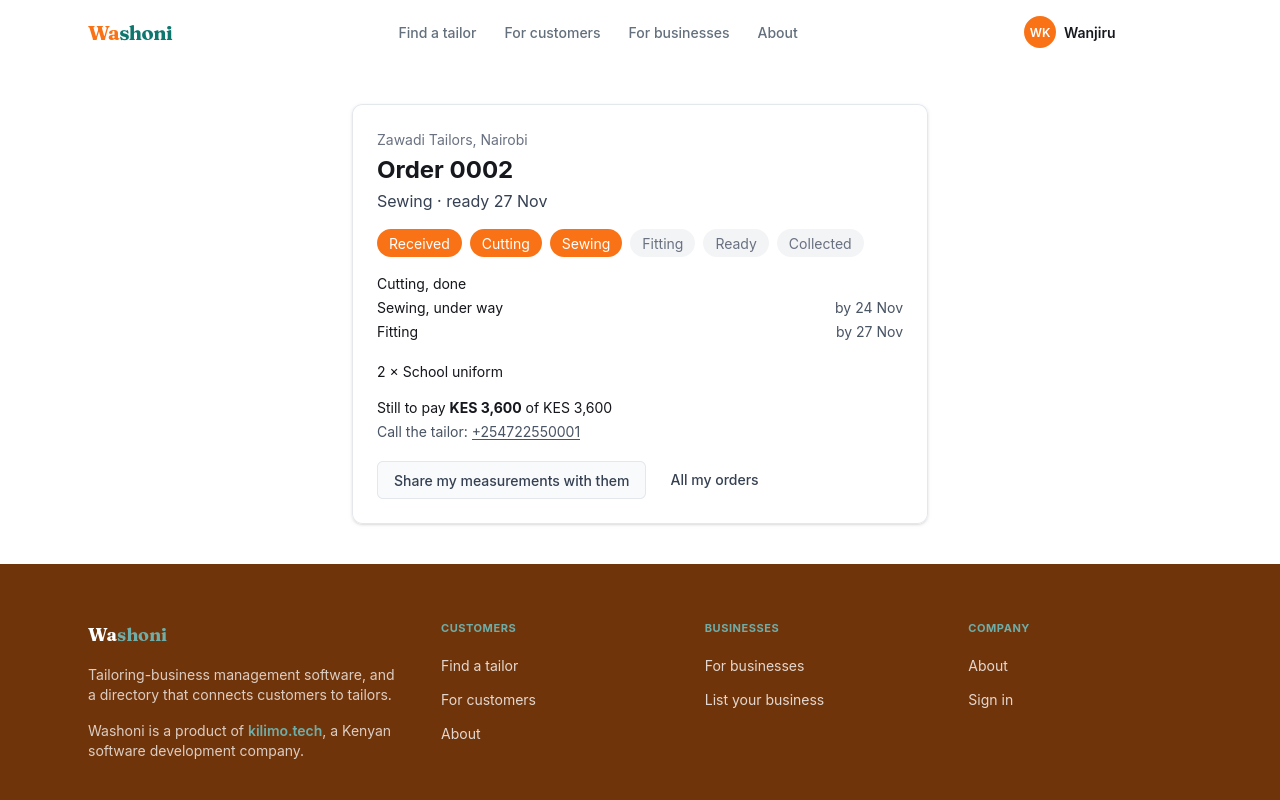
Keeping one order keeps all her orders at this shop. Choose All my orders.
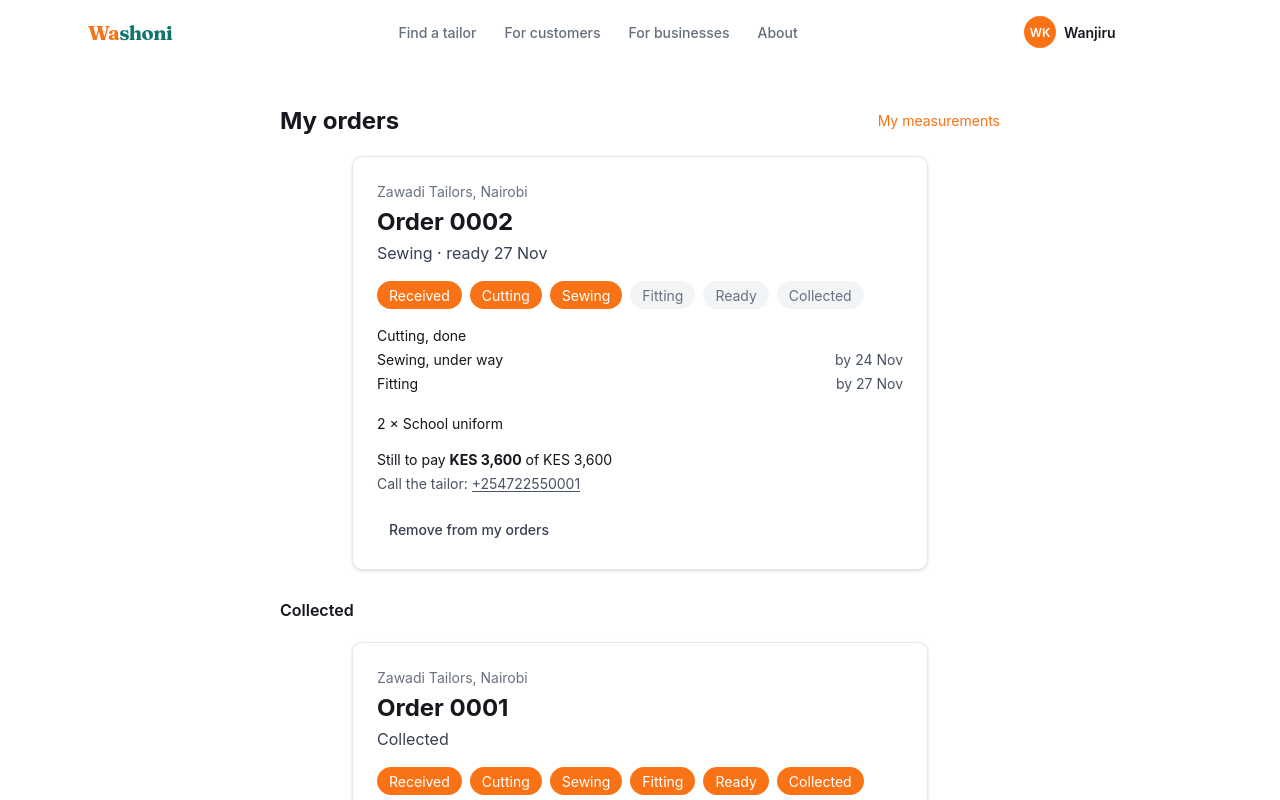
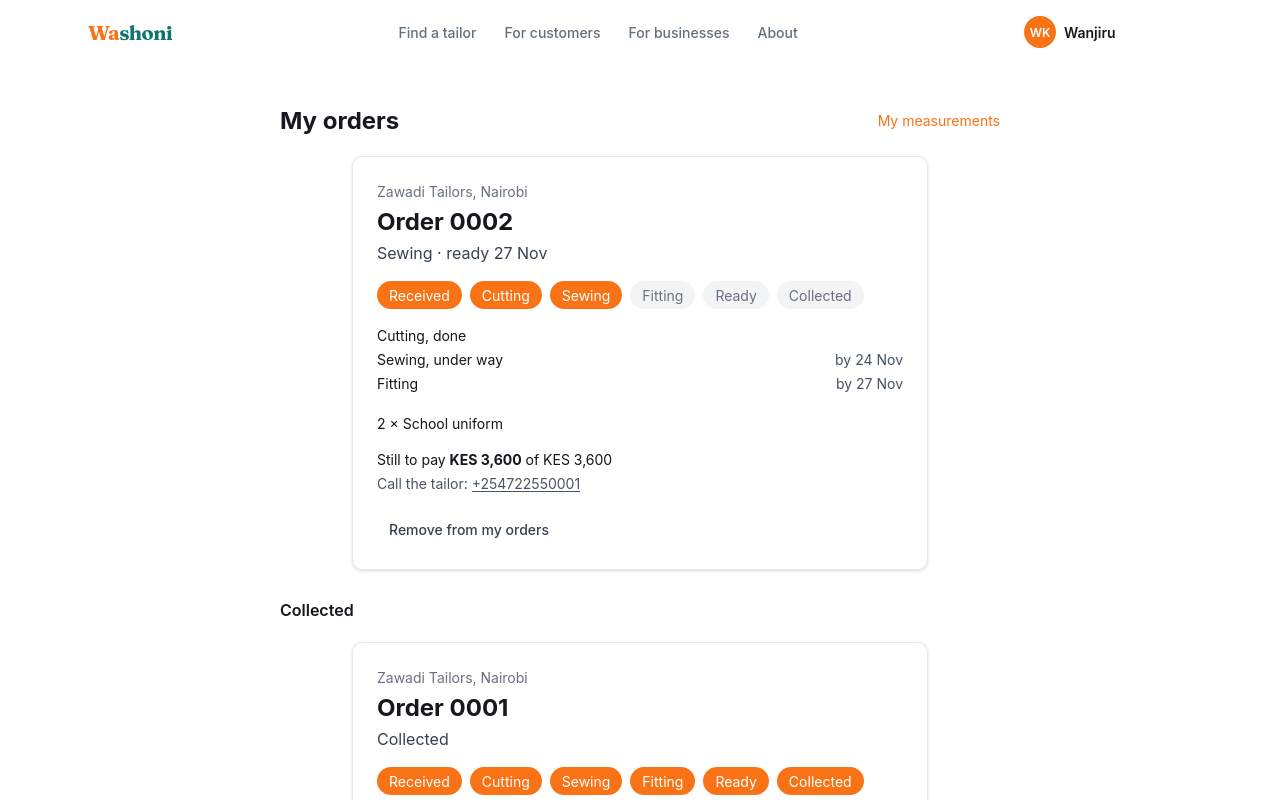
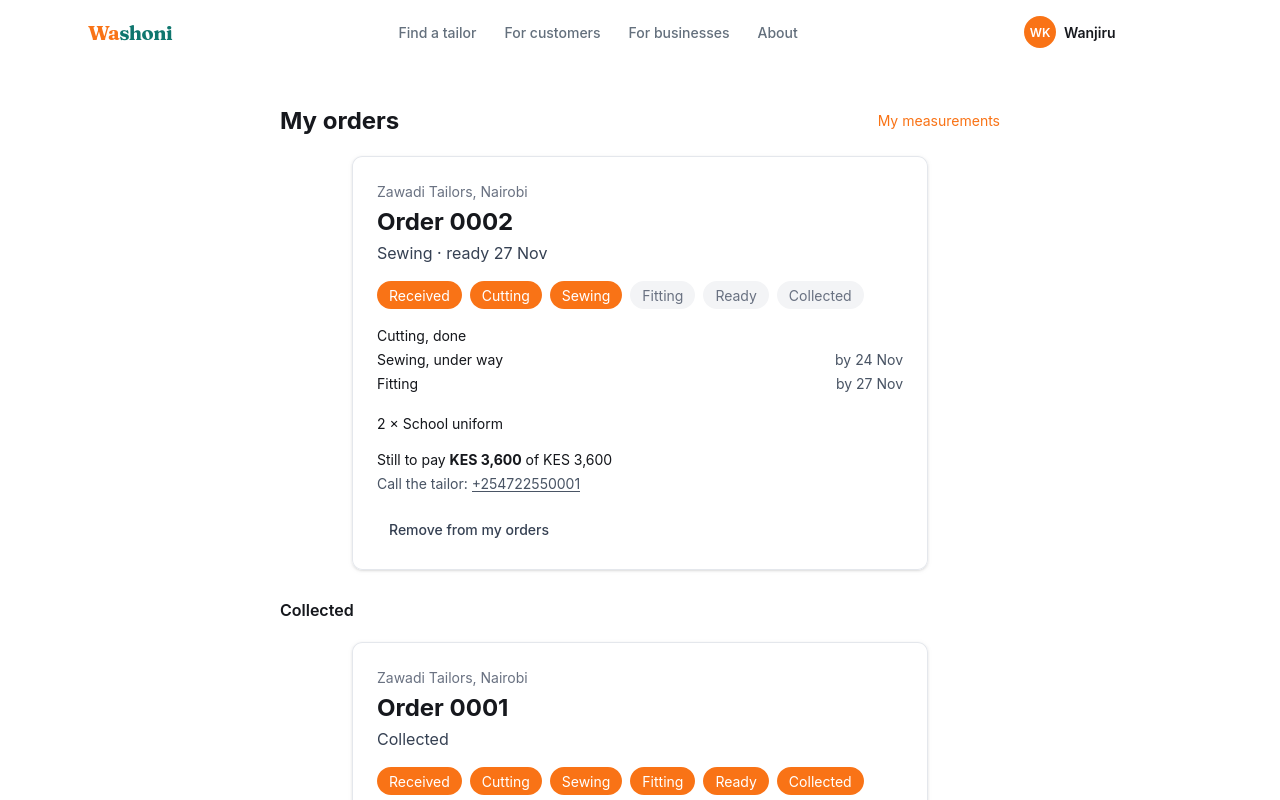
My orders lists the ones still being made, and below them, those she has collected.
If a link reaches the wrong person, the shop makes a new one on the order, and the old link stops working.
Chapter 10
A customer's review, and the shop's reply
Every shop on Washoni has a public page, and on it, its reviews. Anyone can read them.
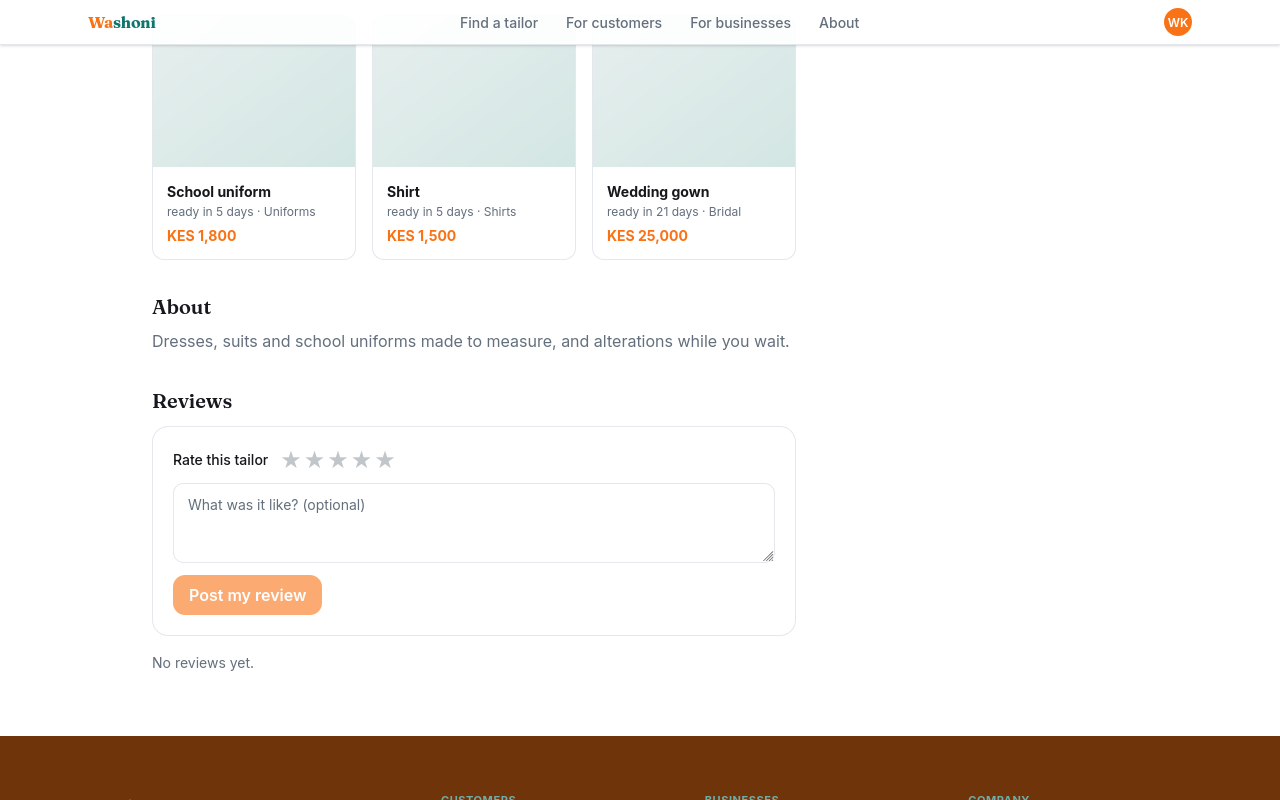
Signed in, Wanjiru can rate Zawadi Tailors. She picks the stars, and says what it was like.
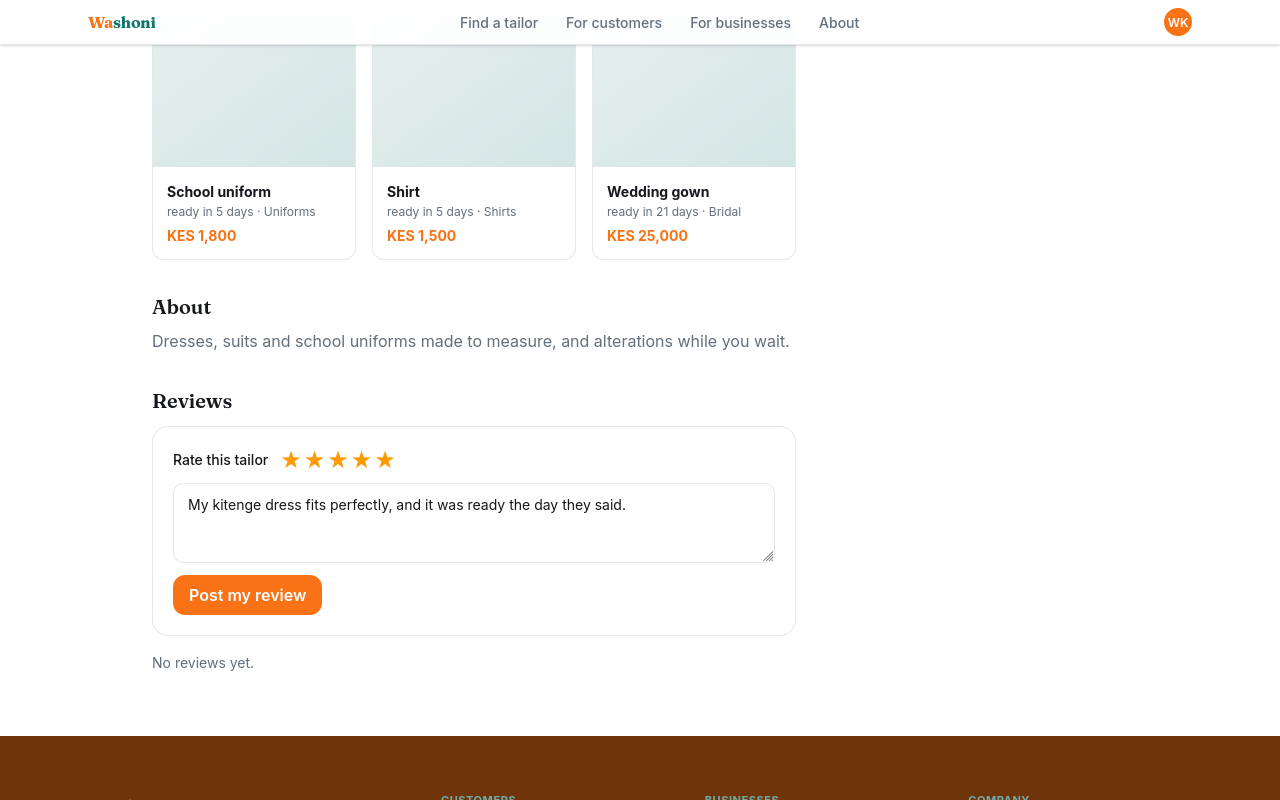
Choose Post my review.
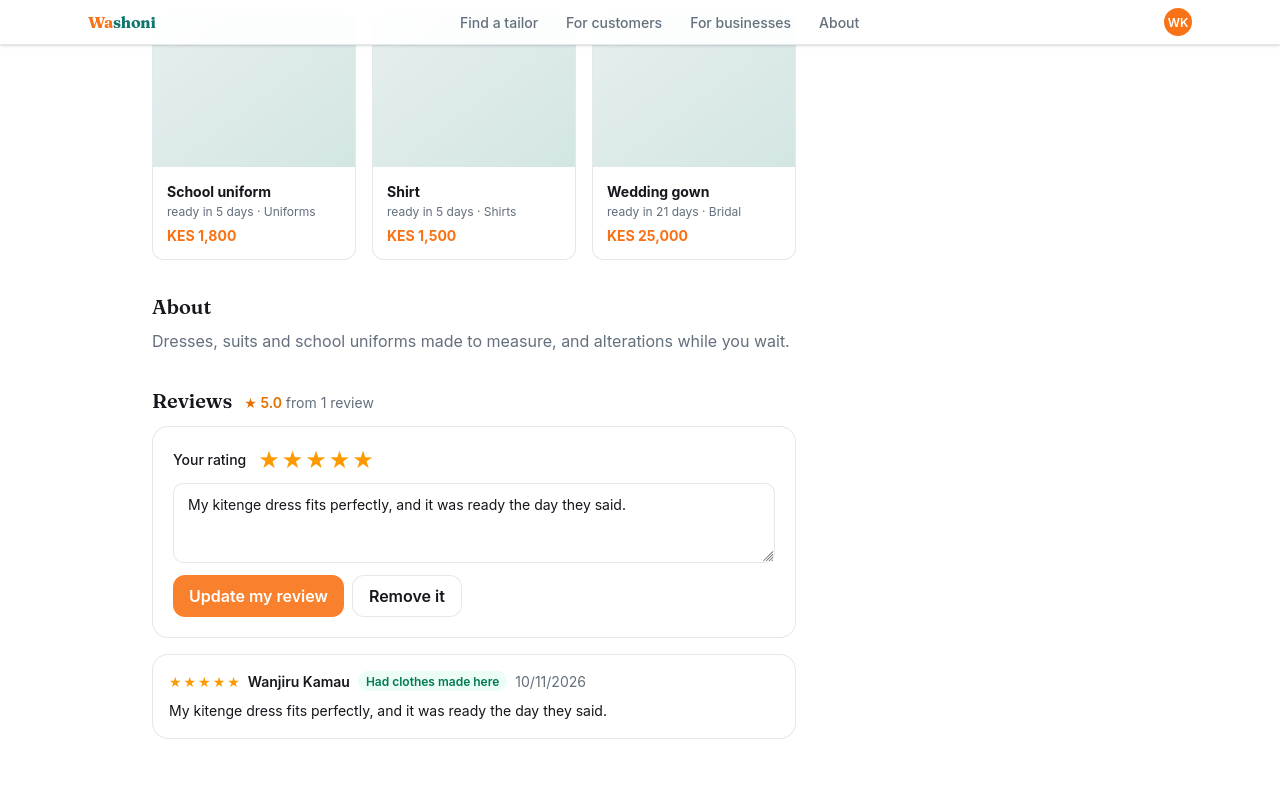
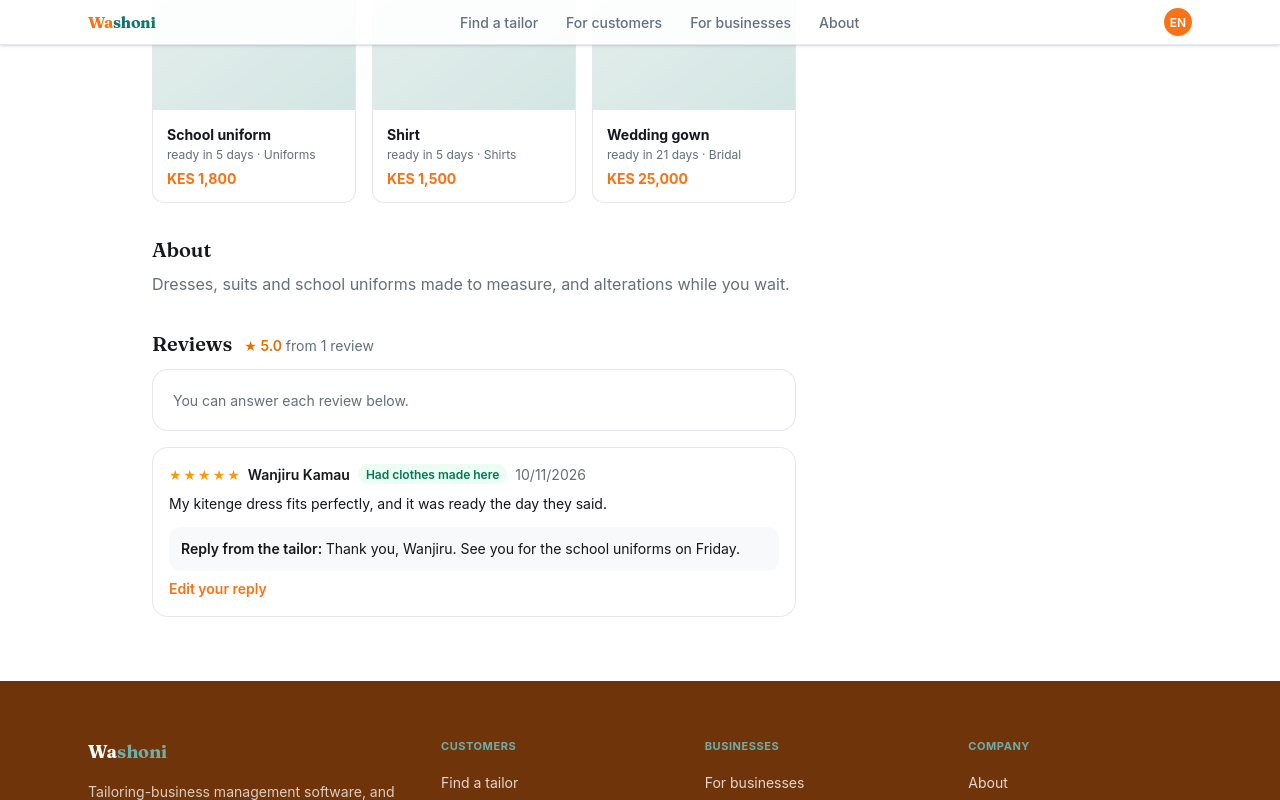
Her review shows Had clothes made here: she collected an order at this shop, so Washoni marks it from the shop's own records.
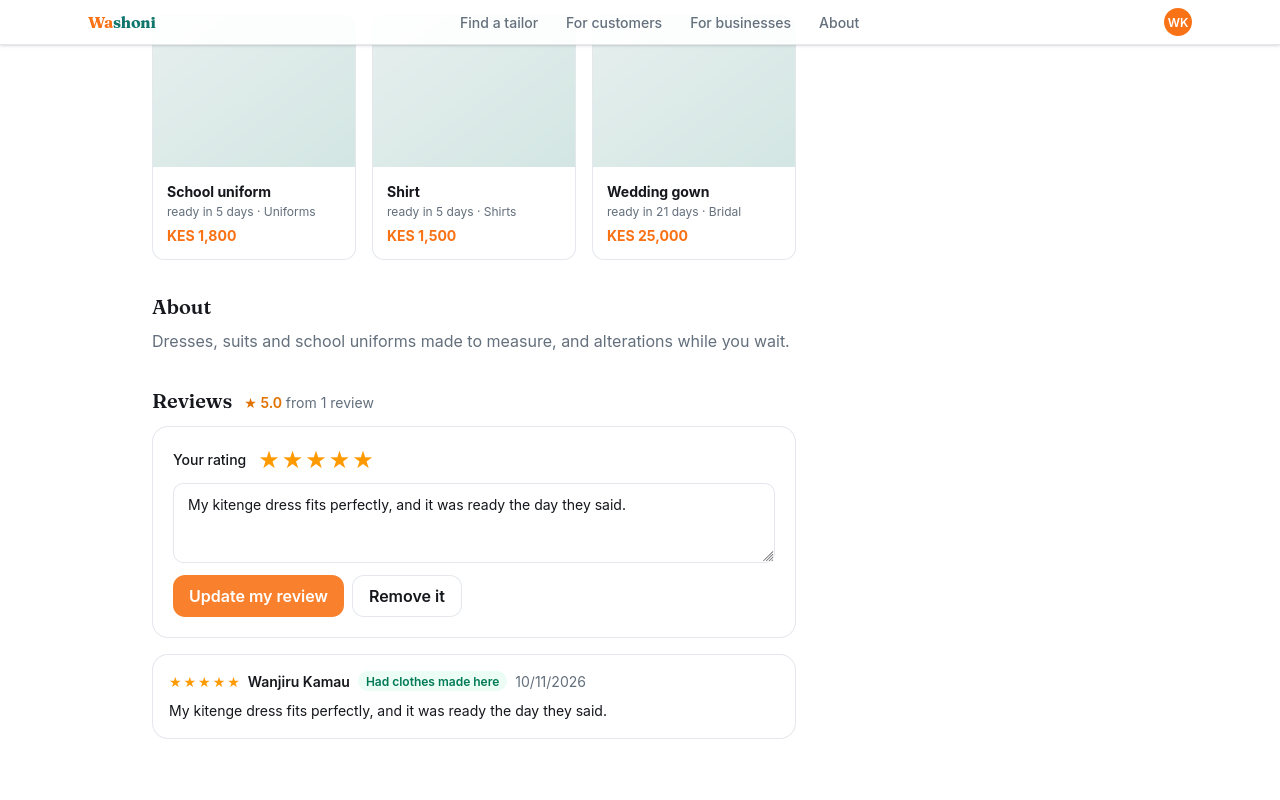
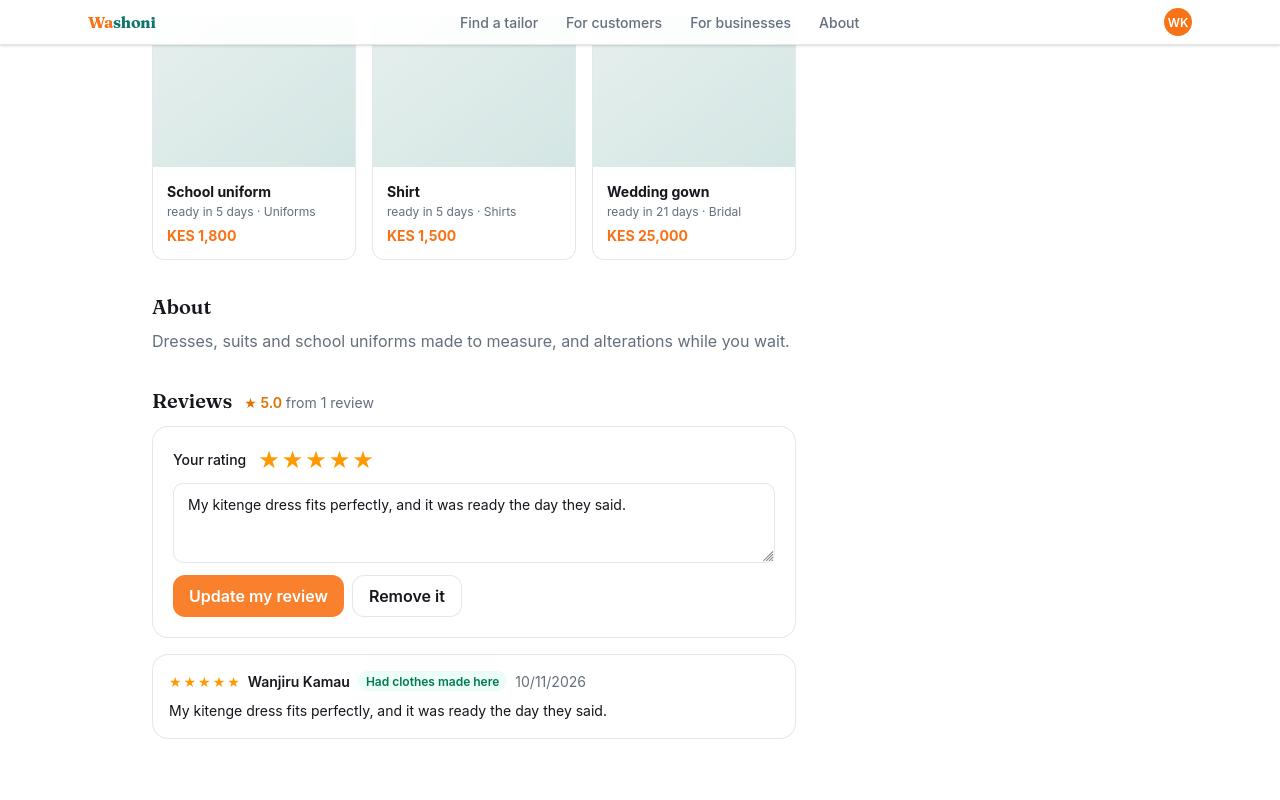
Writing again changes her review; she can also remove it.
Esther, signed in as the owner, can answer each review on the same page. She chooses Reply.
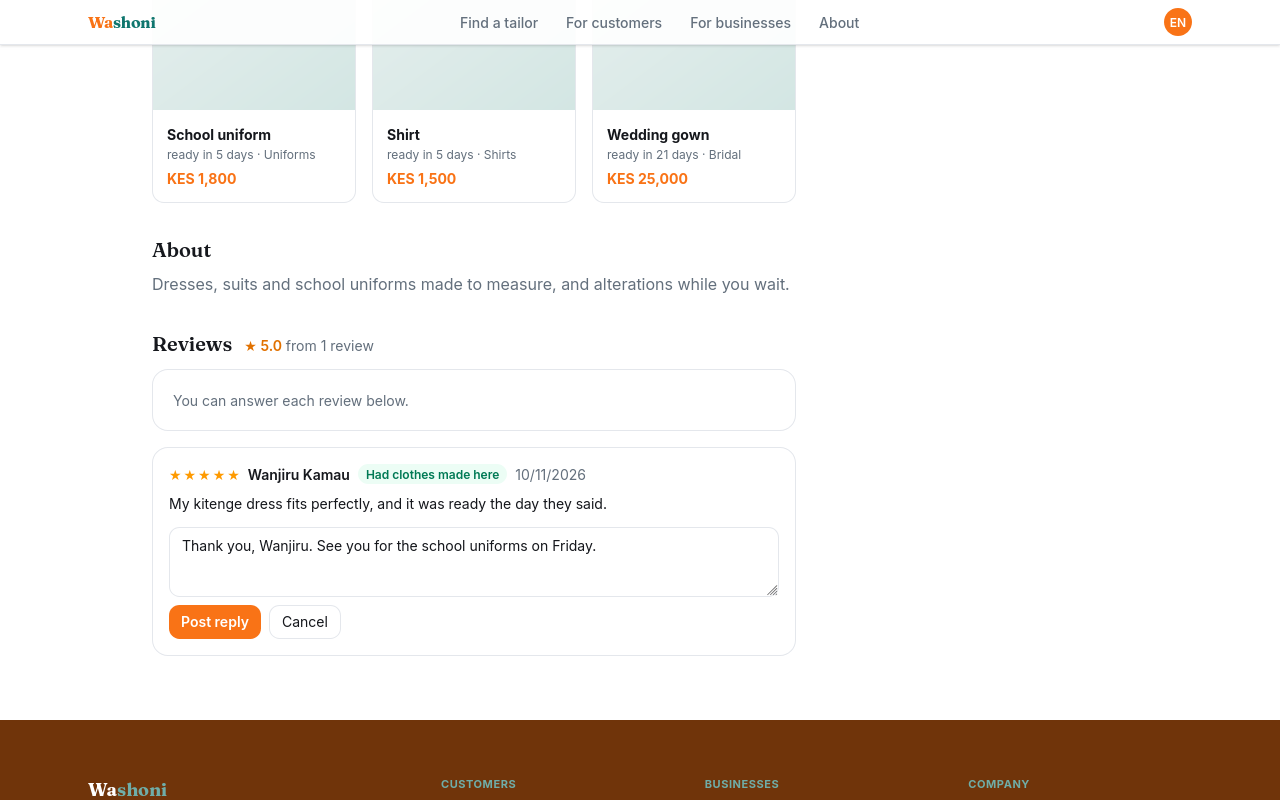
Choose Post reply. The reply shows under the review, for everyone.