Chapter 1
A camera that counts customers and services, set against the till
KijiMacho is for a salon, a kinyozi, a car wash or a garage. A camera counts the customers who came in and the services they got.
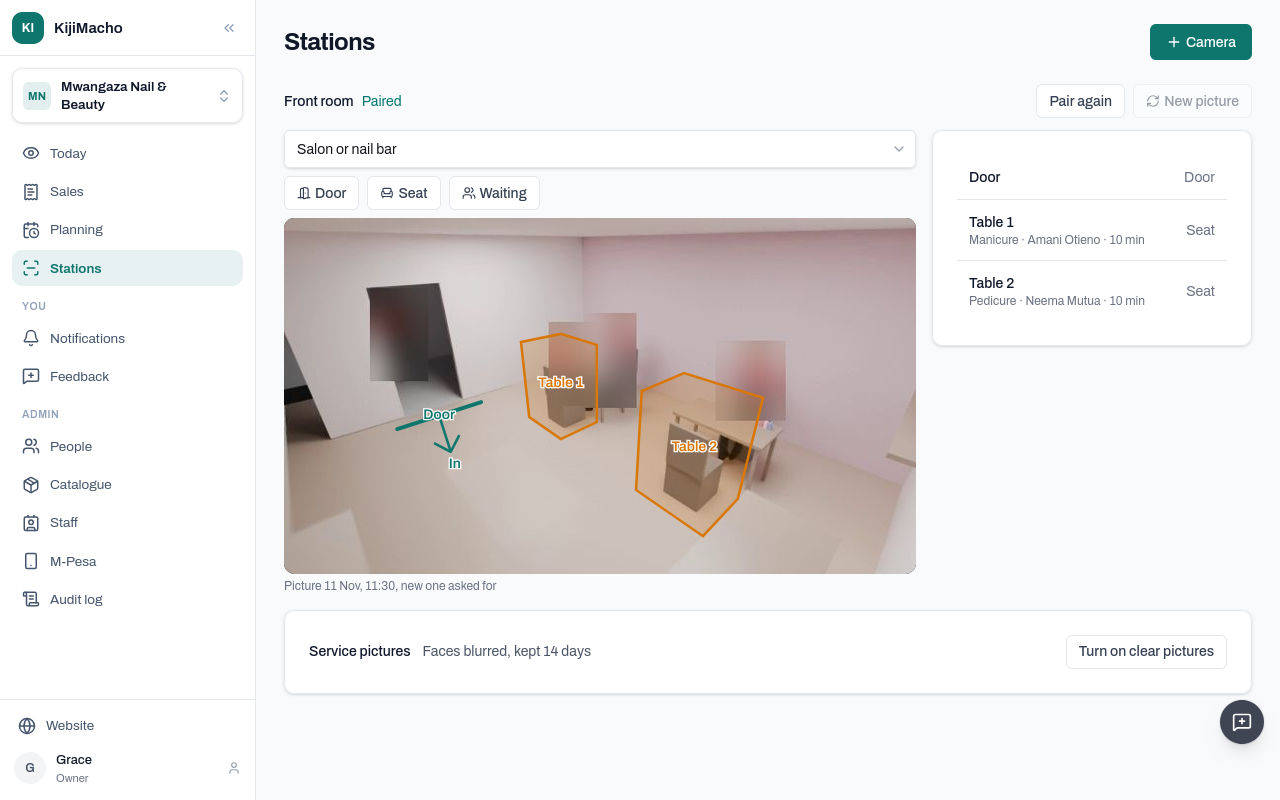
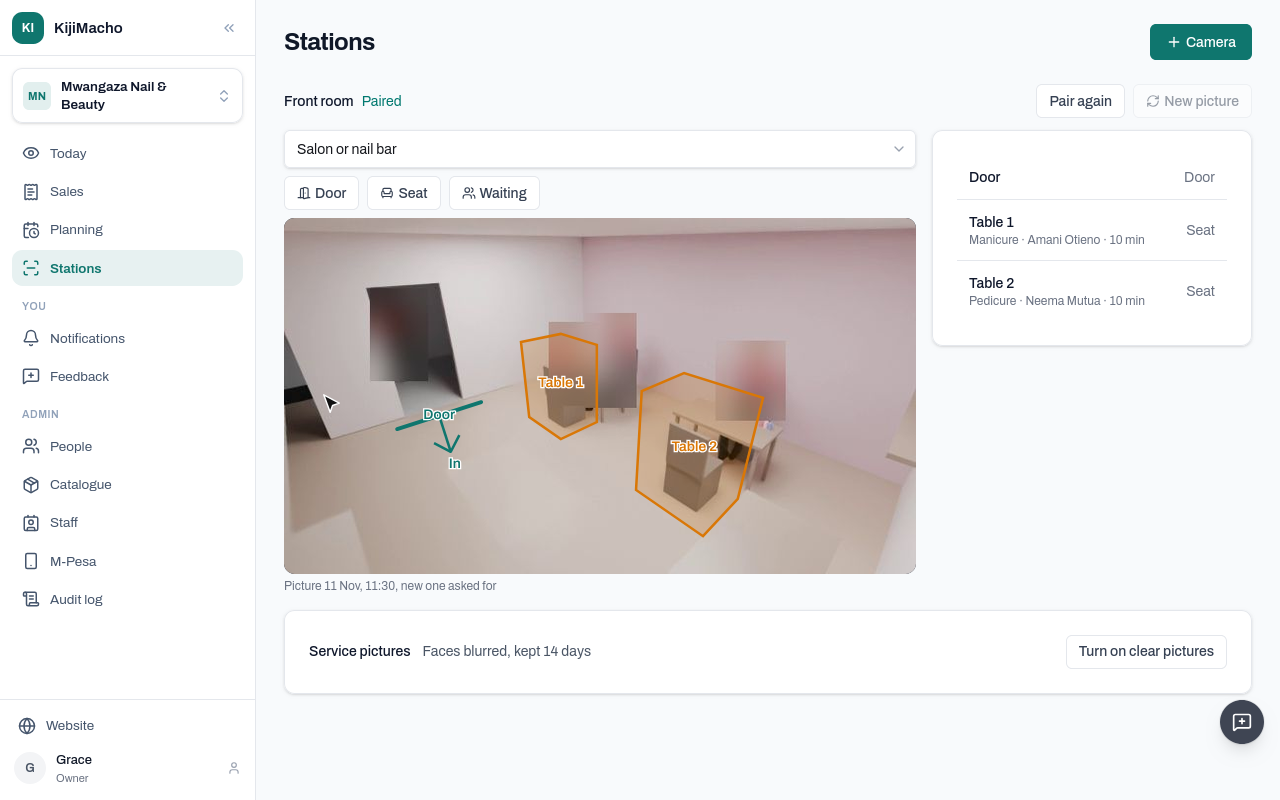
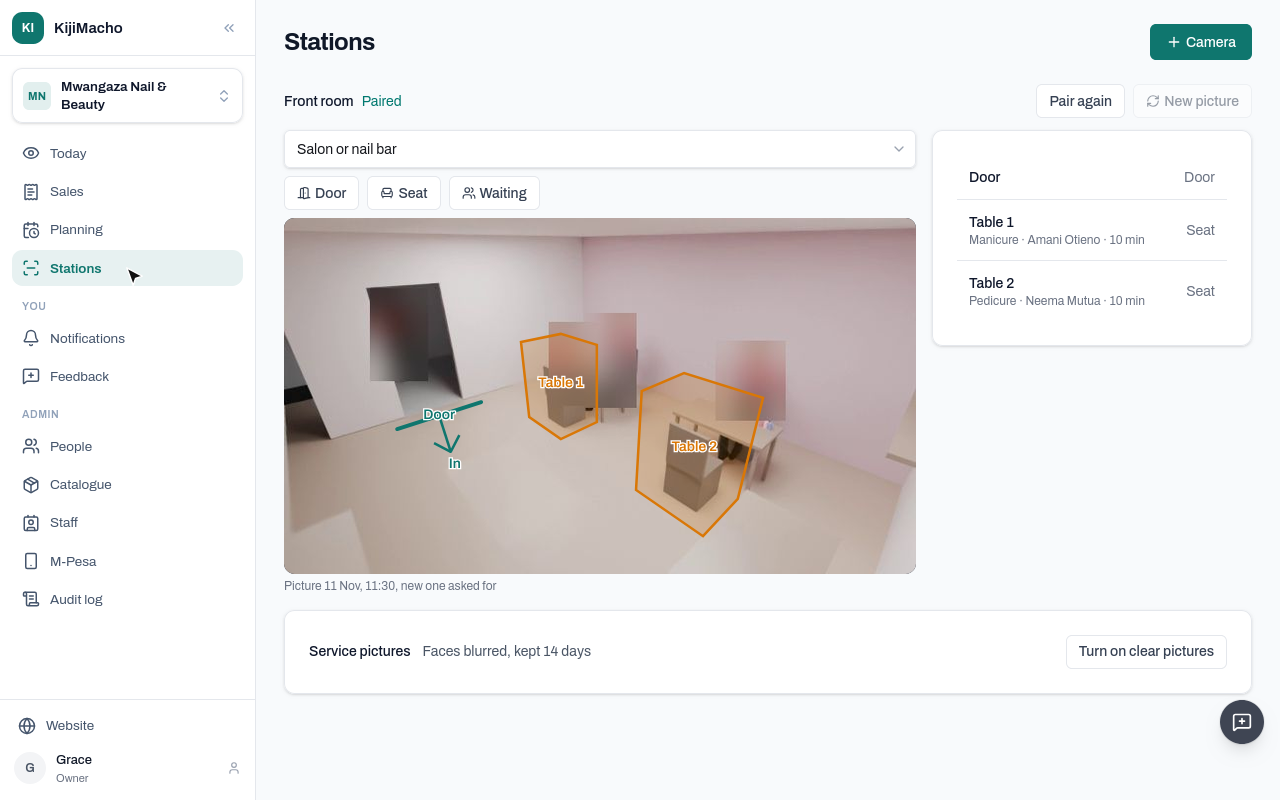
It watches the door, and each chair or table where a service happens.
Today sets what it saw against what was recorded and paid.
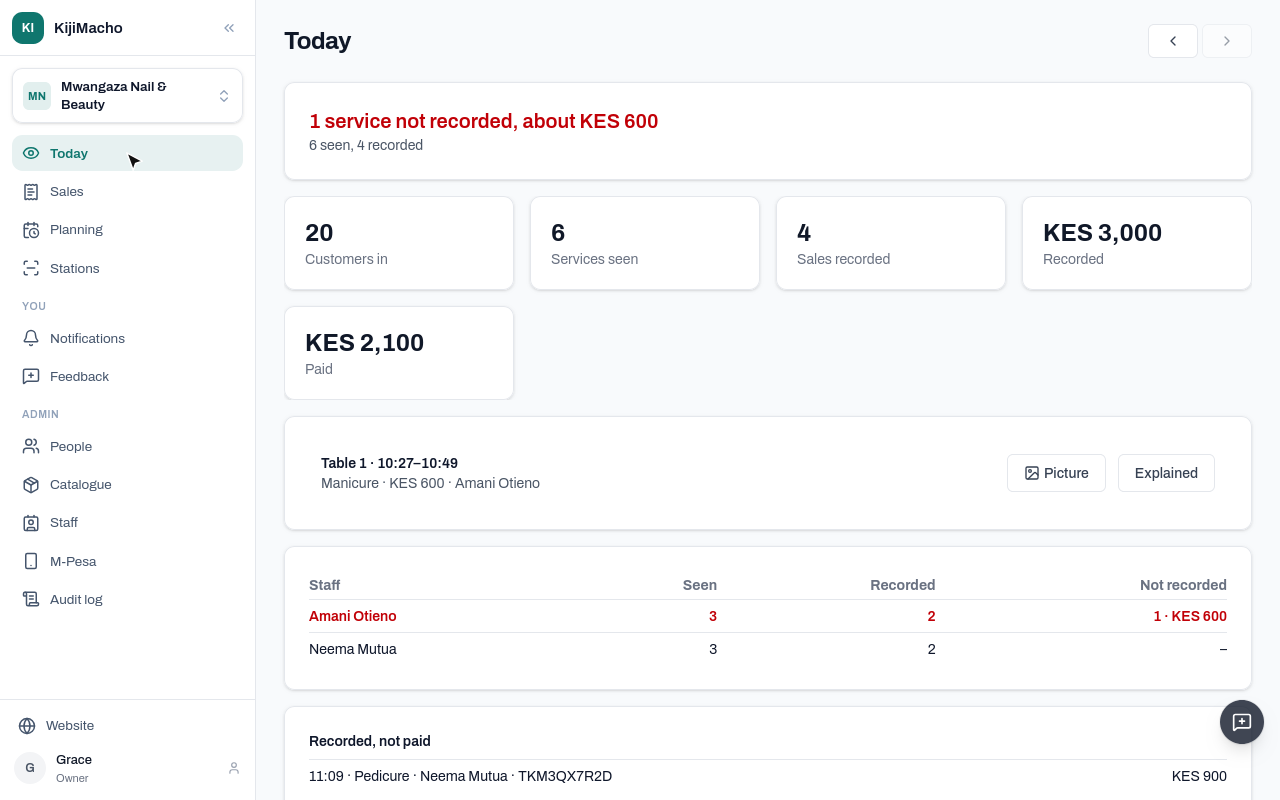
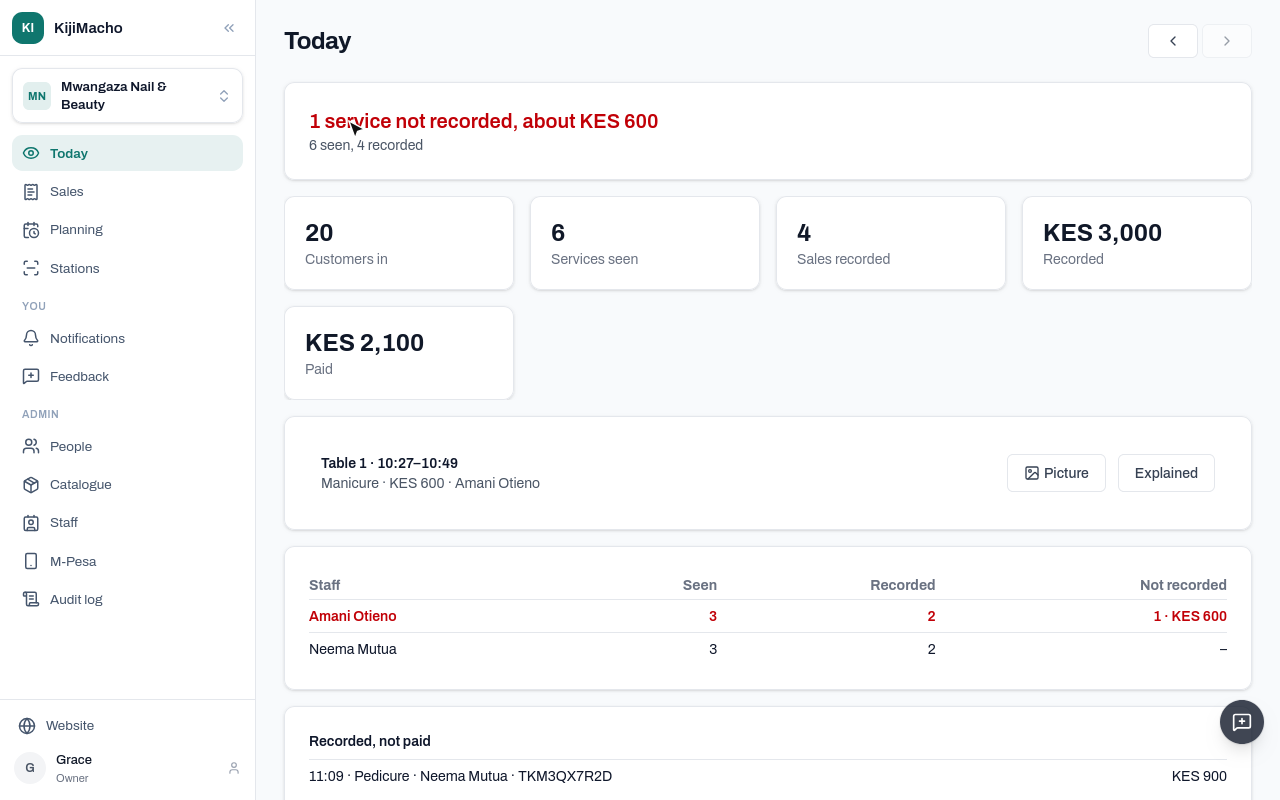
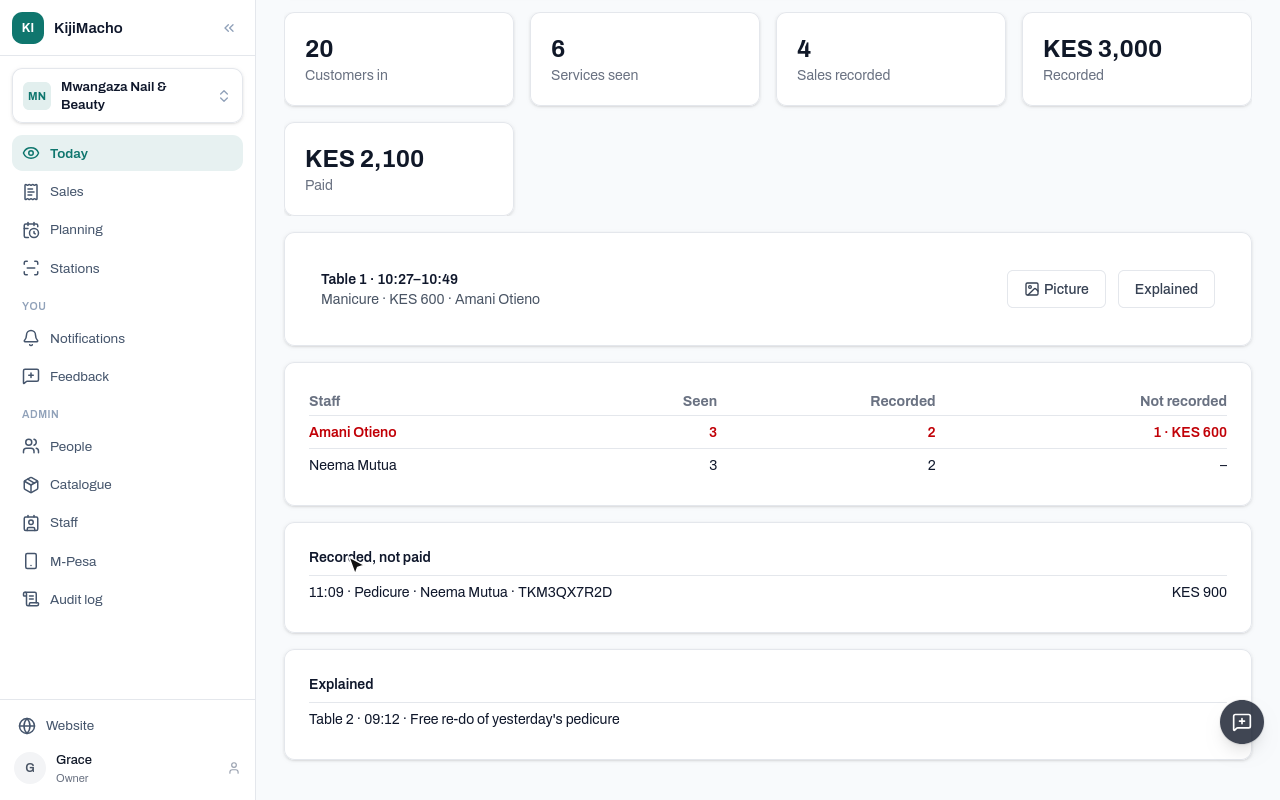
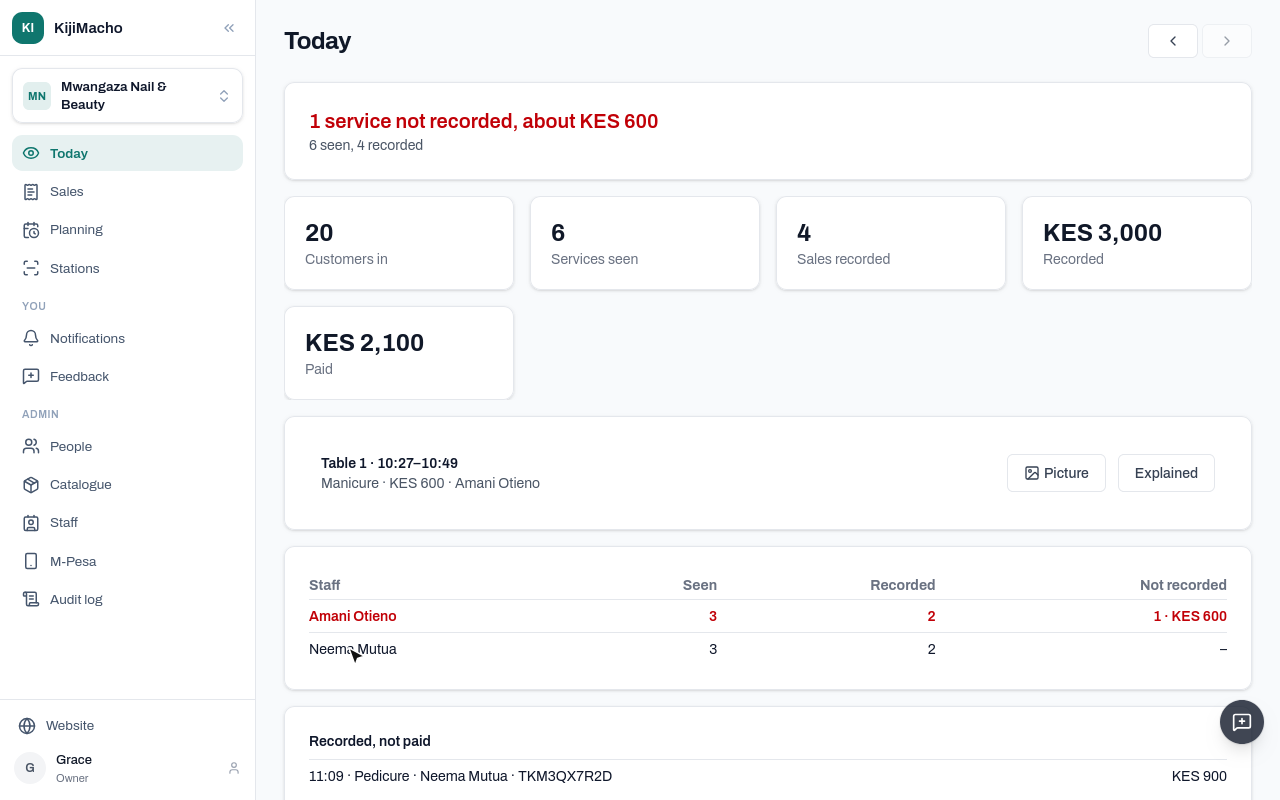
Here, one service this morning had no sale, about six hundred shillings, at Amani's table.
At the counter, each sale is recorded: the service, who did it, and cash or M-Pesa.
Over the weeks, Planning shows the busy hours, and how many chairs keep the wait short.
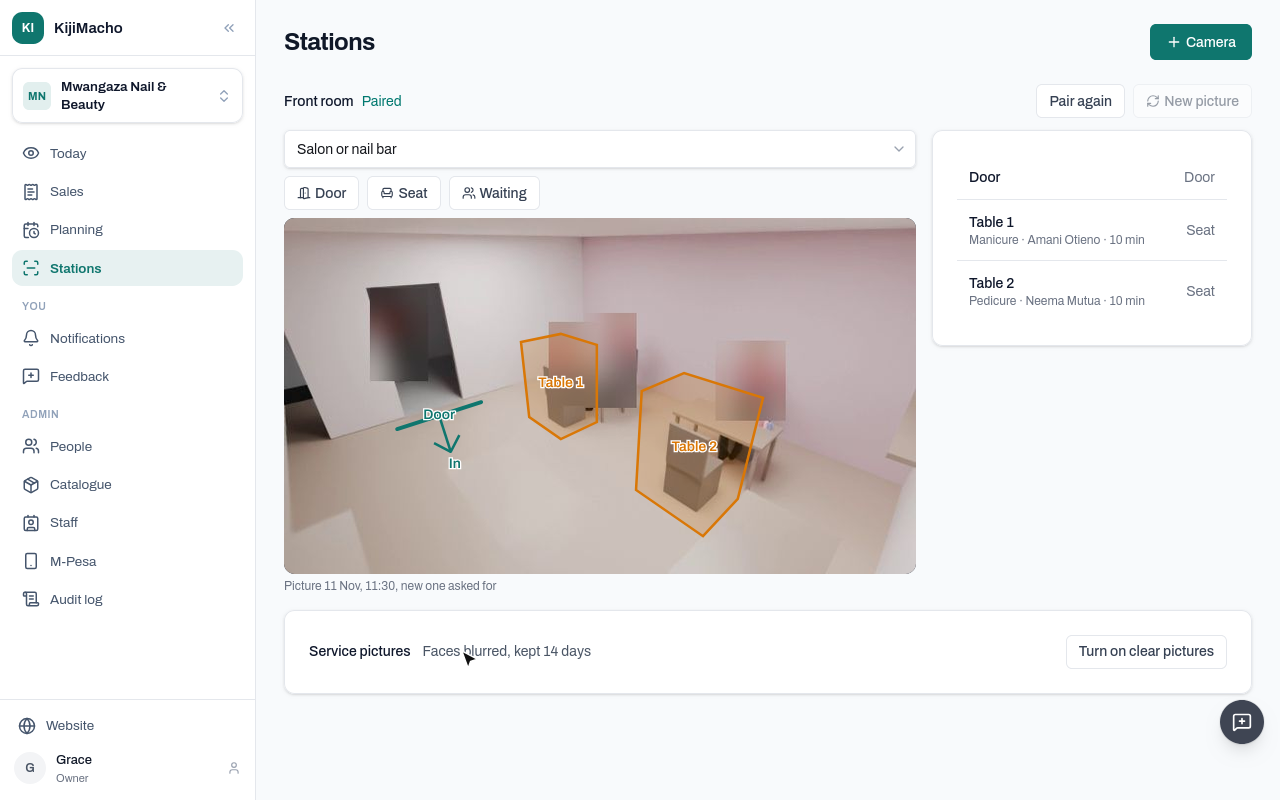
The video never leaves the business. Pictures blur faces, and are deleted after fourteen days.
The chapters that follow show each step, from setting up the business.
Chapter 2
Your business, its services and prices, and your staff
The first time you sign in, KijiMacho asks for your business's name.
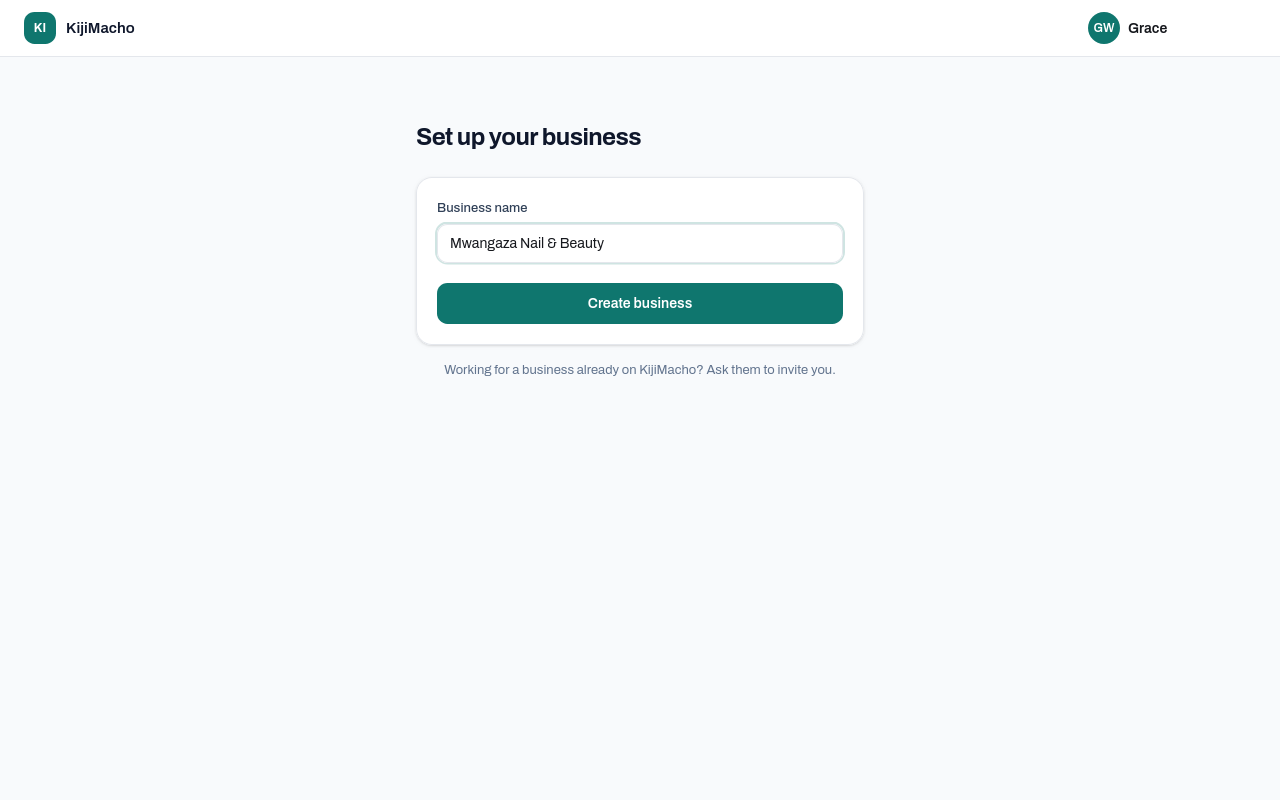
Choose Create business.
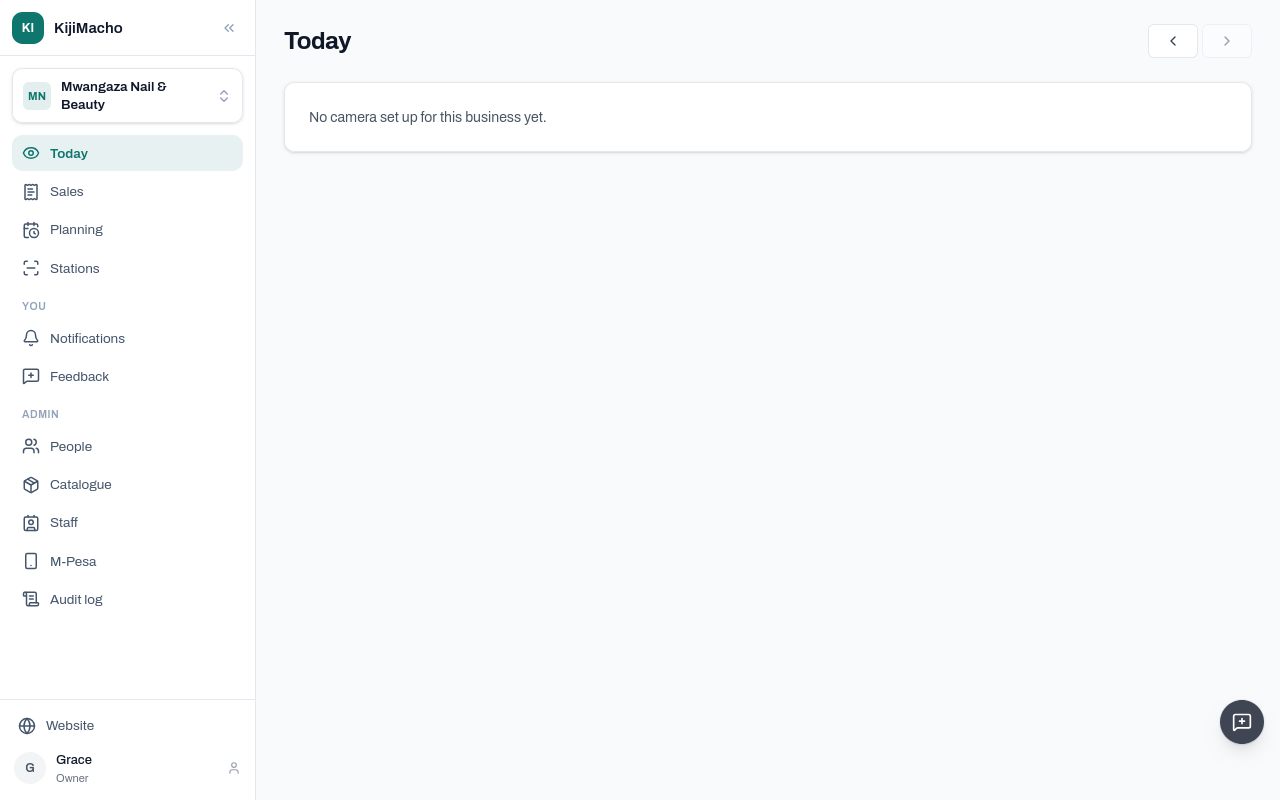
KijiMacho opens on Today. Until a camera is set up, there is nothing to show.
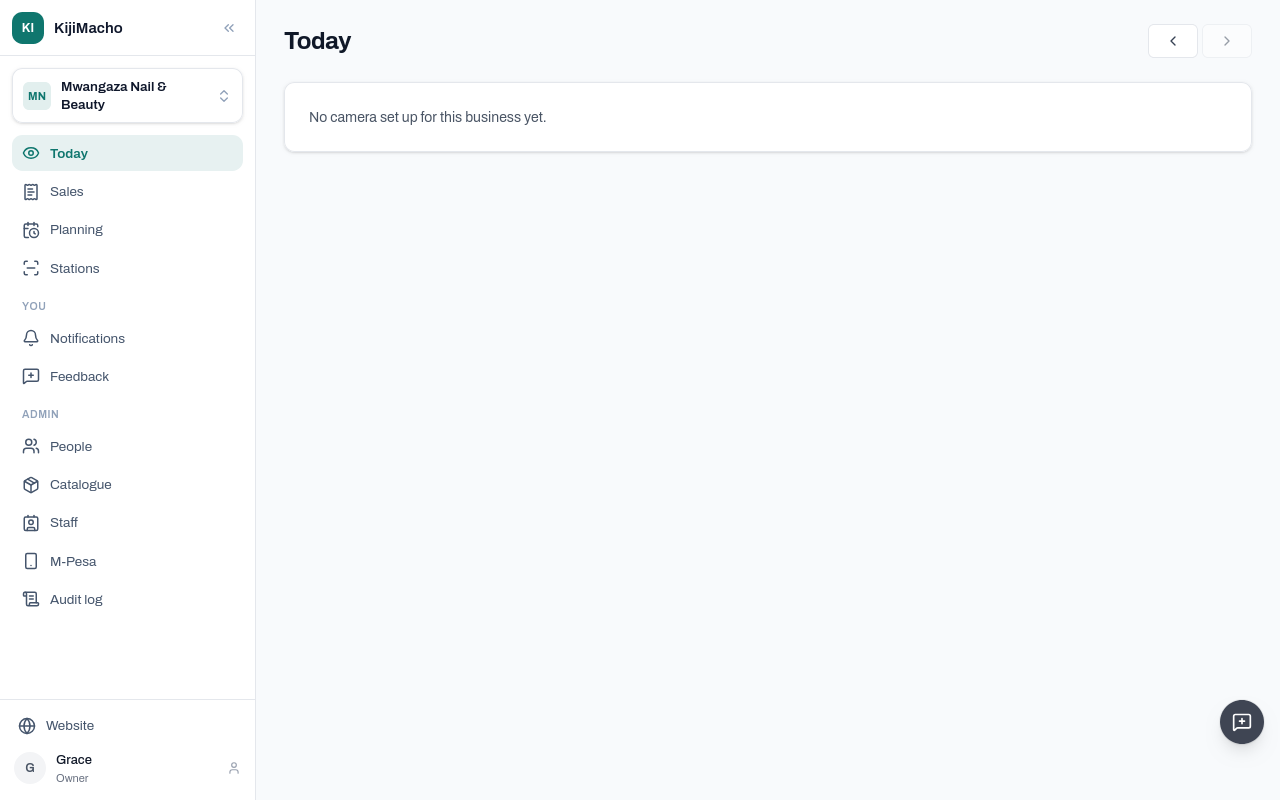
The menu has Today, Sales, Planning and Stations. Under Admin are the business's people, its catalogue, its staff and M-Pesa.
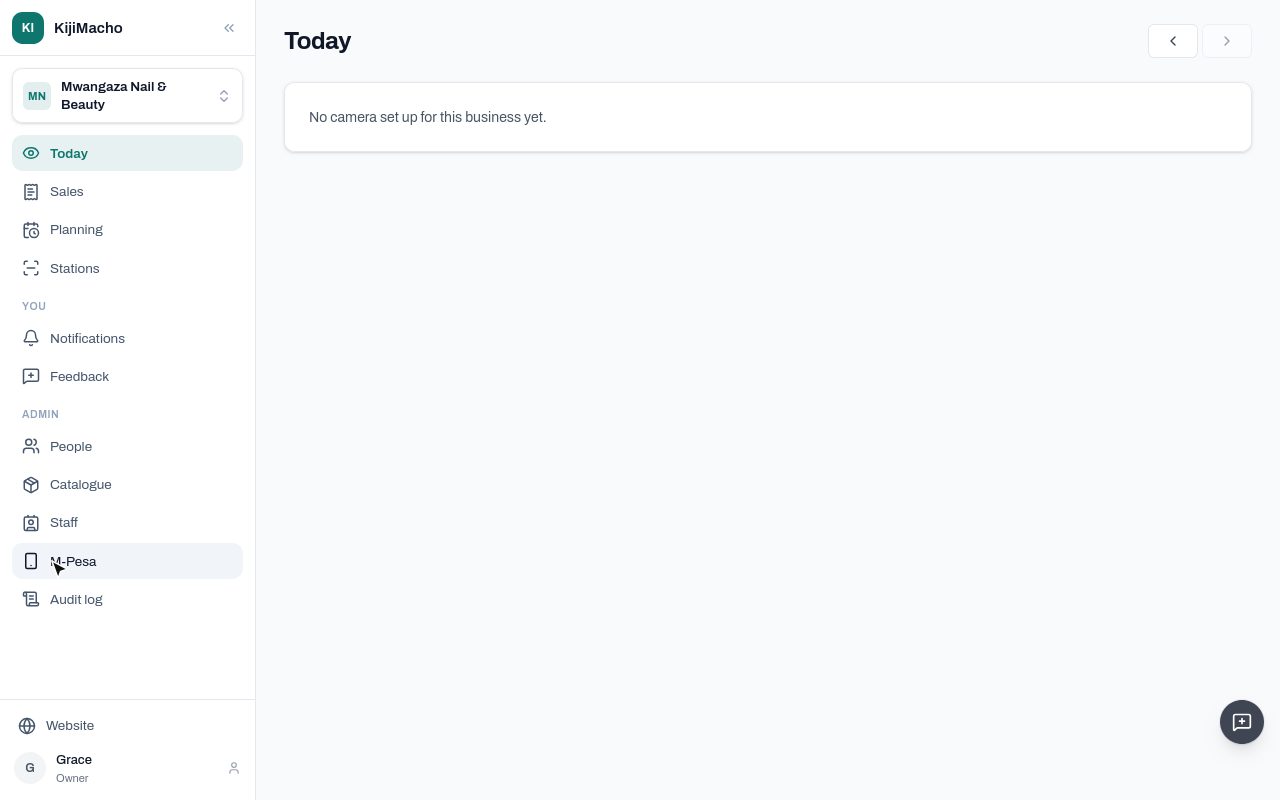
Whoever you invite under People comes in as an owner, and sees everything you see.
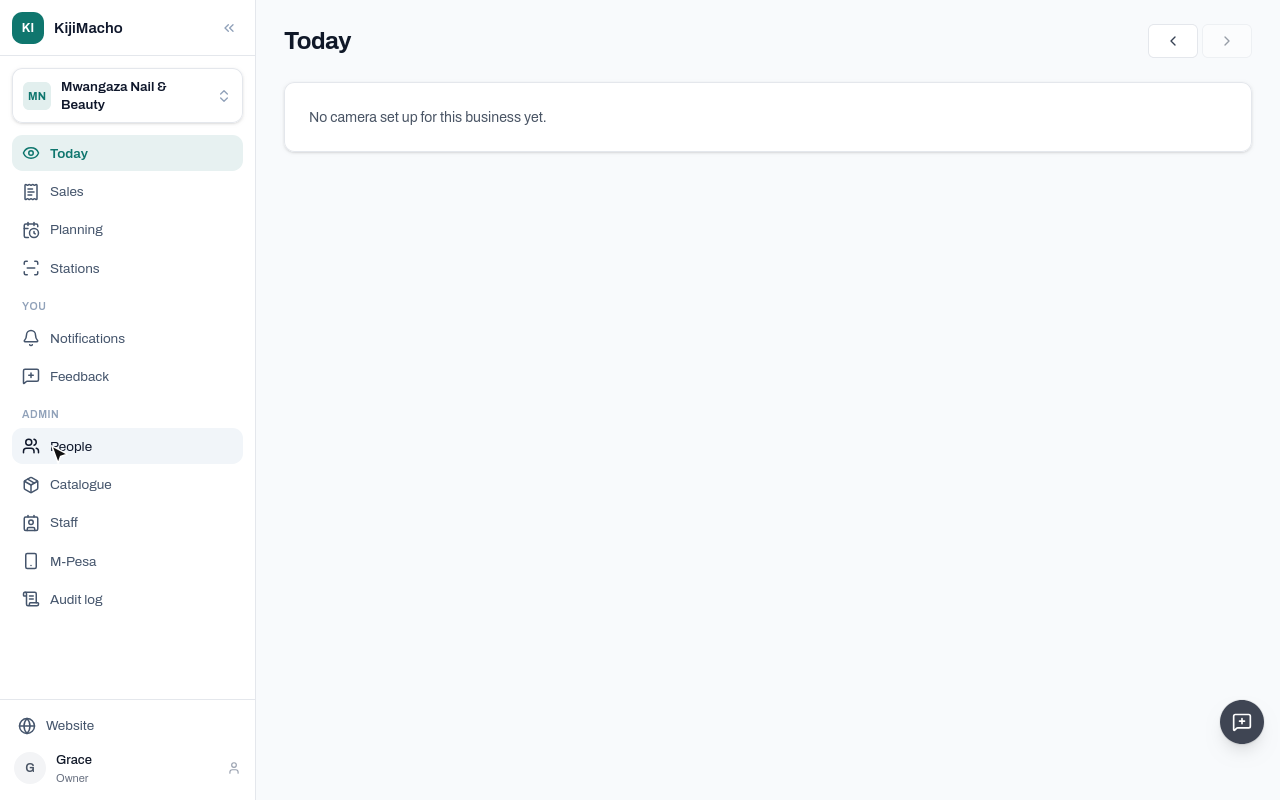
M-Pesa is for a till connected through Safaricom's Daraja. Then each M-Pesa sale is checked against the money that came in. Cash counts as paid when it is recorded.
First, what you sell. Open Catalogue.
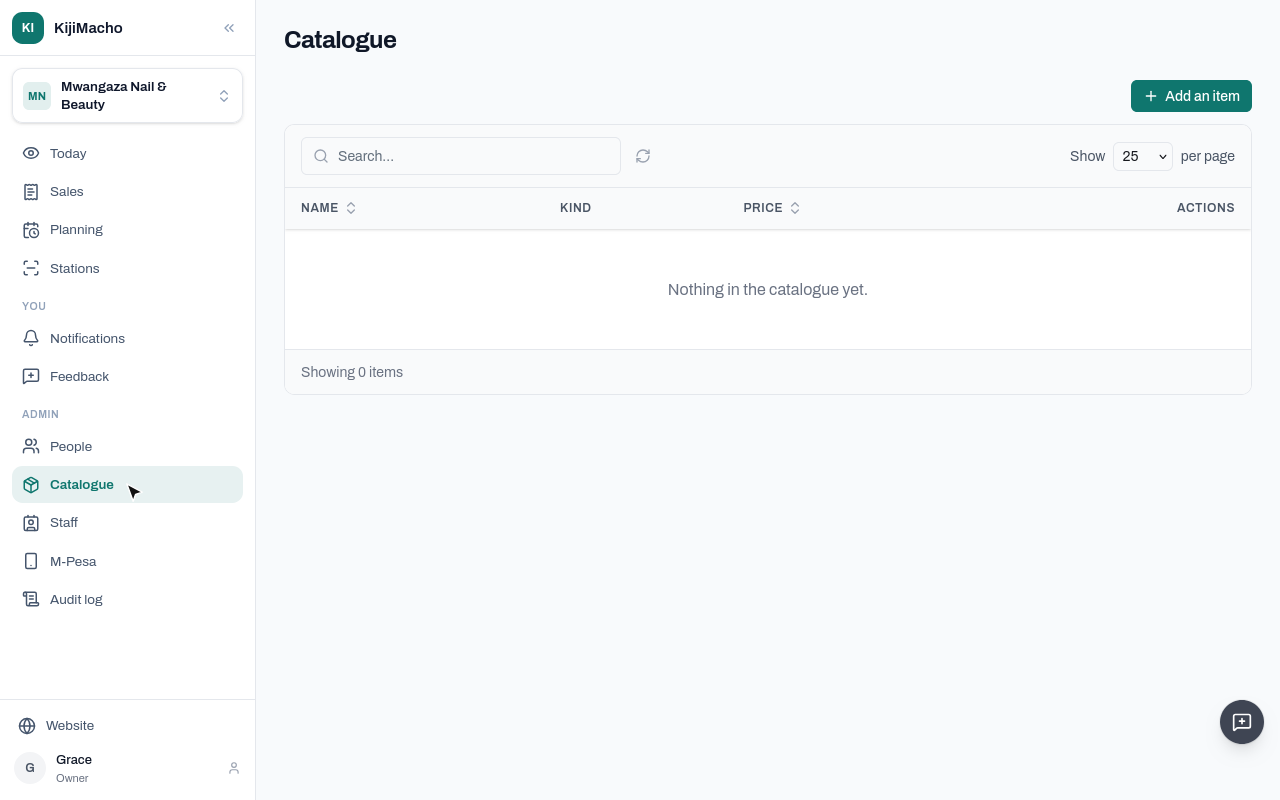
Each service has a name and a price. The camera sets each seat against a service, so the price of a service nobody recorded is known.
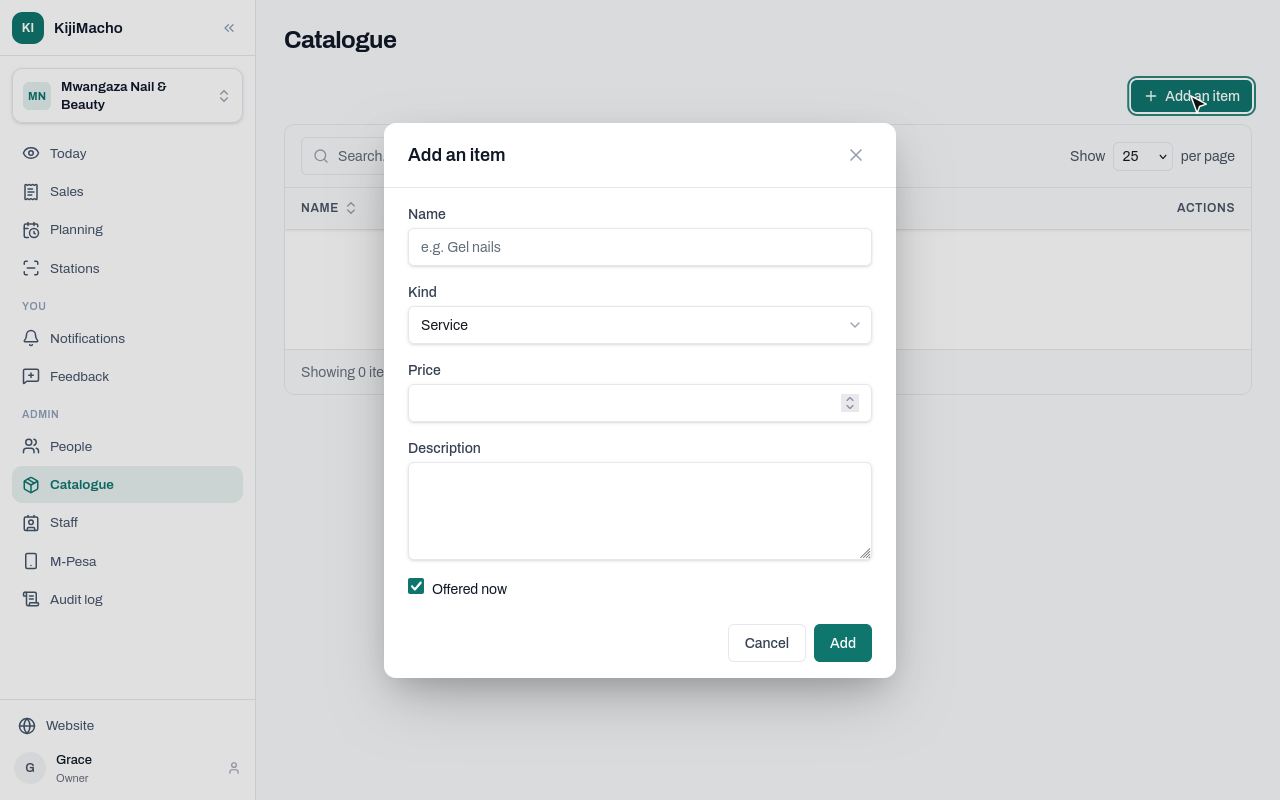
Choose Add an item. Give the name, keep the kind as Service, and type the price in shillings.
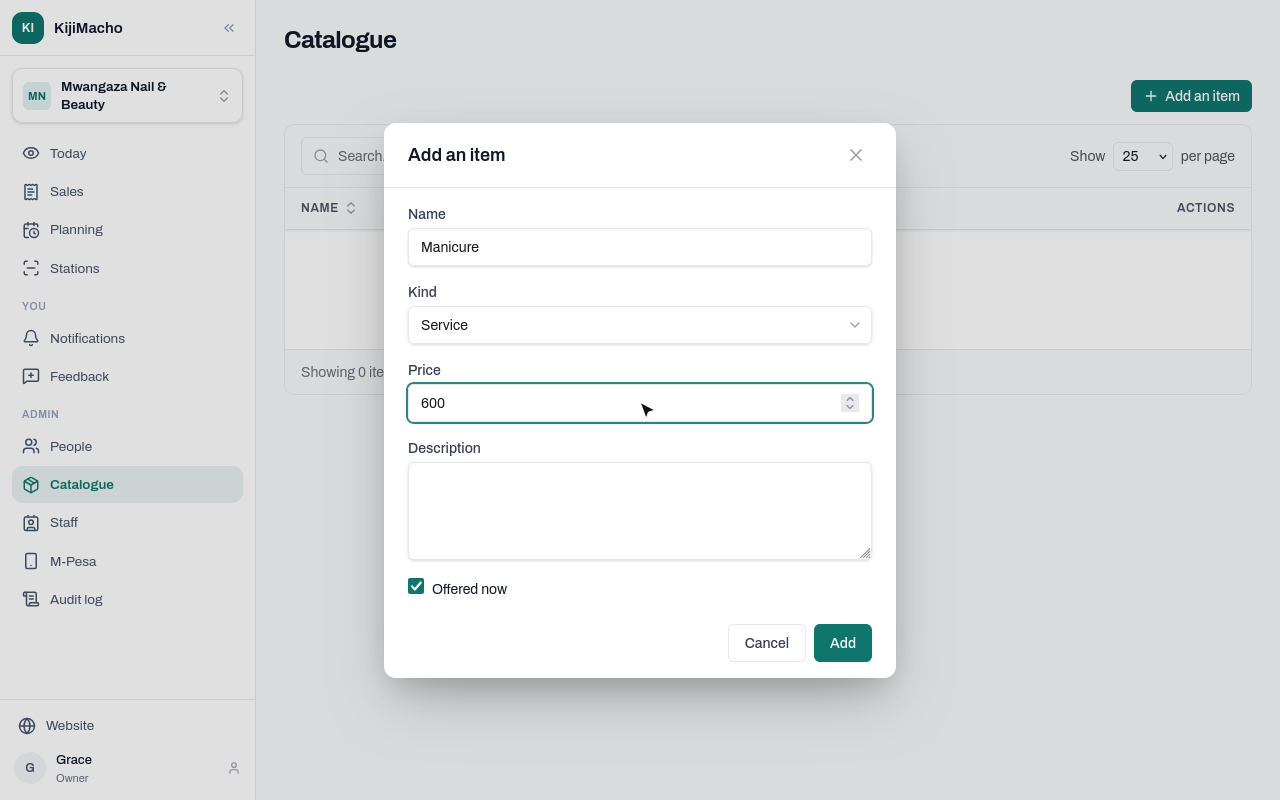
A short description is optional.
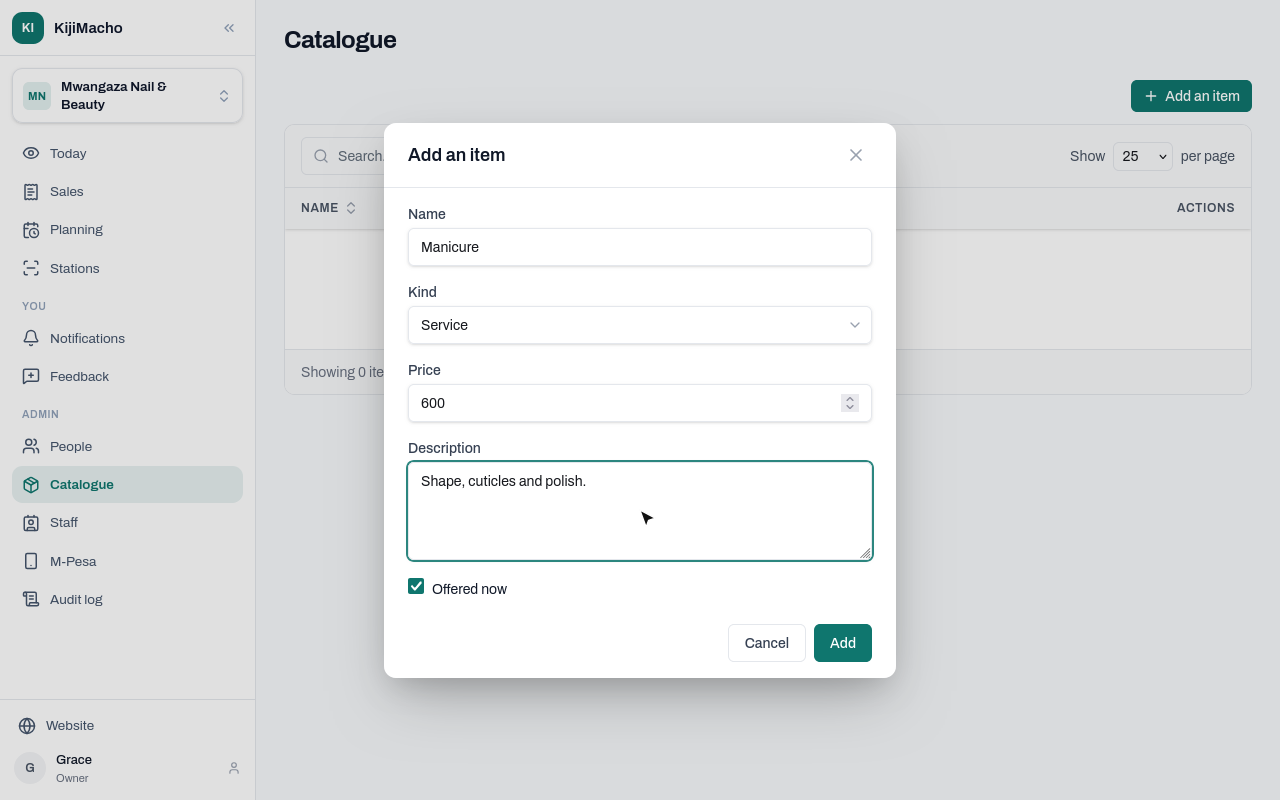
Offered now stays ticked. Choose Add.
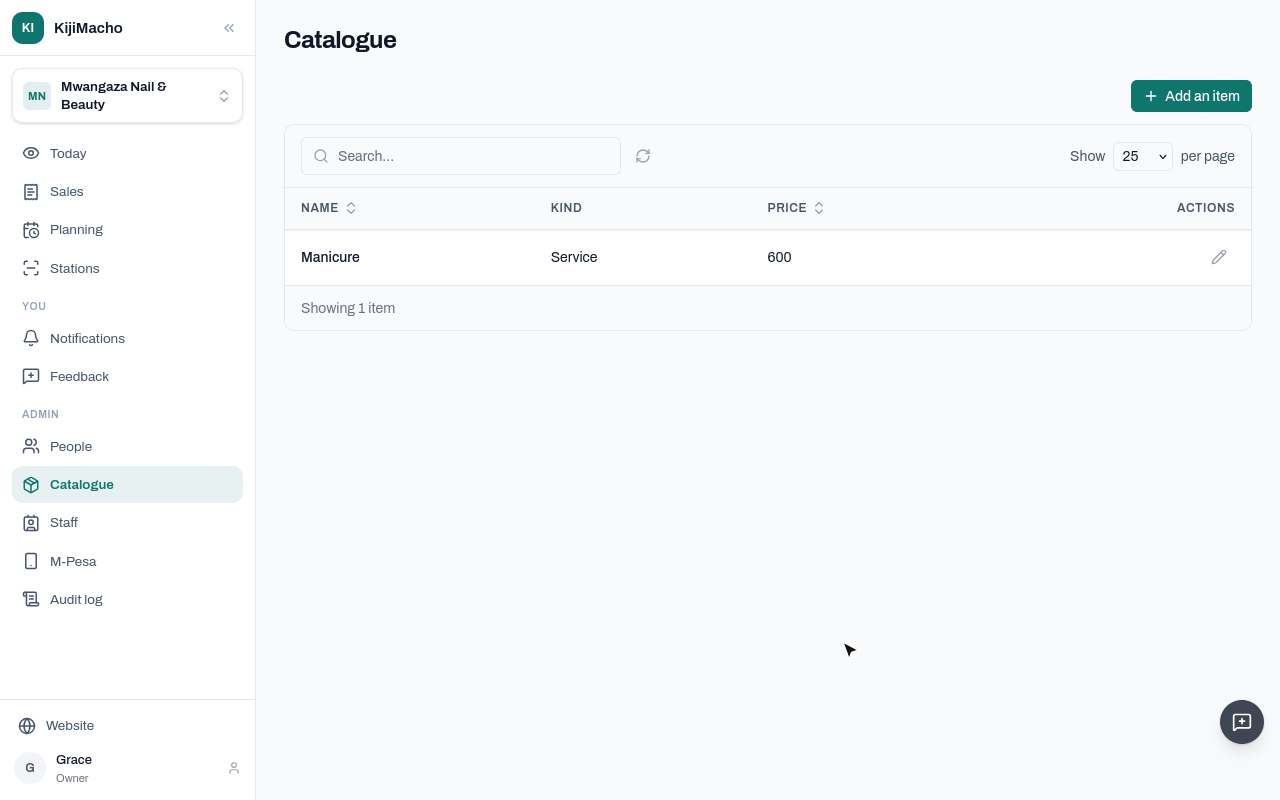
The service is in the list. Add the others the same way.
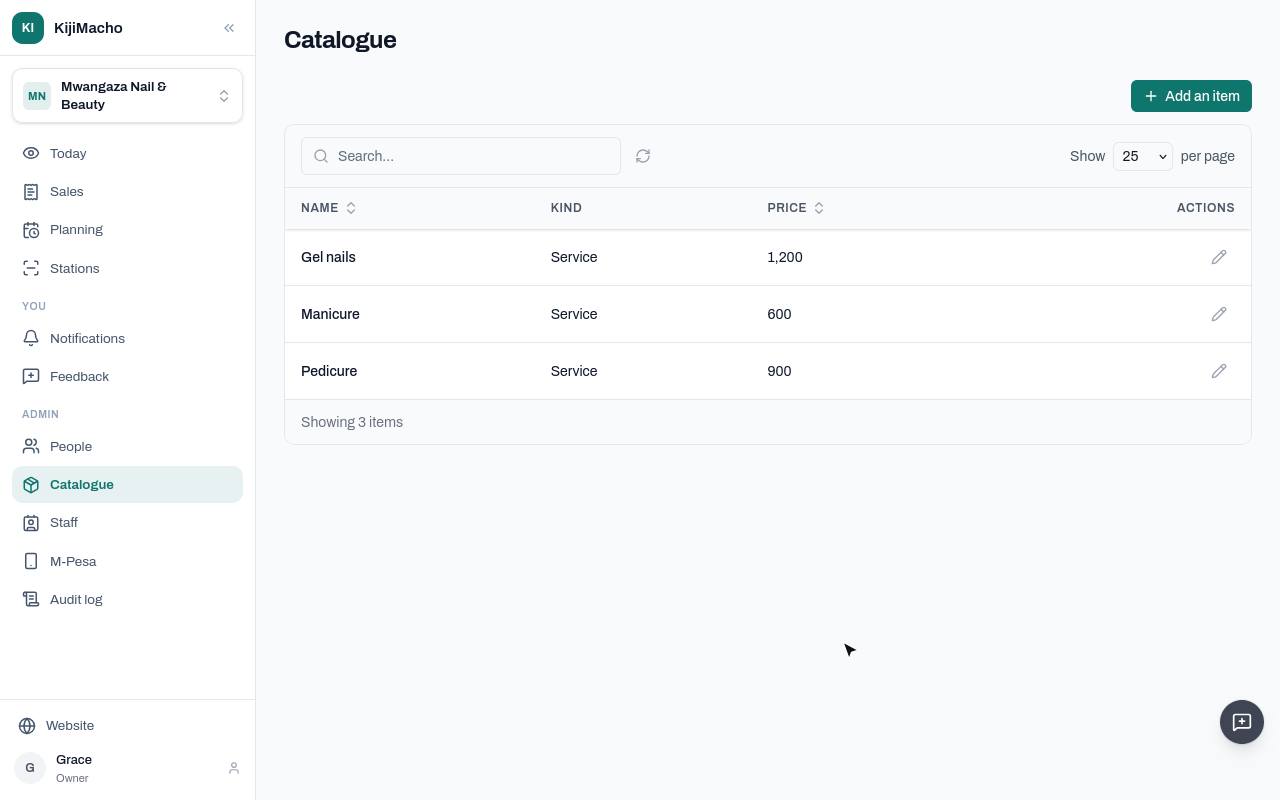
Mwangaza now has a manicure, a pedicure and gel nails, with their prices.
Next, the people who do the services. Open Staff.
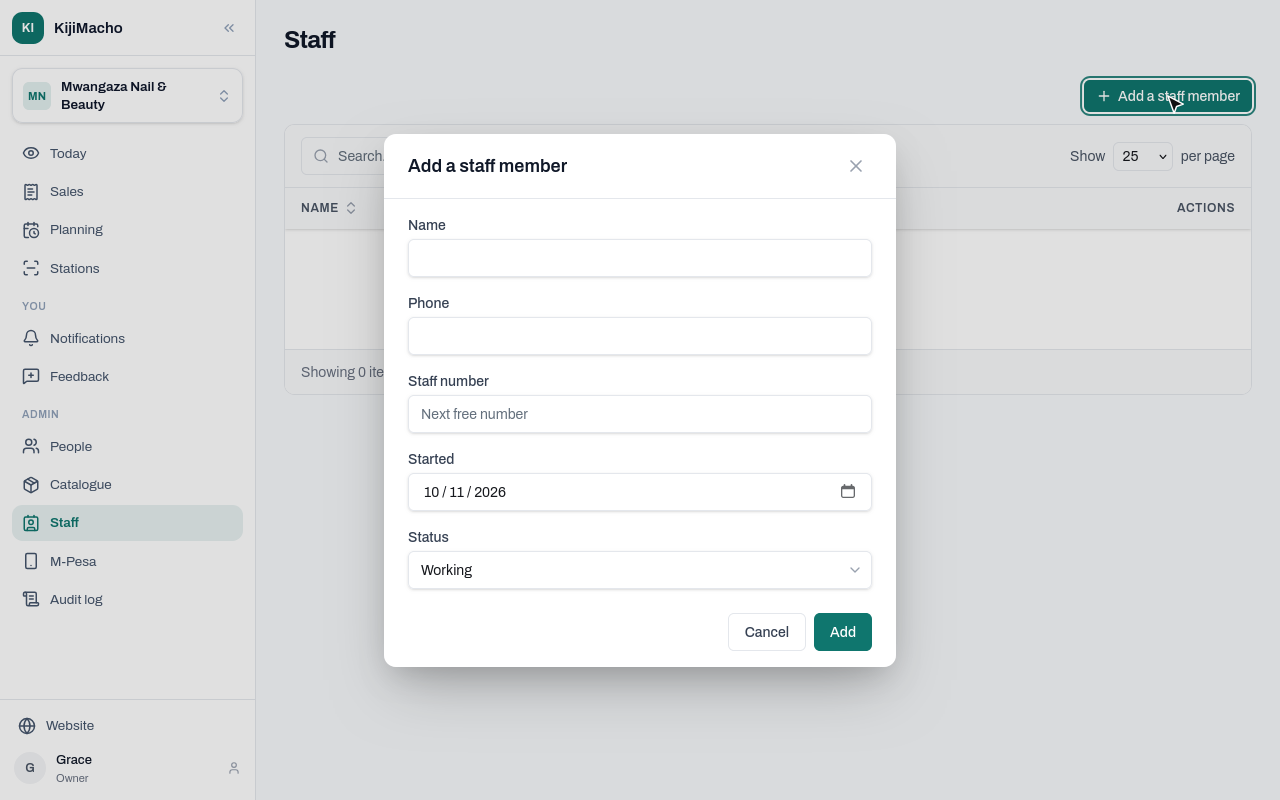
Choose Add a staff member, and give their name and phone number.
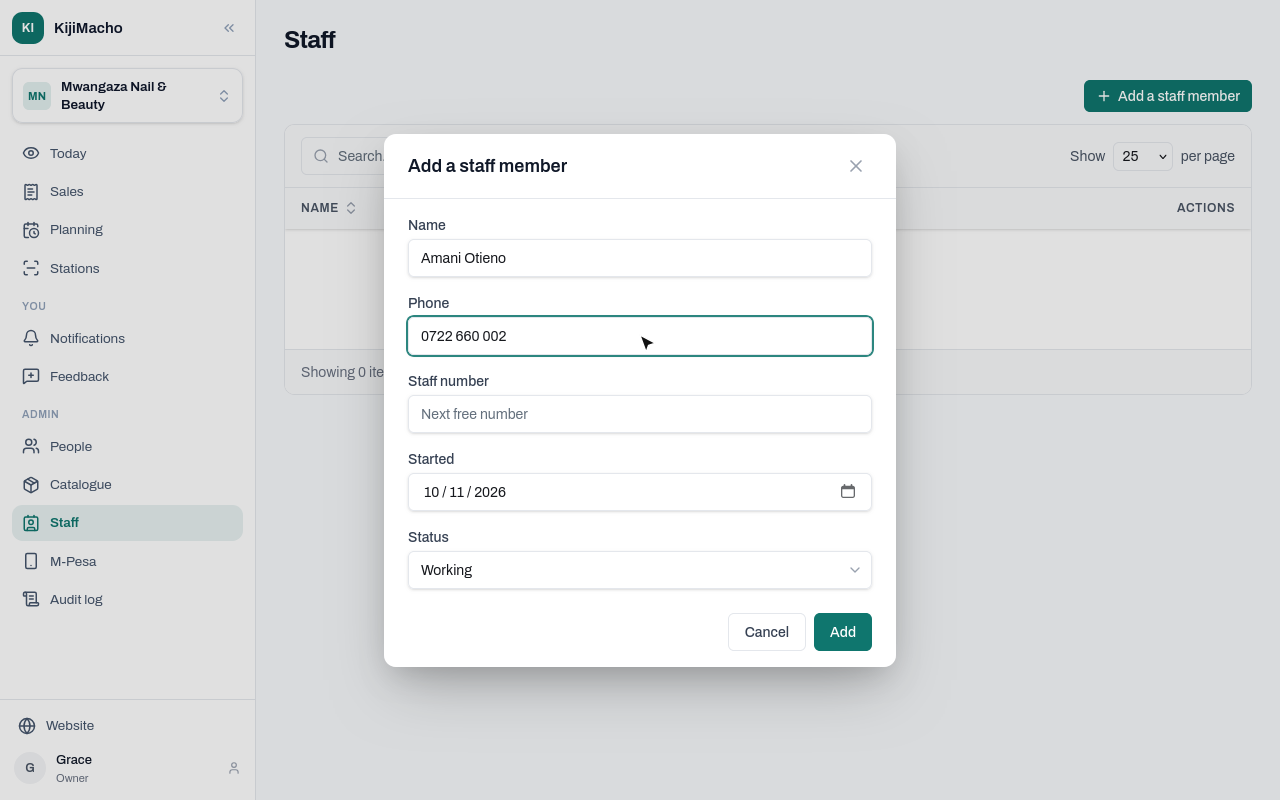
KijiMacho gives the next staff number, and Started is today. Choose Add.
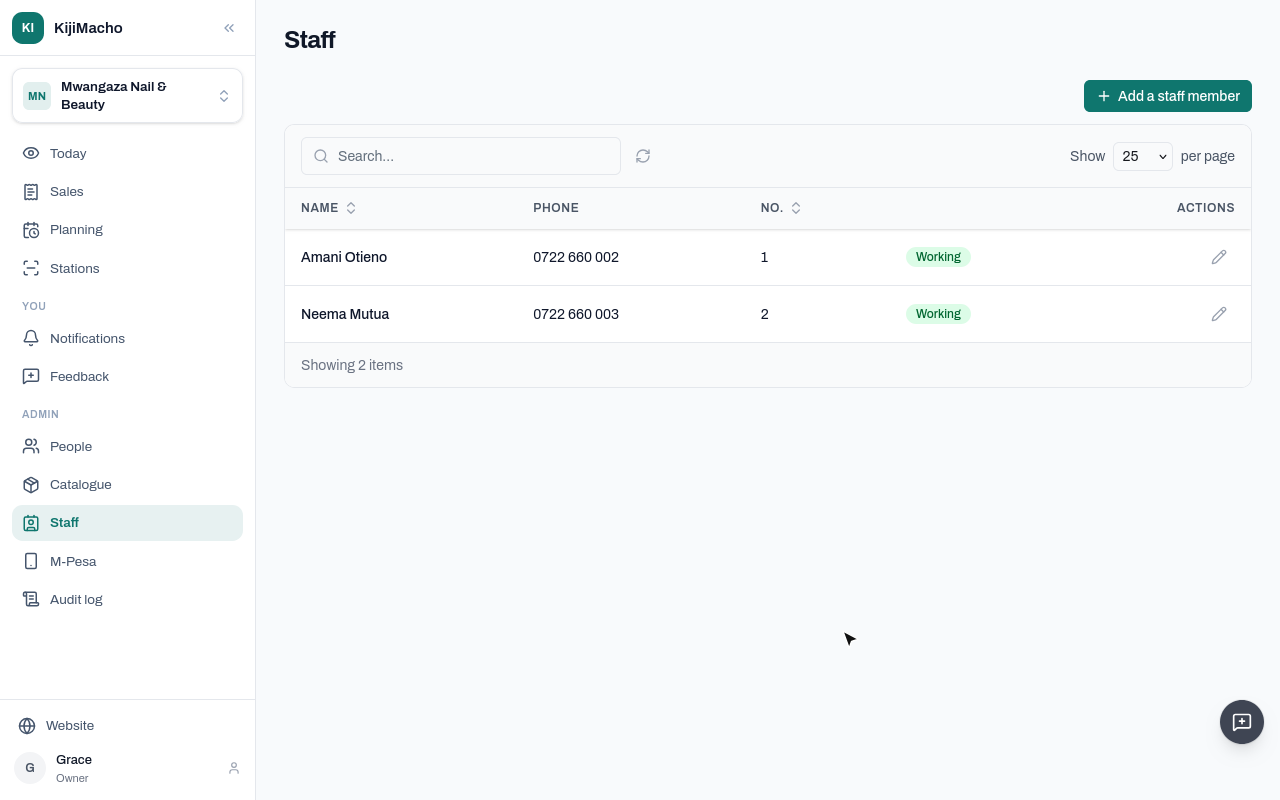
Amani and Neema are on the staff. A staff member here doesn't need an account: this is the list of who did each service, for each seat and each sale.
Next, the camera.
Chapter 3
The camera, its pairing code, and the door and seats it watches
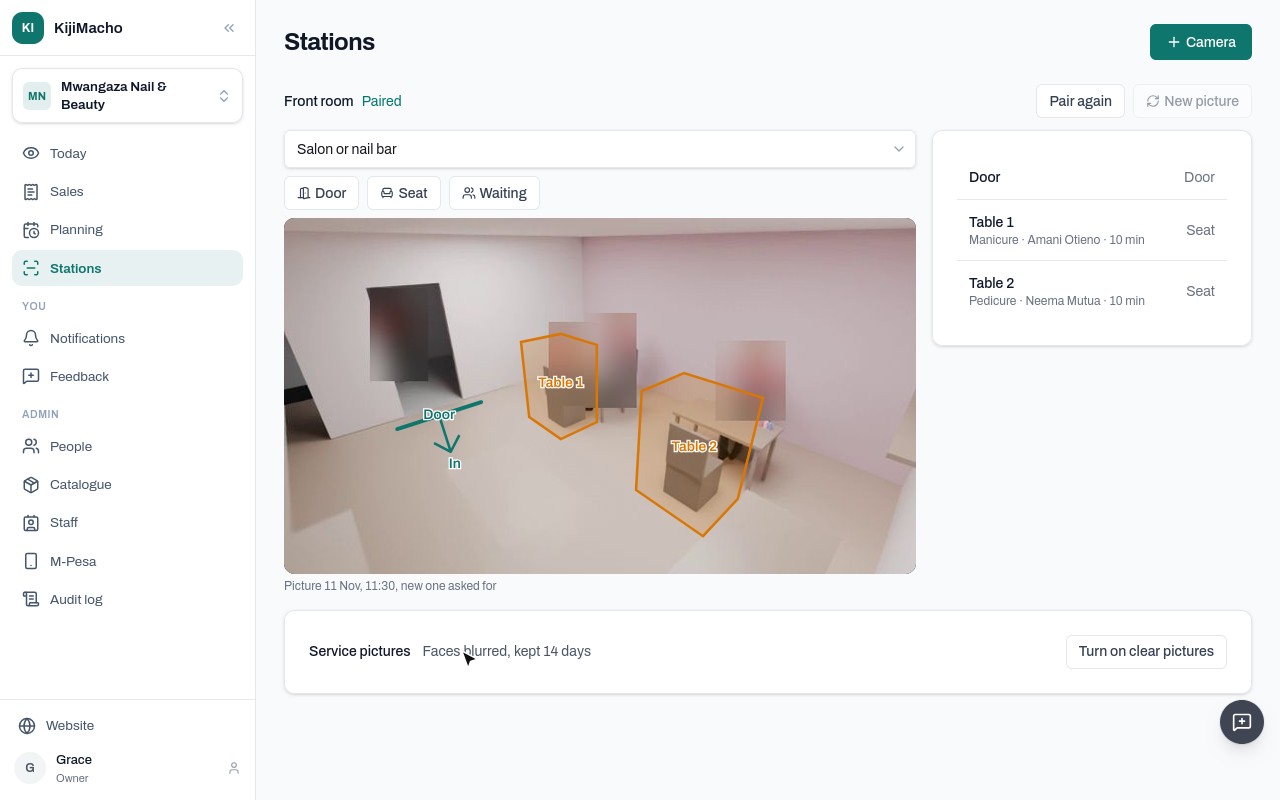
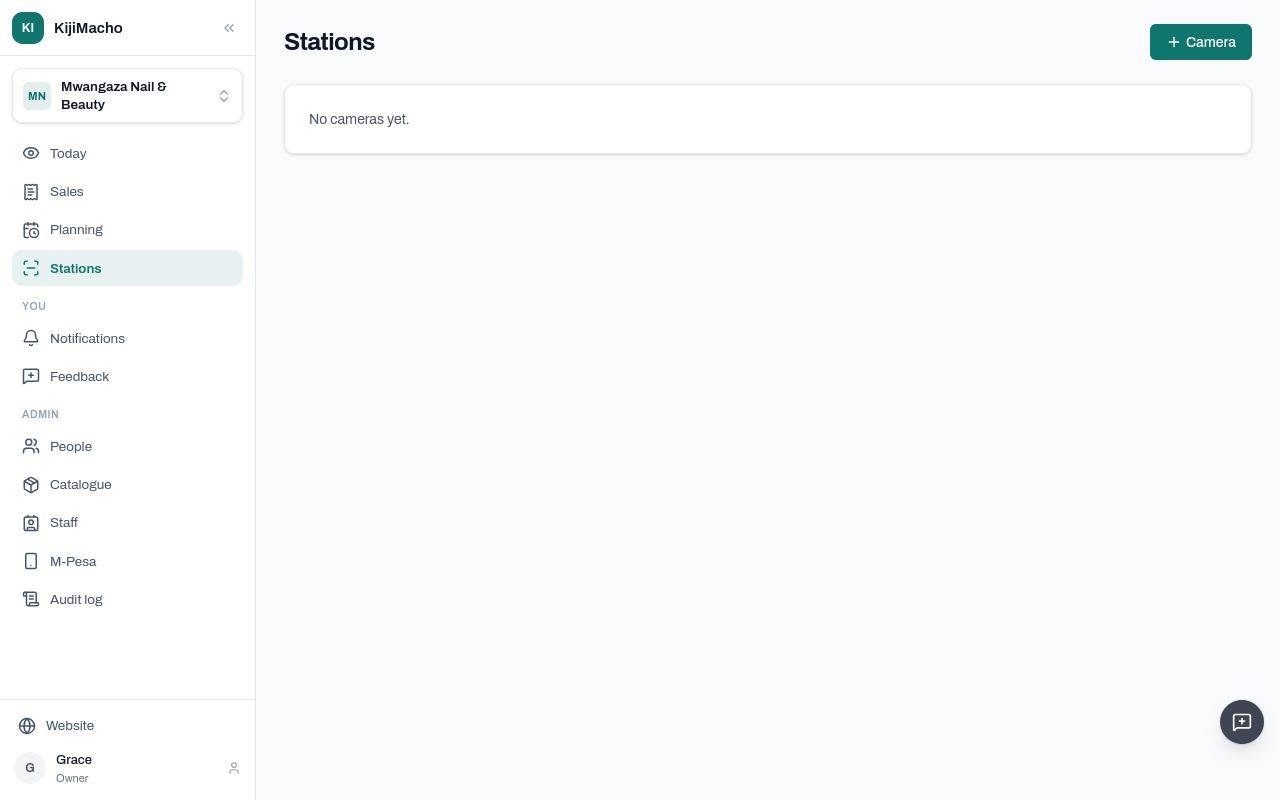
The camera is set up on Stations.
A small box at the business reads the camera. It counts there, and sends KijiMacho only the counts and blurred pictures. The video stays at the business.
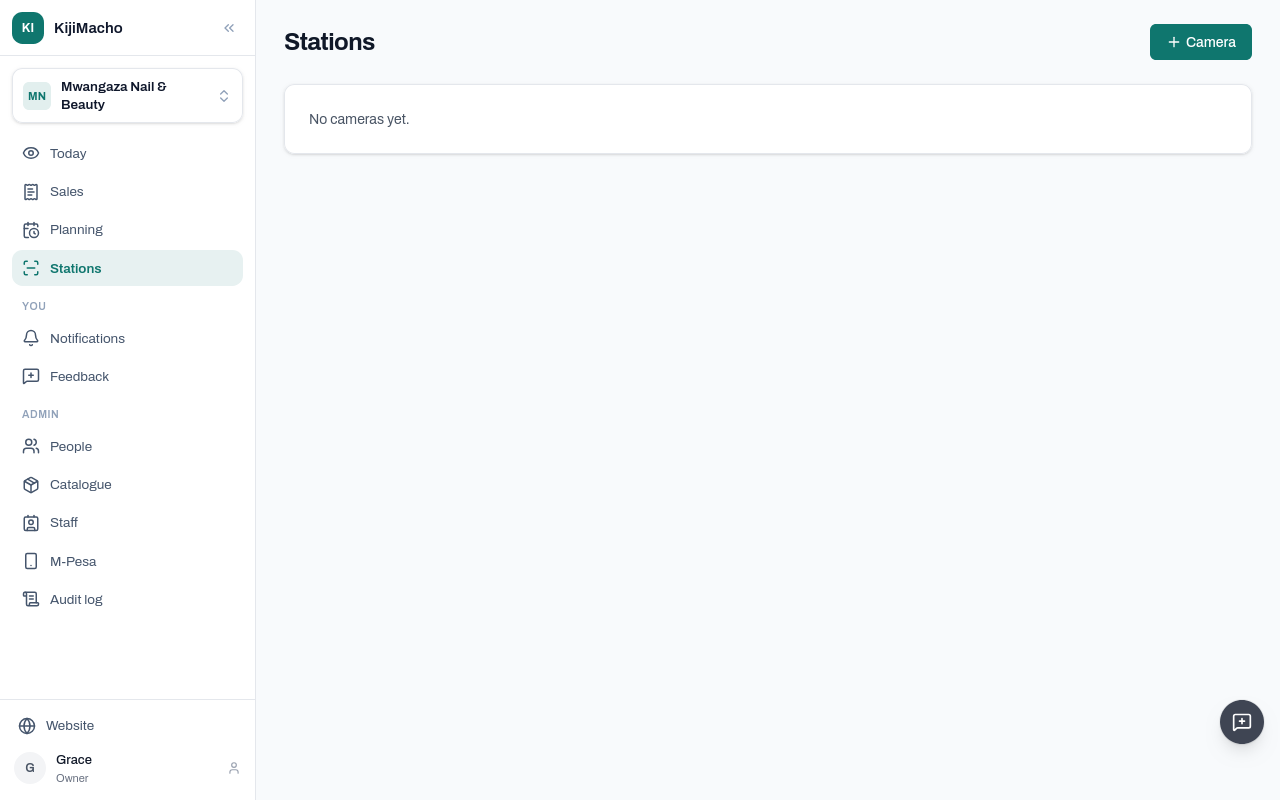
To add the camera, choose Camera.
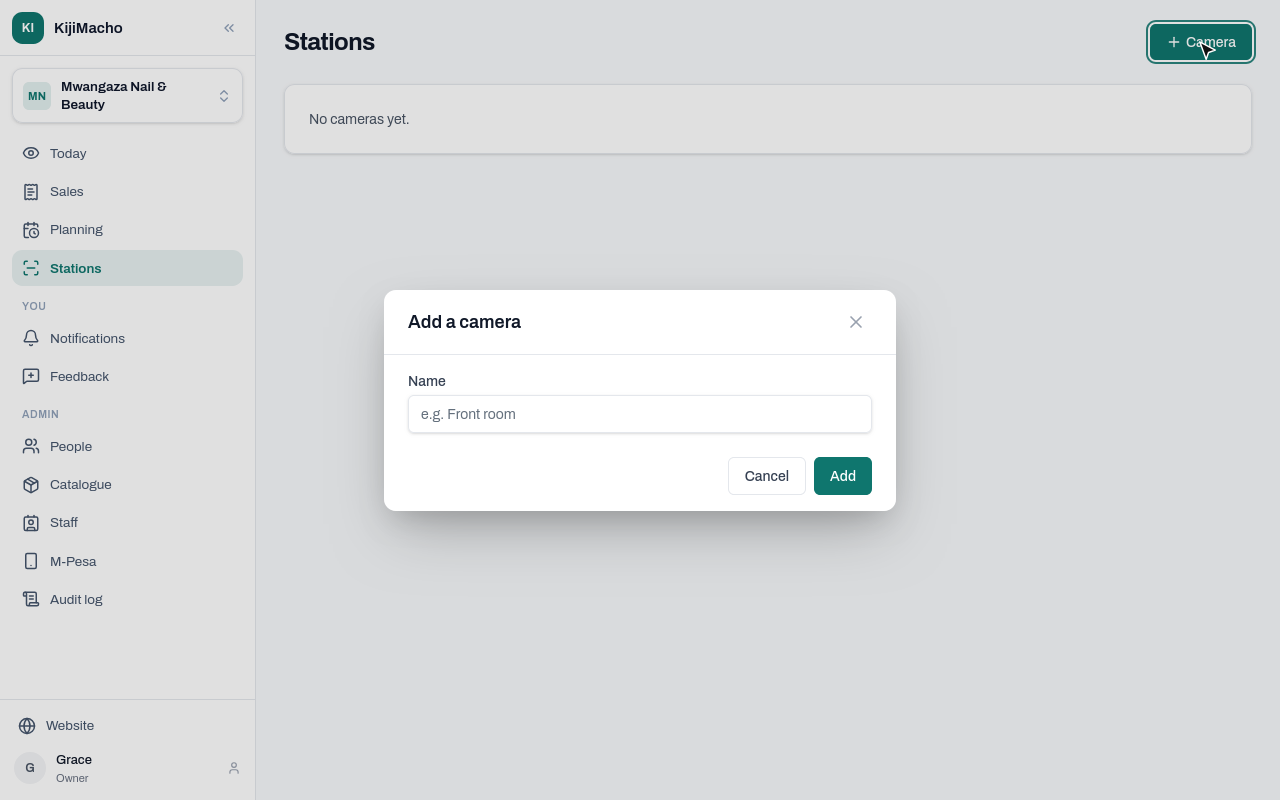
Name it after where it looks.
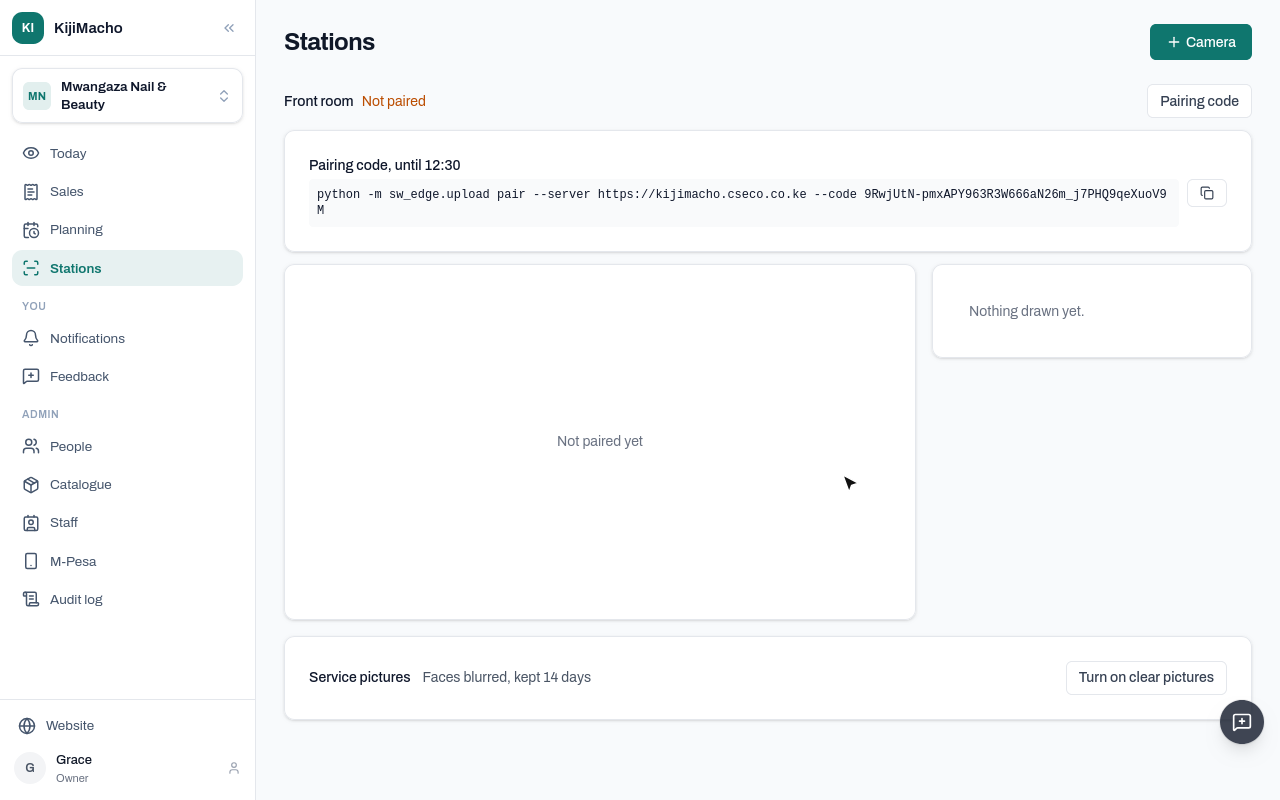
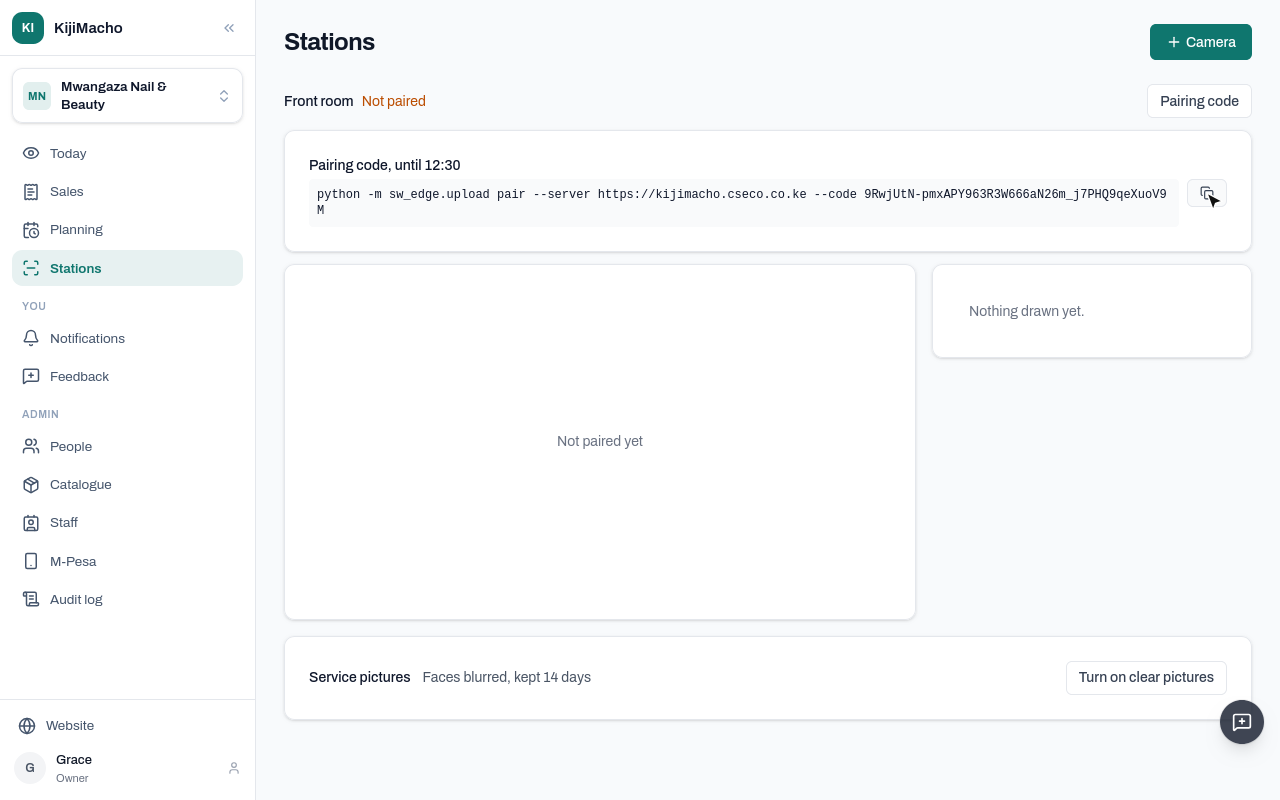
KijiMacho gives a pairing code. Whoever sets up the box runs this line on it, once, before the time shown.
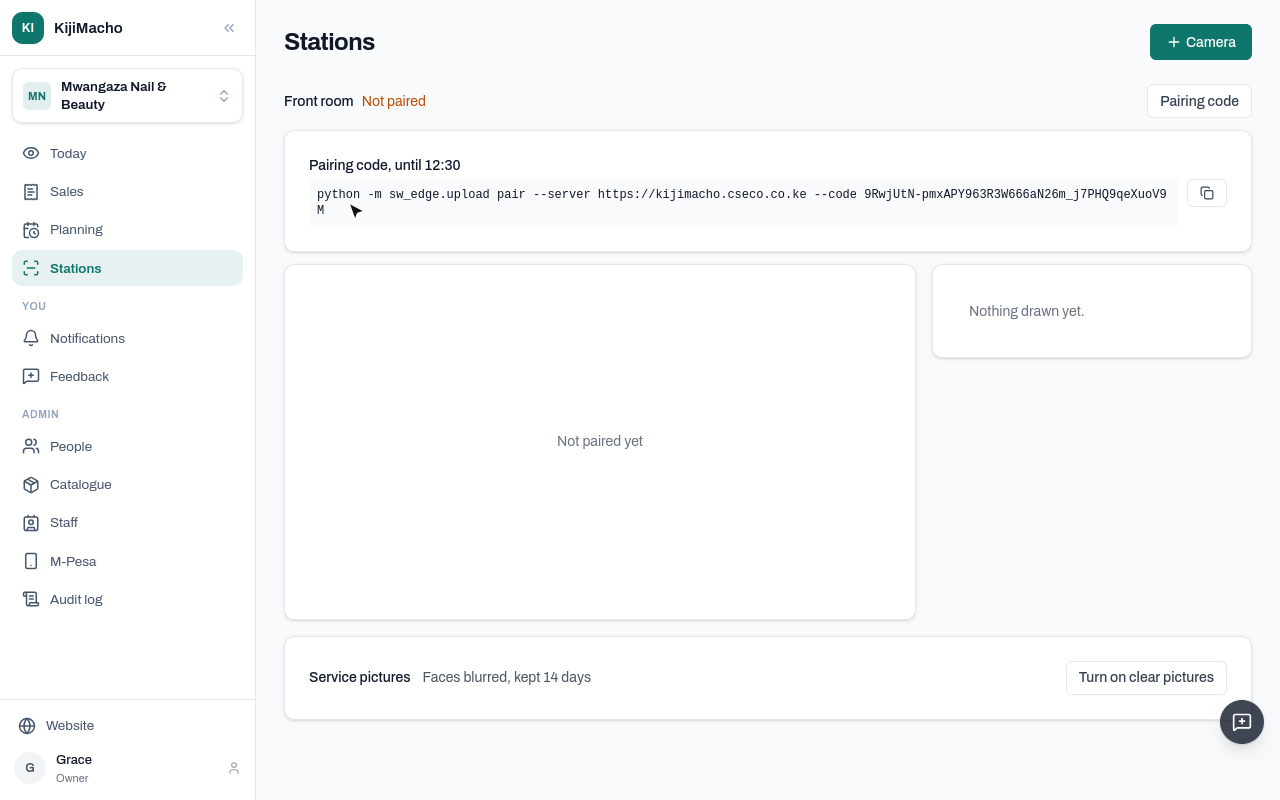
The copy button copies it.
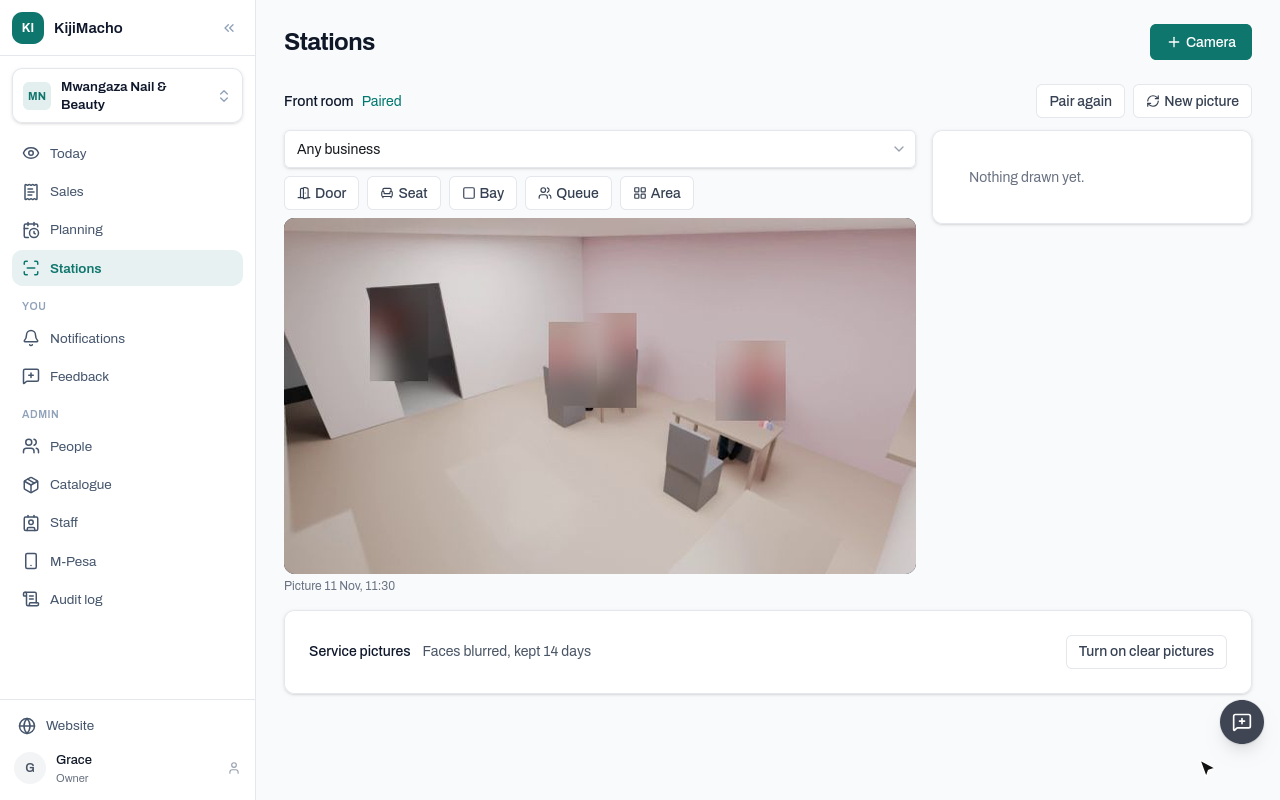
The box is paired, and it has sent a picture of the room. People in it are blurred by the box before it sends it.
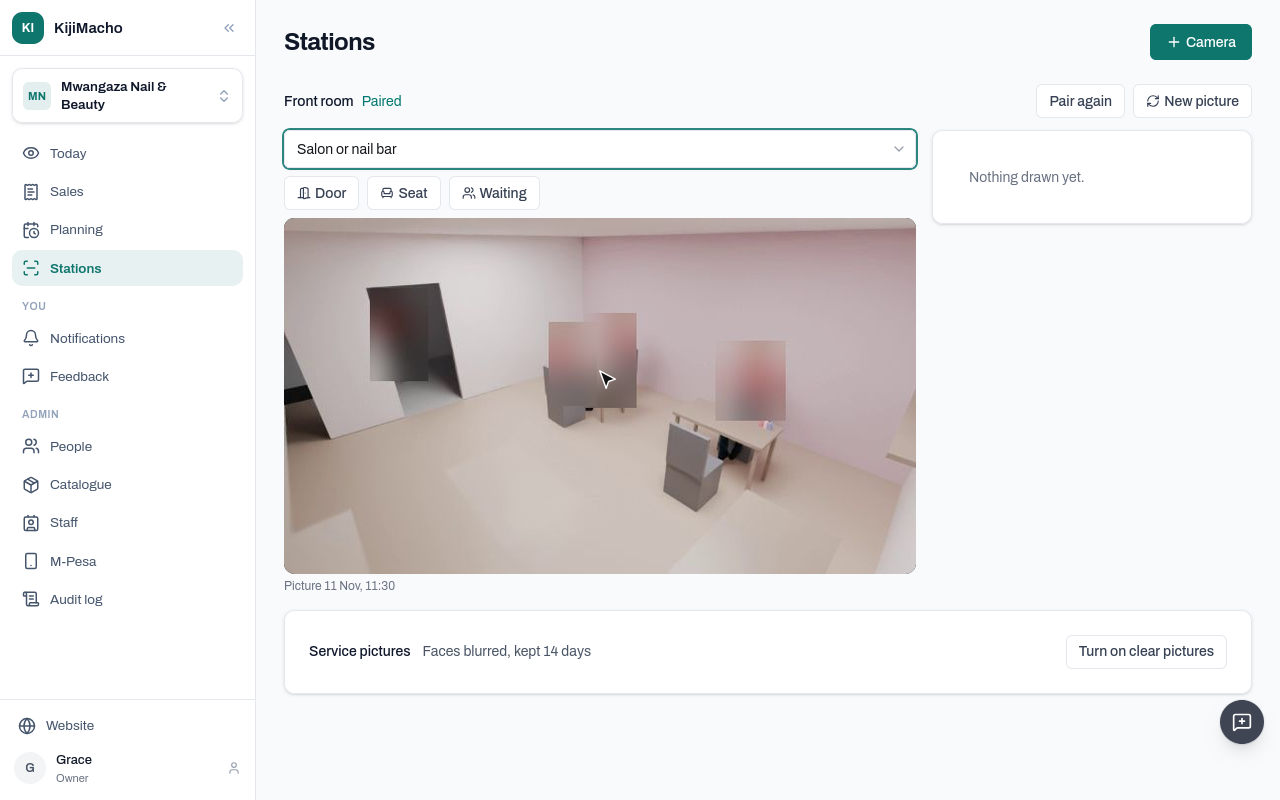
First, the kind of business: a salon or nail bar. It sets what you can draw.
The door is a line across the doorway: choose Door, then click one end and the other.
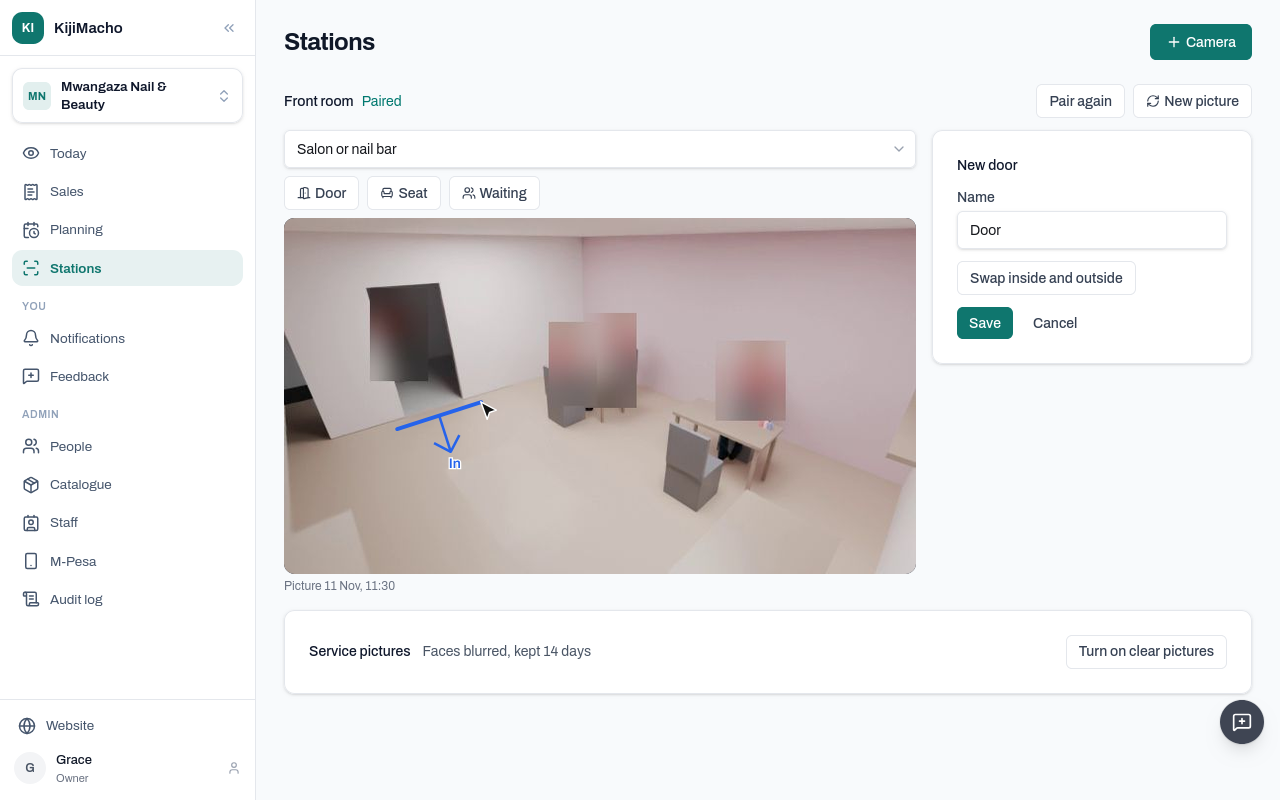
The arrow marks the inside. Each time someone crosses the line inwards, they are counted in. If the arrow points out, swap it.
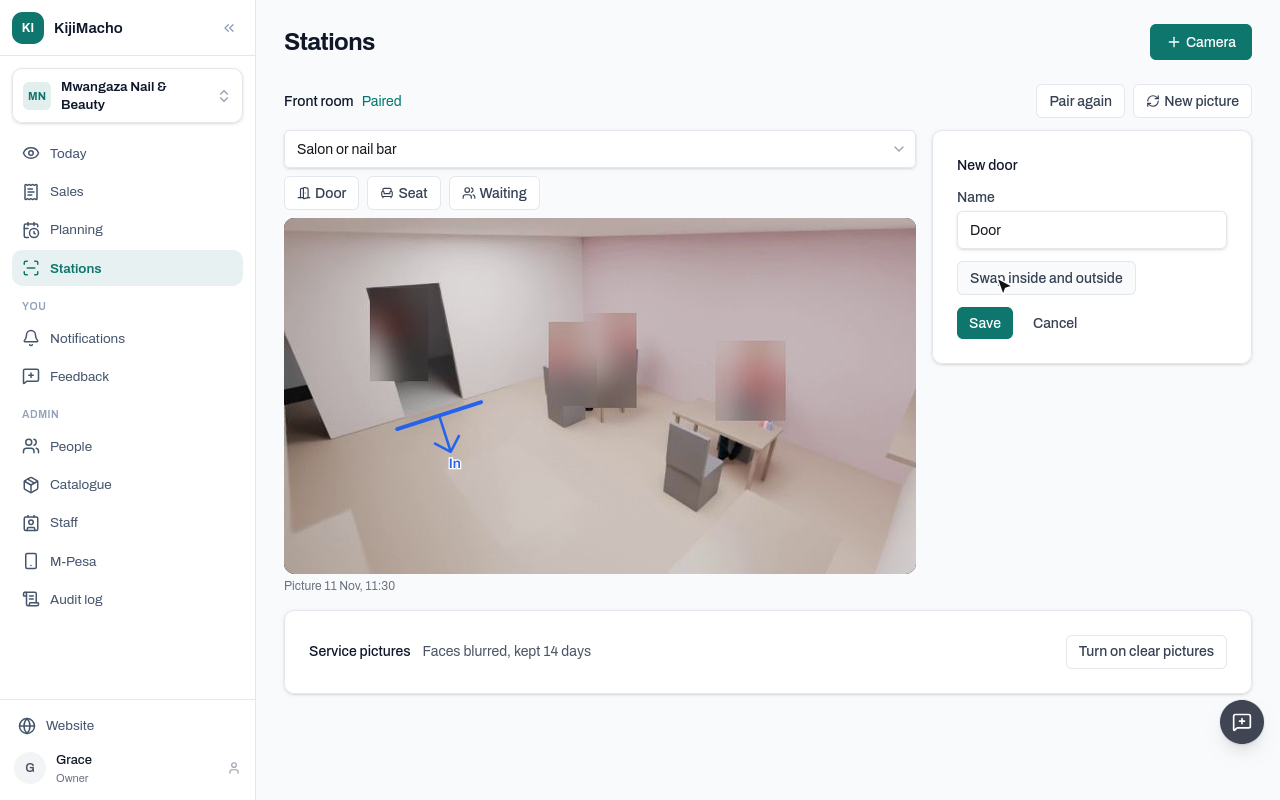
Choose Save.
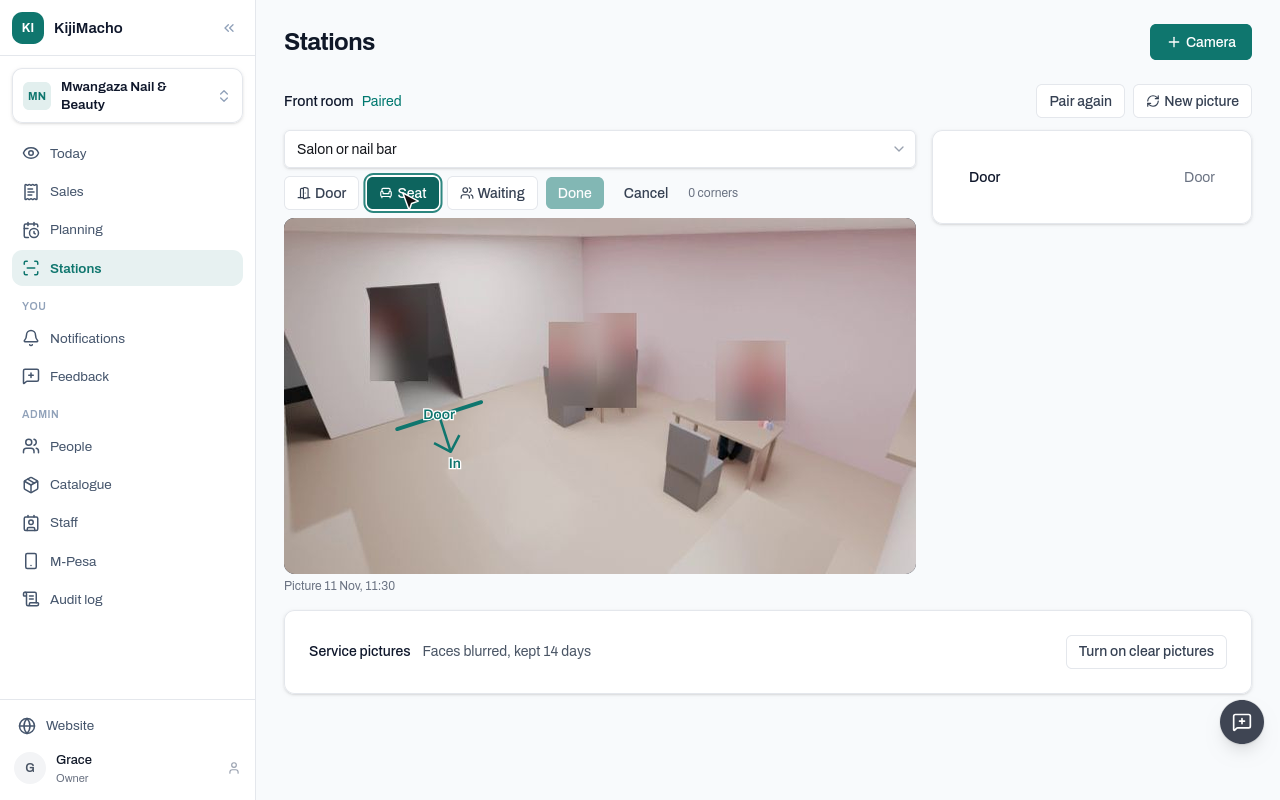
For a seat, choose Seat and click round it, corner by corner: the chair and the table, where the customer sits. Choose Done when it is closed.
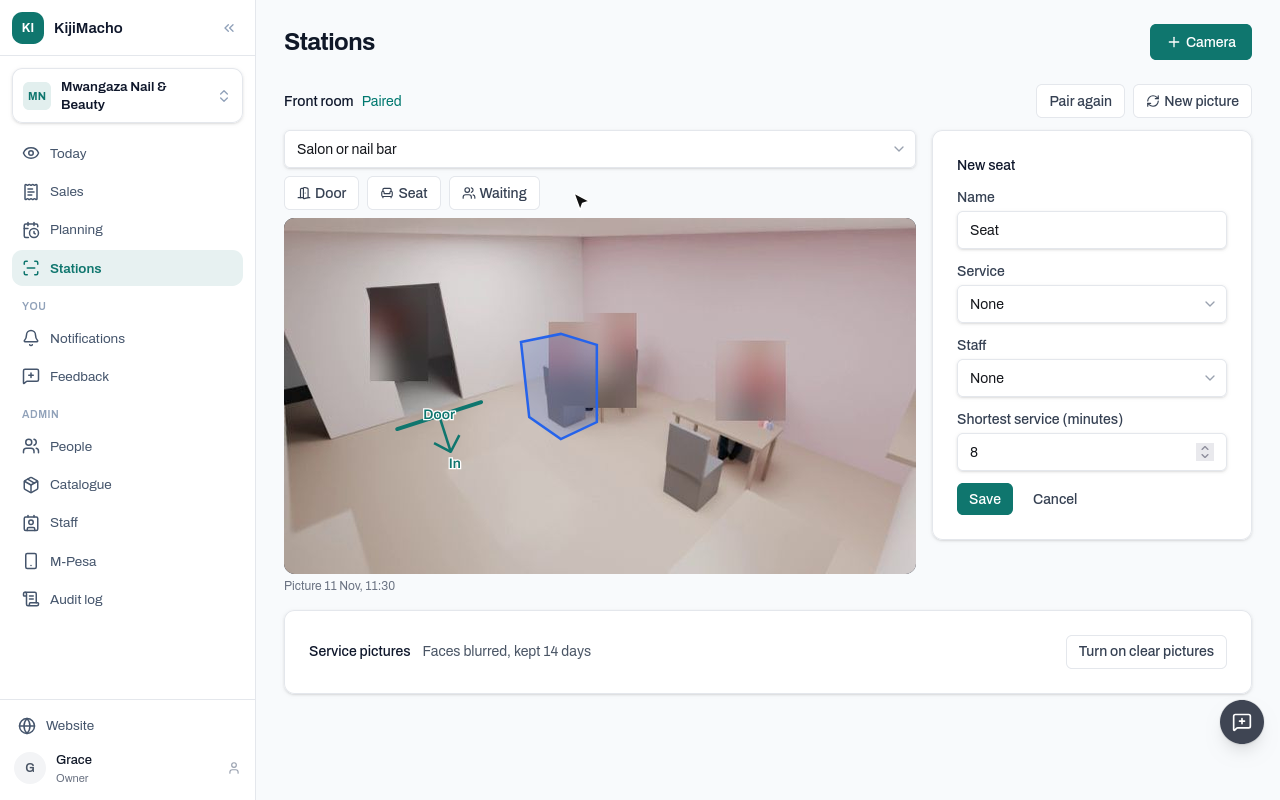
Give it a name, the service it stands for, and who works there.
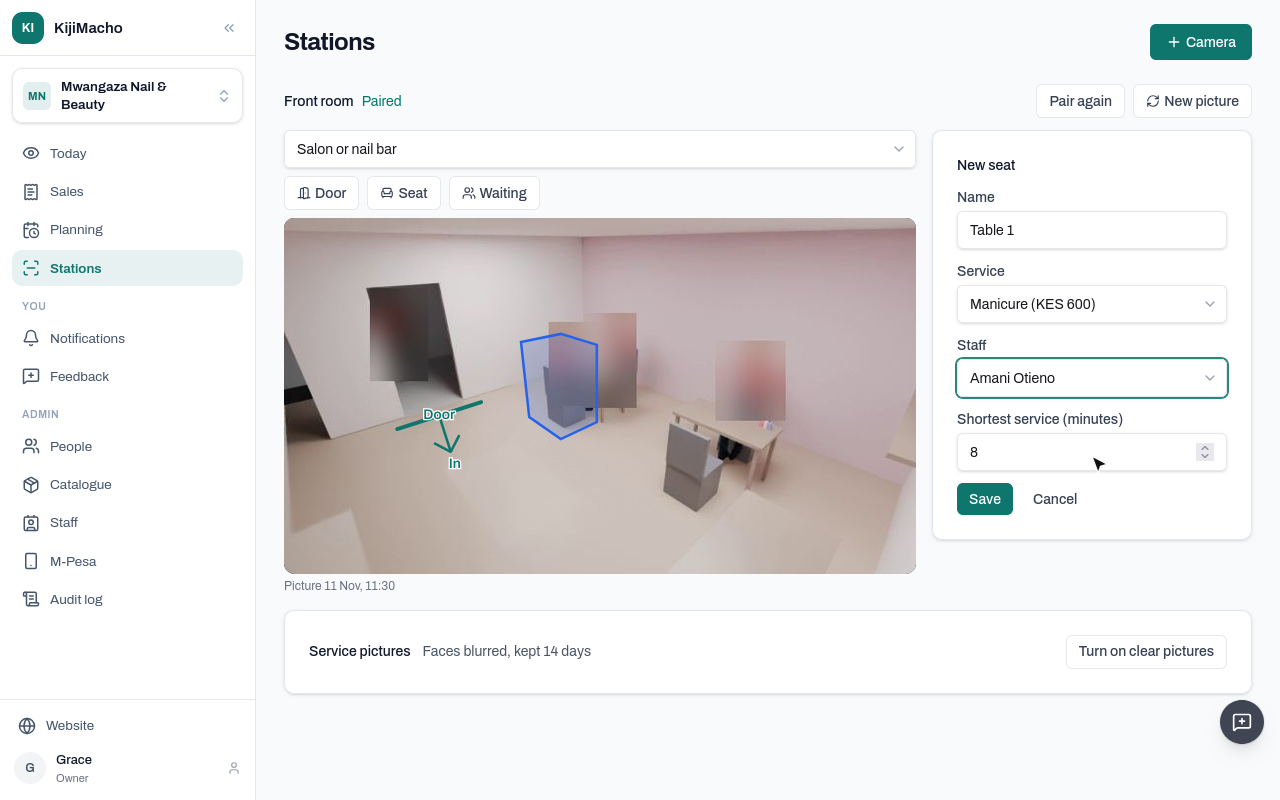
Shortest service is the shortest a real service takes there, so someone who only passes the seat isn't counted. A manicure takes at least ten minutes.
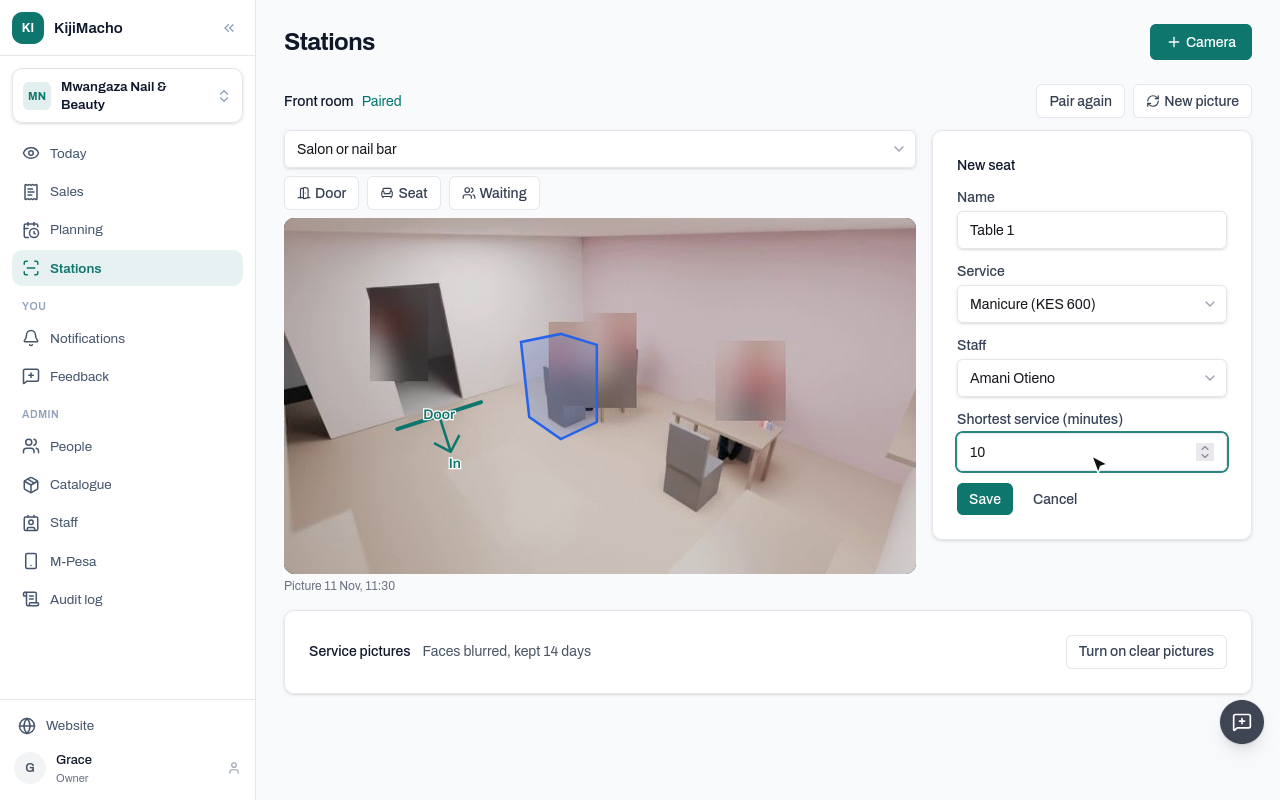
Choose Save.
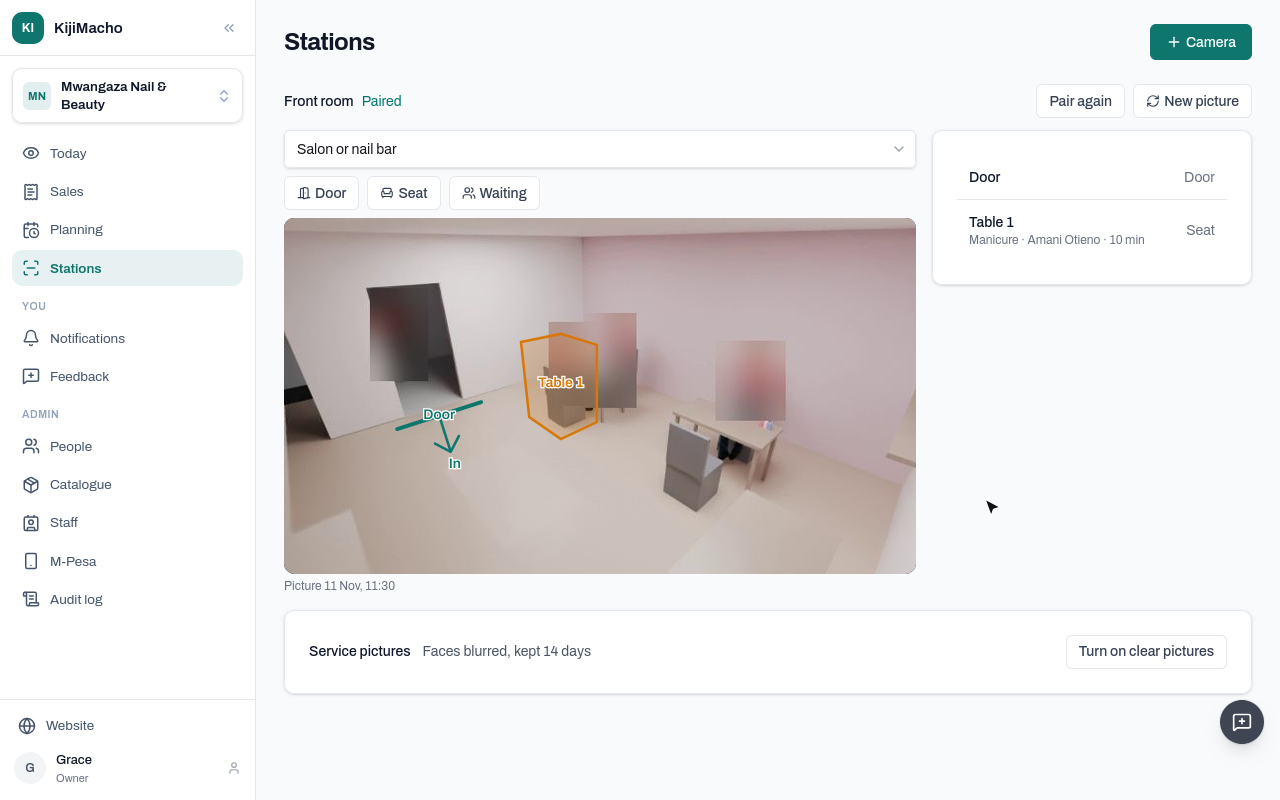
Table 2 is Neema's, for pedicures.
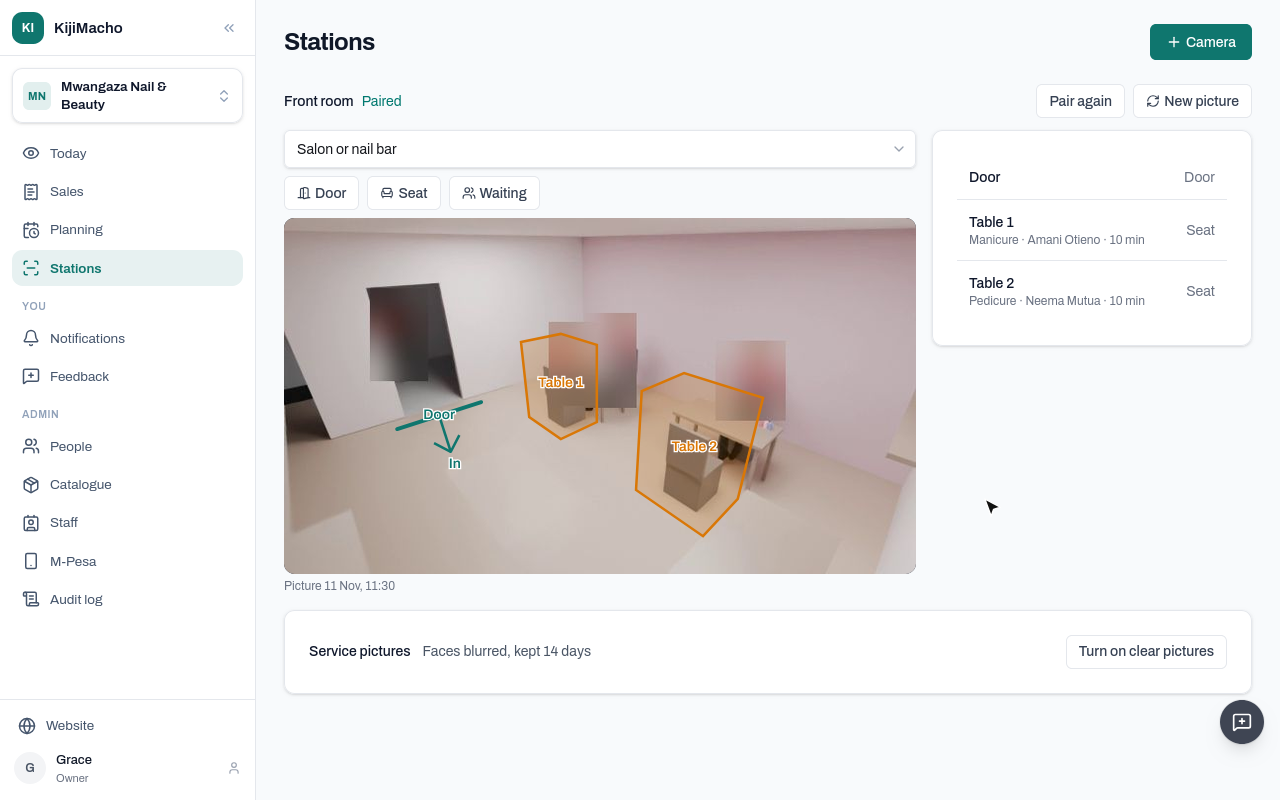
The list shows what the camera watches. Choose one to change it.
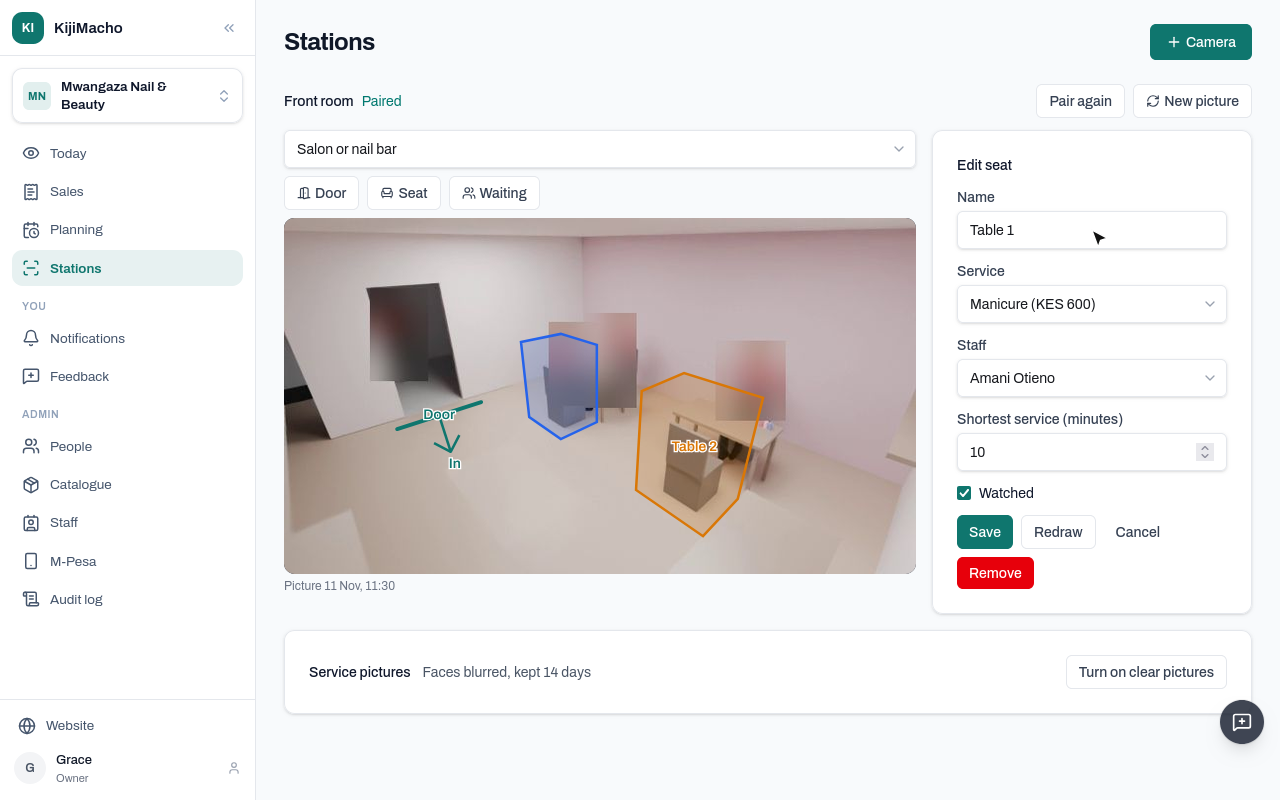
Redraw moves it. Untick Watched to stop counting it for a while; Remove takes it away.
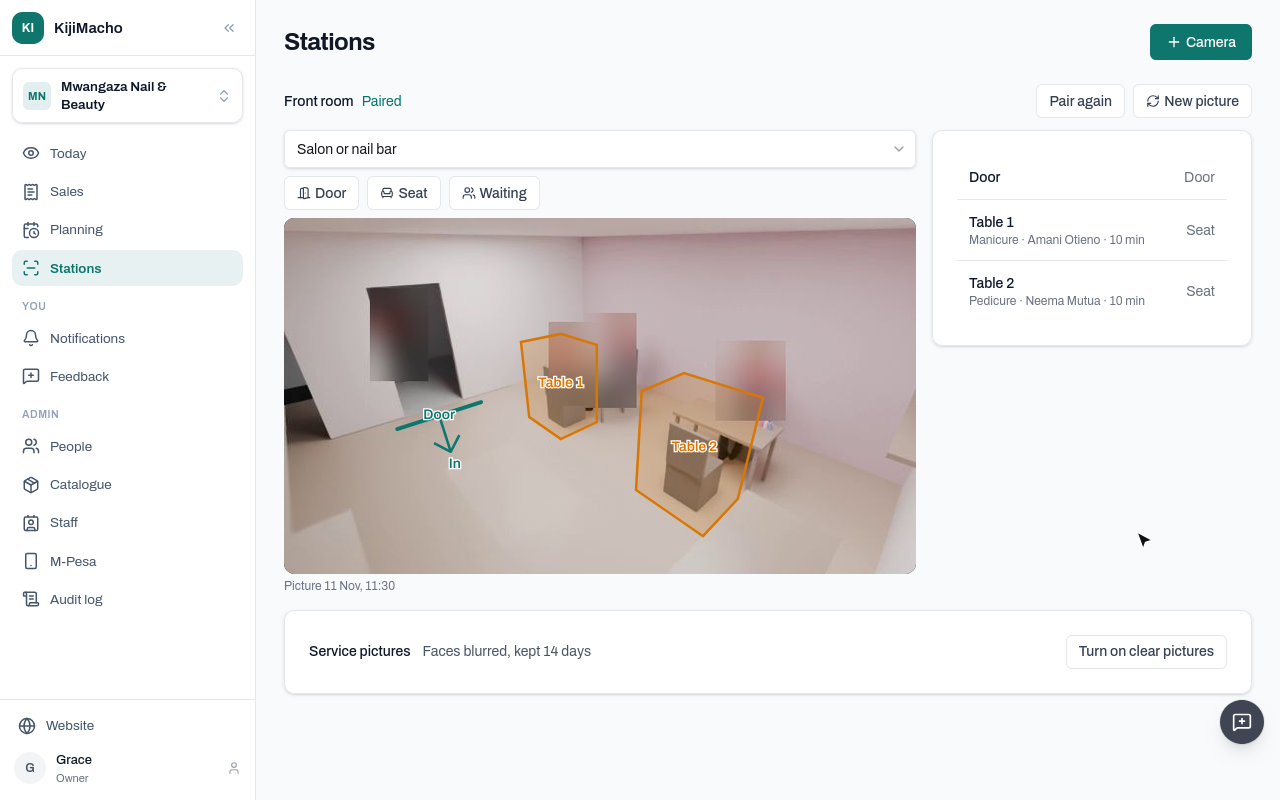
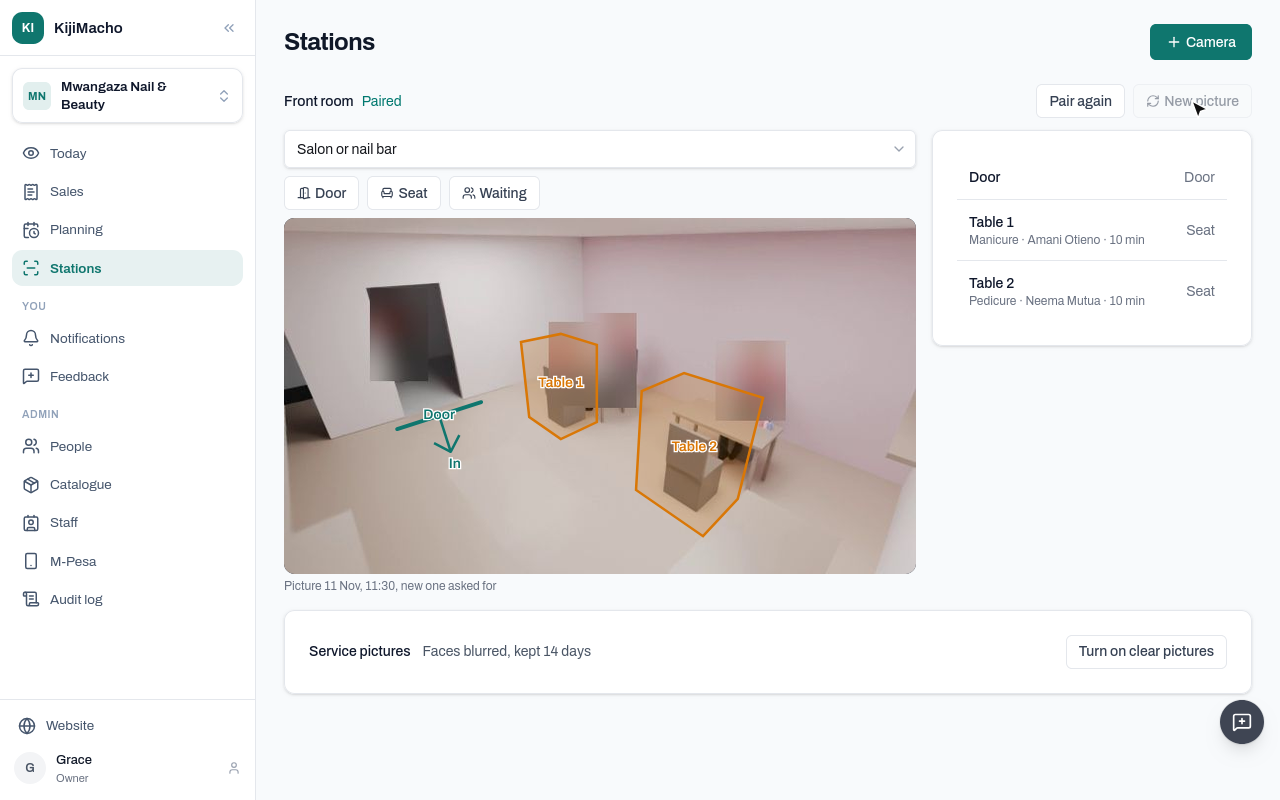
If the camera is moved, New picture asks the box for a fresh one. It comes the next time the box checks in.
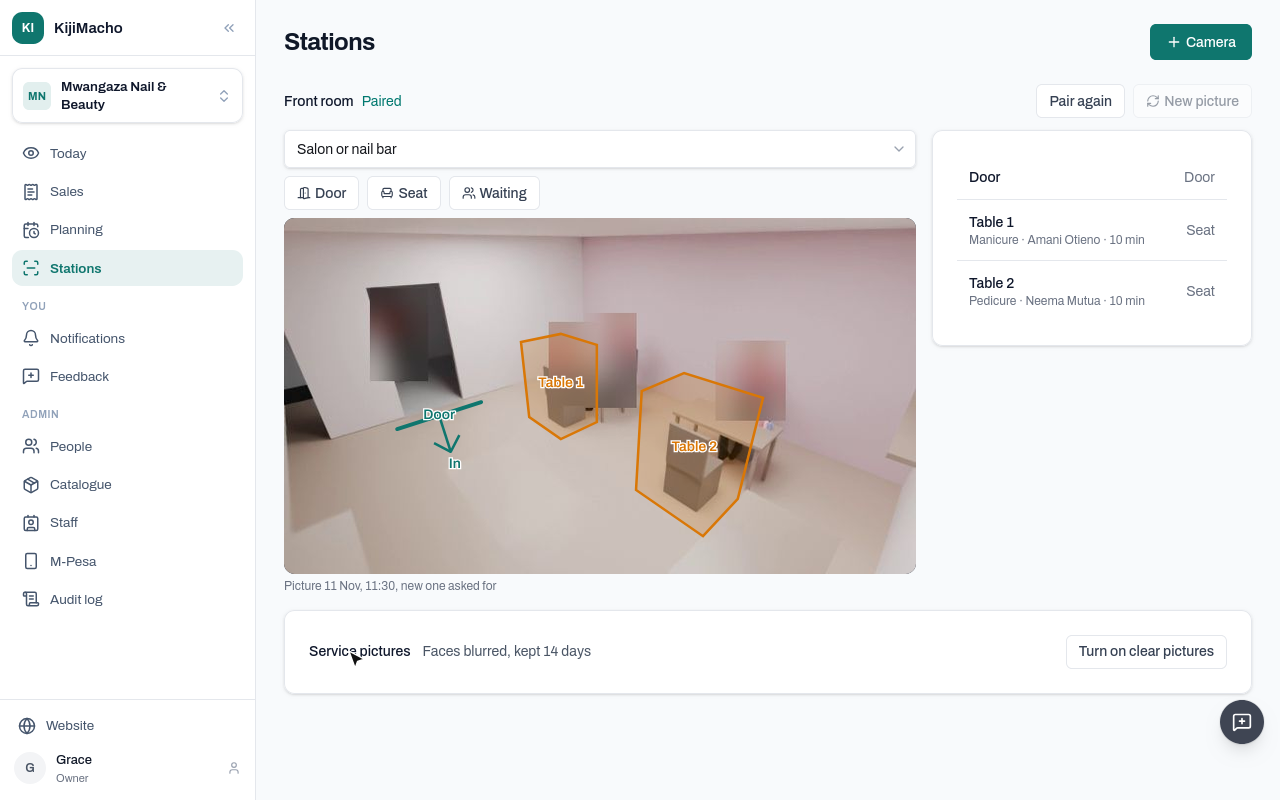
Under the picture: service pictures blur faces, and are kept for fourteen days. More on that later.
Chapter 4
Each sale: the service, who did it, and how it was paid
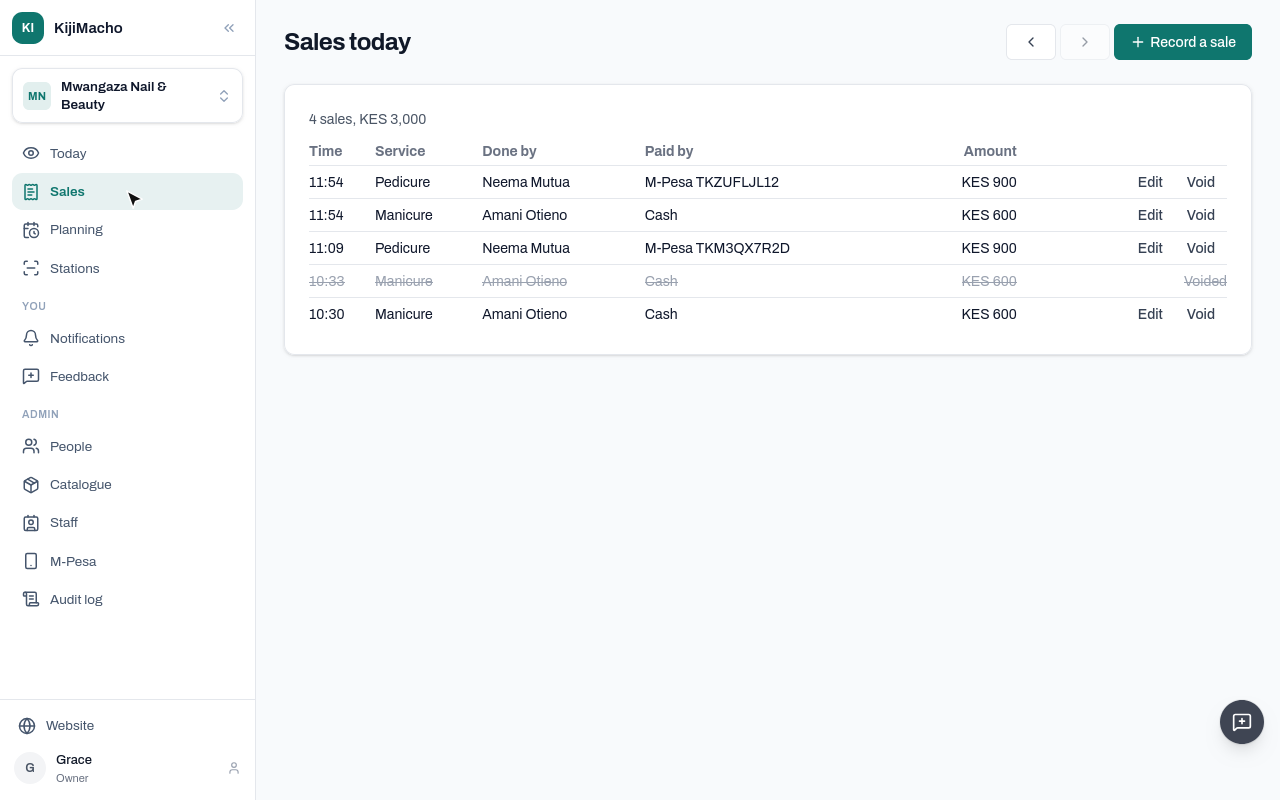
Sales is the counter's book for the day: each sale, the service, who did it, and how it was paid.
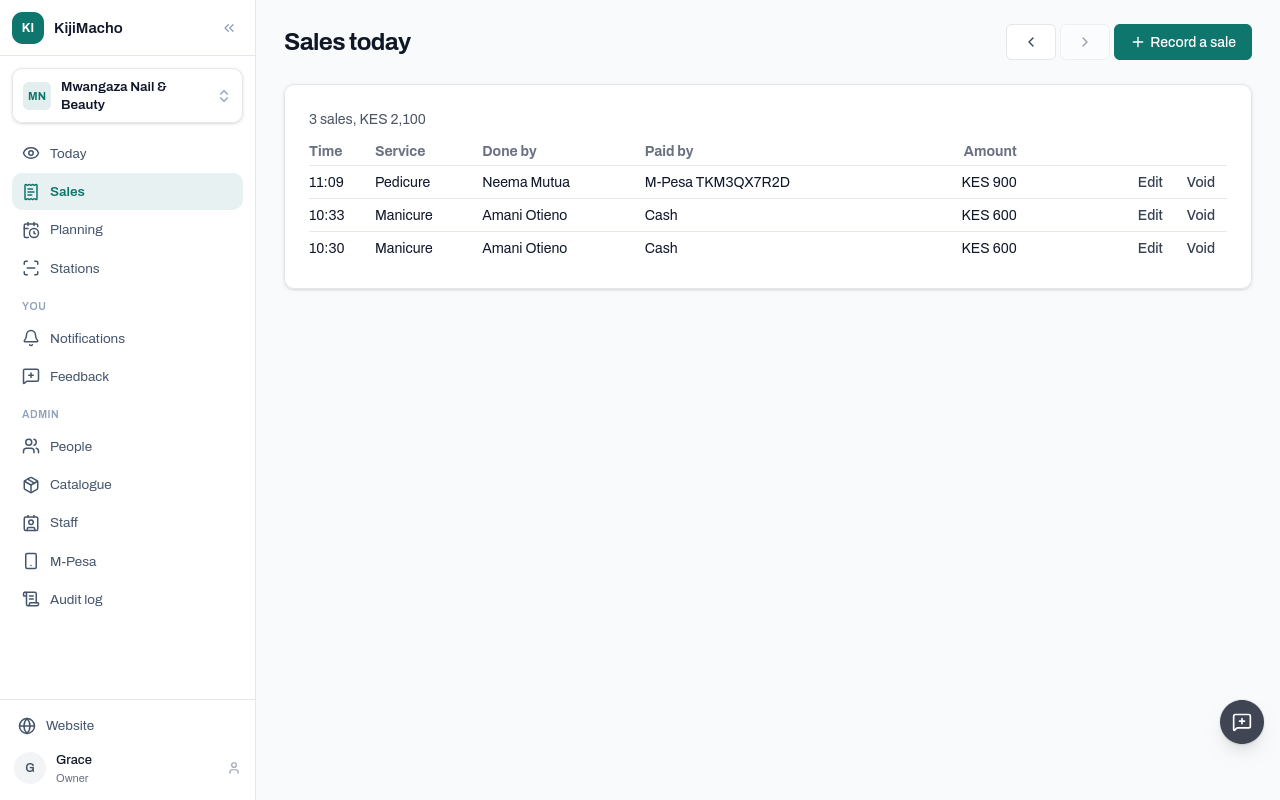
These are this morning's. KijiMacho sets them against what the camera saw.
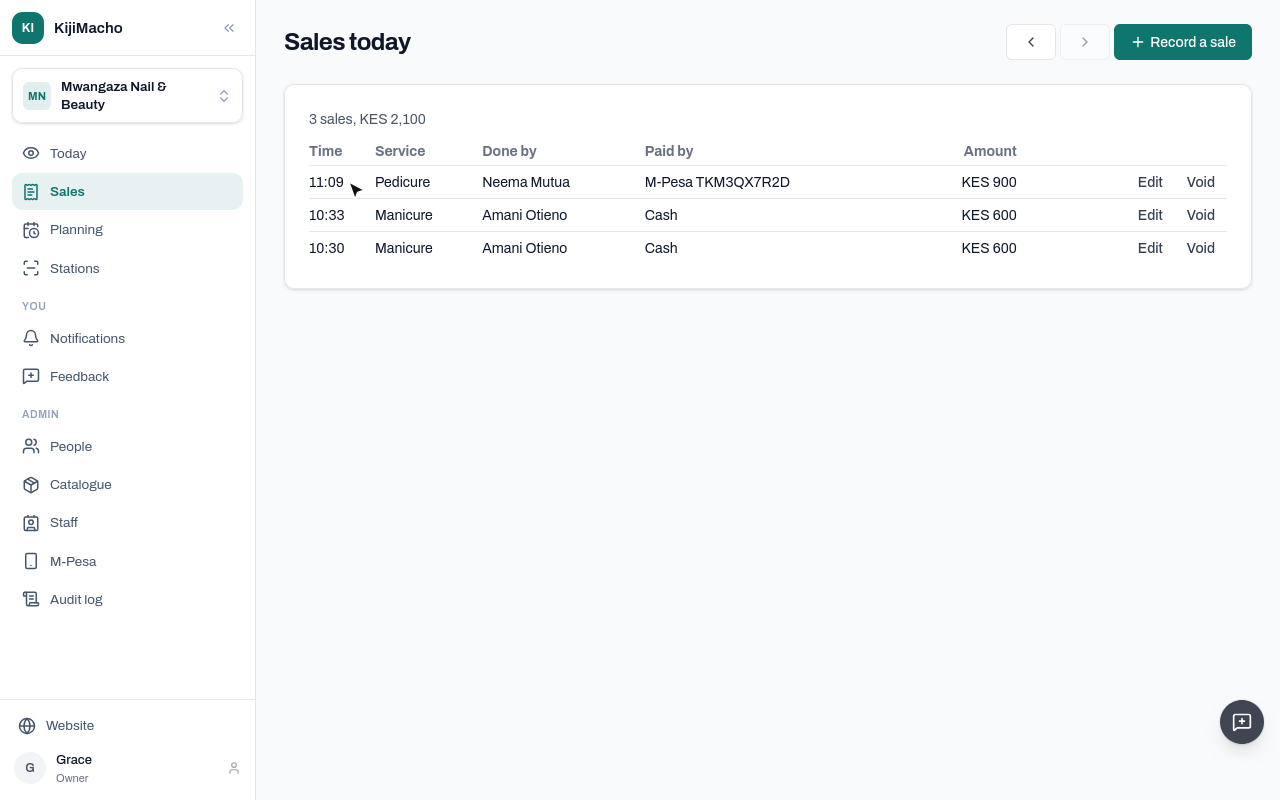
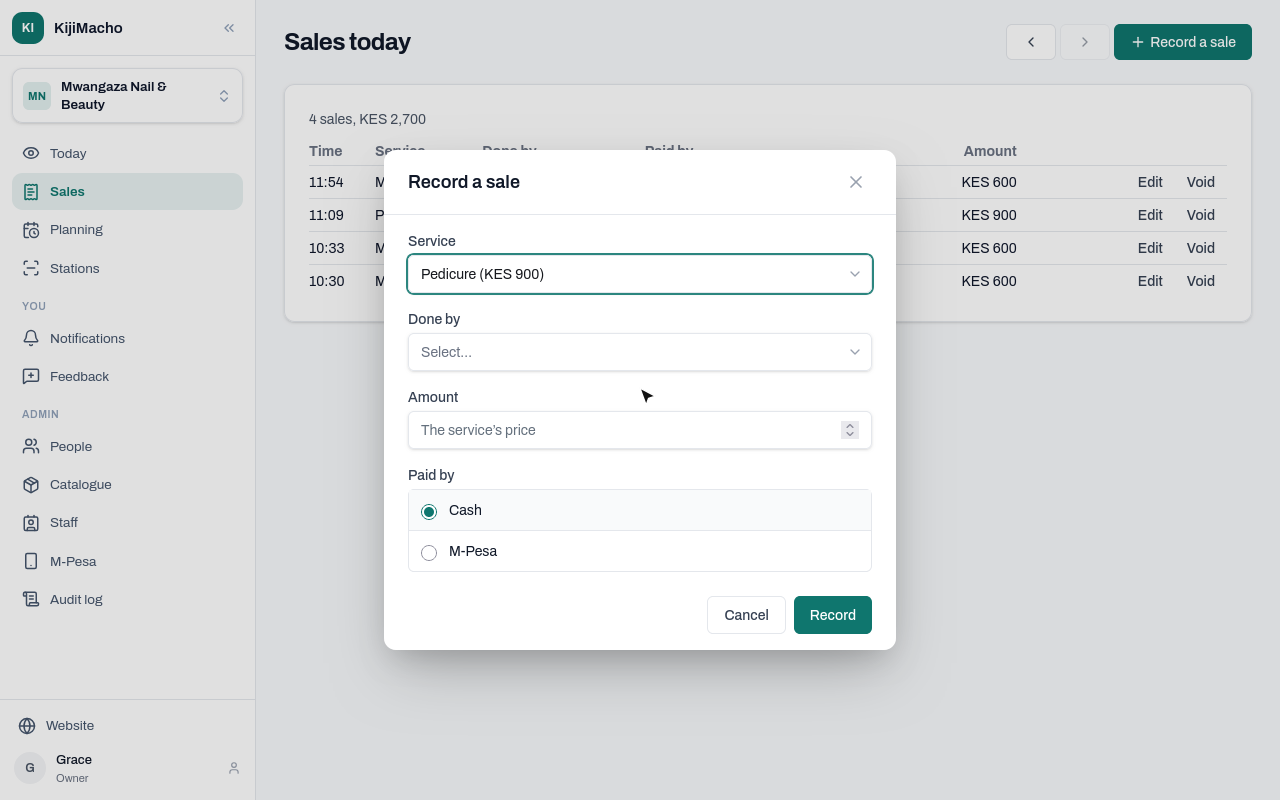
Amani has just finished a manicure, and the customer pays cash. Choose Record a sale.
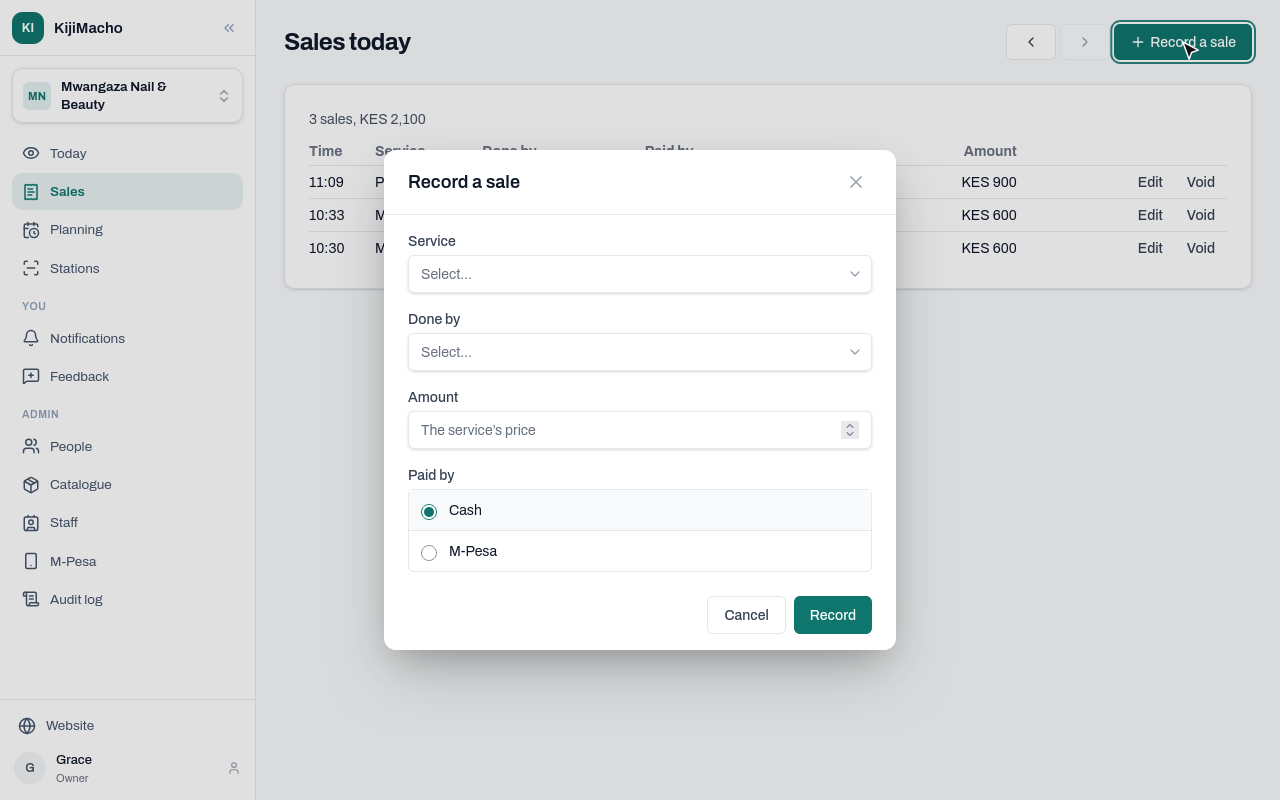
Pick the service, and who did it.
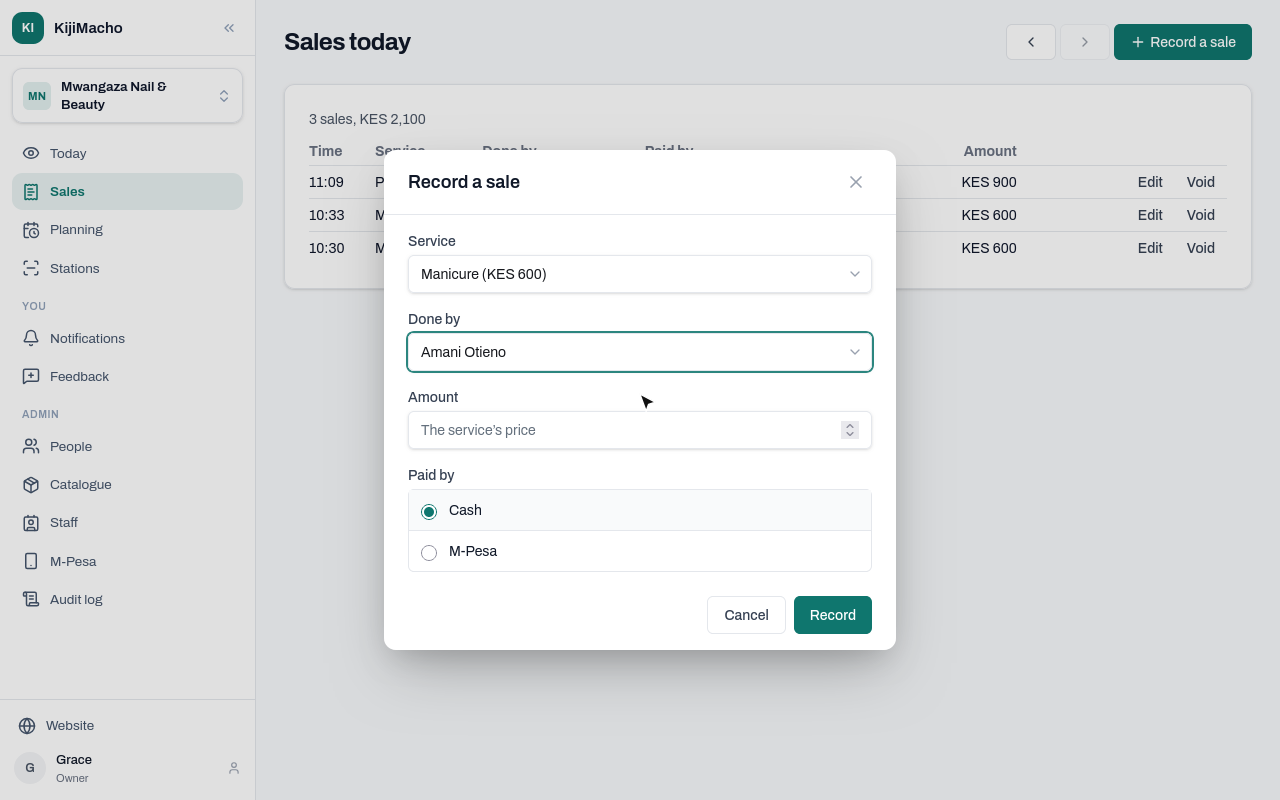
Leave the amount empty for the service's price, or type what was paid. Cash is already chosen.
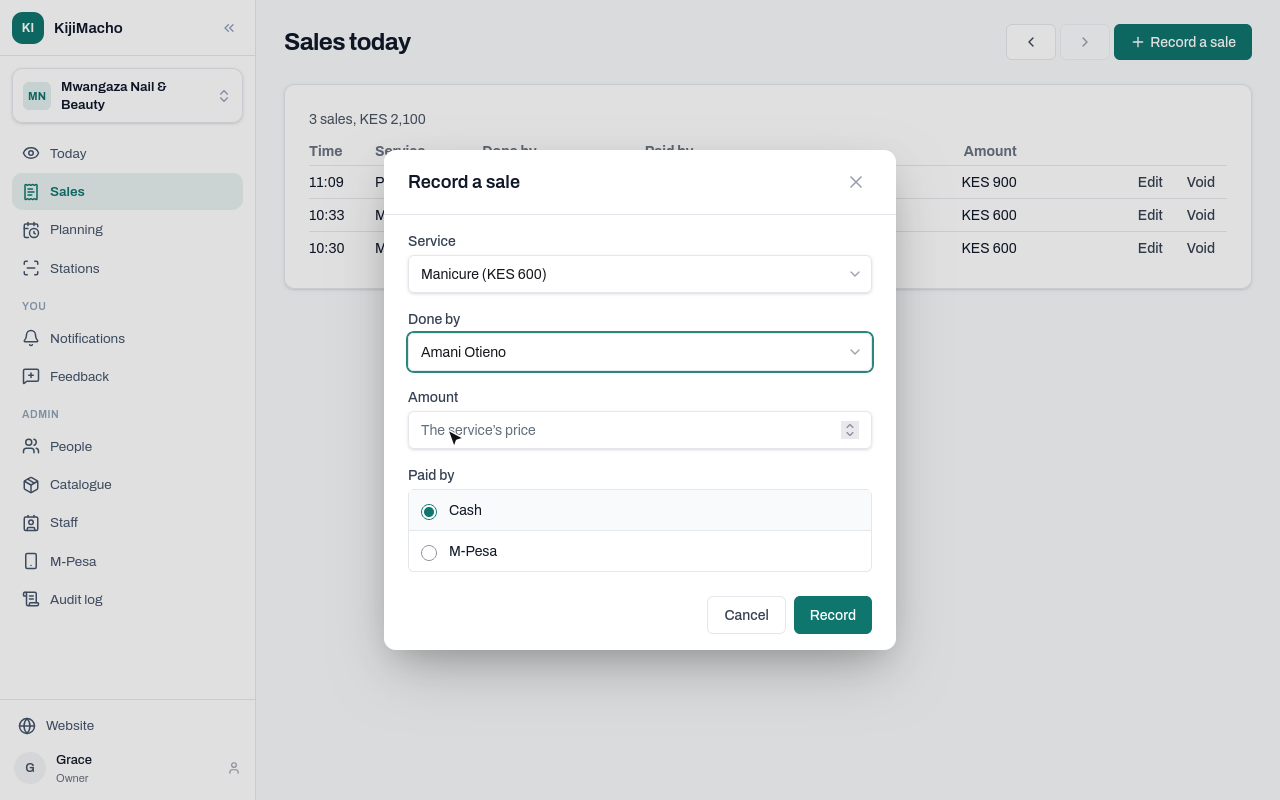
Choose Record.
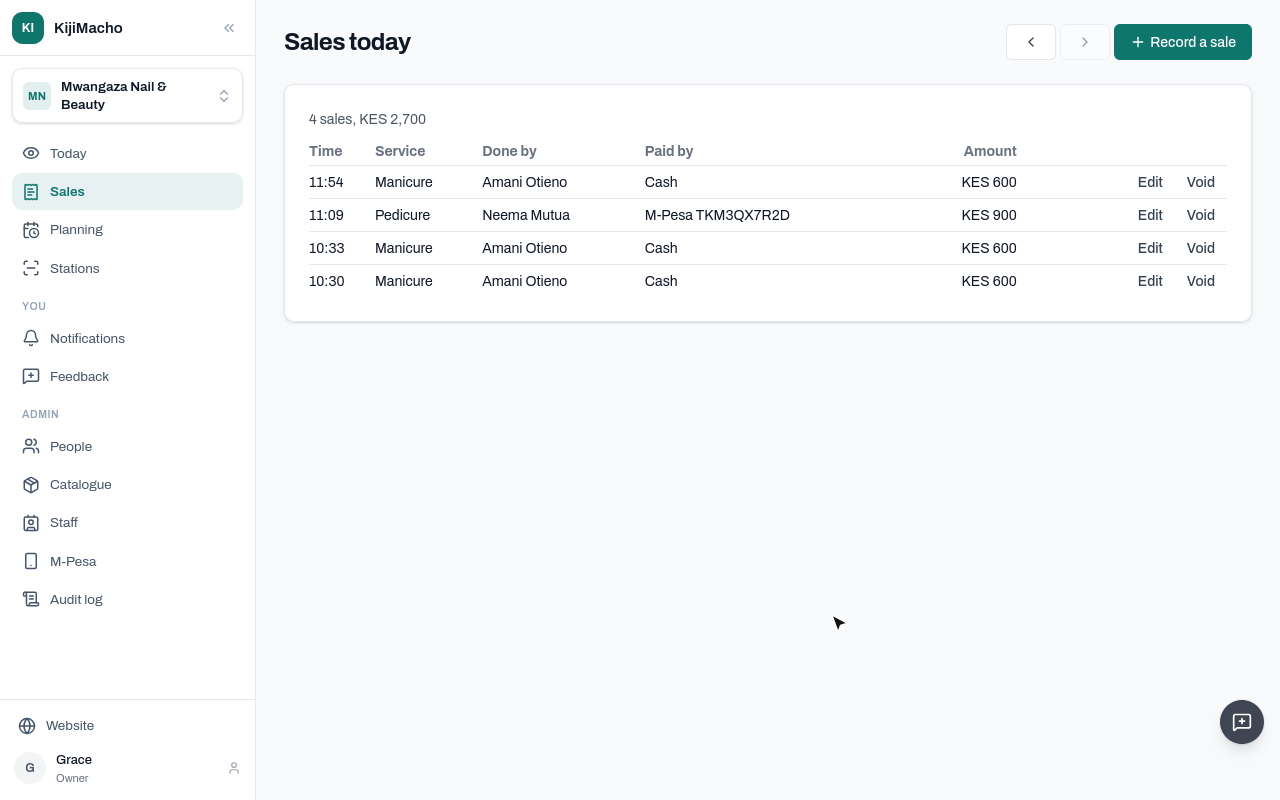
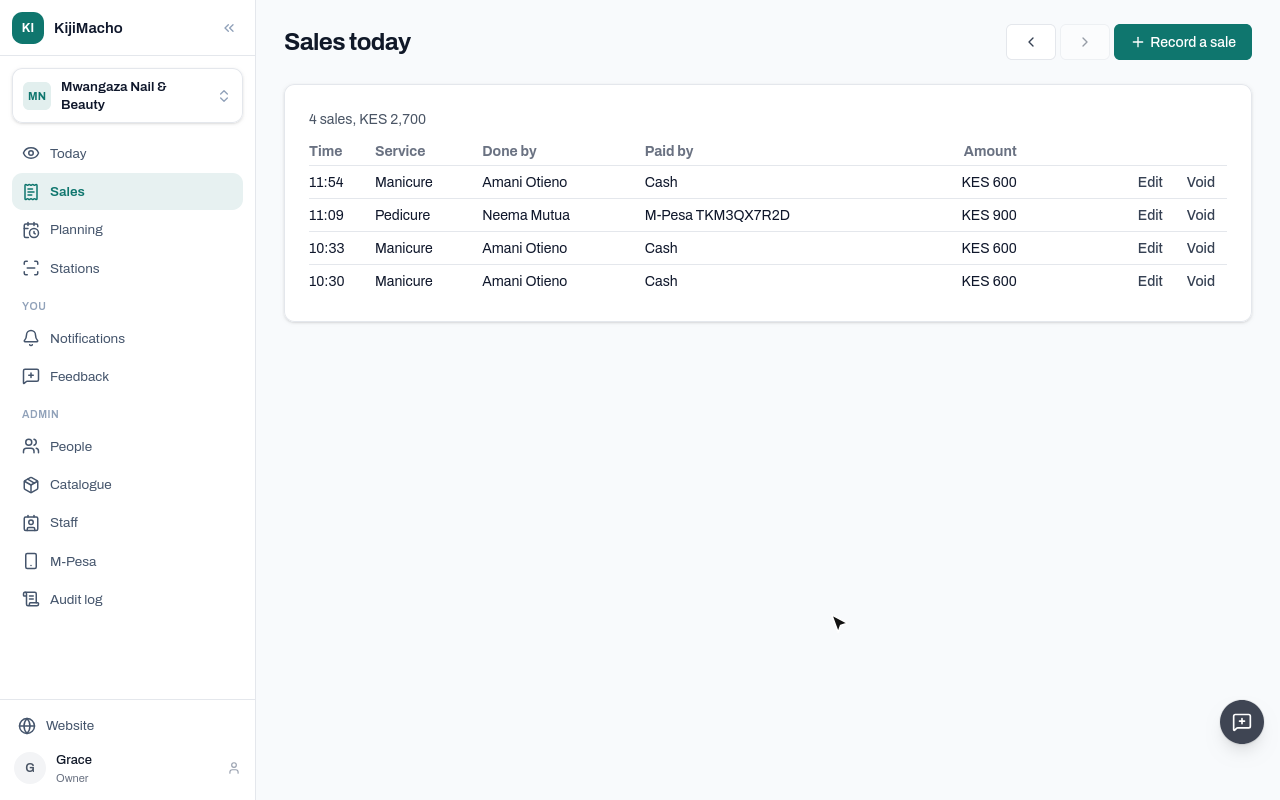
It is at the top of the list, with the time.
Neema's pedicure customer paid by M-Pesa, and shows the message. Record a sale.
Choose M-Pesa, and type the code from the customer's message.
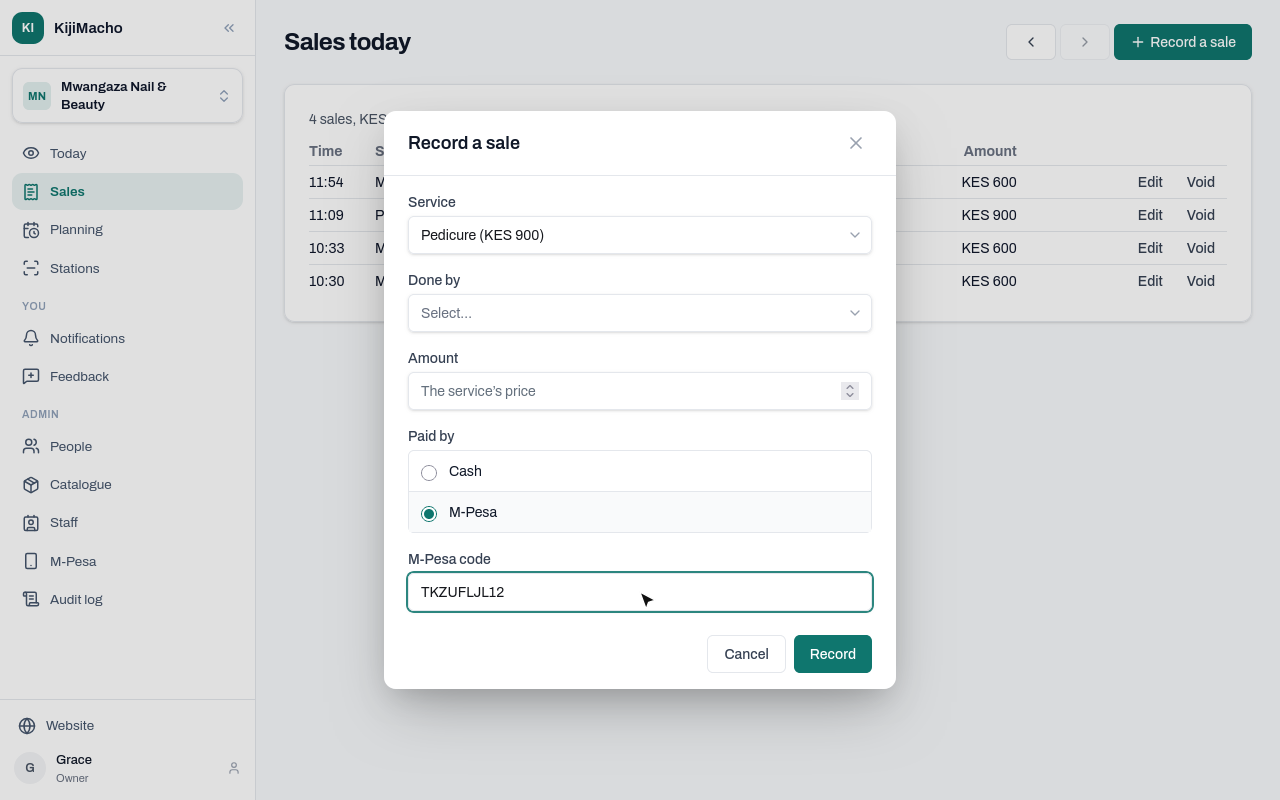
Today checks the code against the payments that came in on the till.
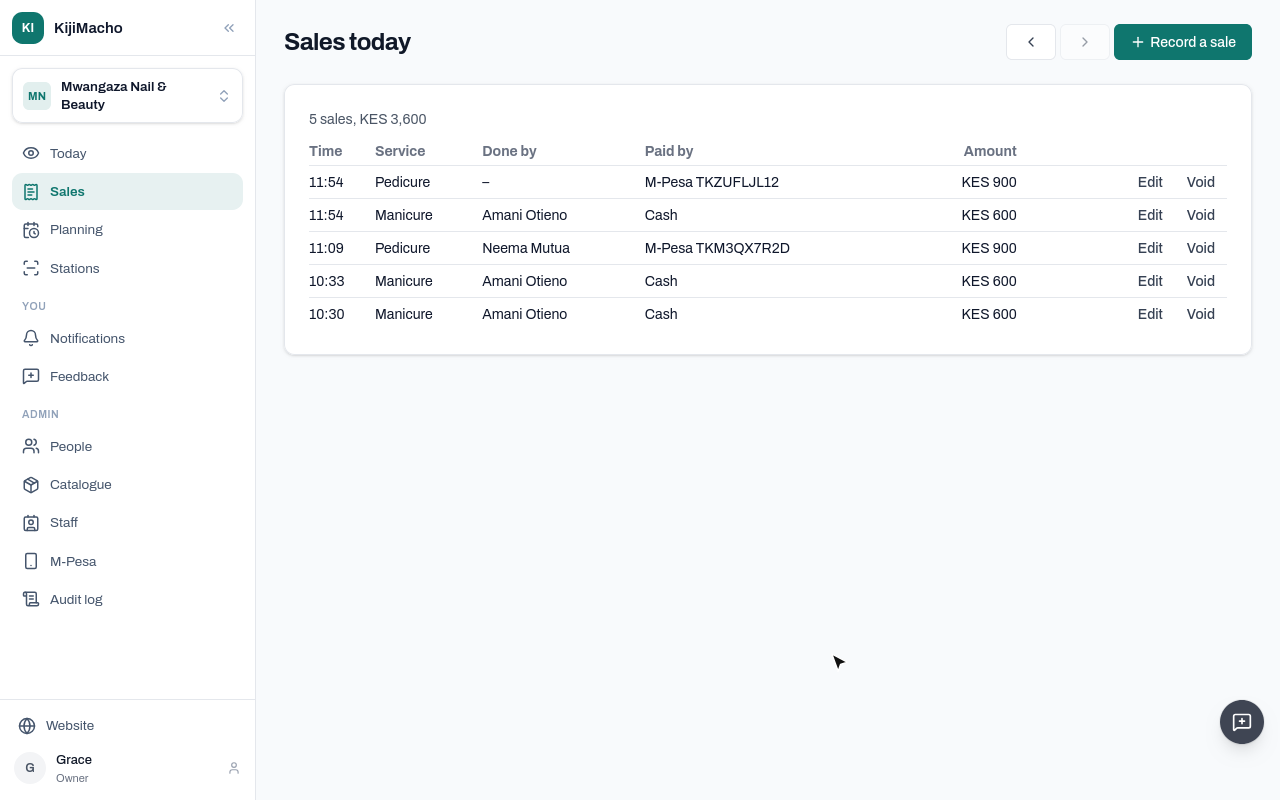
Who did it was left out. Choose Edit on the sale to change it.
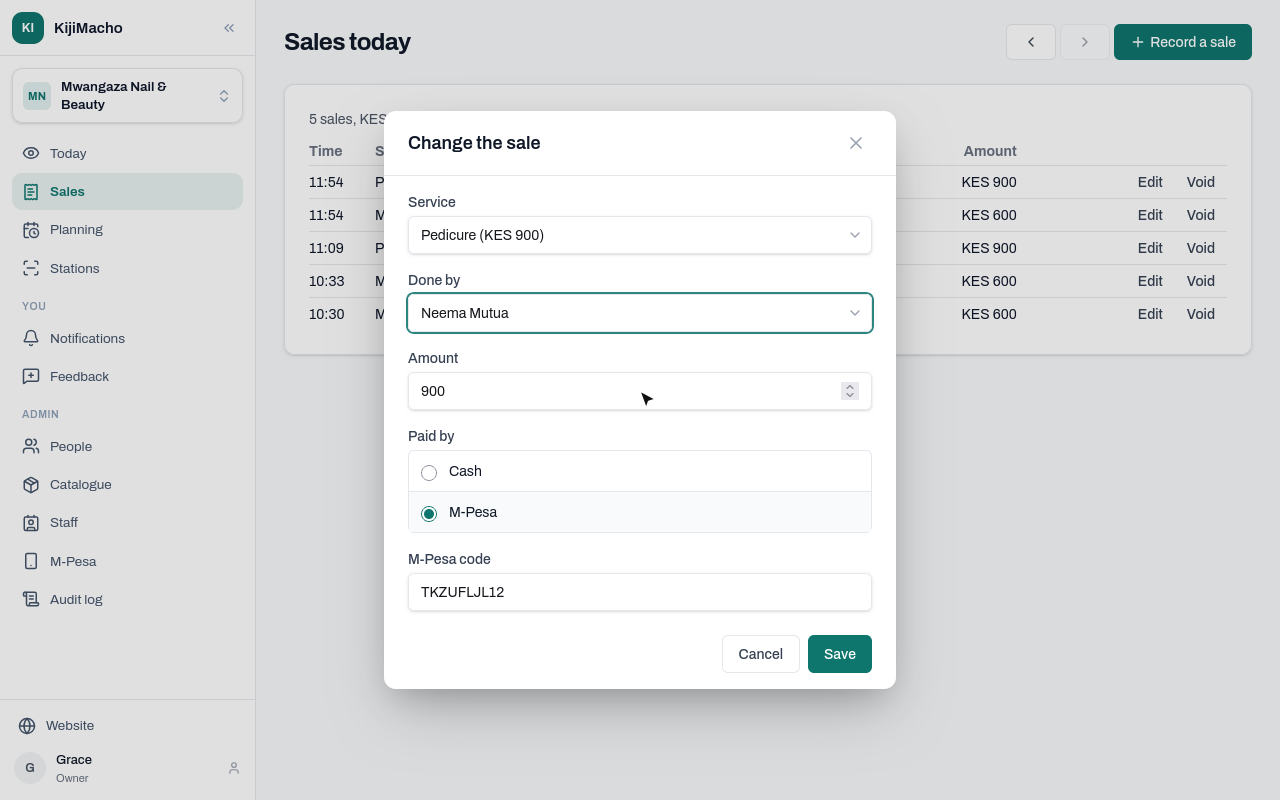
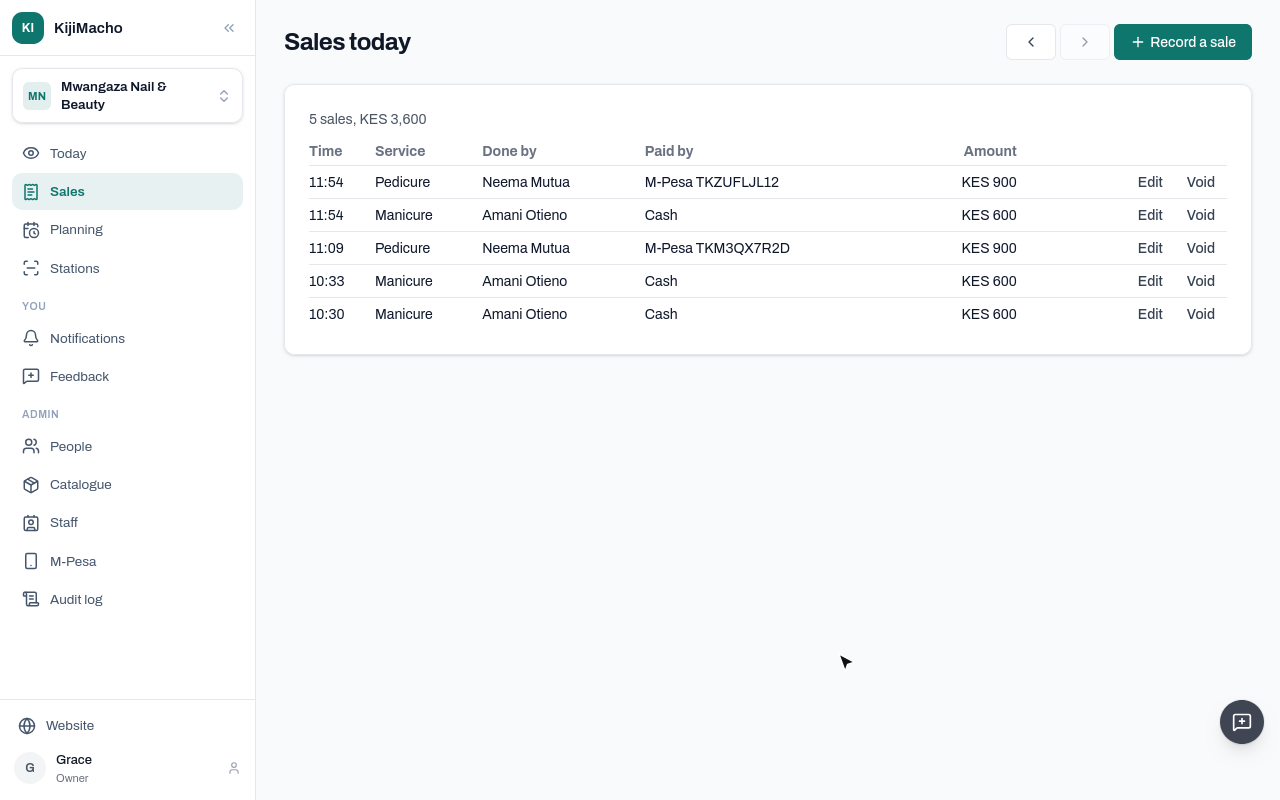
Pick Neema, and save.
This morning, one cash sale was recorded twice. A sale is never deleted: choose Void.
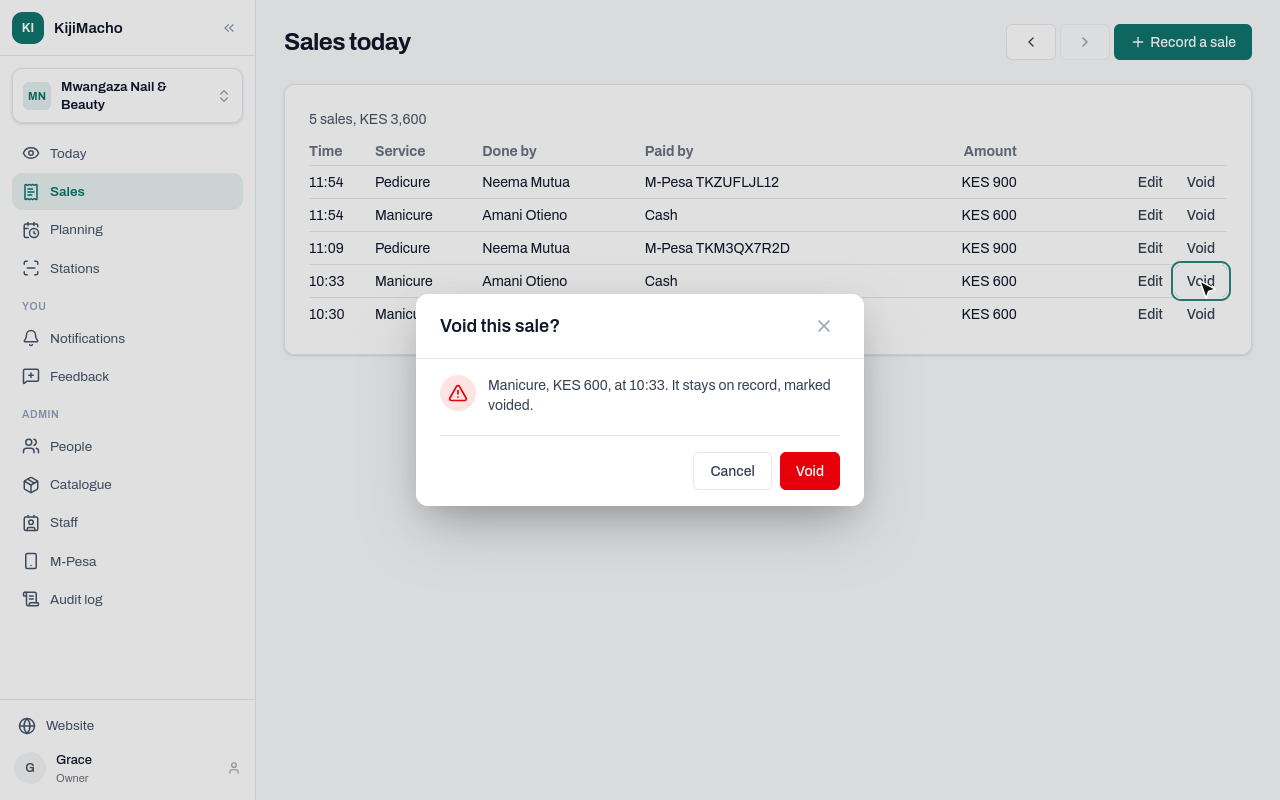
It stays on the list, crossed out, and stops counting.
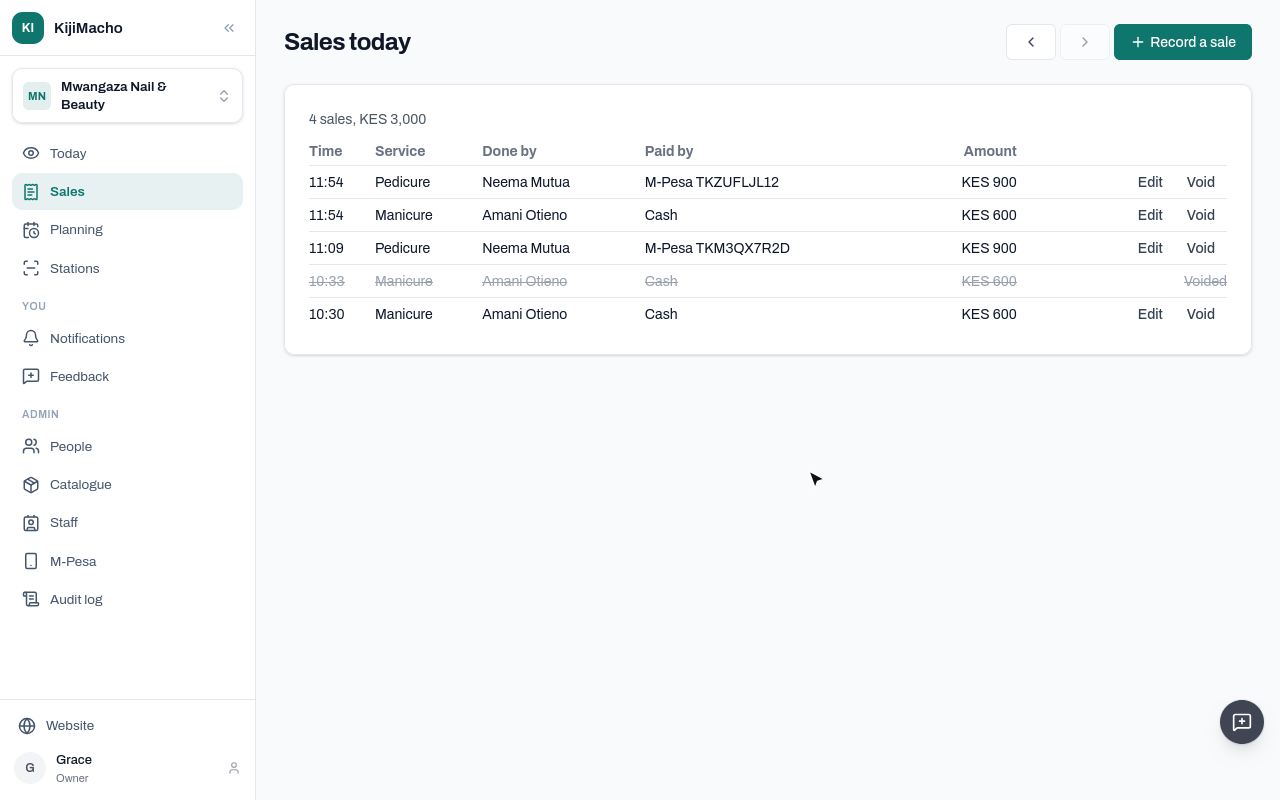
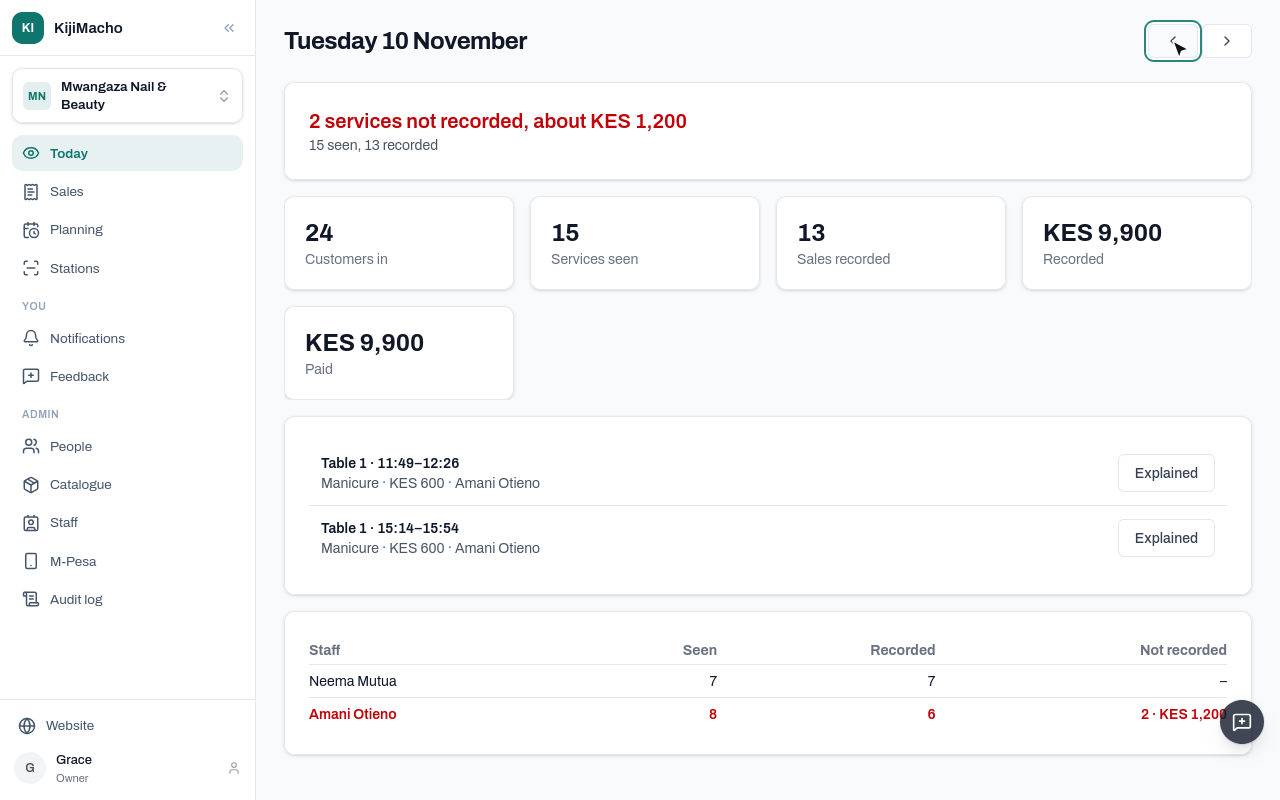
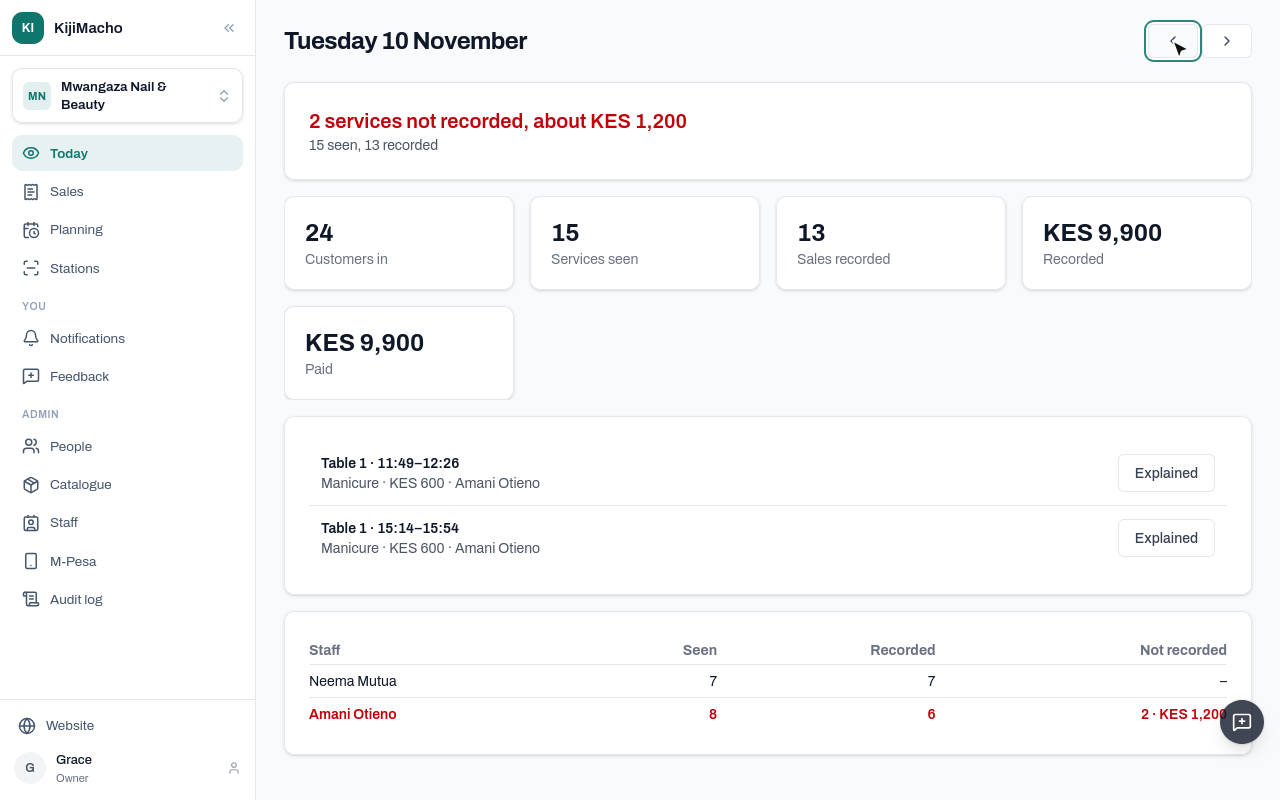
The arrows go back a day, to see or fix yesterday's sales. A new sale is always recorded now, so Record a sale is only on today.
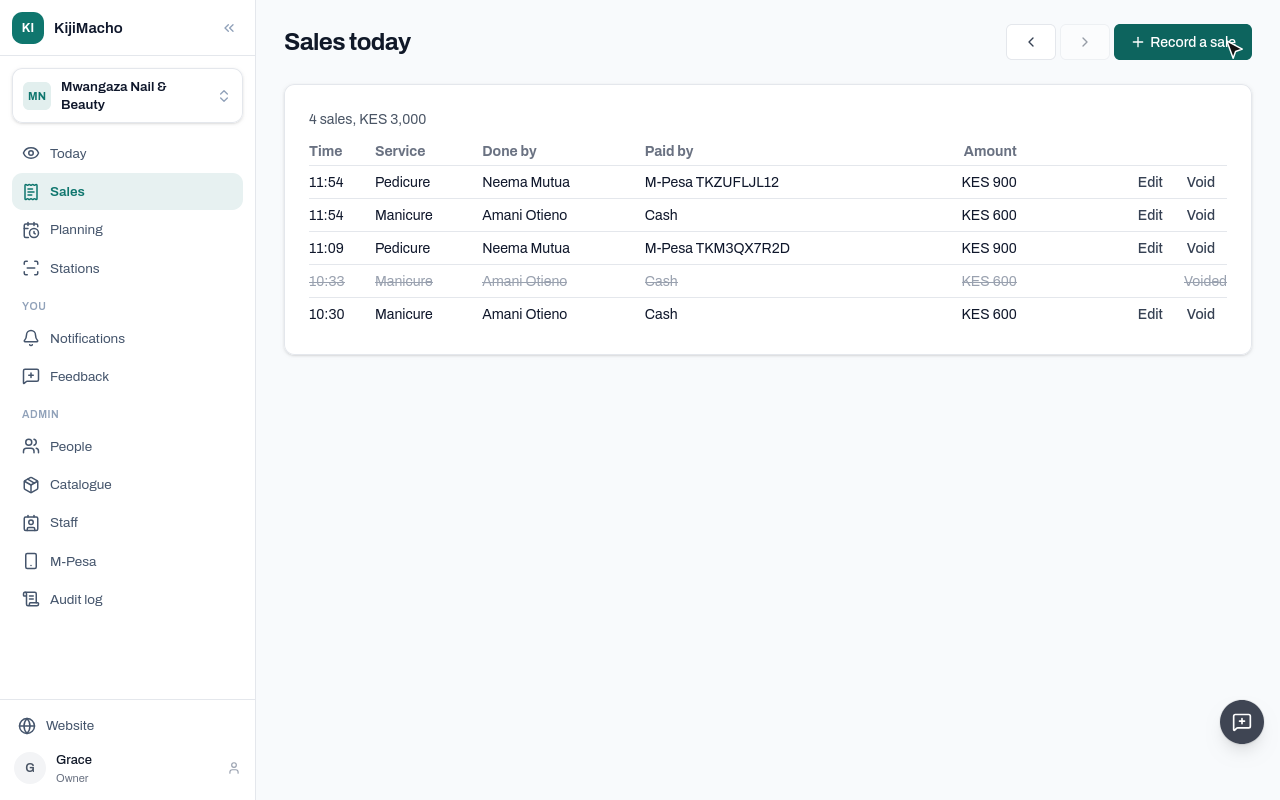
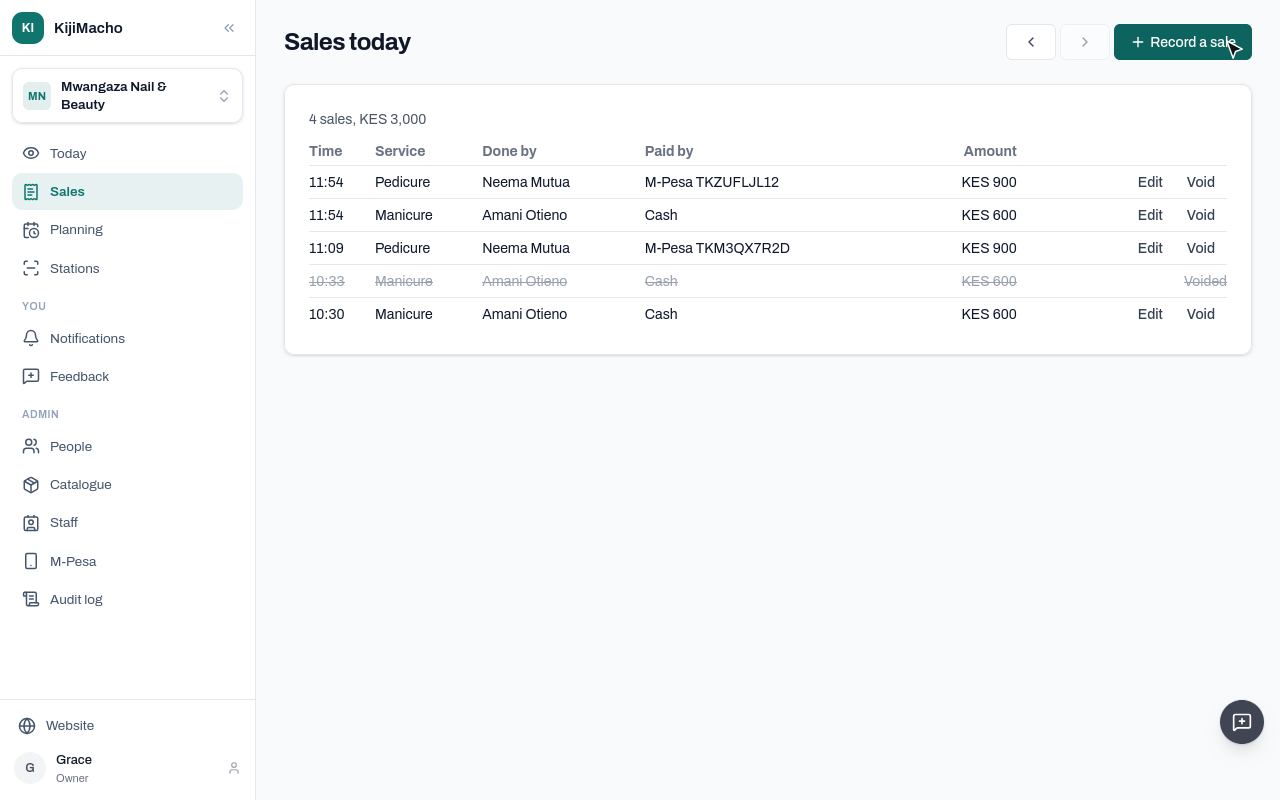
Next, Today: these sales against what the camera saw.
Chapter 5
What the camera saw, against what was recorded and paid
Today sets what the camera saw against what was recorded and paid.
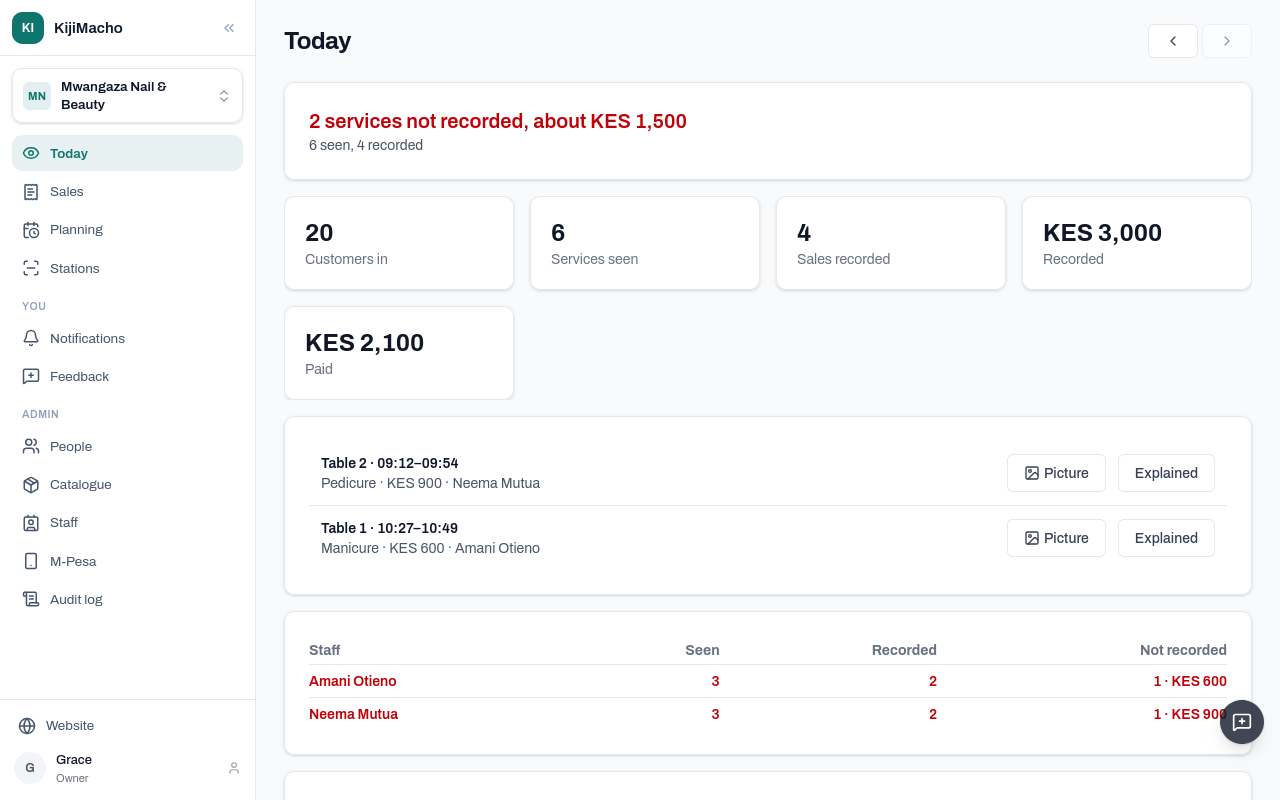
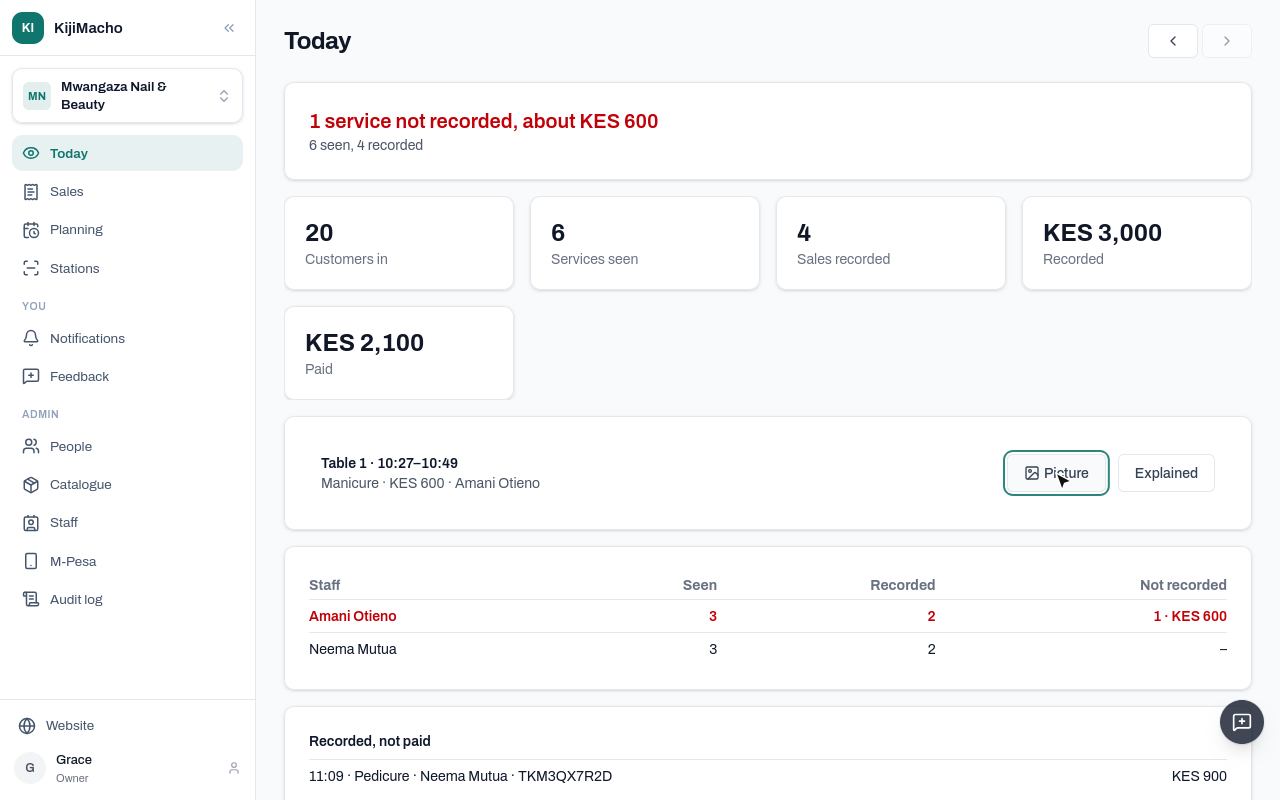
At the top, the gap: services the camera saw that nobody recorded, and about what they were worth.
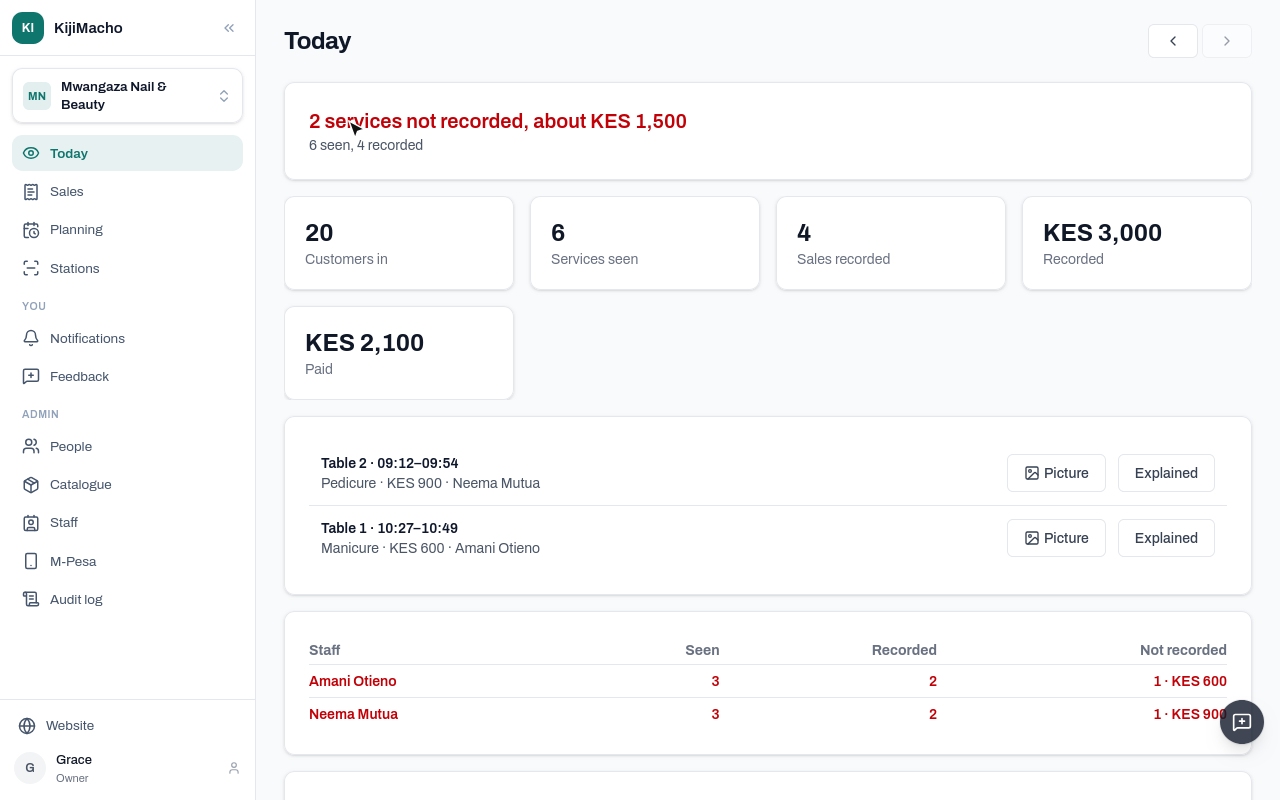
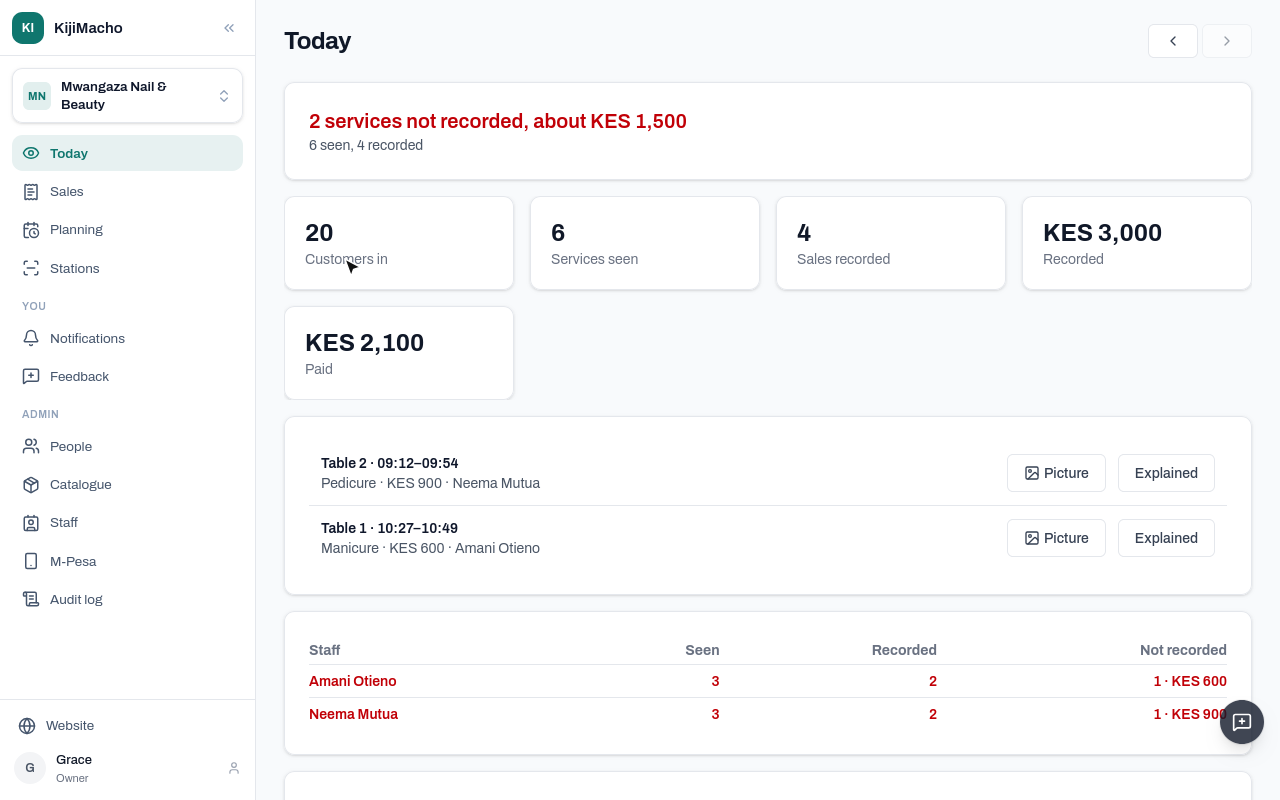
Customers in counts everyone who came in through the door.
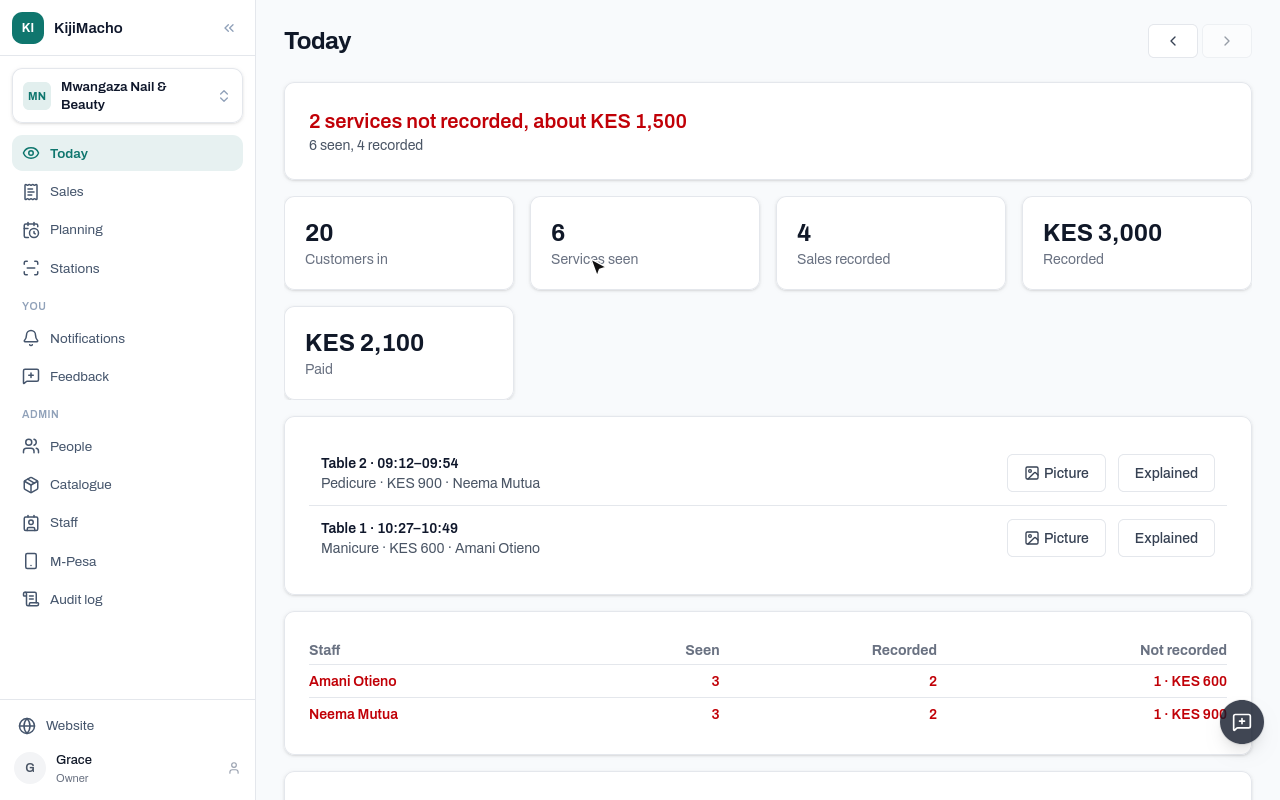
Services seen: someone stayed at a seat at least the shortest service.
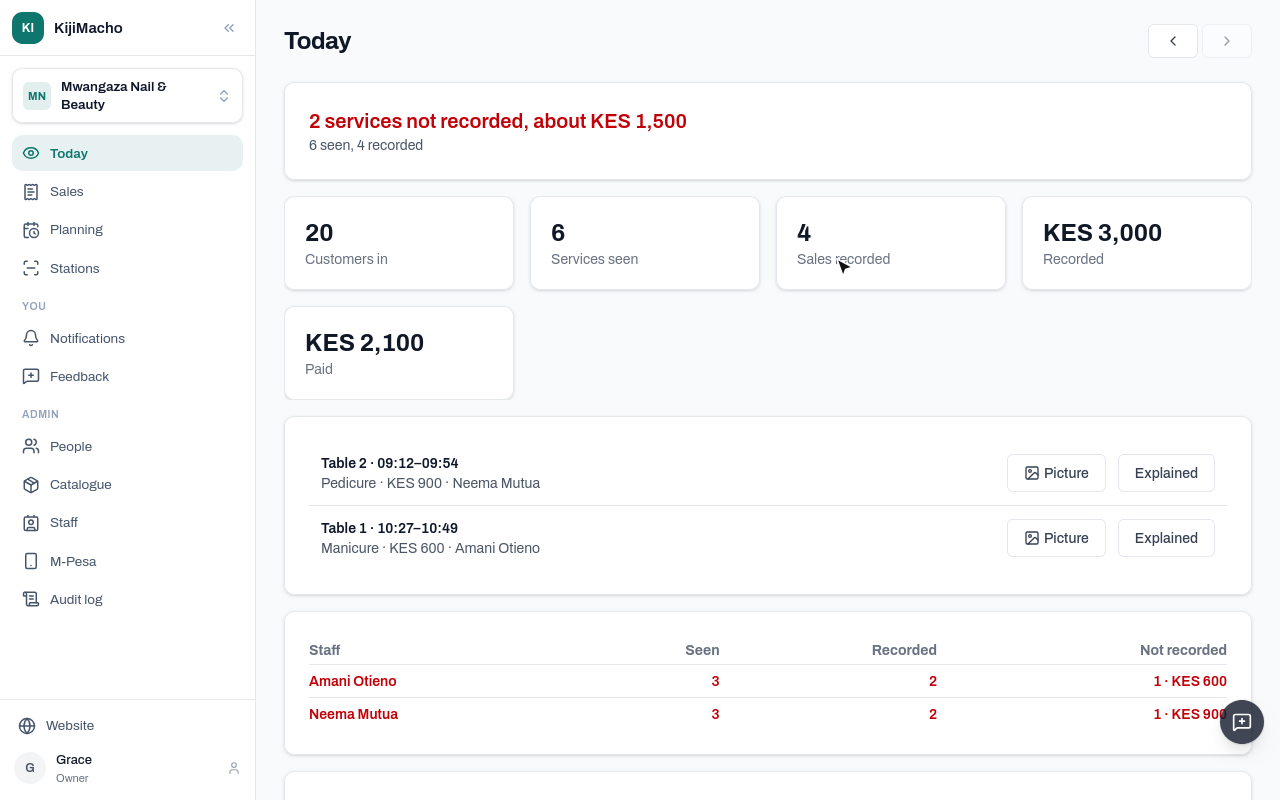
Sales recorded is what the counter recorded, and Recorded is its total.
Paid is the cash, and the M-Pesa sales whose code came in on the till.
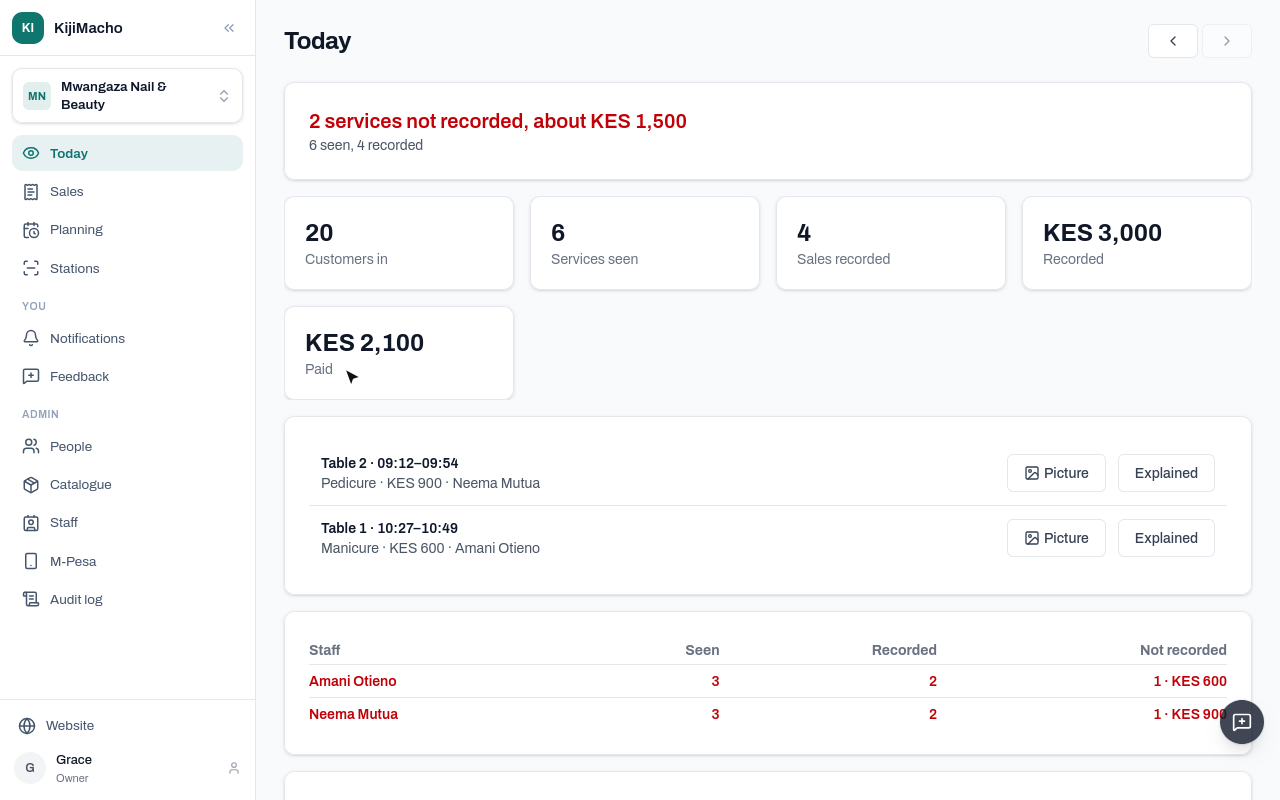
Each service nobody recorded is listed: the seat, the time, the service and its price, and who works there.
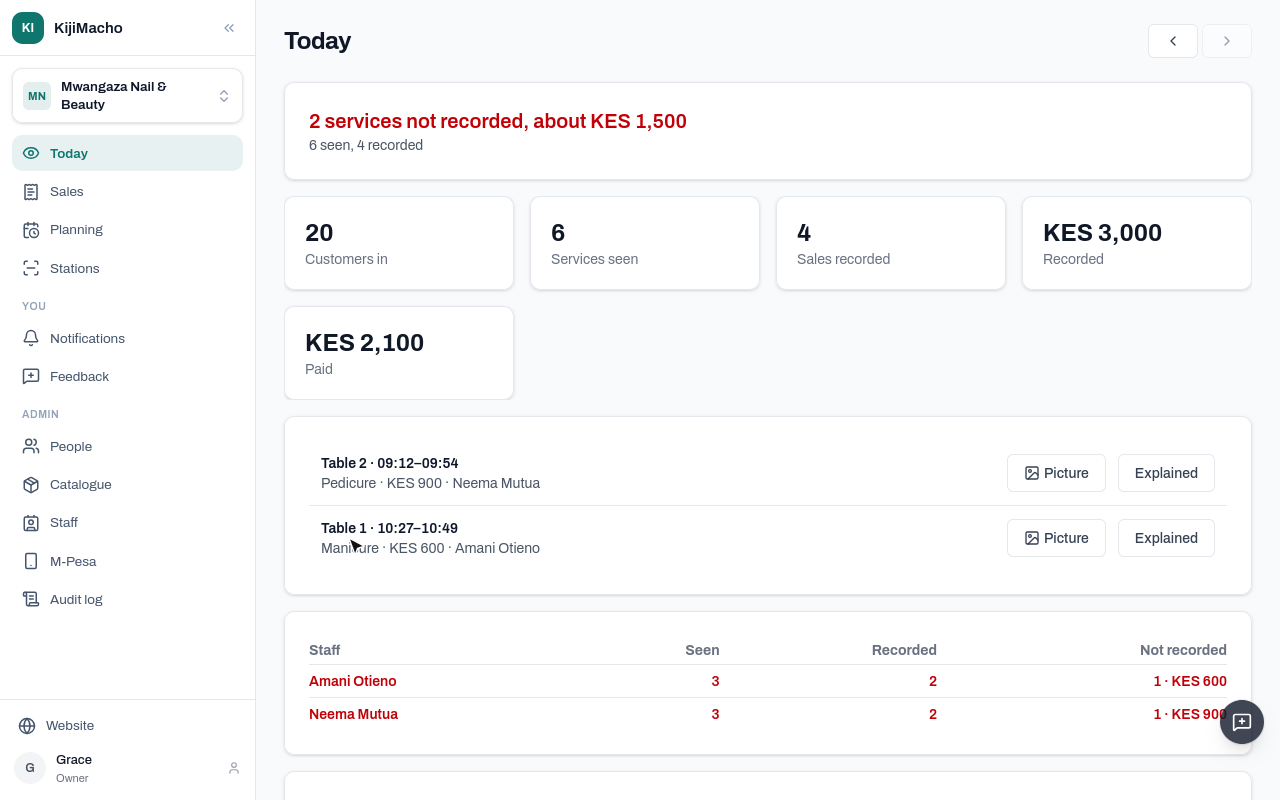
A service counts as recorded when a sale was made from a little before it started until an hour after it ended.
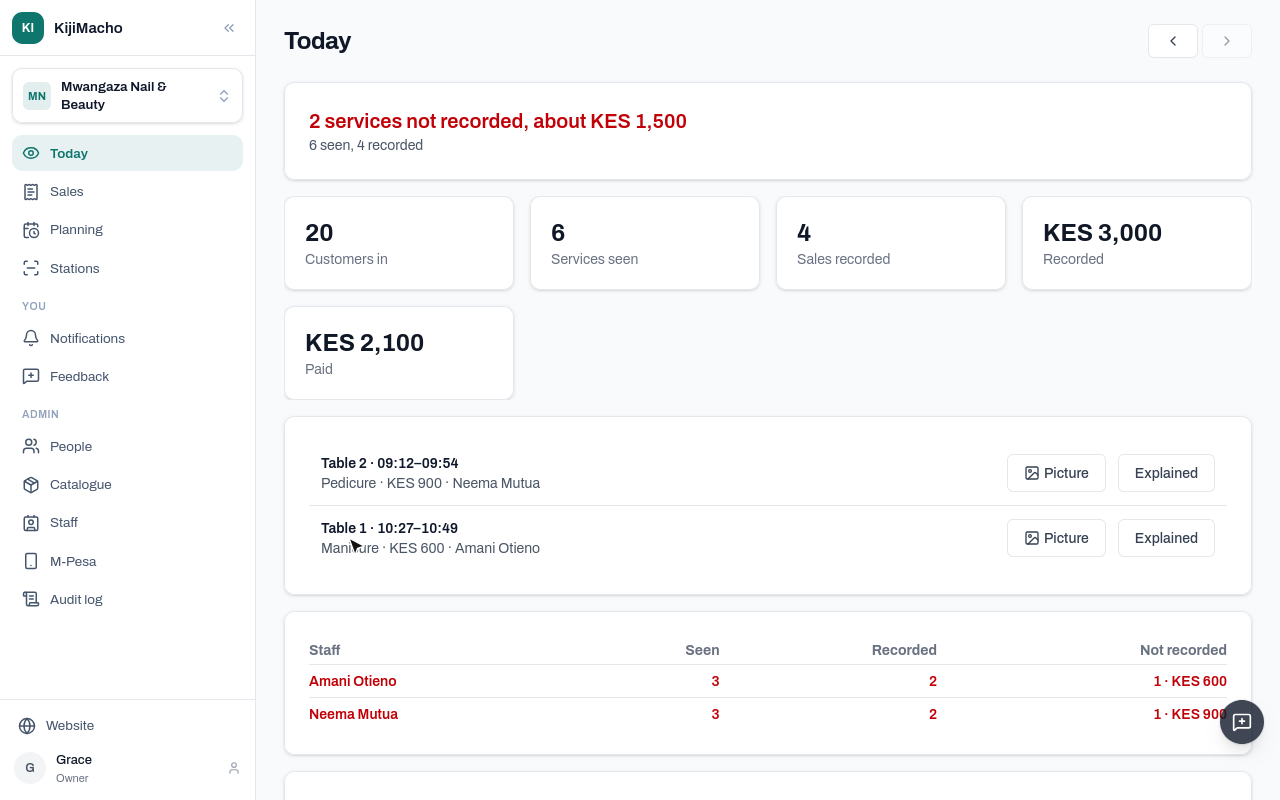
Picture shows what the camera box took: the seat, with faces blurred.
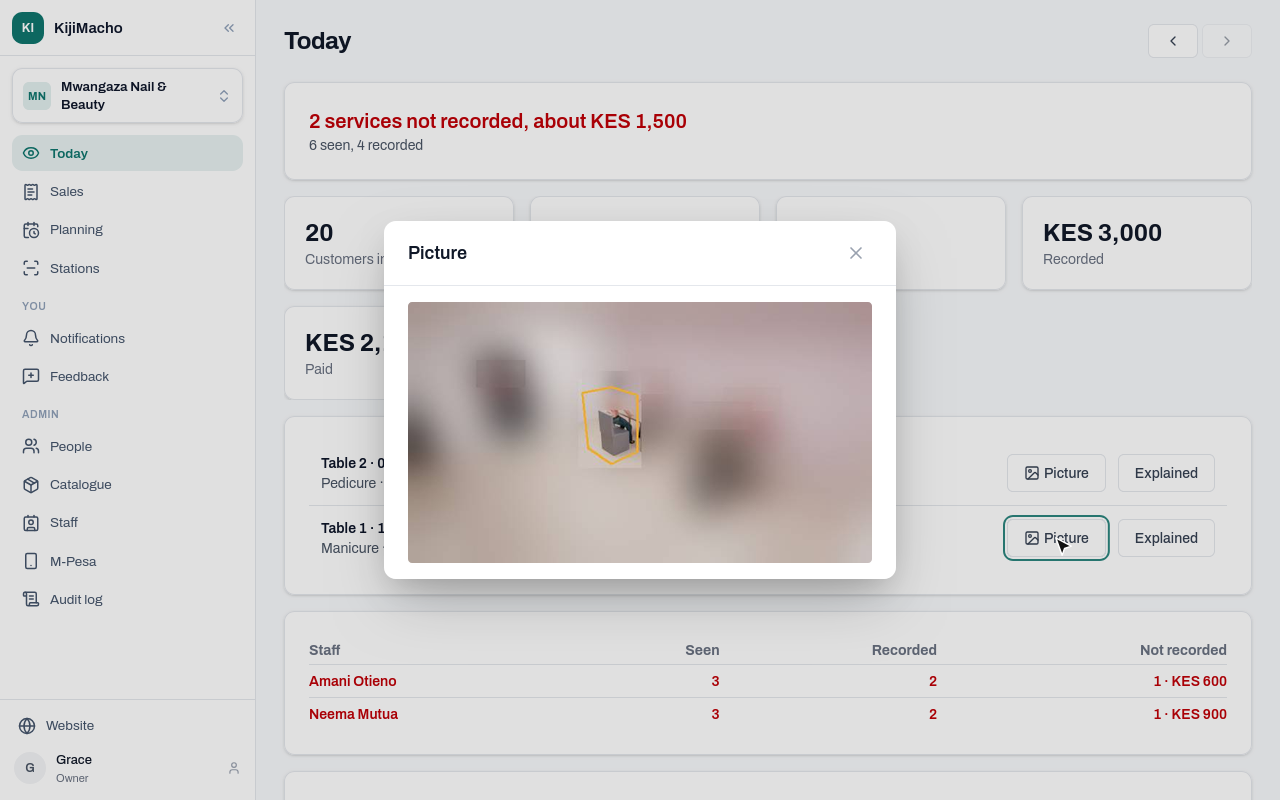
Someone was served at Table 1 at that time, and no sale was recorded for it.
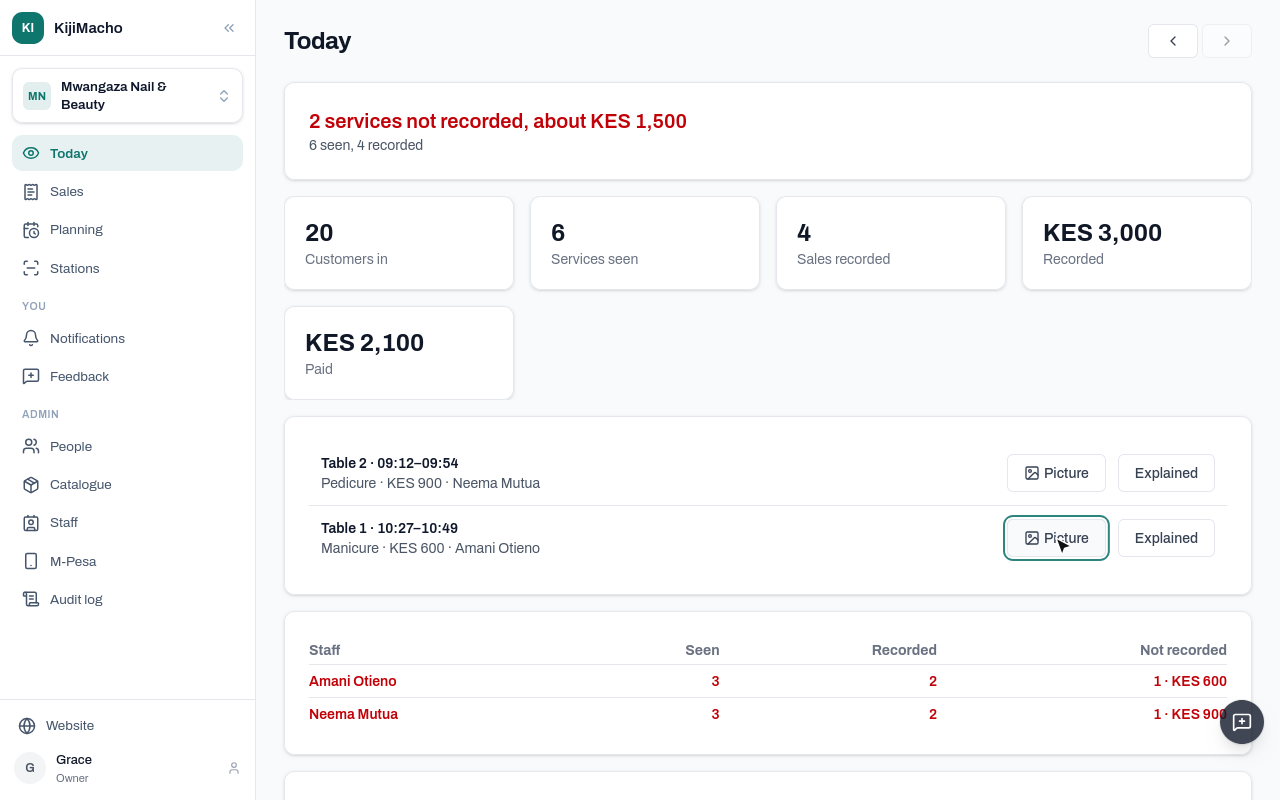
If there is a reason, say so. This morning's pedicure was a free re-do. Choose Explained.
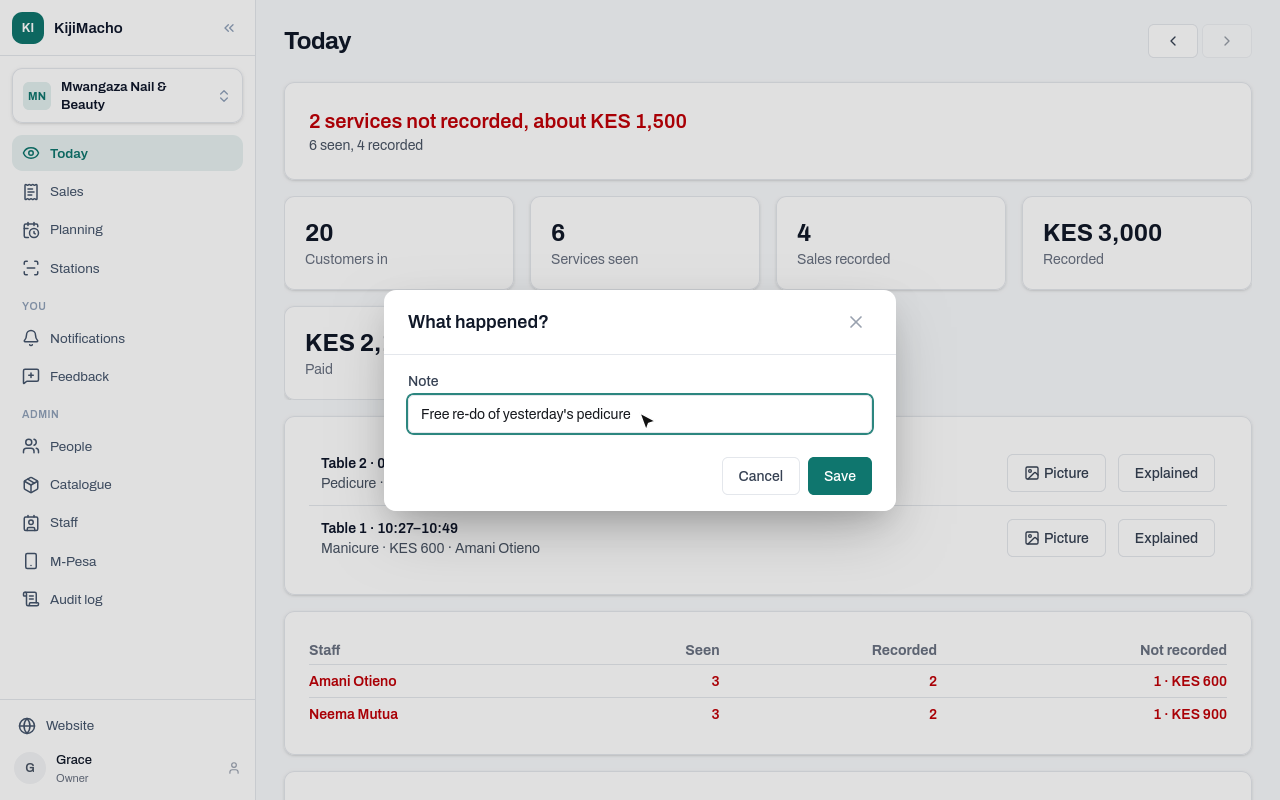
Write what happened, and save.
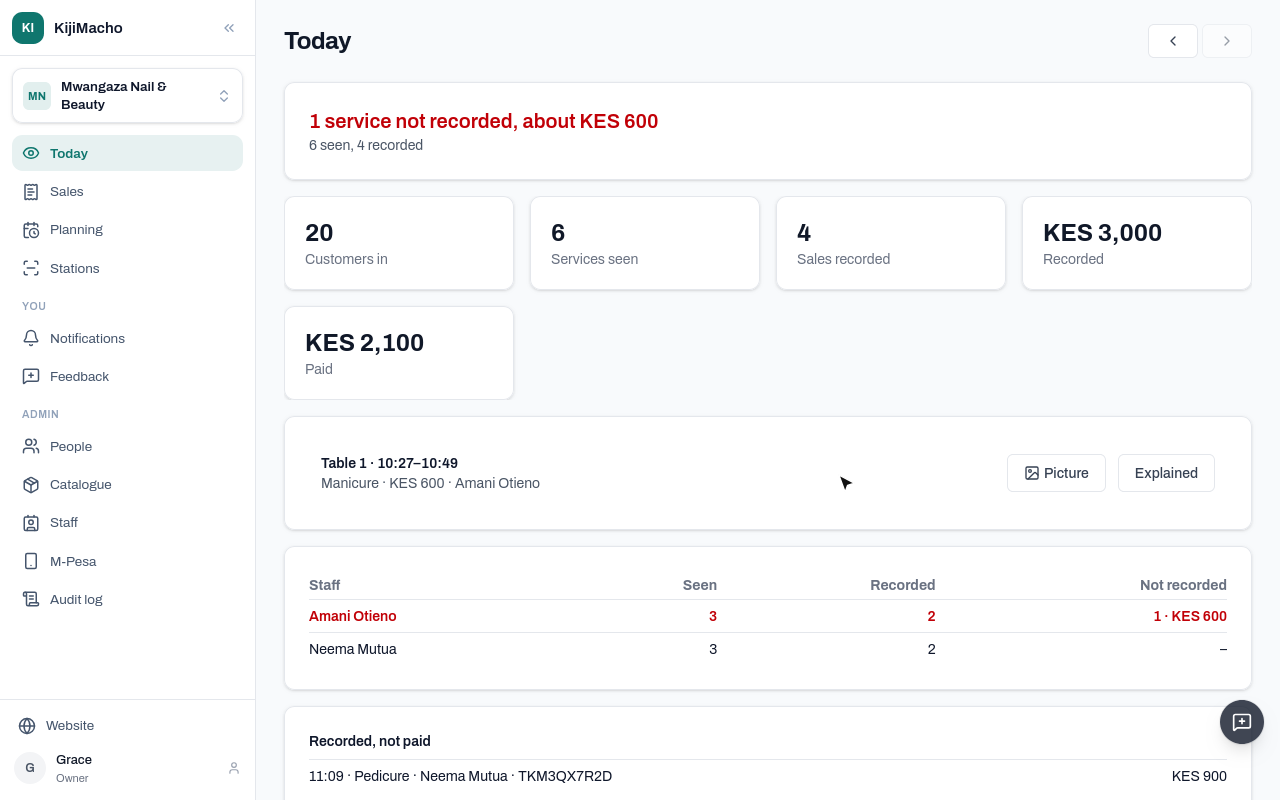
It leaves the gap, and stays on record under Explained, with the note.
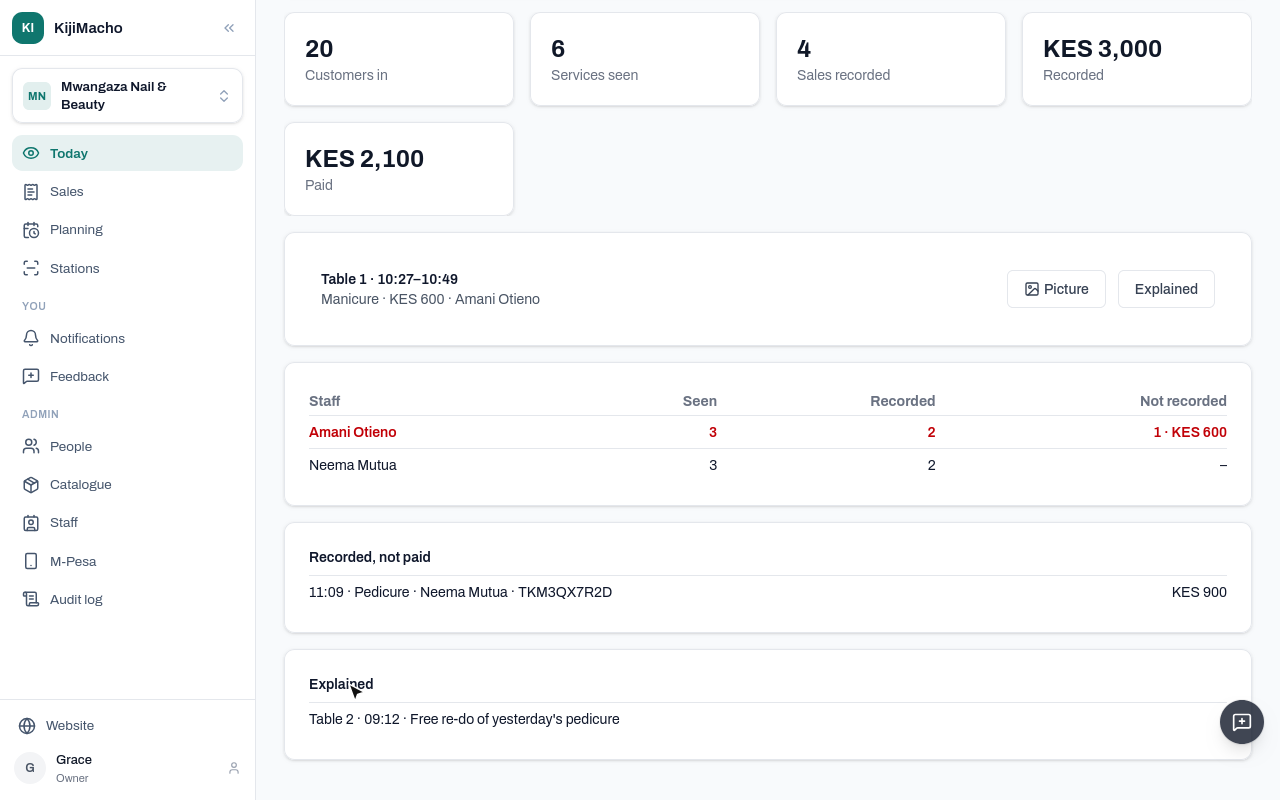
Recorded, not paid lists M-Pesa sales whose code never came in on the till. Check it with the customer: the code may be mistyped, or the money never sent.
The arrows go back a day at a time.
Next, each staff member's day.
Chapter 6
Seen, recorded and not recorded, per person
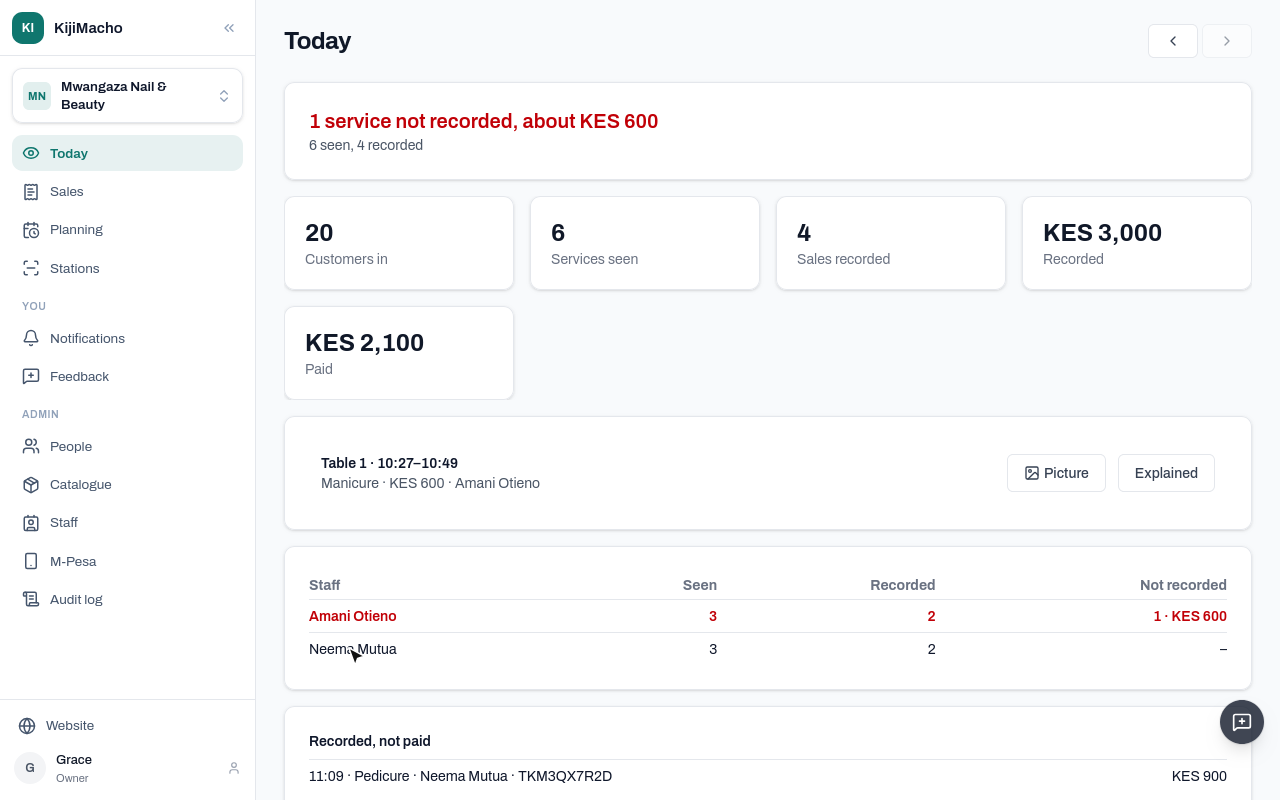
Under the day's numbers, Today has a line for each staff member.
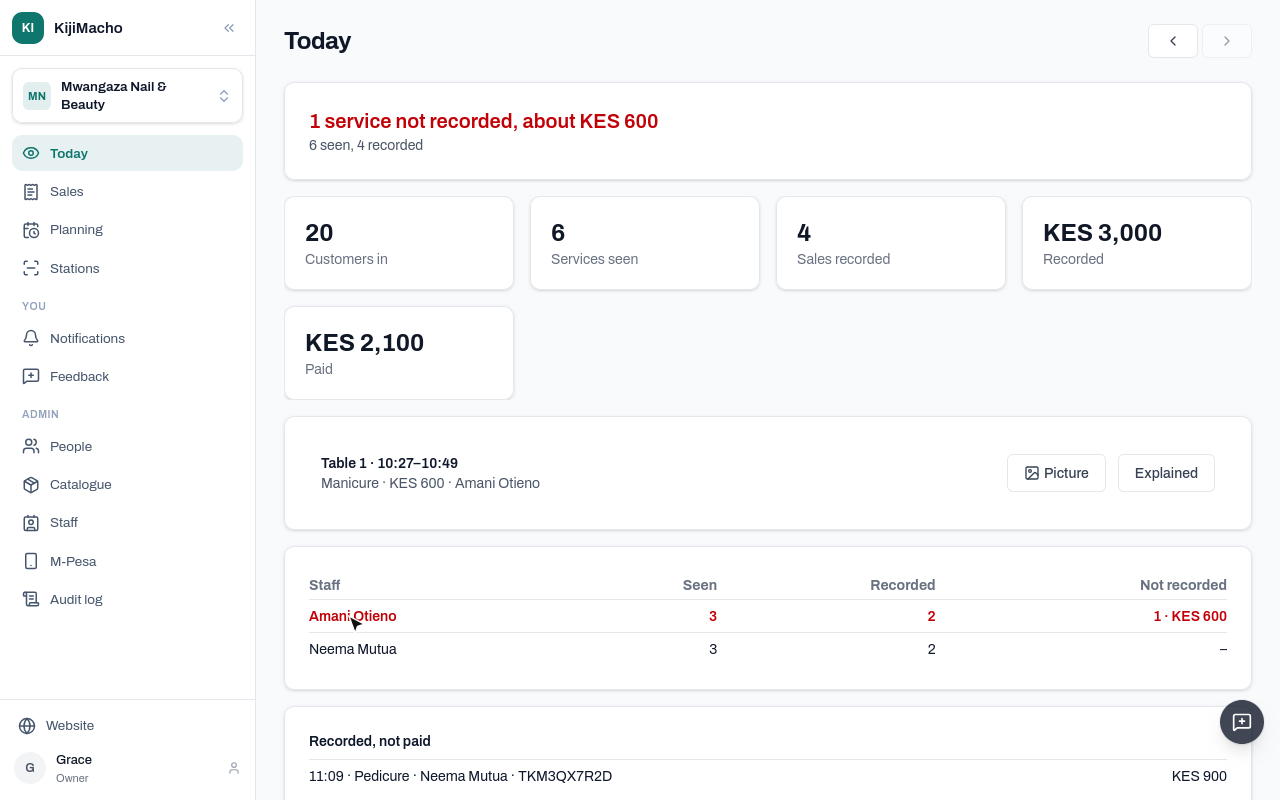
Seen is the services the camera saw at their seat. Recorded is the sales made in their name.
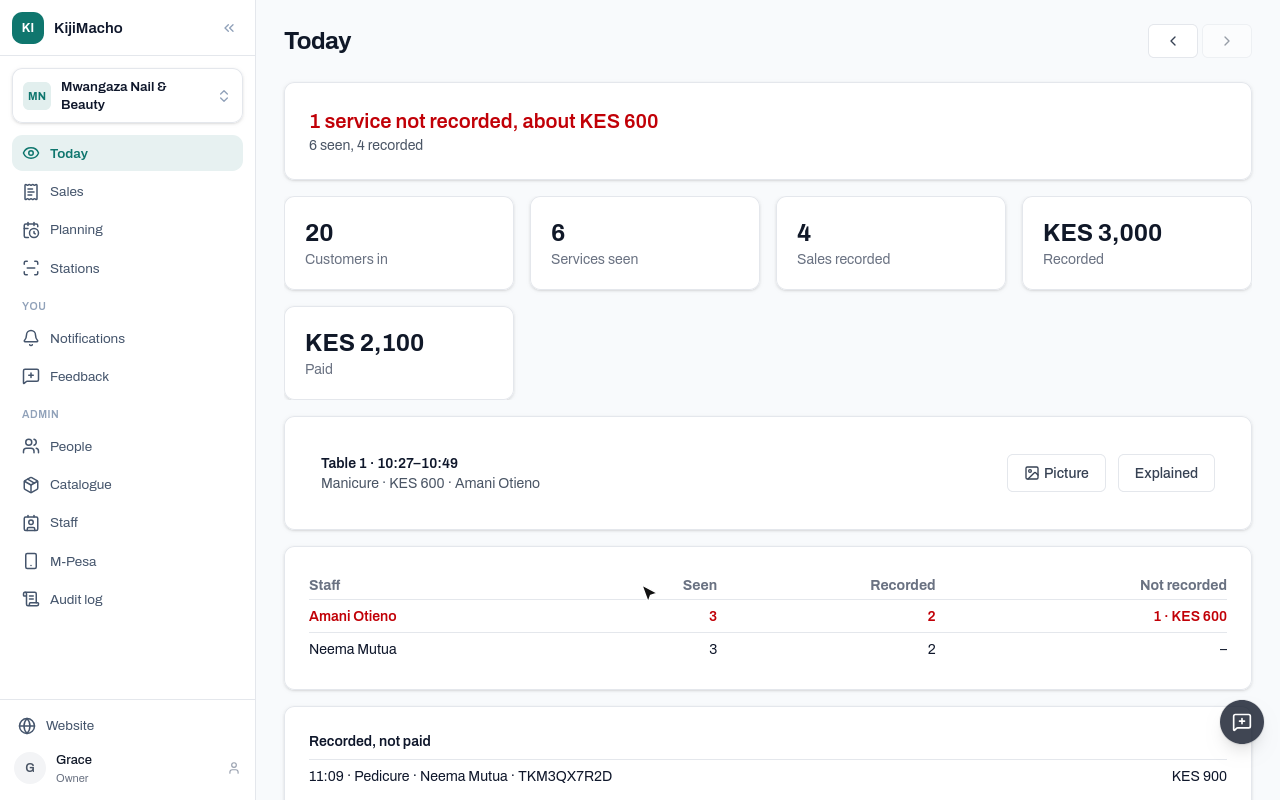
Not recorded is the services at their seat with no sale near them, and what those were worth. Amani's seat had one this morning.
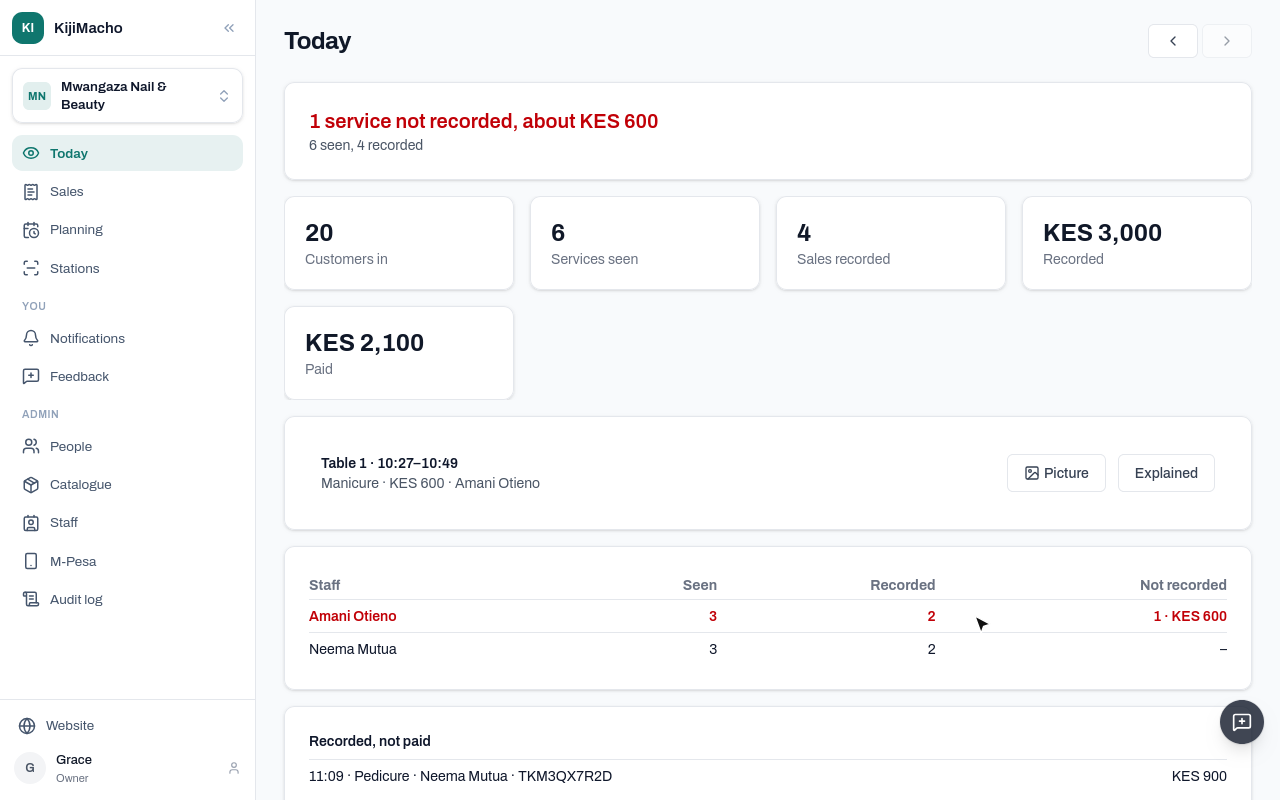
Neema's re-do was explained, so it no longer counts.
A gap is a question to ask, not proof. The customer may have been a friend waiting on the chair, or the sale recorded under someone else, or the service free.
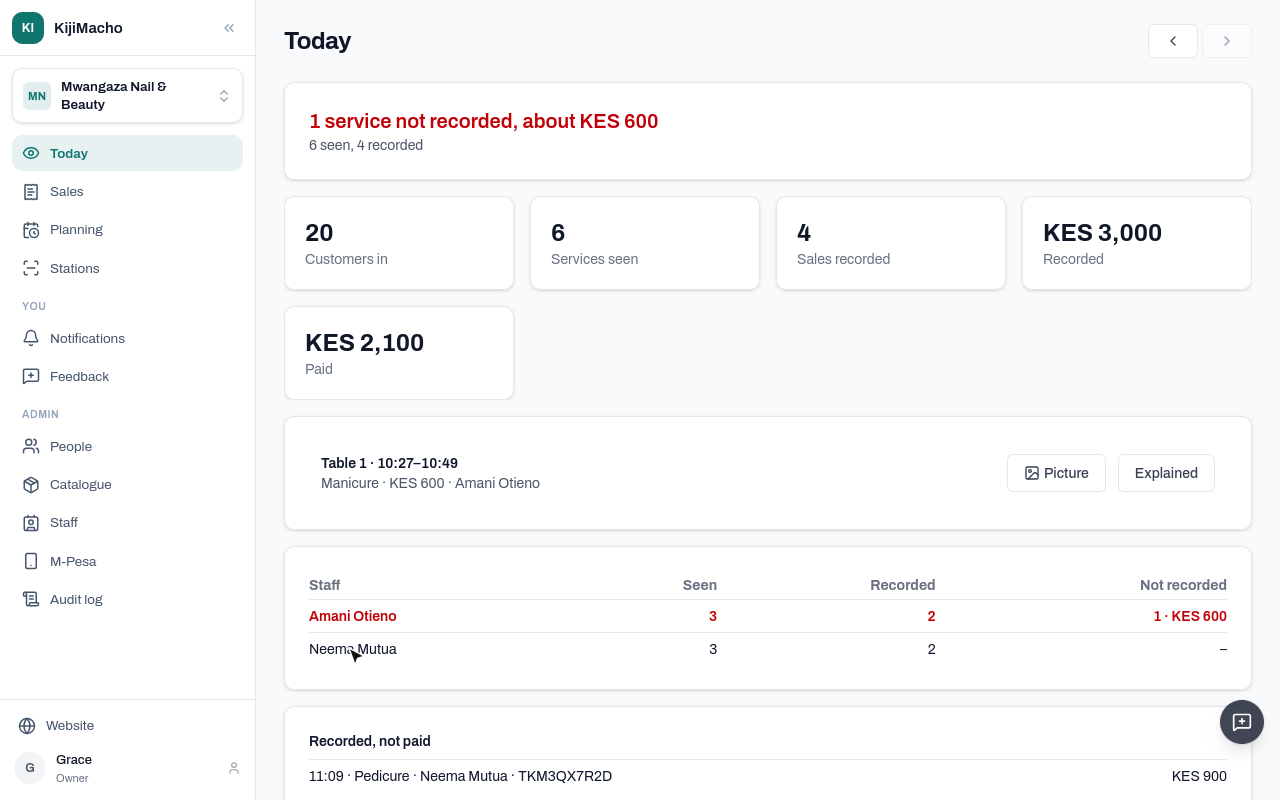
Look at the picture, ask, and mark it Explained when there is a reason.
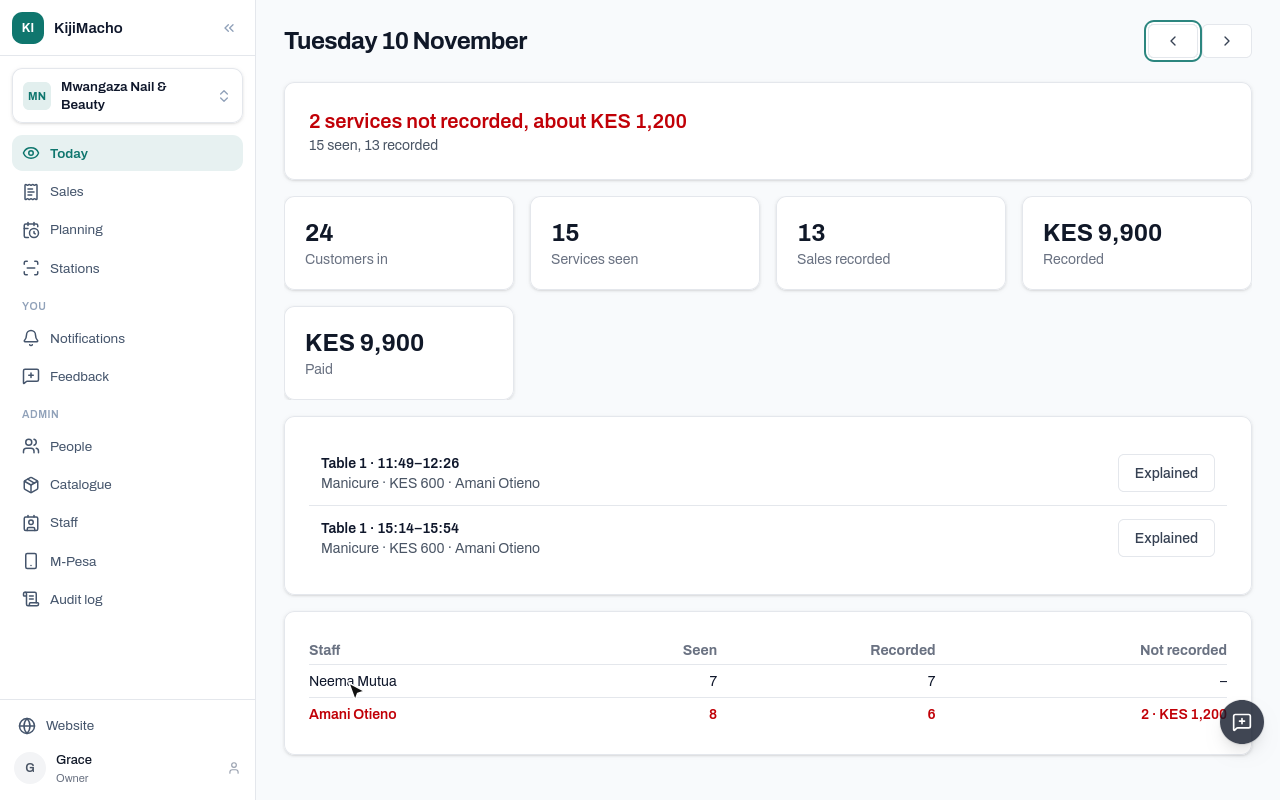
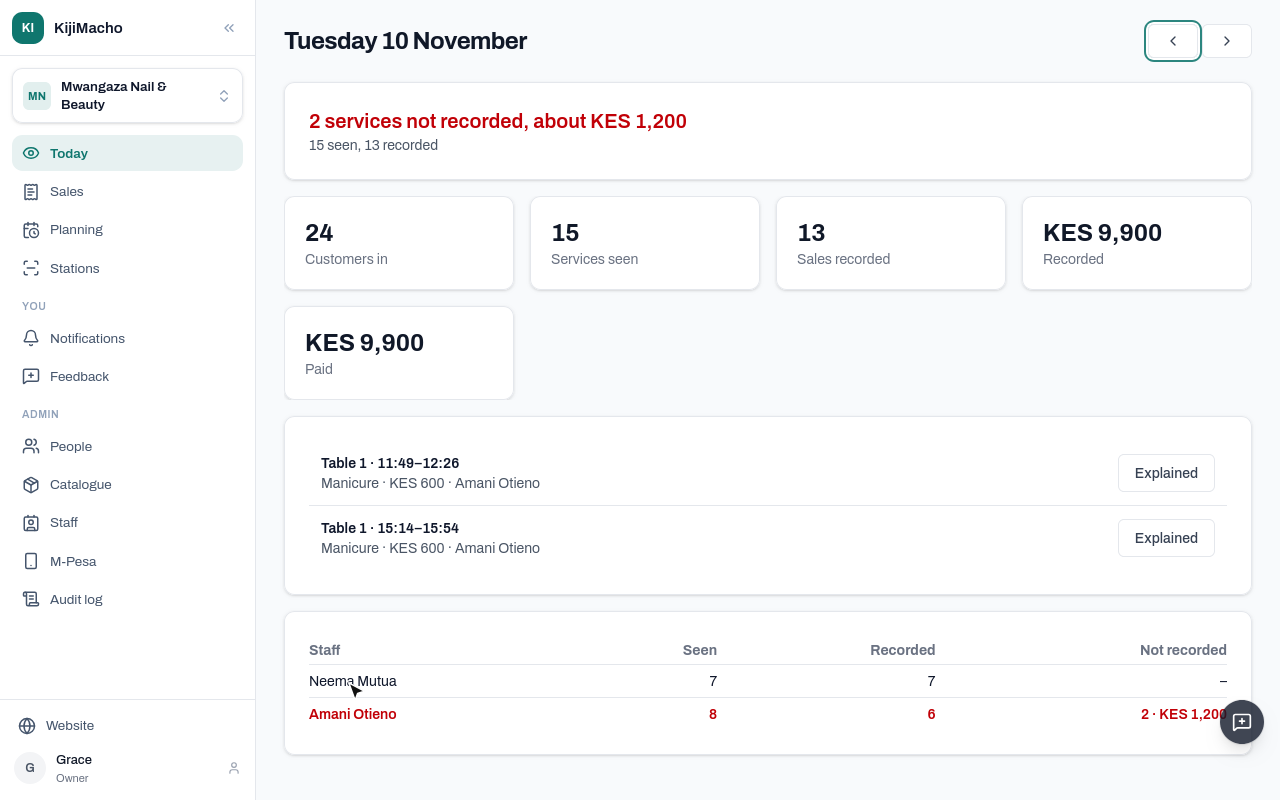
The arrows show the same for any day: here, yesterday.
Next, Planning.
Chapter 7
How busy, how long a service takes, how many seats you need
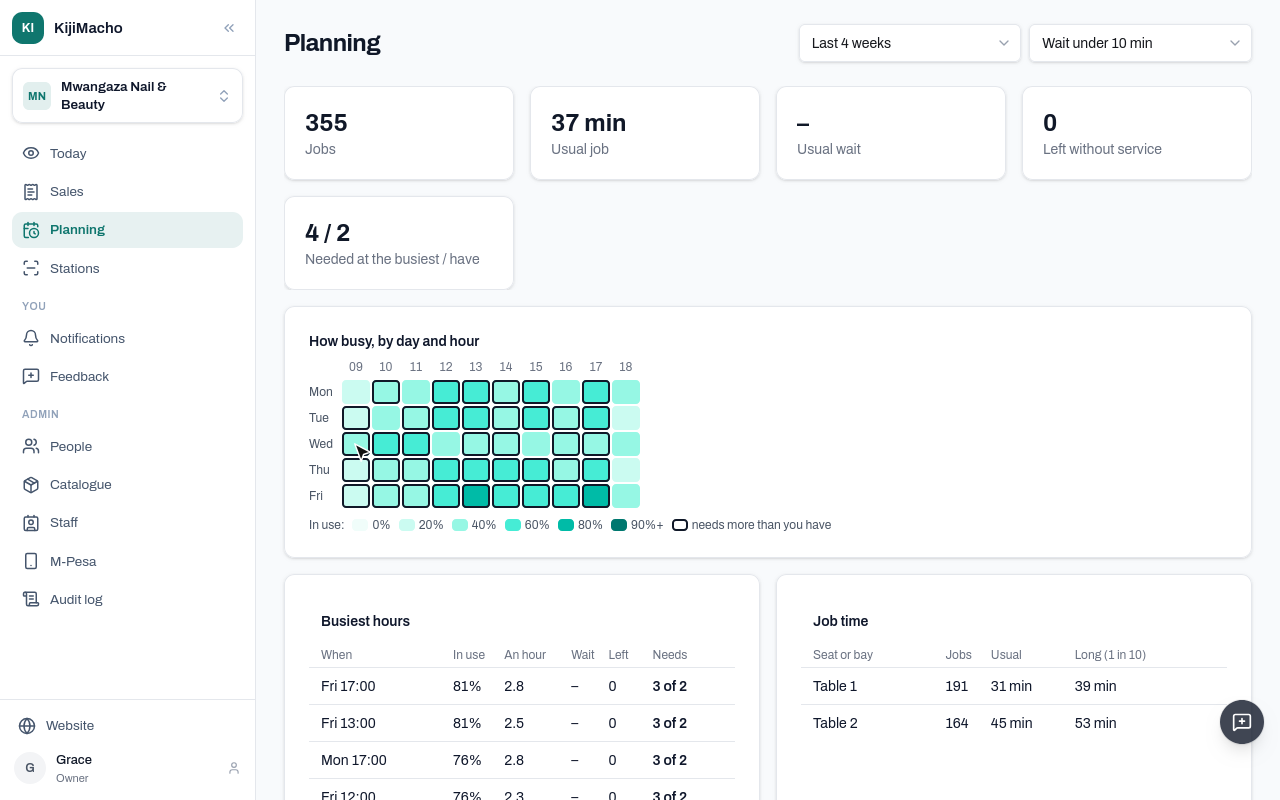
Planning uses the camera alone: how busy the seats were, hour by hour, over the last four weeks.
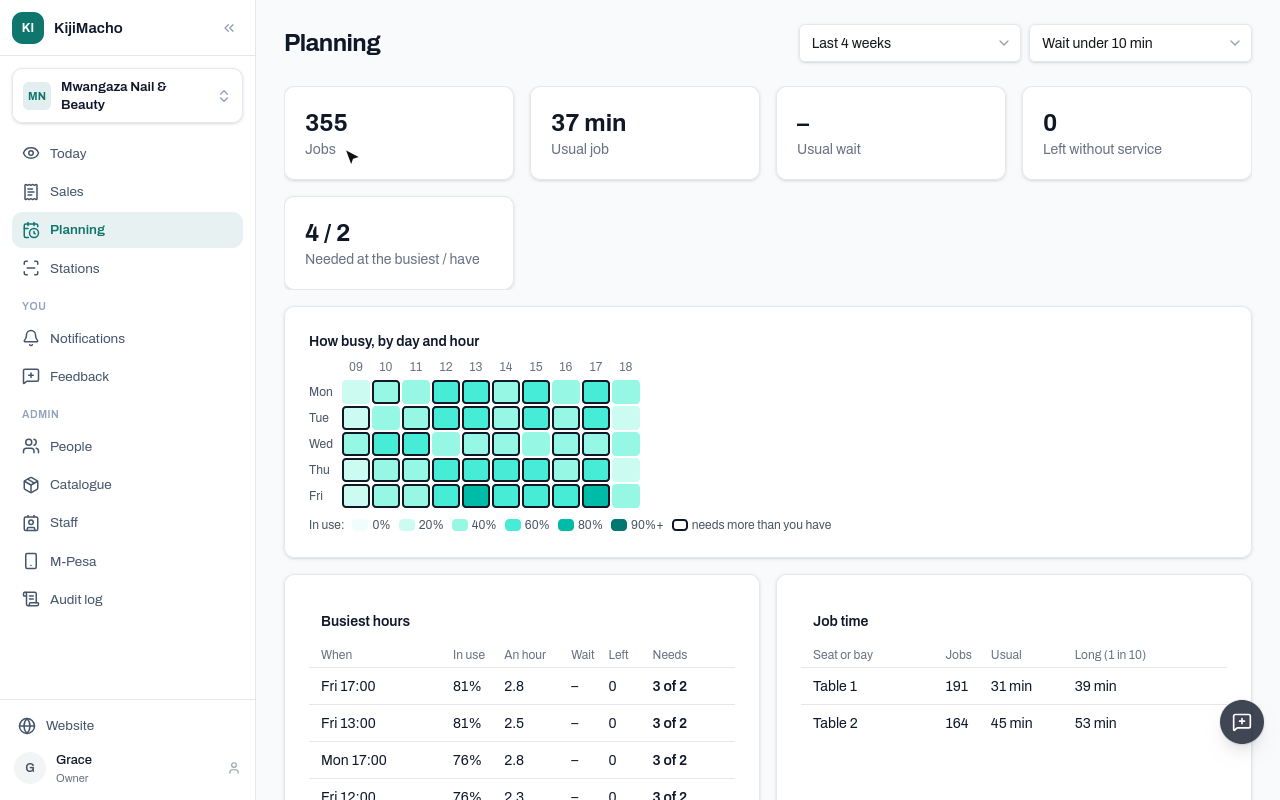
Jobs is the services seen. Usual job is how long one usually takes.
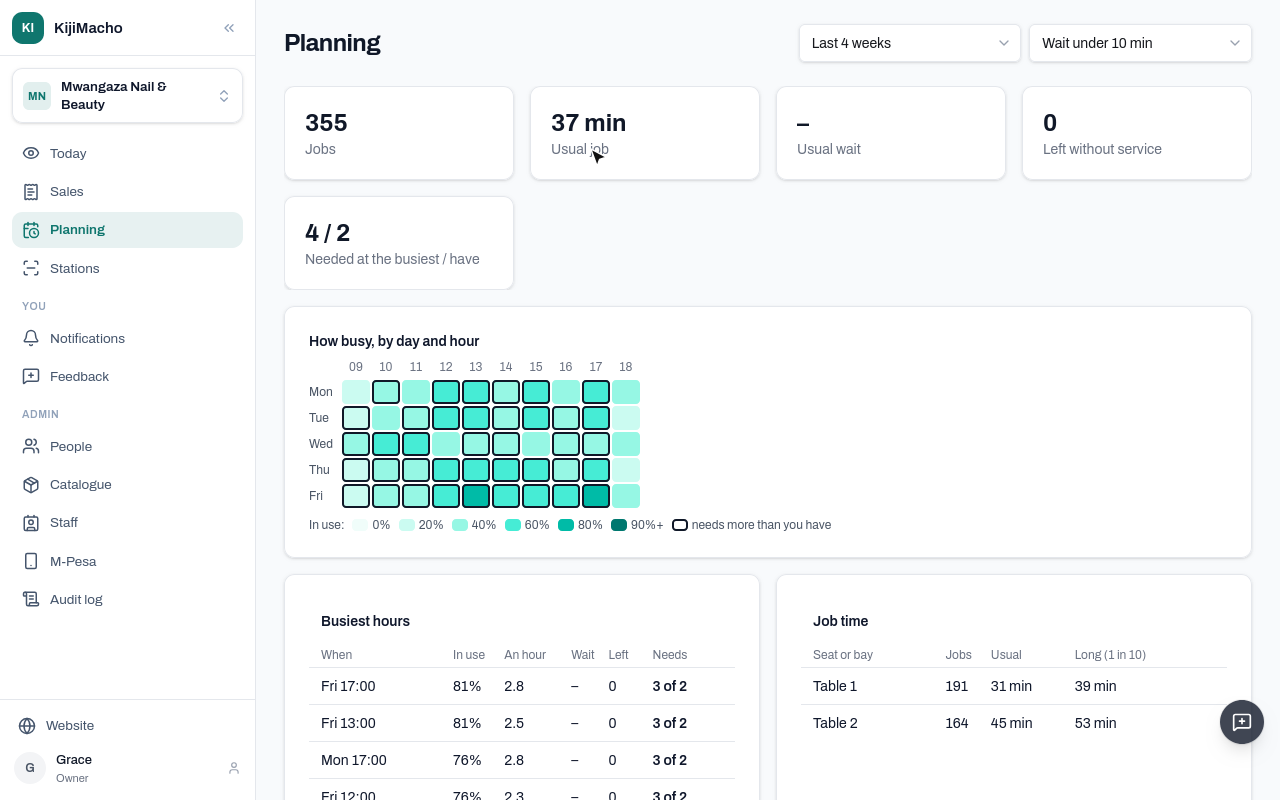
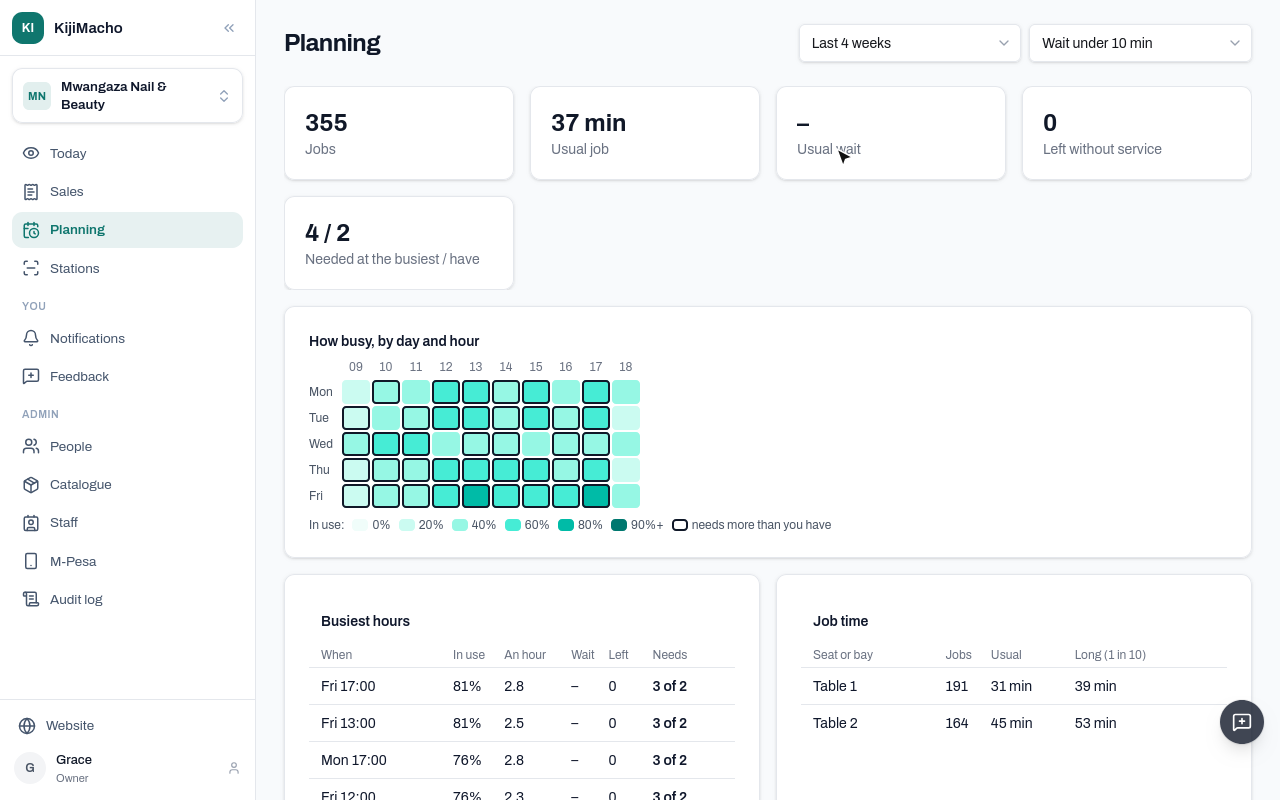
Waiting is measured where a waiting area is drawn on Stations. Mwangaza has none, so Usual wait shows a dash.
Each square is an hour of a weekday. The darker, the more of that hour the seats were in use.
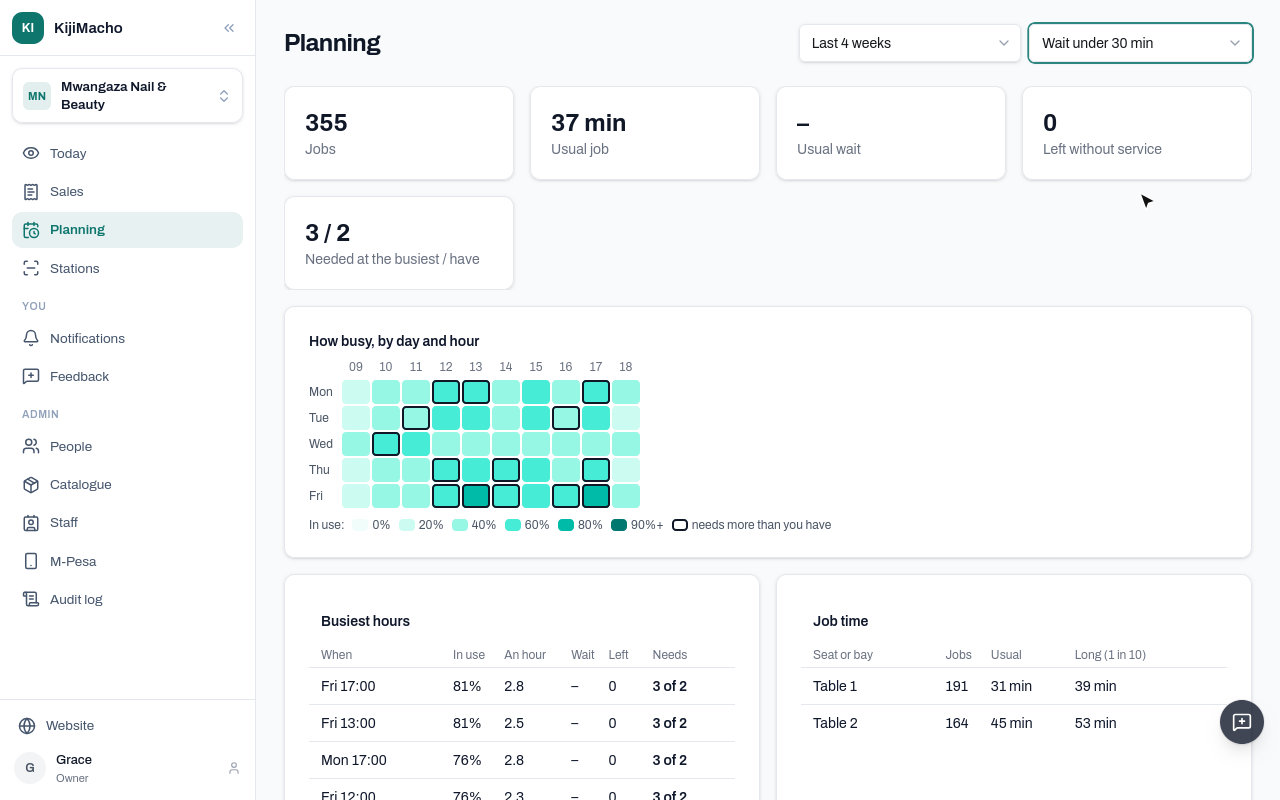
A ring means that hour needs more seats than you have, to keep the wait under the target chosen at the top.
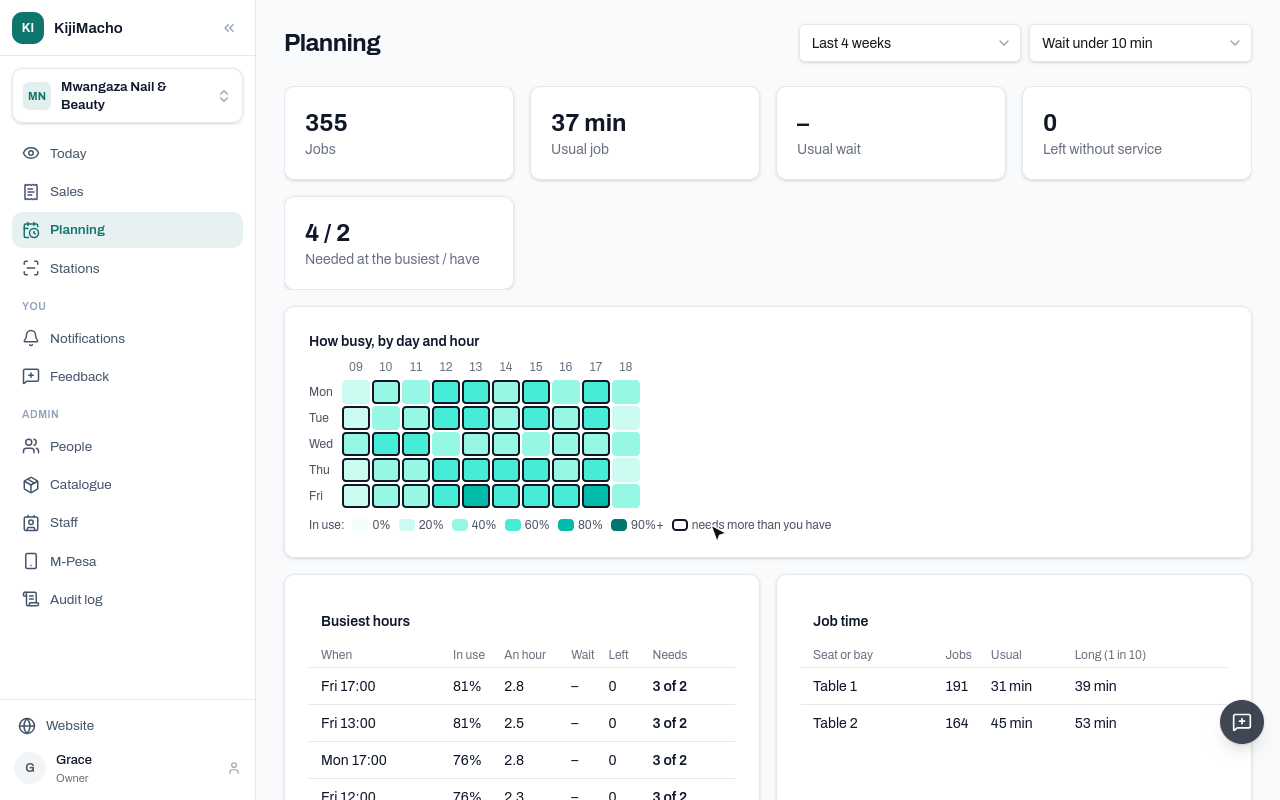
Busiest hours lists the worst hours: Friday at five and at one. With two tables, a ten-minute wait needs a third.
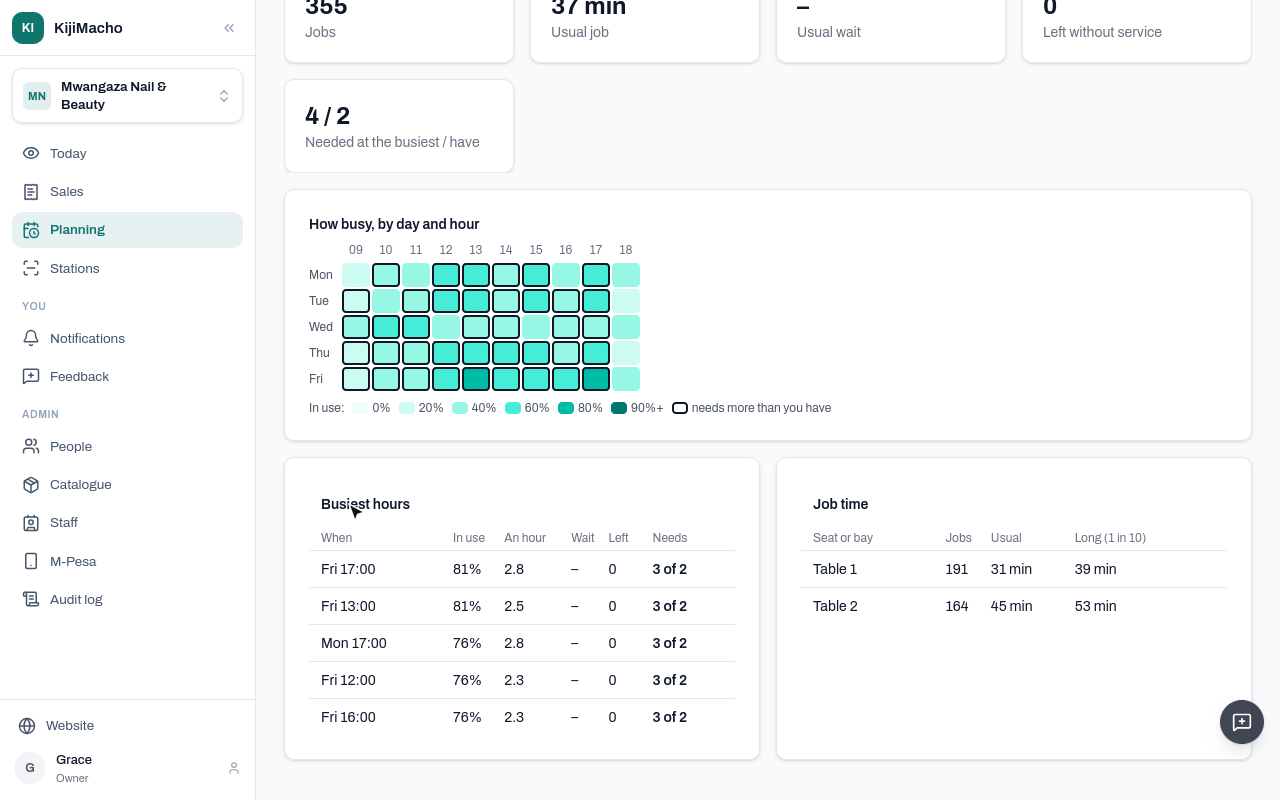
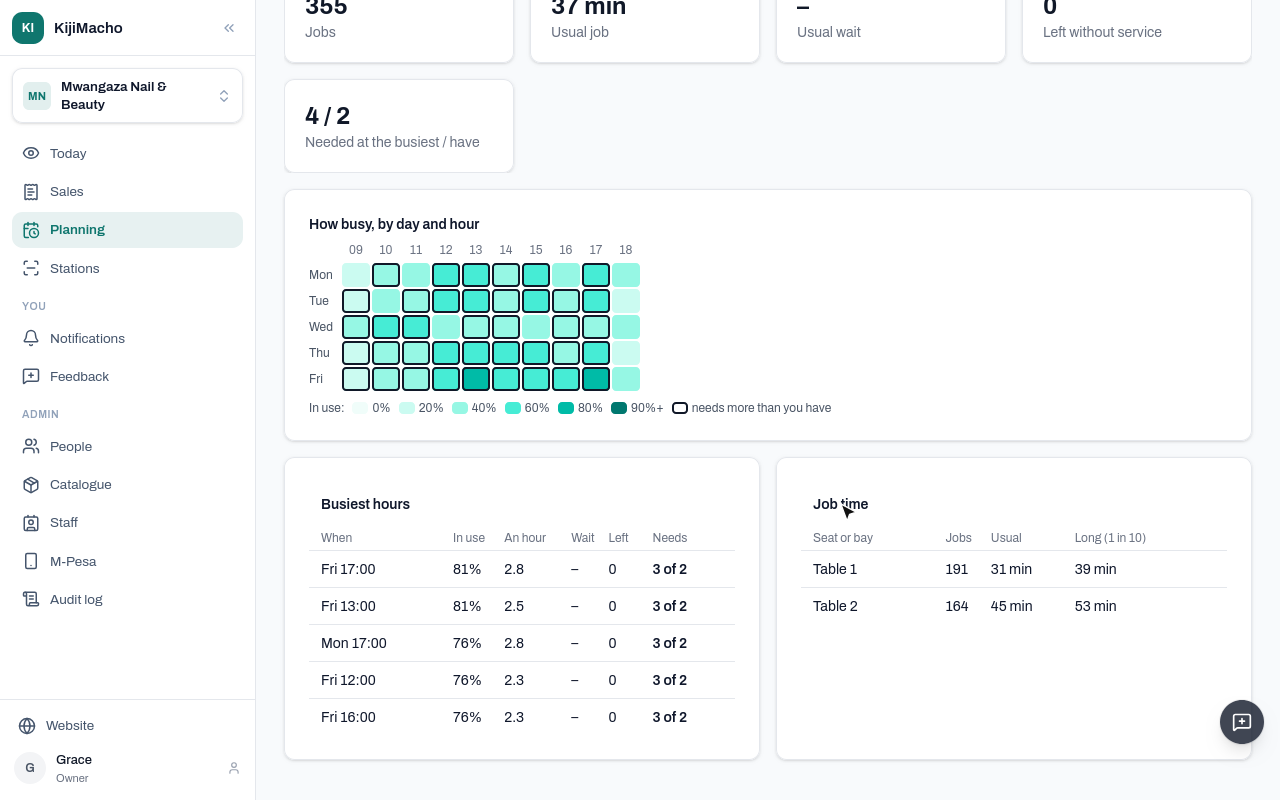
Job time shows each seat: the usual service, and a long one, one in ten.
Change the target wait, and the seats needed follow. Here, half an hour.
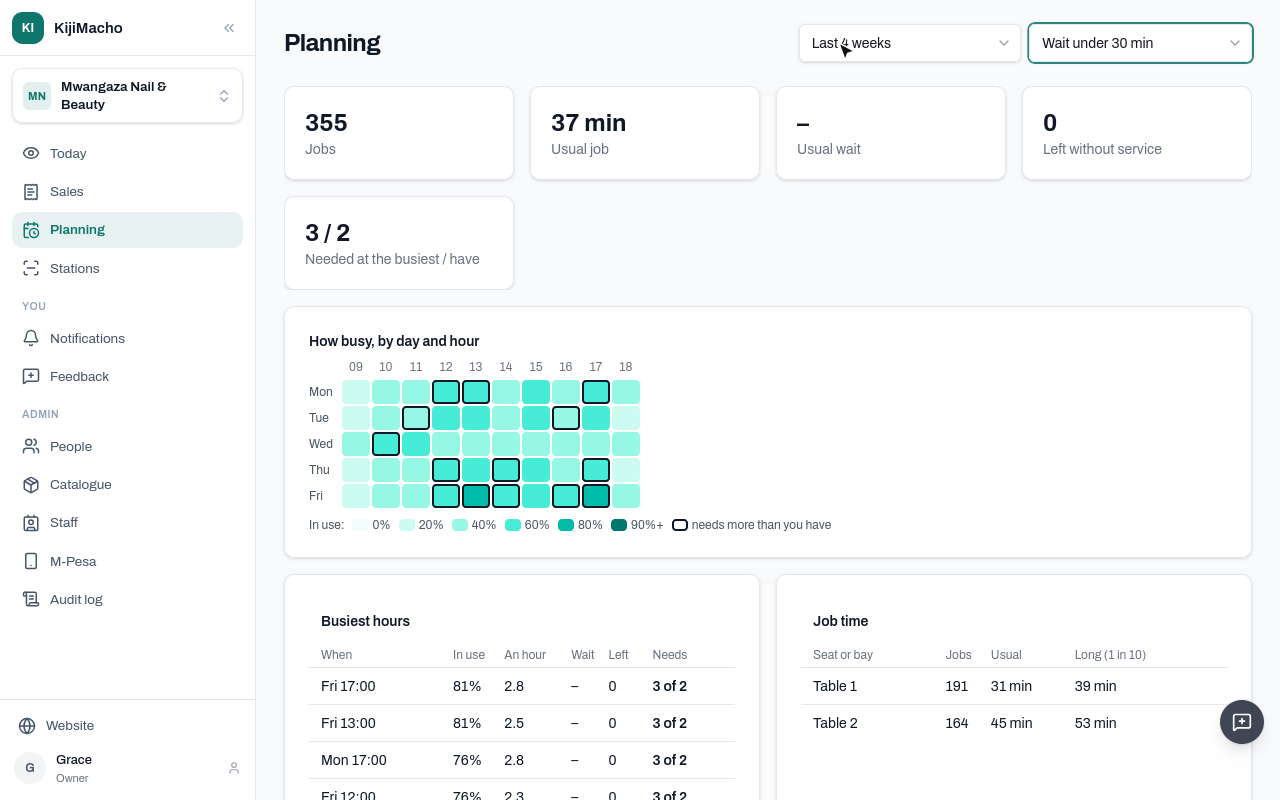
The other list picks the last week, four weeks, or twelve.
Chapter 8
What the camera box sends, what is blurred, how long it is kept
The video never leaves the business. KijiMacho gets the counts, and one picture of each service, taken at the seat as it starts.
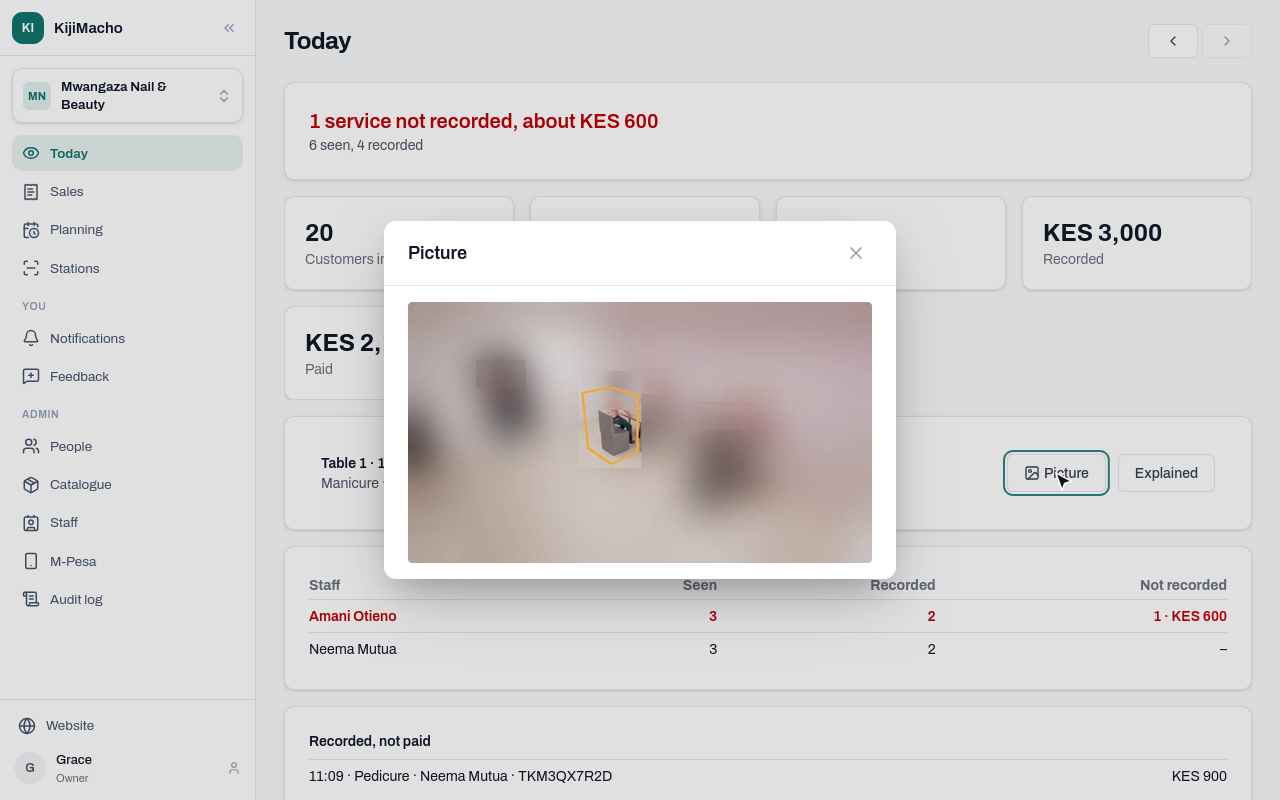
In the picture, everything but the seat is blurred, and so are faces.
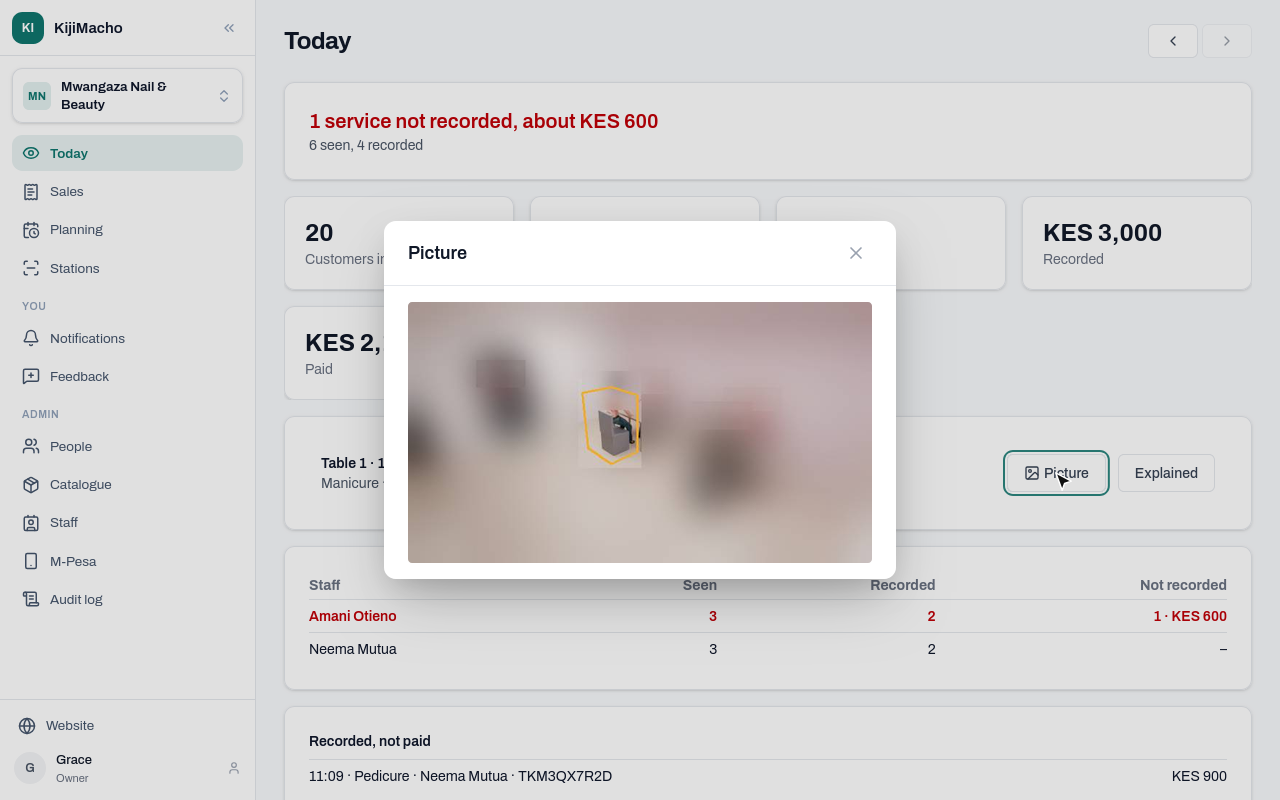
Only people of this business can open it, and each link to it works for five minutes.
The choice is on Stations, under the camera's picture.
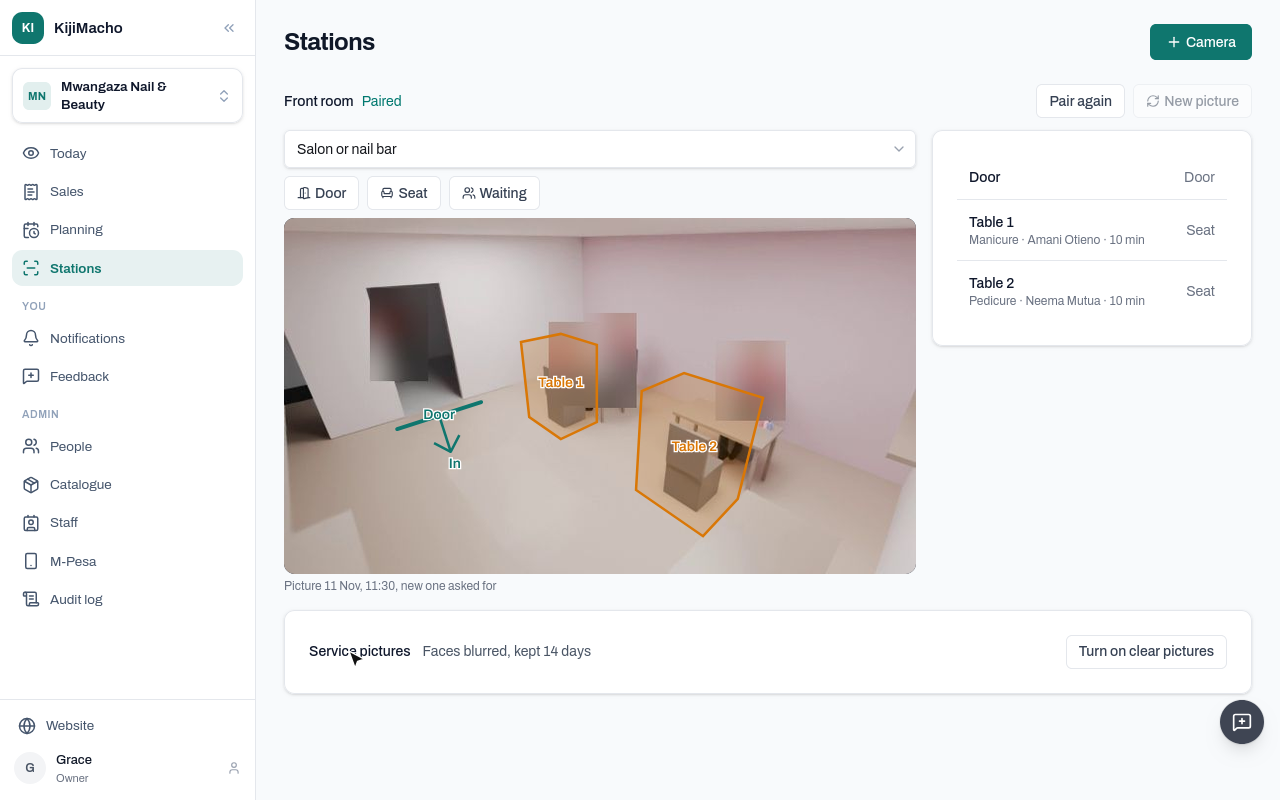
Faces blurred, kept fourteen days. After that a picture is deleted; the service stays on the books.
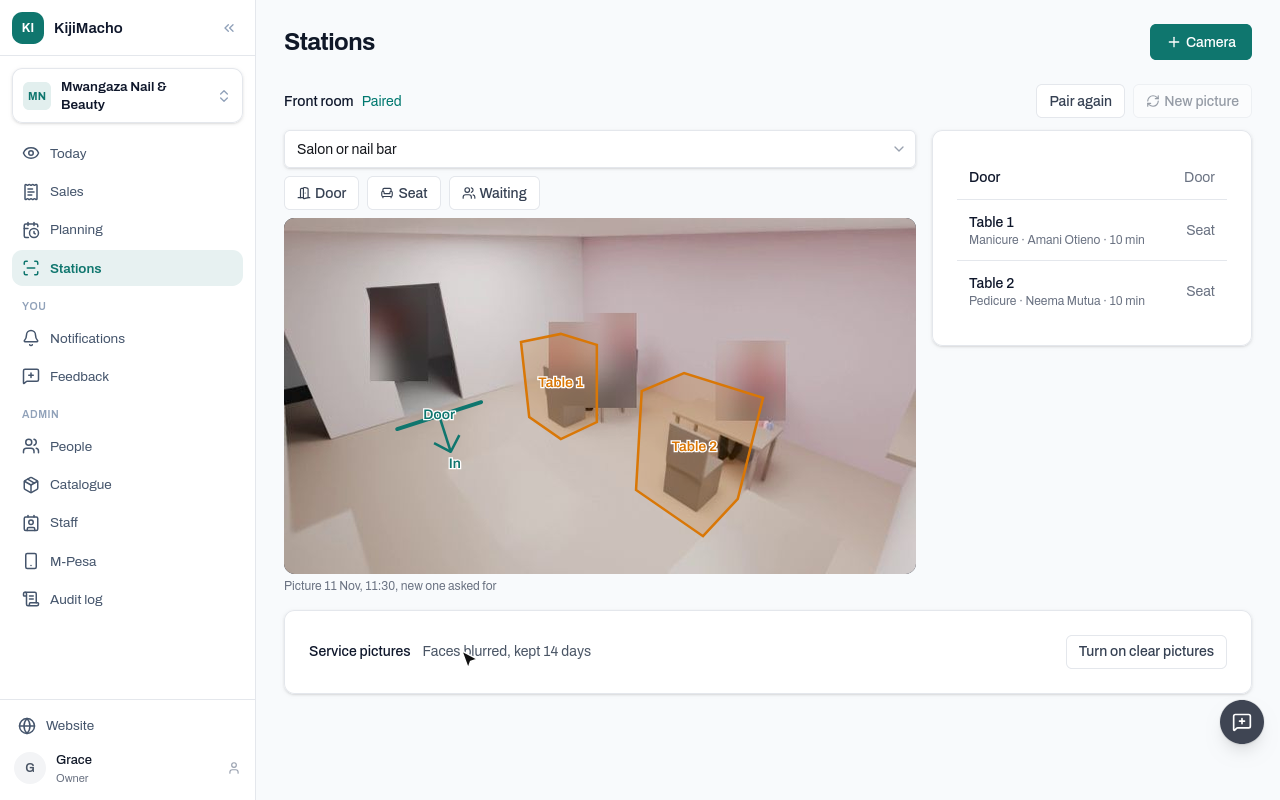
A business can choose clear pictures, with faces showing. Choose Turn on clear pictures.
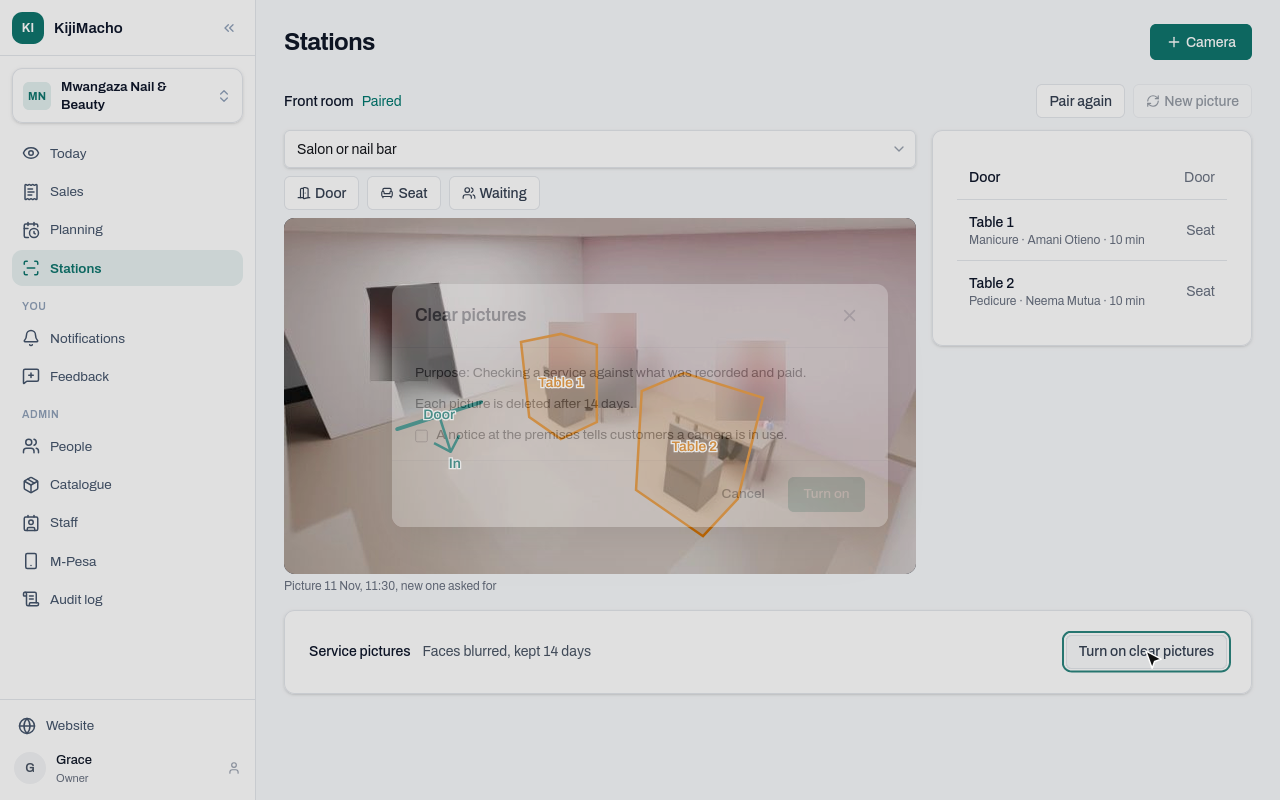
It says what the pictures are for, and that each is deleted after fourteen days.
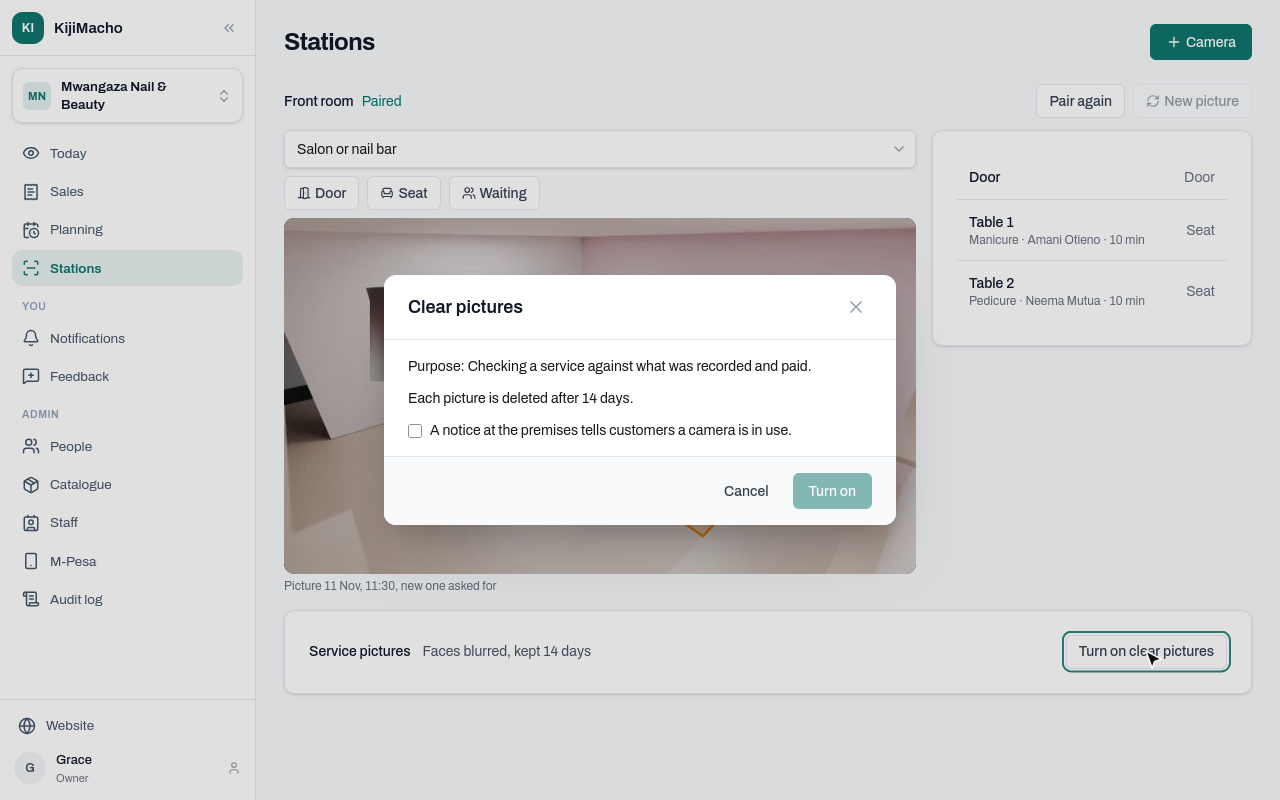
It only turns on once you confirm that a notice at the premises tells customers a camera is in use.
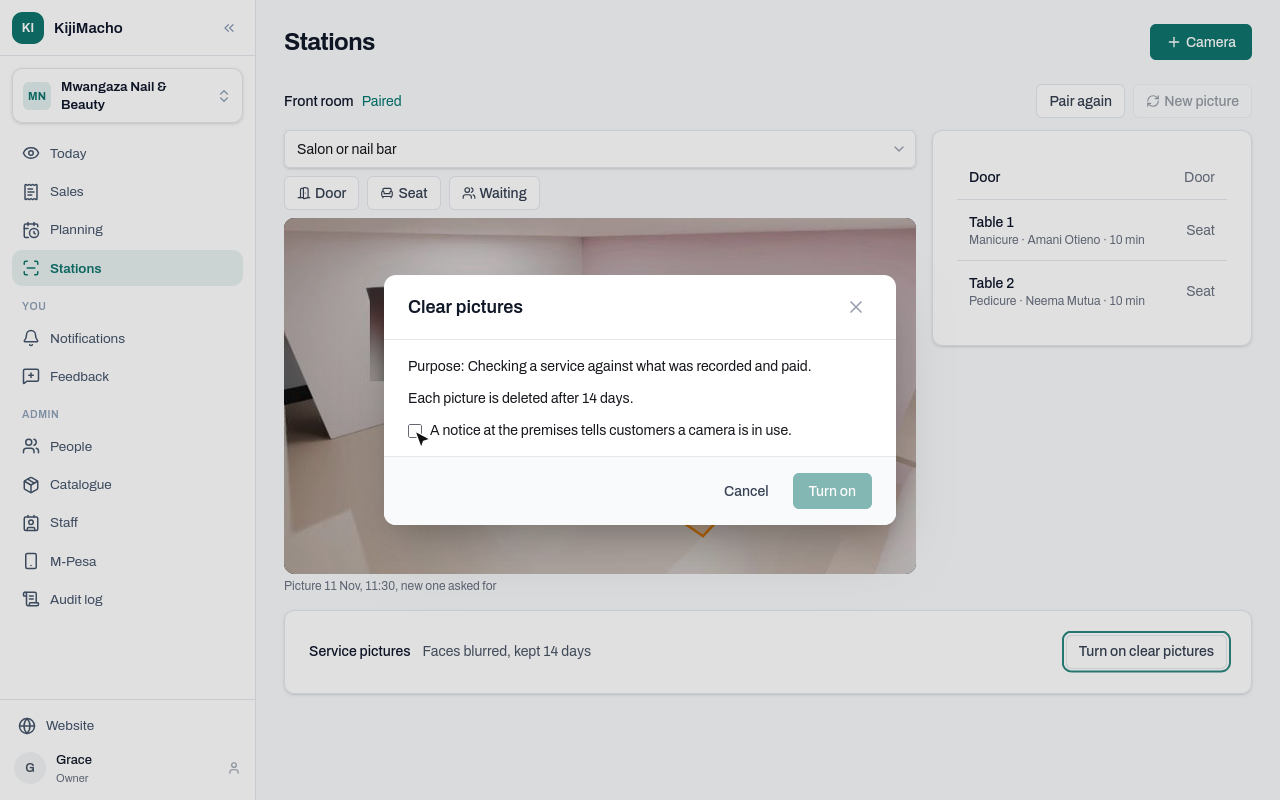
The change is recorded in the audit log, with who made it. Mwangaza keeps faces blurred: Cancel.