Chapter 1
Made once, on Weaverbird
Every product on Weaverbird signs you in the same way. These screens are MetroTel Parking's.
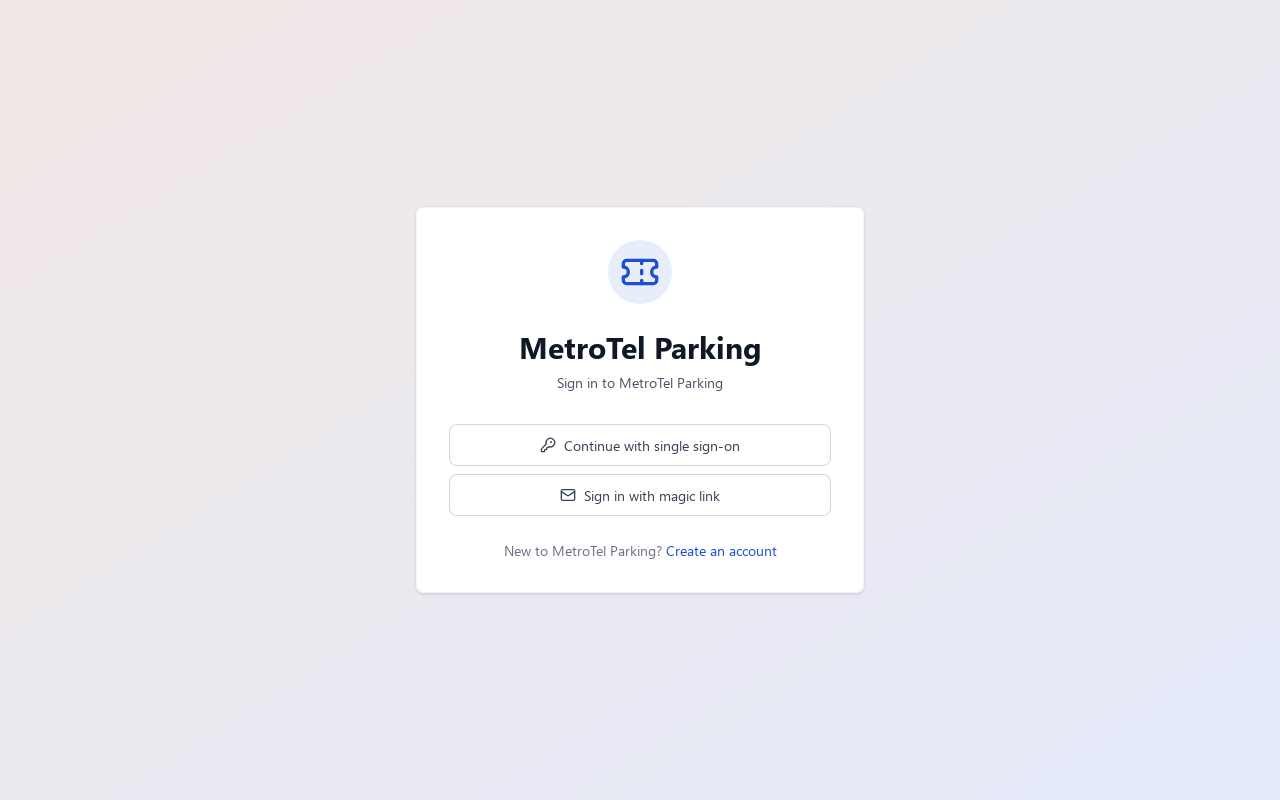
This is its sign-in page. Someone new chooses Create an account.
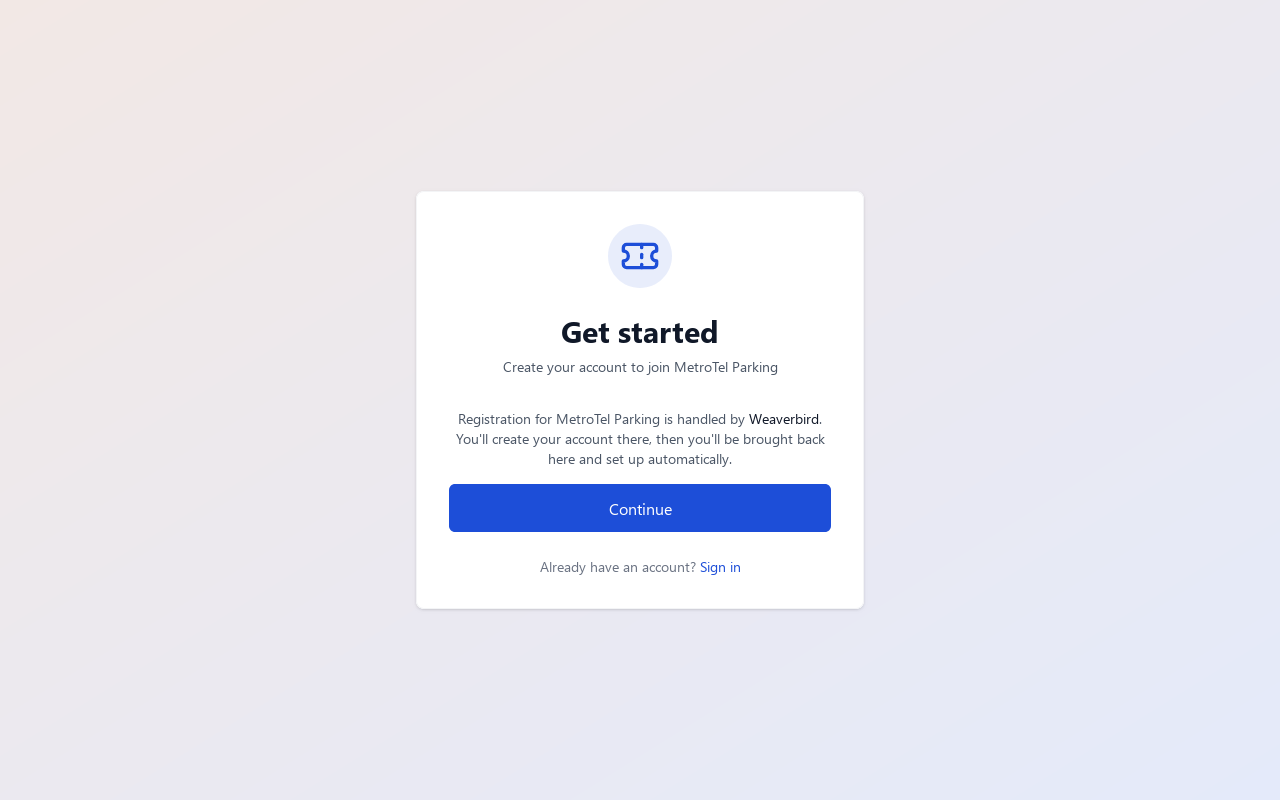
Accounts are made on Weaverbird, the platform Parking runs on. You make it there once, then come back. Choose Continue.
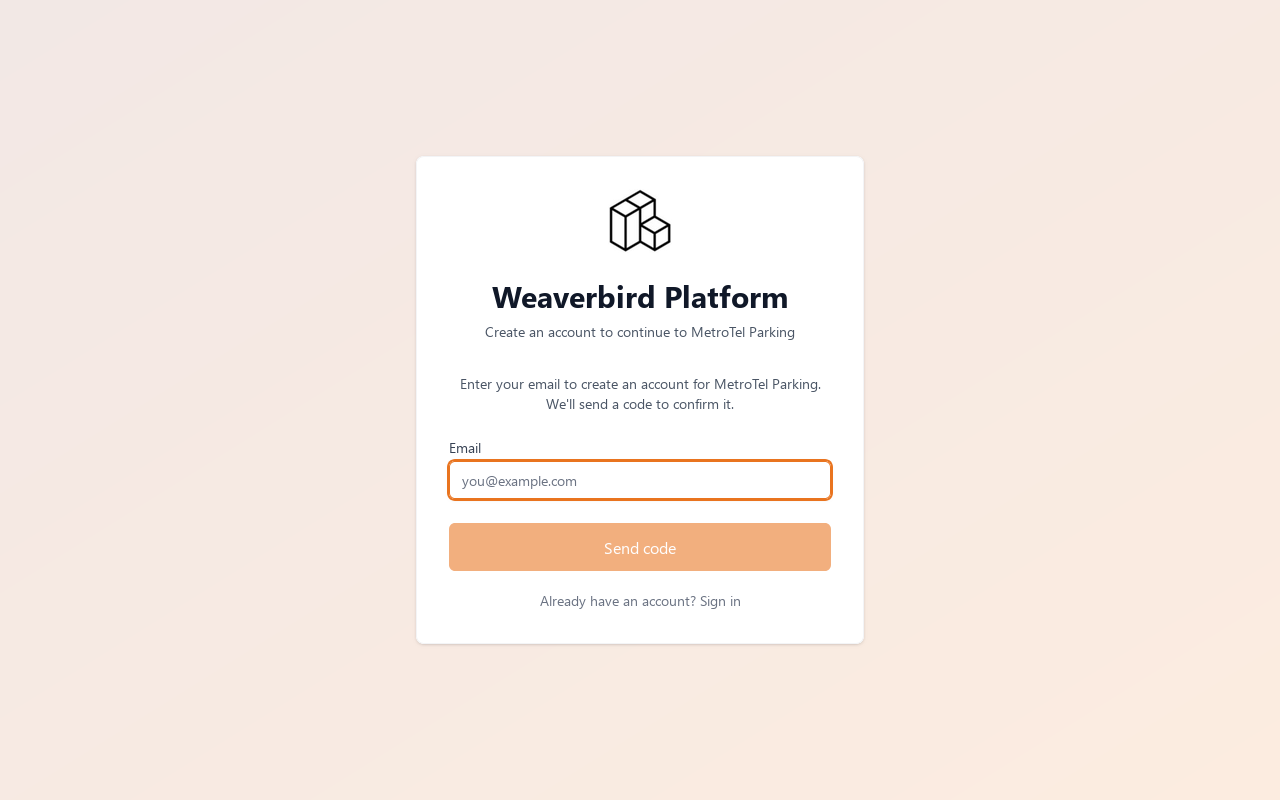
Type your email address and choose Send code.
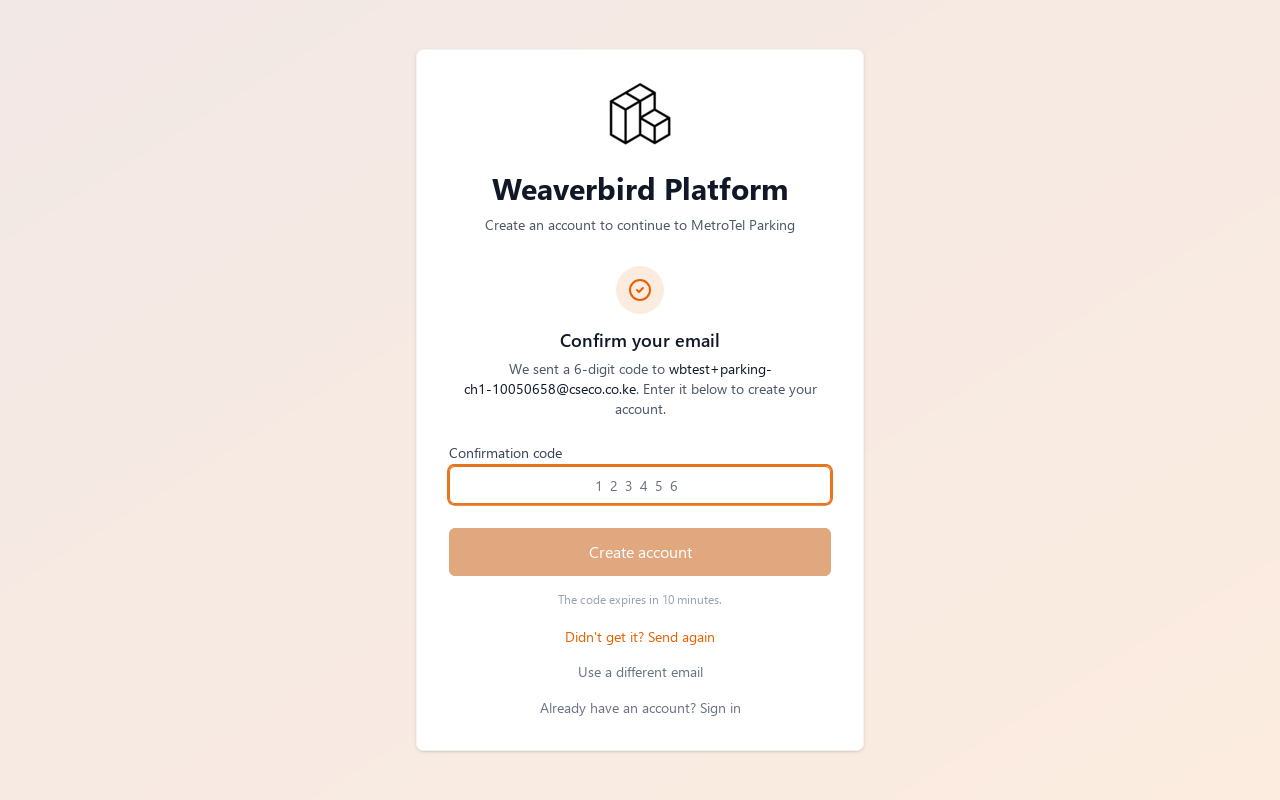
A six-digit code arrives by email. Type it, and choose Create account.
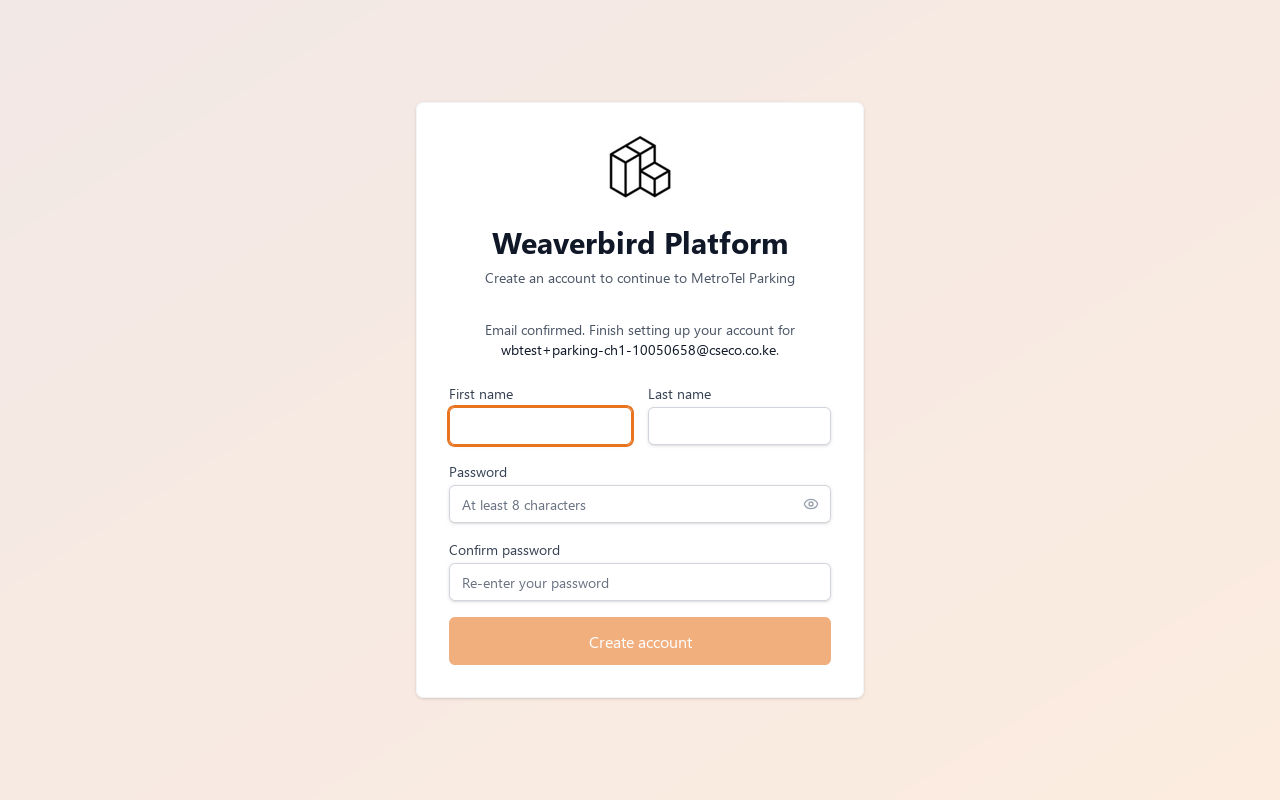
Then your name and a password.
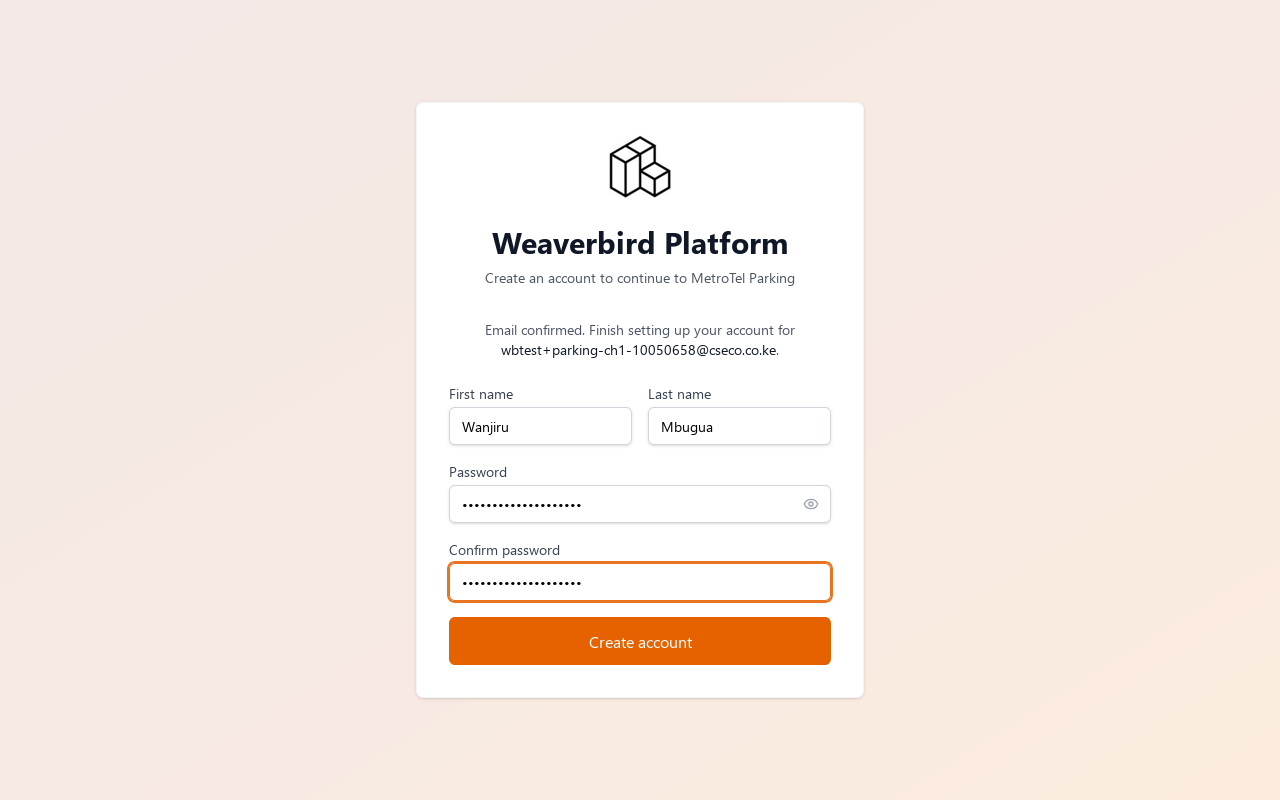
Choose Create account.
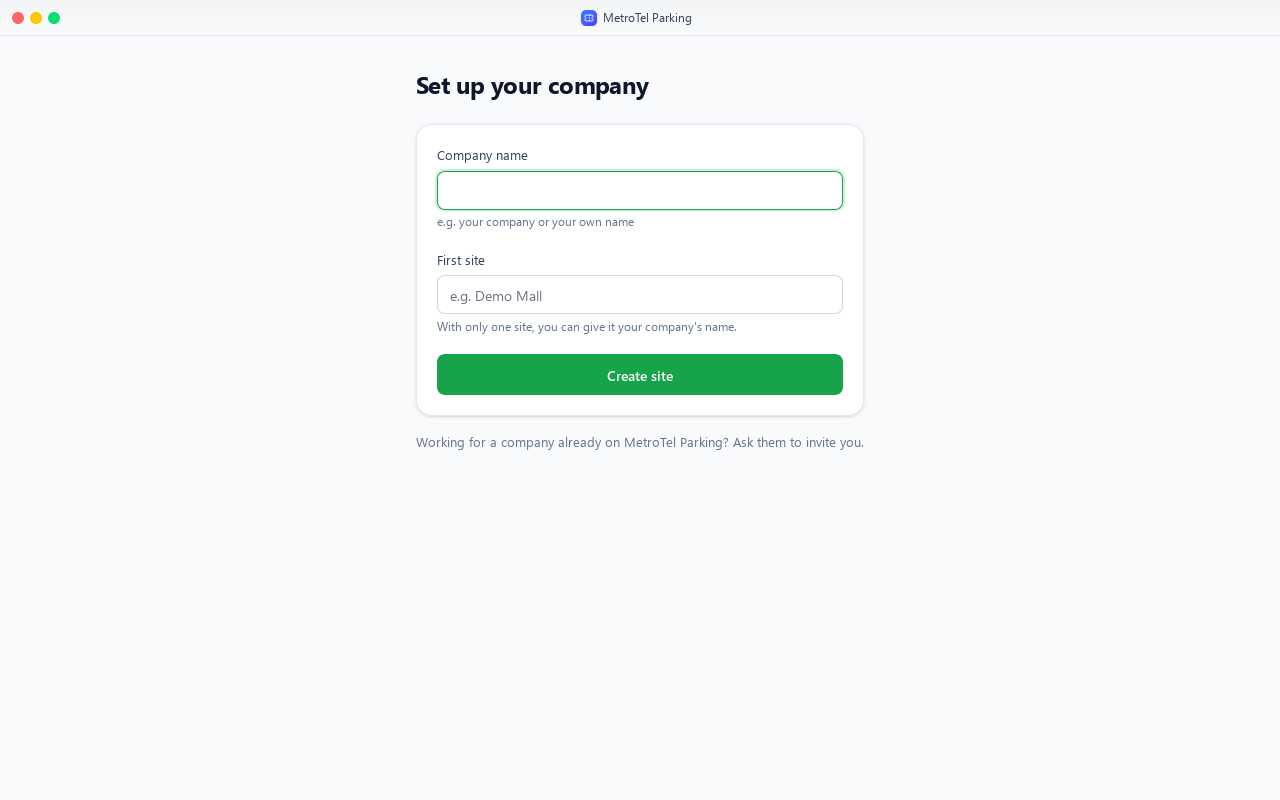
Chapter 2
To work with you, in a role
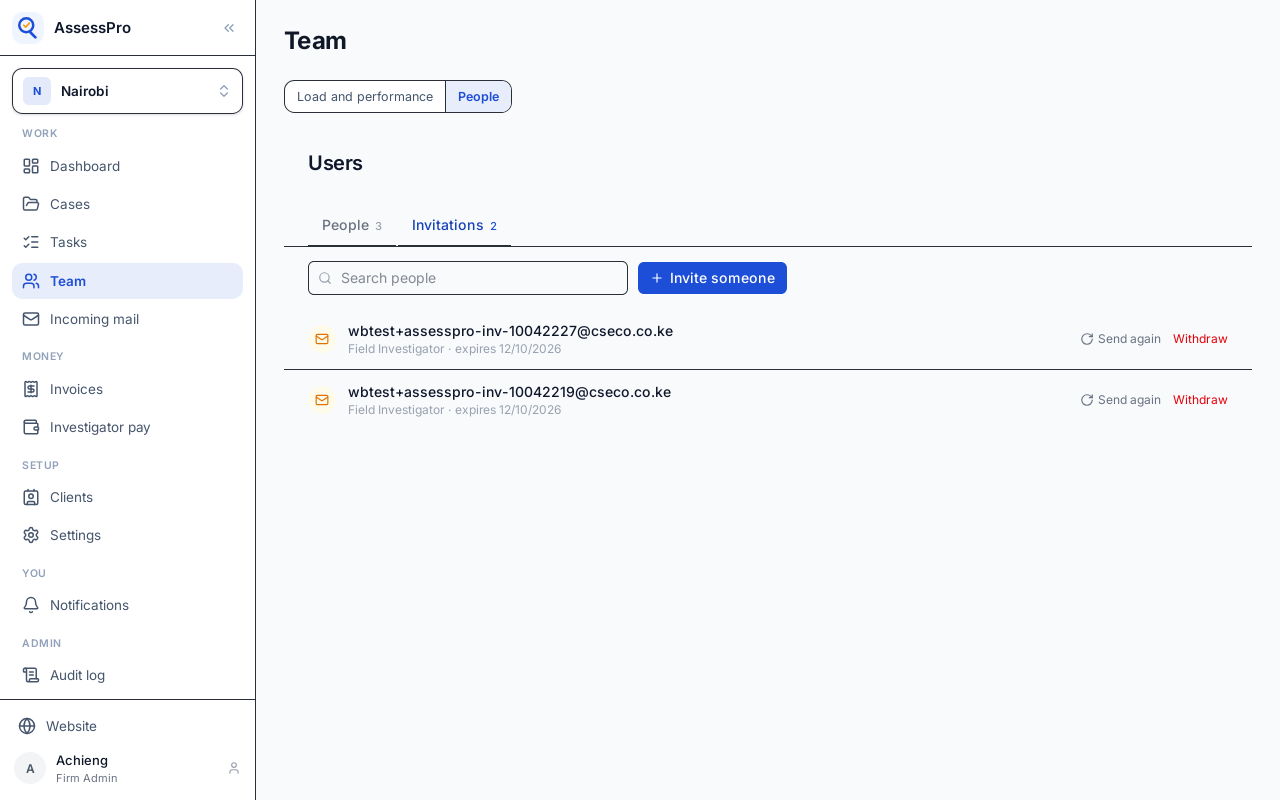
People lists who is in the branch and their role. To add someone, choose Invite someone.
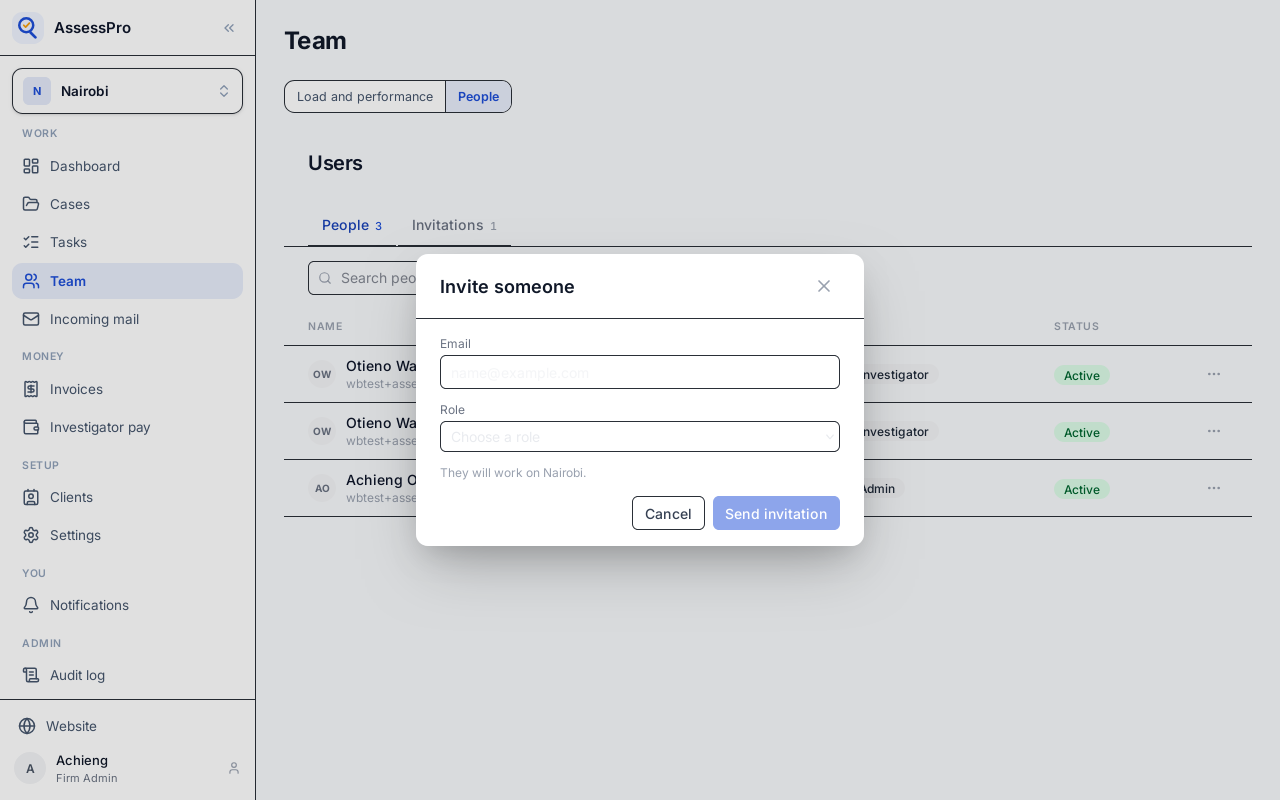
Type their email address, and choose their role: here, a field investigator.
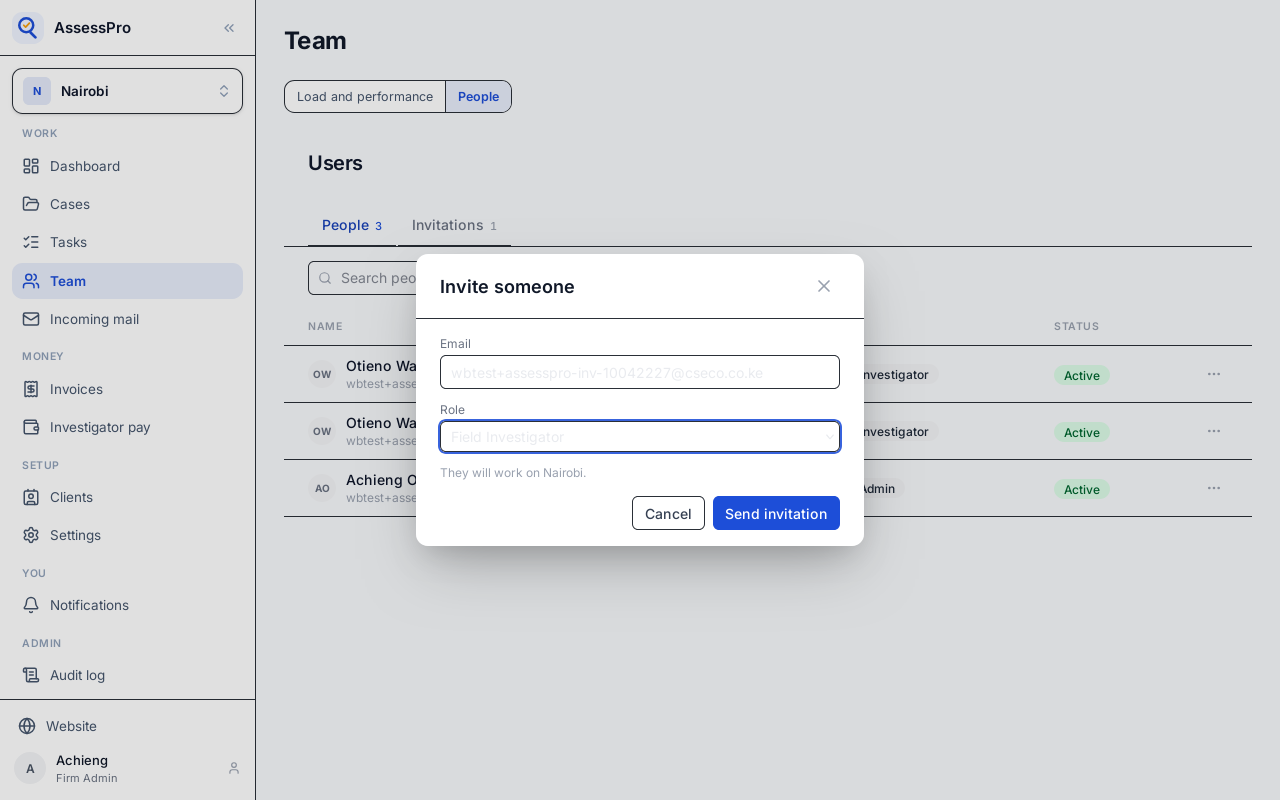
They will work on this branch. Choose Send invitation.
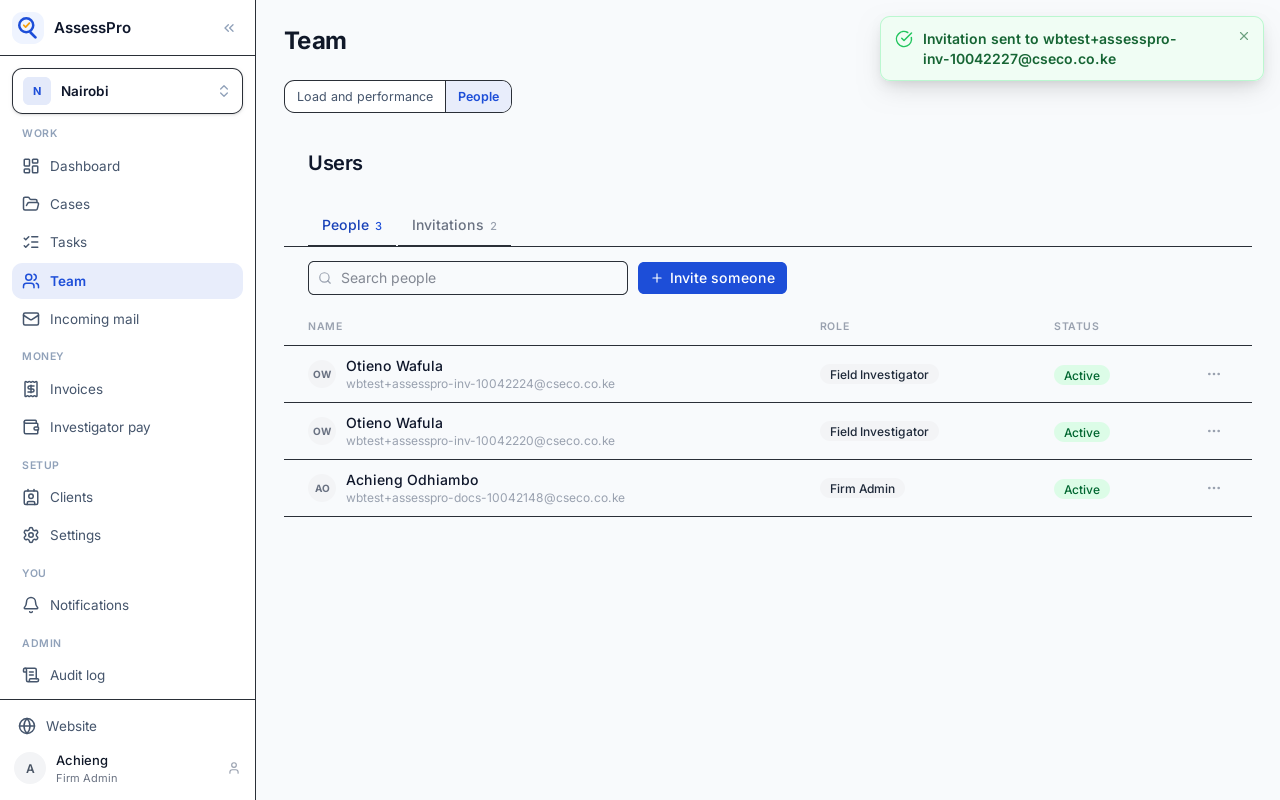
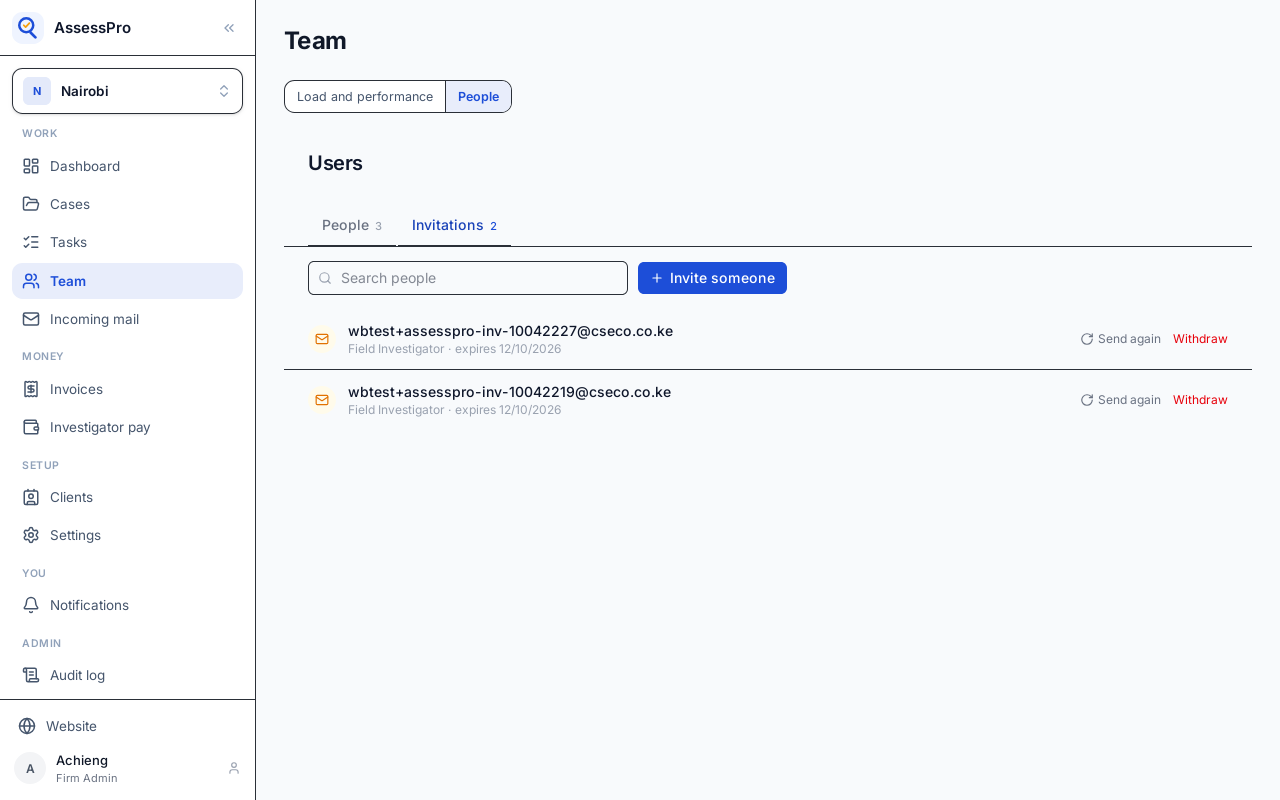
The invitation waits under Invitations until they accept it, and can be sent again or withdrawn there.
They get an email with a link to accept. The next chapter follows them in.
Chapter 3
And signing in
The invitation email's link opens this page. It names the company, the branch, and the role they are invited to.
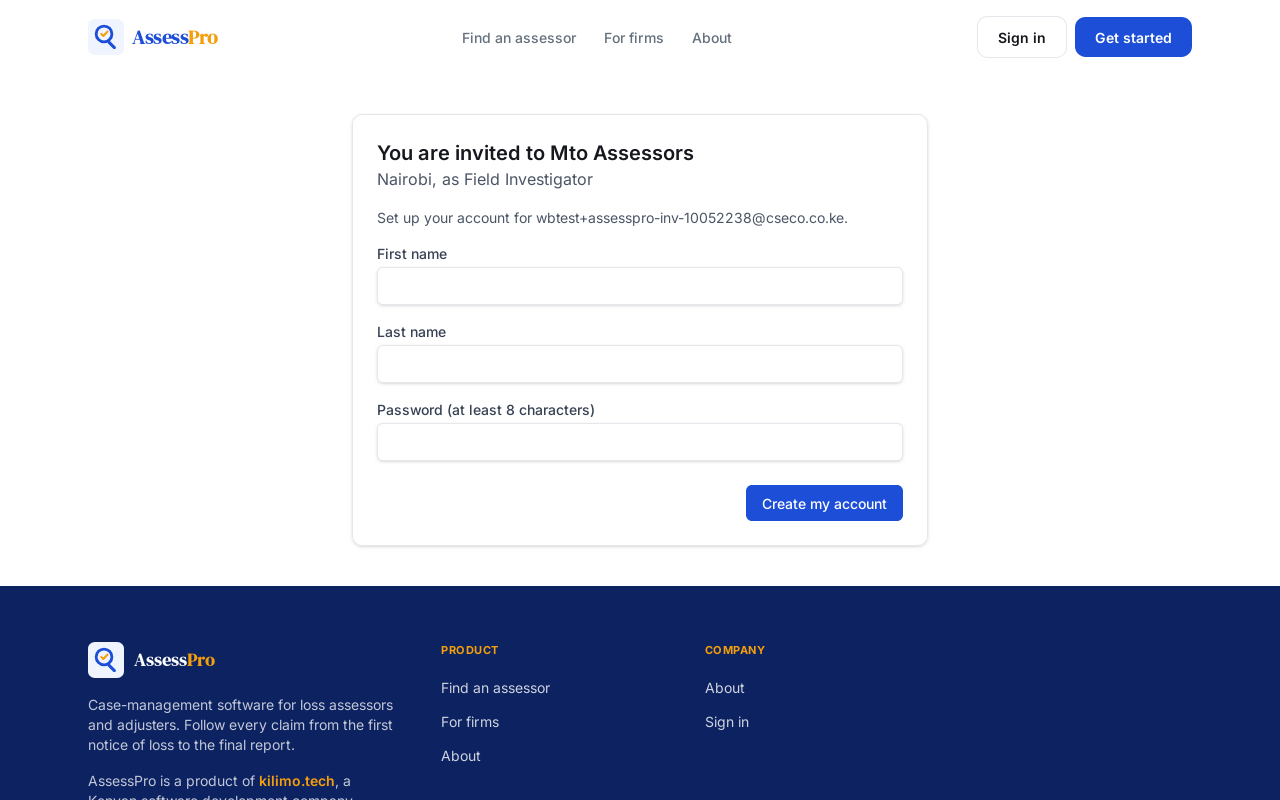
Someone new to AssessPro sets up their account here: their name, and a password.
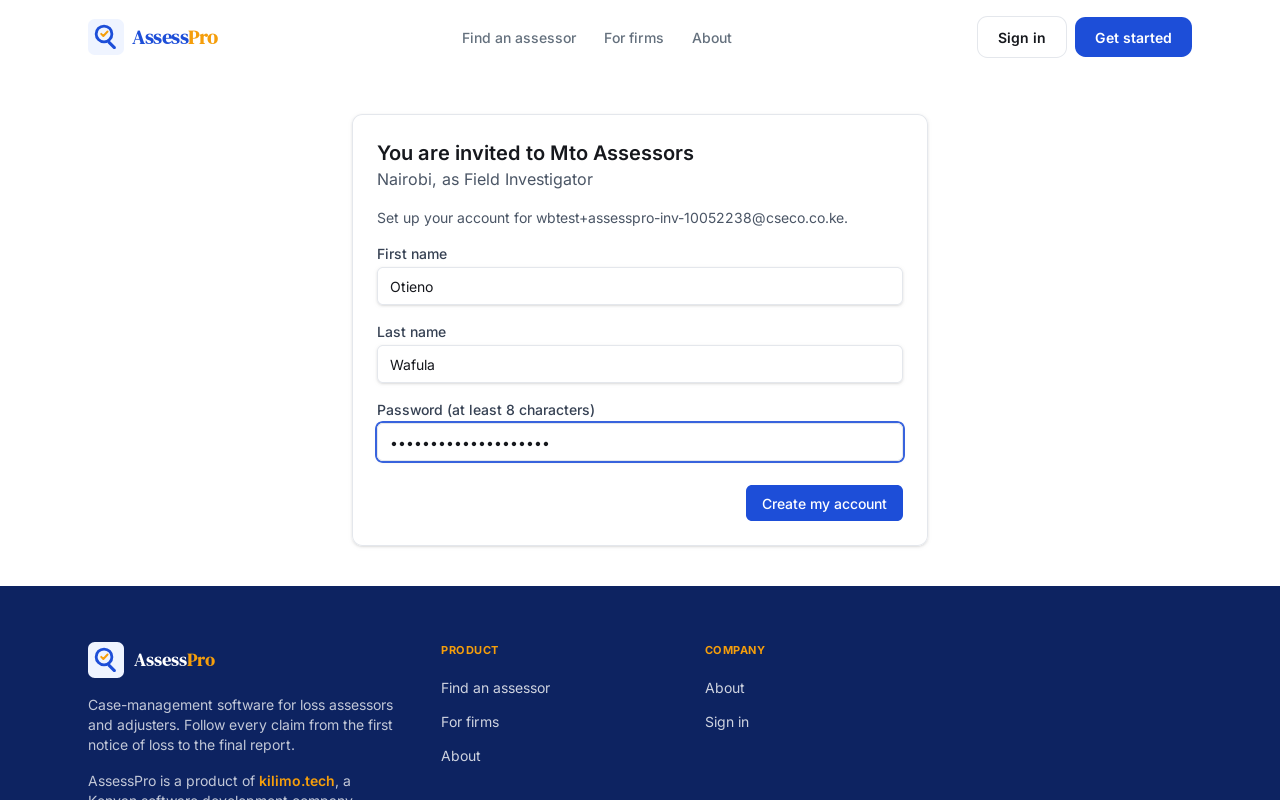
Choose Create my account.
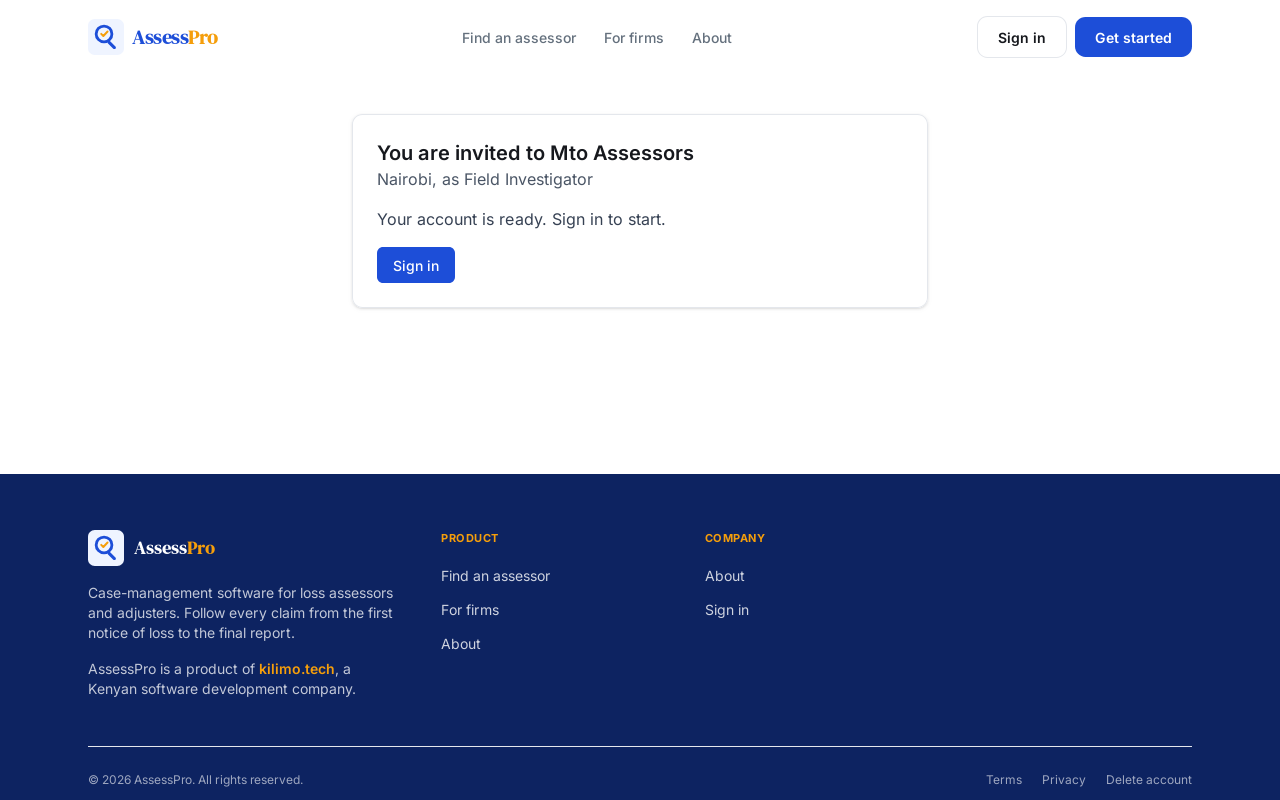
The account is ready. Choose Sign in.
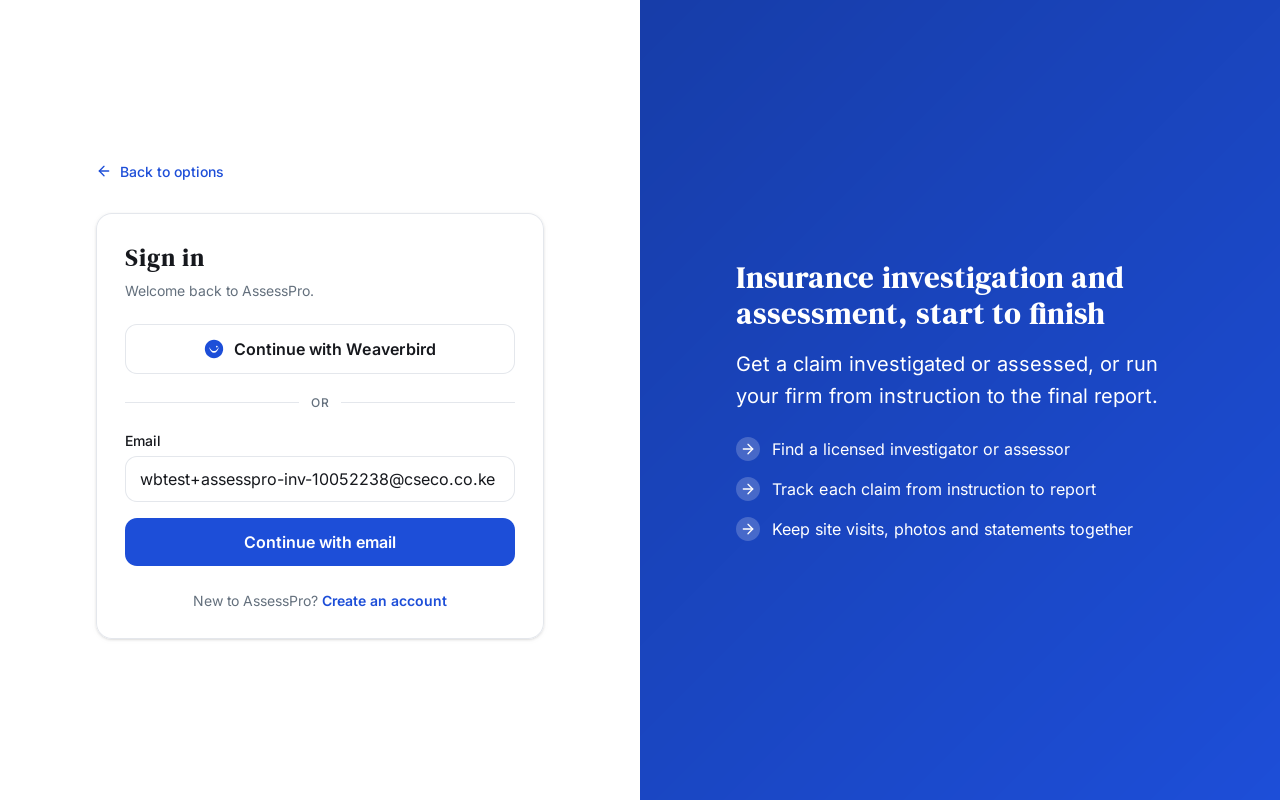
Sign-in is on Weaverbird, the platform AssessPro runs on. Choose Continue with Weaverbird.
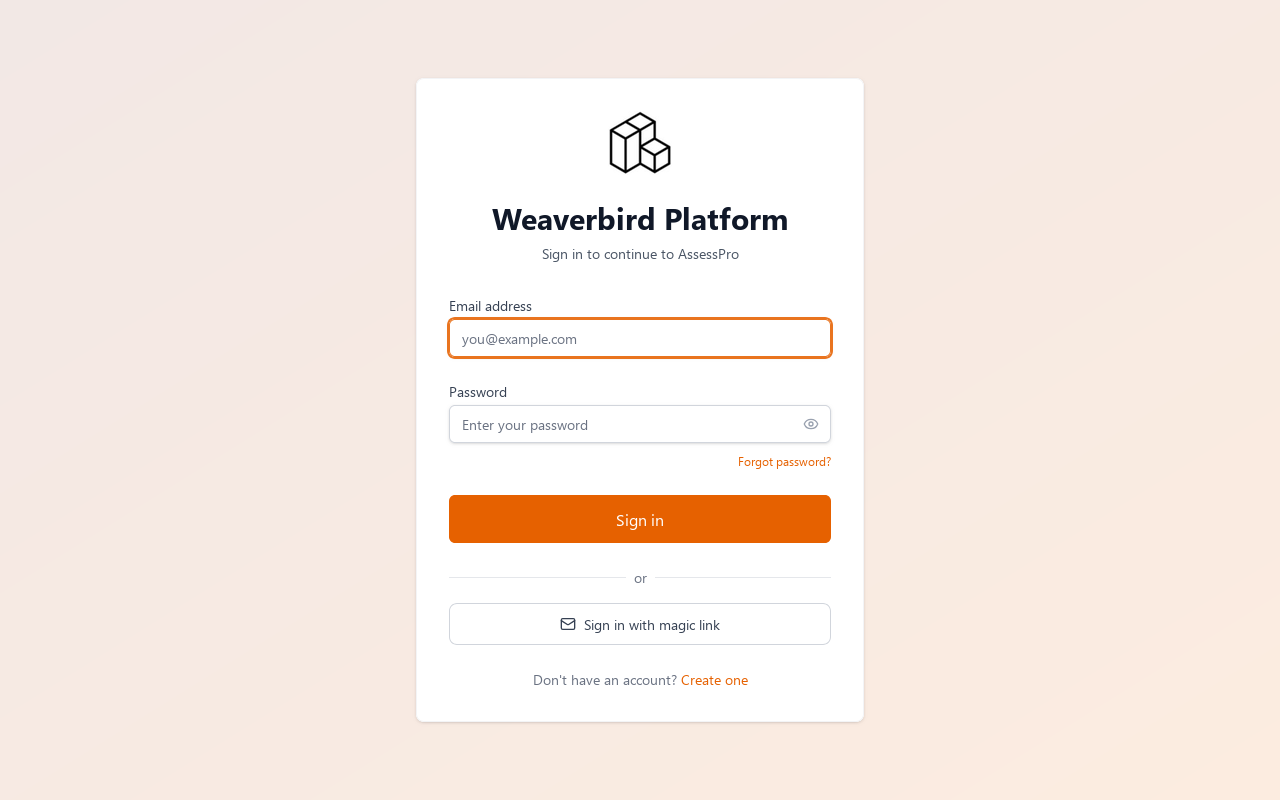
Type the email address the invitation went to, and the new password. Choose Sign in.
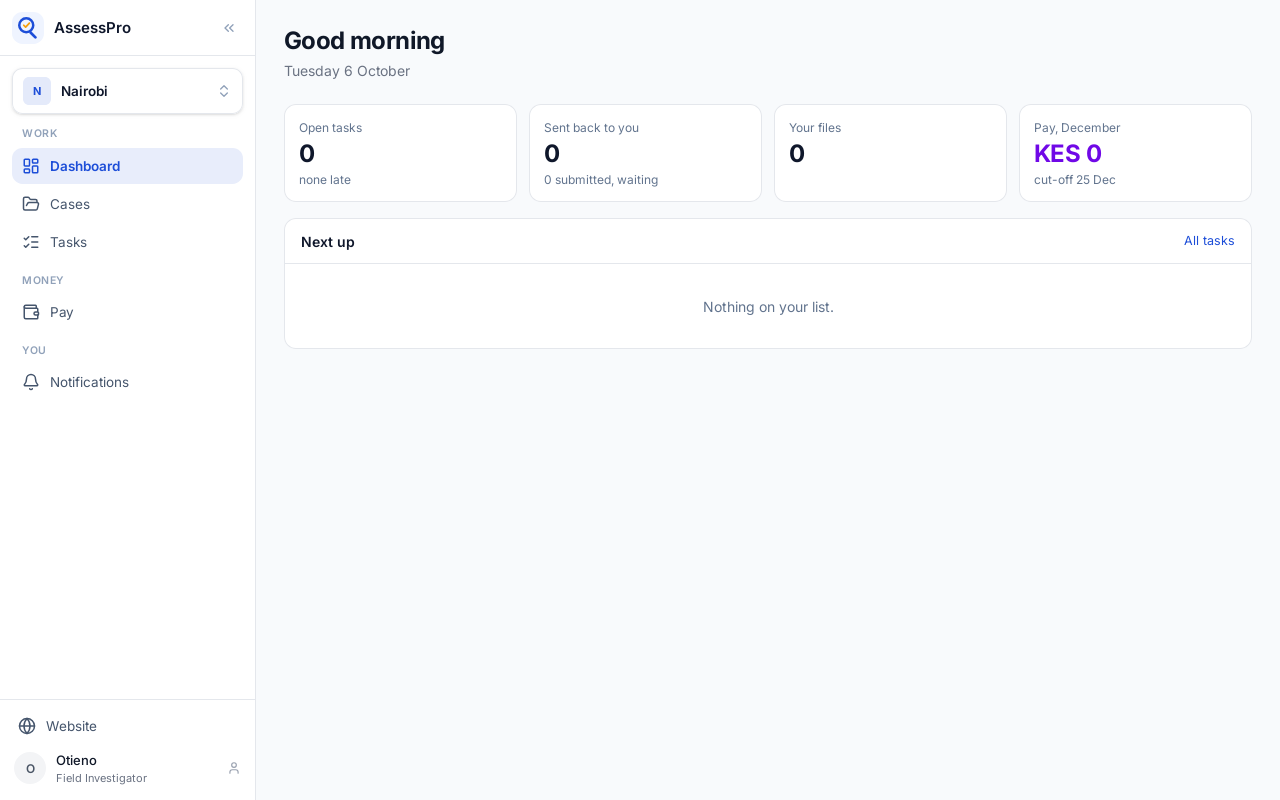
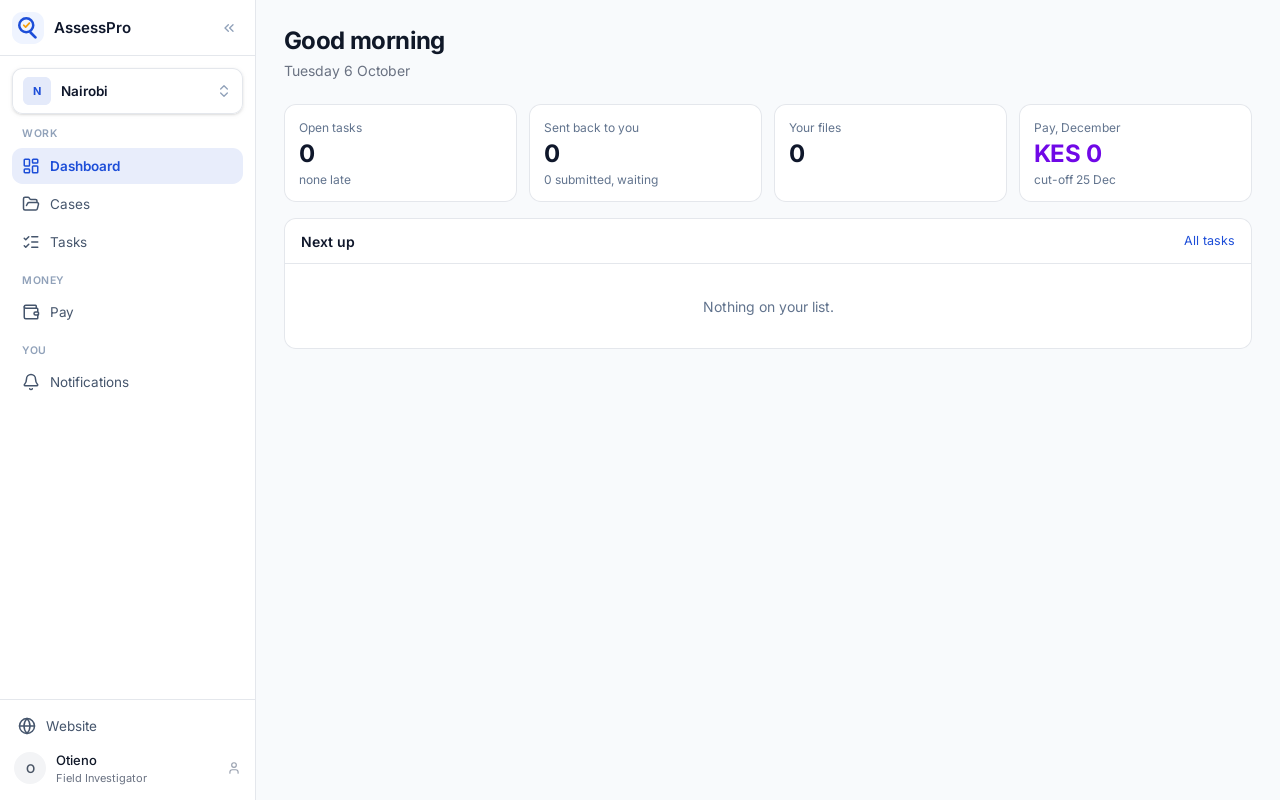
They are in, on the branch, with what a field investigator sees.