Chapter 1
Finding a welfare society, and asking to join
KijiWelfare is for welfare societies: the groups that stand with their members through a bereavement, an illness or a wedding, and neighbourhood groups that share the cost of security and water.
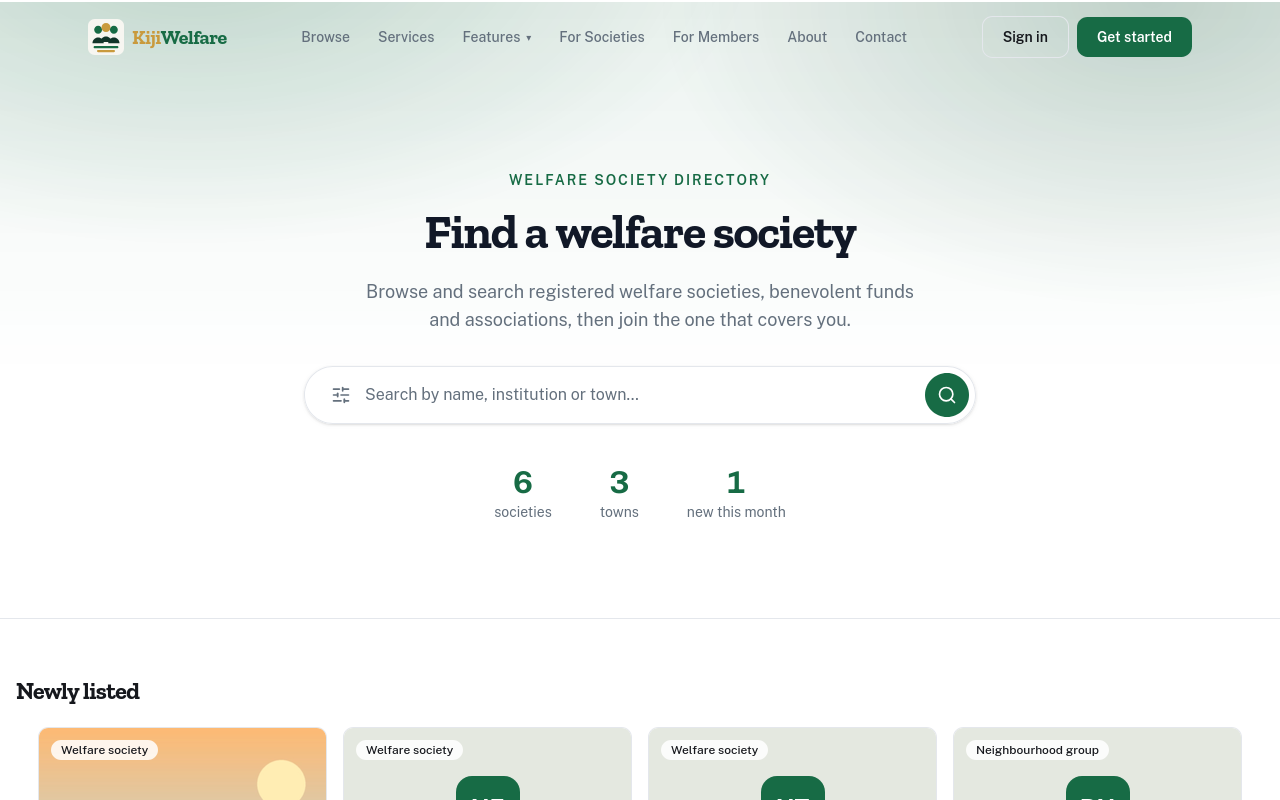
Its home page is a directory of the societies listed on it, with the newest first.
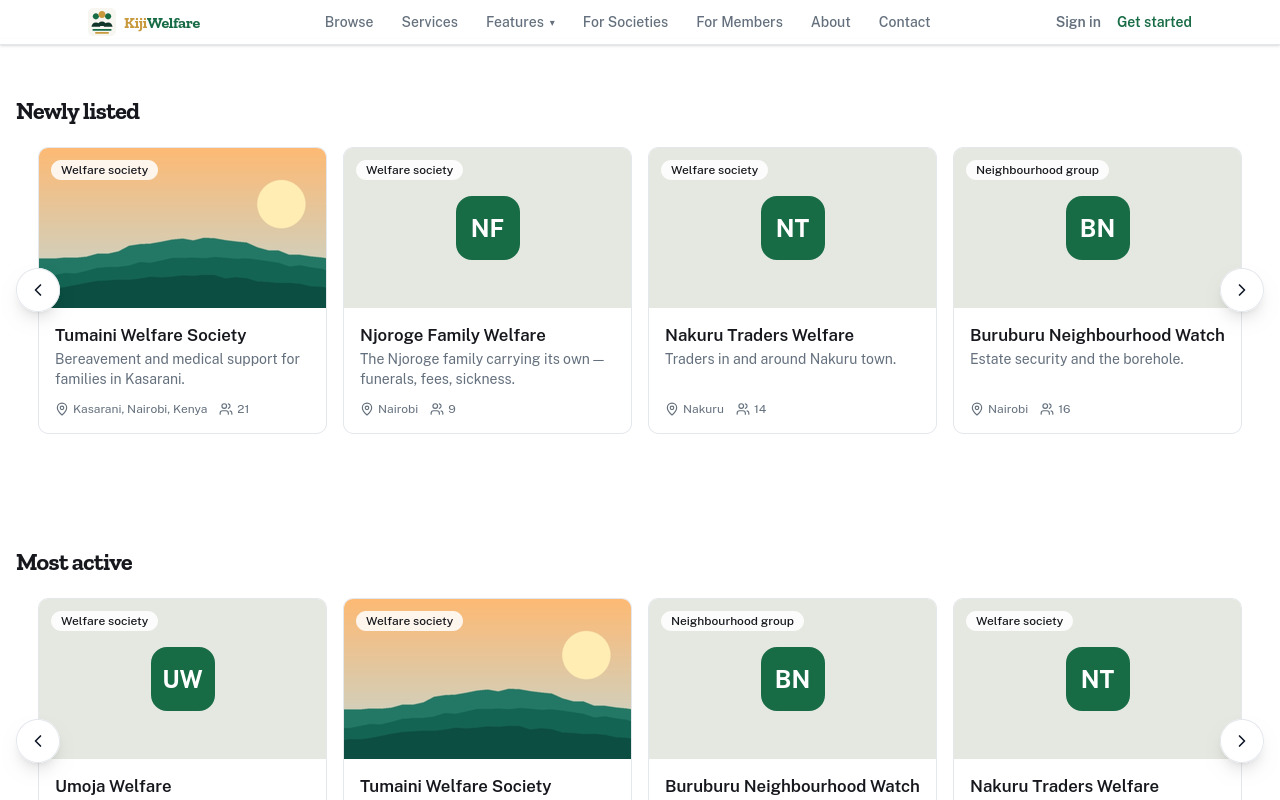
Browse shows them all, as a list or on a map, with filters to narrow them down.
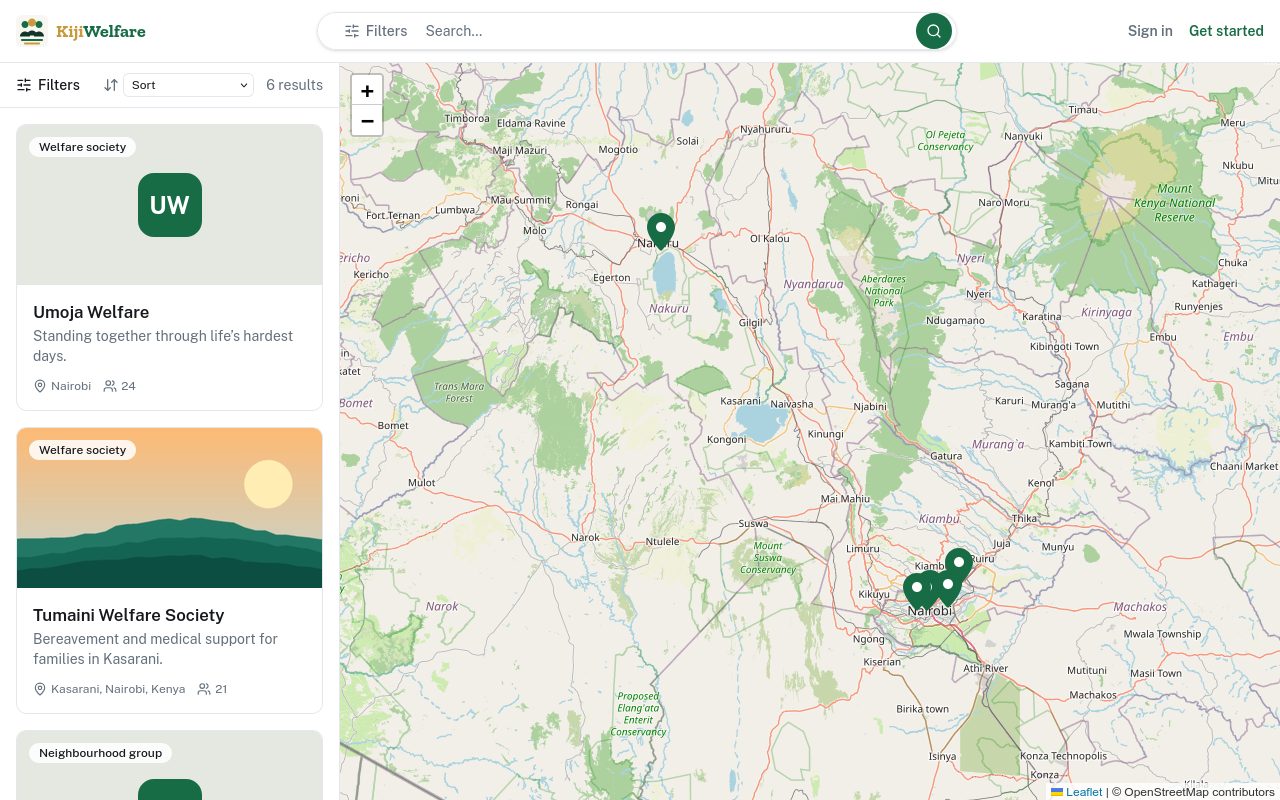
Open a society to see its page. Here, Tumaini Welfare Society, in Kasarani.
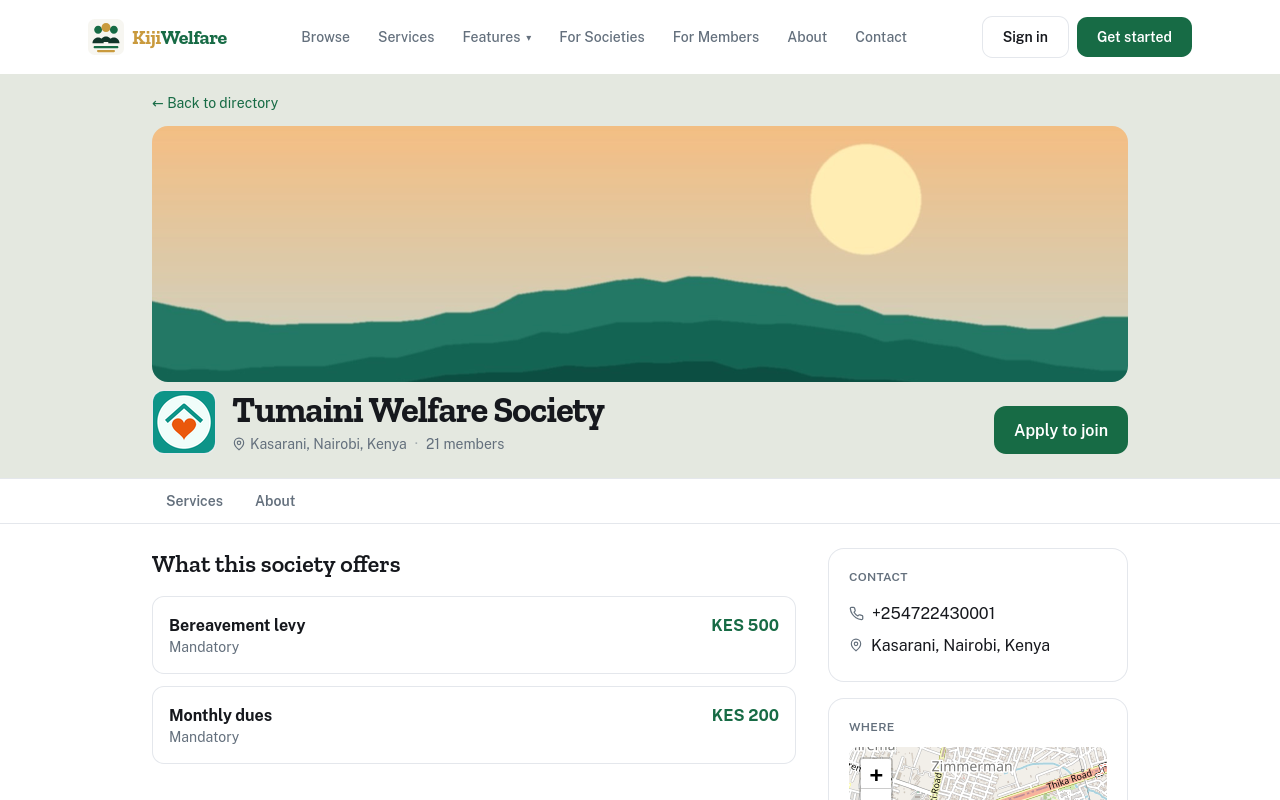
The page shows what the society offers members, with what each contribution costs, what it is about, and how to reach it.
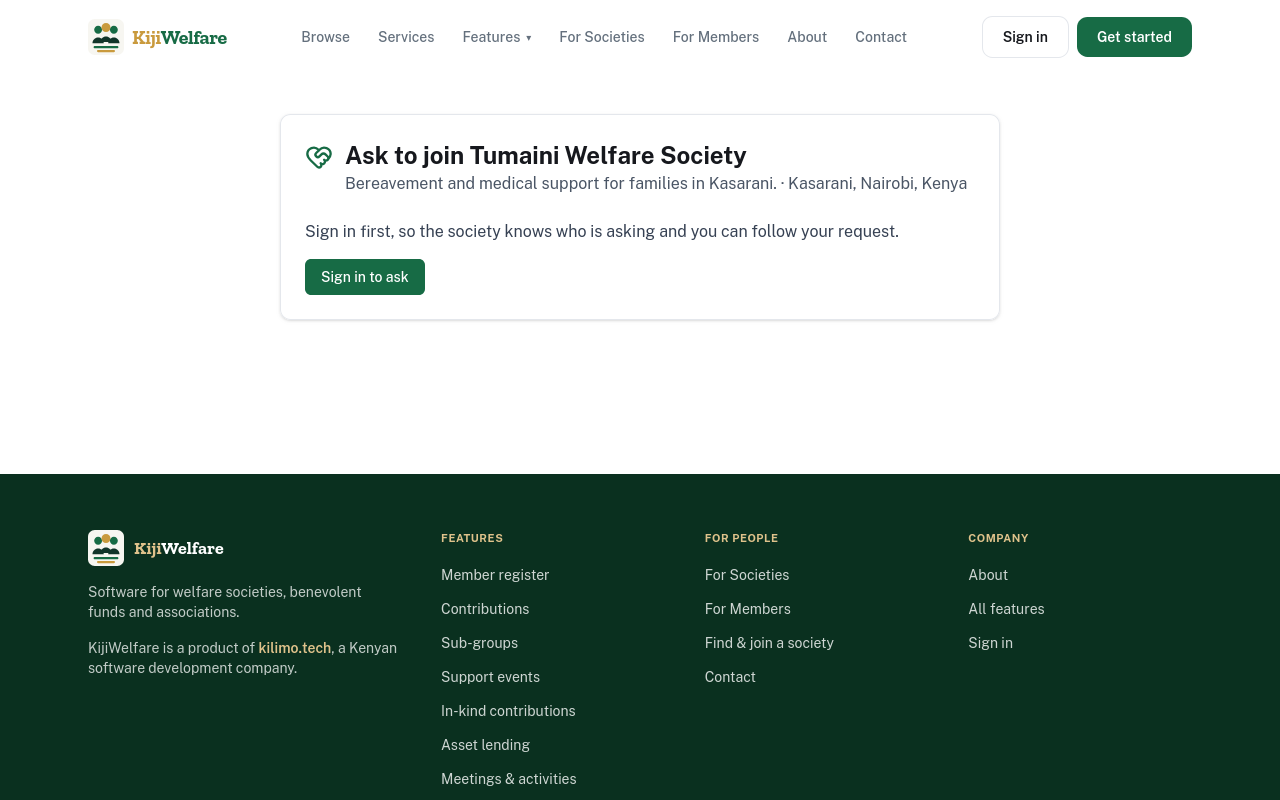
To join, choose Apply to join. KijiWelfare asks you to sign in first, so the society knows who is asking.
Amina is signed in. She gives her name, her phone, where she lives, and a note to the officials.
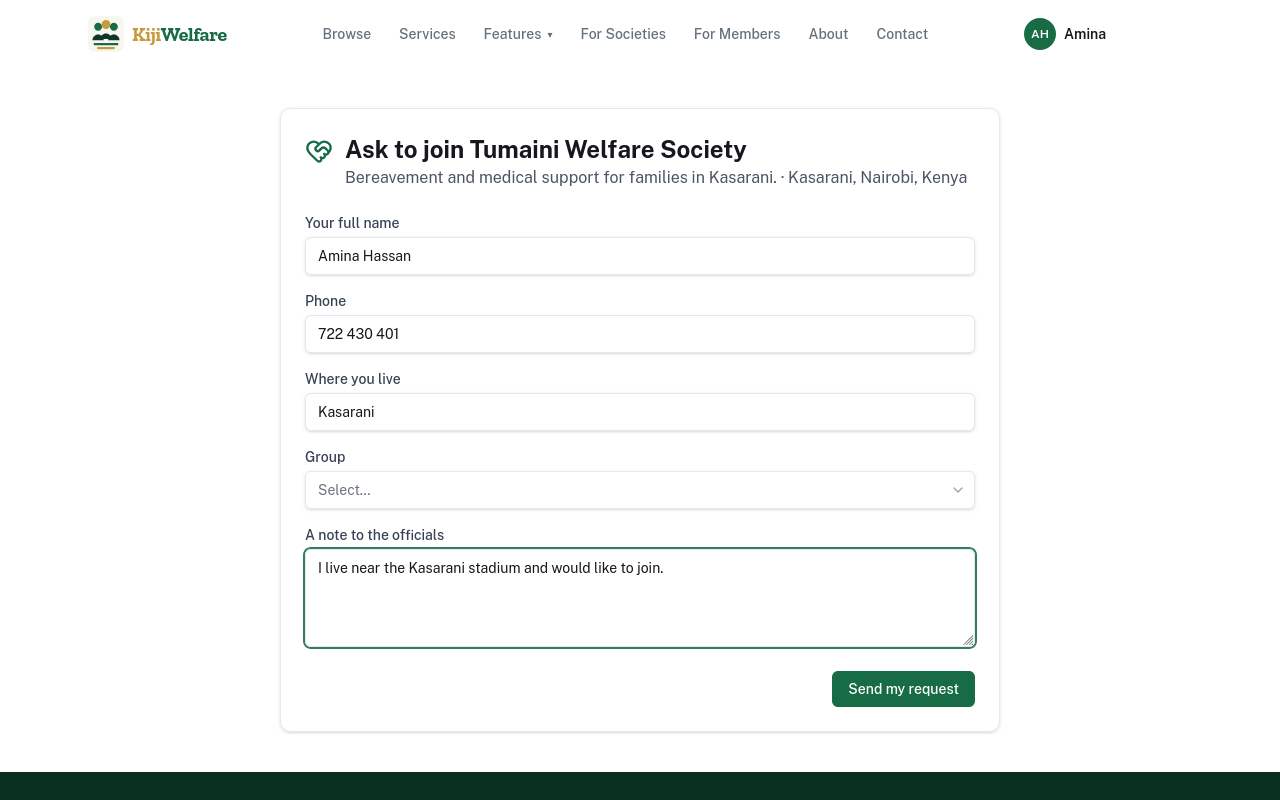
Choose Send my request. The society's officials see it under Join requests, and admit her or not.
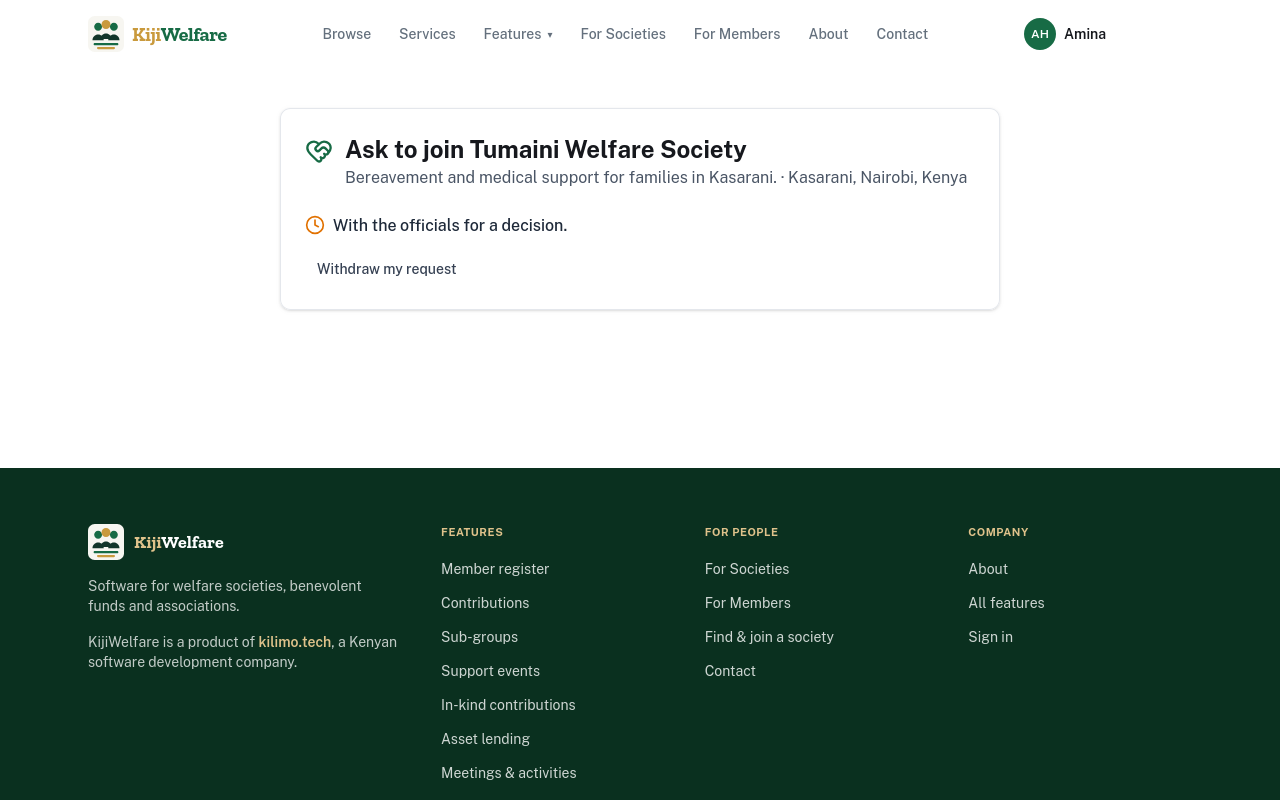
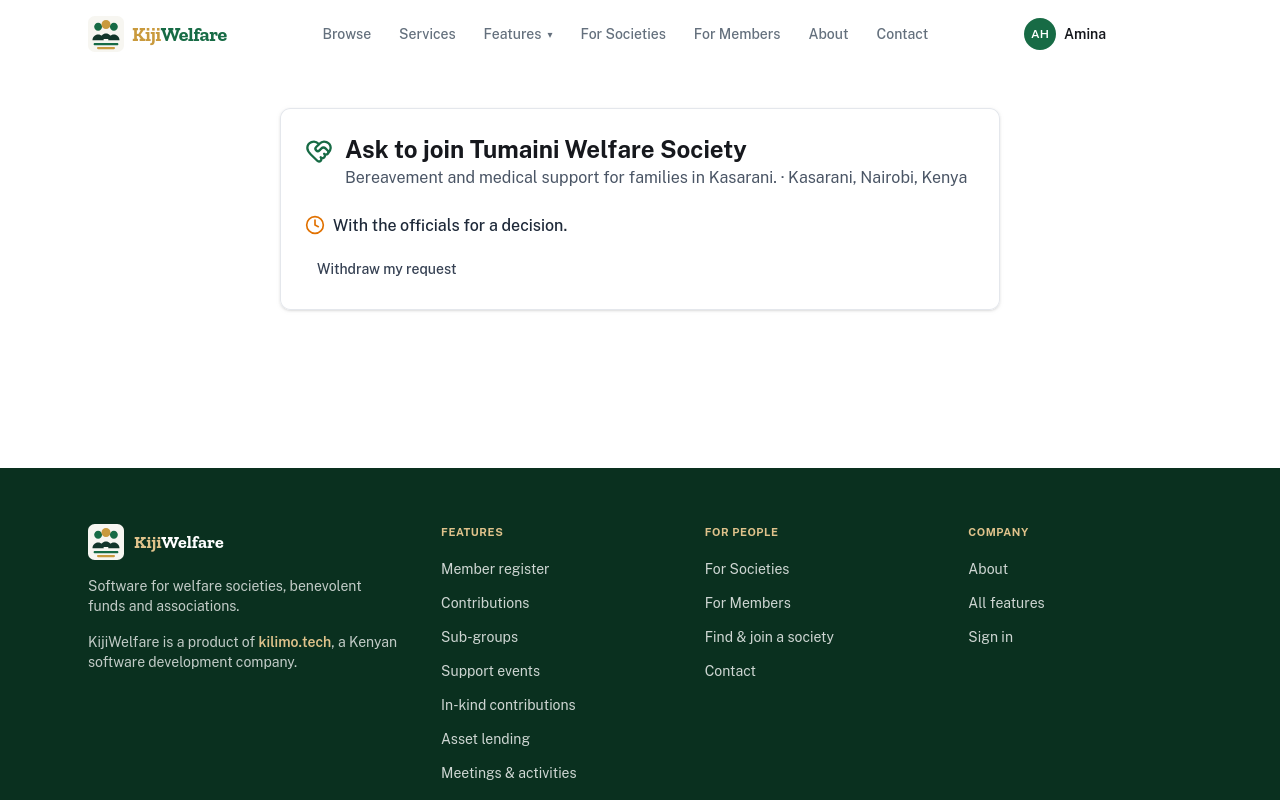
Her request waits for the officials. Once they admit her, the society is in her own KijiWelfare.
Chapter 2
Your organisation, its first society, and its page
The first time you sign in, KijiWelfare asks what you are here for: to join a society, or to run one.
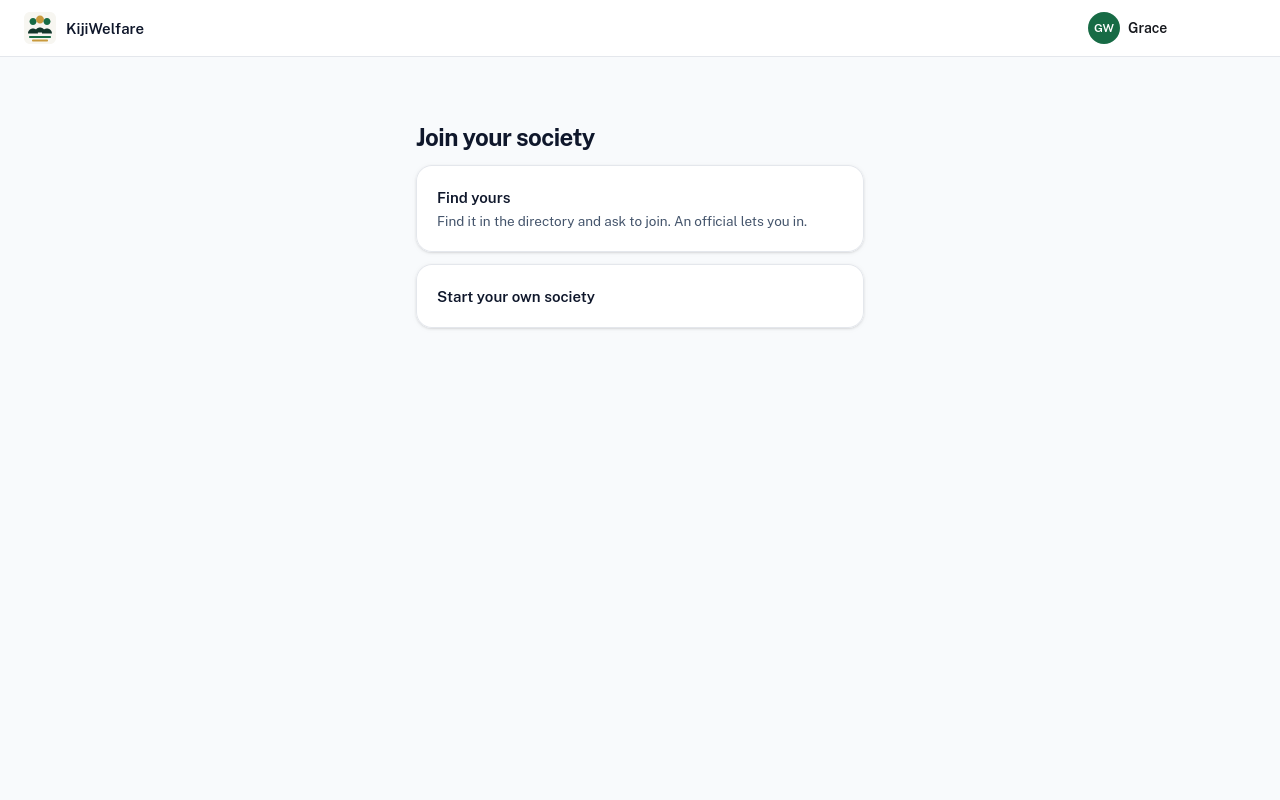
Find yours is for members. It opens the directory of societies. To run one, choose Start your own society.
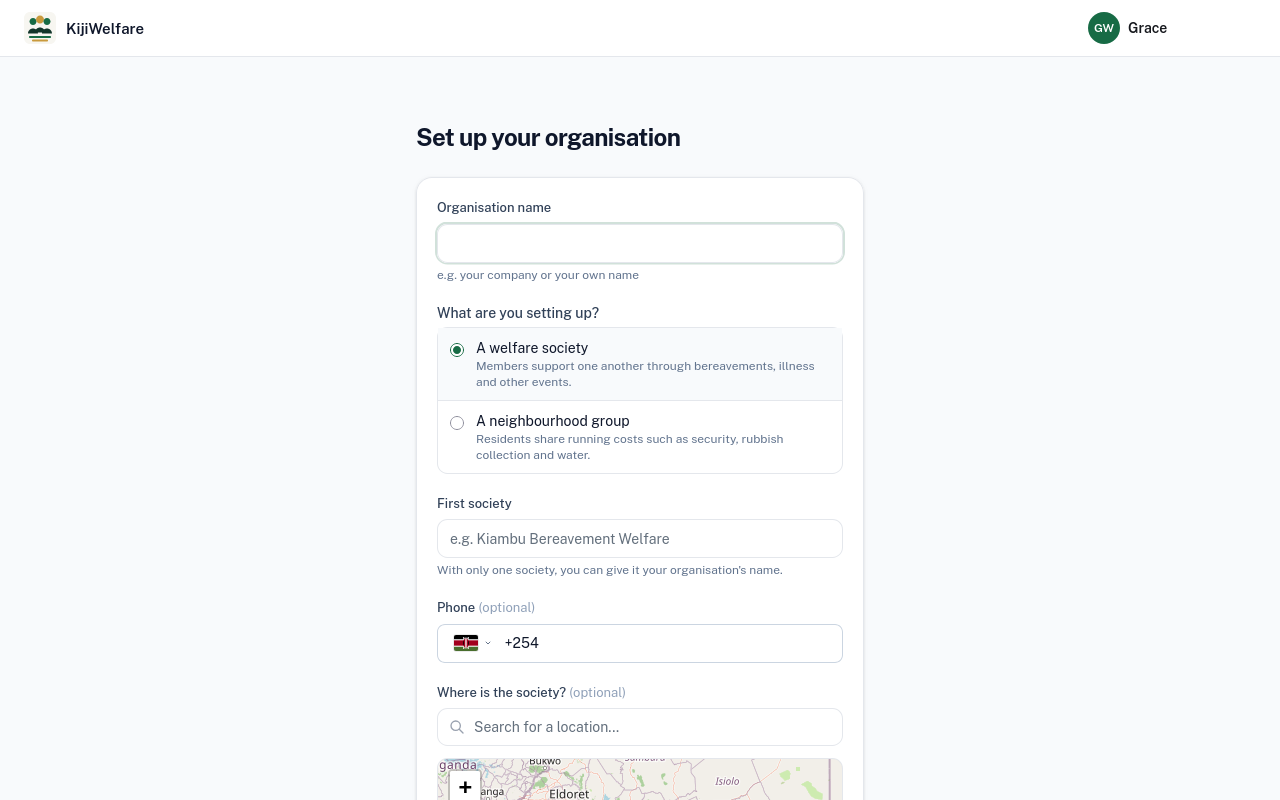
The form sets up your organisation. Type its name. It can be a group, or your own name.
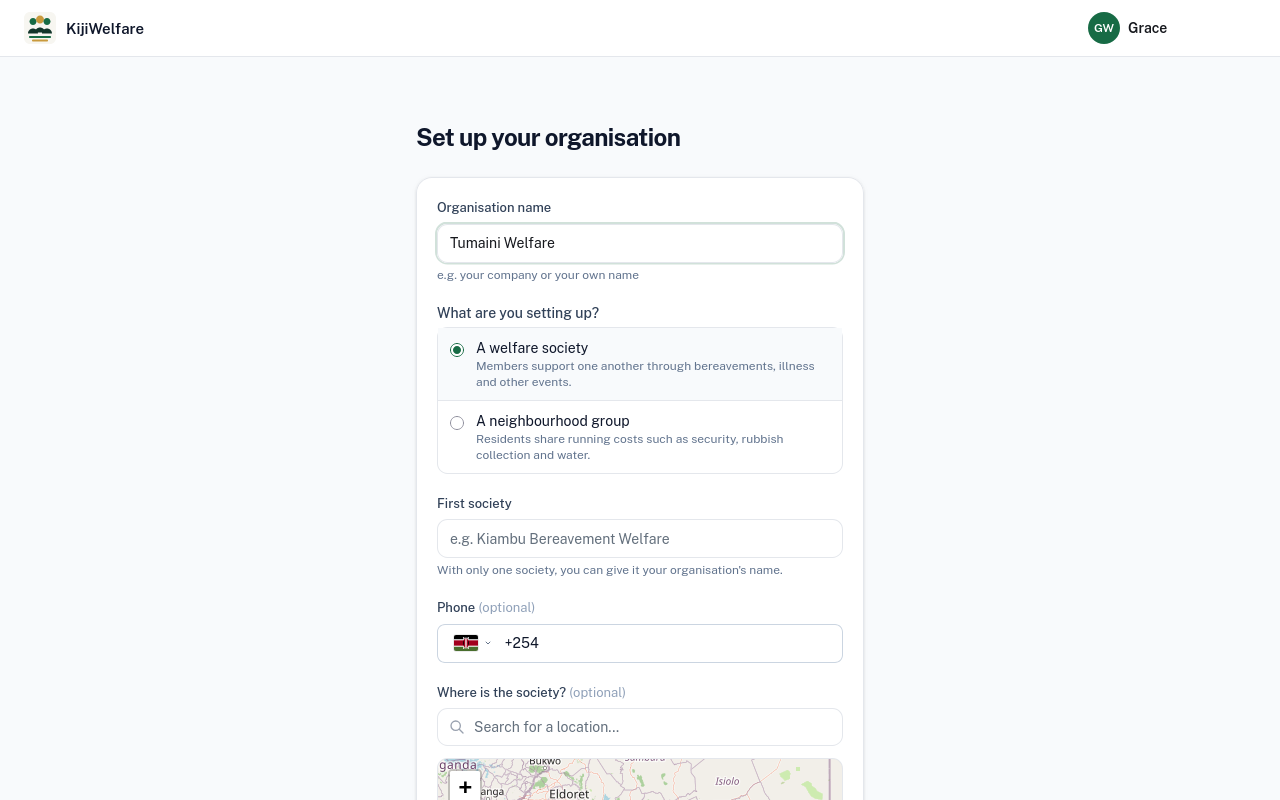
Then what you are setting up. A welfare society supports its members through bereavements, illness and other events. A neighbourhood group shares running costs, like security, rubbish collection and water.
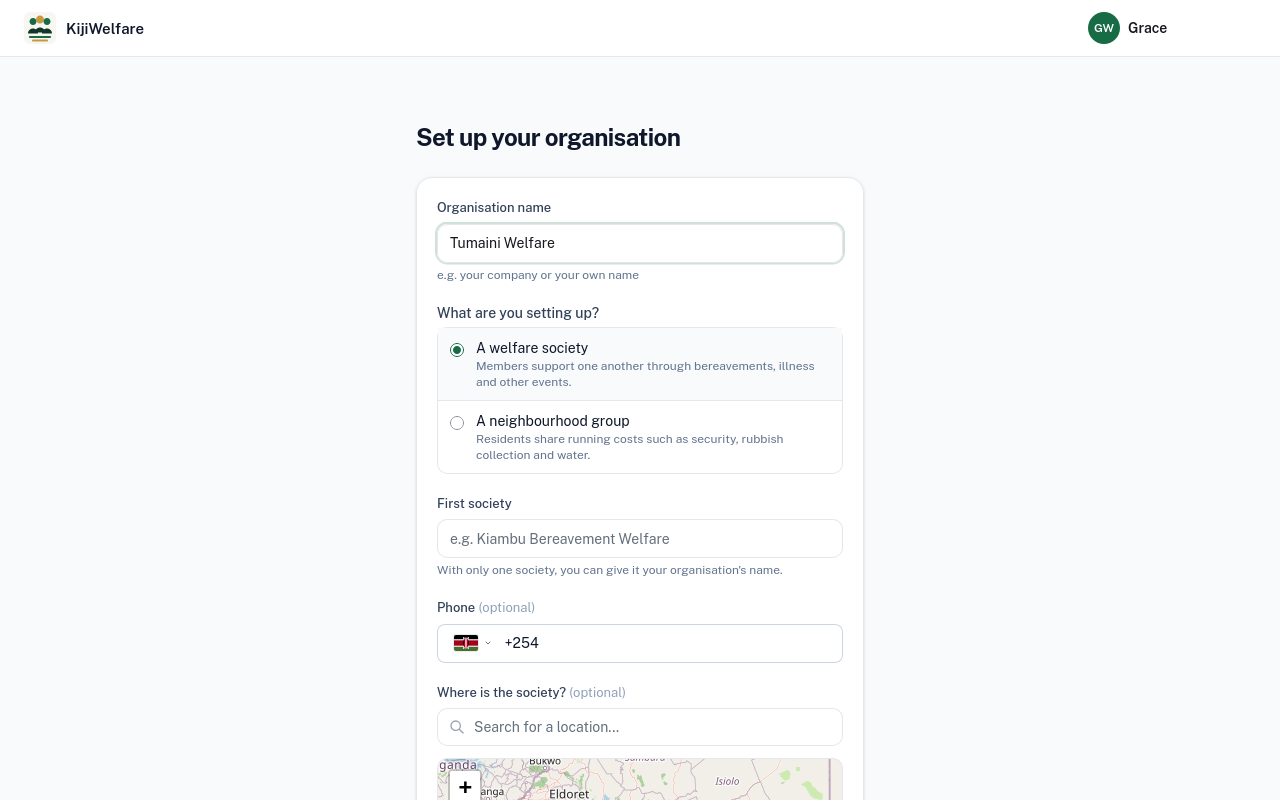
Keep A welfare society.
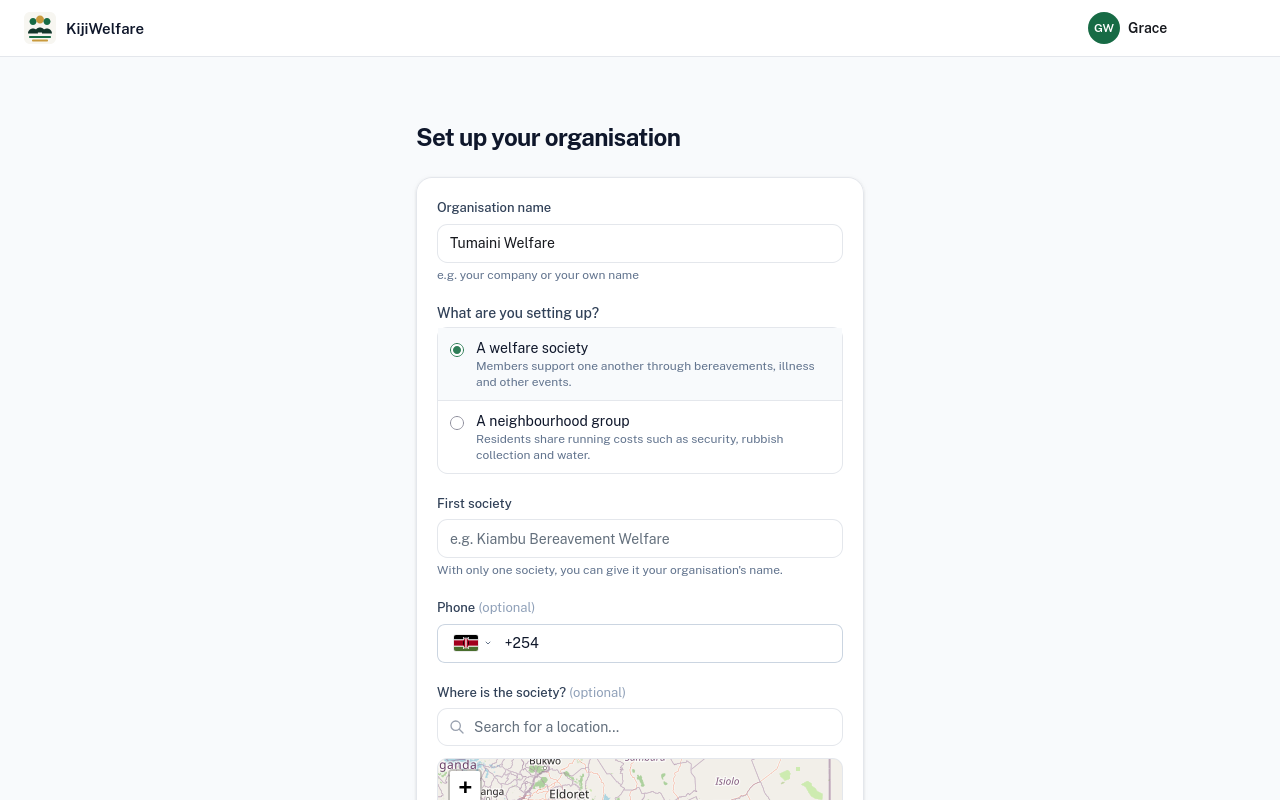
Then the first society. With only one, it can carry the organisation's name.
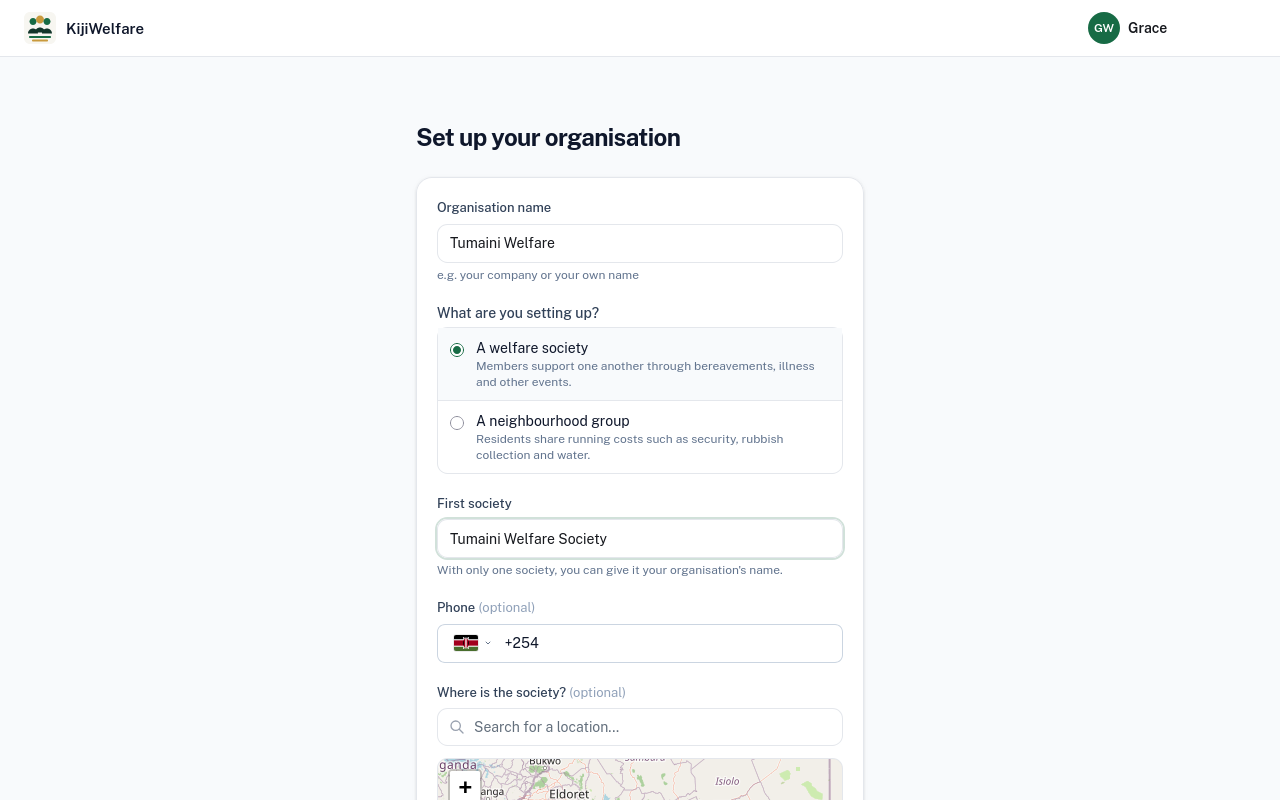
A phone number for the society is optional.
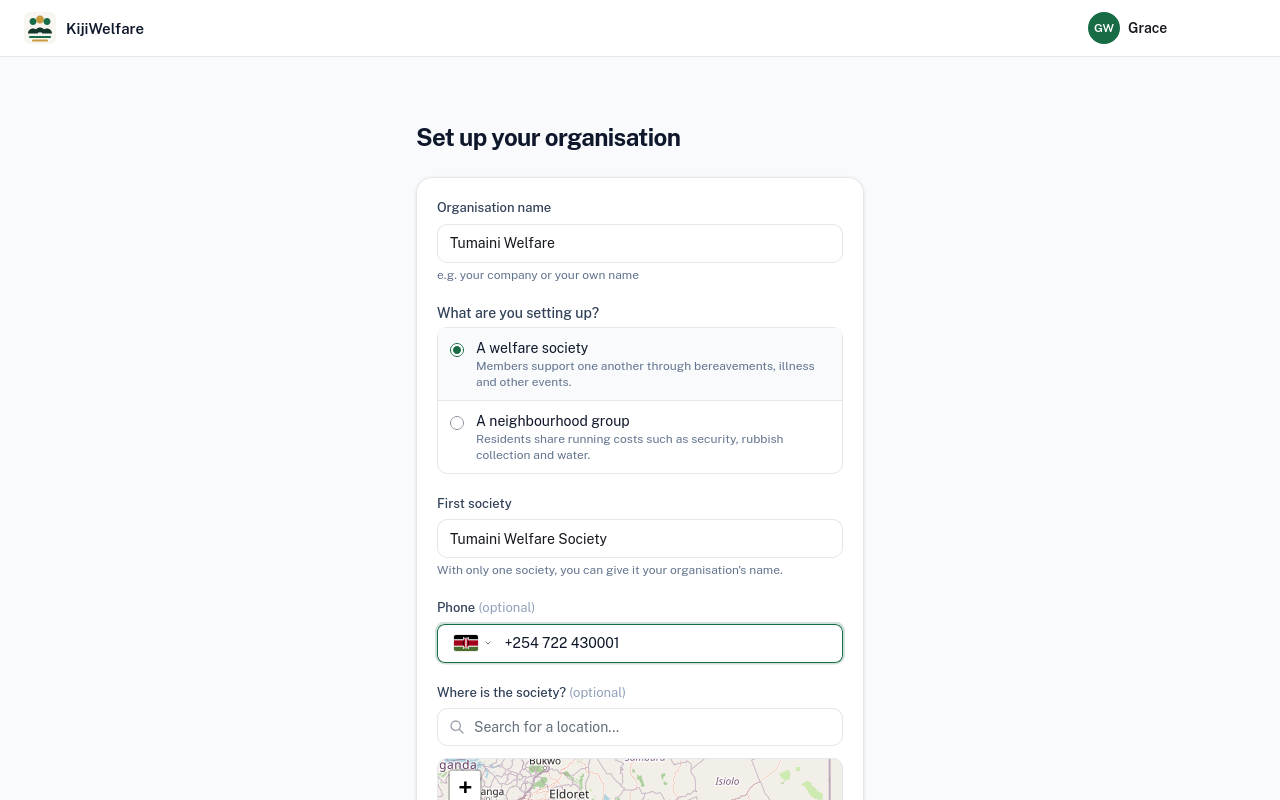
So is where it is. Search for the place and pick it, or tap the map.
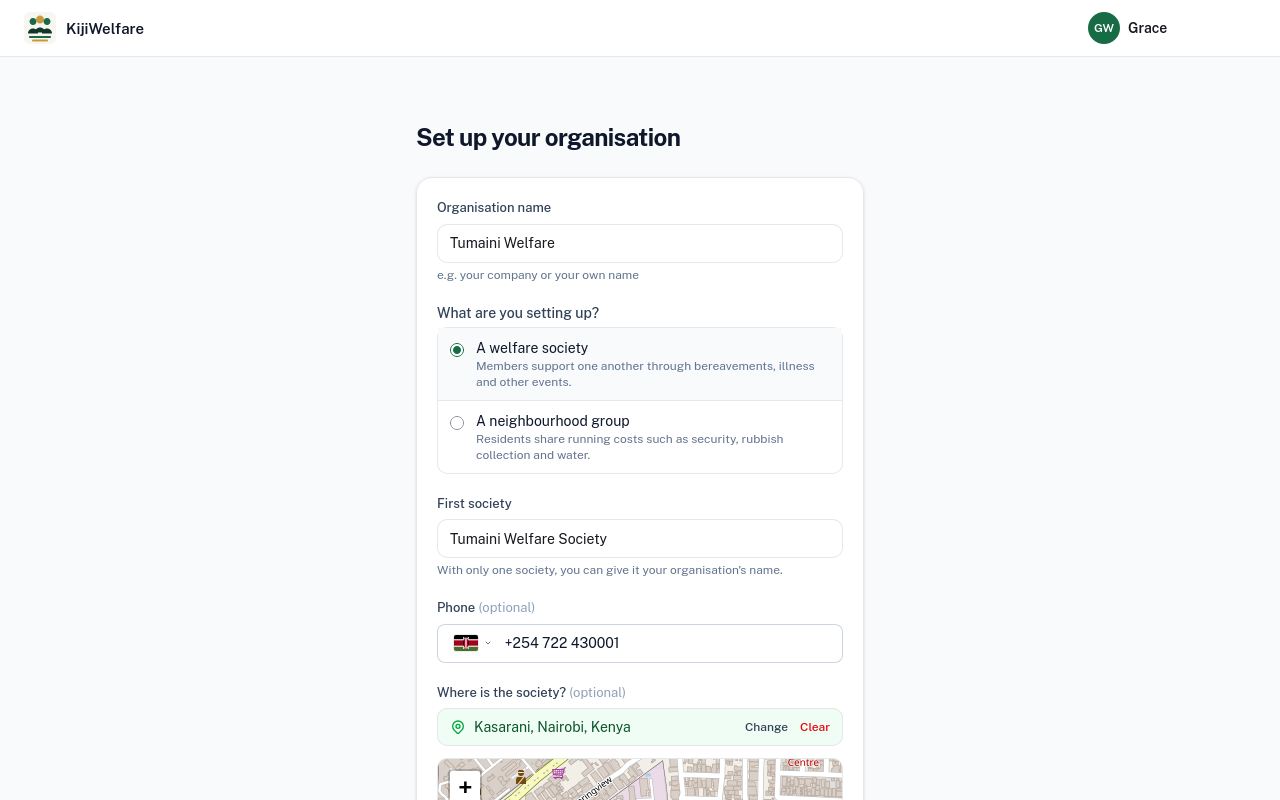
Choose Create society.
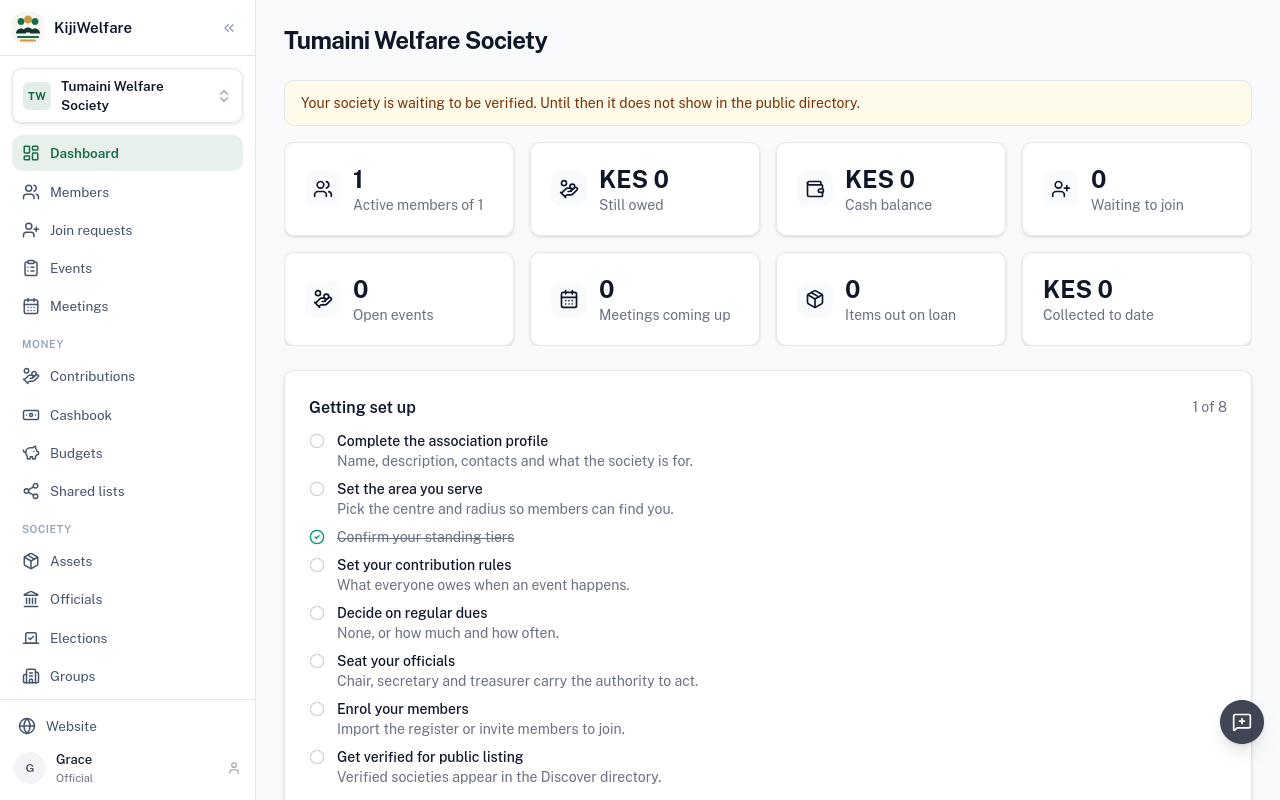
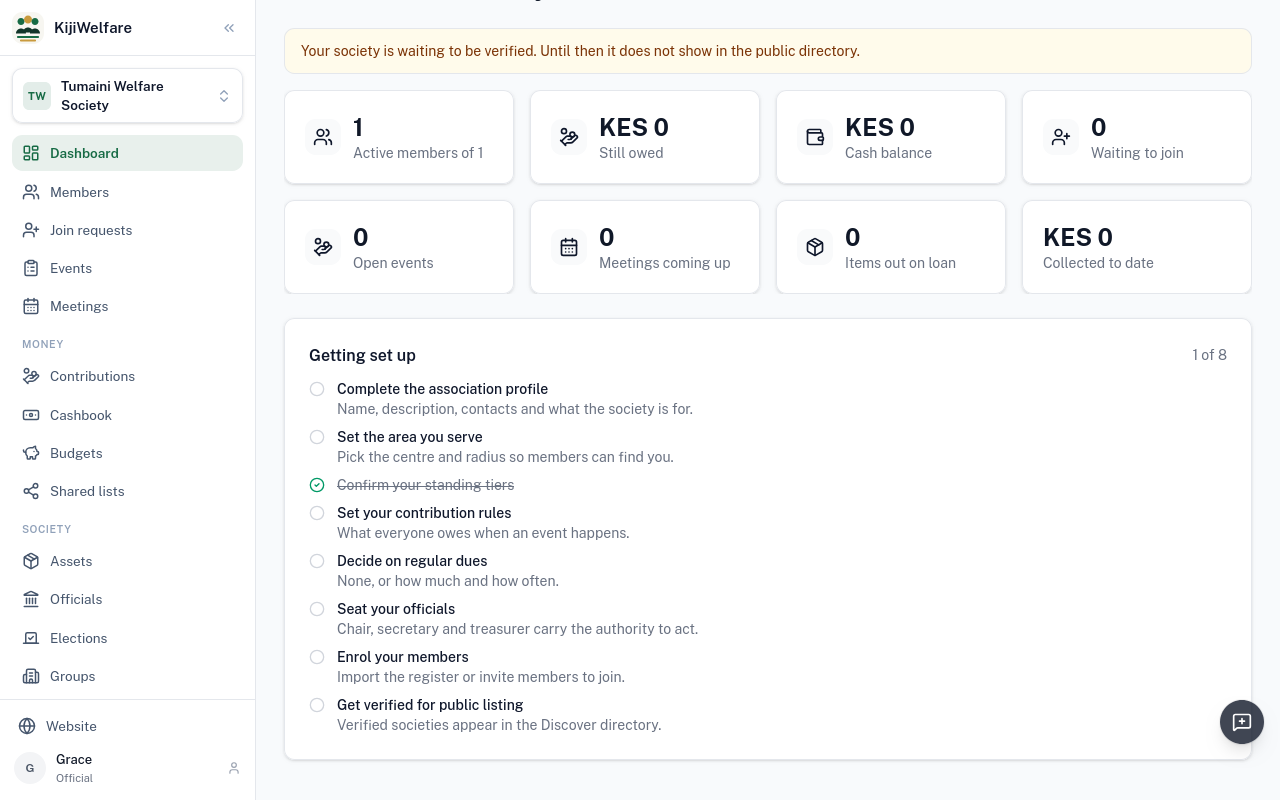
KijiWelfare opens on the society's dashboard. Until the society is verified, it does not show in the public directory.
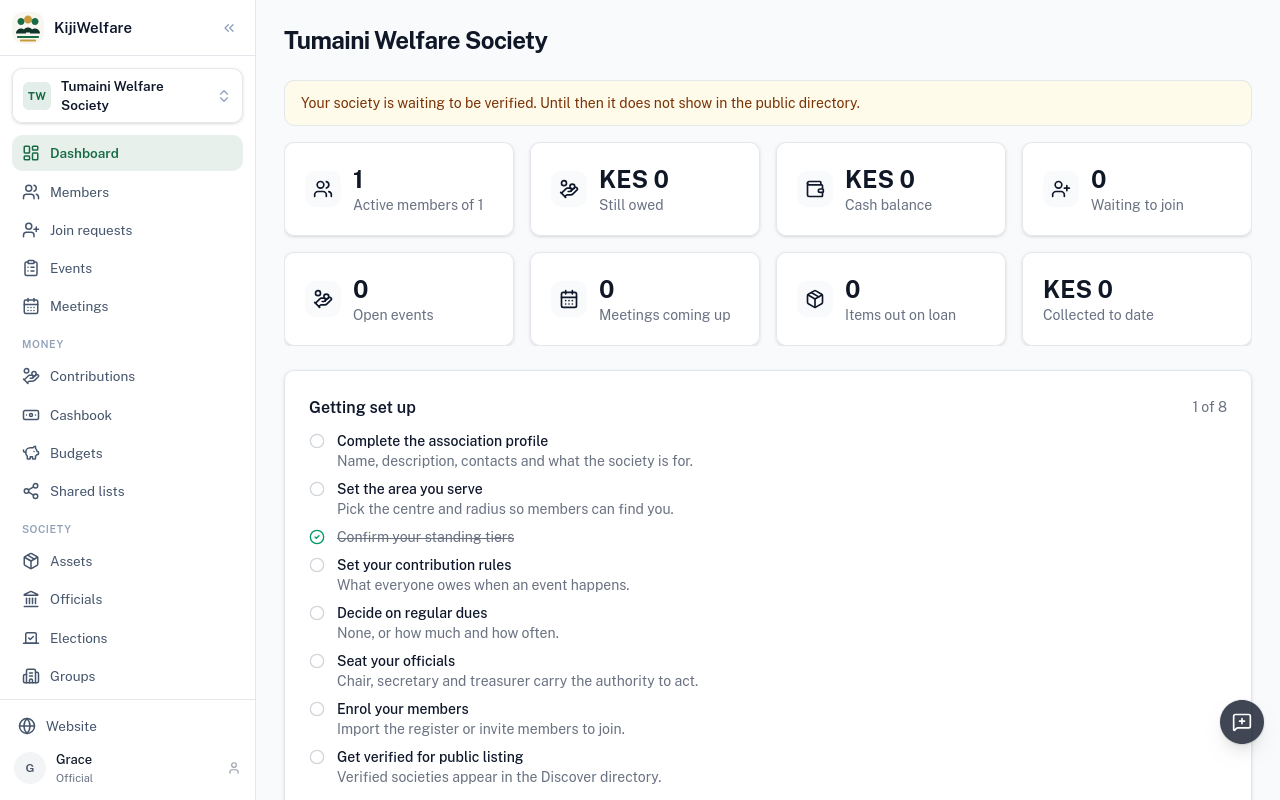
The numbers are its members, what is still owed, the cash balance, who is waiting to join, open events, meetings coming up and items out on loan.
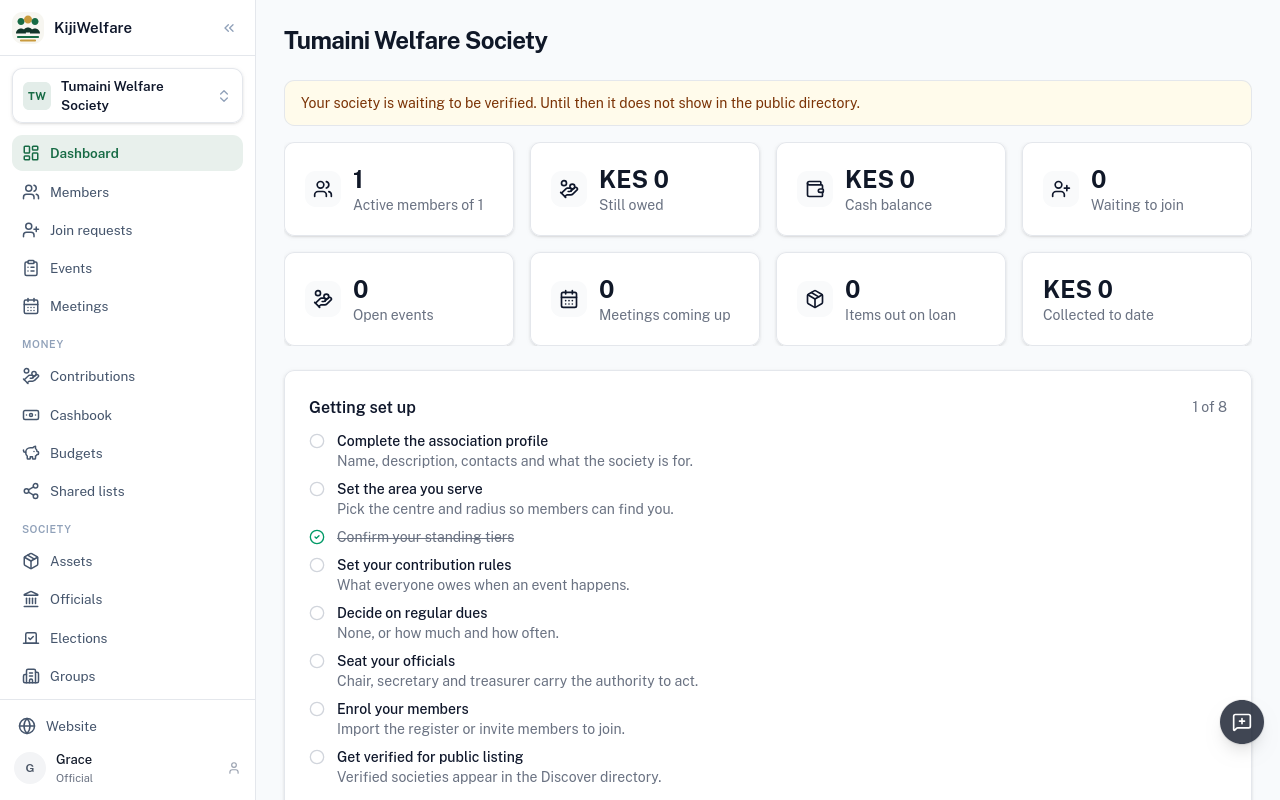
Getting set up lists what is left to do. Most open steps link to the place where they are done.
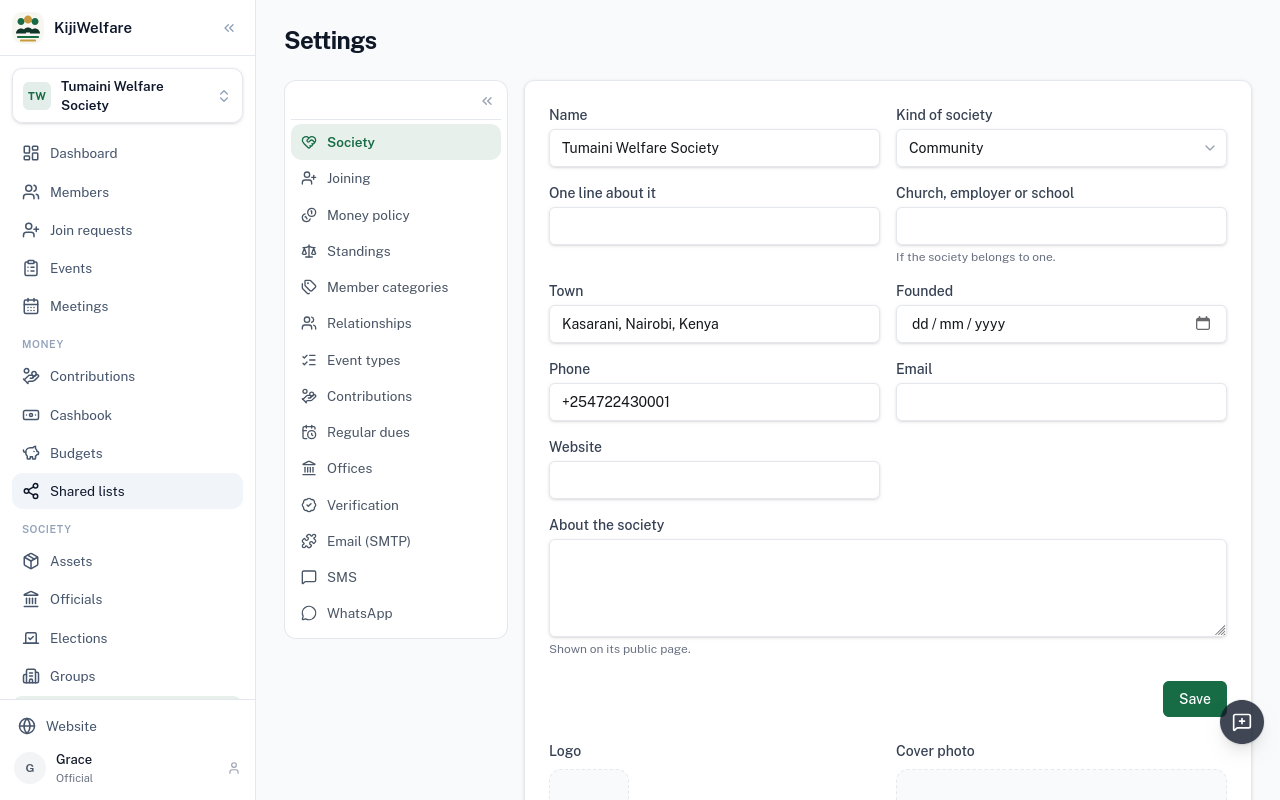
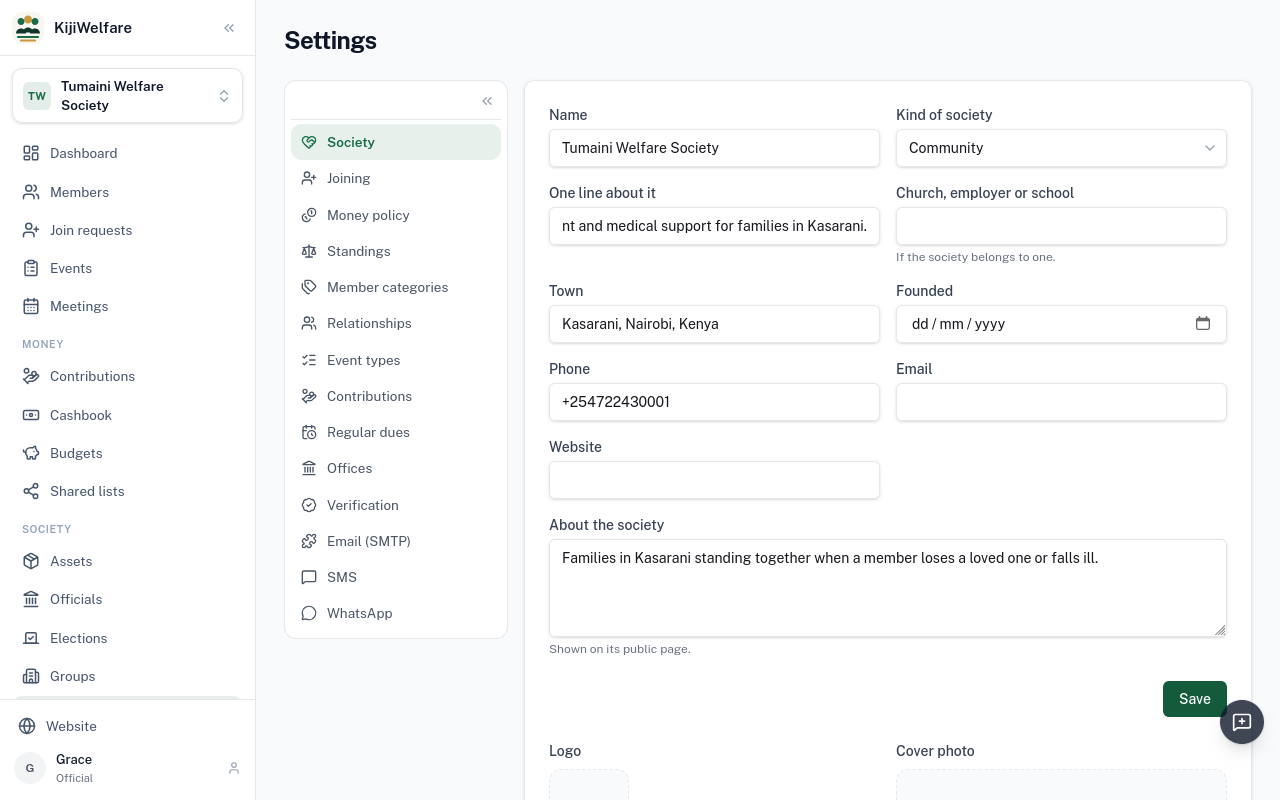
The society's details are in Settings, under Society.
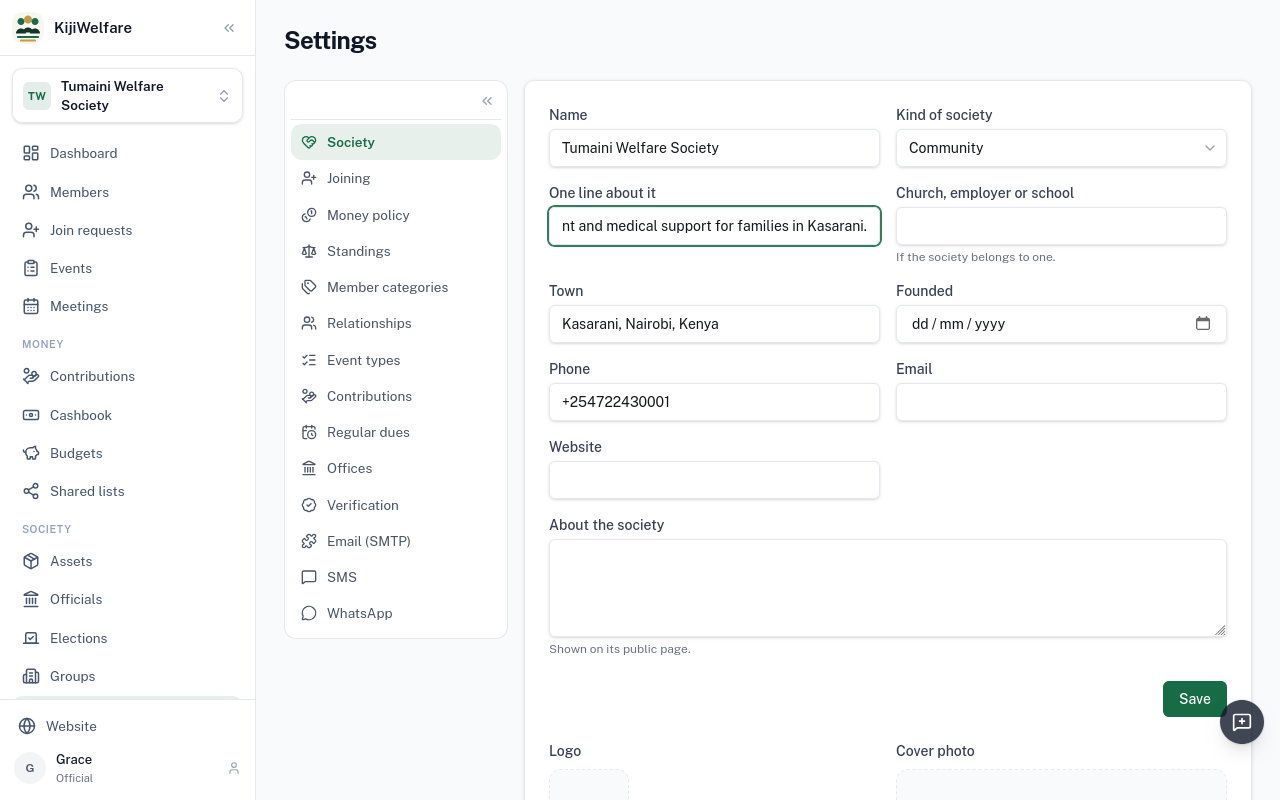
One line about it shows under the society's name.
About the society is shown on its public page.
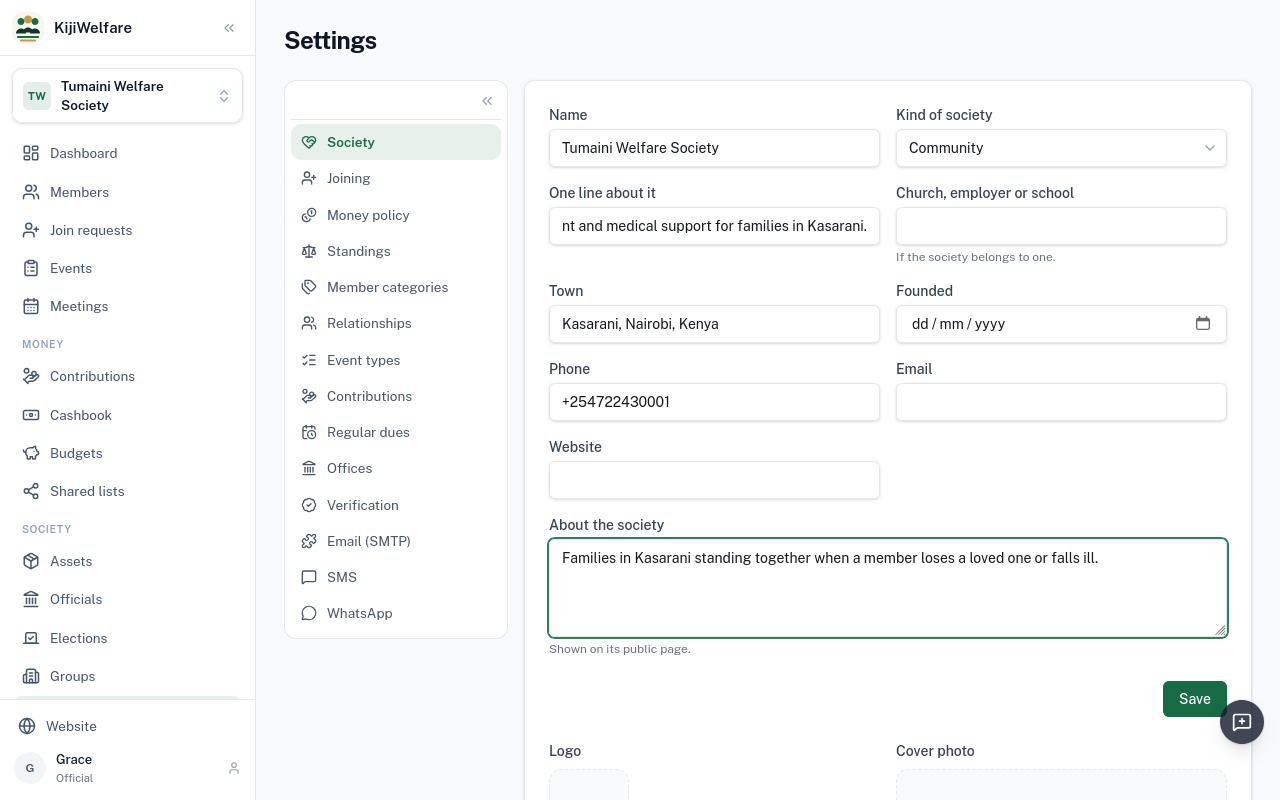
Choose Save.
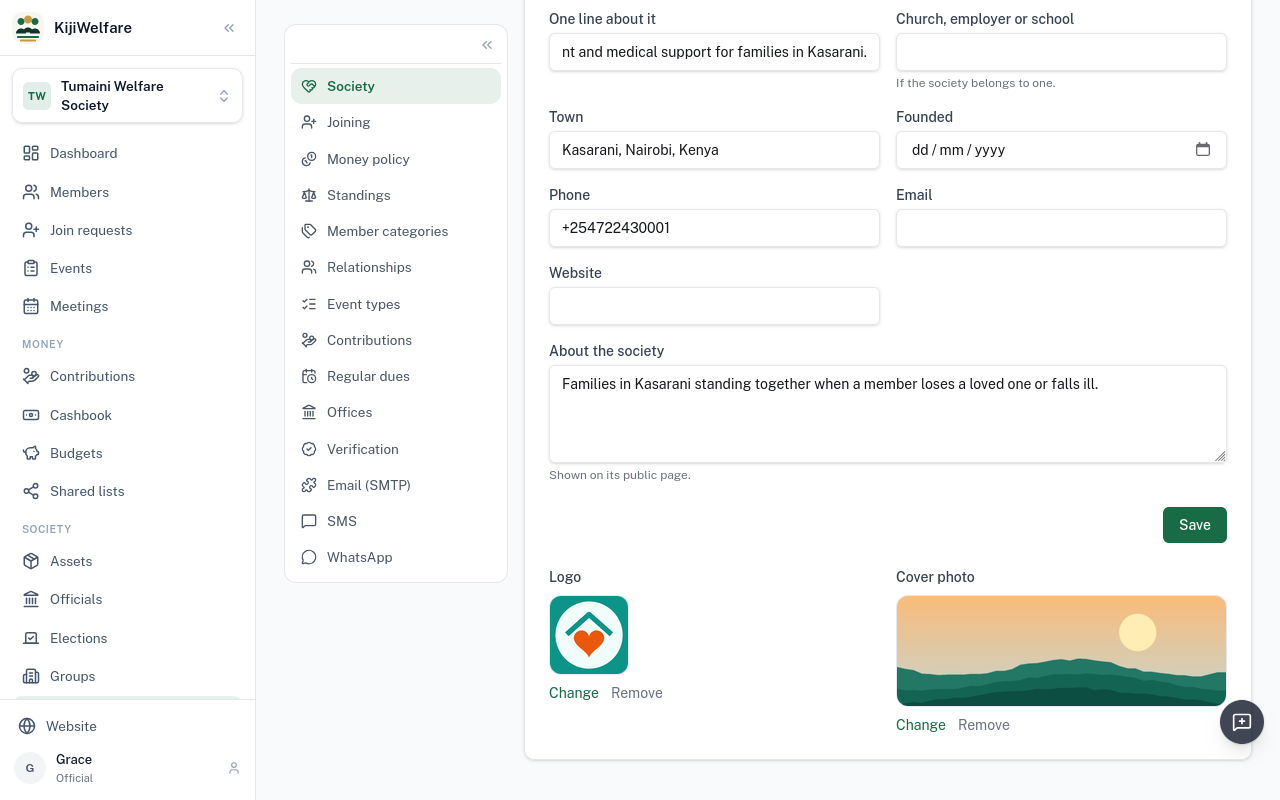
Under the form, choose a picture for the logo, and another for the cover photo.
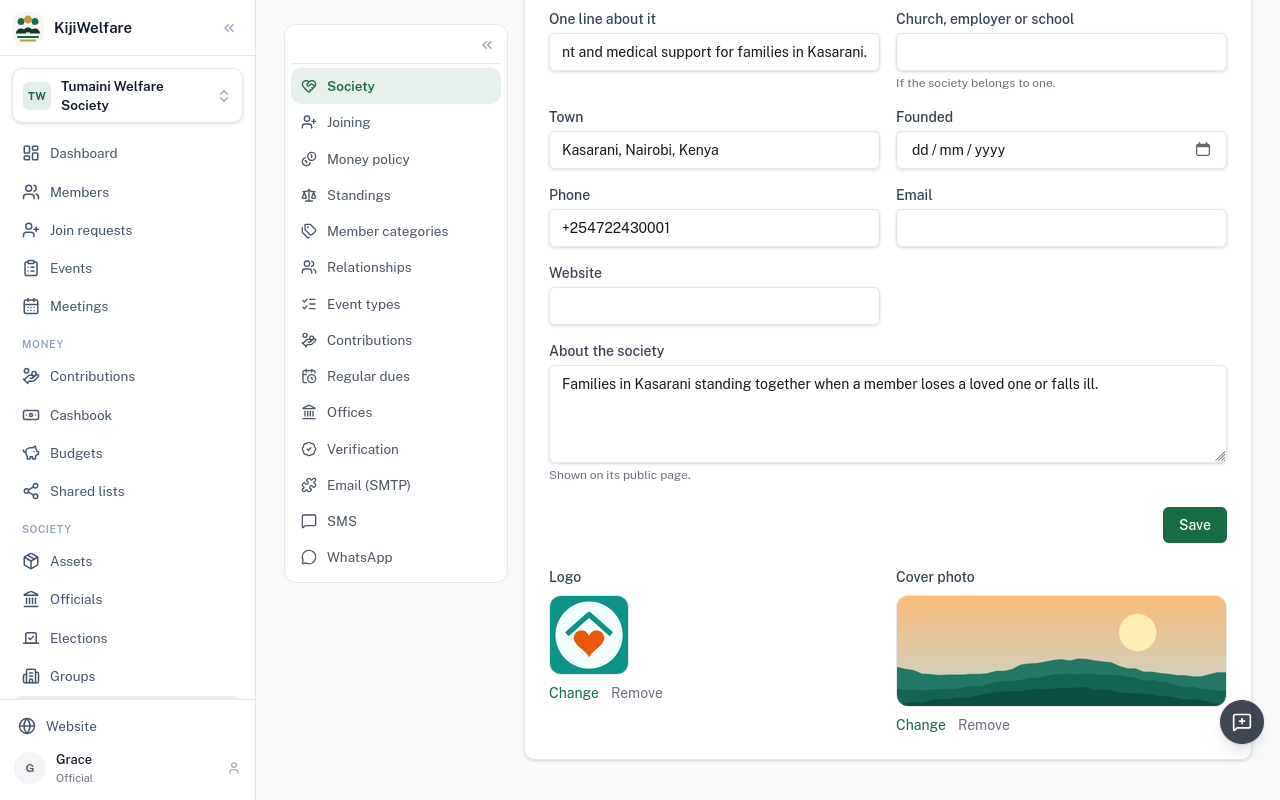
Both show on the society's public page, once it is verified.
One organisation can run more than one. Open the list at the top of the menu, and choose All societies.
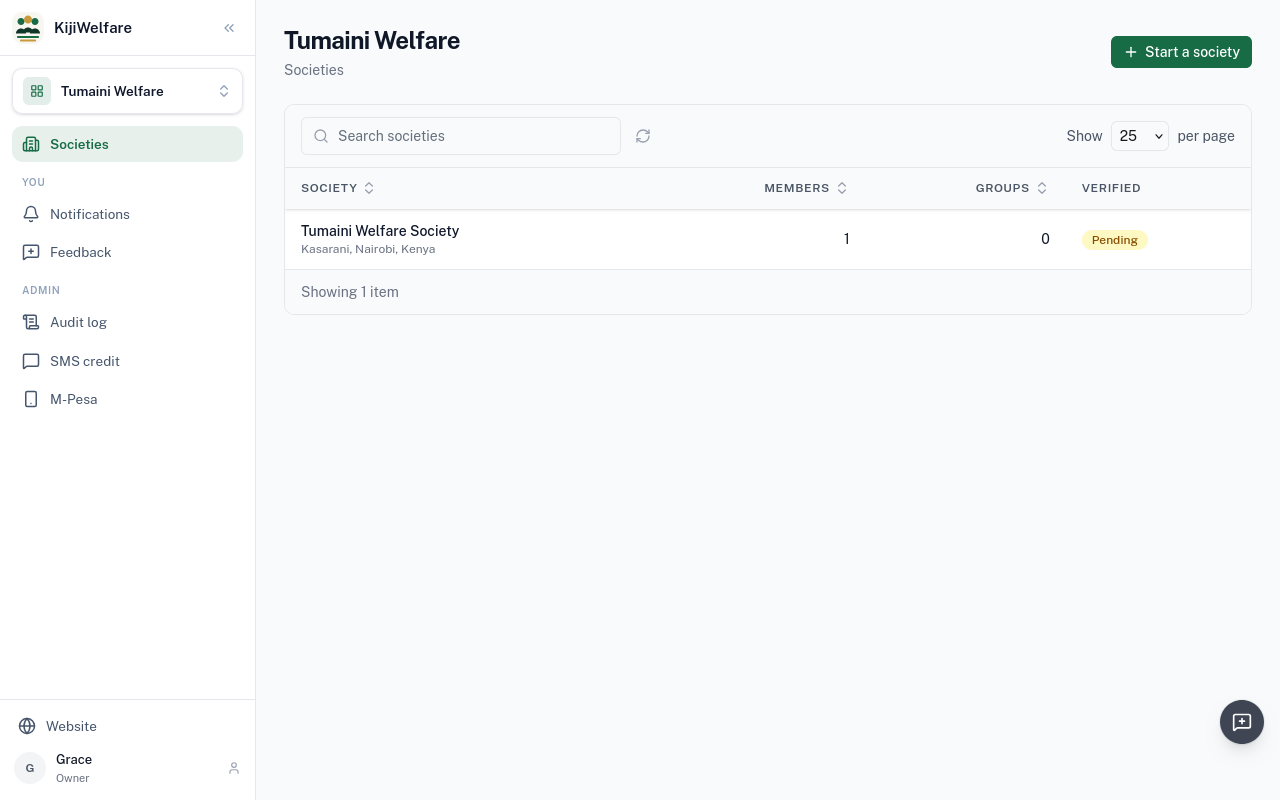
This is the organisation's own page, with its societies. Choose Start a society. Under What kind, choose A neighbourhood group.
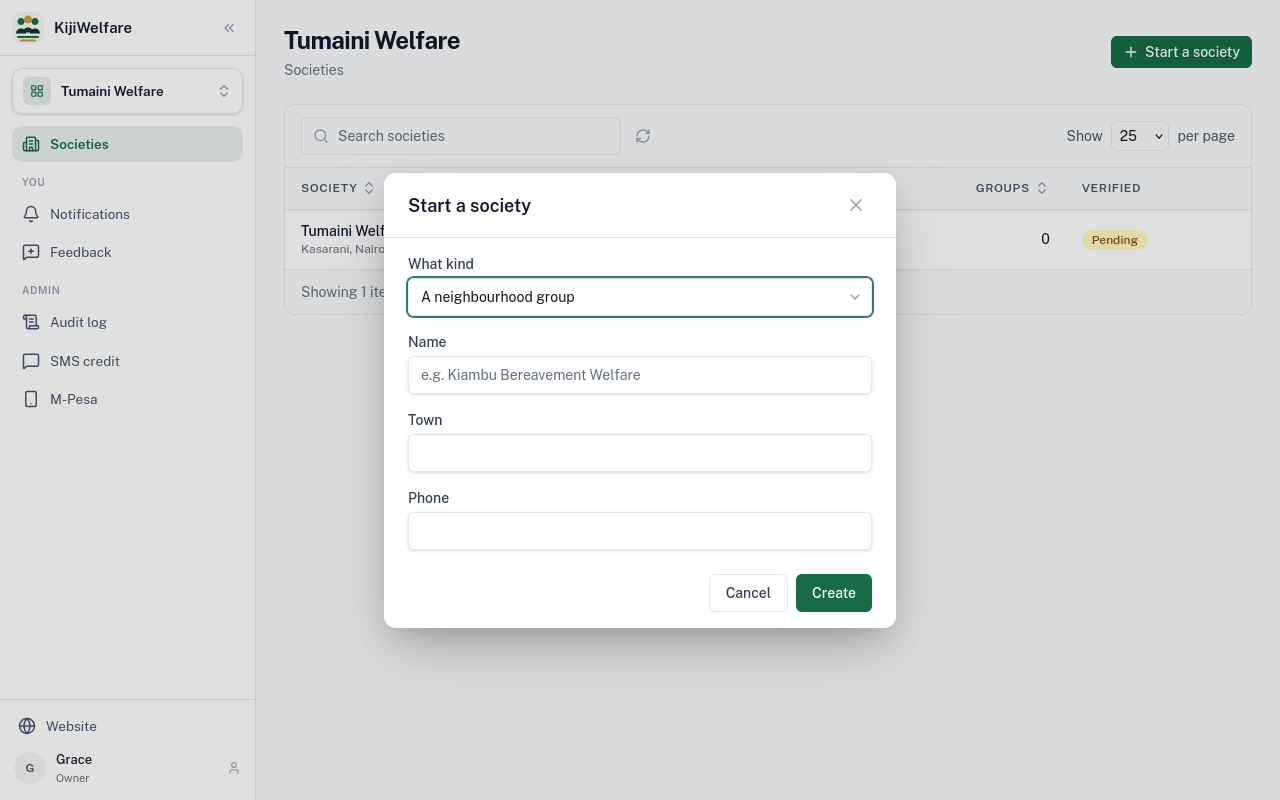
Name it, here Mirema Court Residents, give its town, and choose Create.
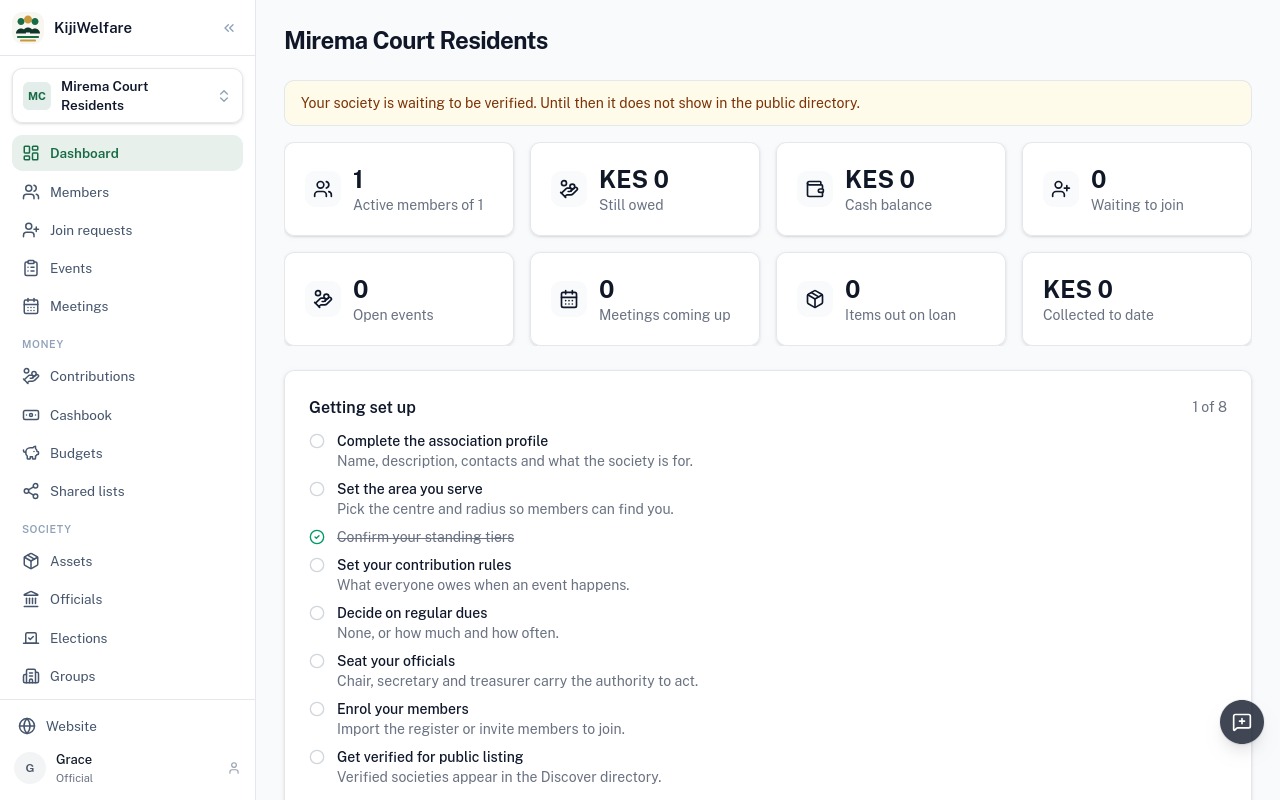
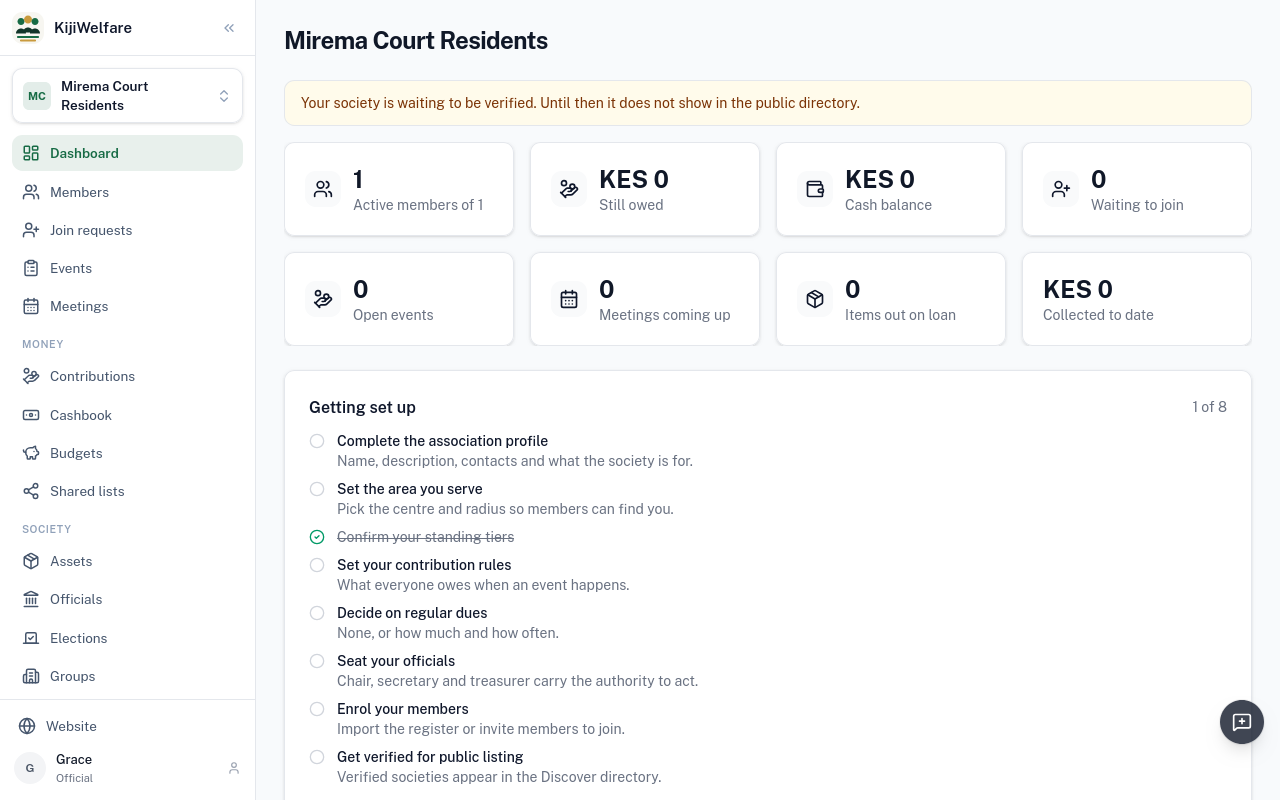
A neighbourhood group starts with no event types or offices. What its neighbours pay, and how often, is theirs to declare.
Chapter 3
Relationships, events, contributions and regular dues
A new society's money rules start empty: no contributions or dues. The officials decide them, in Settings.
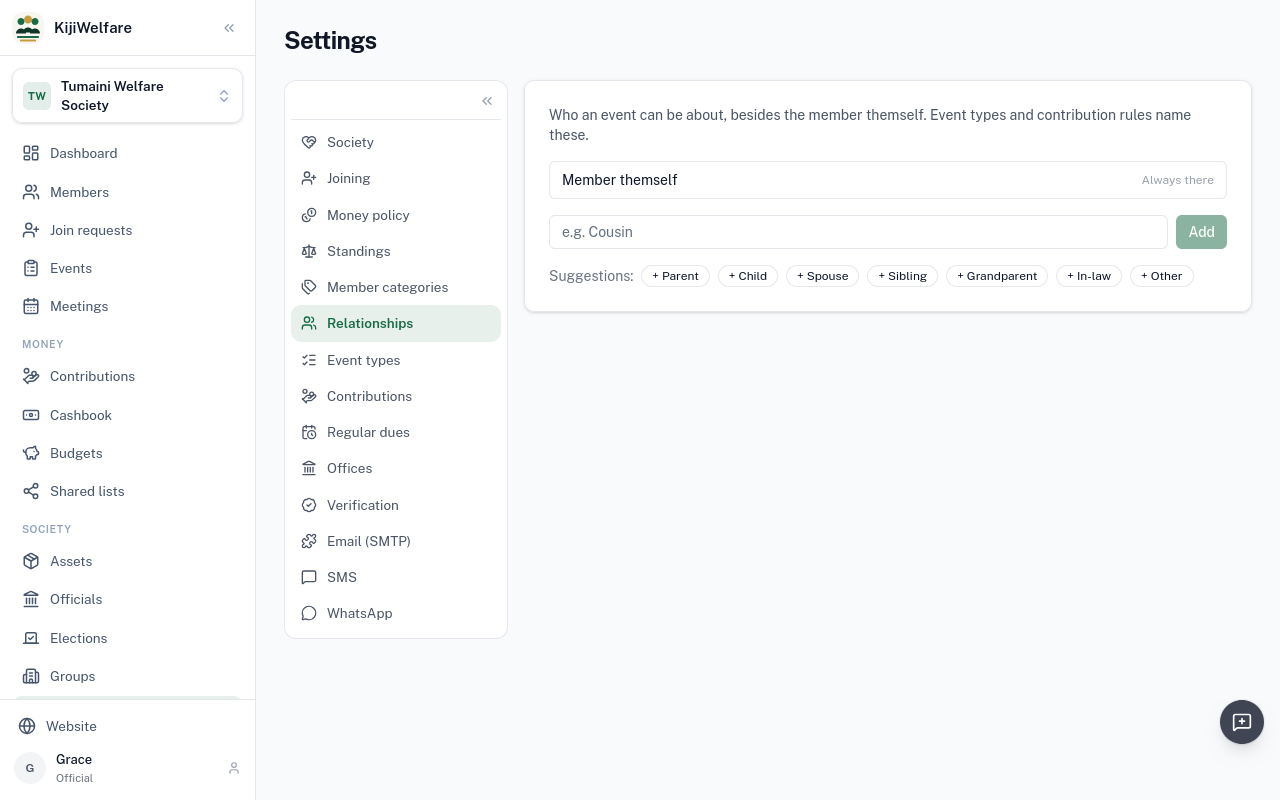
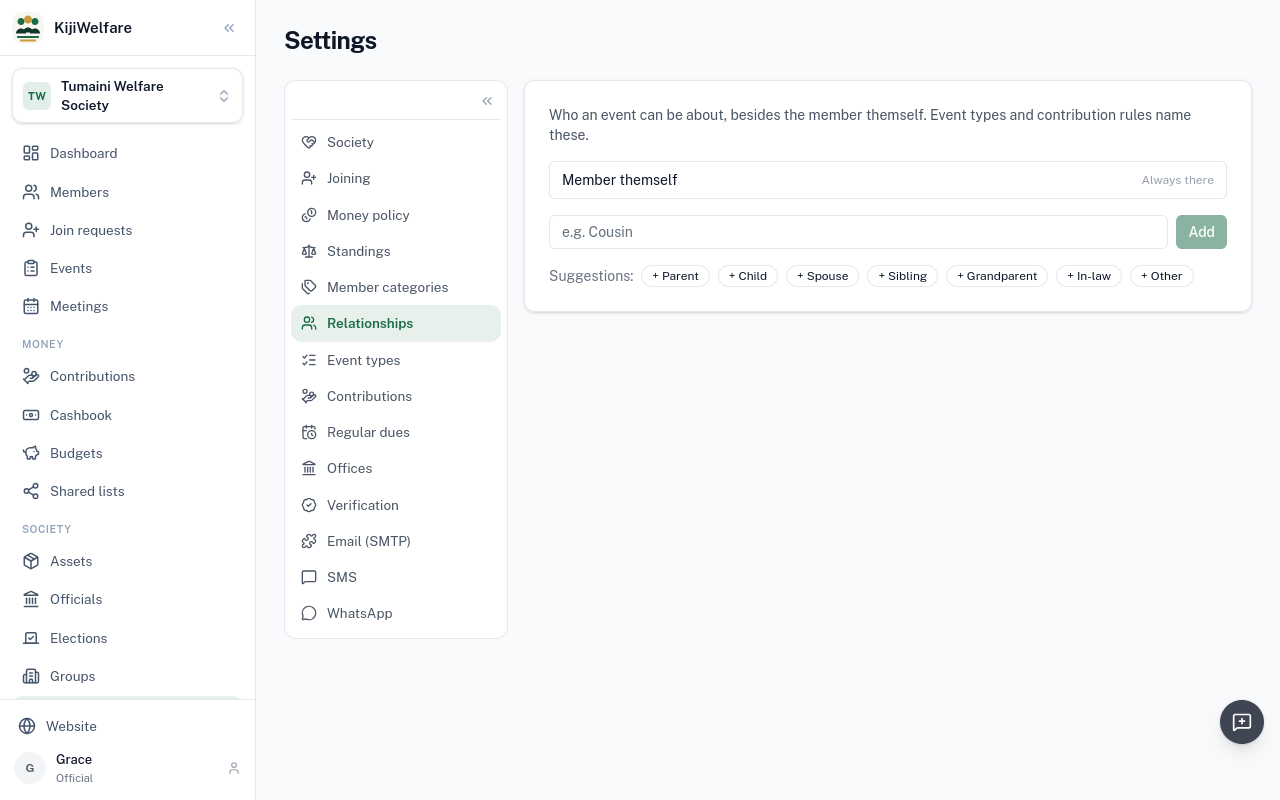
Relationships says who an event can be about, besides the member themself. A new society has none of its own.
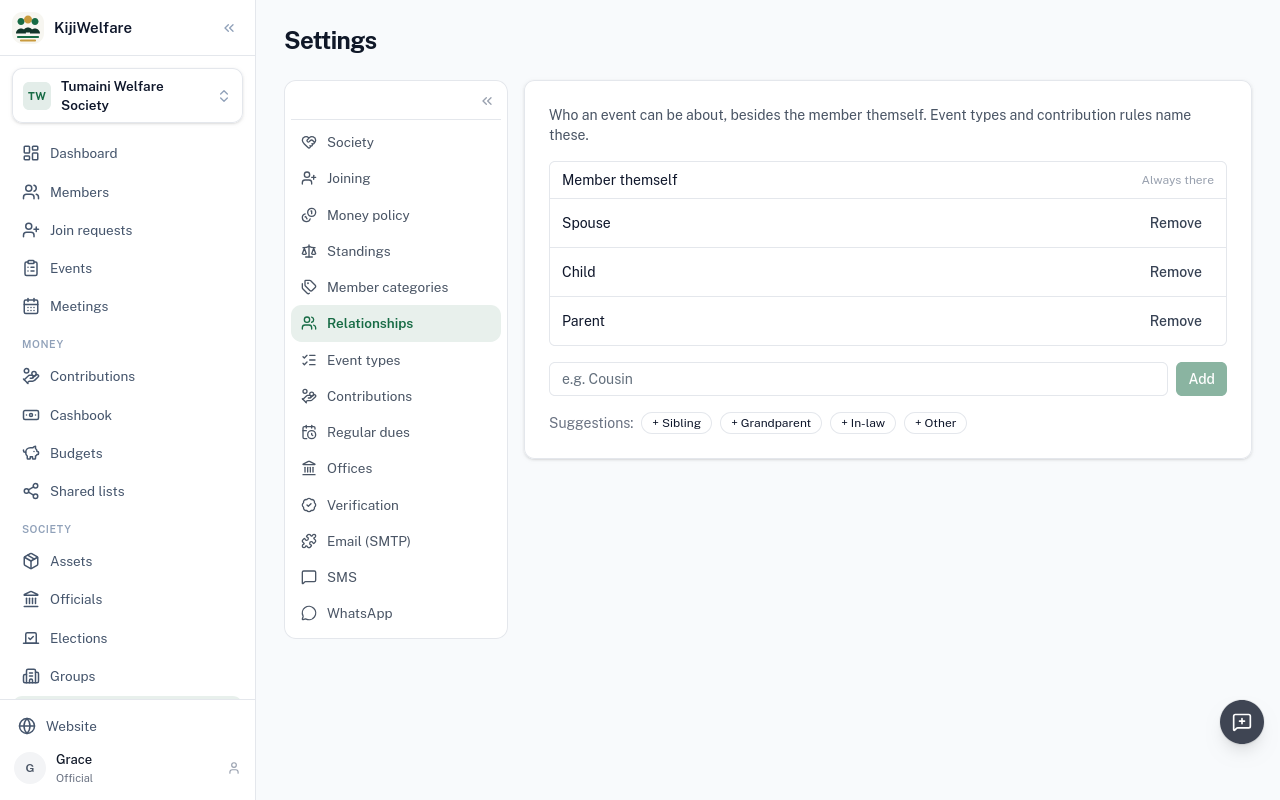
Choose from the suggestions, here Spouse, Child and Parent.
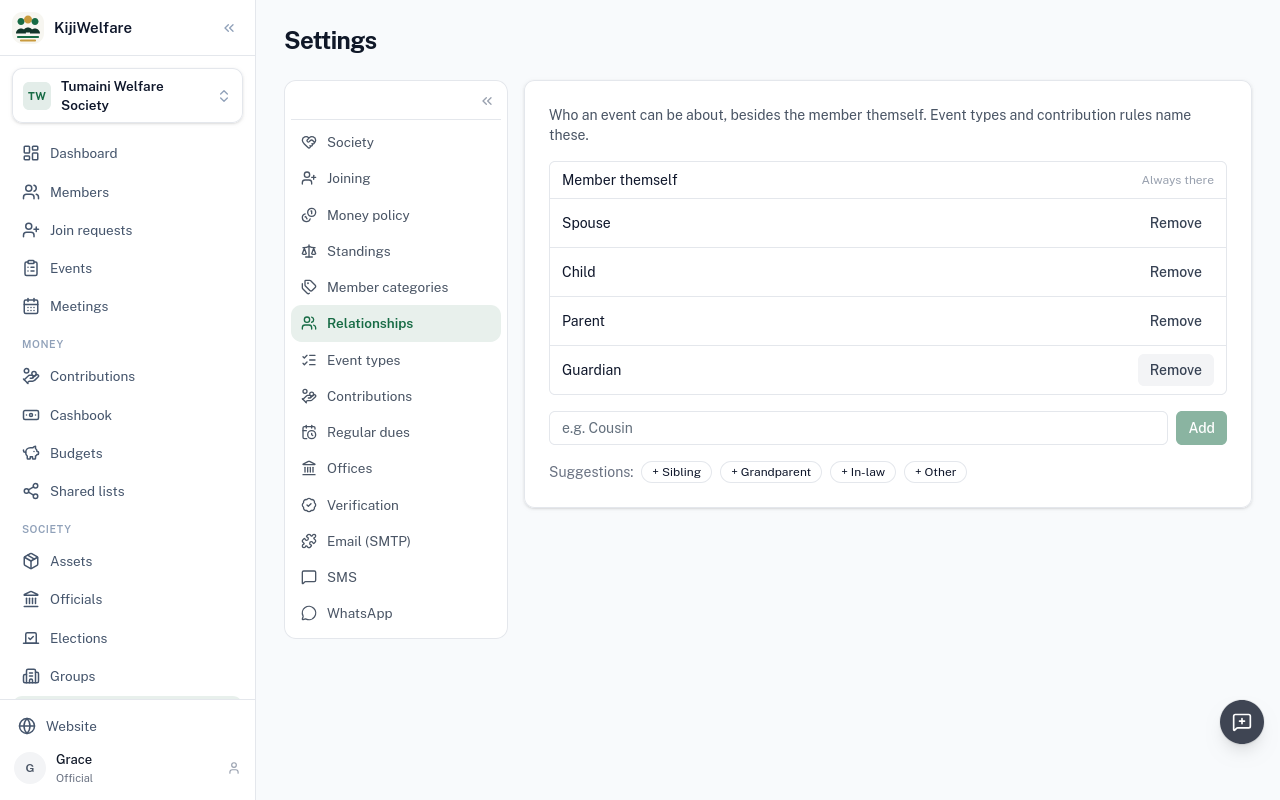
Or type your own, here Guardian, and choose Add.
A welfare society starts with four event types: bereavement, medical emergency, wedding and birth. Each covers anyone until you say otherwise.
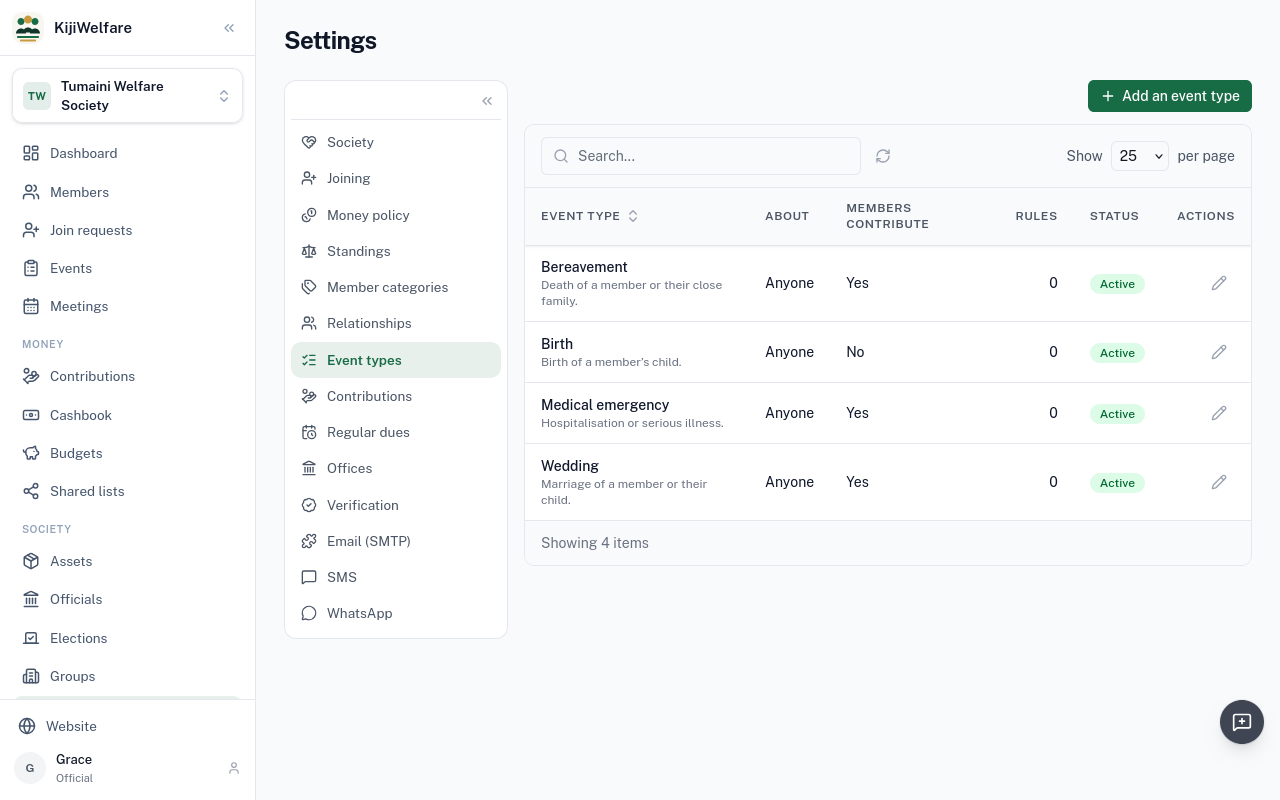
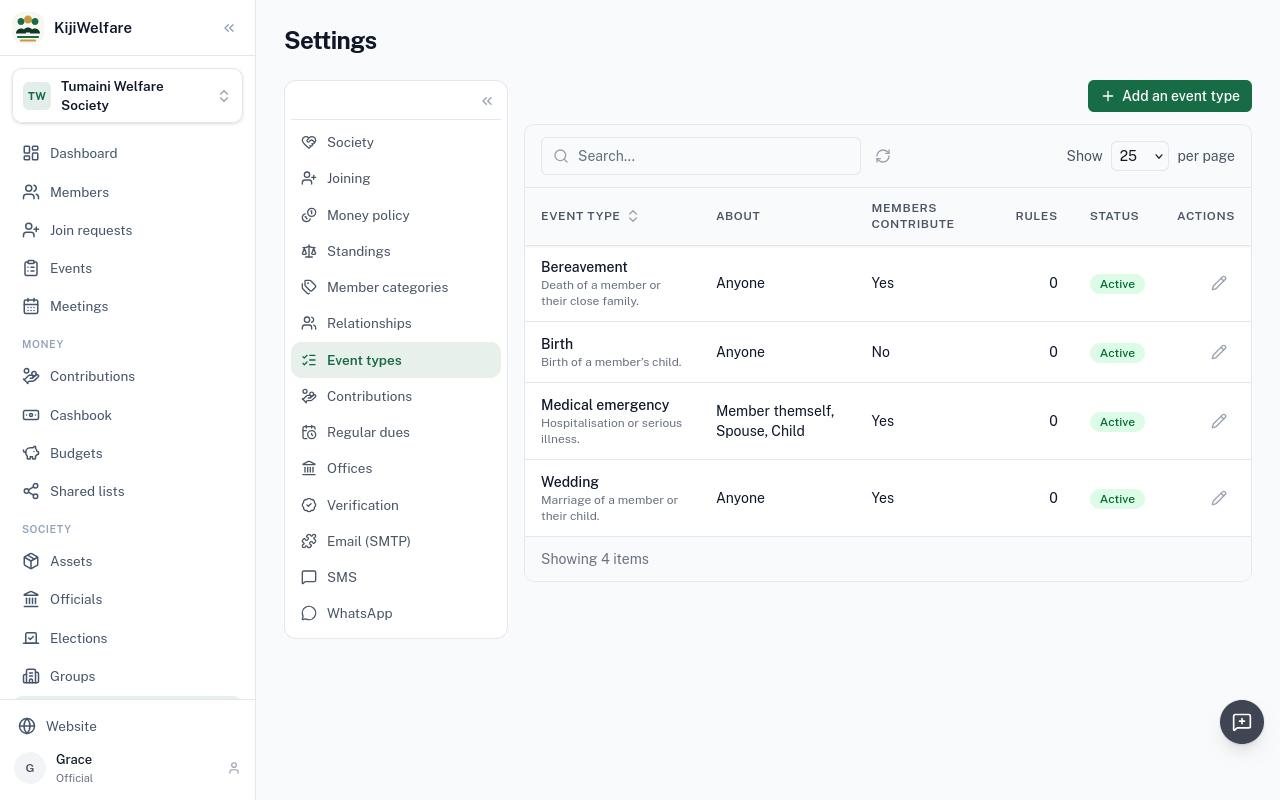
To choose who one covers, edit it. Here, a medical emergency covers the member, their spouse and their children.
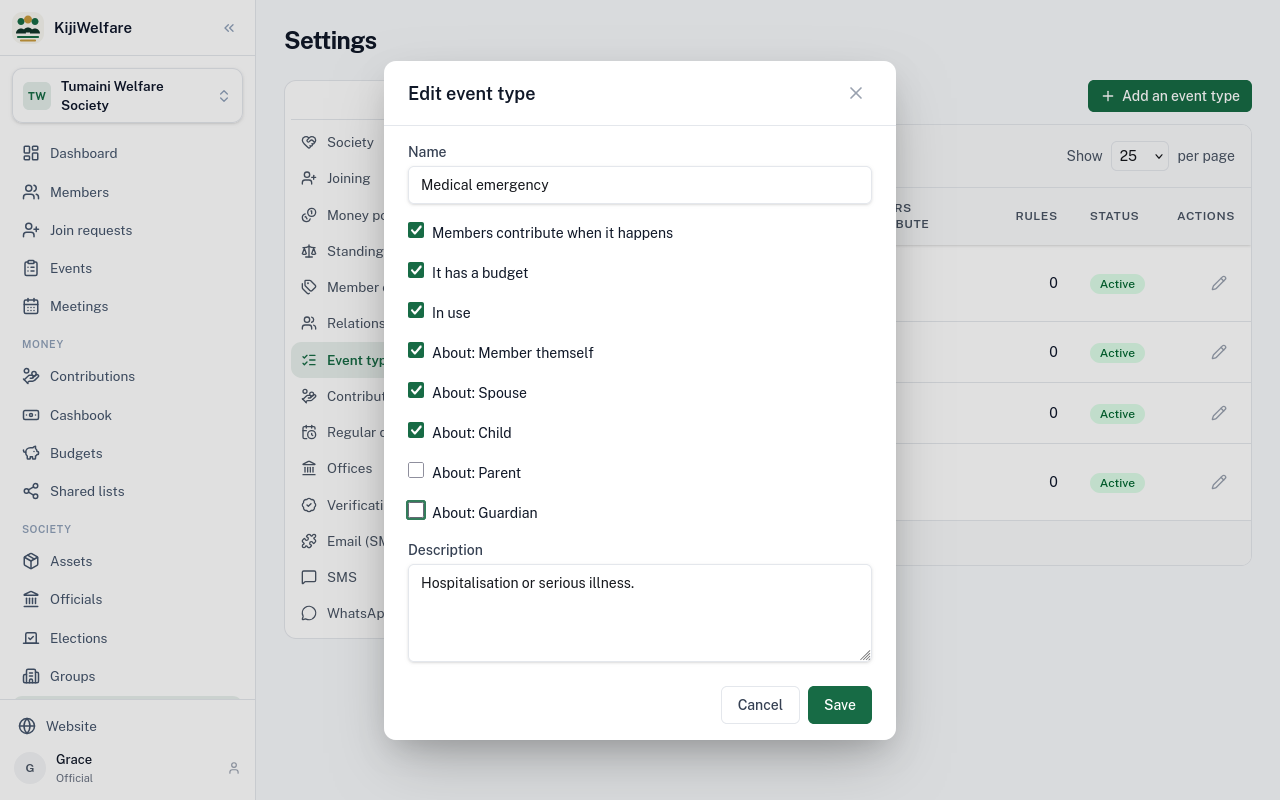
Clear Parent and Guardian, and choose Save.
Contributions lists what members give. A new society has none. Choose Add a contribution.
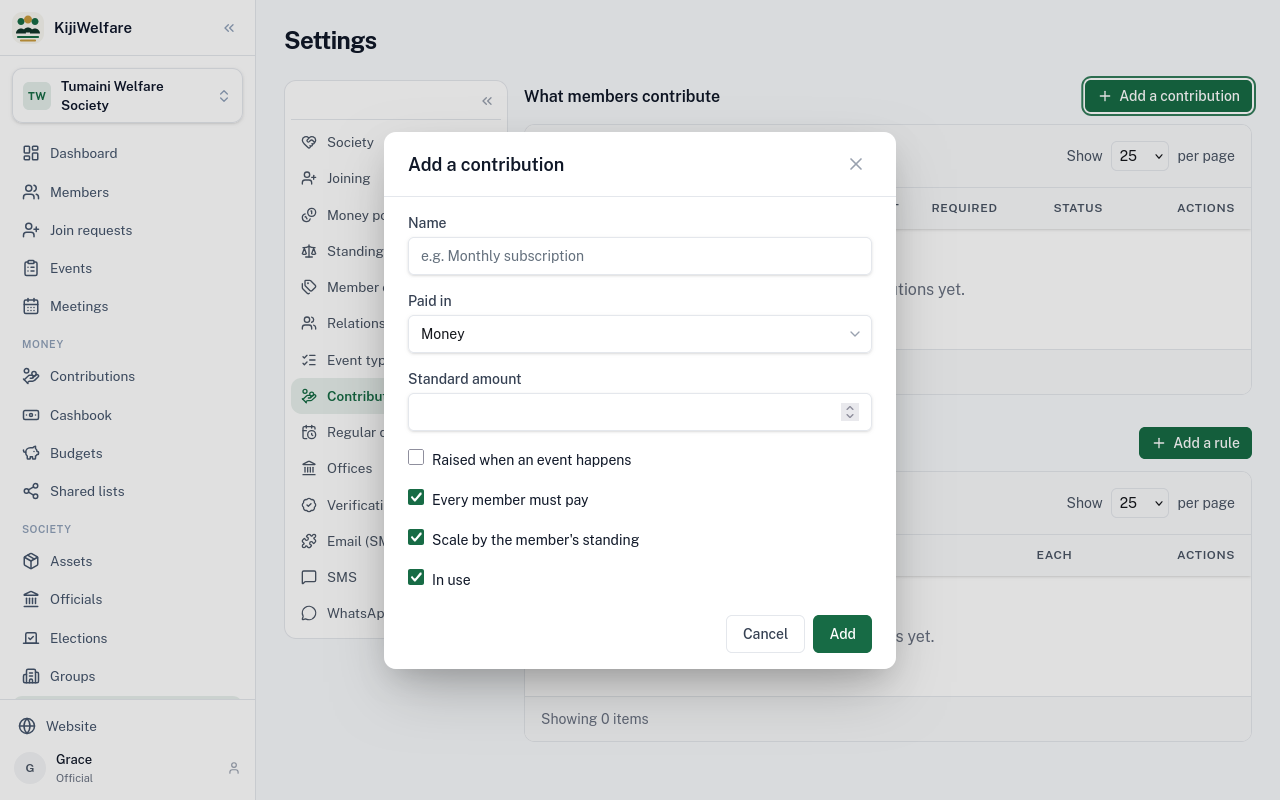
Name it, here Bereavement levy. It is paid in money, and its standard amount is 500 shillings.
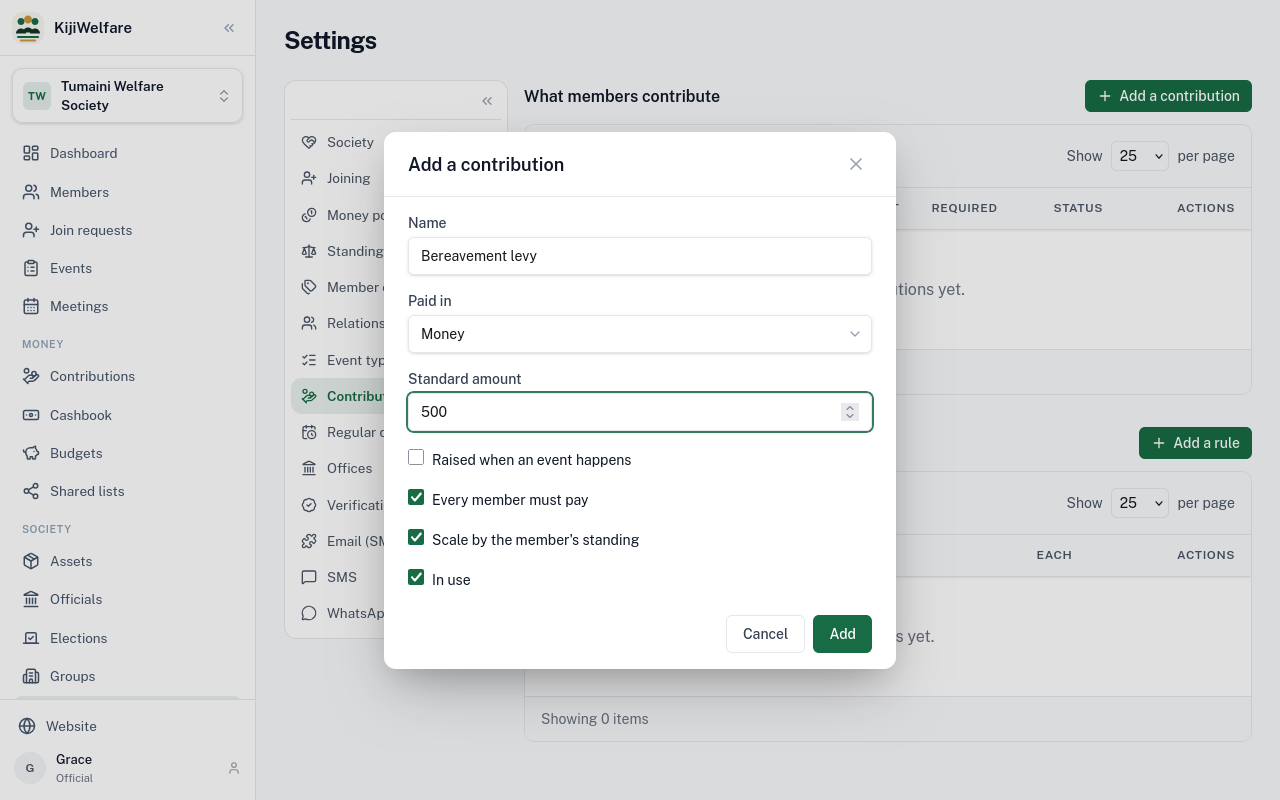
Tick Raised when an event happens. Every member must pay it, scaled by their standing.
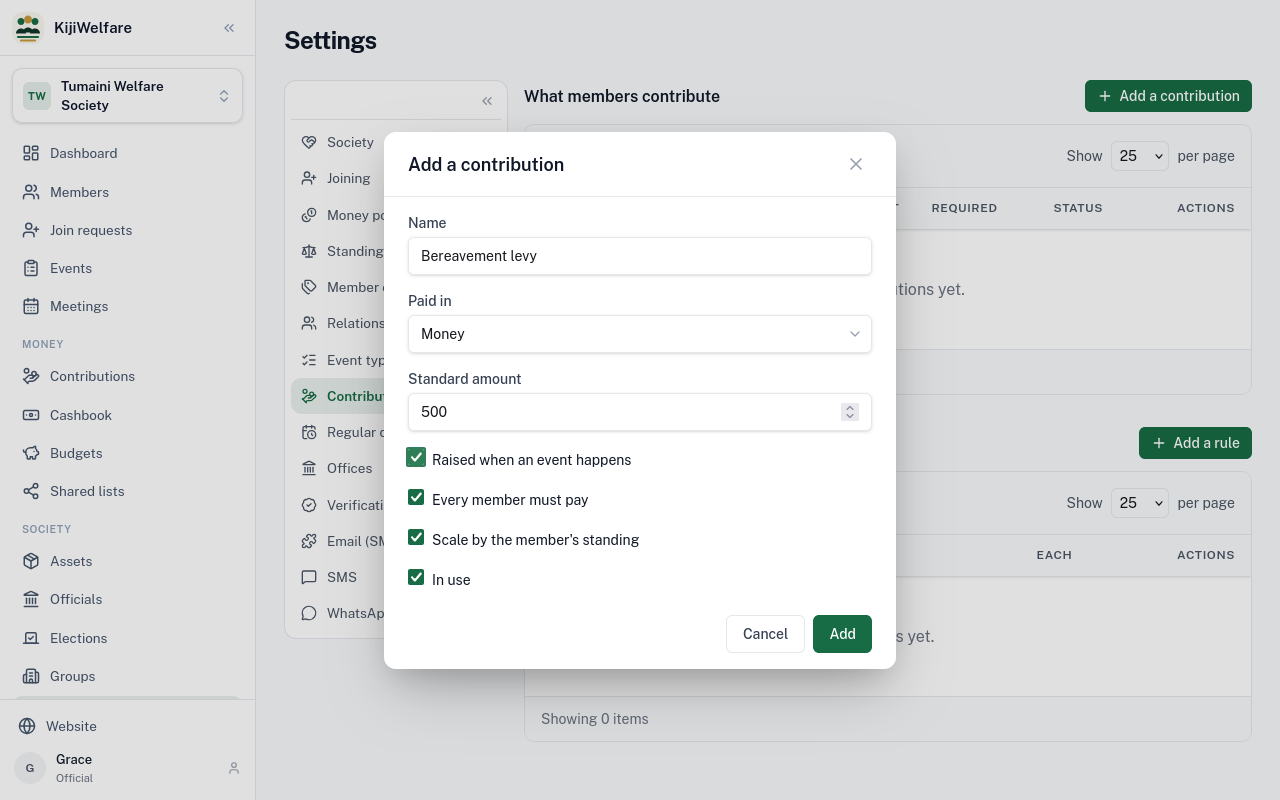
Choose Add.
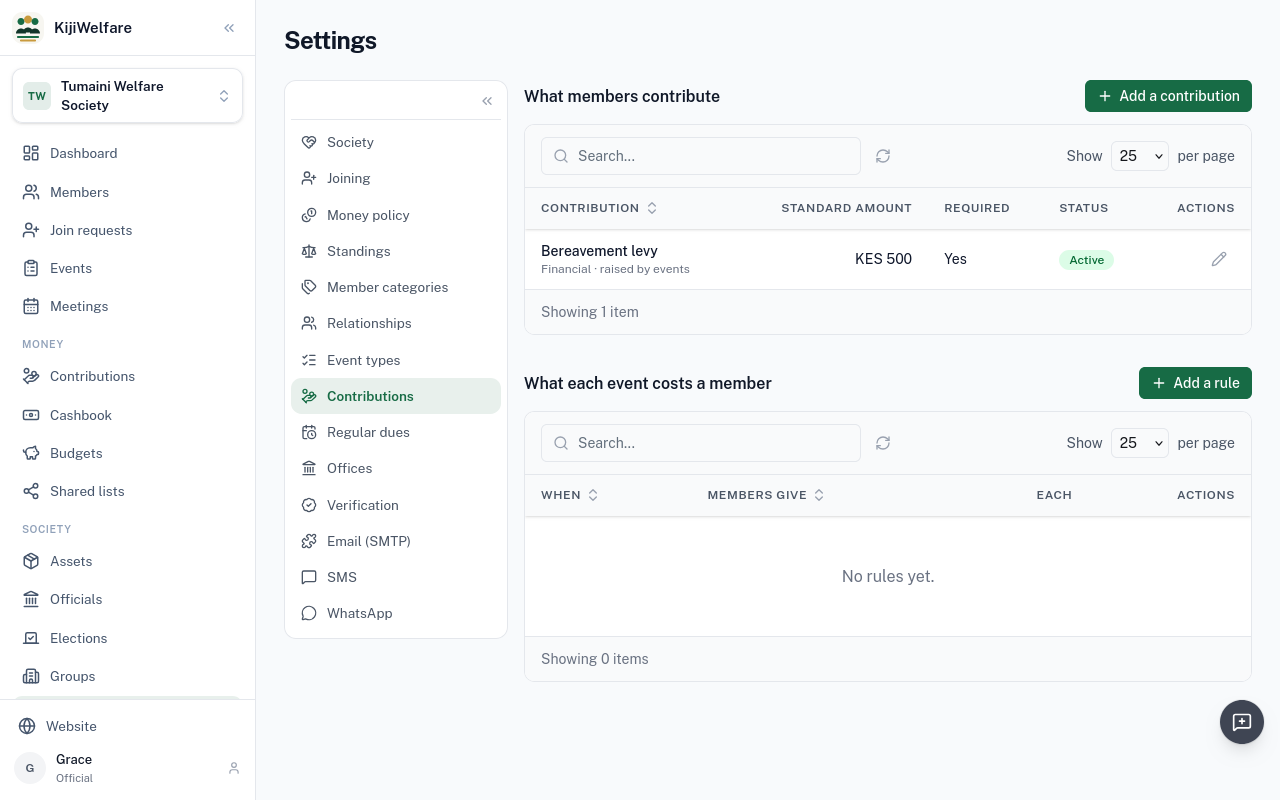
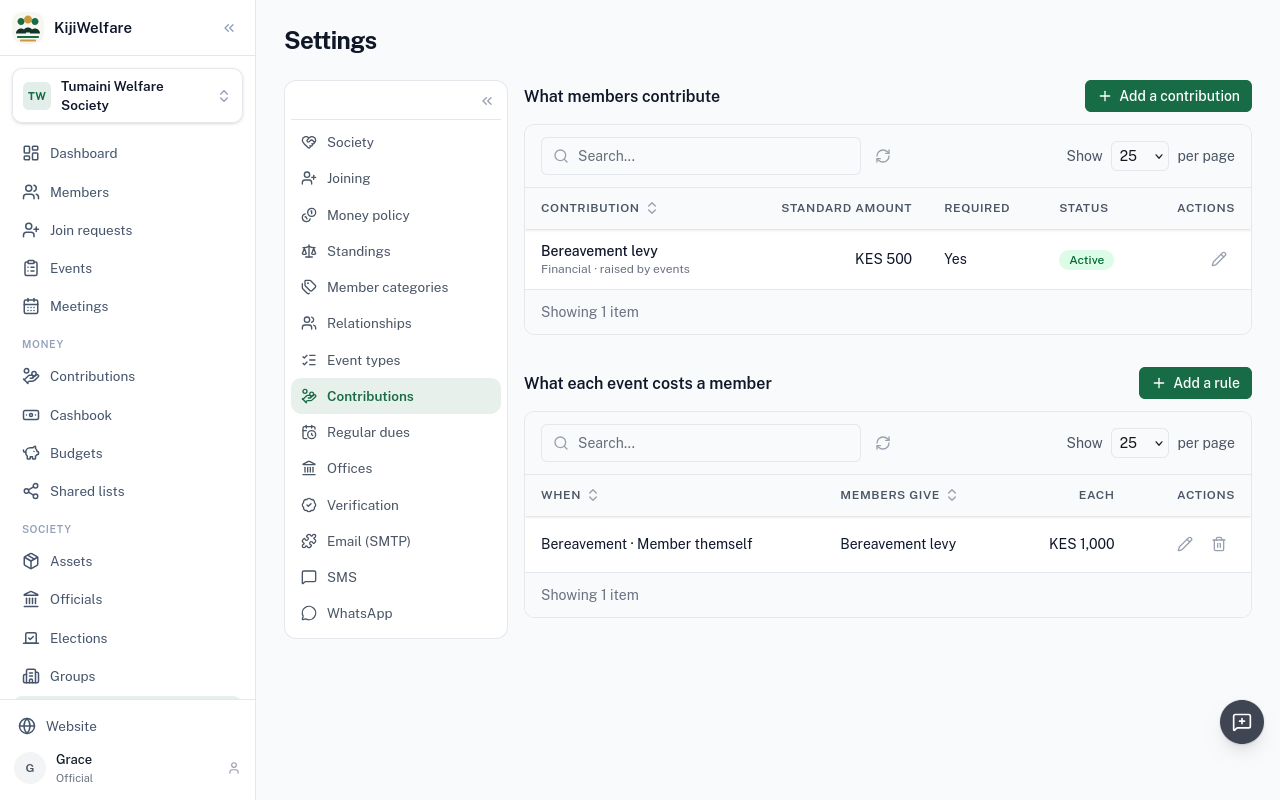
Below it, what each event costs a member. Choose Add a rule.
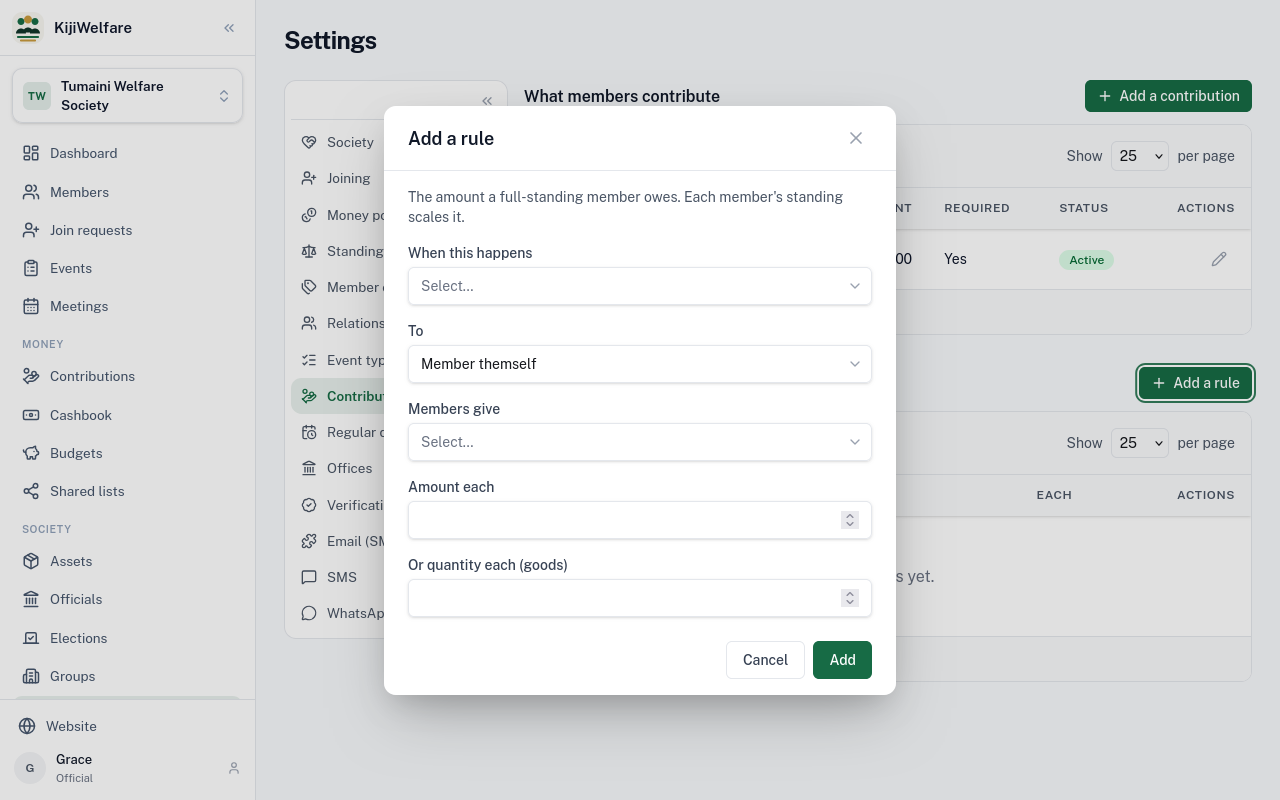
When a bereavement happens to the member themself, members give the bereavement levy: 1,000 shillings each.
Another rule for a member's parent: 500 shillings each.
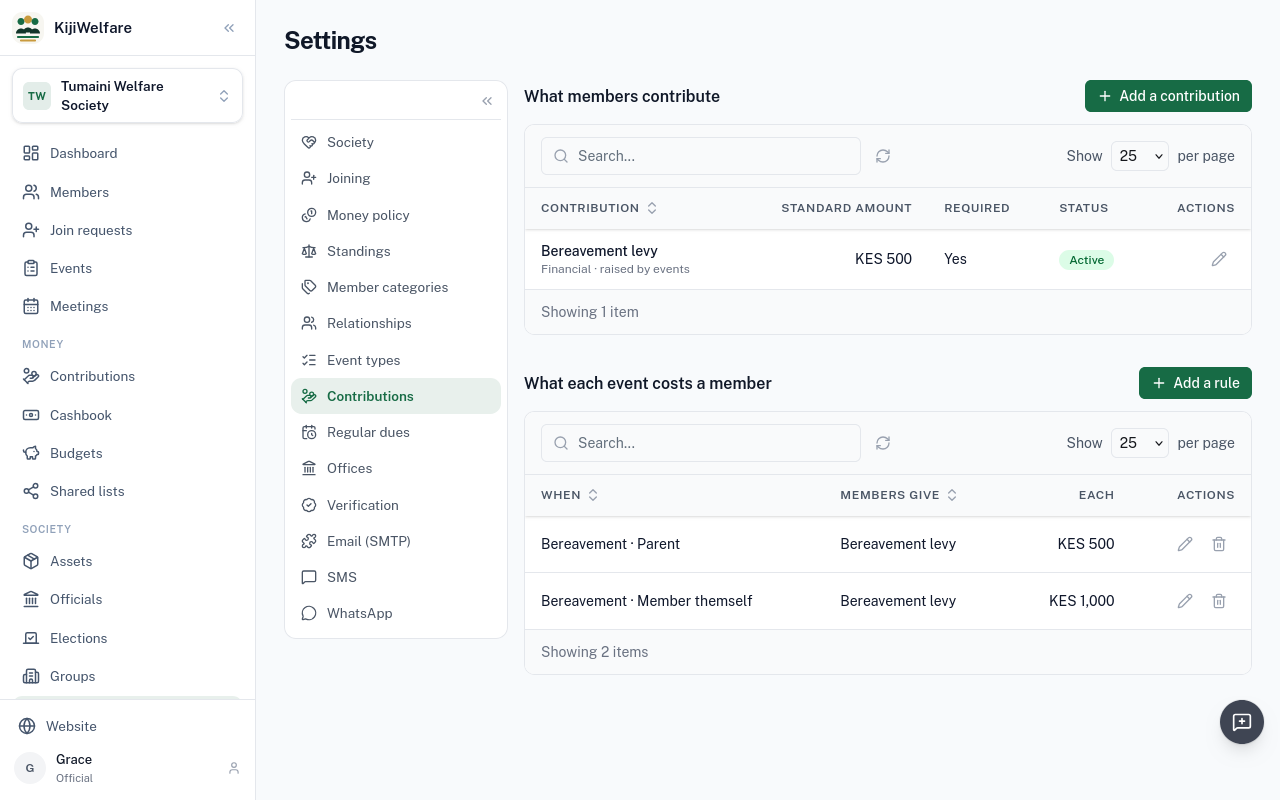
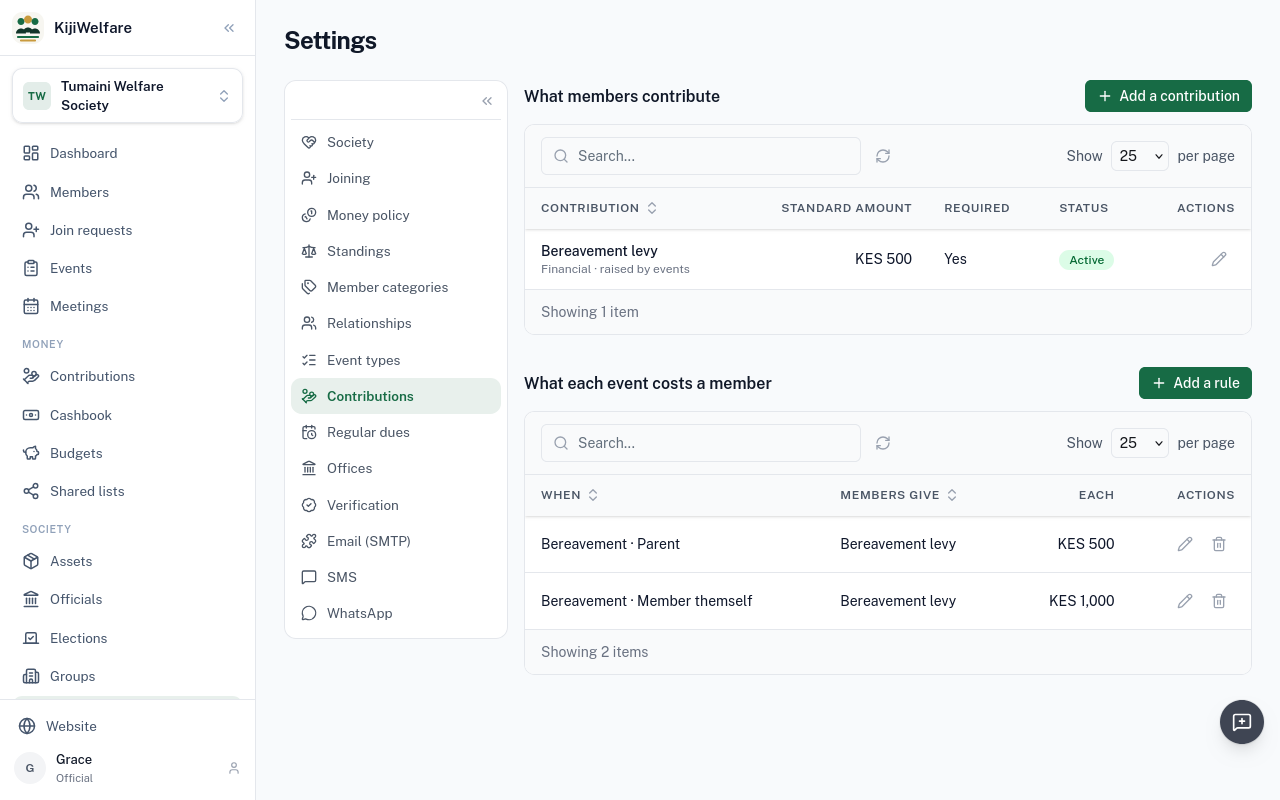
That is the amount for a member in full standing. A semi-active member gives half, and a dormant one gives nothing.
Regular dues are not decided yet. Some societies have none, some collect every month. Nothing is chosen for you. Choose Decide on regular dues.
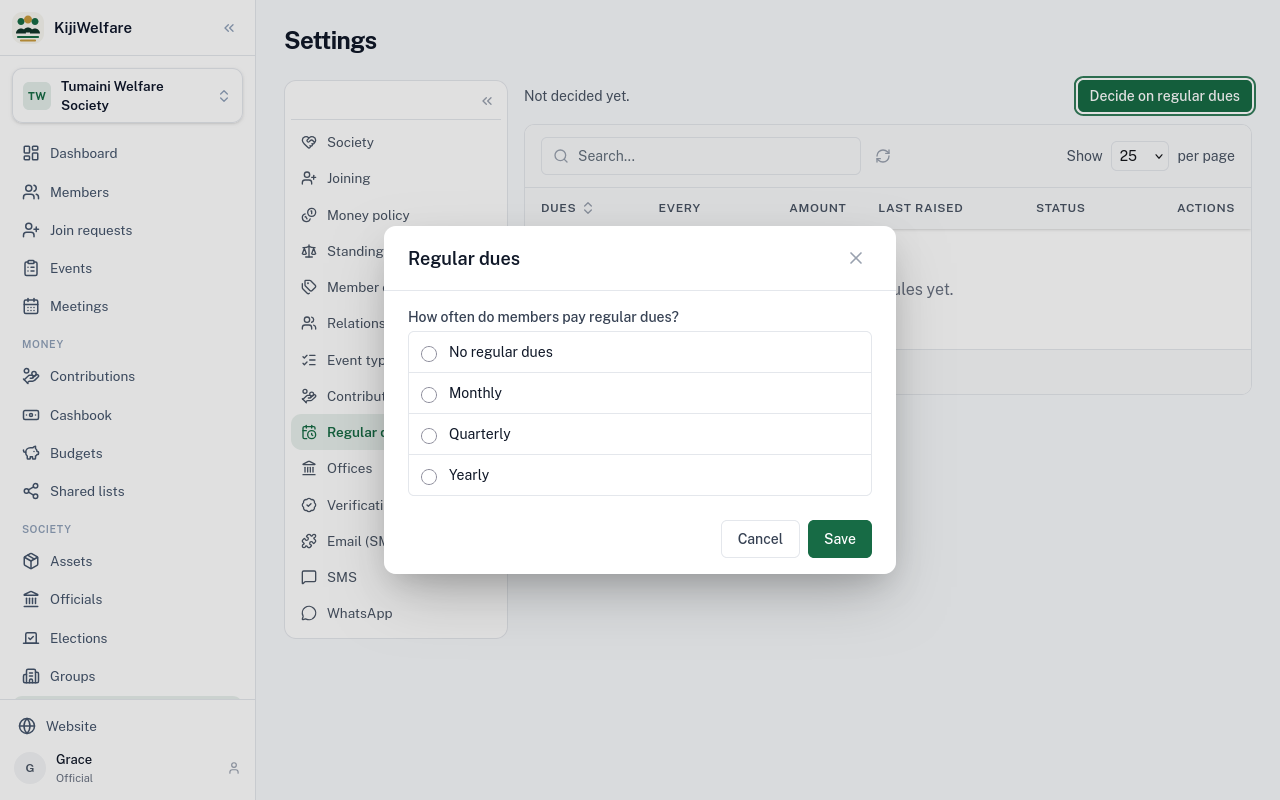
Tumaini's members pay every month. Choose Monthly.
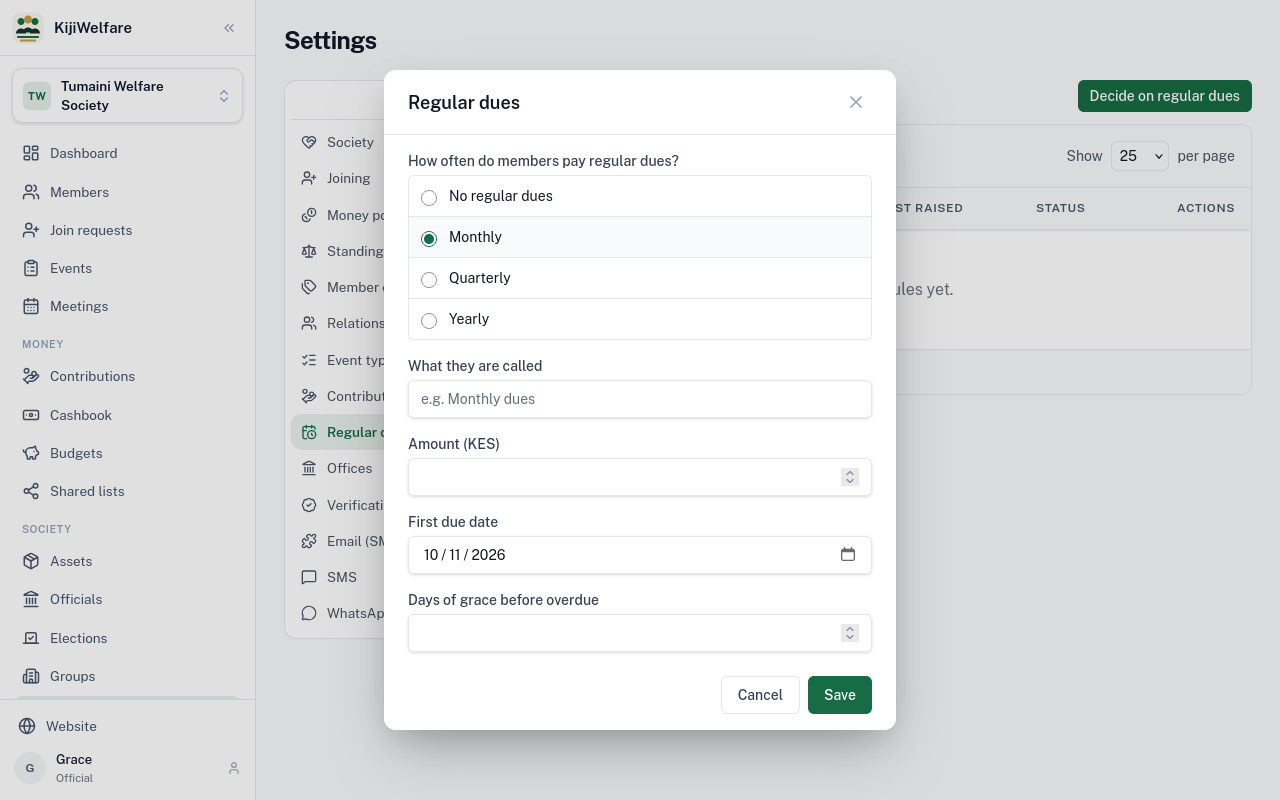
Name the dues, give the amount, 200 shillings, and the first due date. Seven days of grace come before dues count as overdue.
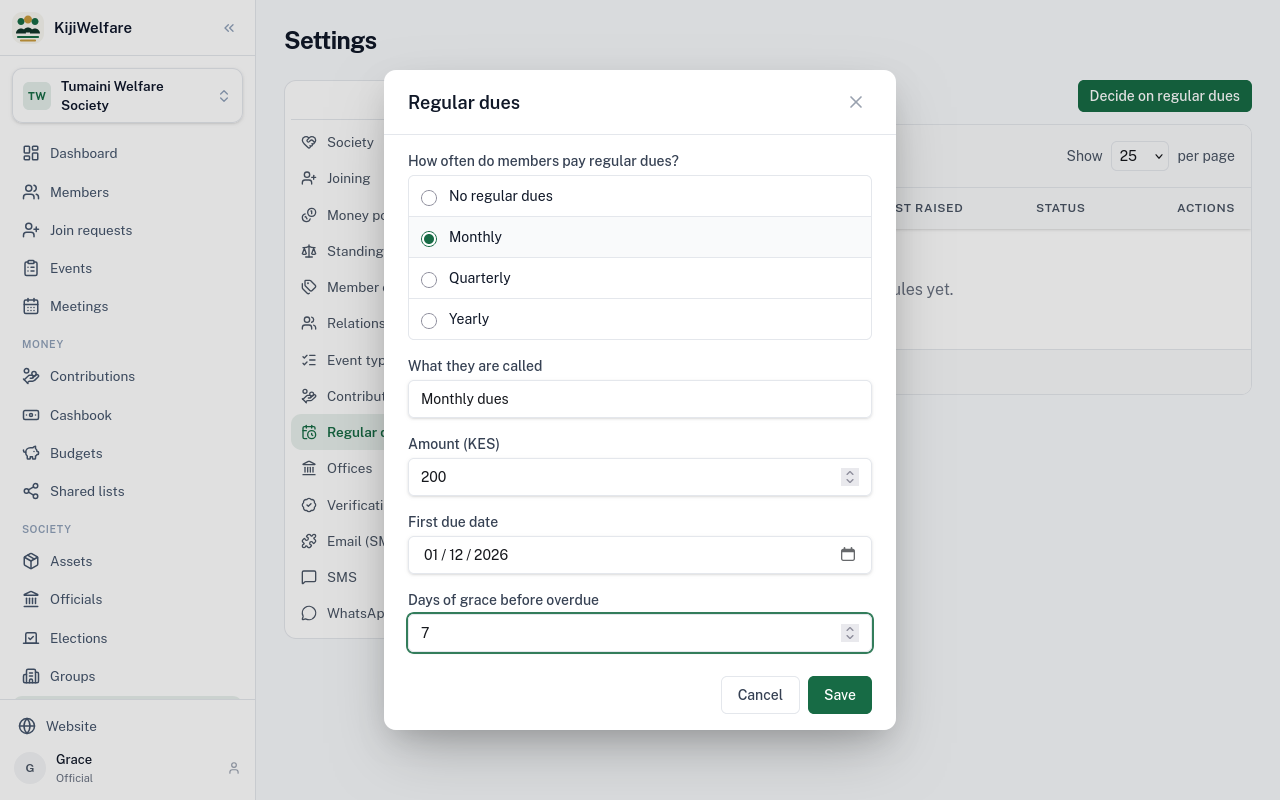
Choose Save.
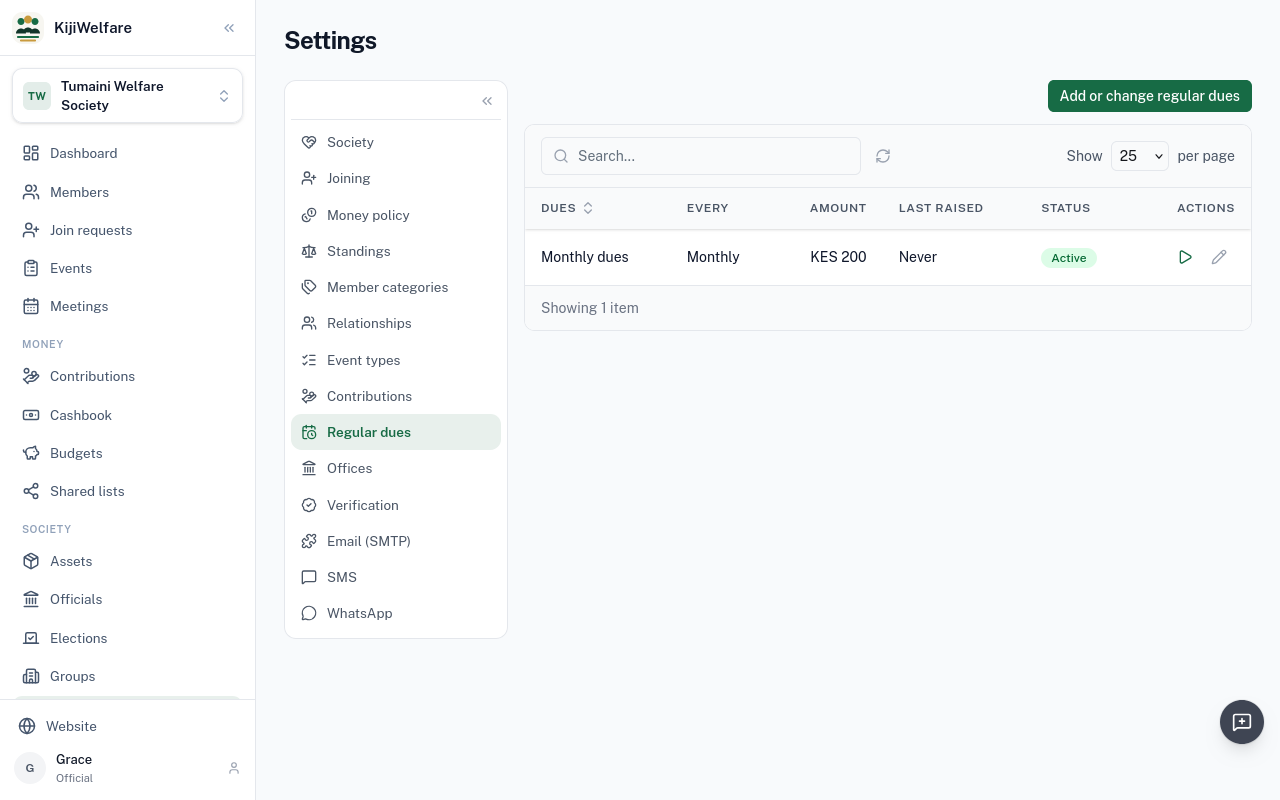
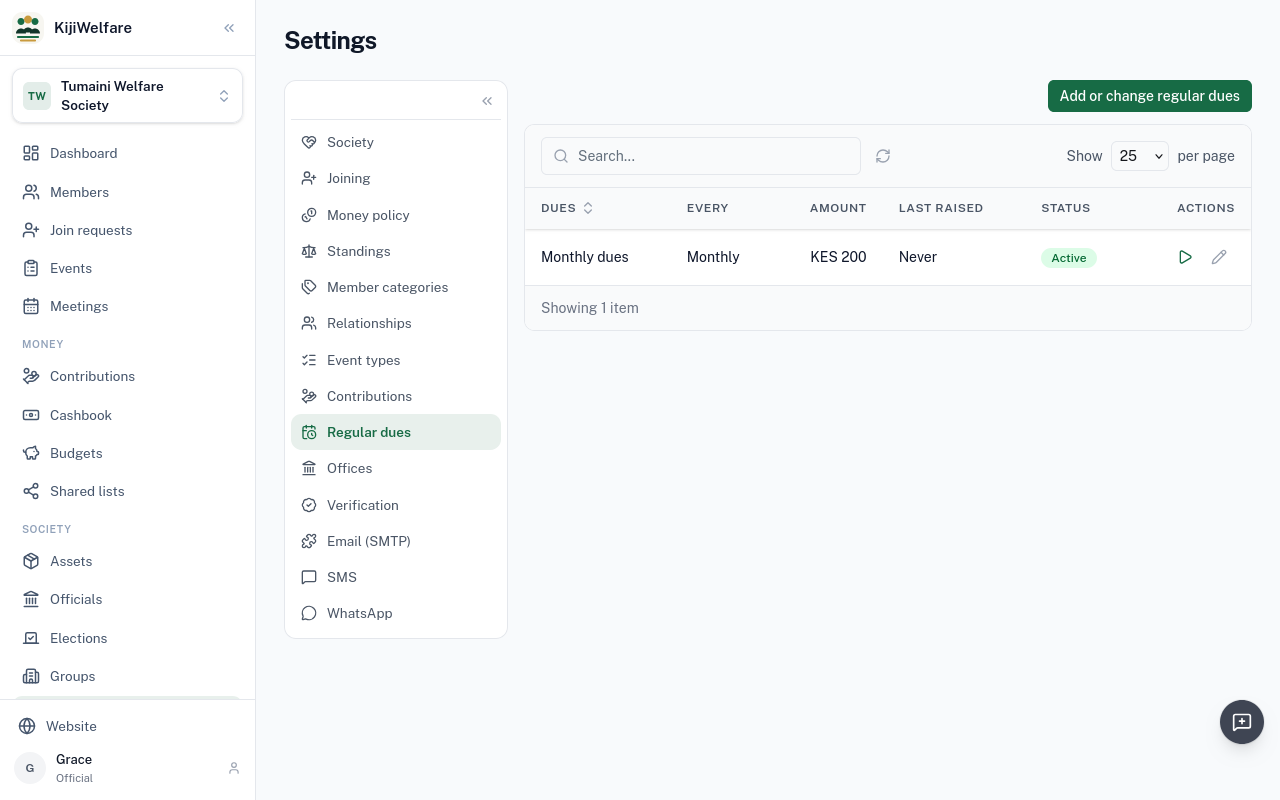
From the first due date, KijiWelfare raises each month's dues for every member by itself. Raise this period's dues does it now.
Chapter 4
The register: by hand, from a sheet, by invitation, and by asking to join
Members holds the society's register. So far it has one name: Grace, who started the society.
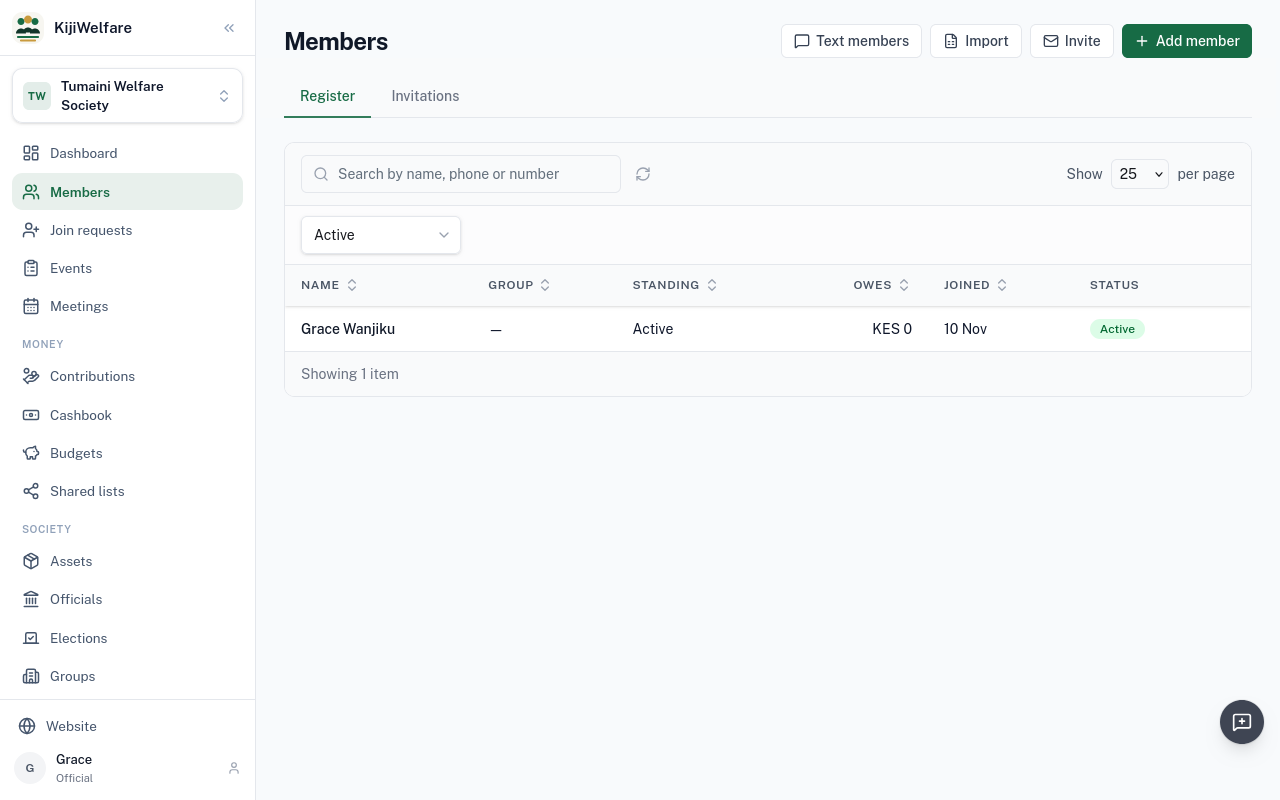
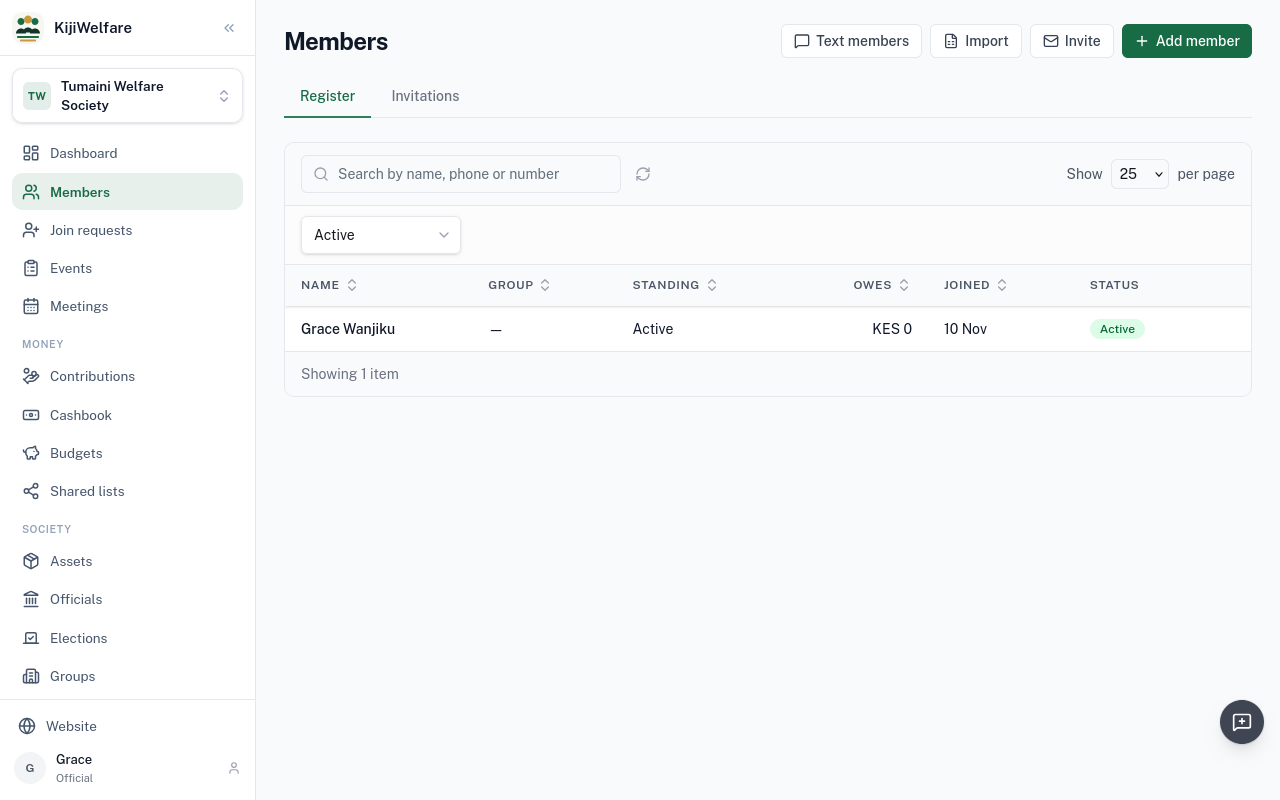
There are four ways in: Add member, Import from a sheet, Invite by email, and people asking to join.
Choose Add member. Only the first name is needed. Here, Daniel Ochieng, with his phone and email.
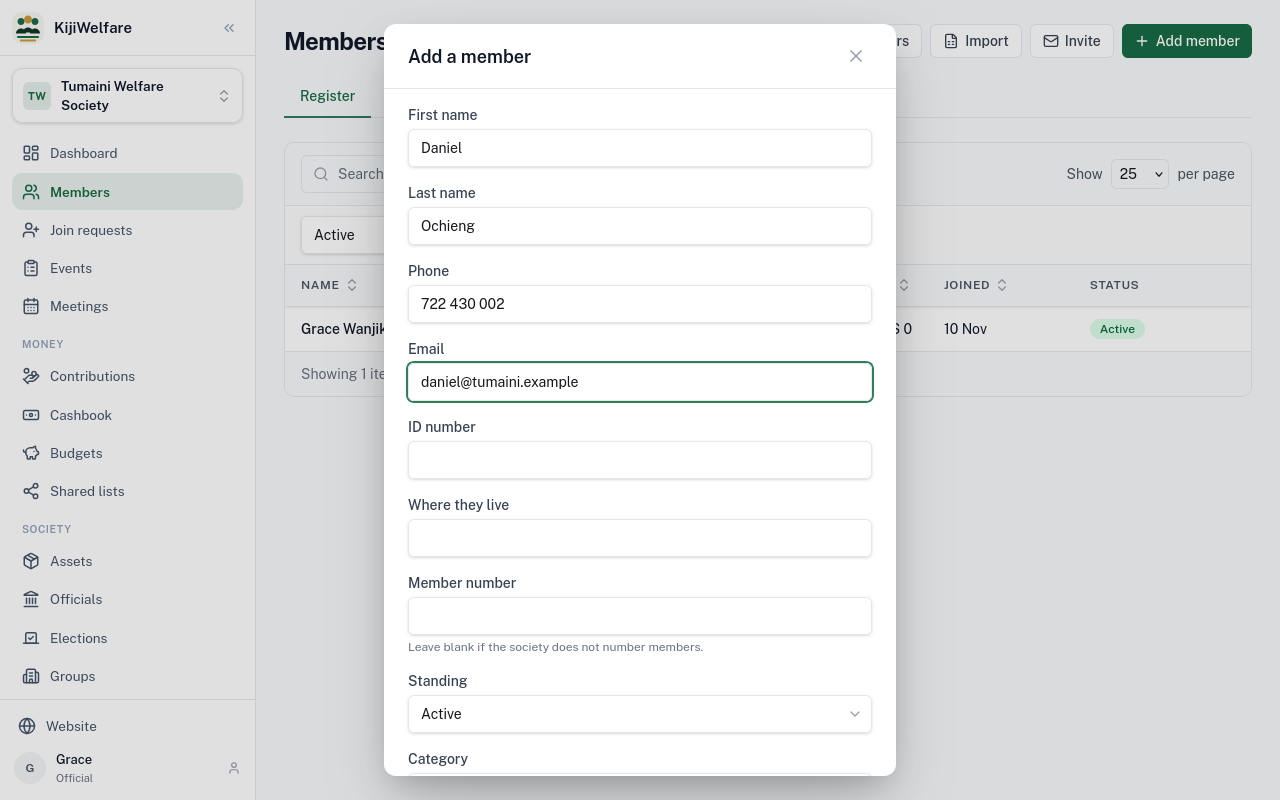
A new member's standing is Active, and their category Ordinary member. Choose Add.
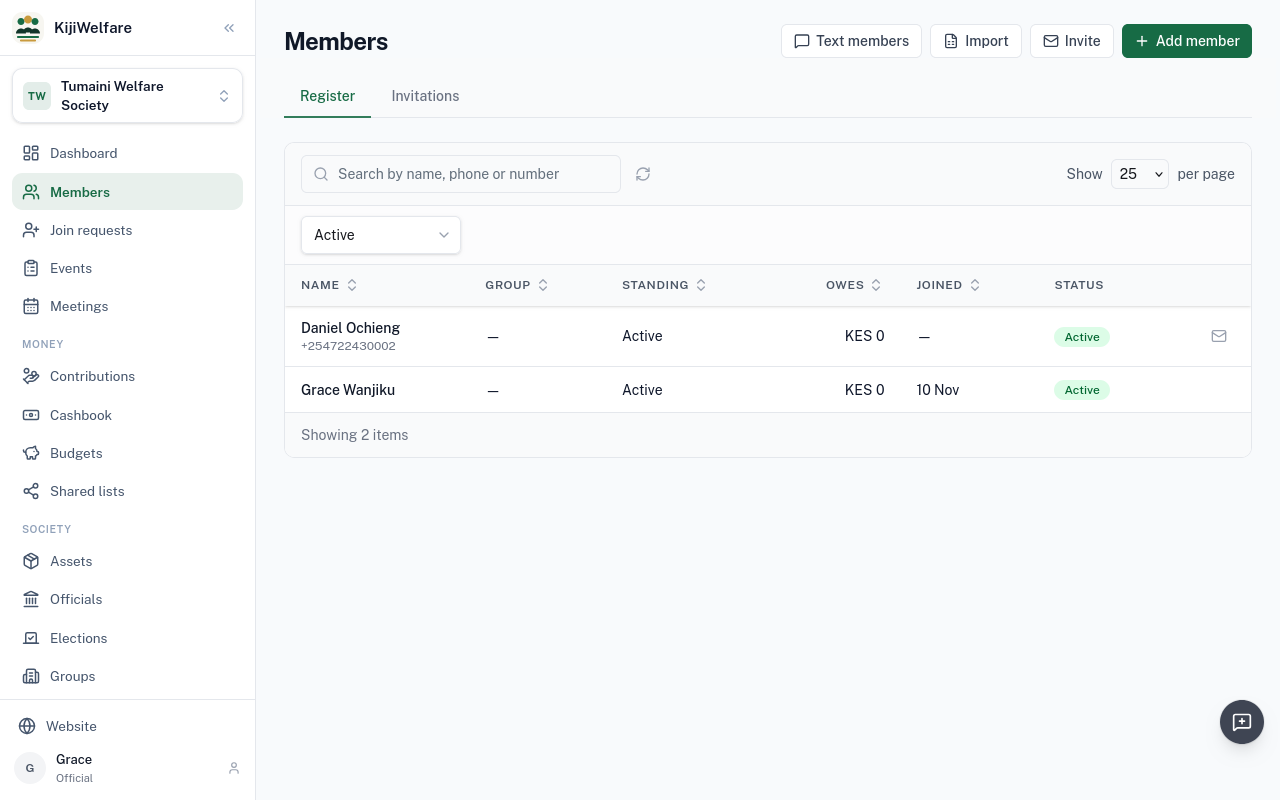
Daniel is on the register, but he has no account linked yet. Invite, on his row, sends him an email.
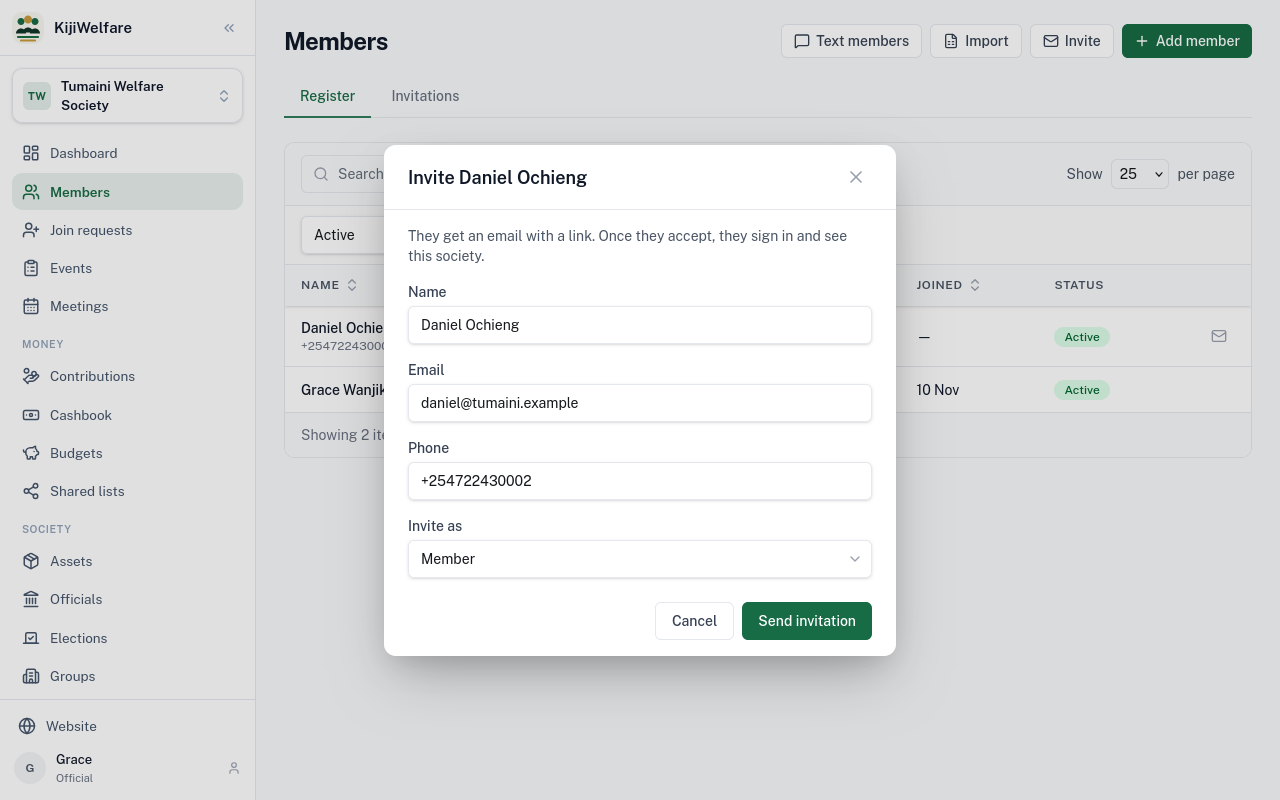
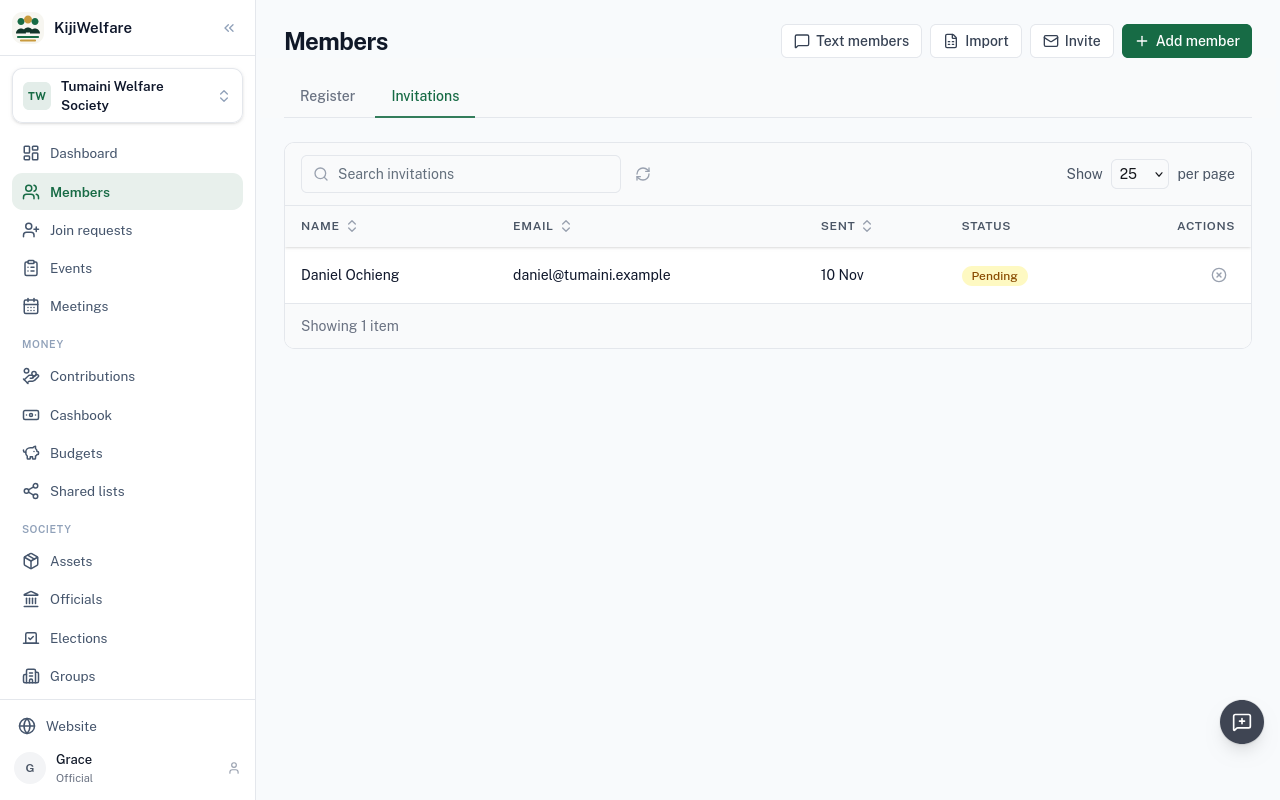
His name and email are filled in. Choose Send invitation. When he accepts, his account is linked to this row.
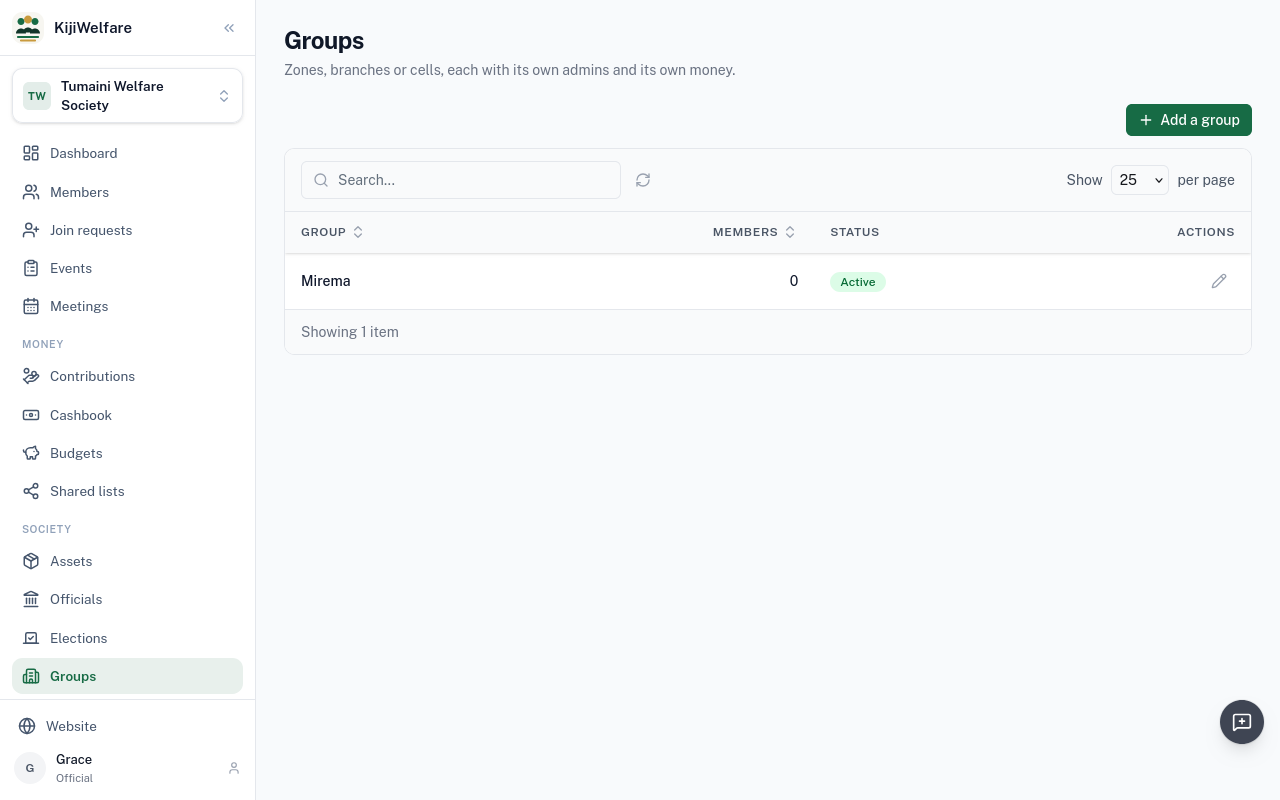
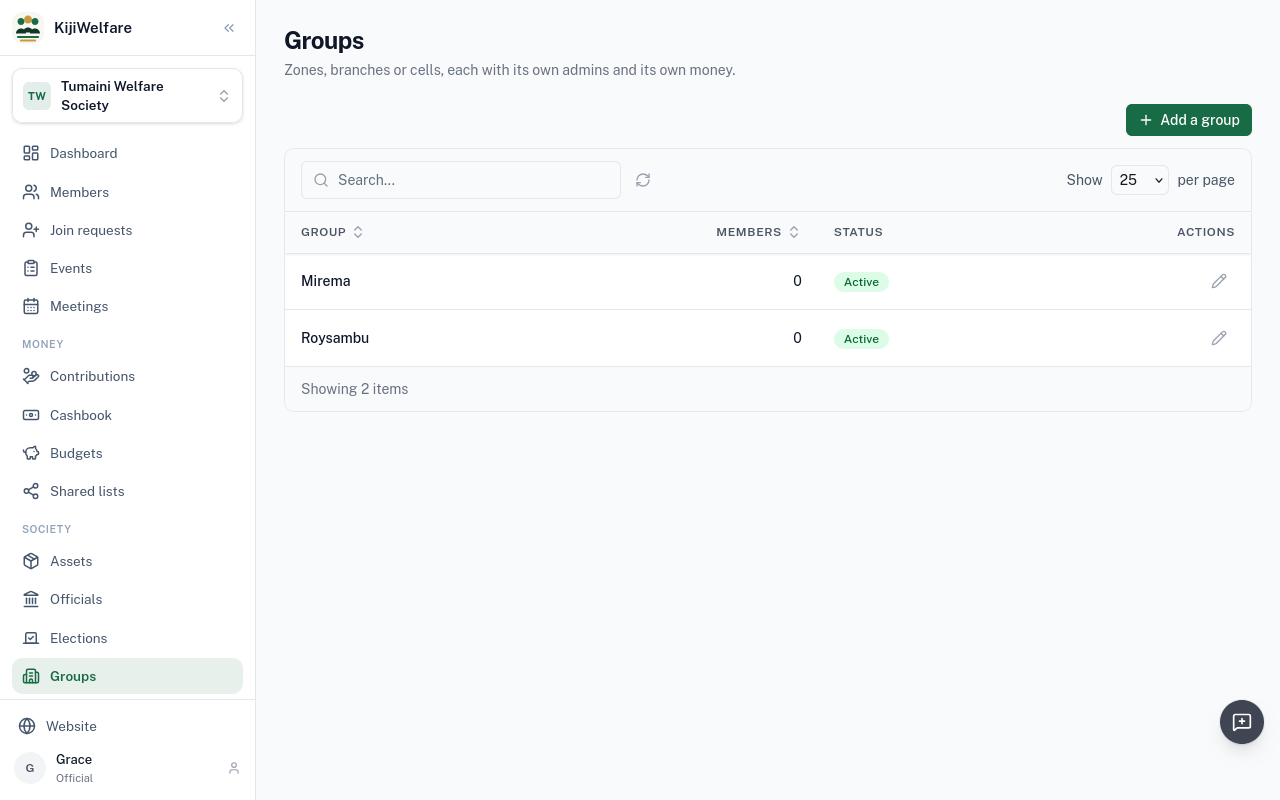
A large society splits into groups, each with its own admins and its own money. Tumaini has two zones. Choose Add a group.
Then Roysambu.
Most societies already keep their register in a sheet. Choose Import.
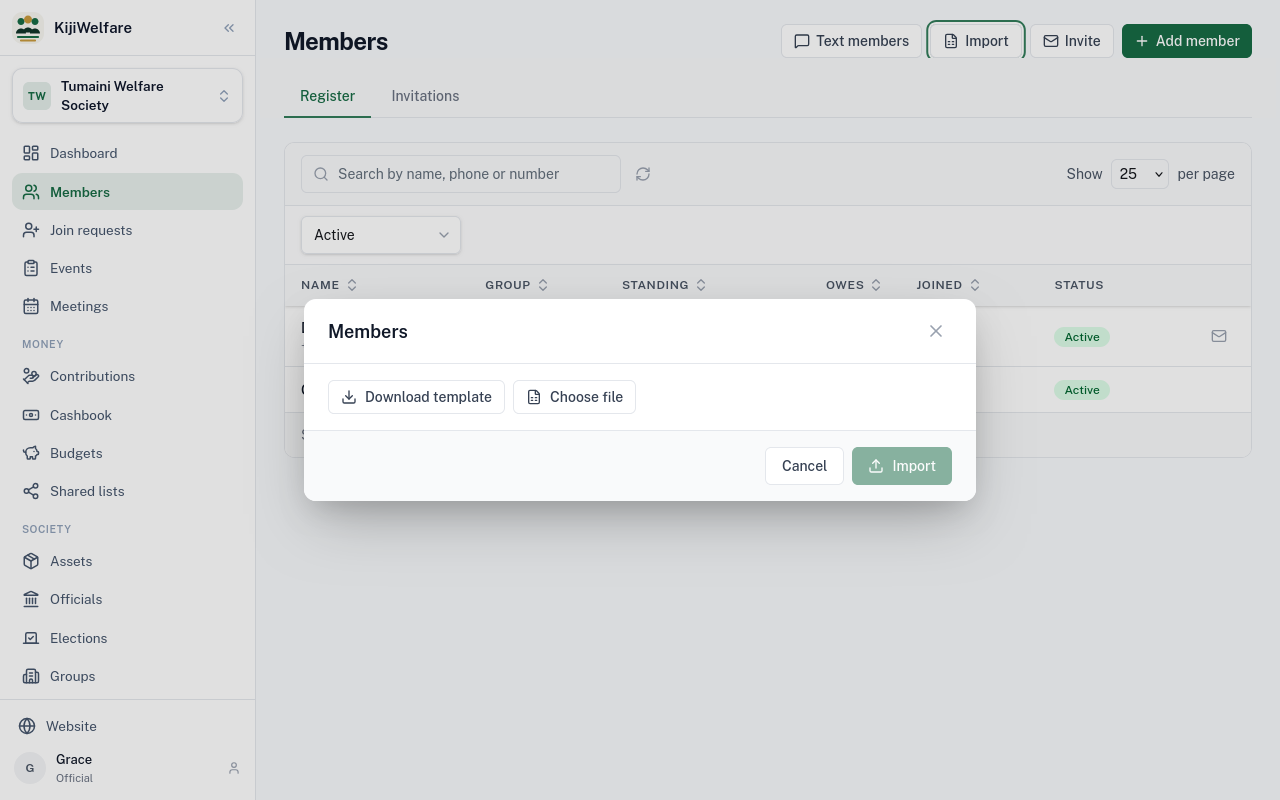
Download template gives a spreadsheet with the right columns. Fill it in, then upload it here. Tumaini's has sixteen members, each with their group.
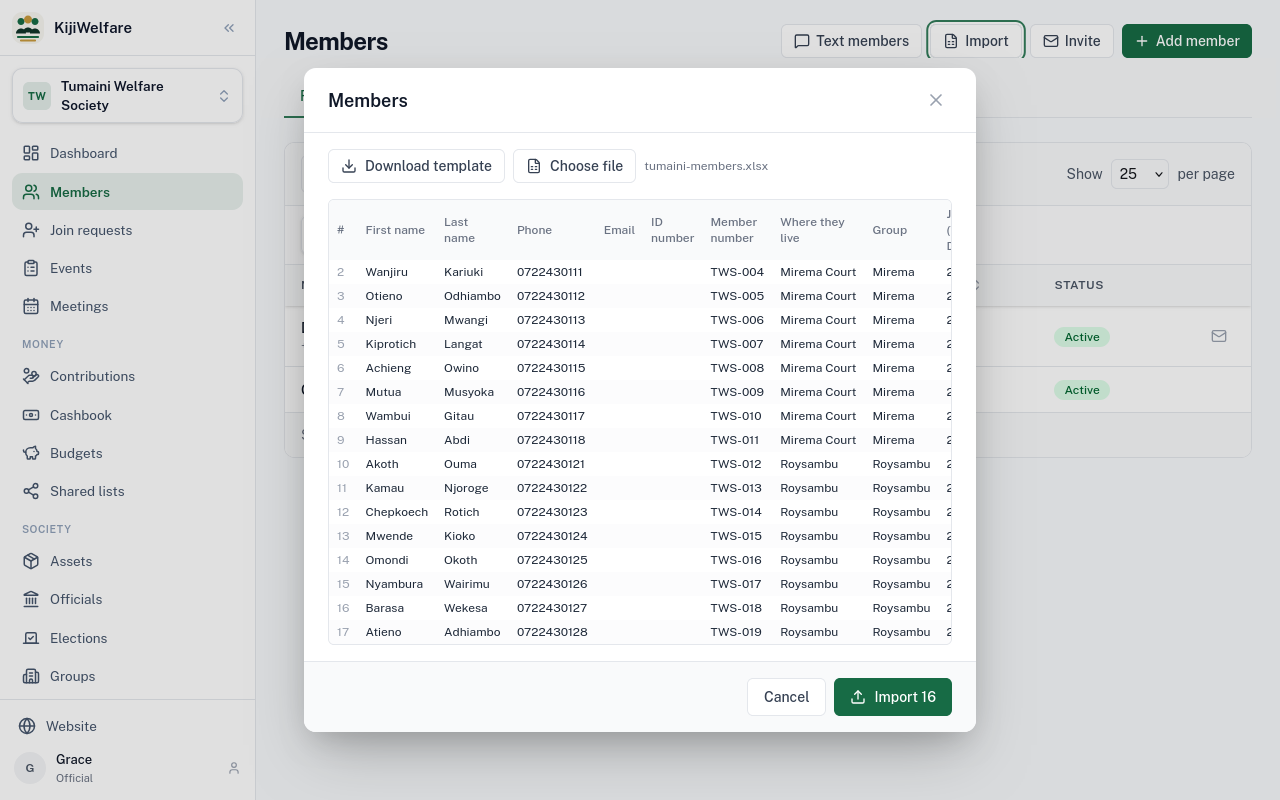
KijiWelfare shows the rows it read. Check them, and choose Import 16.
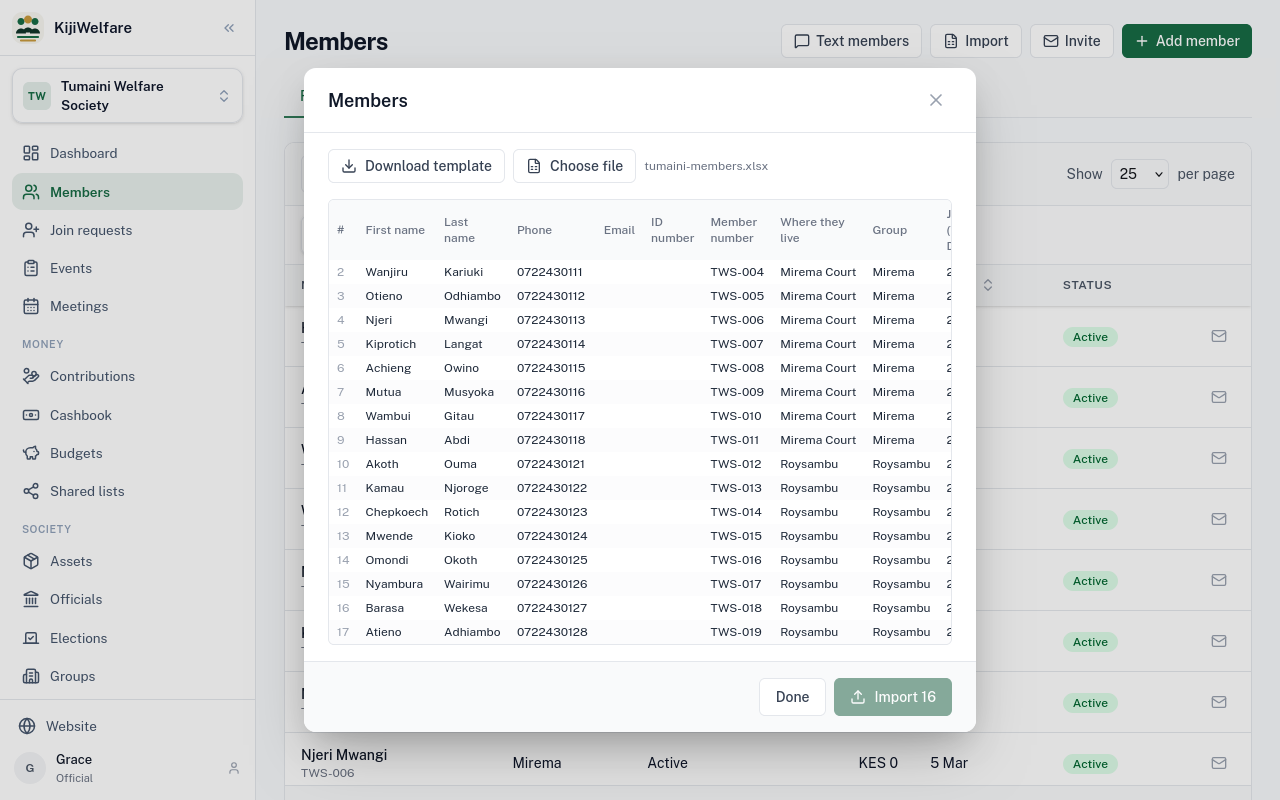
Sixteen added. Choose Done.
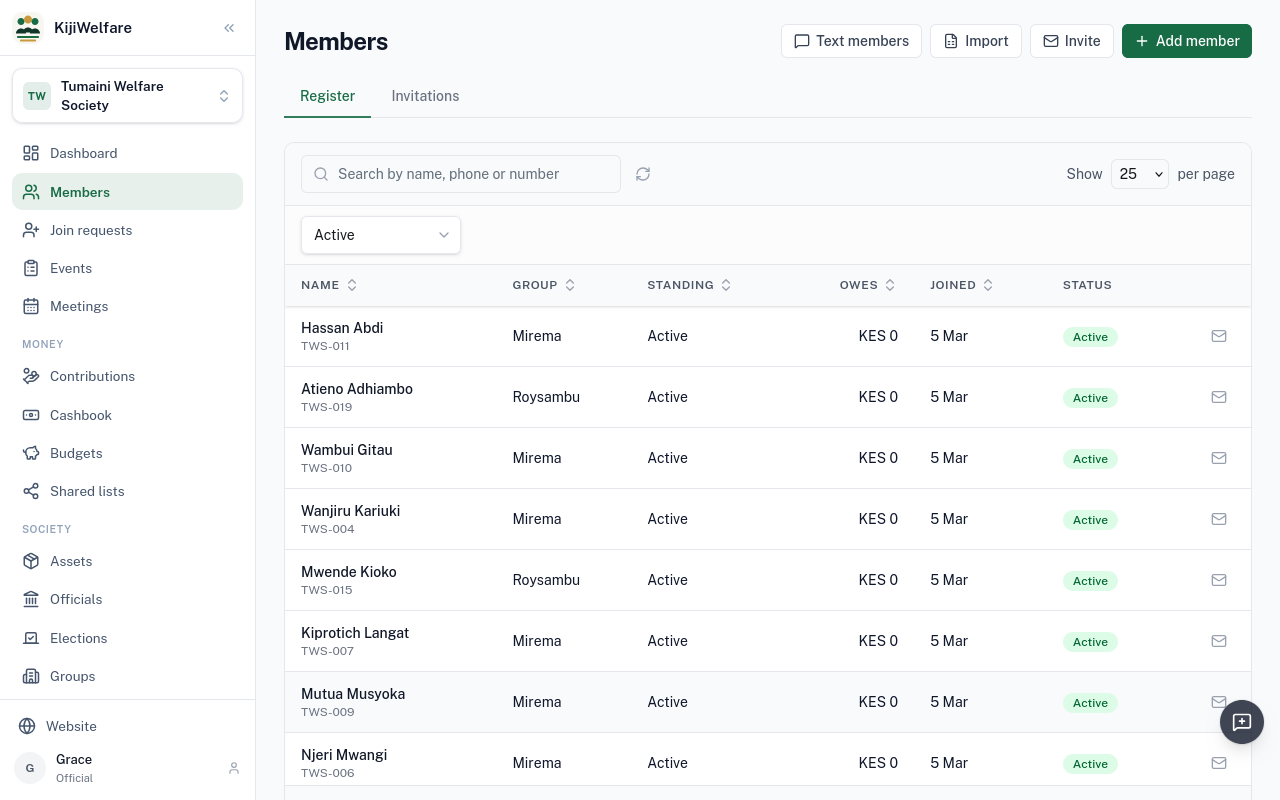
The register now has eighteen members, each in their zone, all active and owing nothing yet.
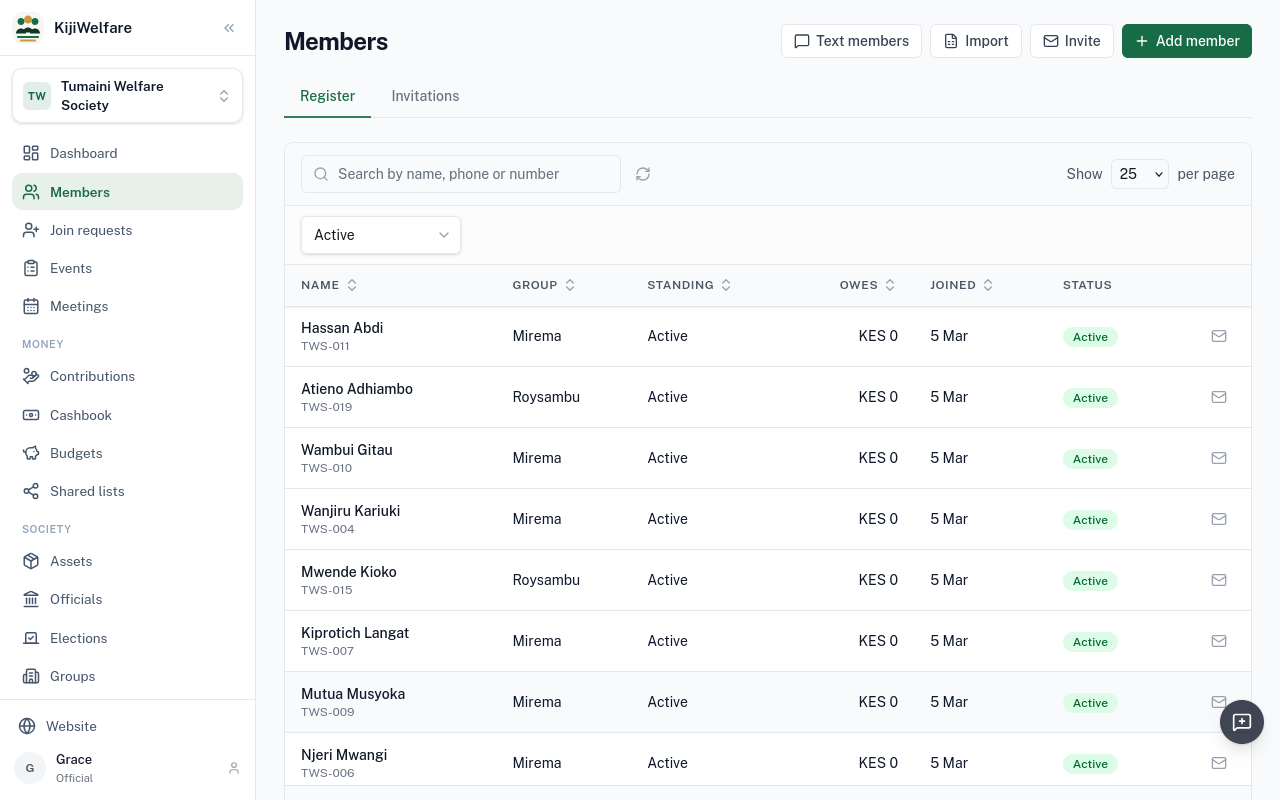
To invite someone new, choose Invite, and give their name and email. Here, Mercy Chebet.
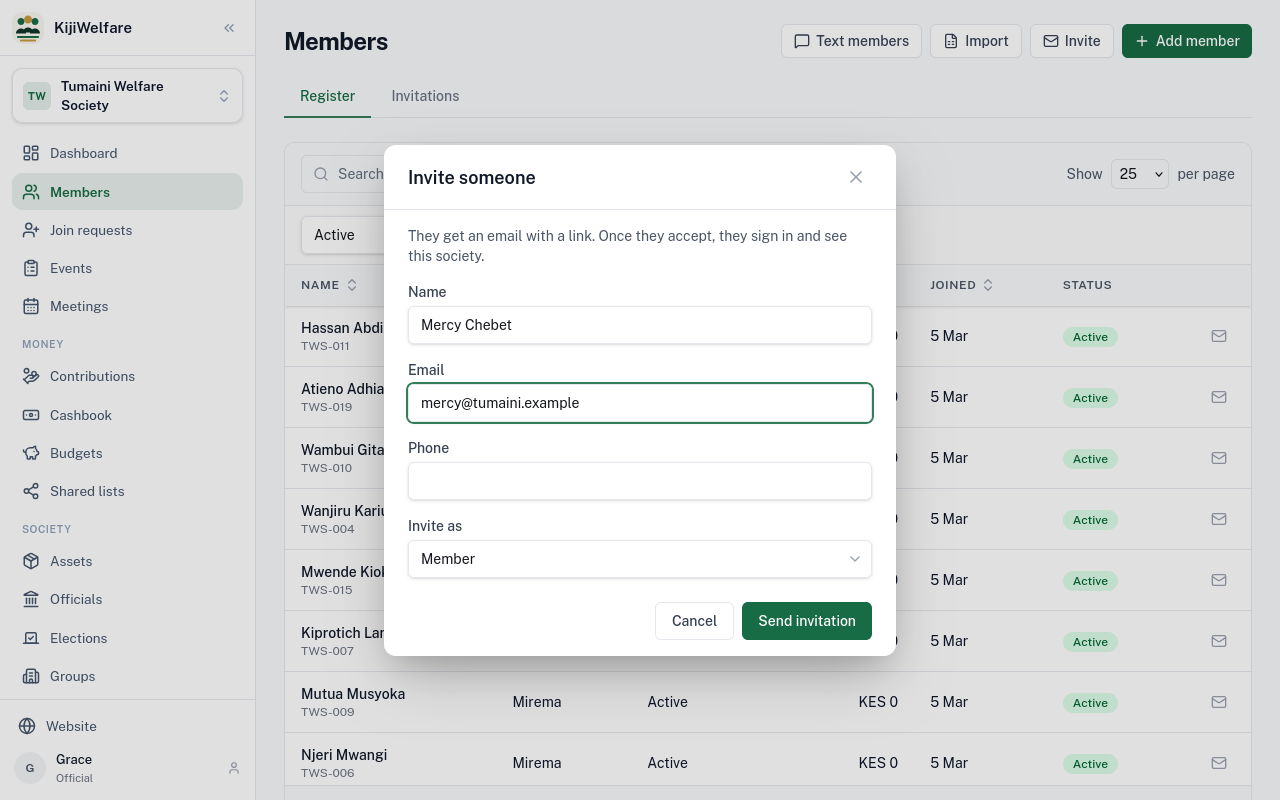
Invite as is Member. Committee or admin is for someone who will help run the society. Choose Send invitation.
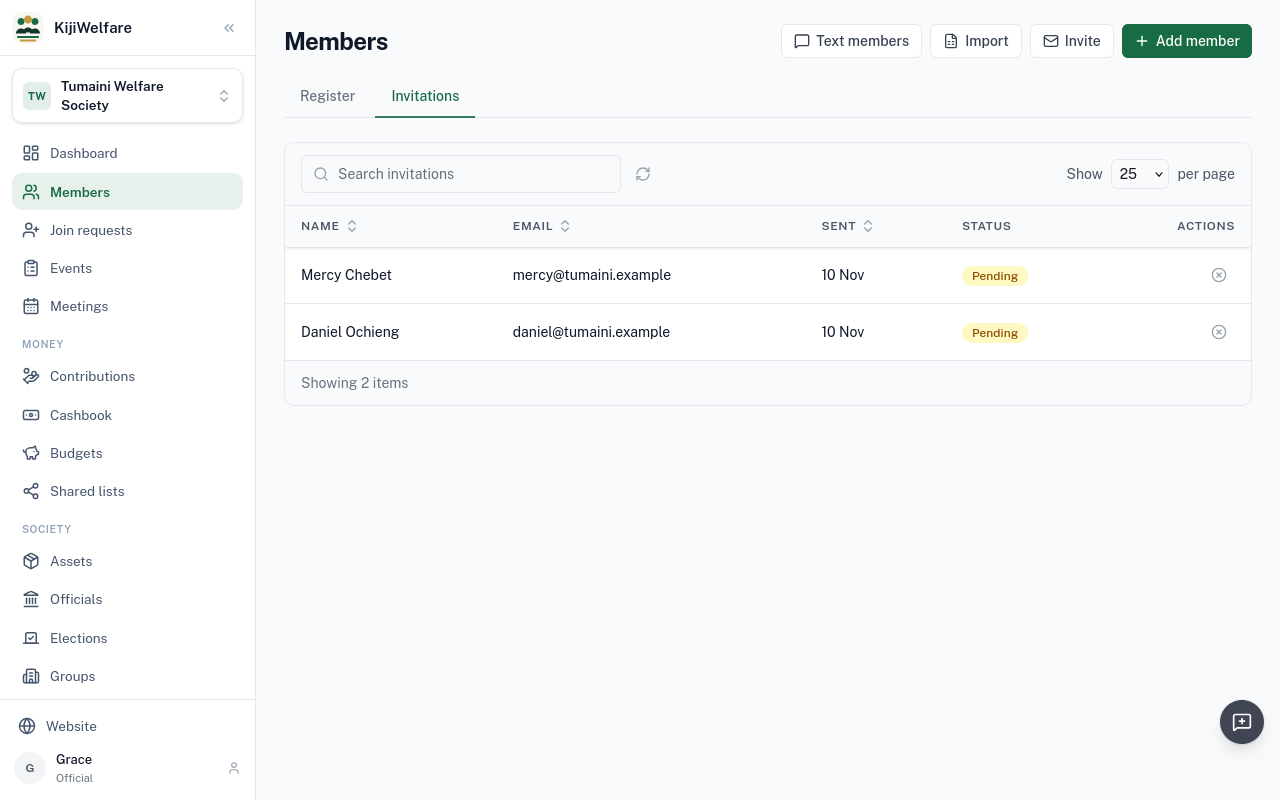
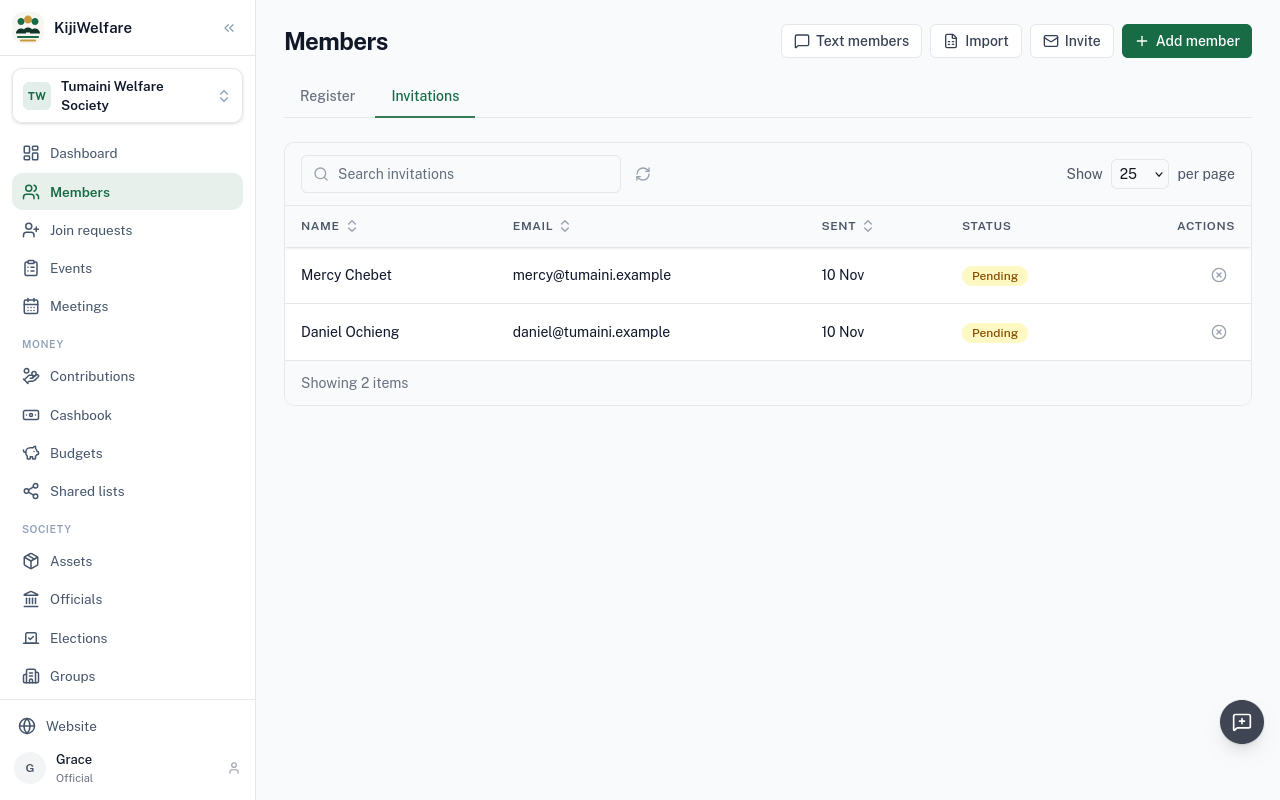
Invitations lists who was invited and whether they have accepted. Mercy is on the register already, and accepting links her account.
People who find the society can ask to join. Joseph Mwangi has asked. Choose Admit on his row.
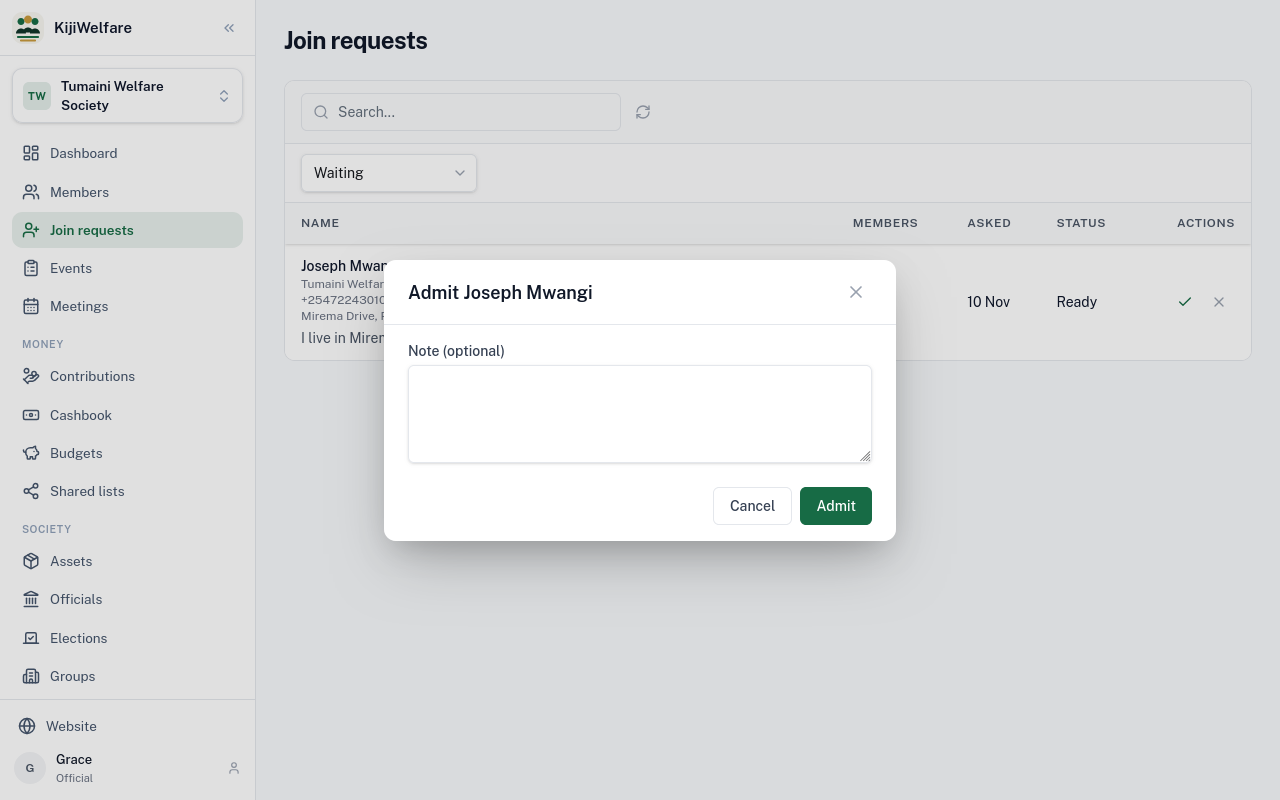
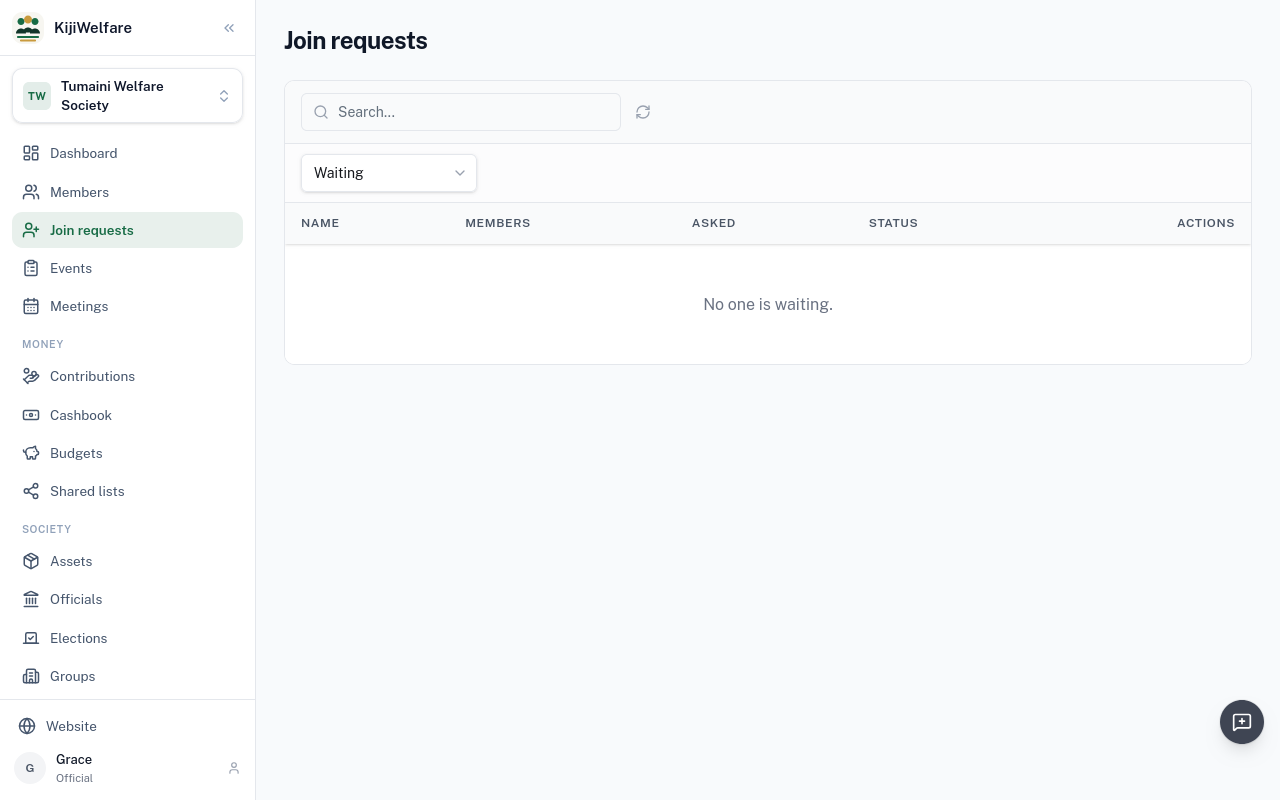
Then Admit again. Turn down is there too.
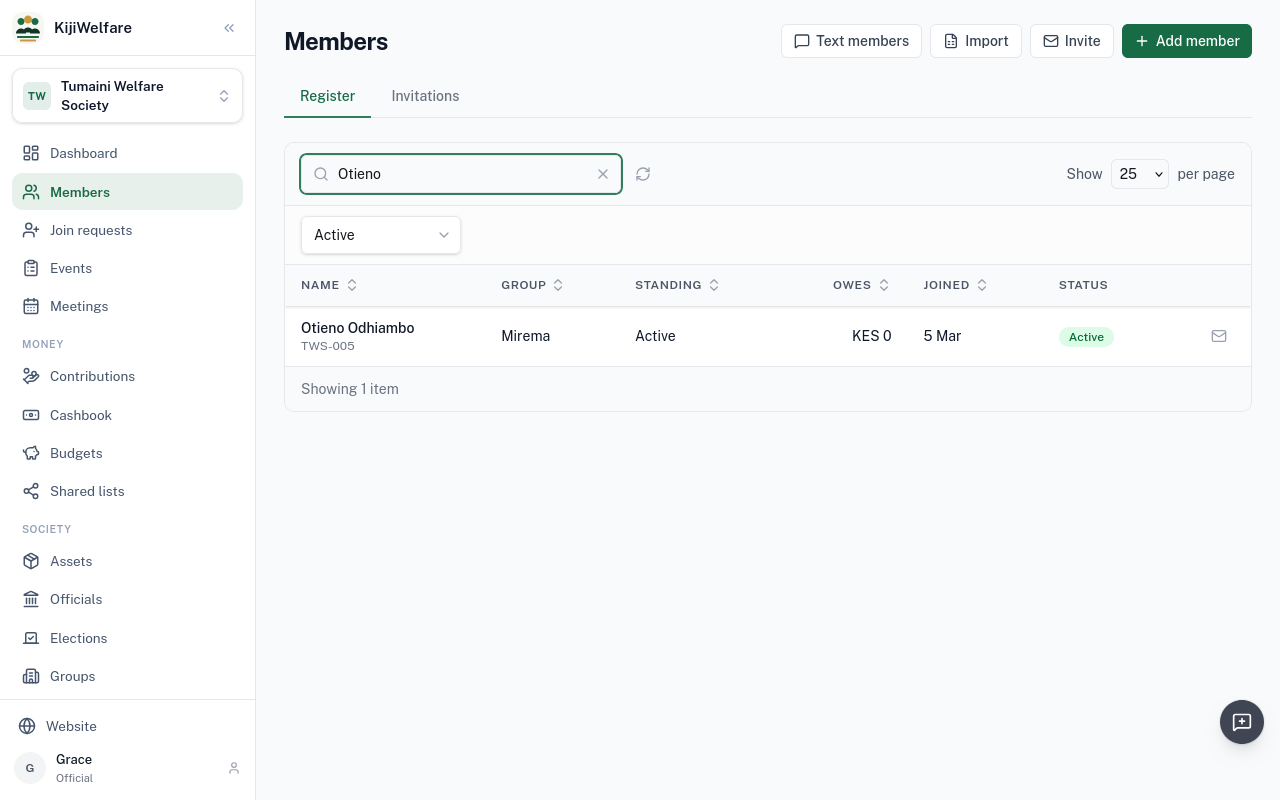
Search finds a member by name, phone or number, and the filters show one group, or another status.
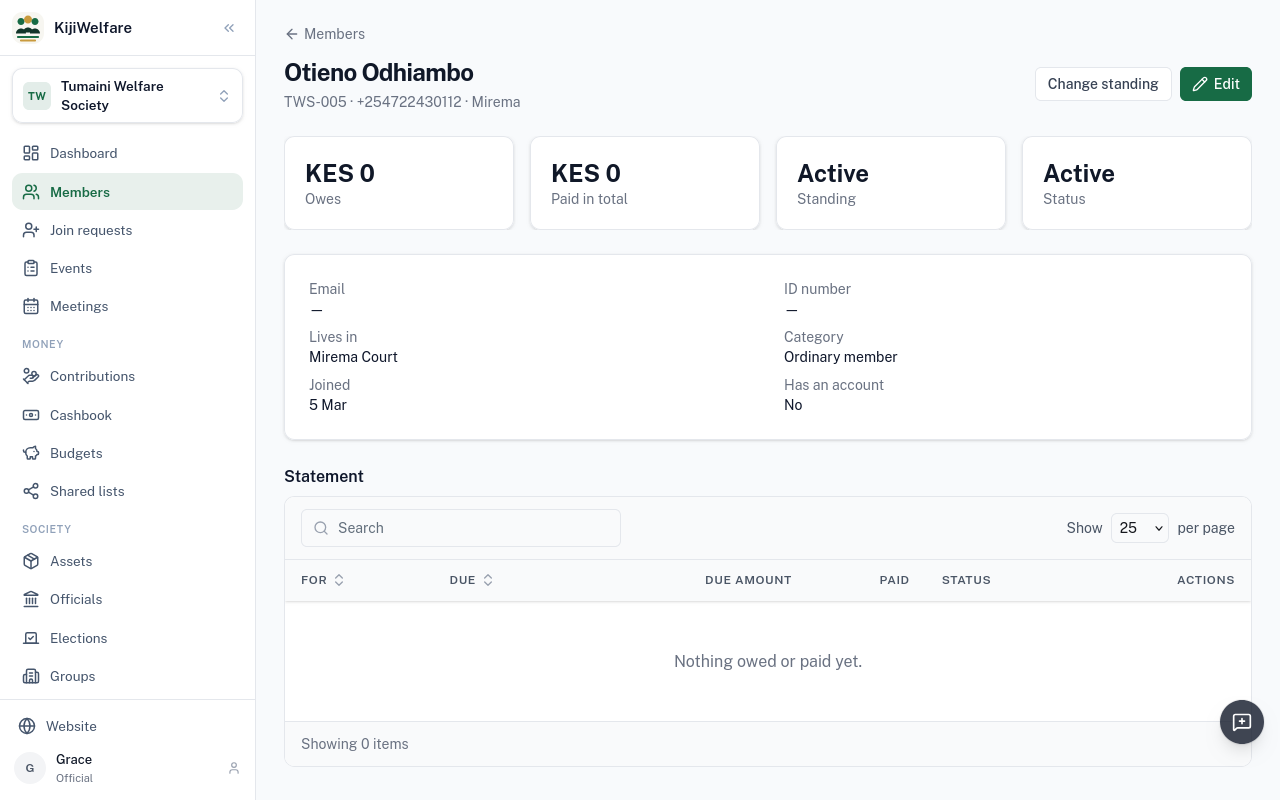
Open a member to see their details, what they owe, and their standing.
Chapter 5
Seating the first officials, and electing a chair
Officials lists who holds which office. A new welfare society has three offices: chairperson, secretary and treasurer. Nobody holds them yet.
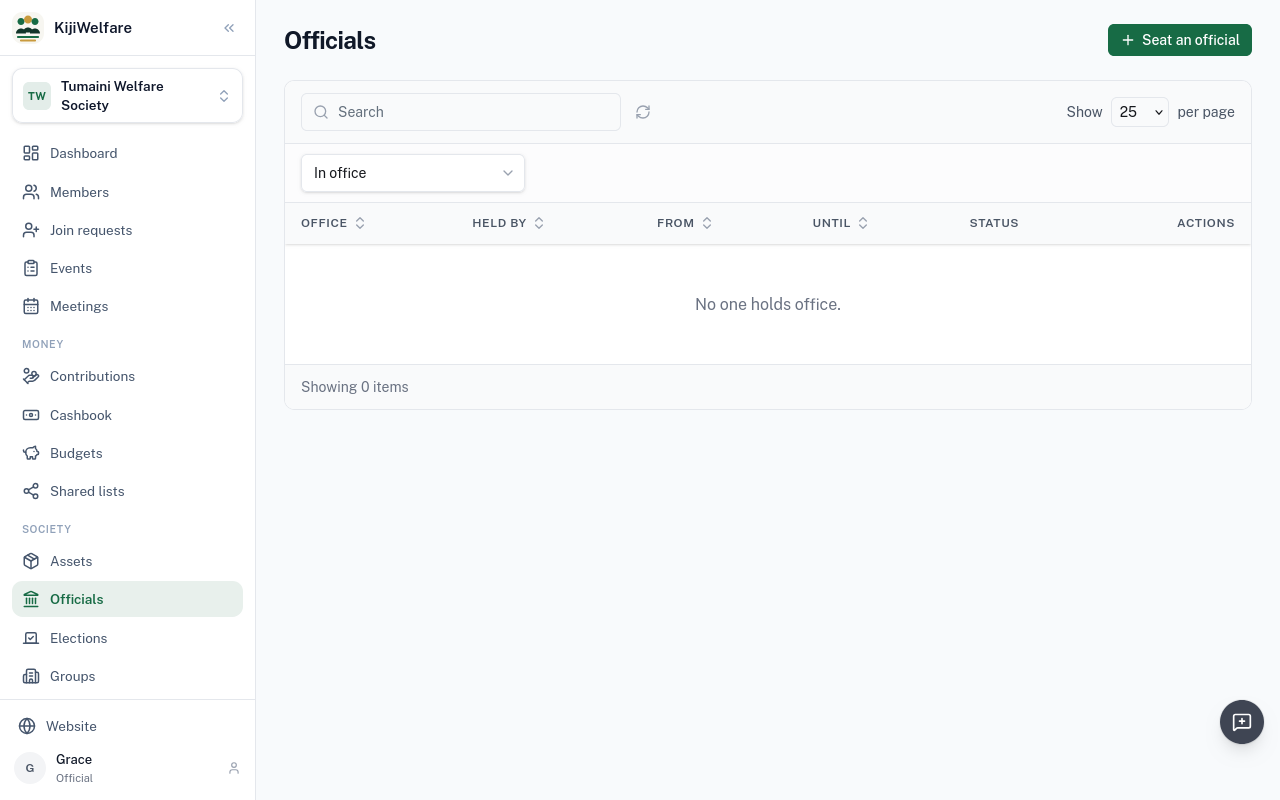
Each office carries its powers. The secretary looks after members and meetings. The treasurer looks after the money. Only the society's admin seats officials or changes the offices.
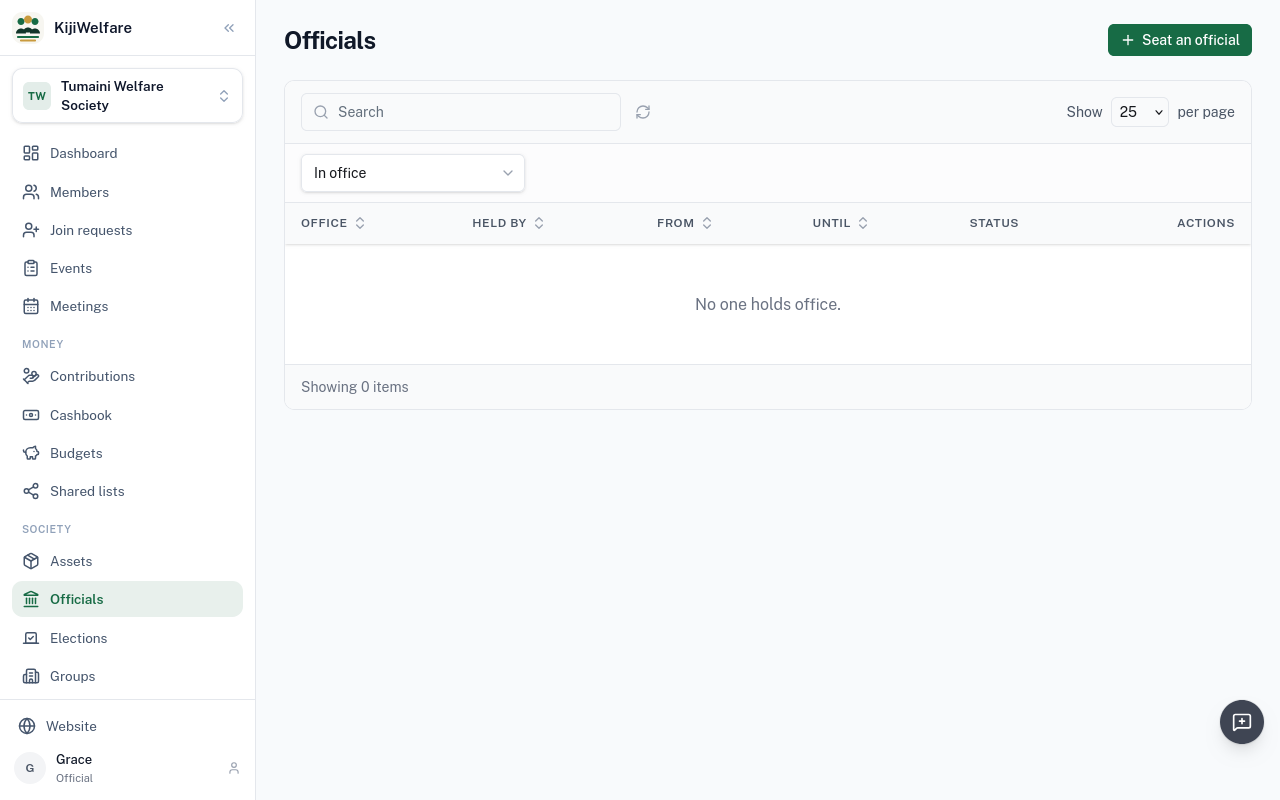
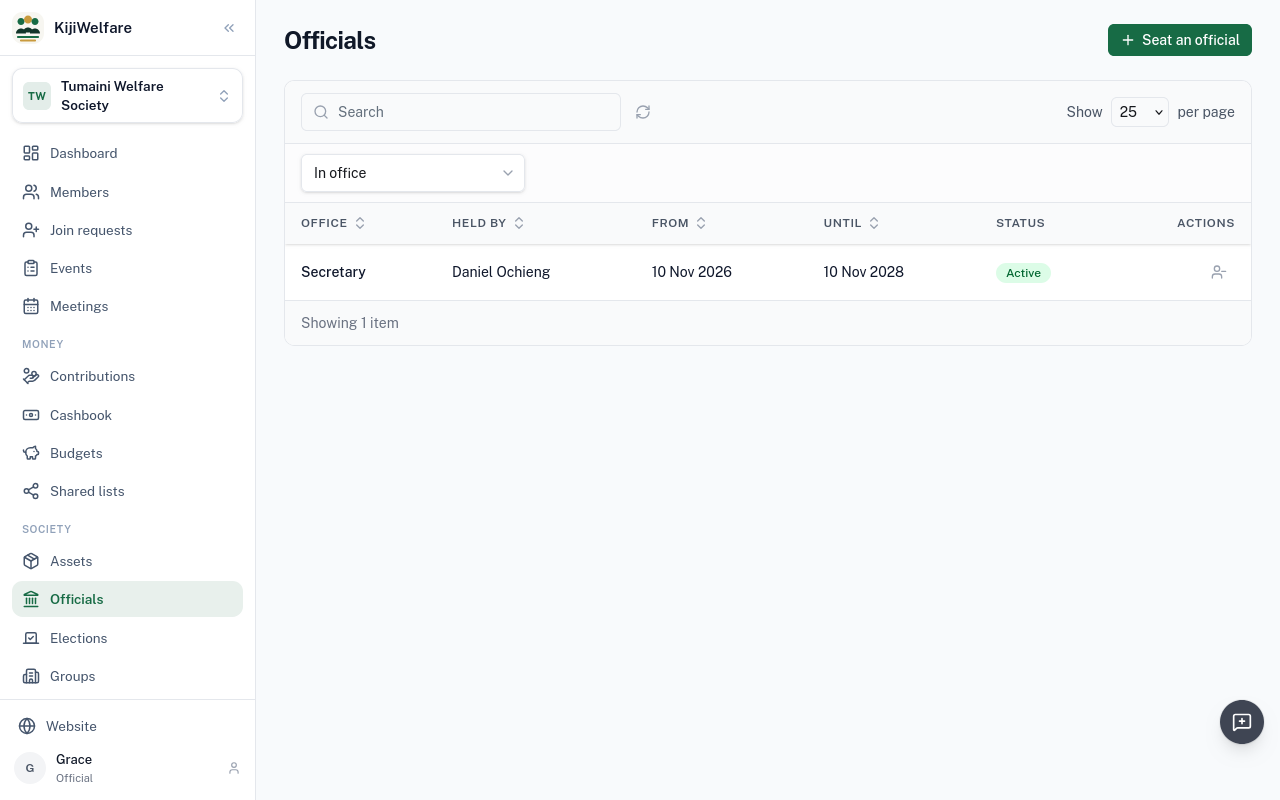
Choose Seat an official. Pick the office, here Secretary, and the member, Daniel Ochieng. Then Seat.
The same for the treasurer: Mercy Chebet.
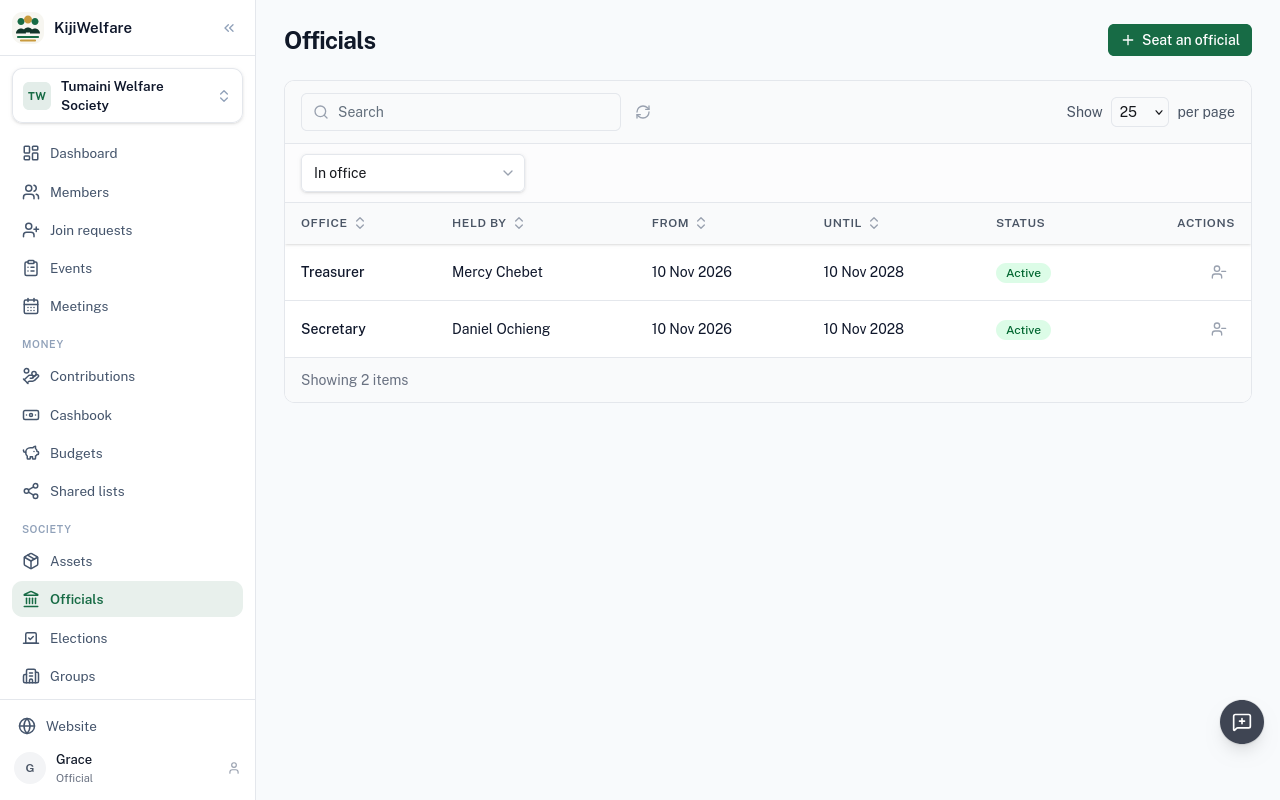
Each now holds office for the office's term, 24 months. Retire, on a row, ends a term early.
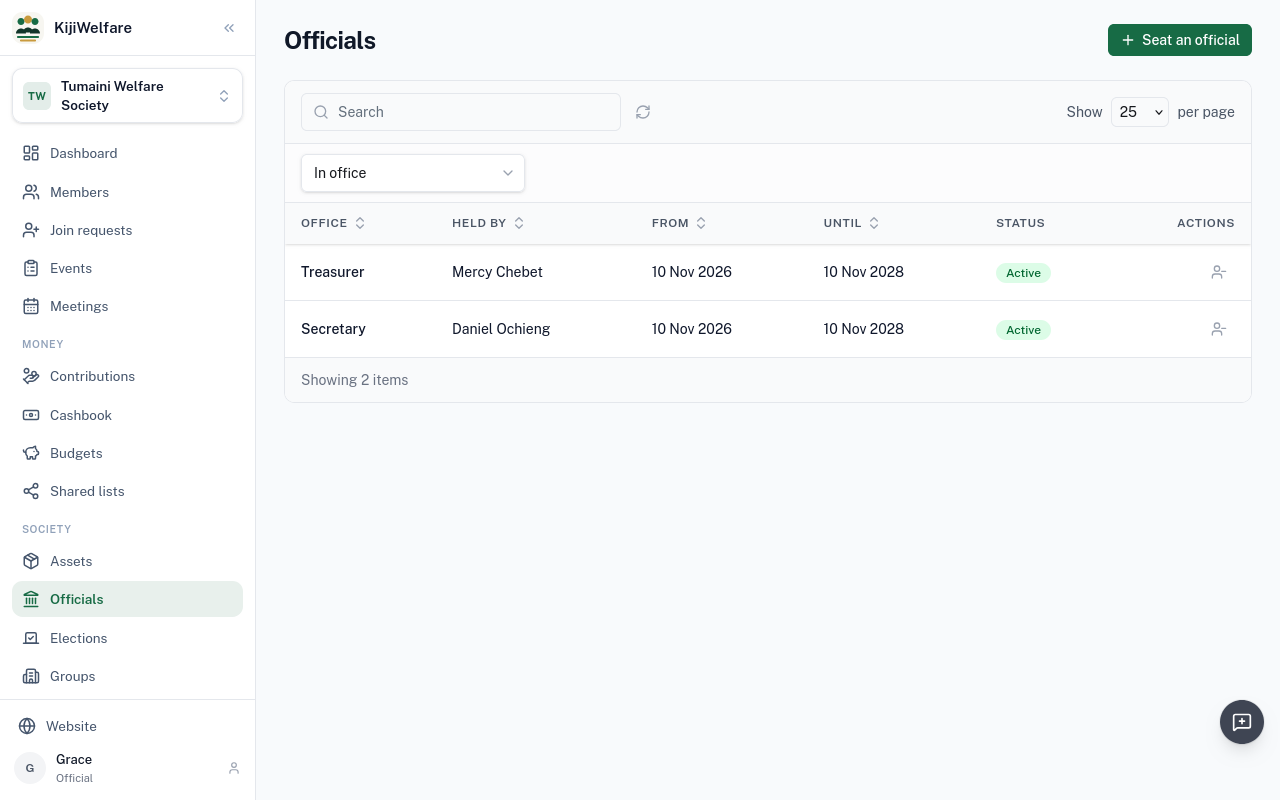
Offices can also be filled by election. Choose Call an election.
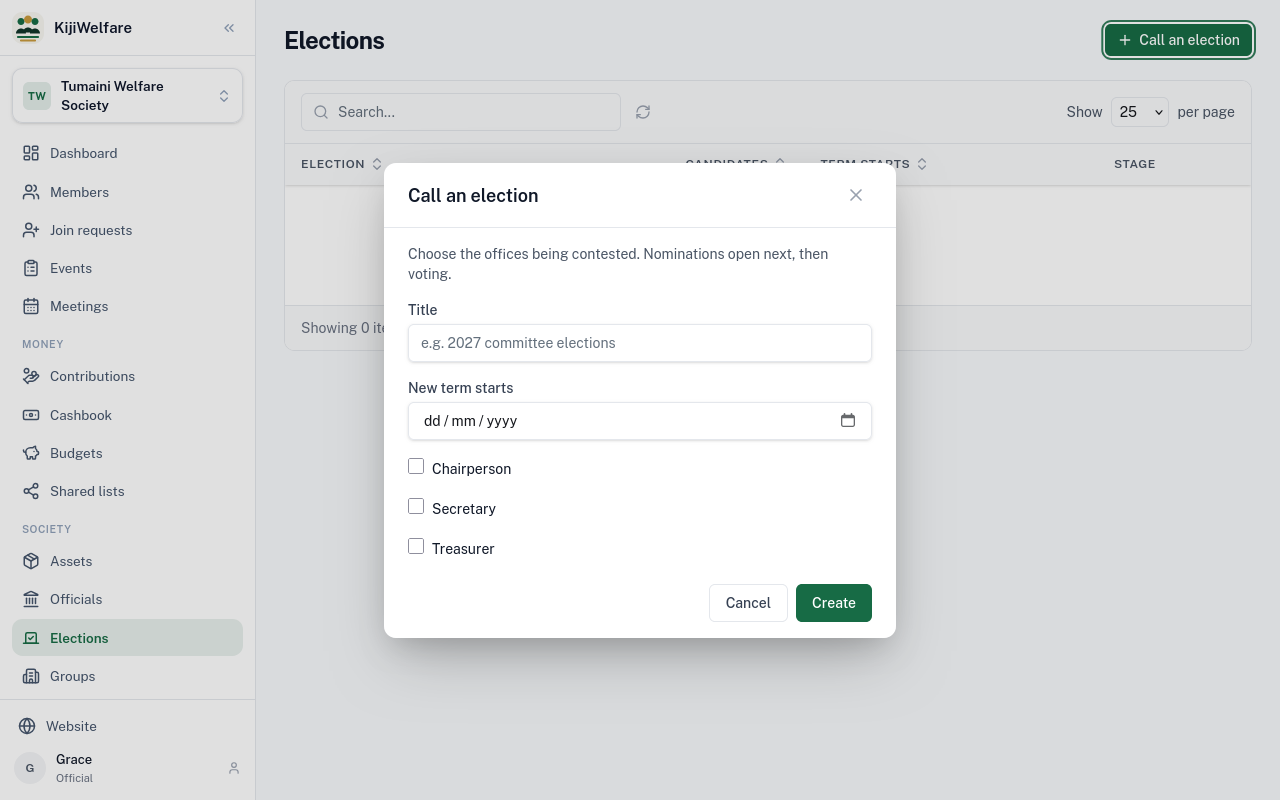
Give it a title, the day the new term starts, and tick the offices it fills. Here, the chairperson.
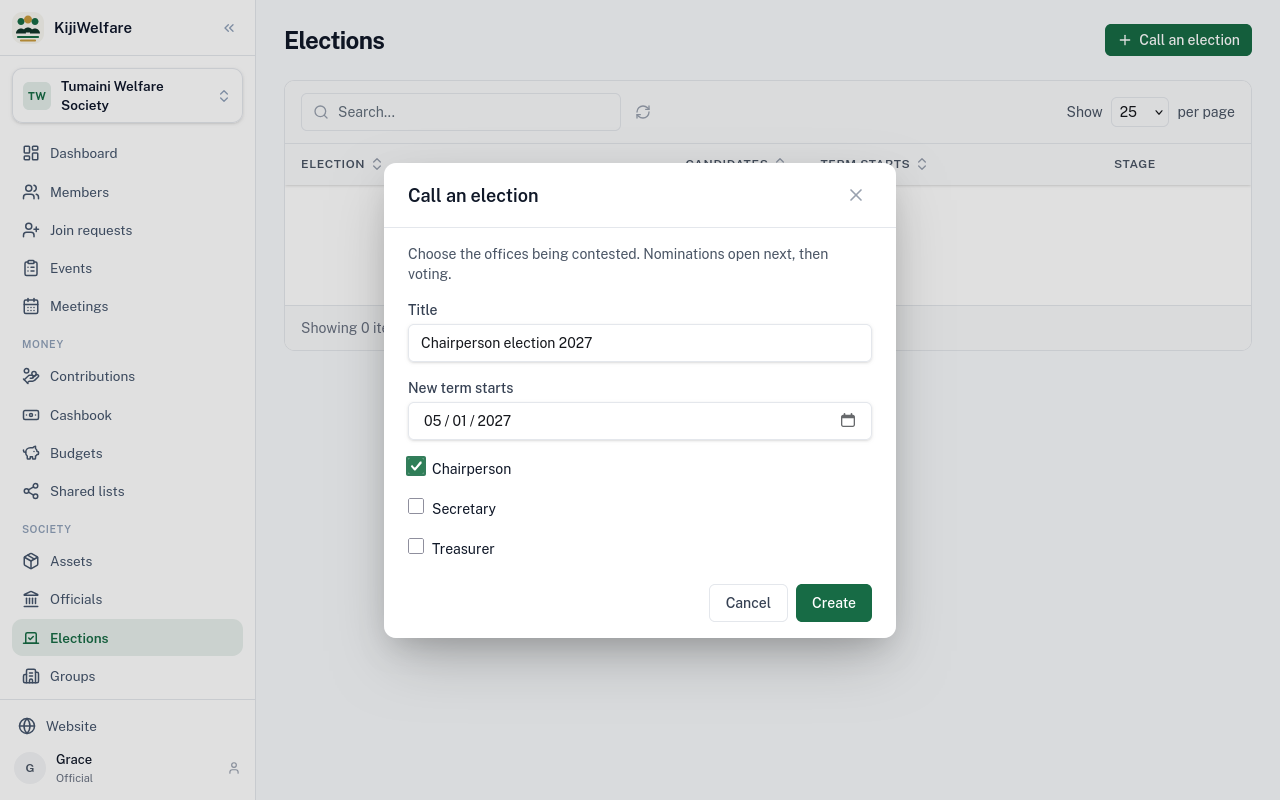
Choose Create. The new election opens.
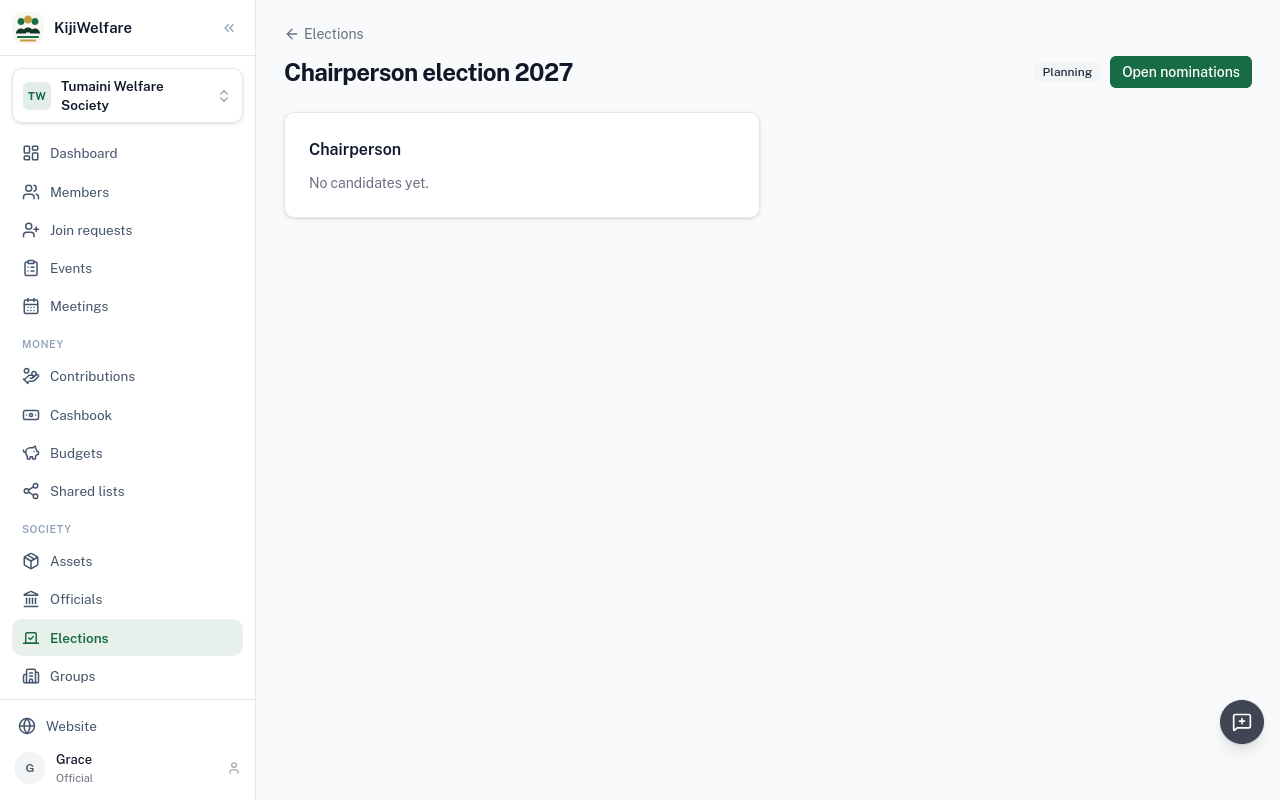
An election goes in stages. First, Open nominations.
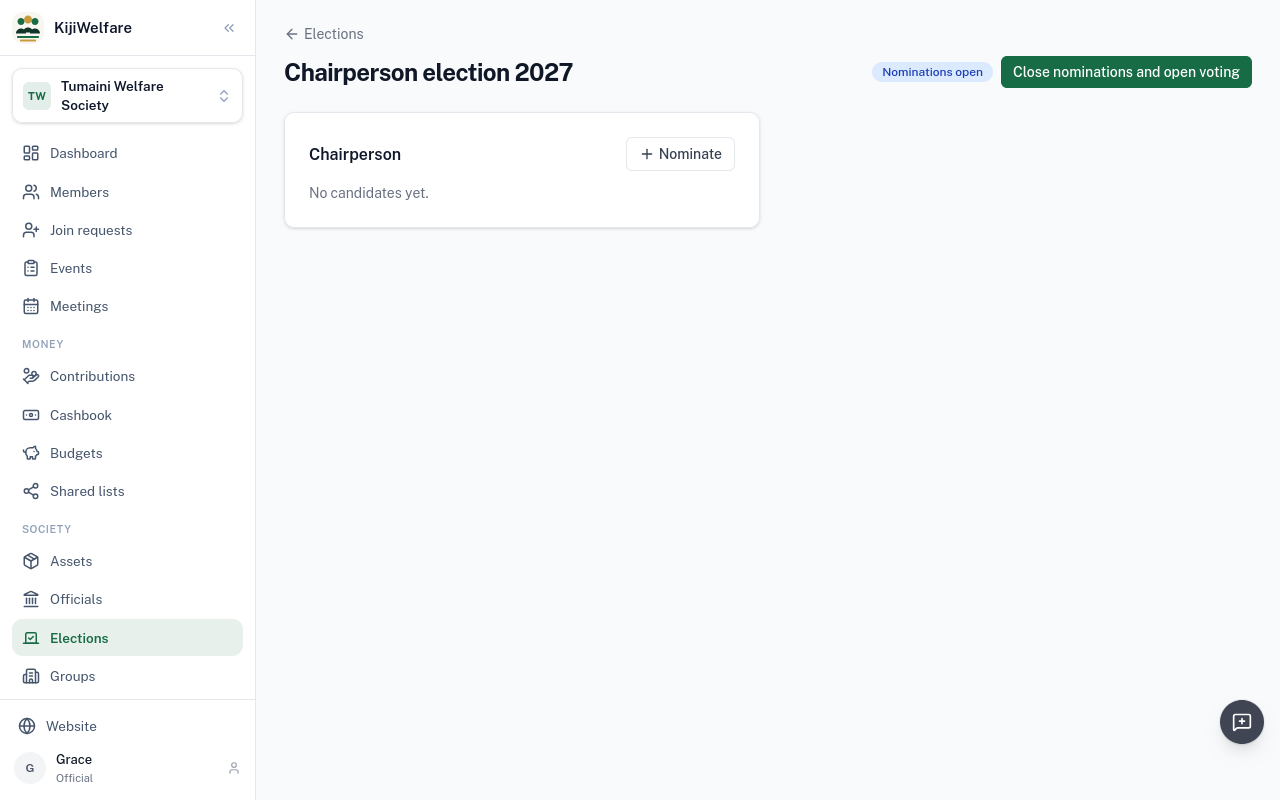
Nominate the candidates, one at a time: Grace Wanjiku, and Otieno Odhiambo.
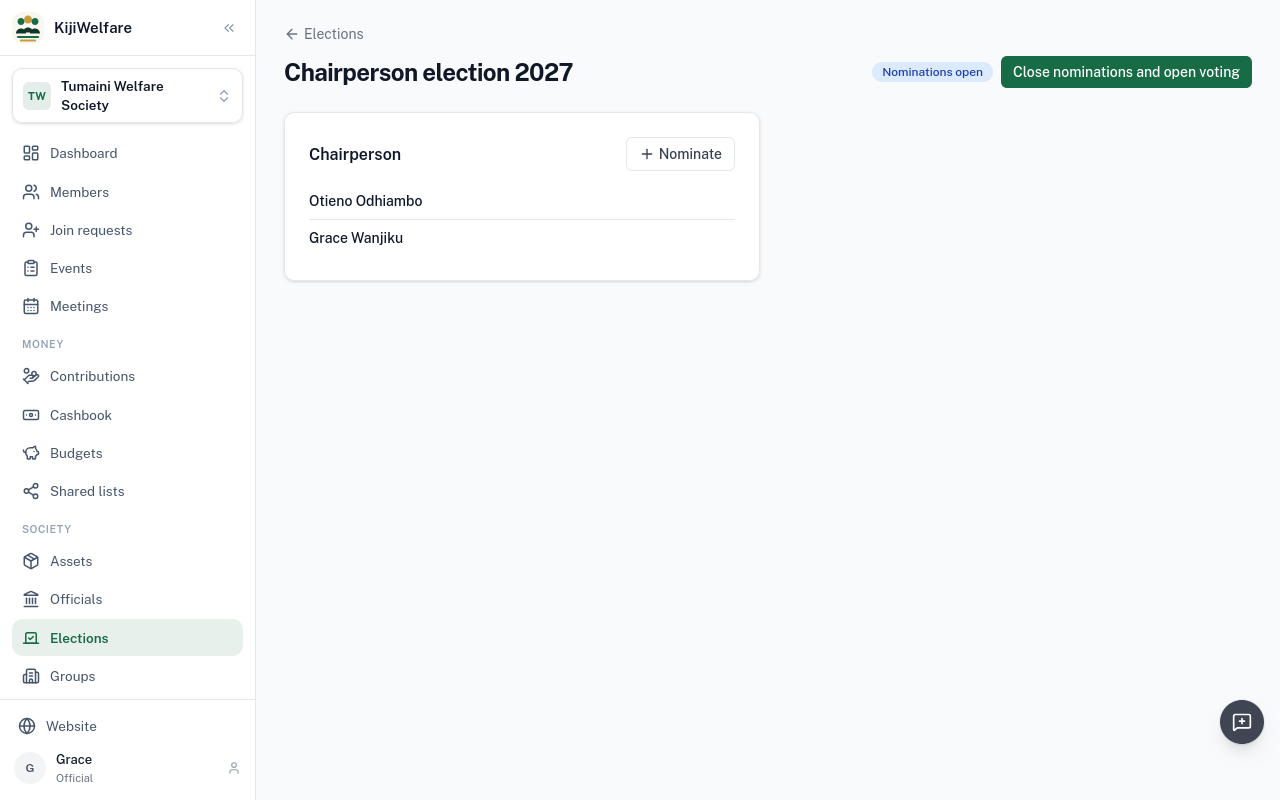
Then Close nominations and open voting.
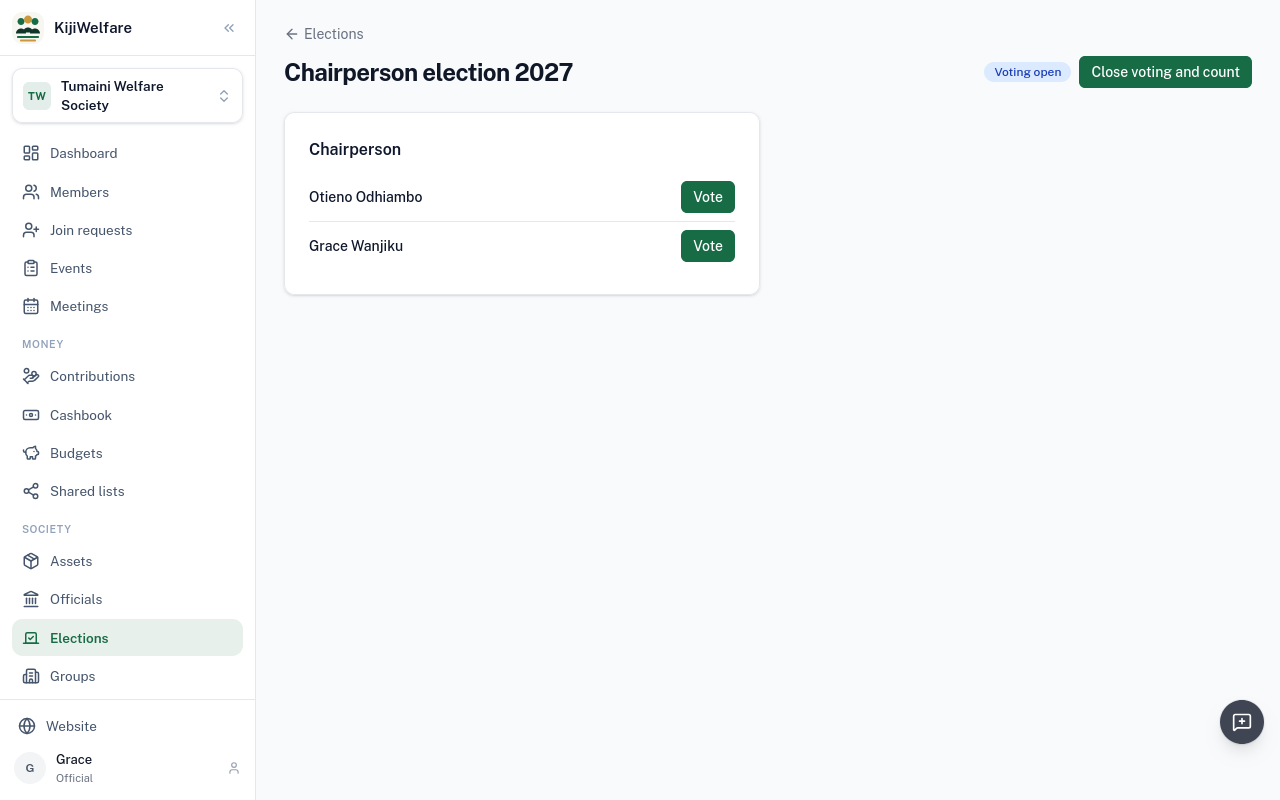
Now members vote, each signed in as themselves, one vote for each office. KijiWelfare refuses a second vote.
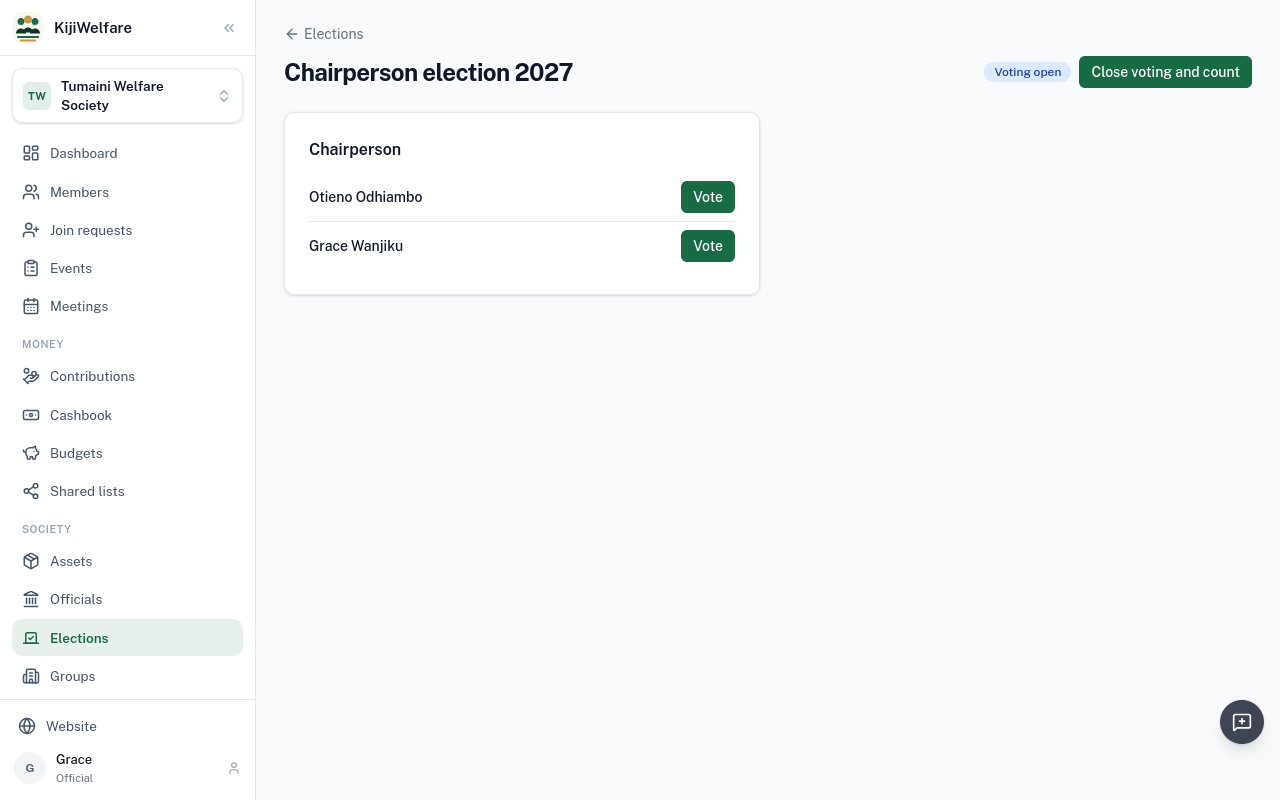
When the voting is over, choose Close voting and count.
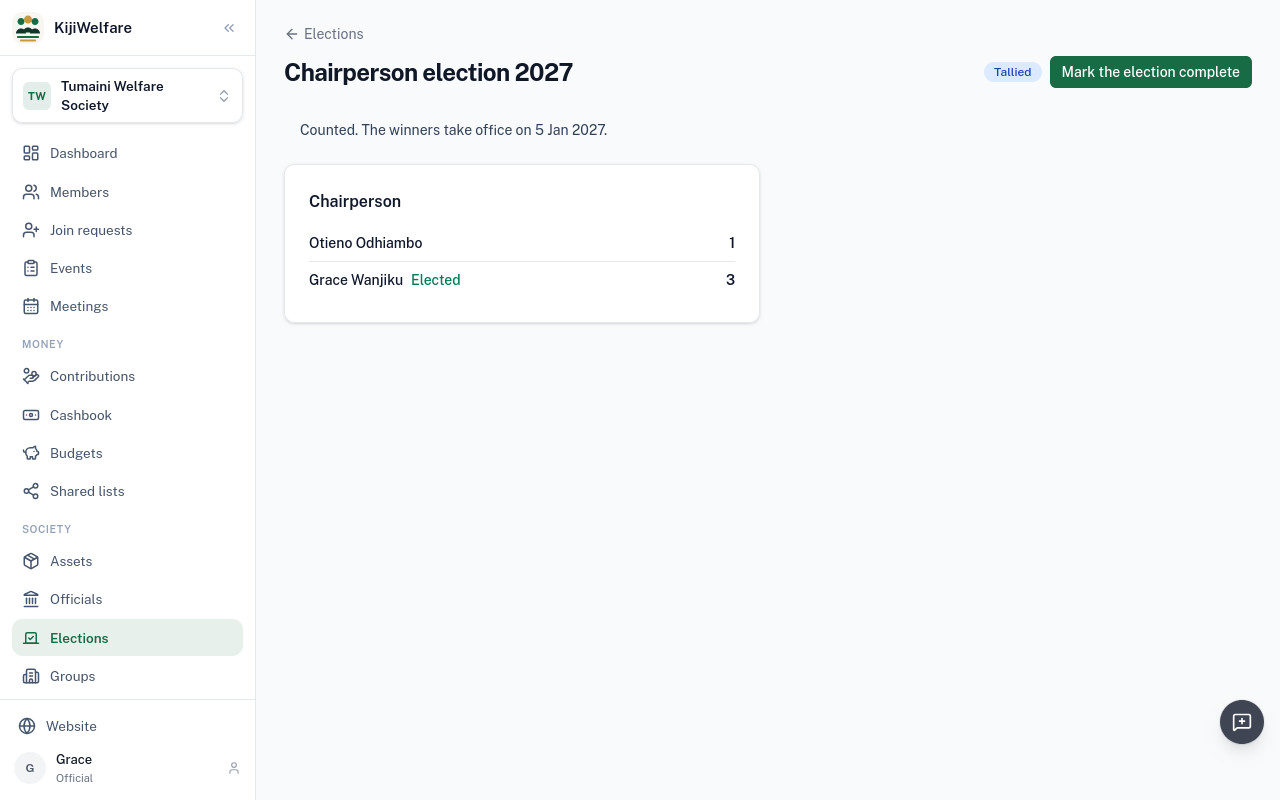
Grace has three votes, and Otieno one. Grace is elected, and takes office on 5 January, when her term starts. Until then the chair stays empty. Mark the election complete closes it.
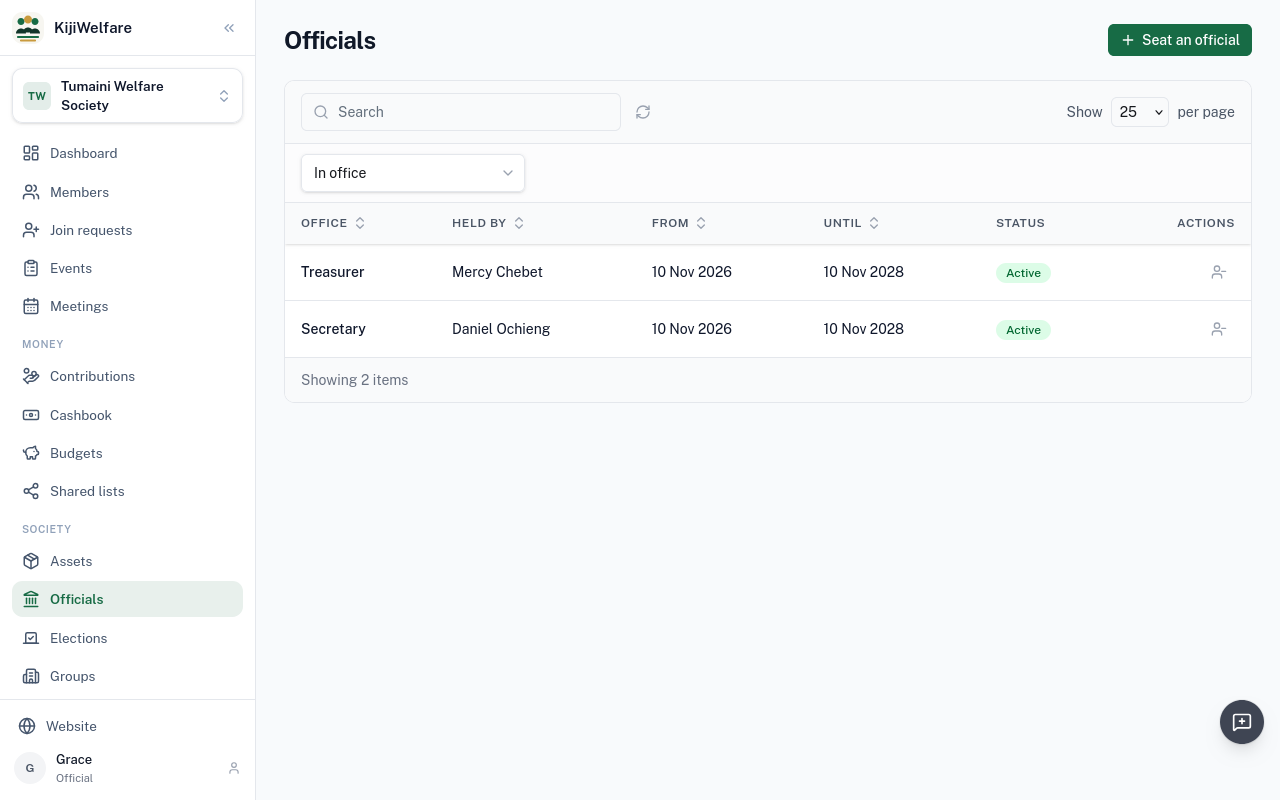
Officials shows who is in office now. Choose Elected, not yet in office, to see Grace, waiting for her term.
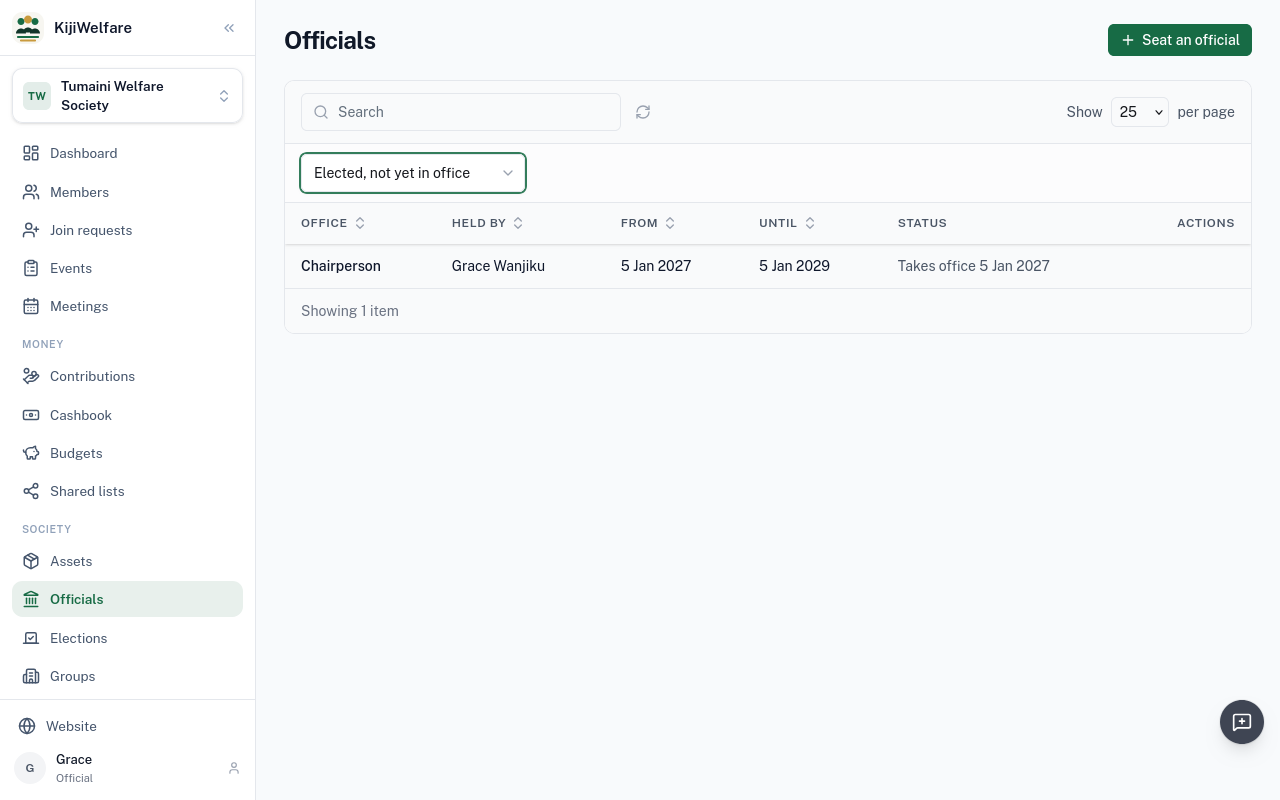
On that day KijiWelfare gives her the chair's powers, and the office passes to her.
Chapter 6
The register, the minutes, and what was agreed
Daniel is the secretary. Meetings is his. Choose Schedule a meeting.
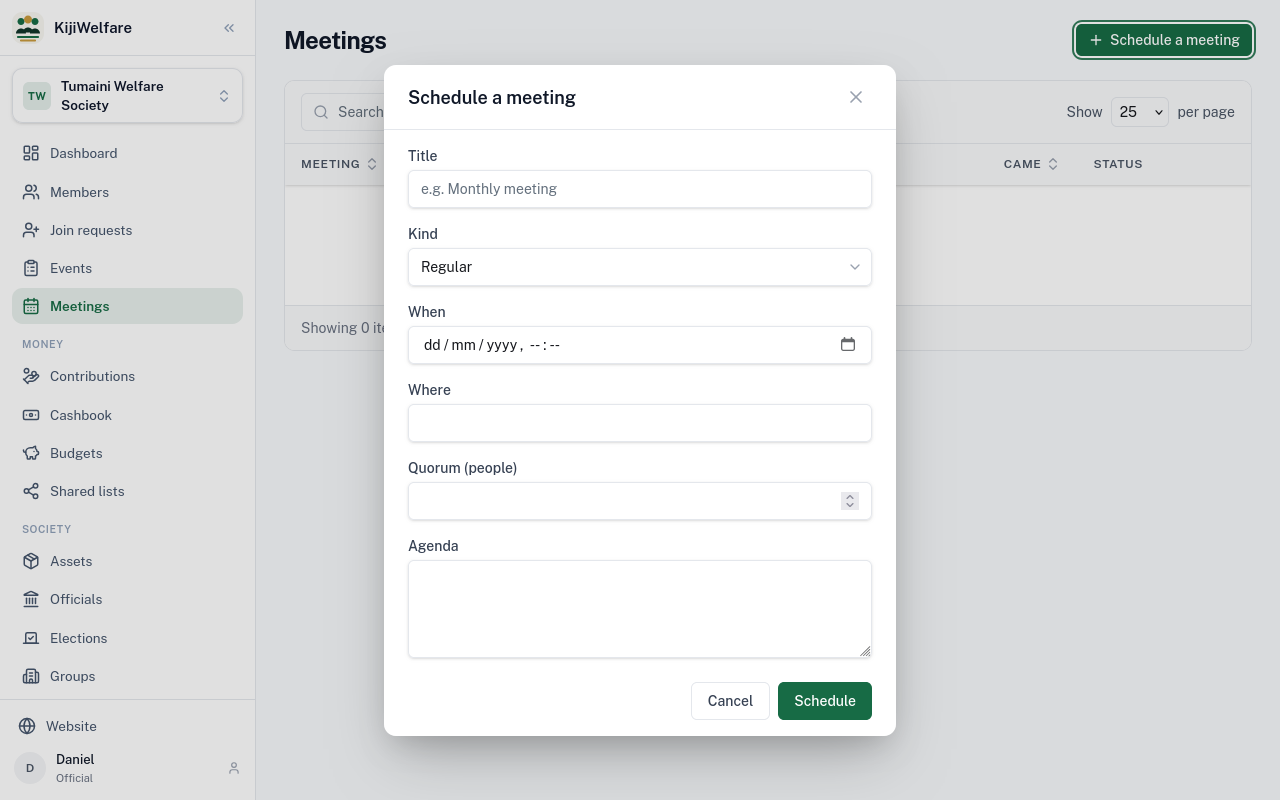
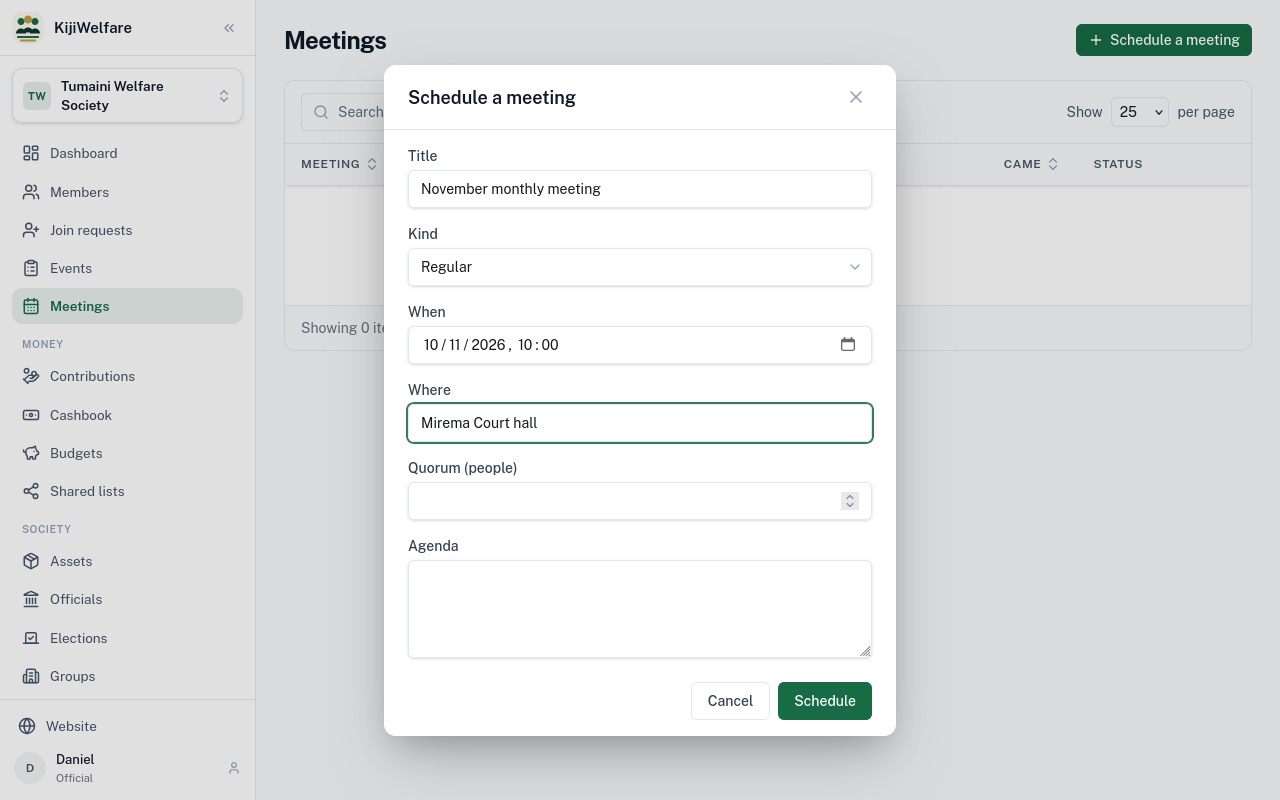
Give it a title, when, and where. The kind is a regular meeting, an AGM, a committee meeting or an emergency one.
A quorum is how many must come for the meeting to decide. And the agenda.
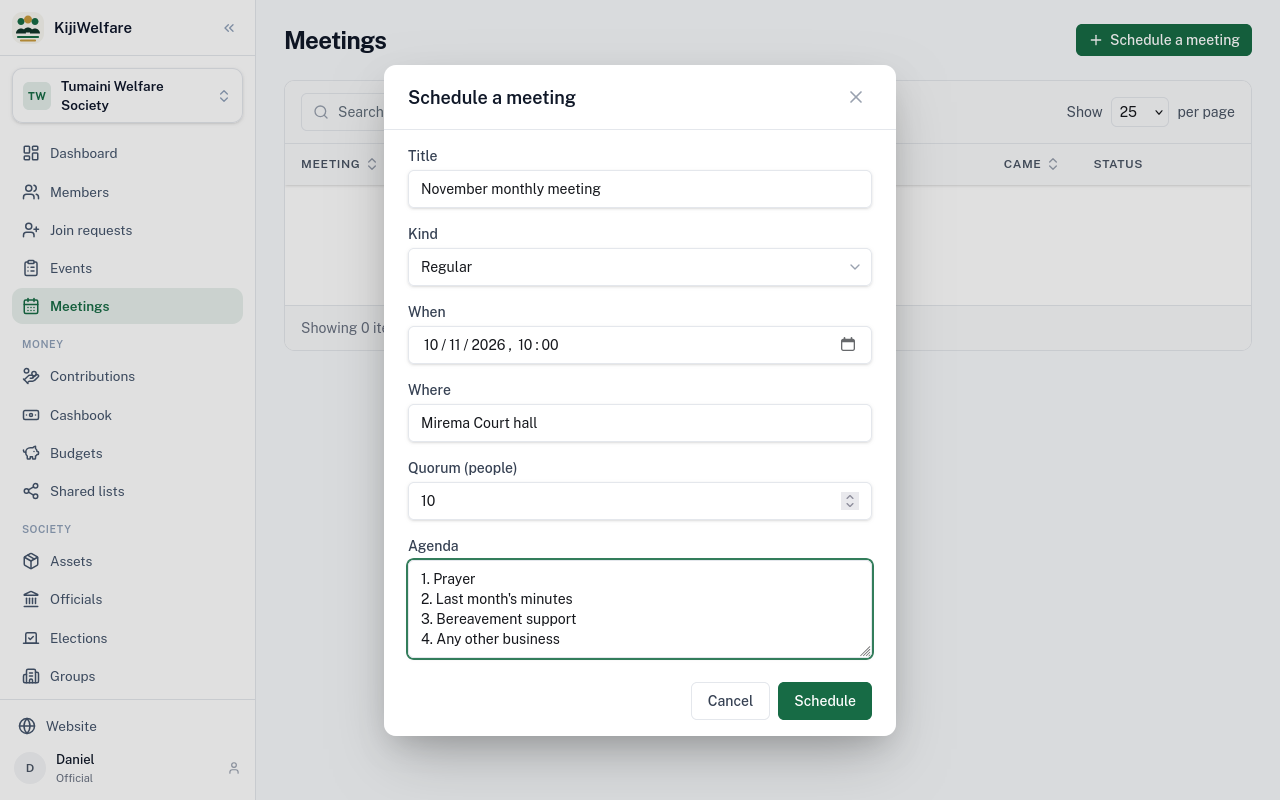
Choose Schedule. The new meeting opens.
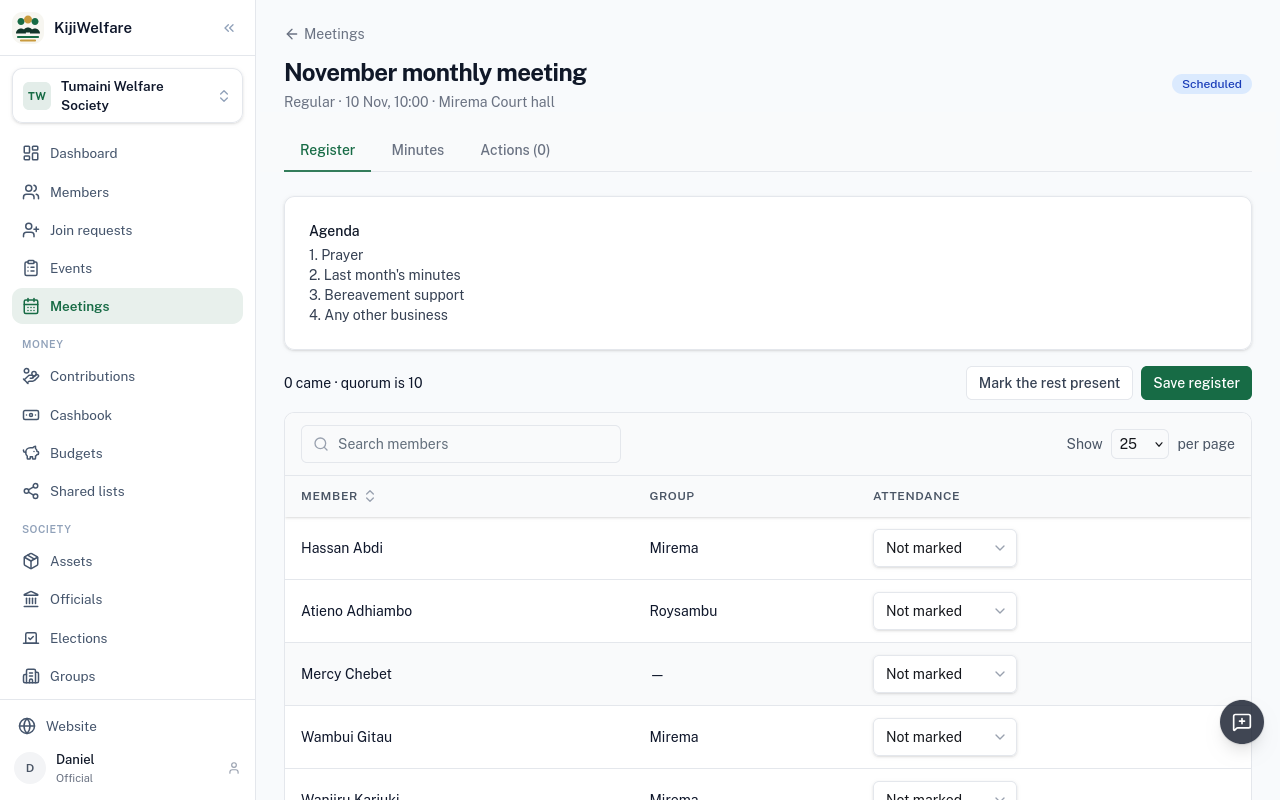
Register lists every active member.
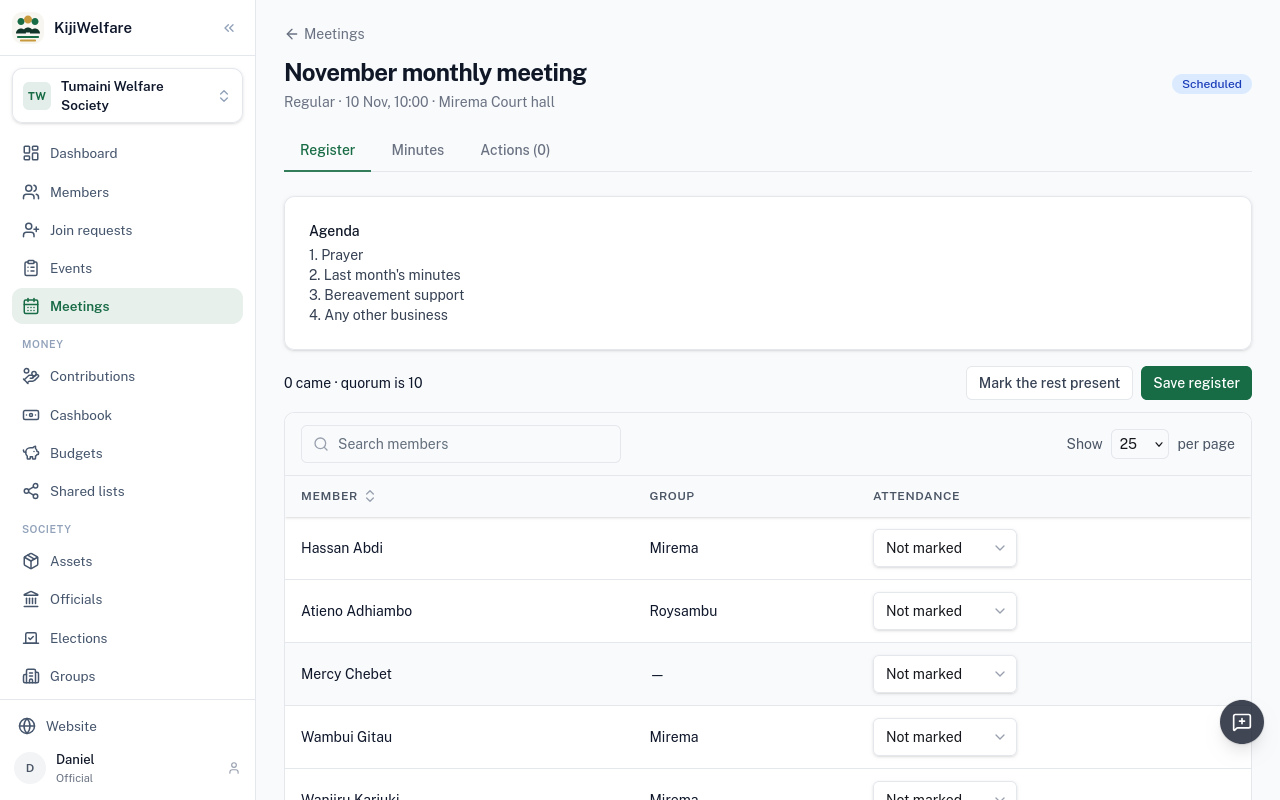
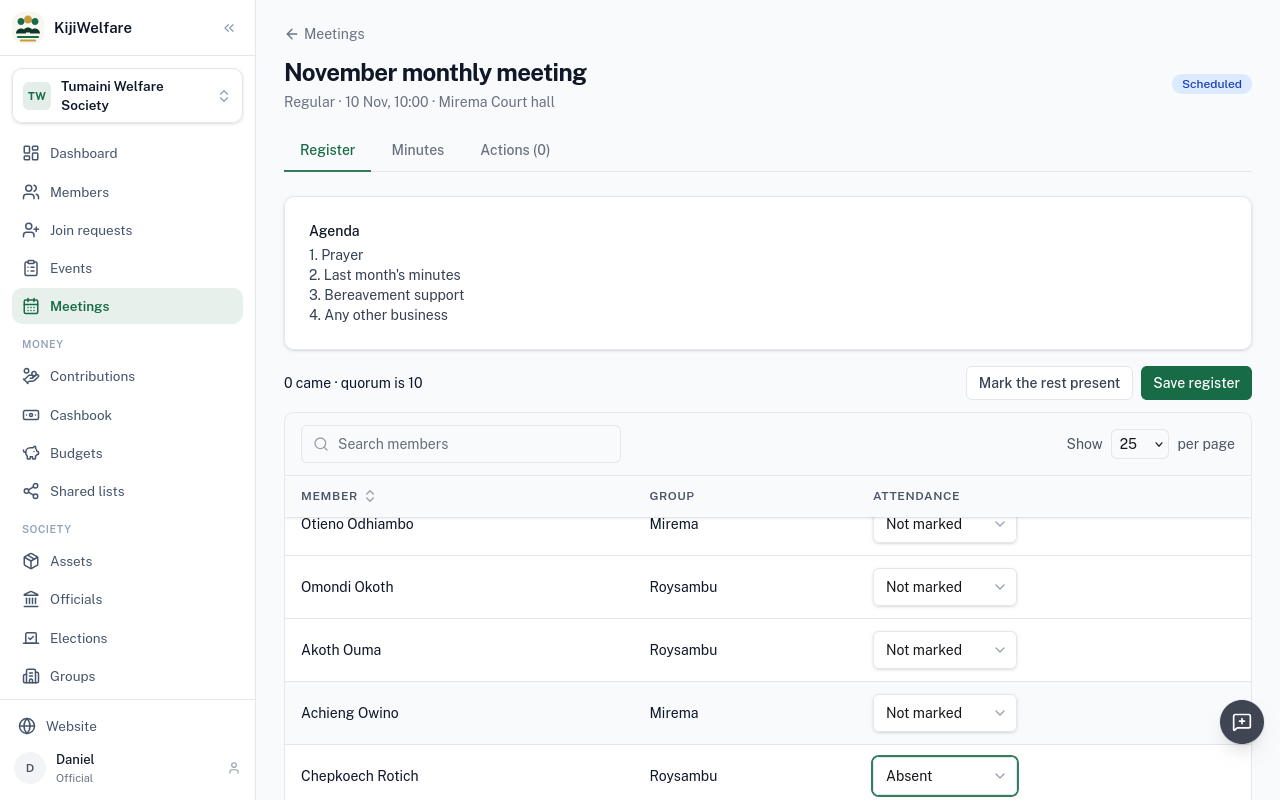
Mark those who sent an apology, and those who were absent.
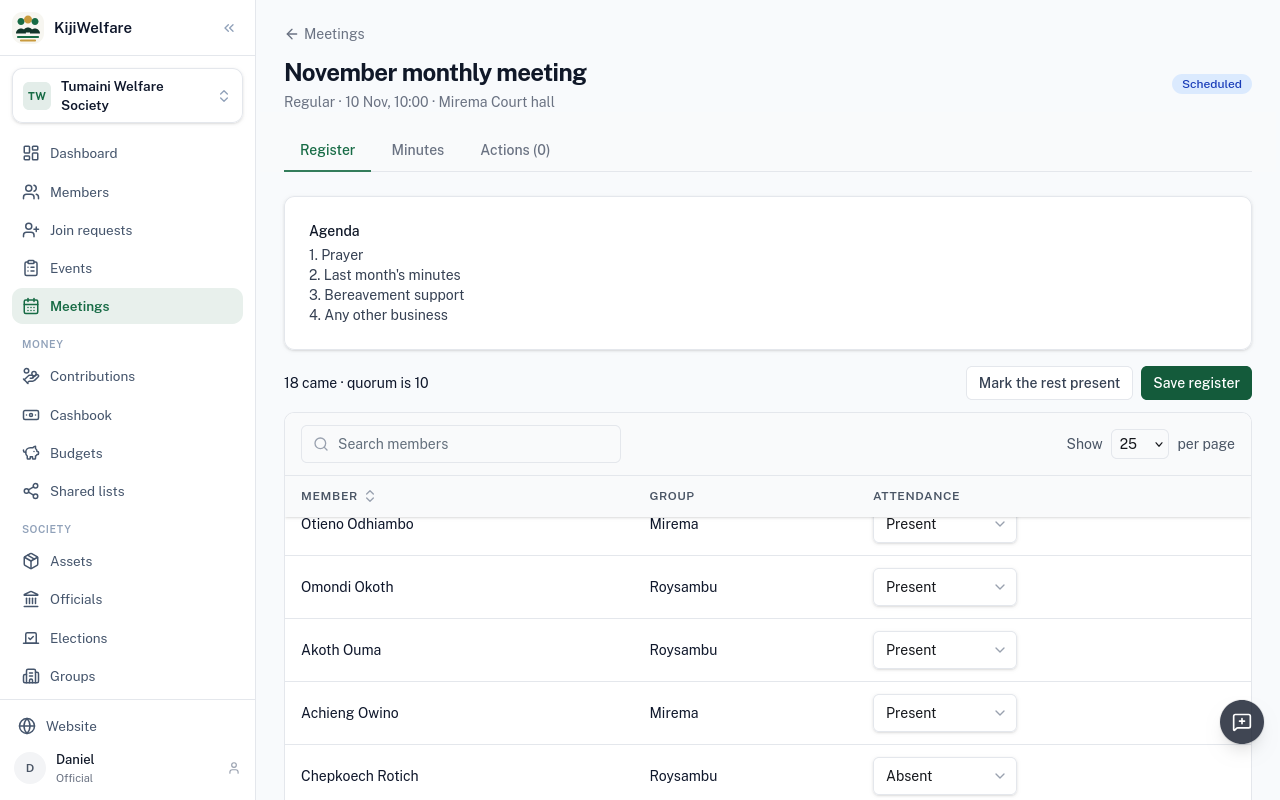
Then Mark the rest present, and Save register. The count of who came, and the quorum, are at the top.
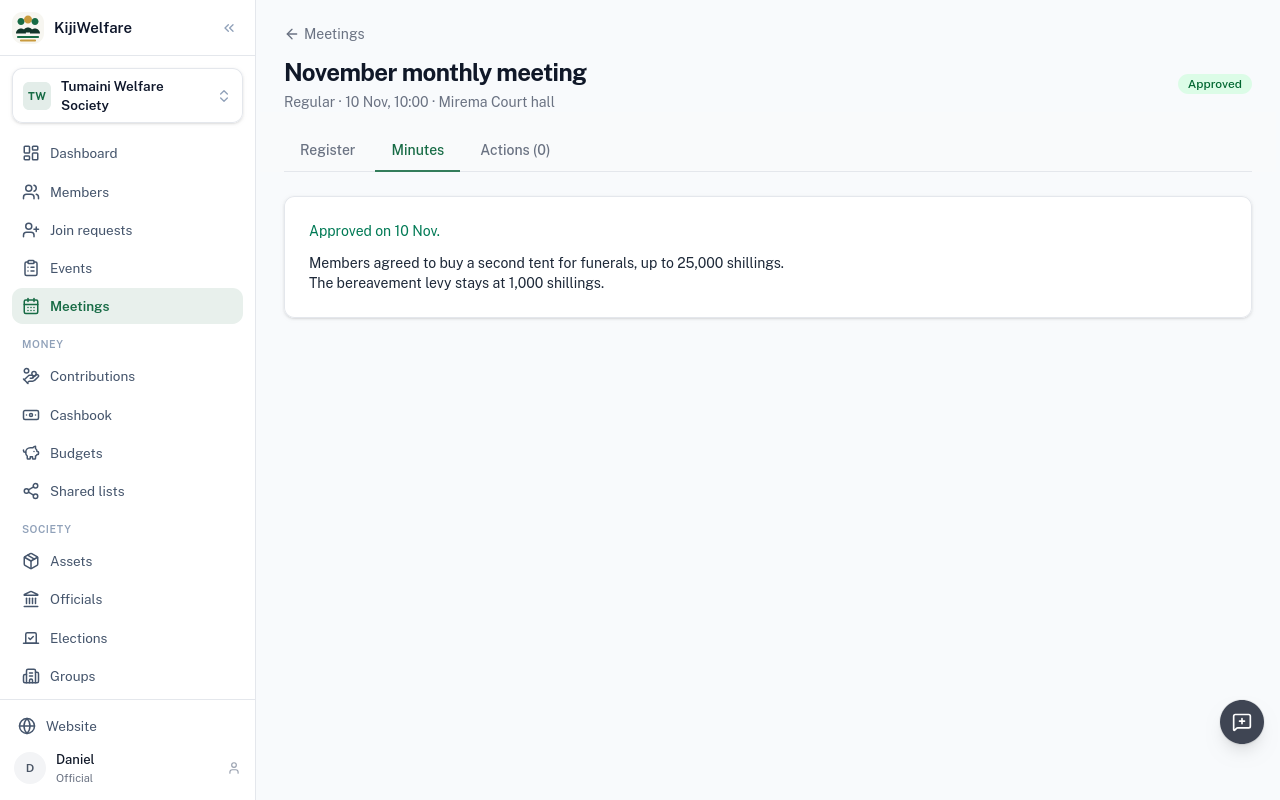
Minutes is where the secretary writes what was discussed and decided.
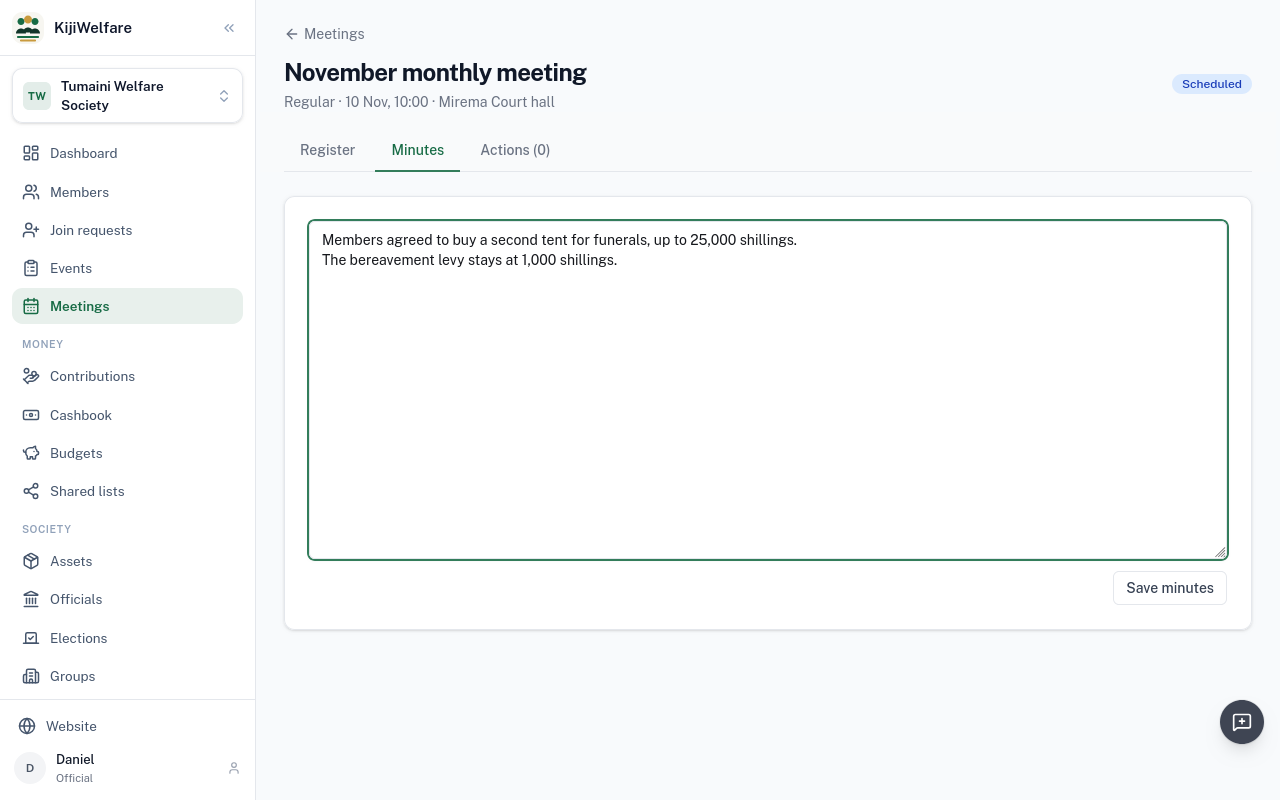
Save minutes. Once the meeting agrees them, Approve minutes locks them.
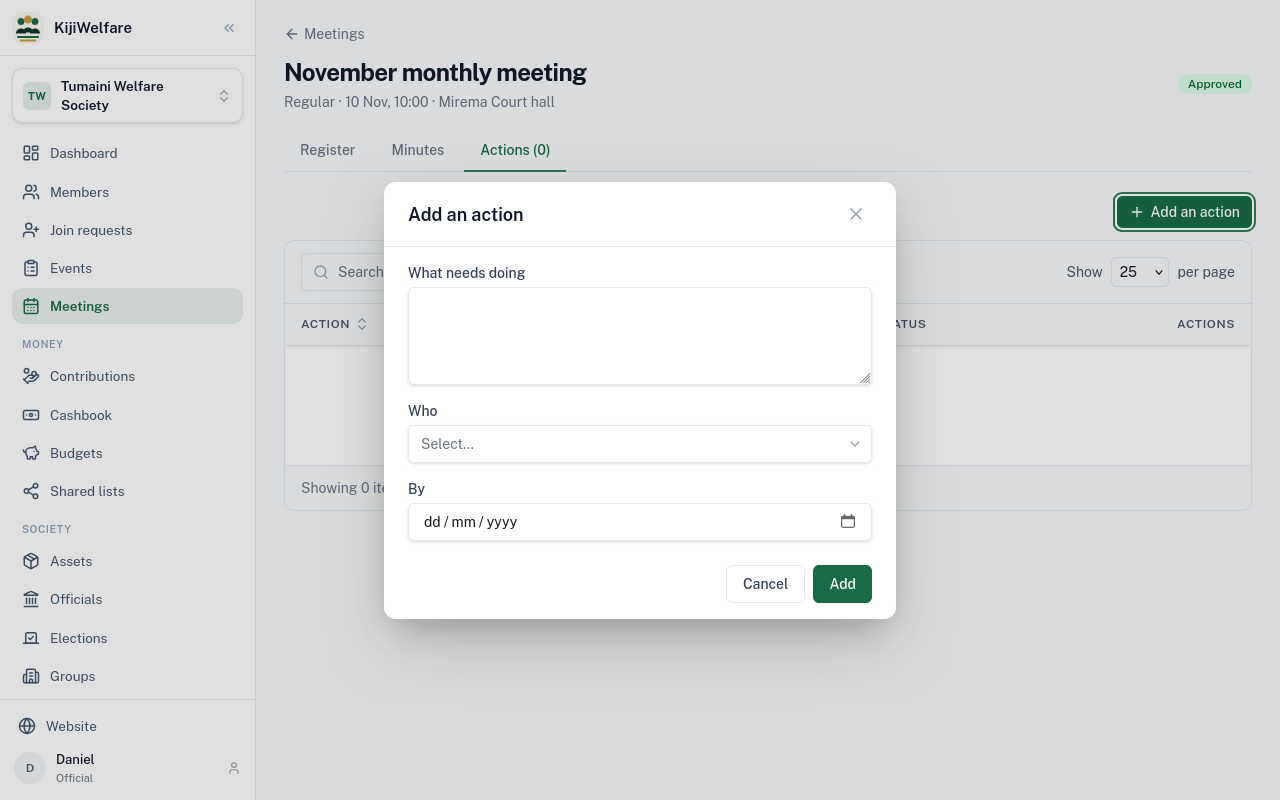
Actions keeps what the meeting asked someone to do. Choose Add an action.
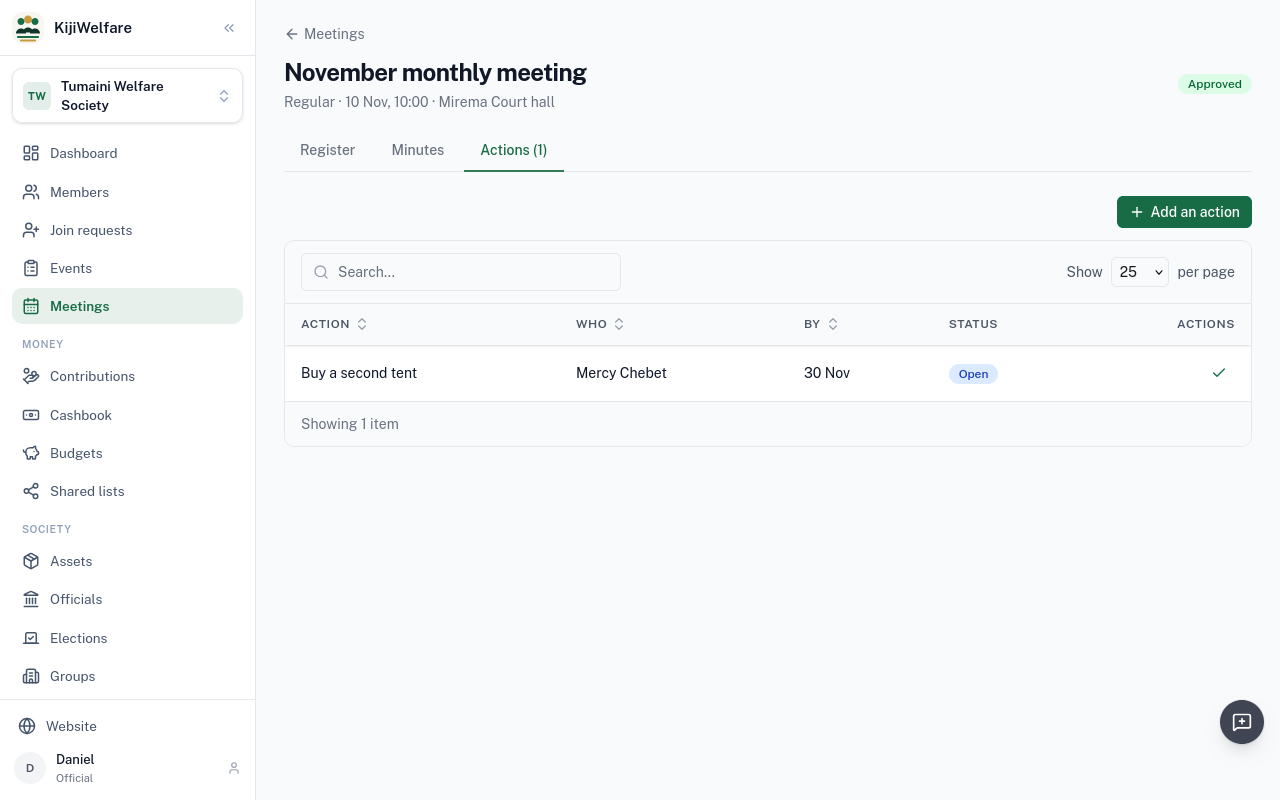
Here, the treasurer buys the second tent, by the end of the month.
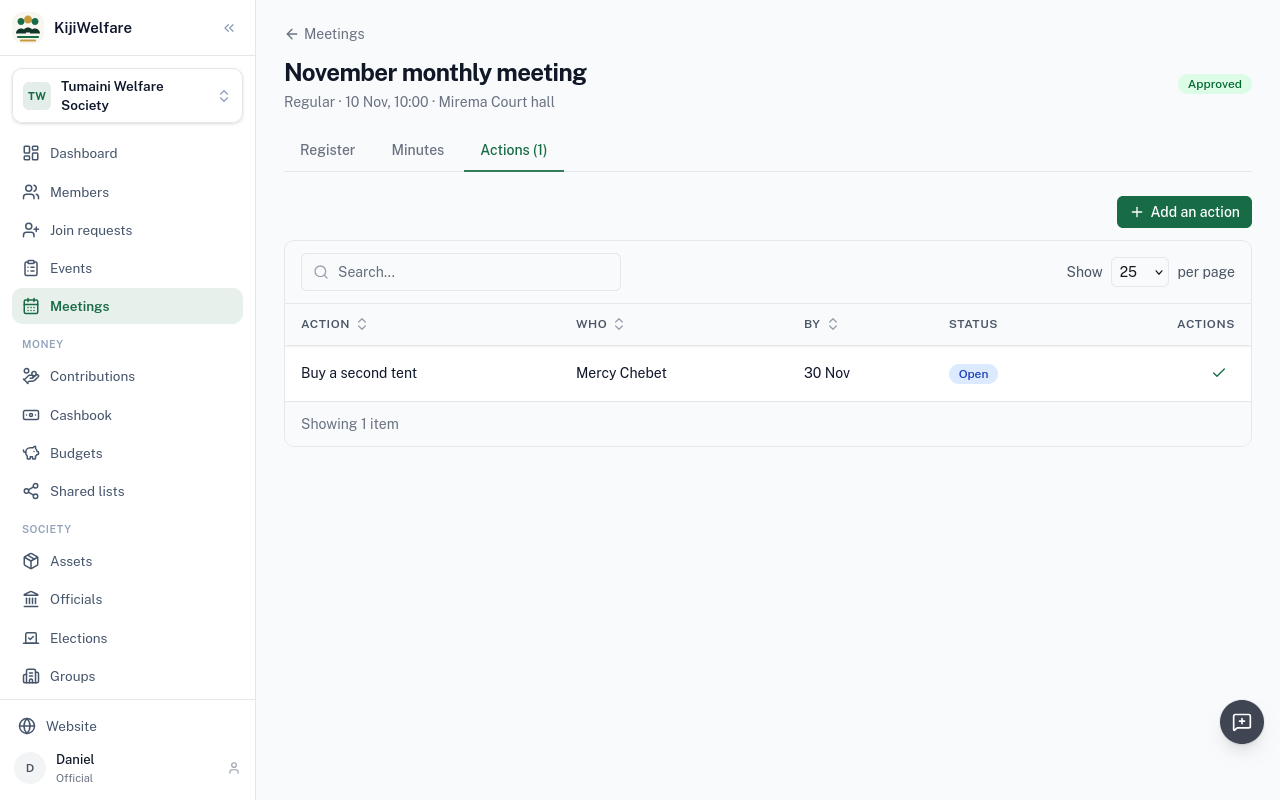
It stays open until someone chooses Done on its row.
Chapter 7
A bereavement: reported, billed, collected and paid out
When something happens, a member reports it. Joseph's father has died. Signed in as himself, he opens Events and chooses Report an event.
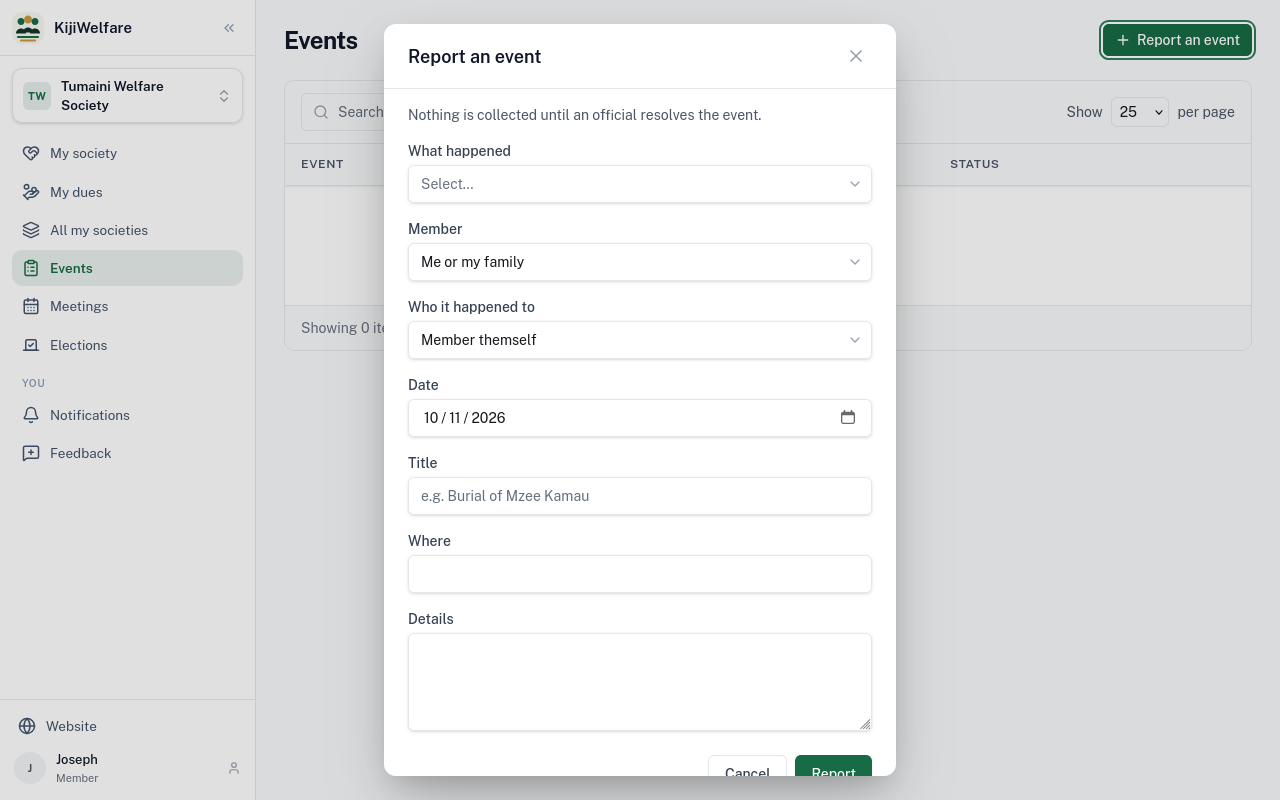
What happened: a bereavement. It happened to his parent.
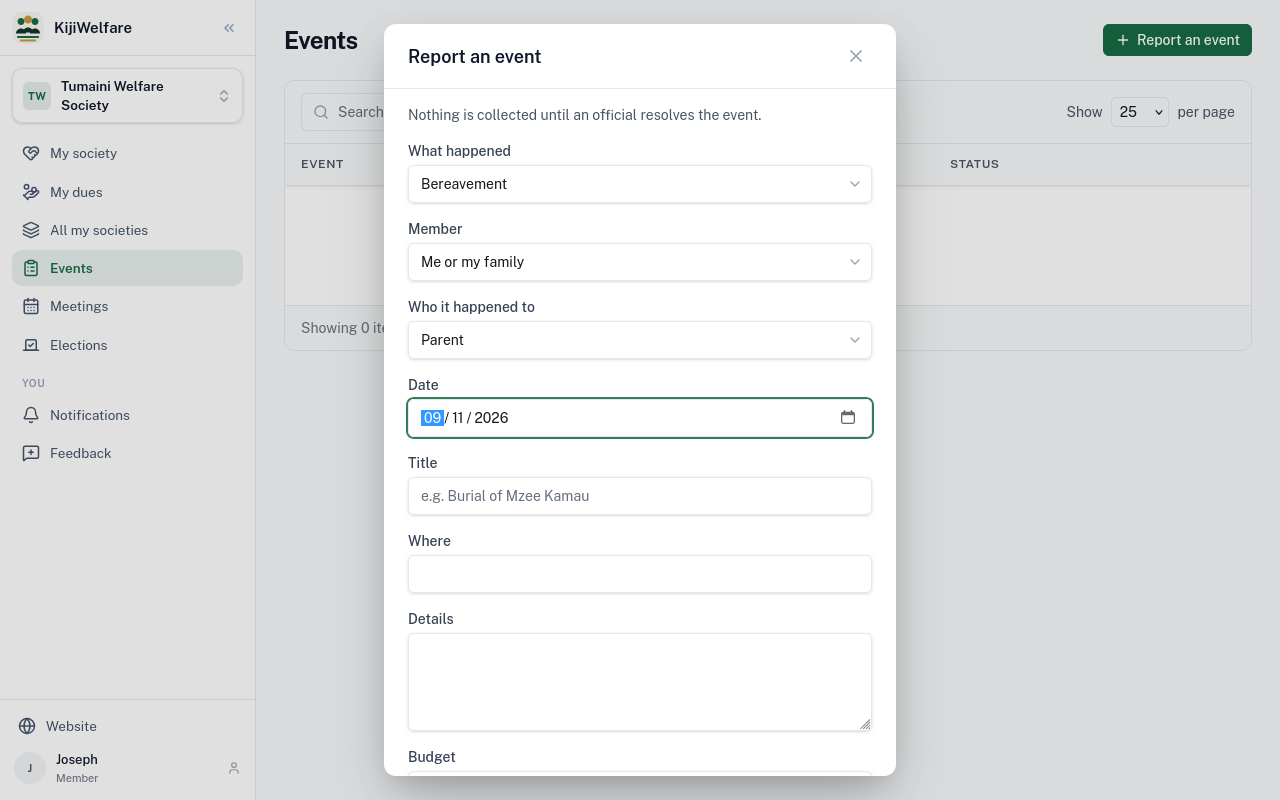
The date, a title, and where. Choose Report.
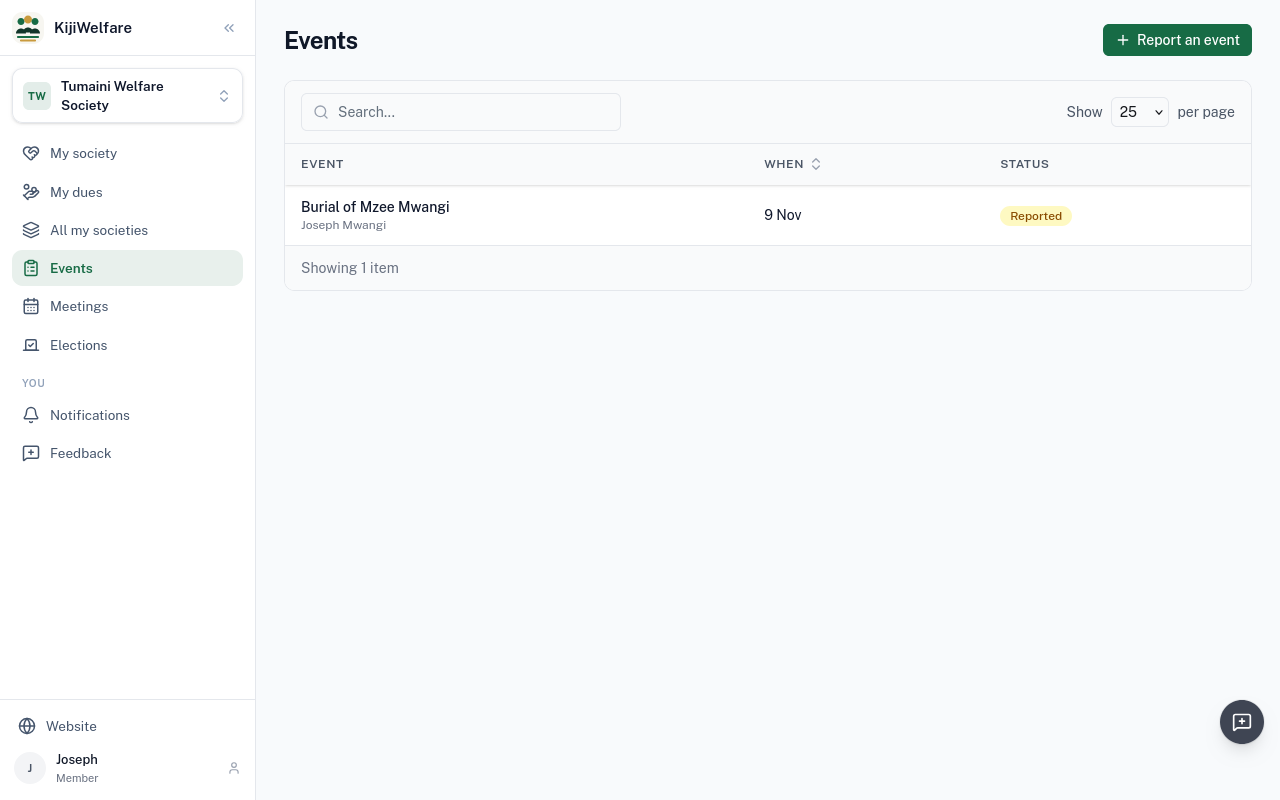
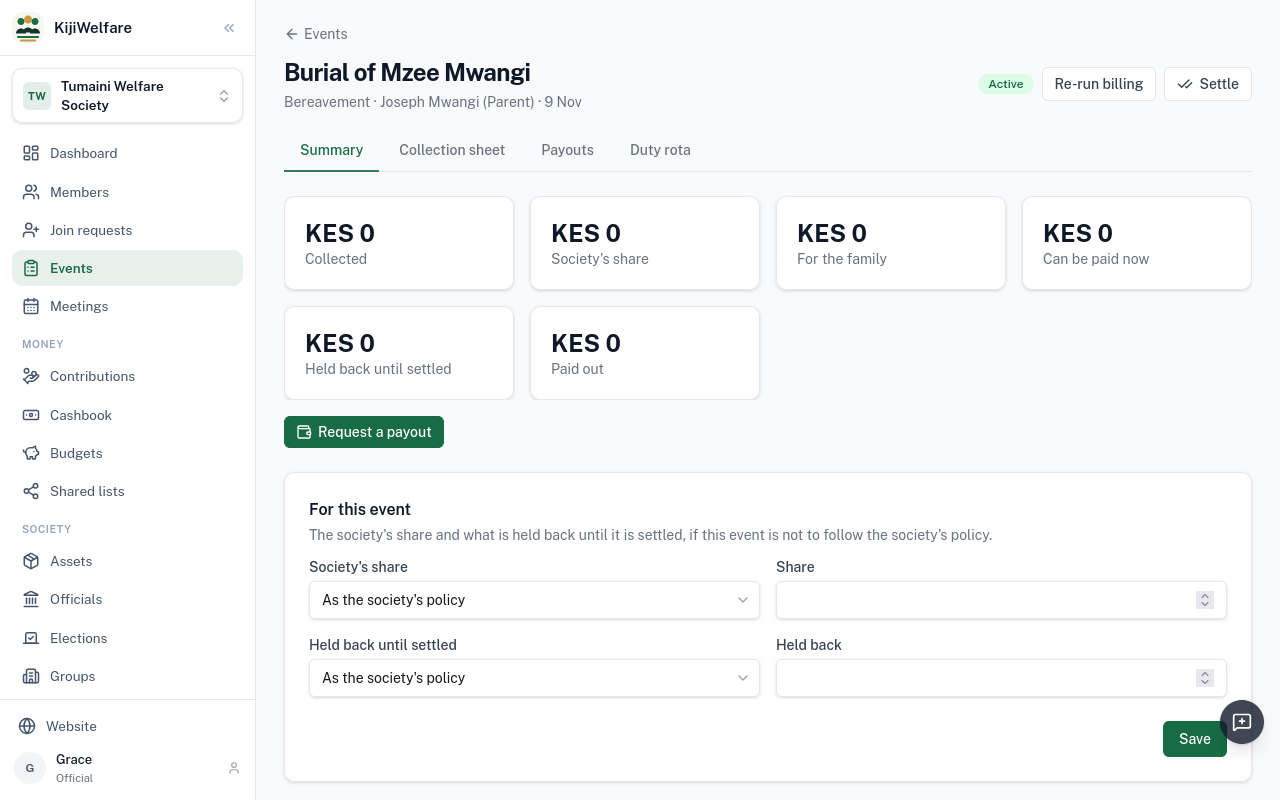
Grace sees the event under Events. Resolving it bills every member by the society's rules: here, 500 shillings each for a member's parent.
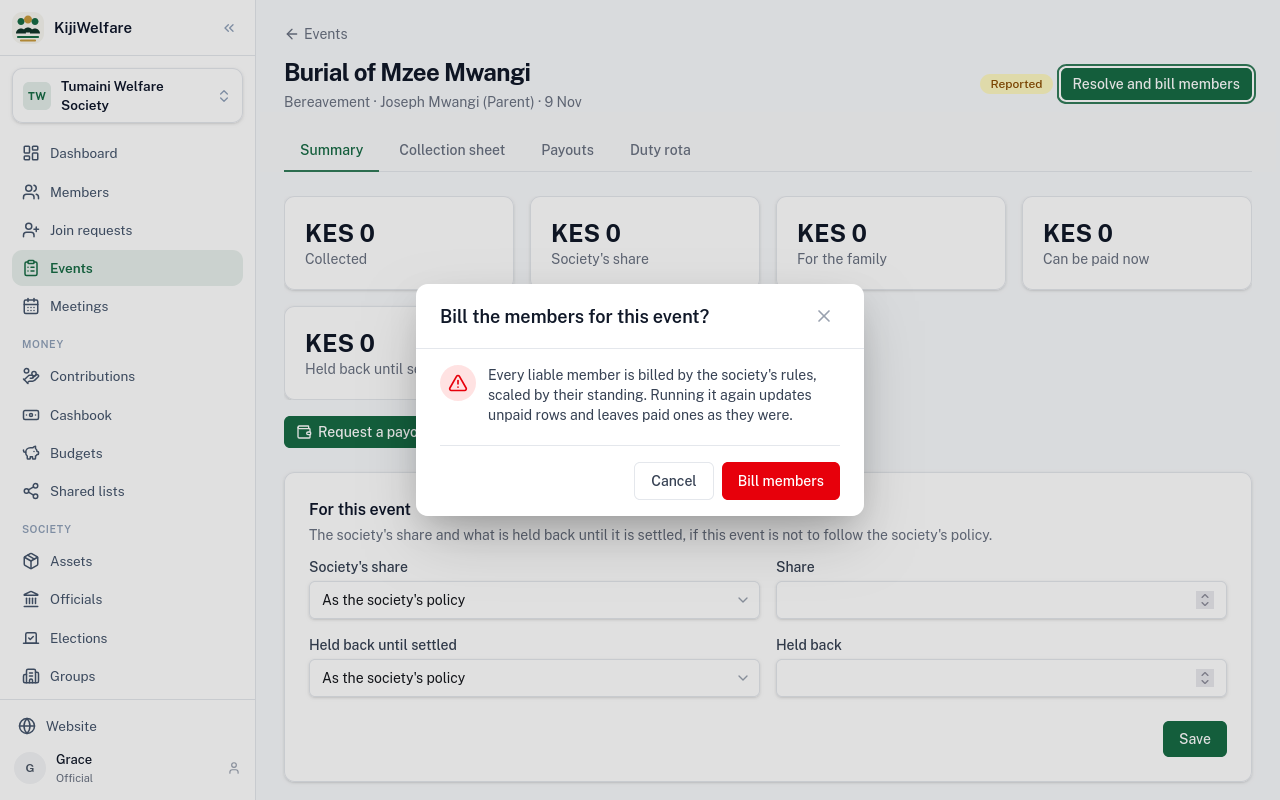
A member's standing scales it, and running it again leaves paid rows as they were. Choose Bill members.
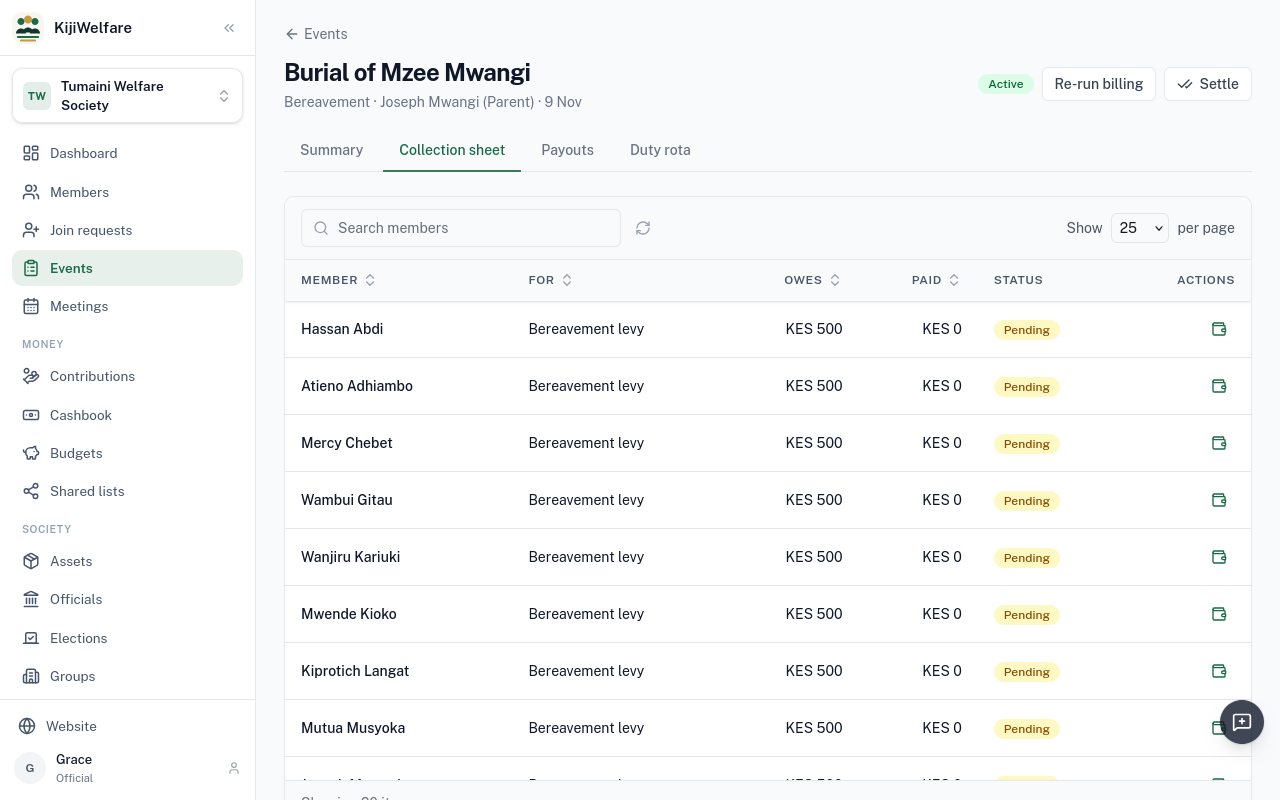
The collection sheet lists what each member owes for this event.
Members pay over the next days, and the treasurer records each payment. The summary shows what was collected, the society's share, and what is for the family.
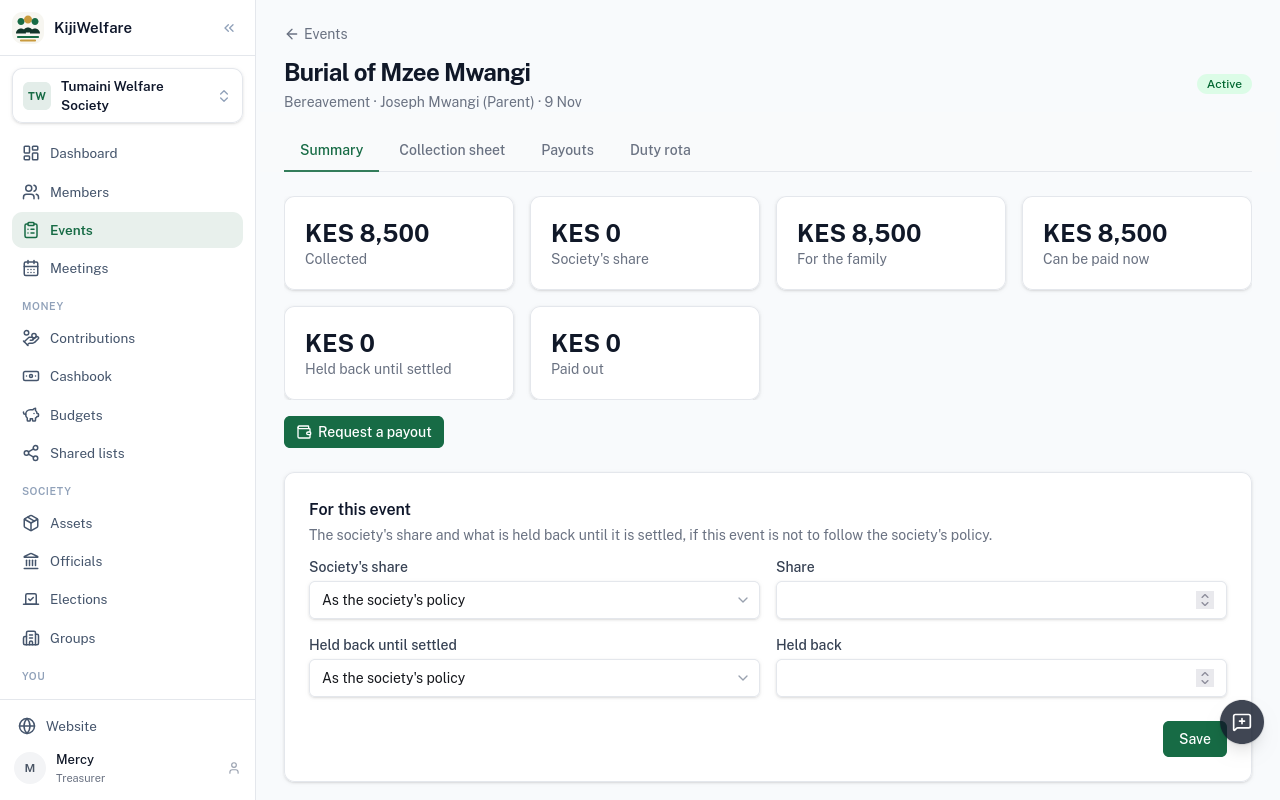
Mercy, the treasurer, chooses Request a payout.
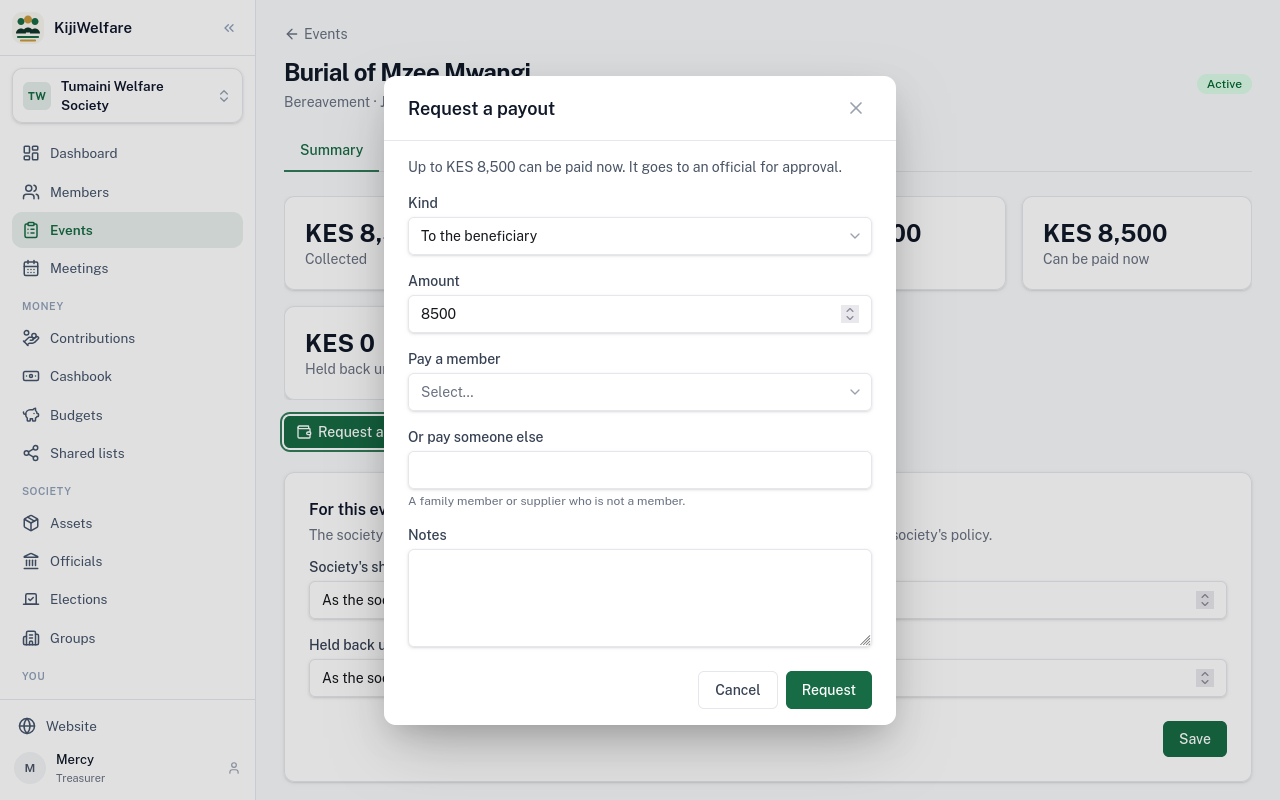
To the beneficiary. The amount that can be paid now is filled in. Pay it to Joseph, and choose Request.
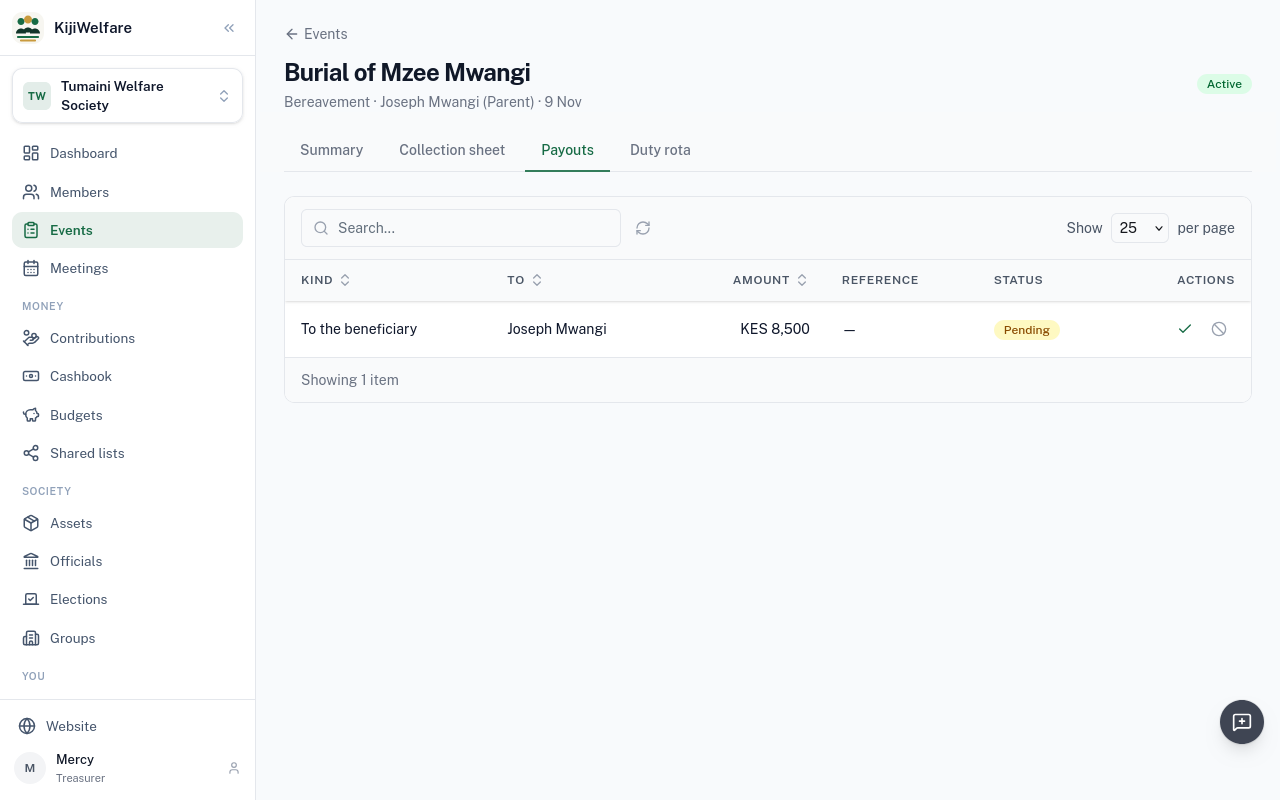
The request waits for approval. In Tumaini, Grace, who runs the society, approves payouts, so she opens the event's Payouts.
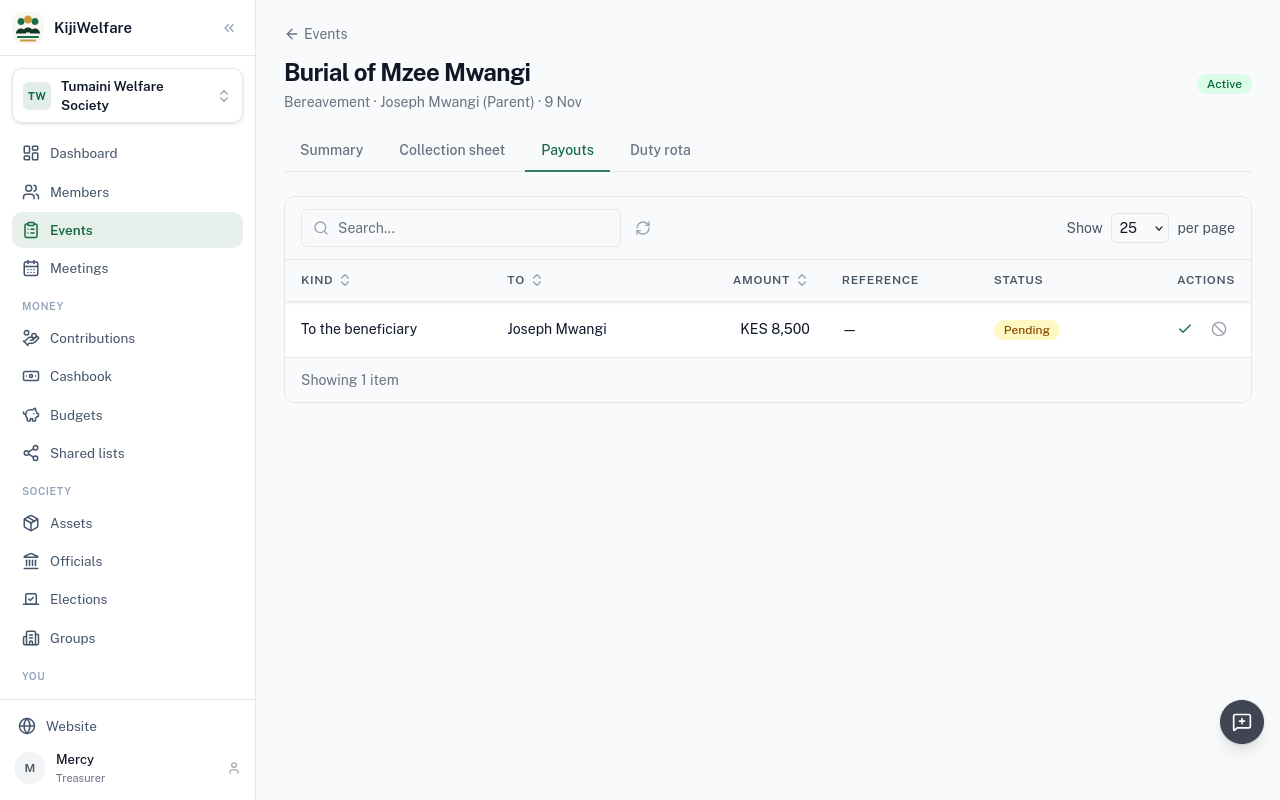
Approve. KijiWelfare checks that the member may be supported; if not, it asks why the society is paying anyway.
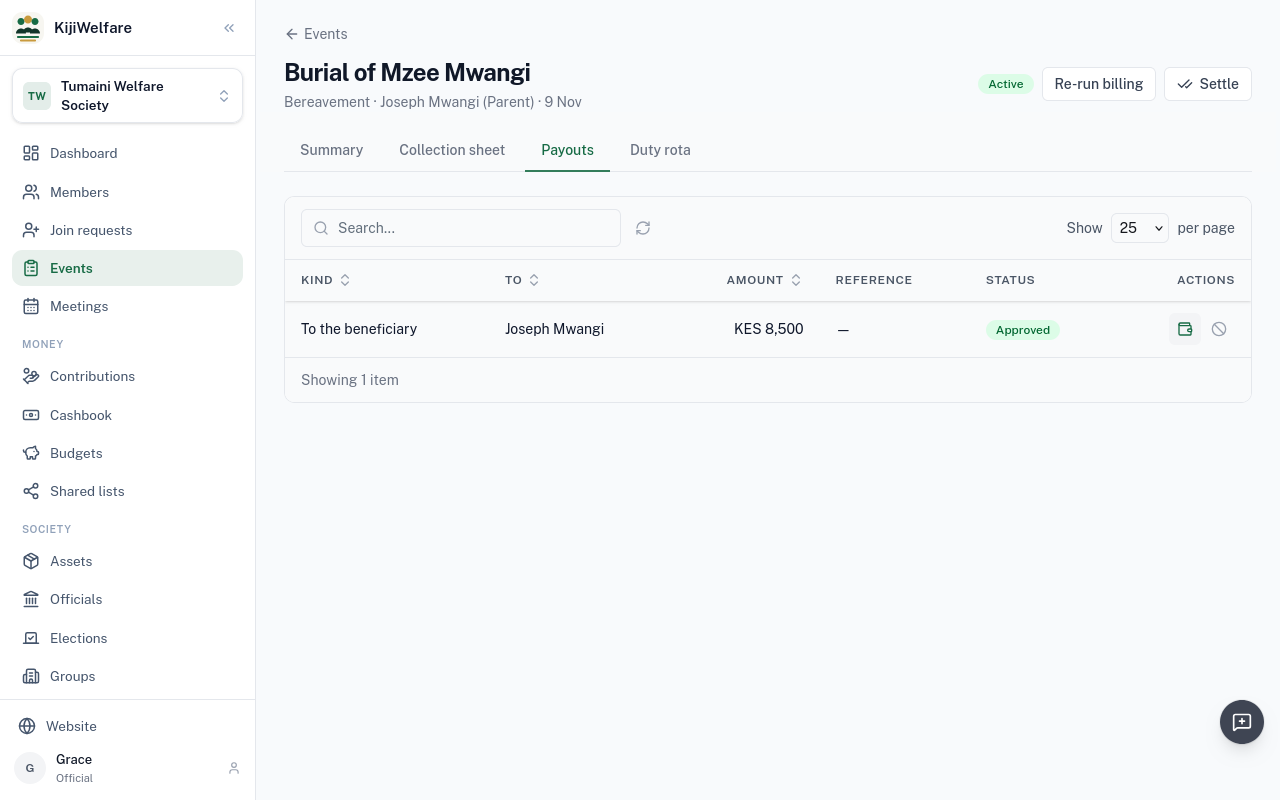
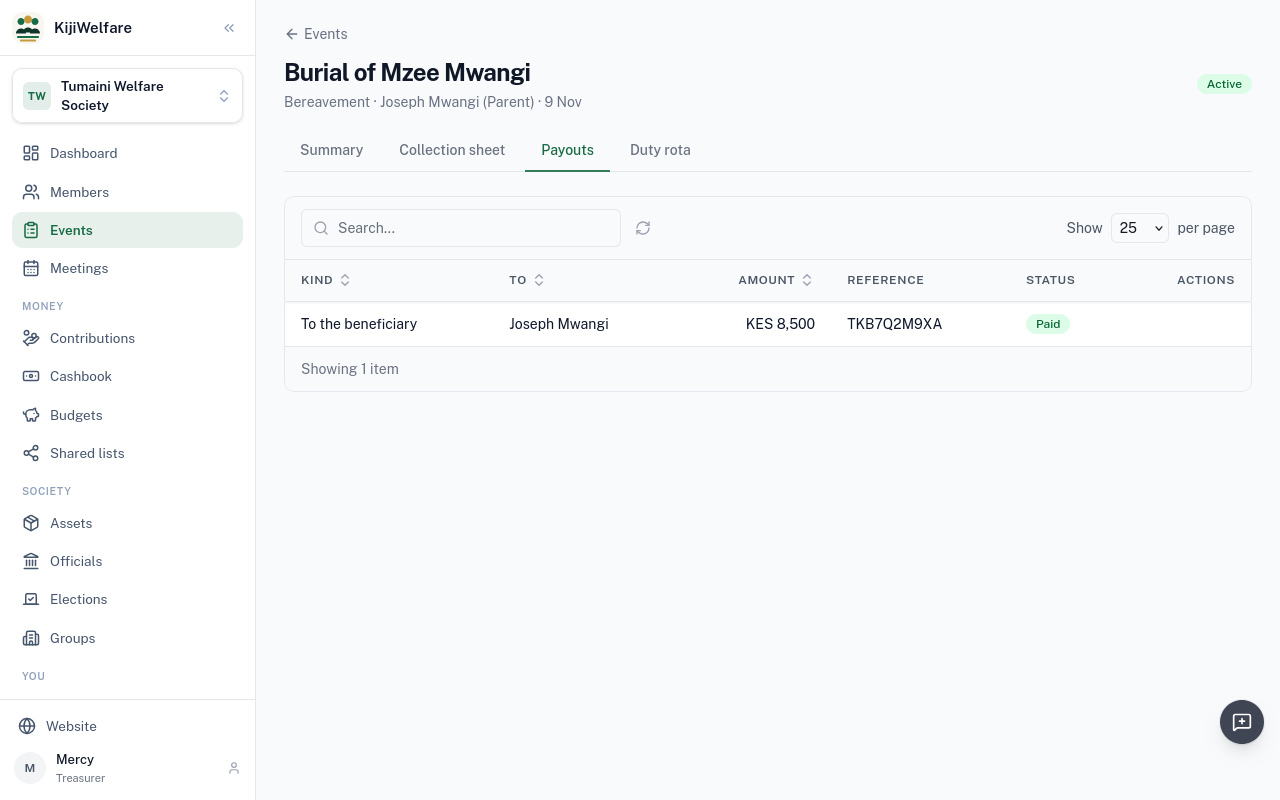
When the money has gone, Mark paid, with how it was paid and the M-Pesa code.
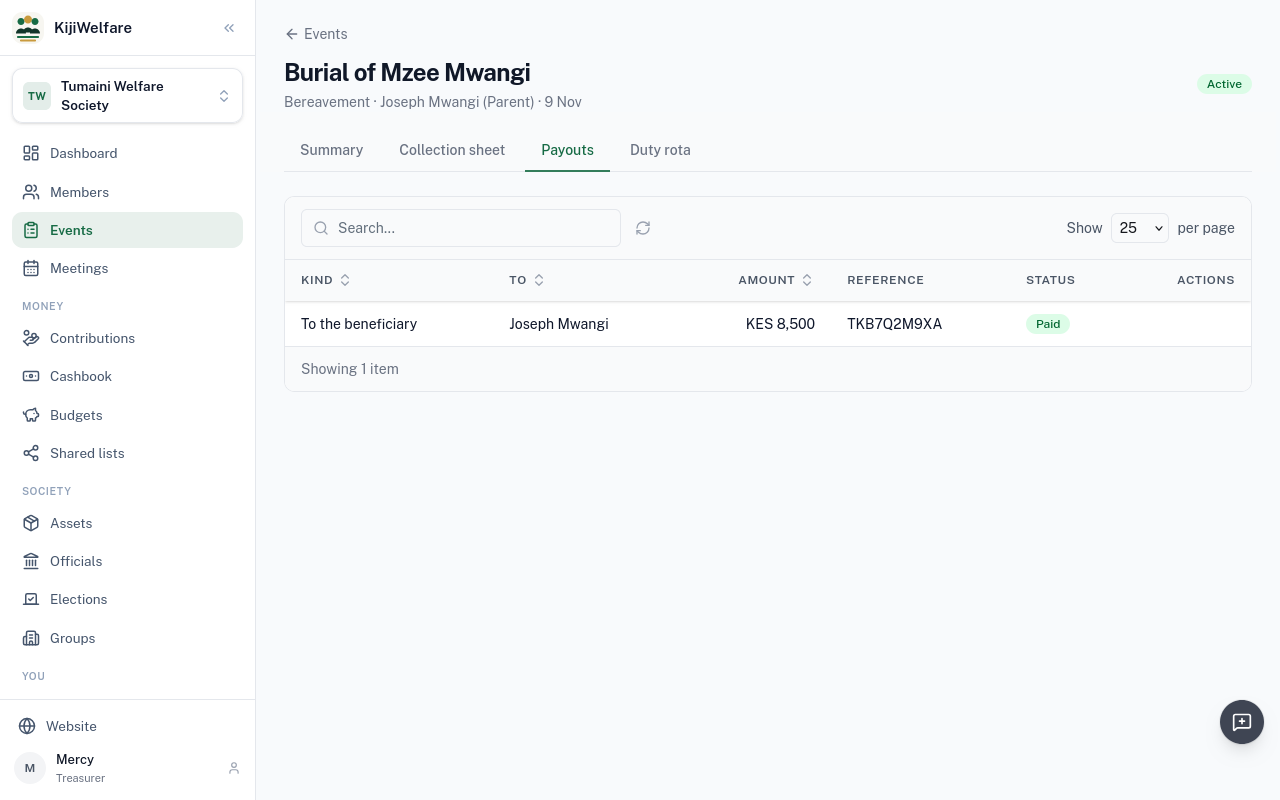
The payout is paid. What the society held back becomes payable once officials settle the event.
Chapter 8
Contributions, the cashbook, budgets and shared lists
Mercy is the treasurer. Contributions lists what members still owe: here, three levies for the Mwangi burial.
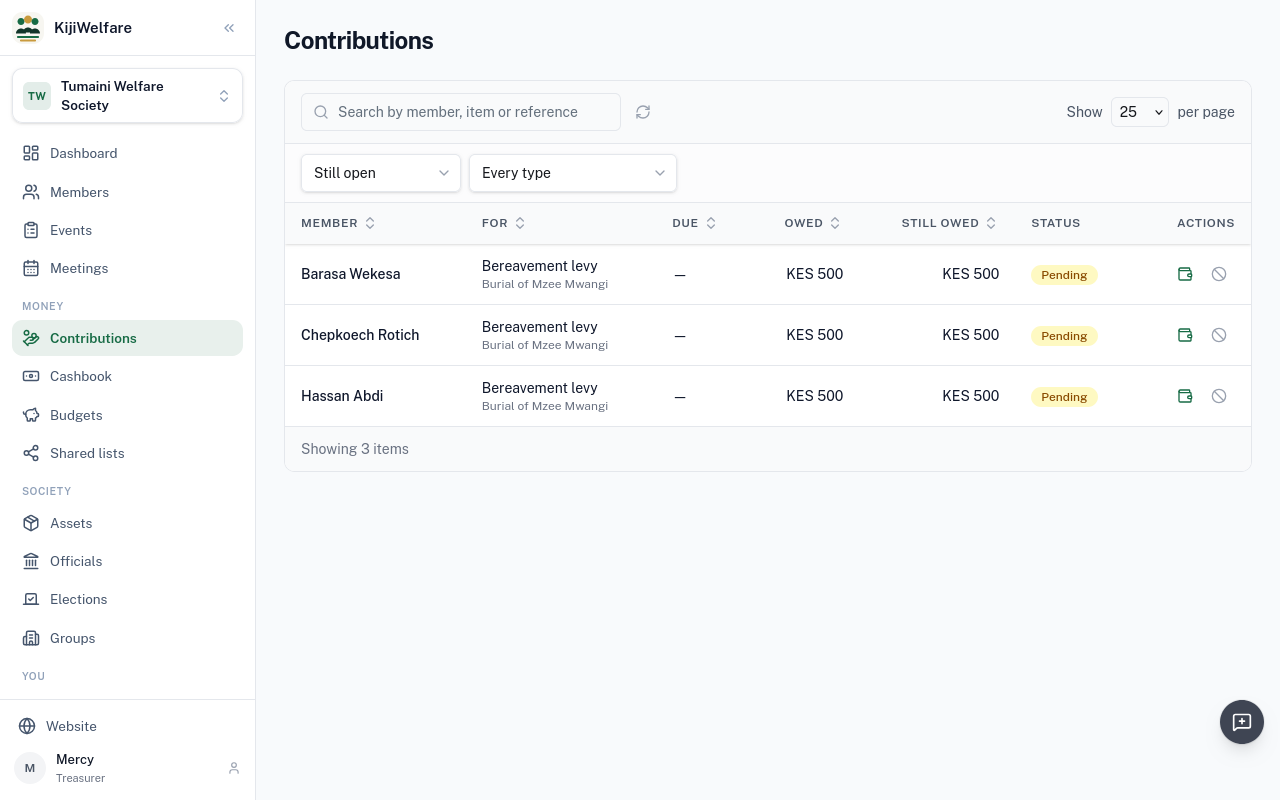
Hassan has brought his 500 shillings by M-Pesa. Choose Record payment on his row.
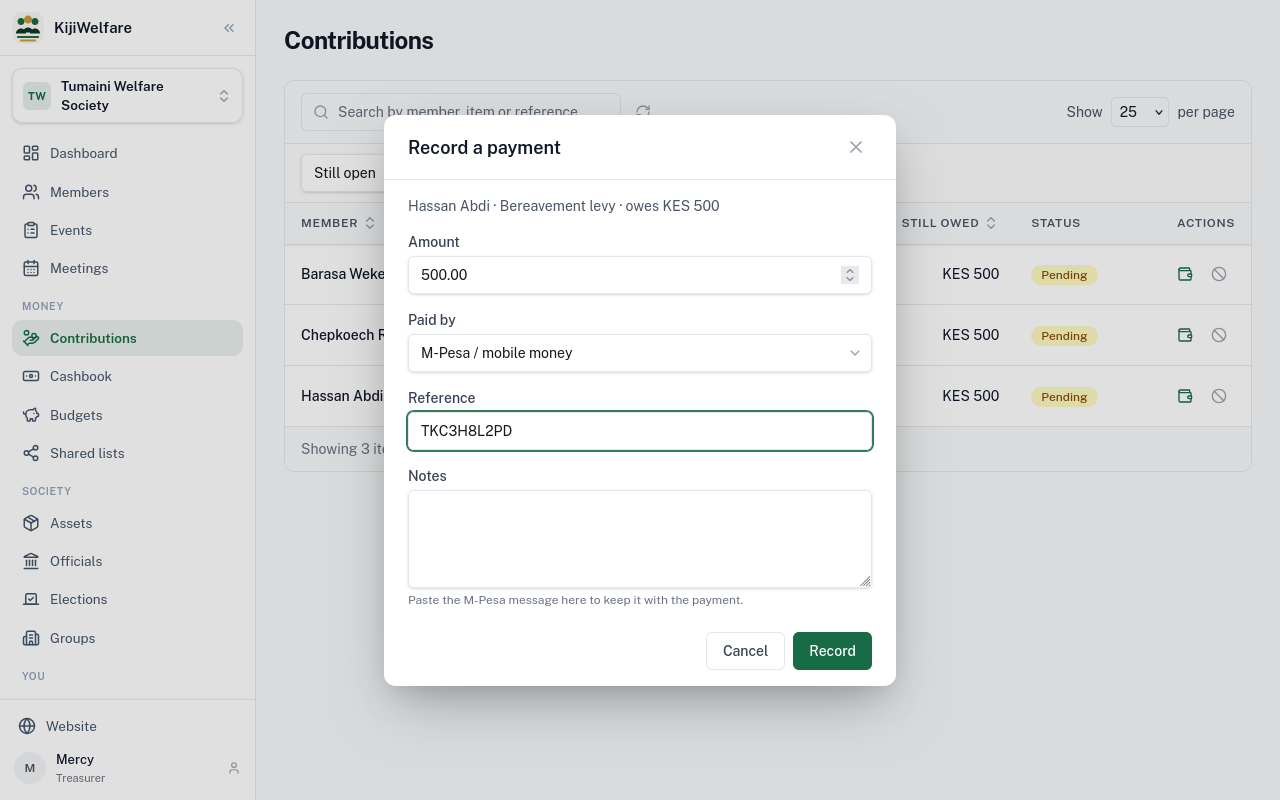
What he owes is filled in. Then how it was paid, and the M-Pesa code; the M-Pesa message itself can go in Notes. Choose Record.
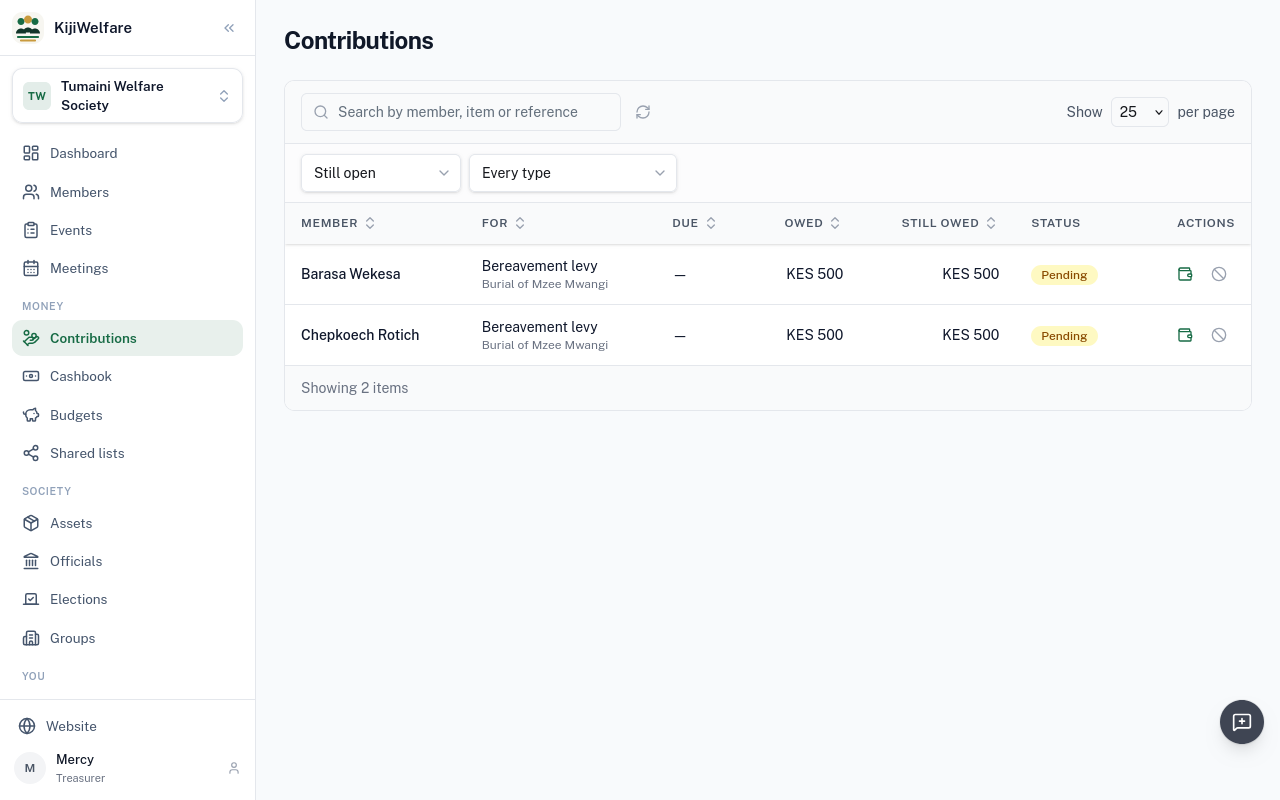
Hassan's levy is paid, and leaves the list of what is still open.
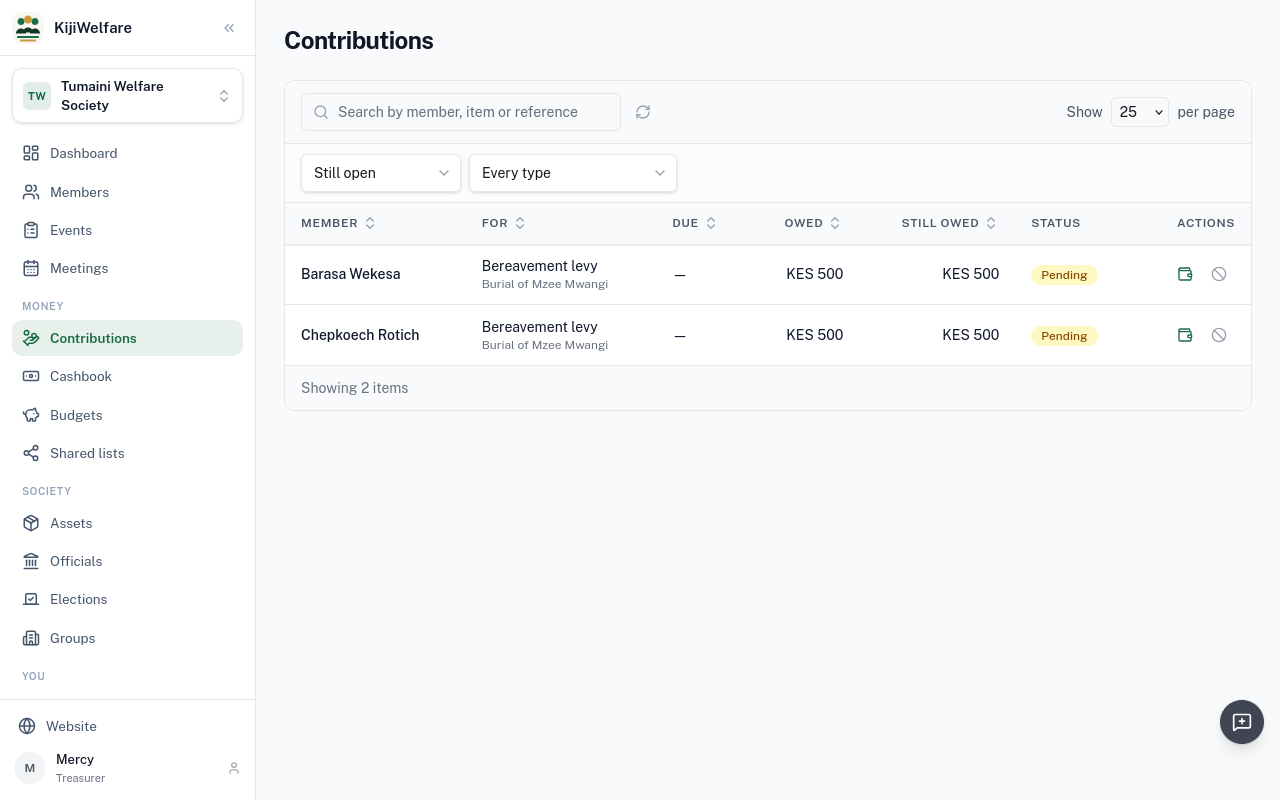
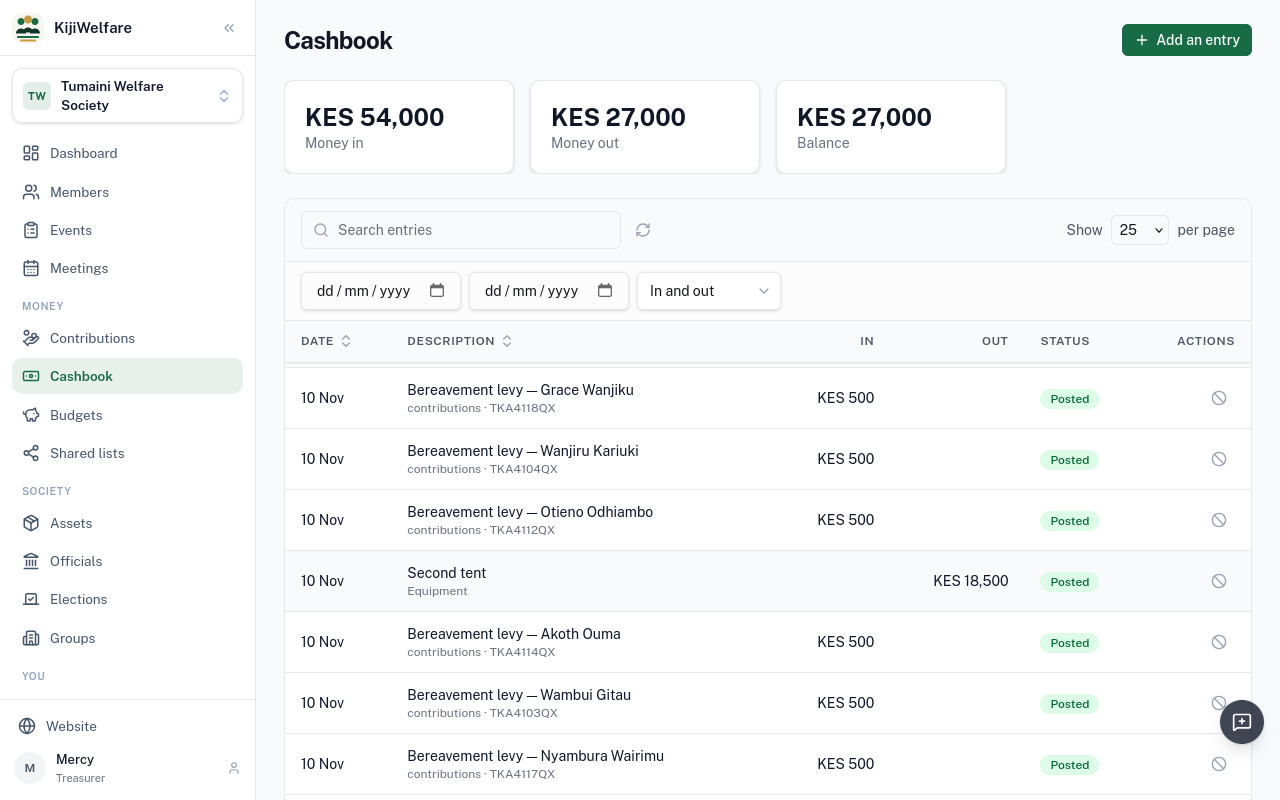
The cashbook holds the society's money in and out. Payments recorded on contributions are here already.
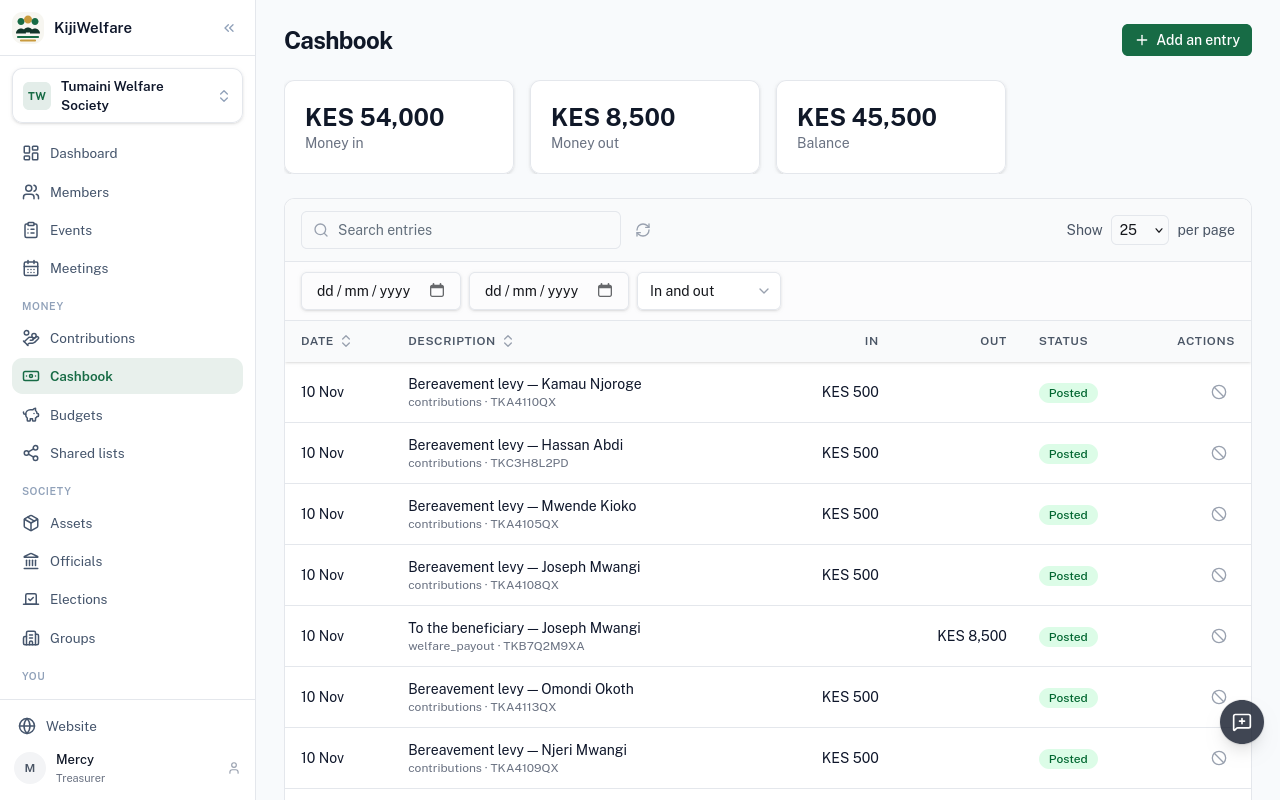
Money that leaves another way is added by hand. The meeting agreed a second tent: choose Add an entry.
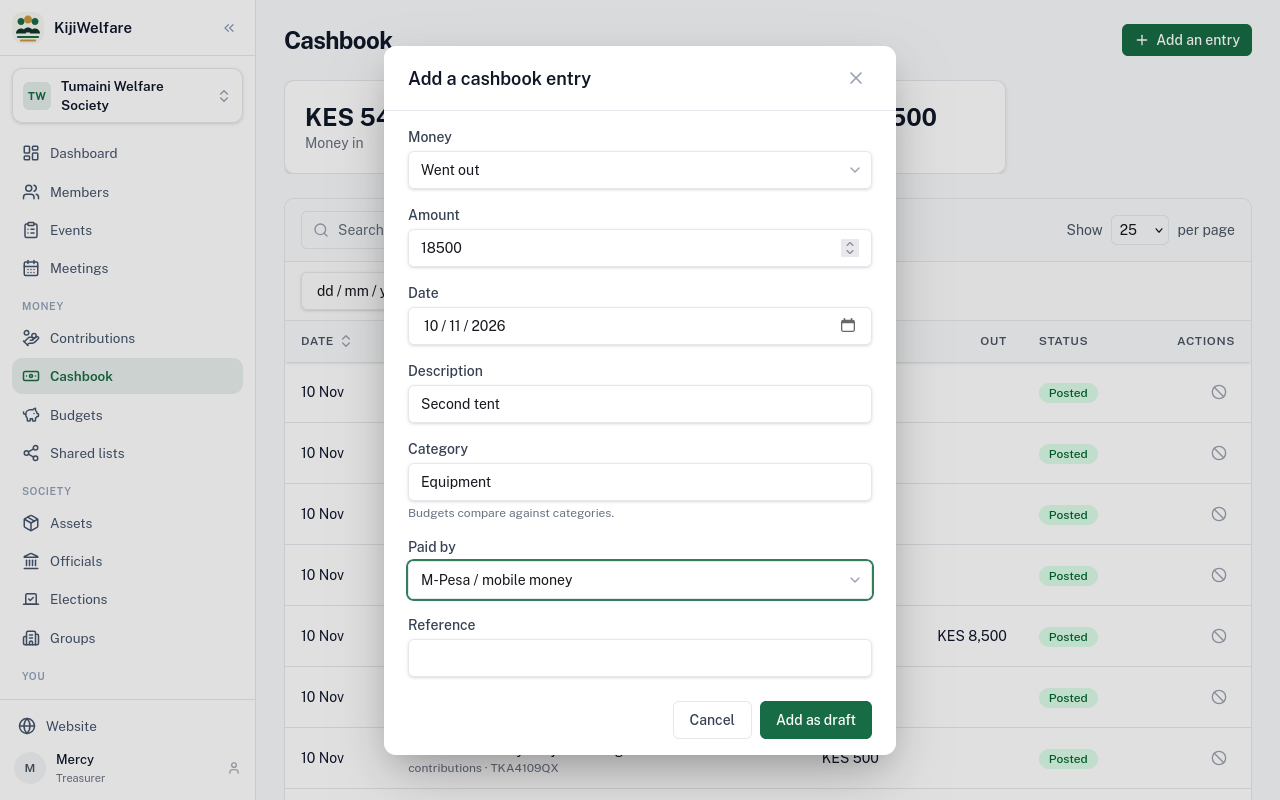
It went out: 18,500 shillings, a description, and a category, which budgets compare against. Choose Add as draft.
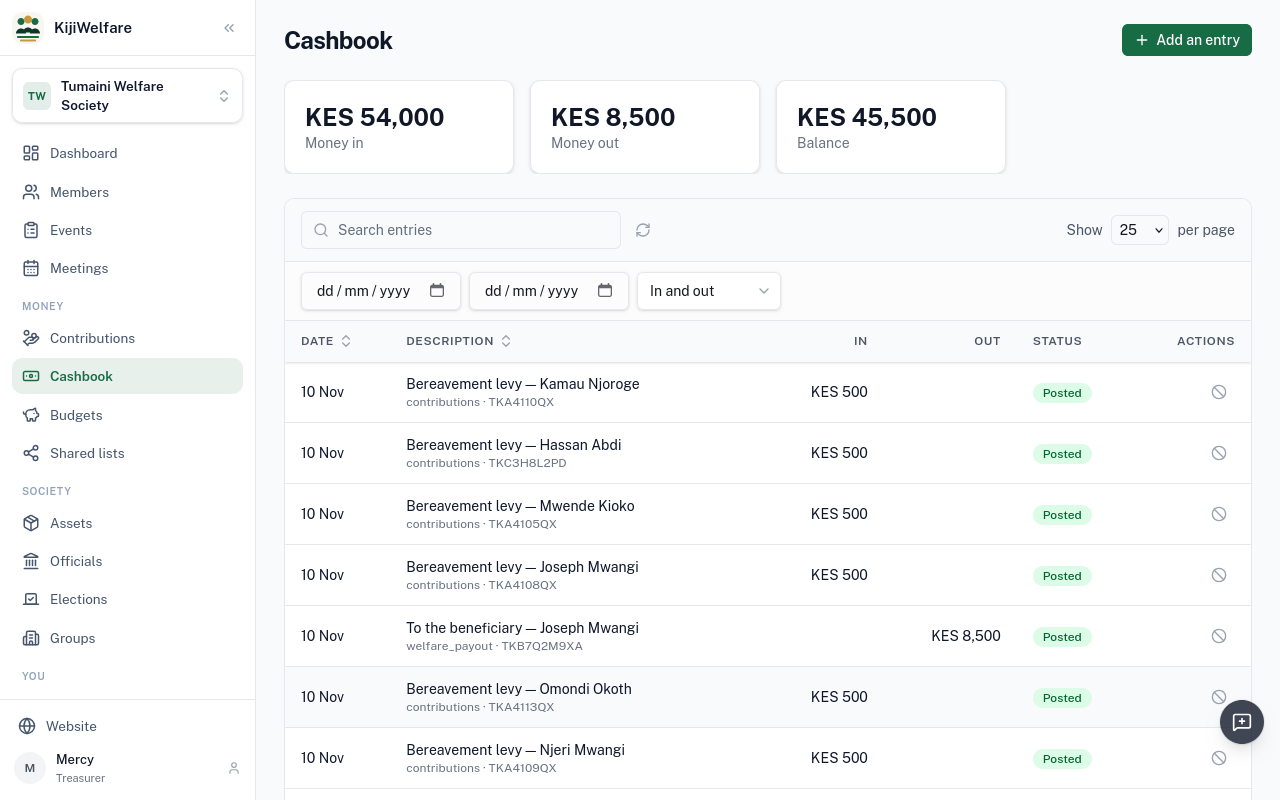
A draft does not count yet. Post makes it final. A posted entry is never deleted: Void cancels it, with a reason.
A budget covers a period. Choose New budget: here, 2027, the whole year.
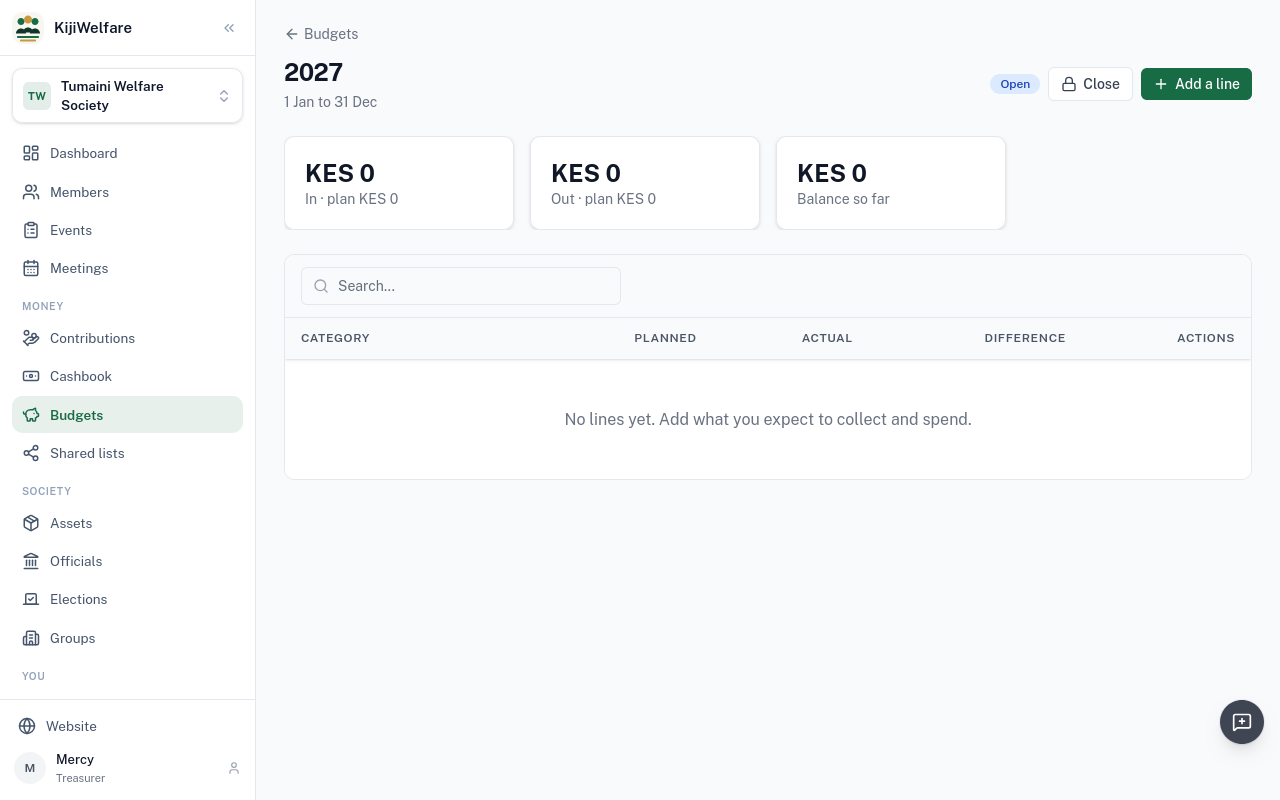
Add a line for each category: what is expected in, and what is planned out. Use the cashbook's words.
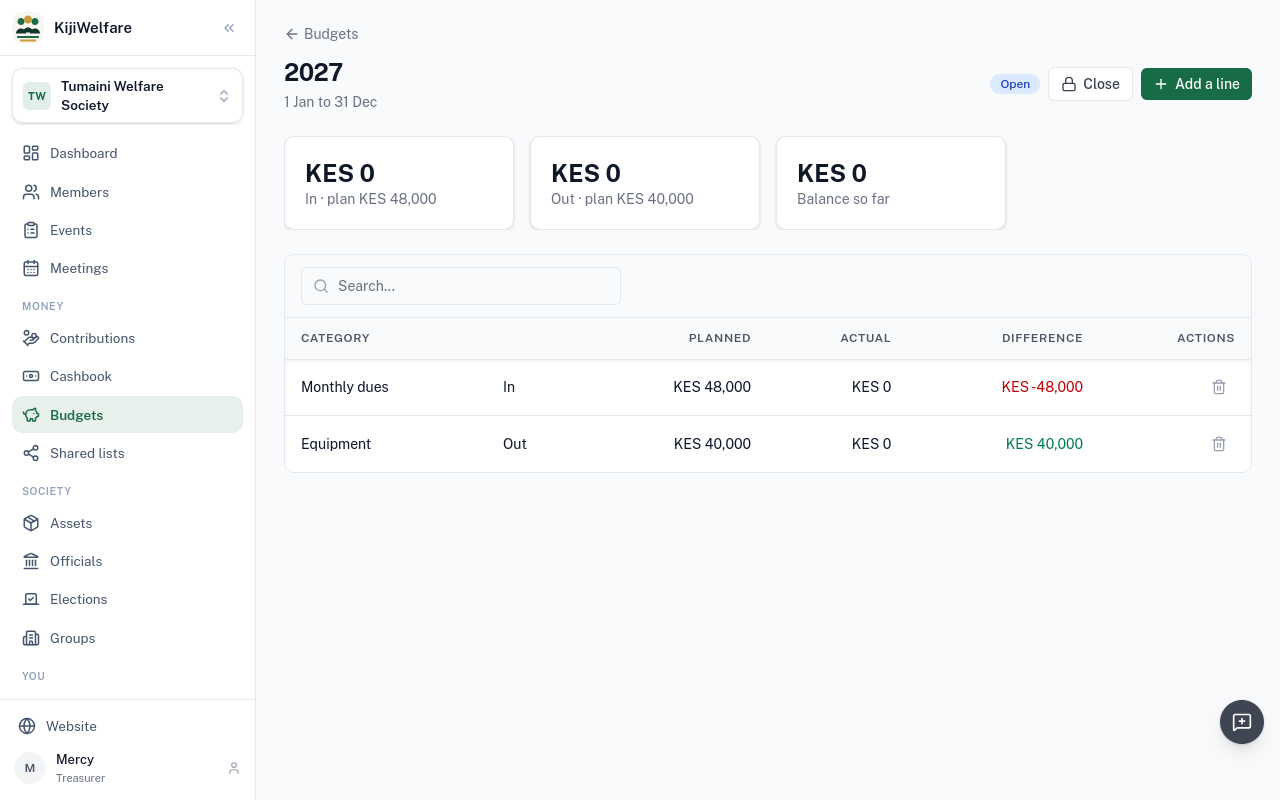
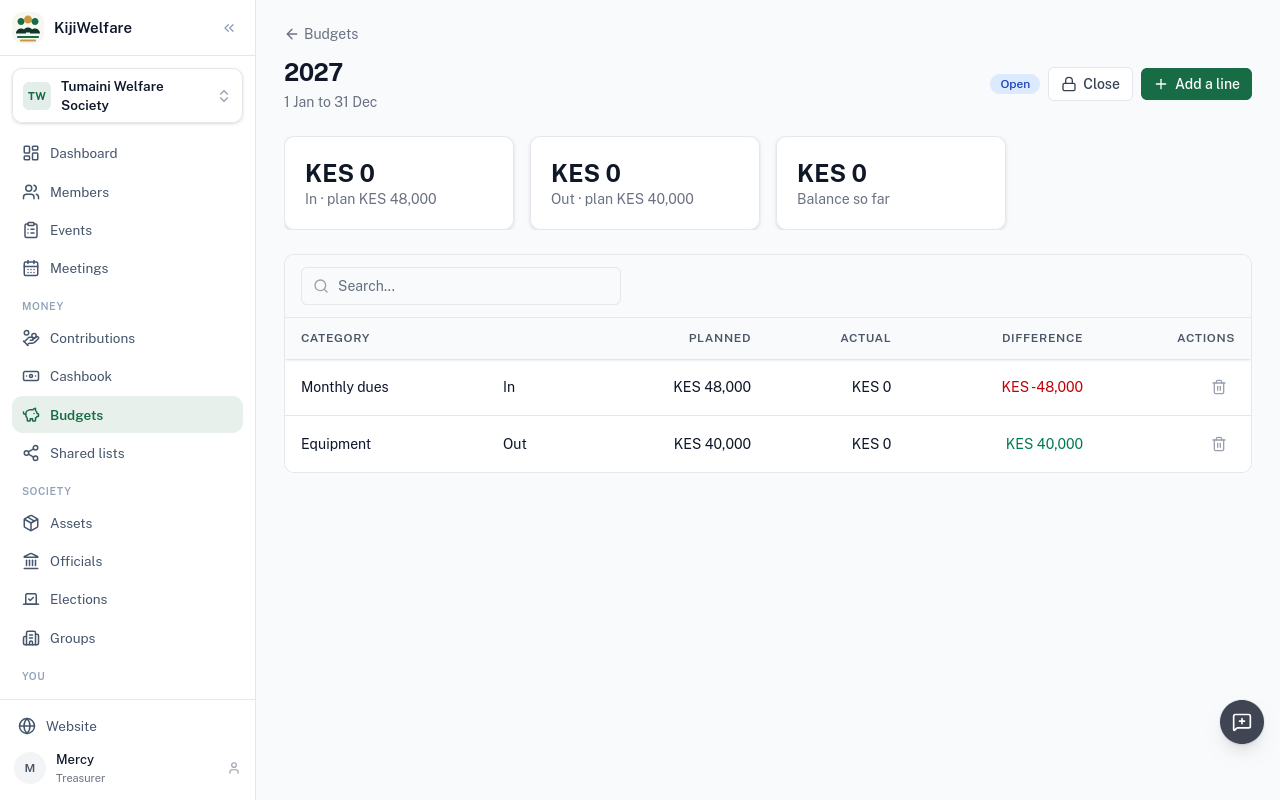
Through the year, each line shows what actually came in or went out against the plan.
A shared list is a link the society sends members, so they can see who has given. Choose New list.
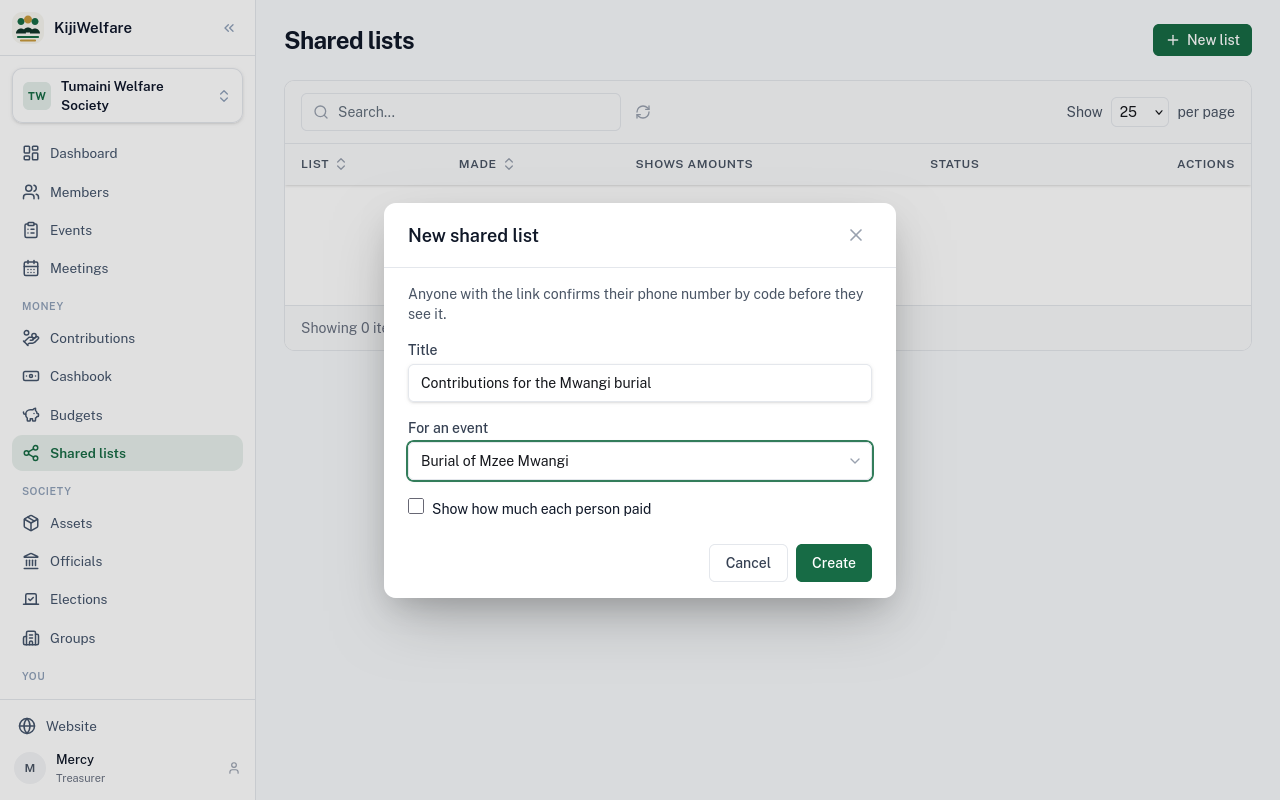
Tie it to the event. Tick Show how much each person paid, if the society shares amounts. Choose Create.
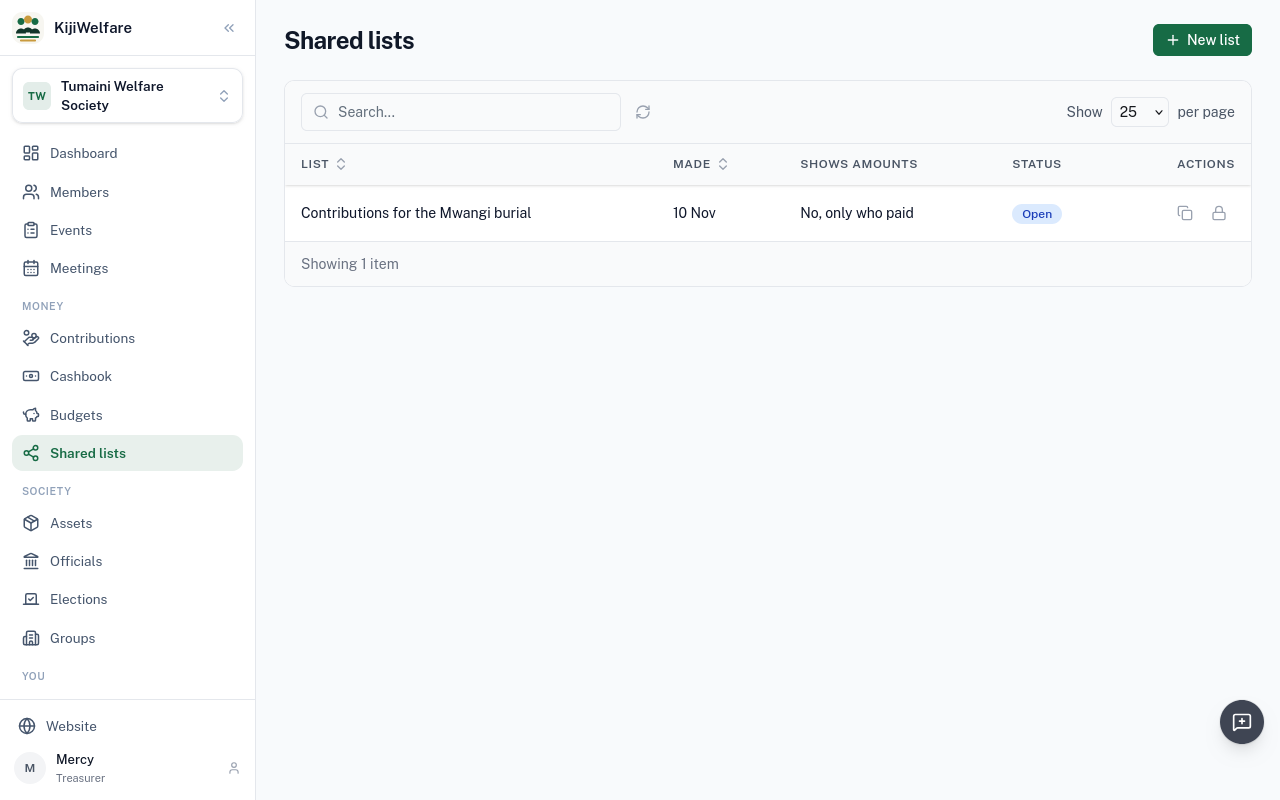
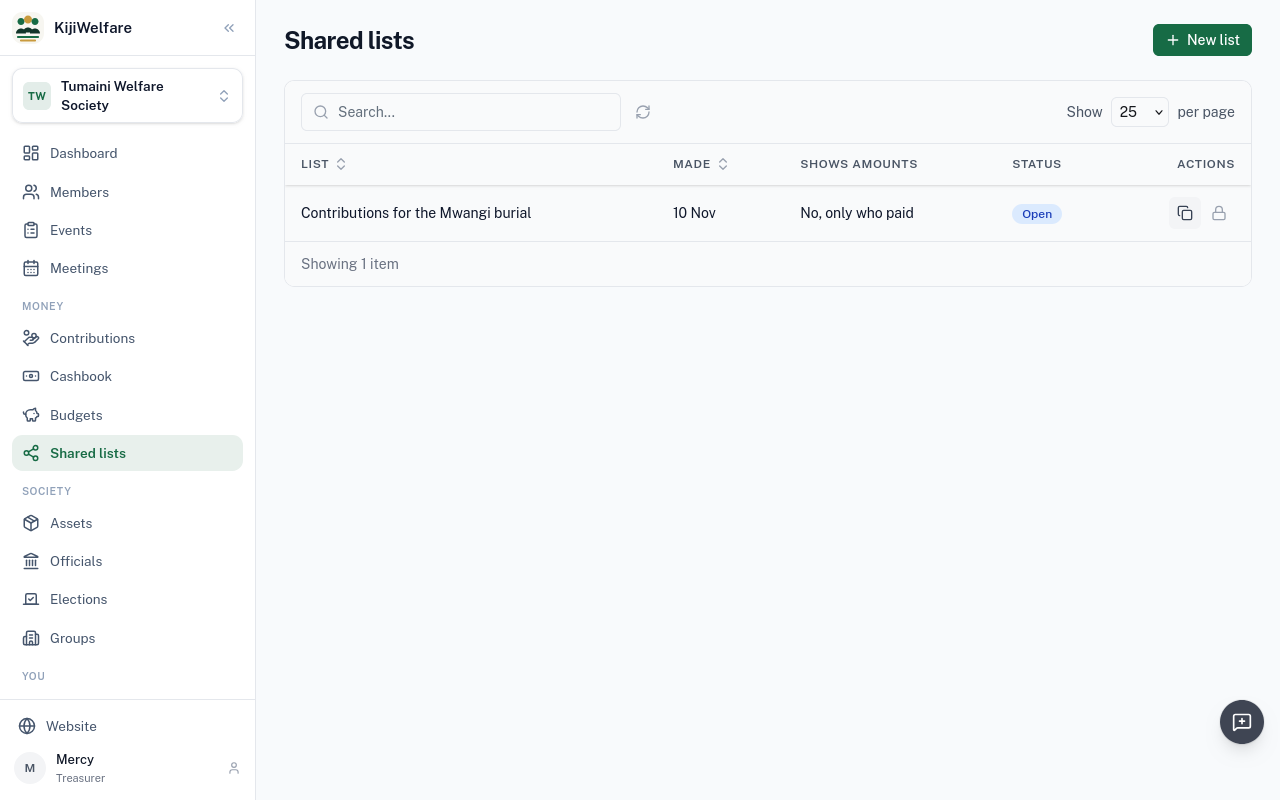
Copy link, and send it by SMS or WhatsApp. Anyone may open it, but only a phone number on the list gets past the code sent to it.
Chapter 9
The society's things, lent and hired
Assets keeps the society's things: what it owns, what is out, and what is owed for hire. Choose Add an item.
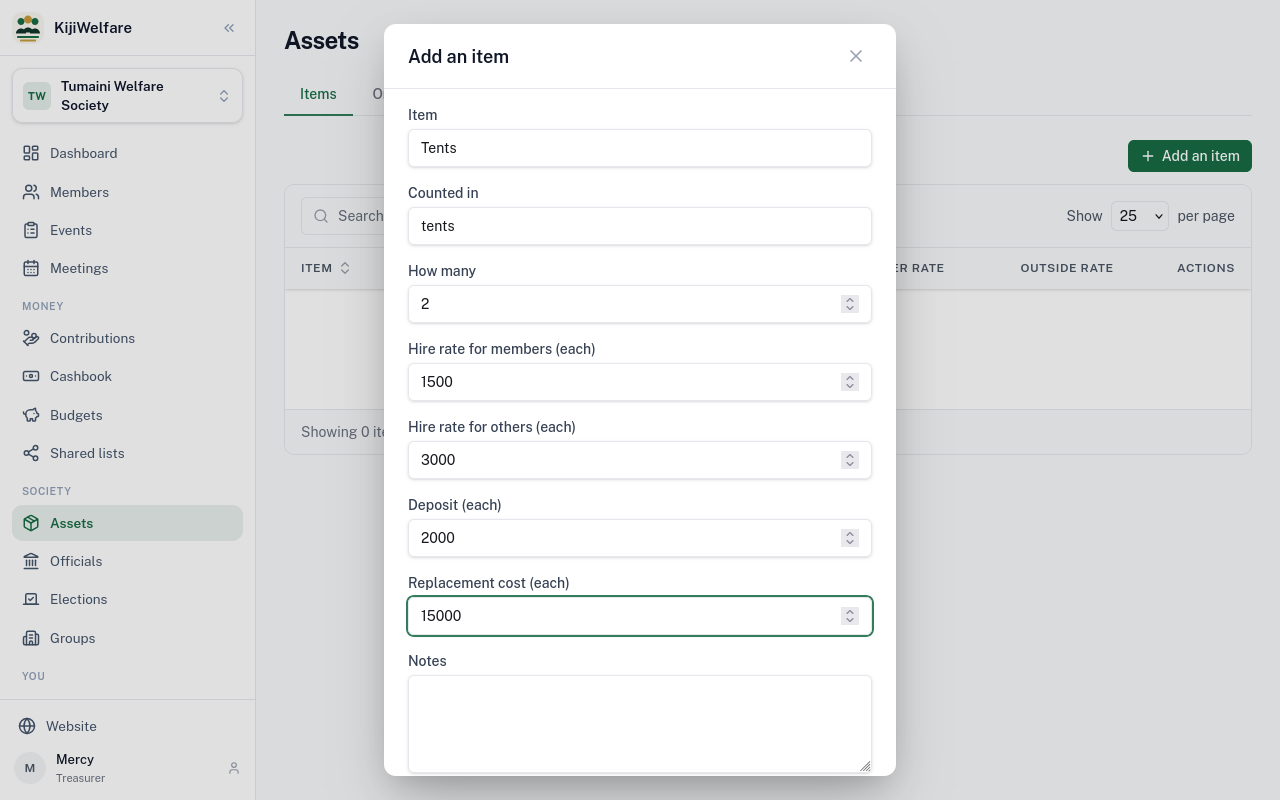
The item, what it is counted in, and how many. A hire rate for members, another for outsiders, a deposit, and what one costs to replace, each per item.
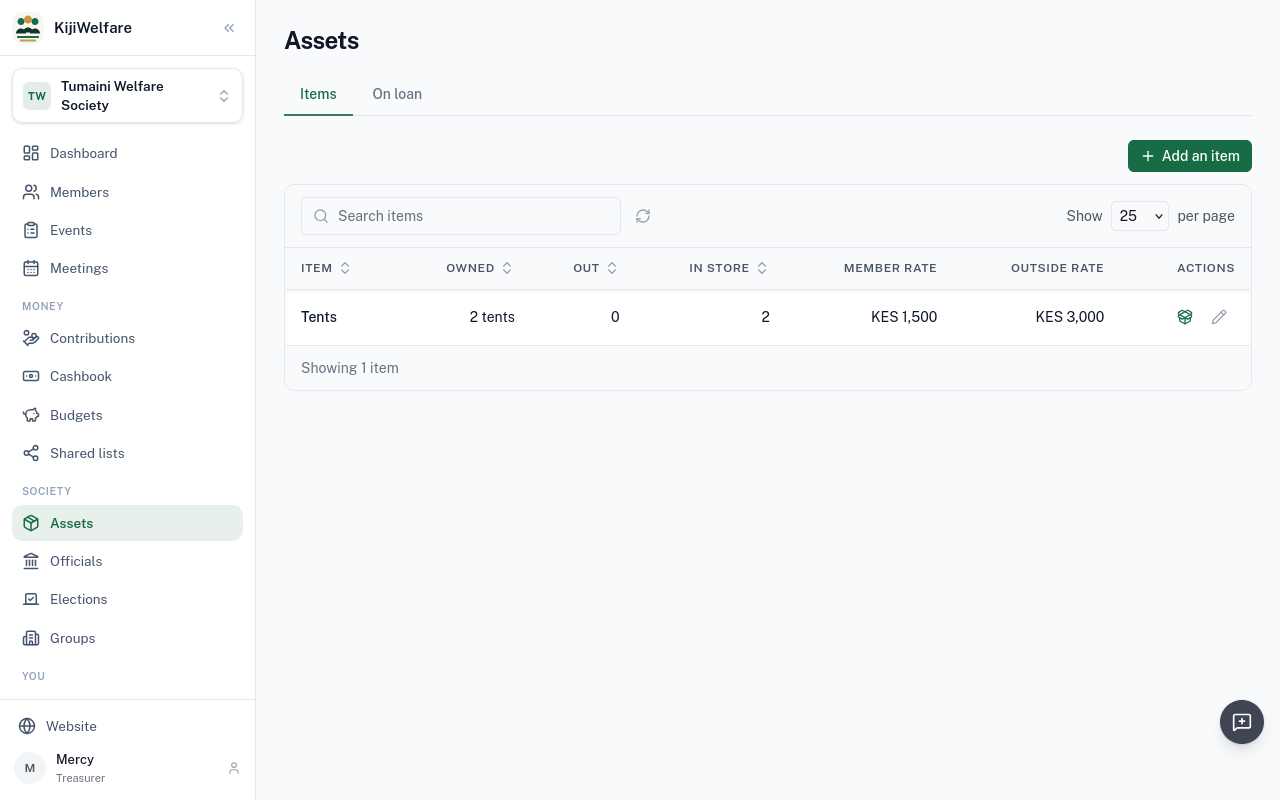
And the chairs: a hundred, at 10 shillings each for members.
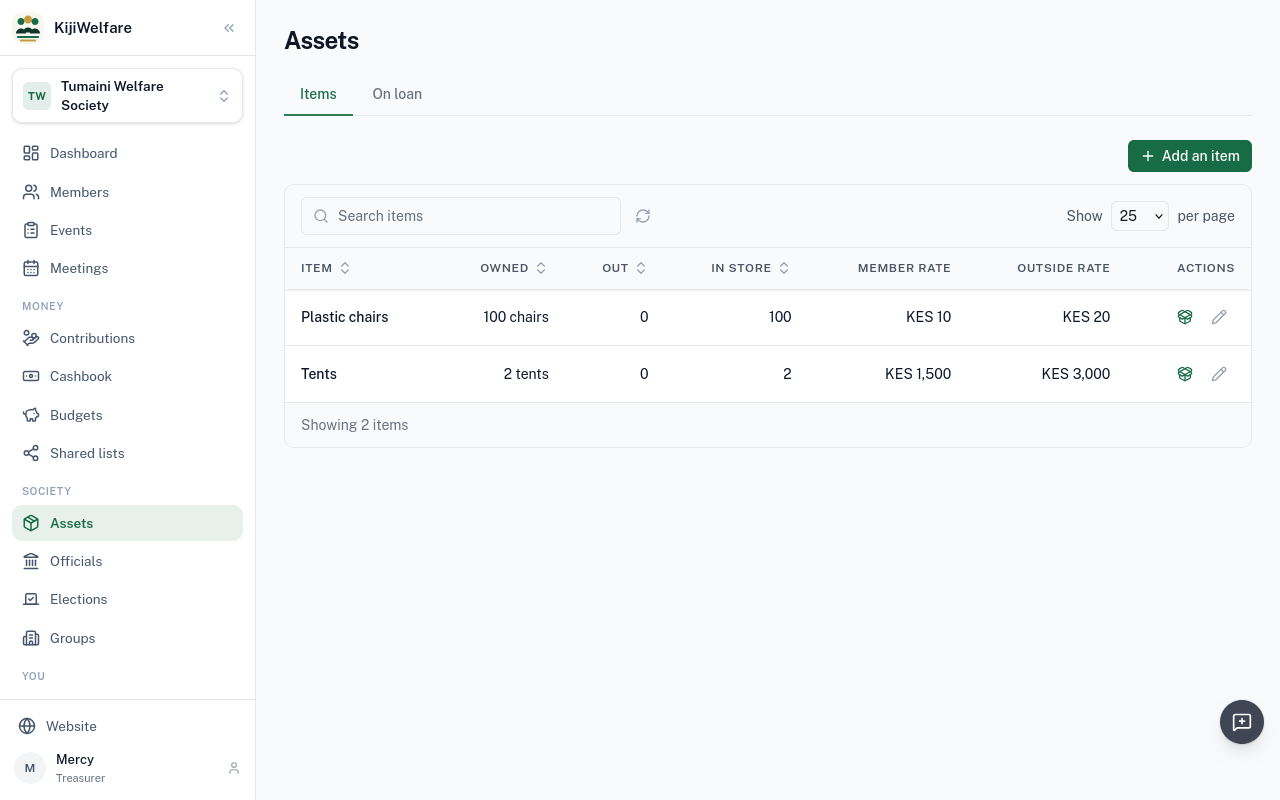
Kamau Njoroge needs fifty chairs for a family gathering. Choose Lend out on the chairs.
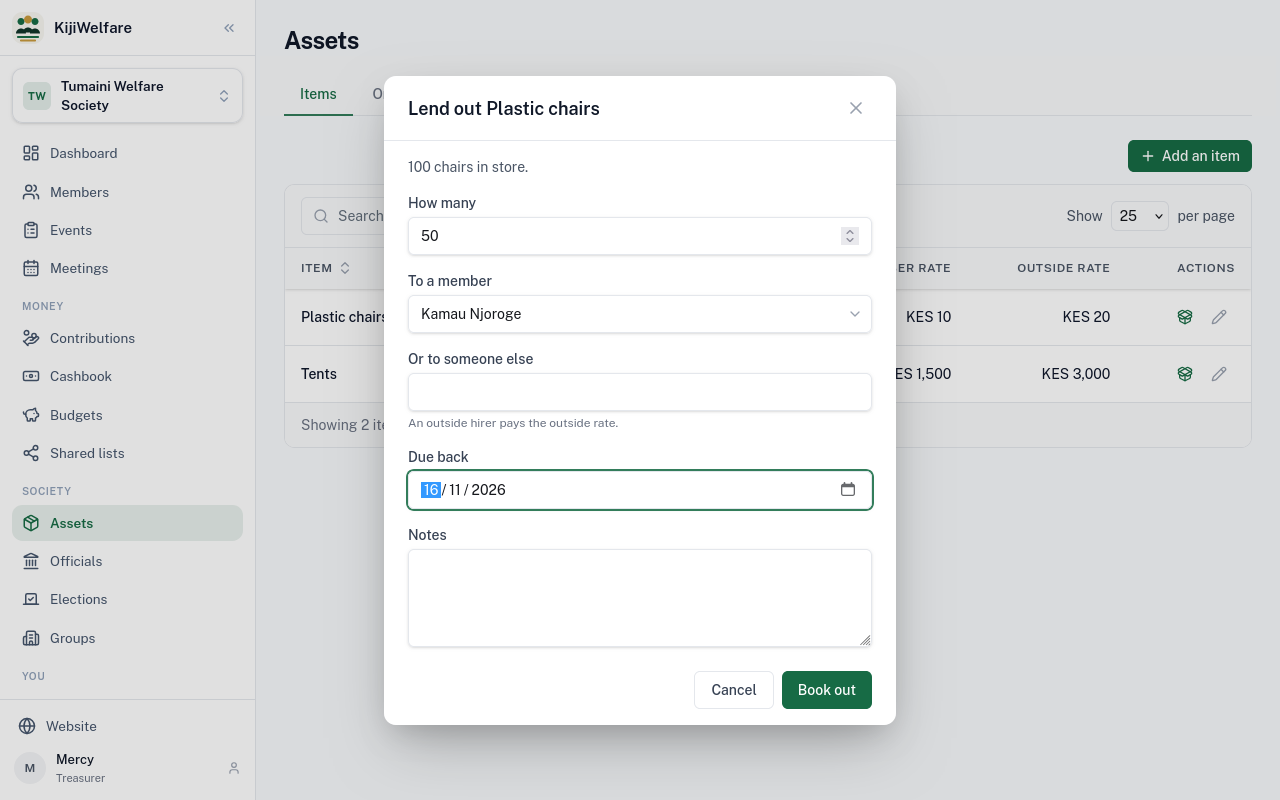
How many, to which member, and when they are due back. Choose Book out.
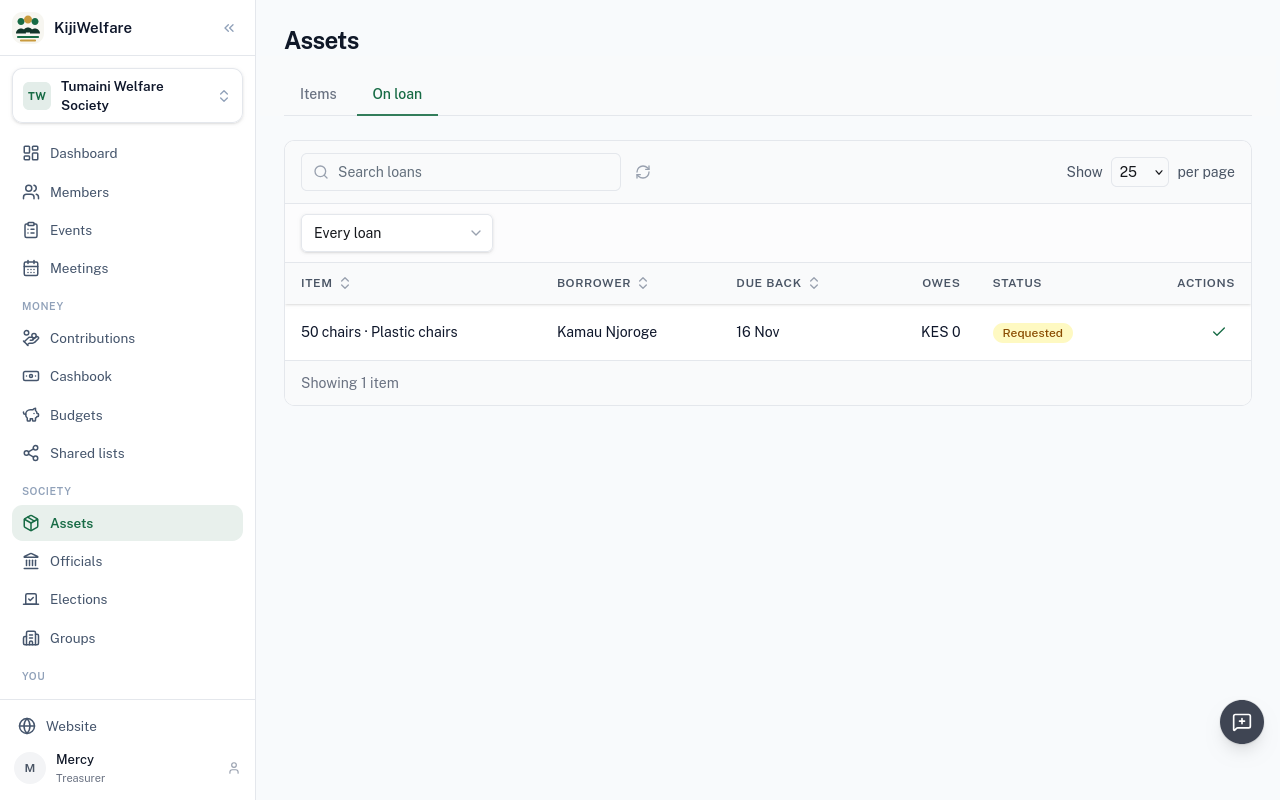
On loan lists every booking and where it stands.
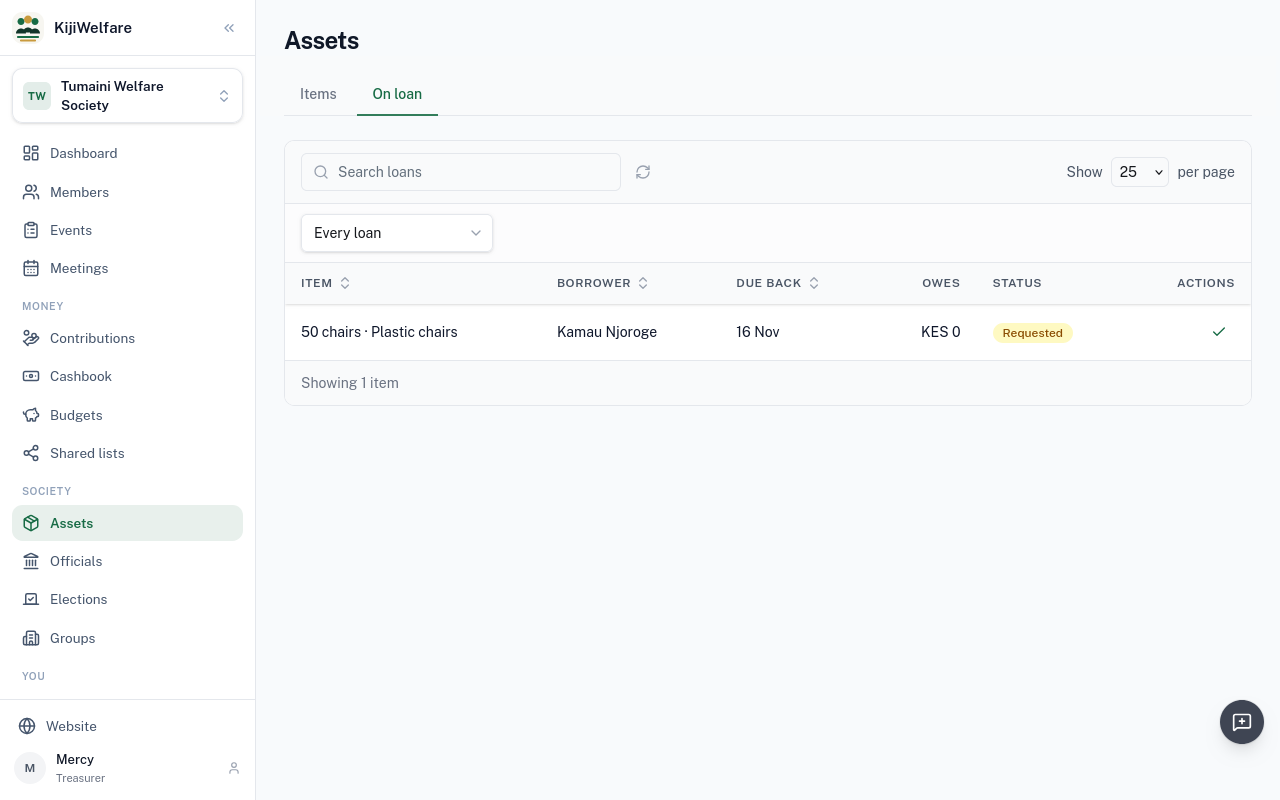
A booking is approved first. Choose Approve.
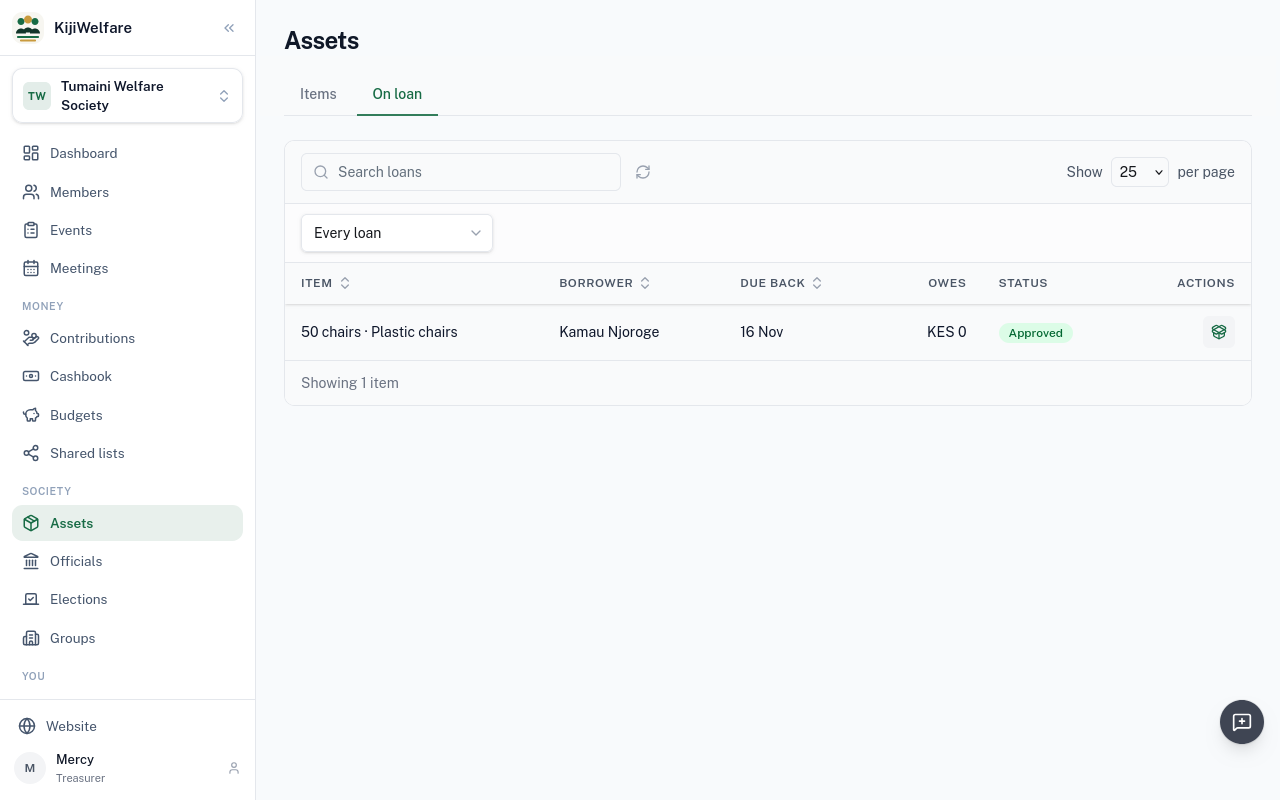
When Kamau collects them, Issue, with the deposit taken: 50 shillings a chair.
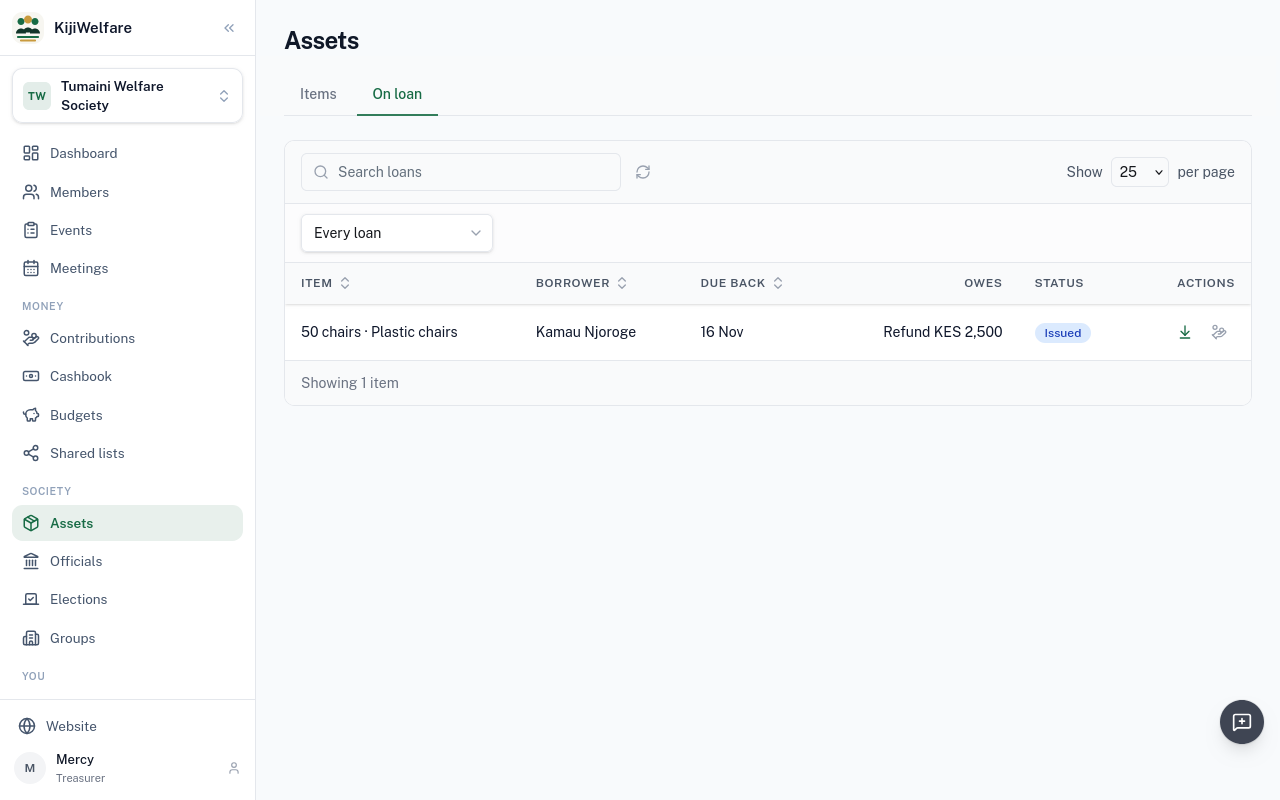
When they come back, Count back in: 48 in good order, and 2 damaged.
KijiWelfare works out what is owed: the hire, and the damaged chairs at their replacement cost. Choose Settle.
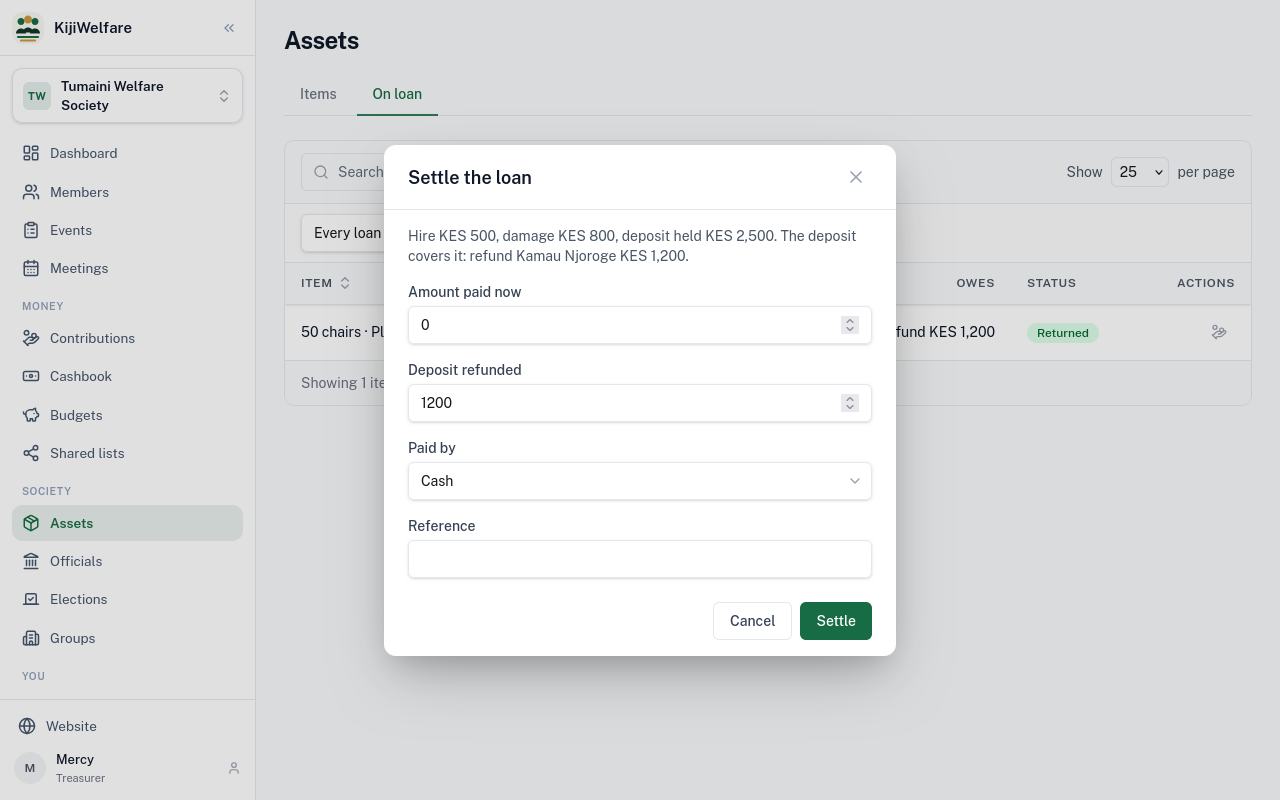
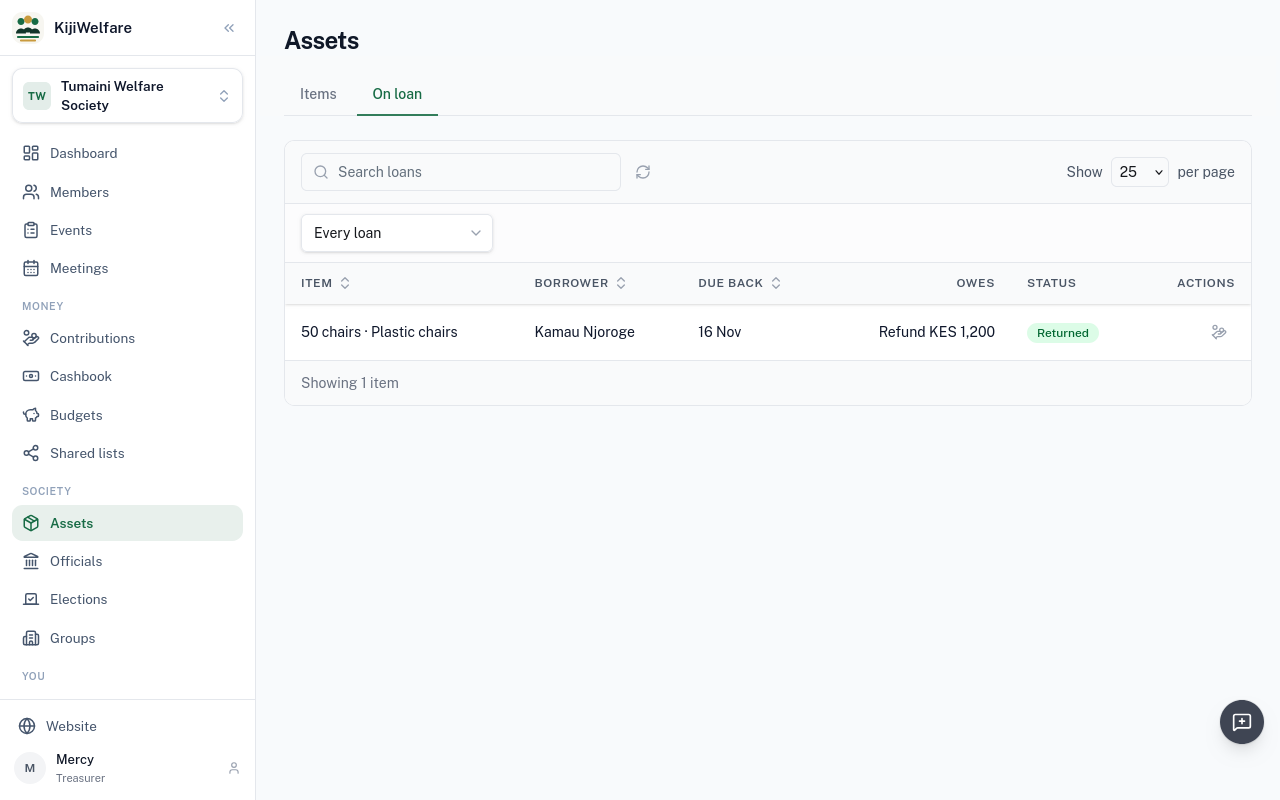
Hire 500 shillings and damage 800, against a deposit of 2,500: the deposit covers it, and Kamau gets 1,200 back. Choose Settle.
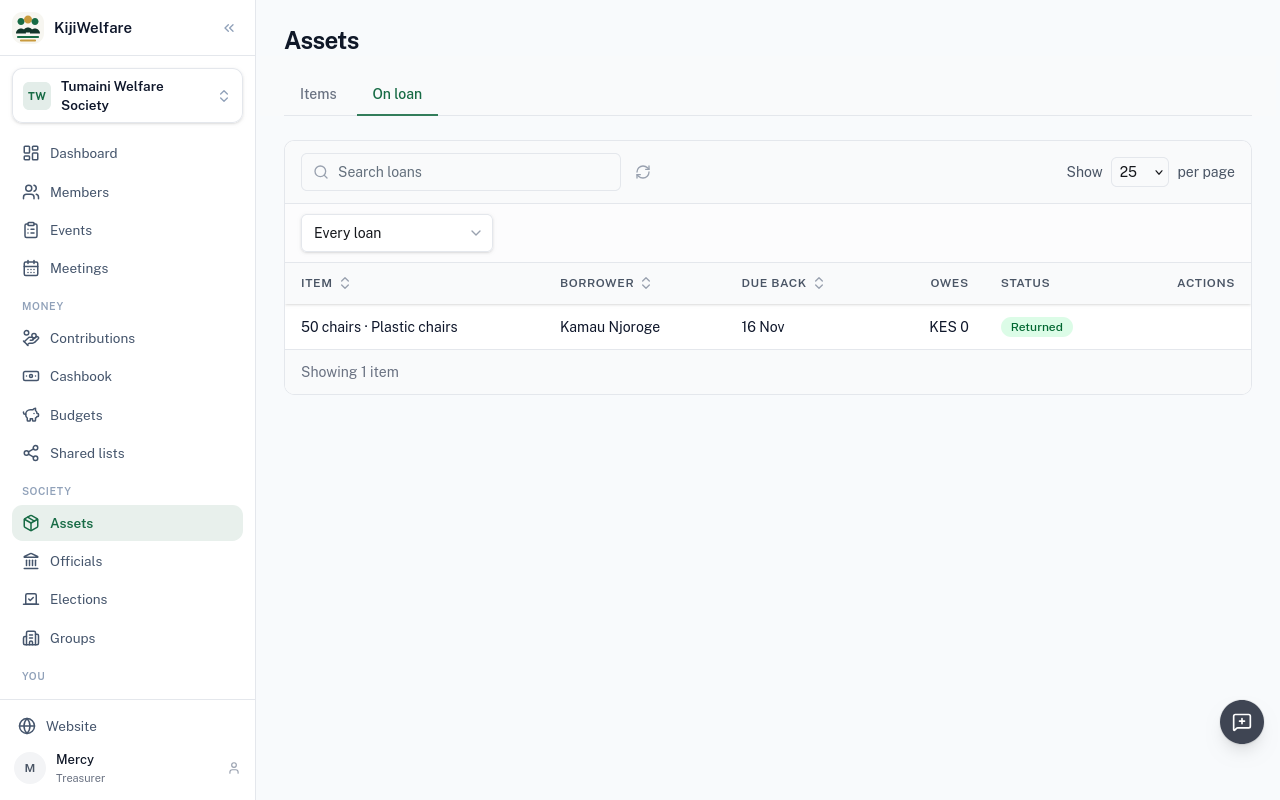
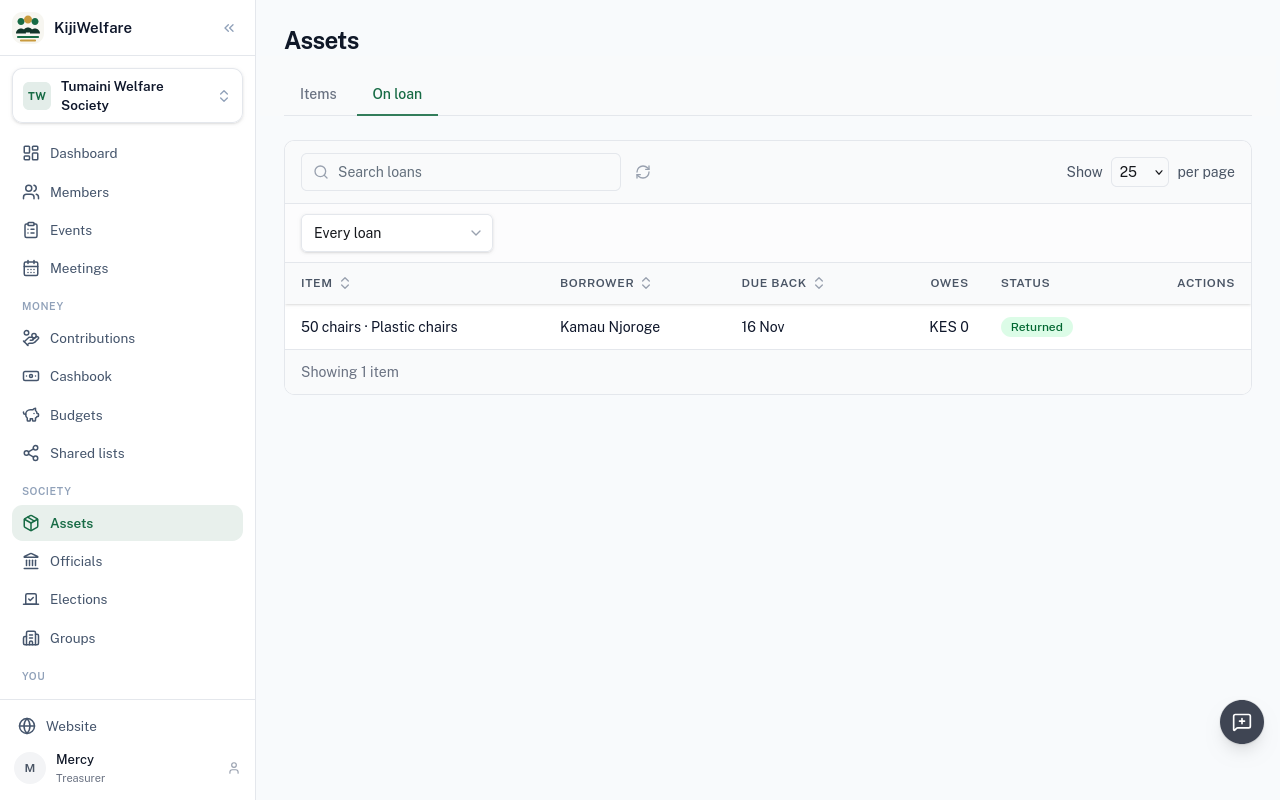
The loan is settled, and the good chairs are back in store.
Chapter 10
Texting members, from the society's own phone
KijiWelfare sends a society's texts through a phone the society pairs: its own Android phone, with the SMS Gateway app. The texts go out from that phone's number.
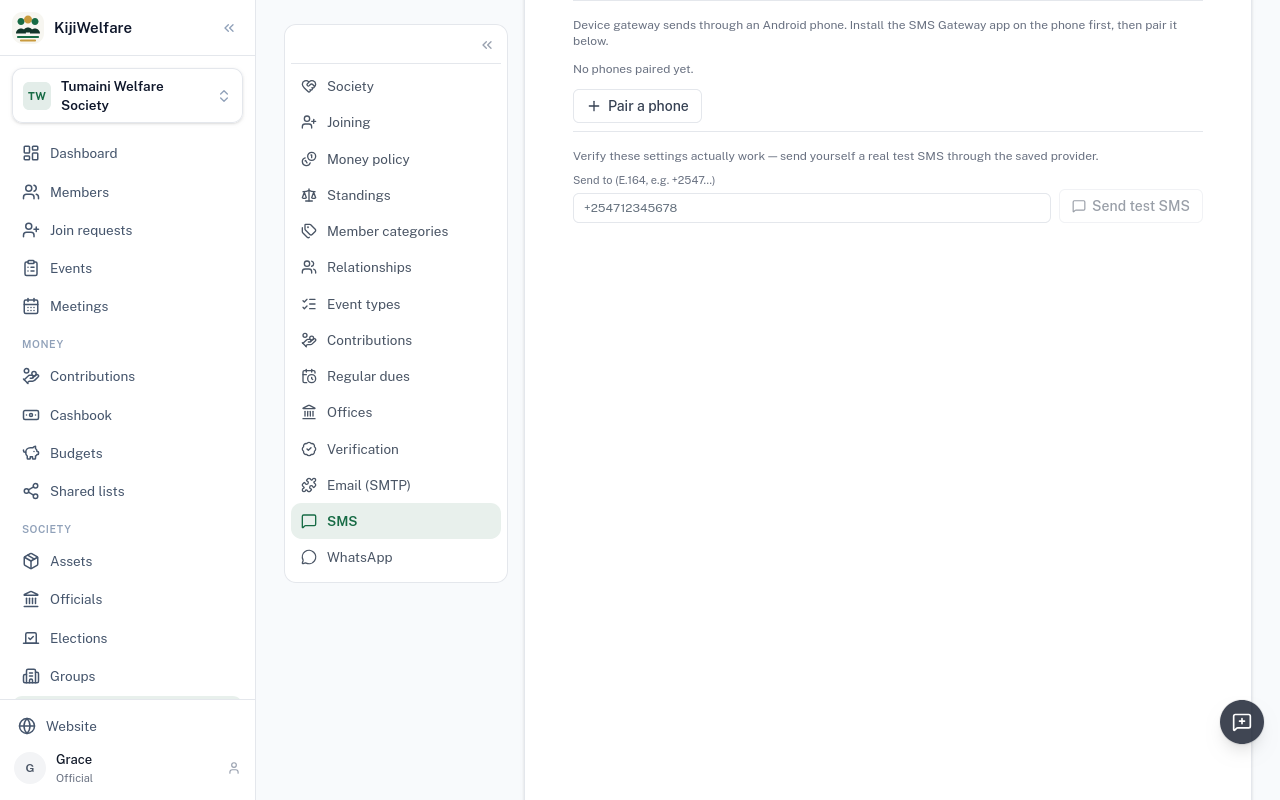
In Settings, under SMS, choose Pair a phone. Give the phone a name, and choose Generate pairing code.
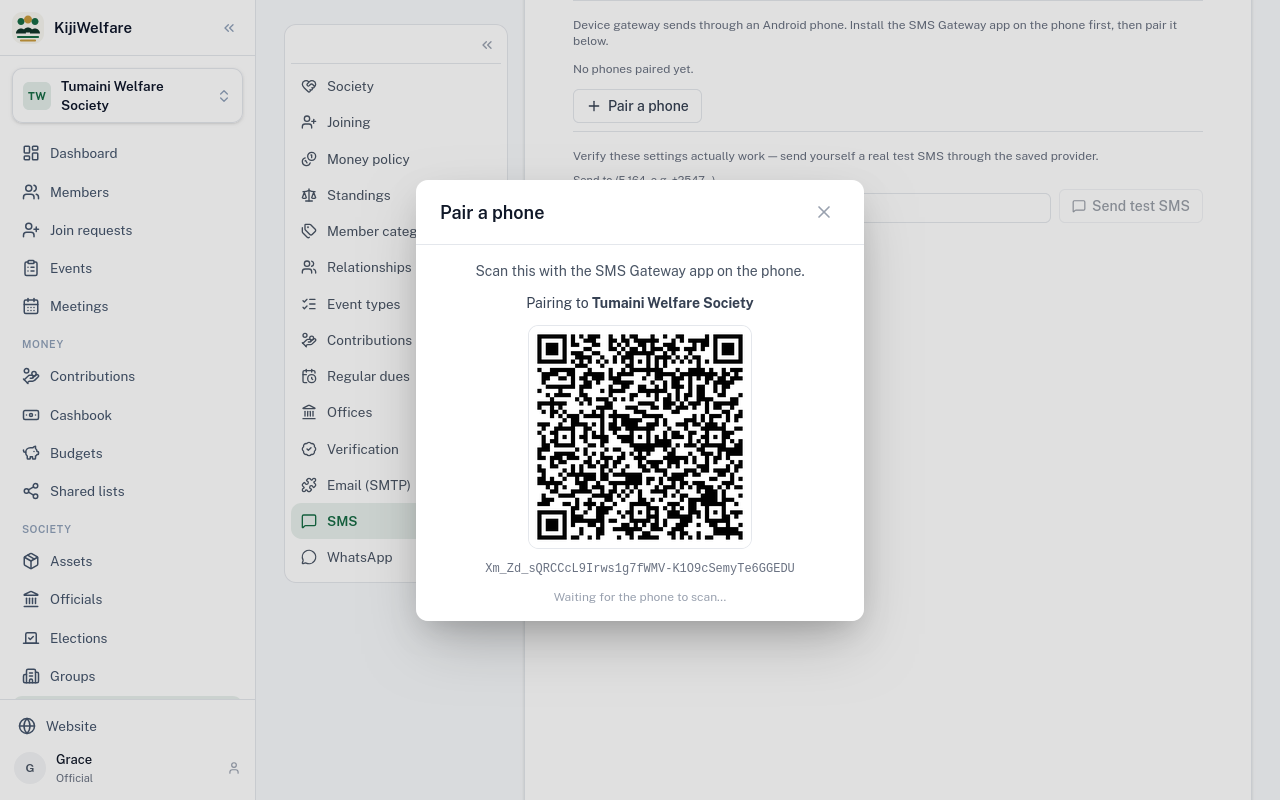
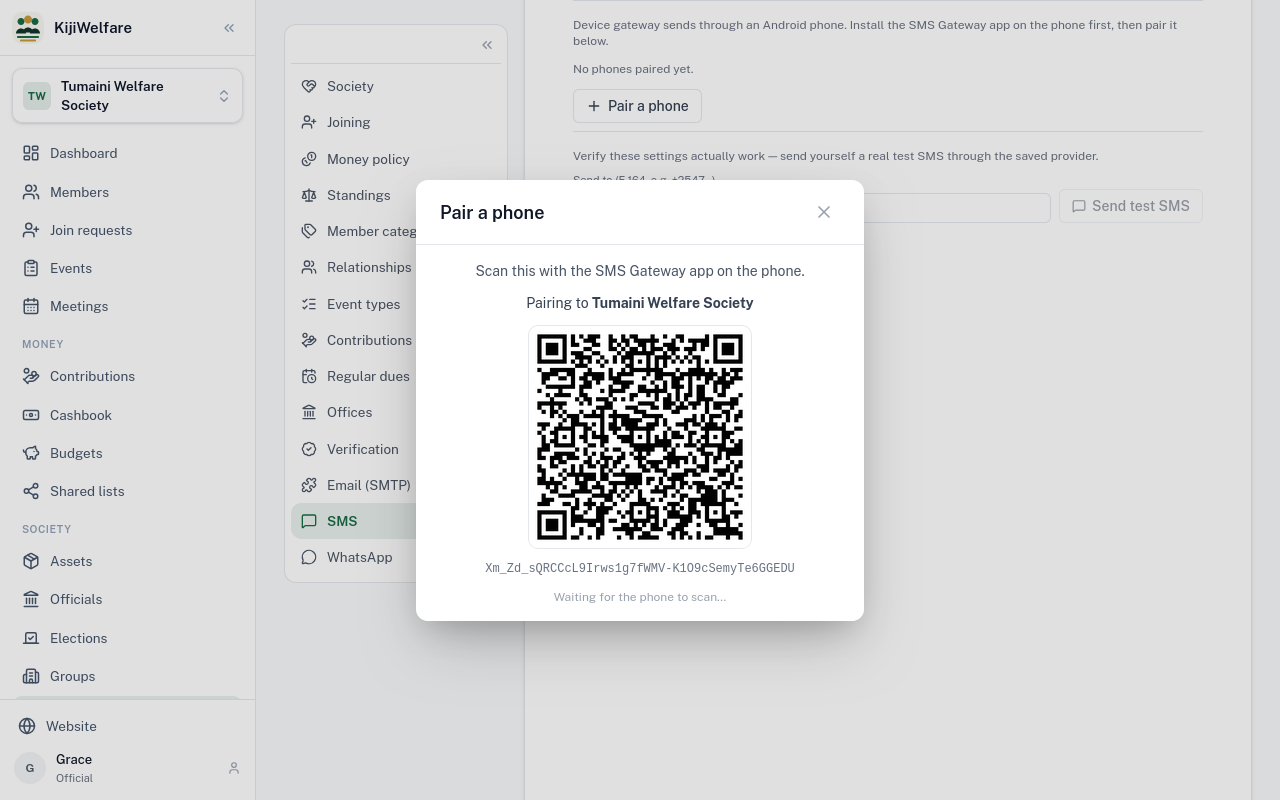
Install the SMS Gateway app on the society's phone, and scan this code with it.
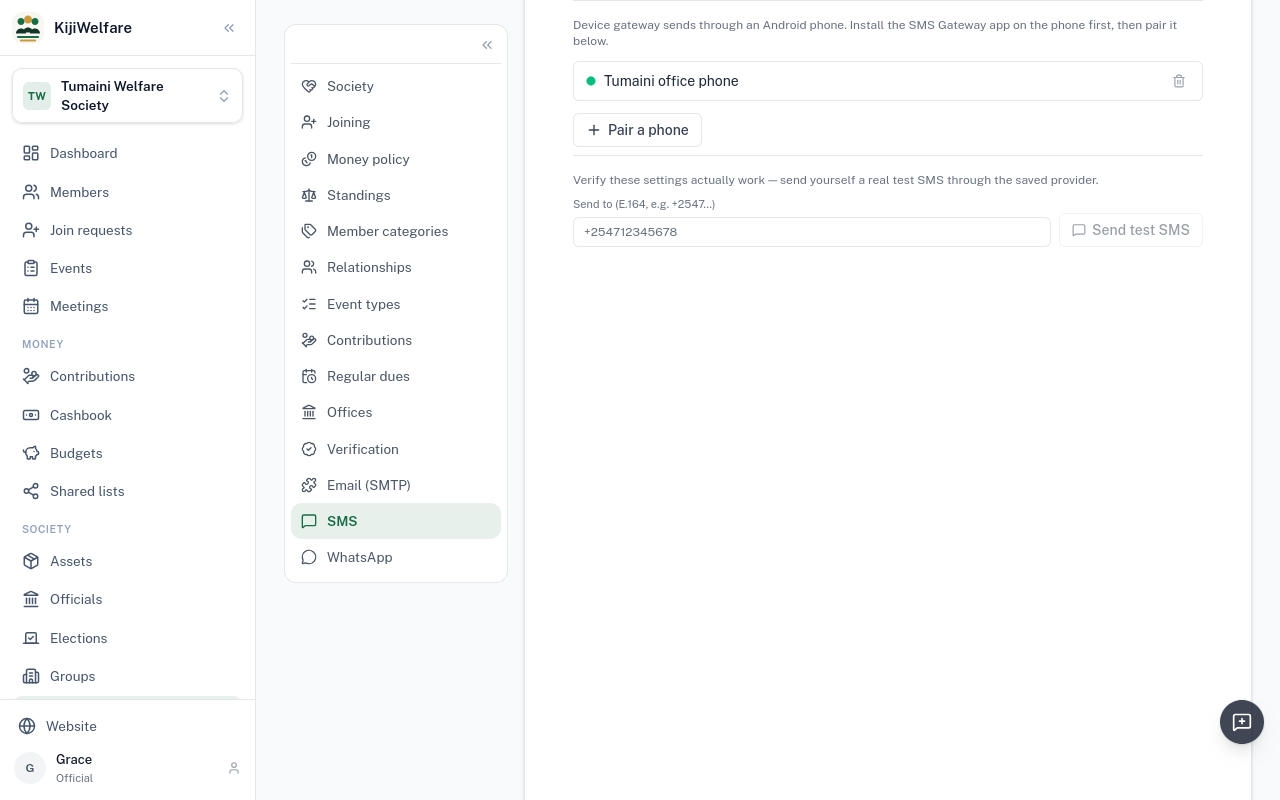
The phone is paired. From now on it sends the society's texts.
On Members, choose Text members. Send to everyone, or to one group: here, Mirema.
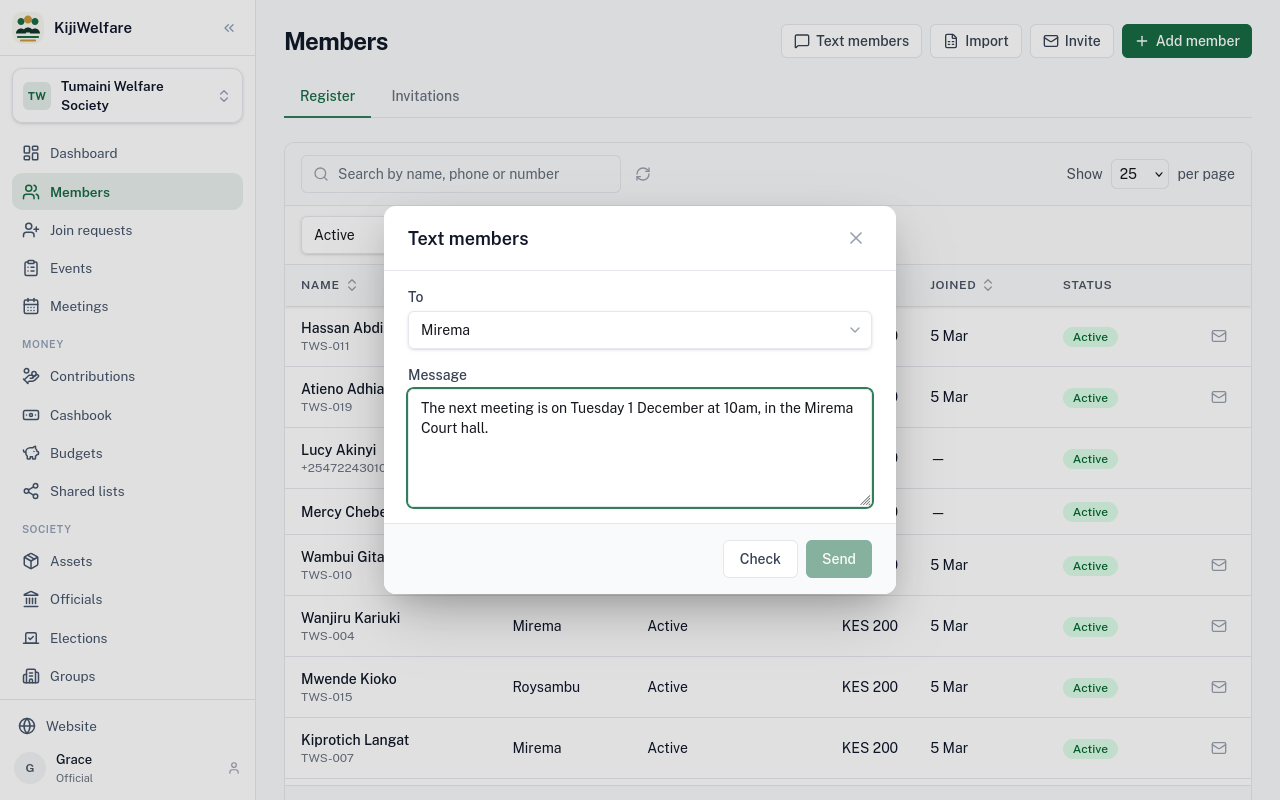
Write the message, and choose Check. It says how many it reaches, and who has no phone number.
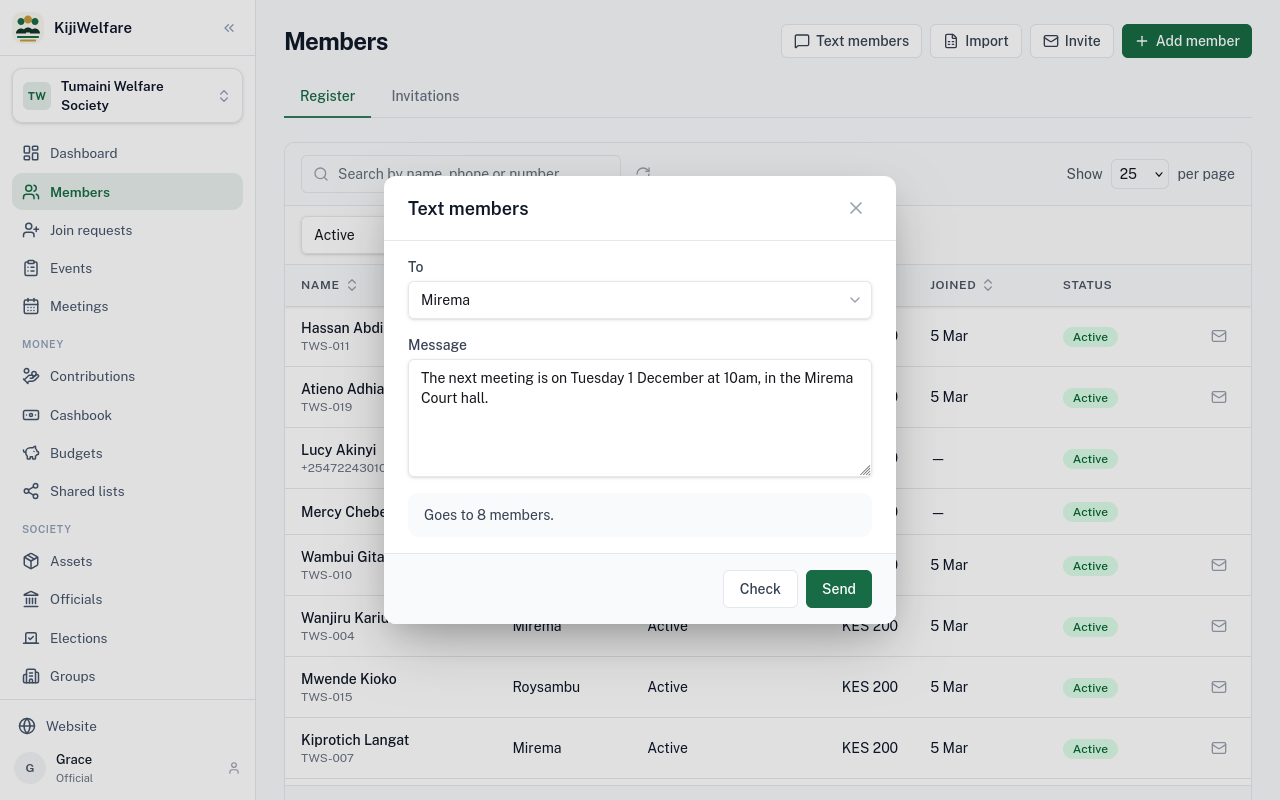
Choose Send. KijiWelfare hands the texts to the phone, and the phone sends each one from its own SIM.
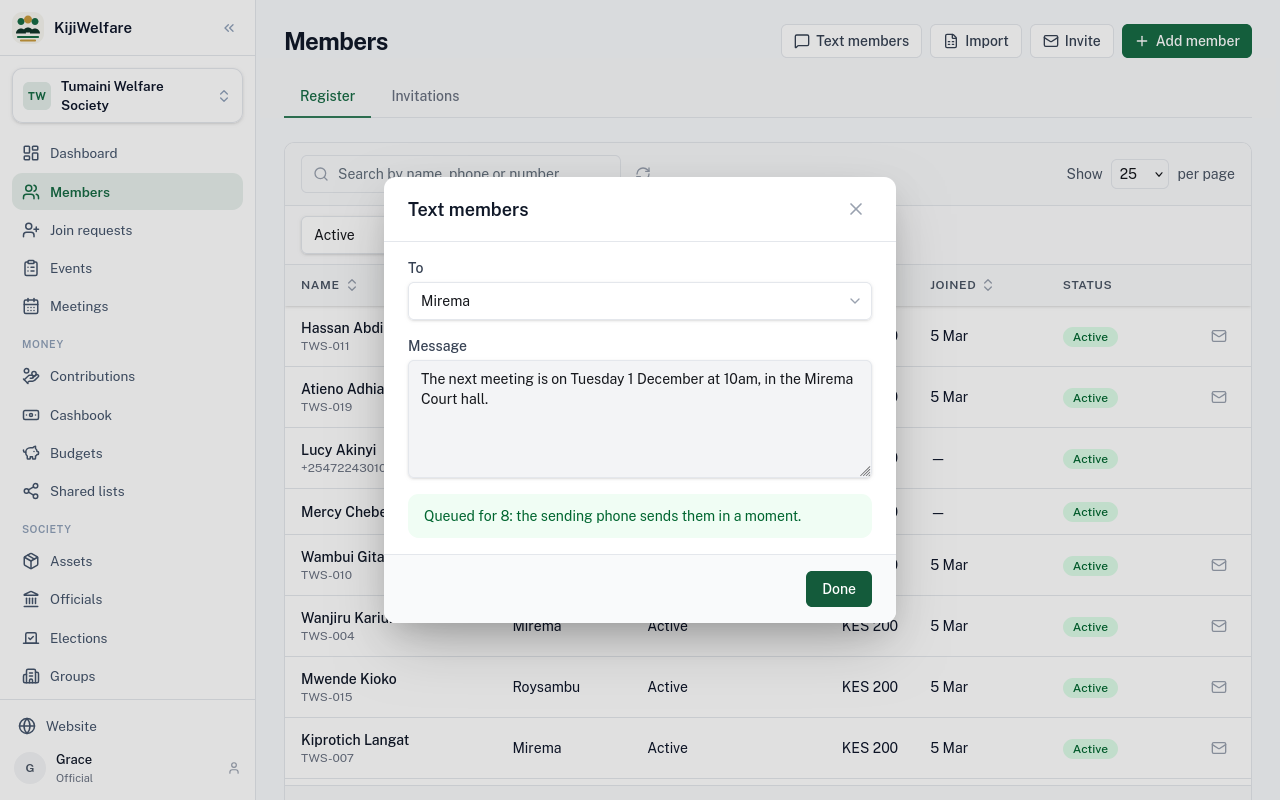
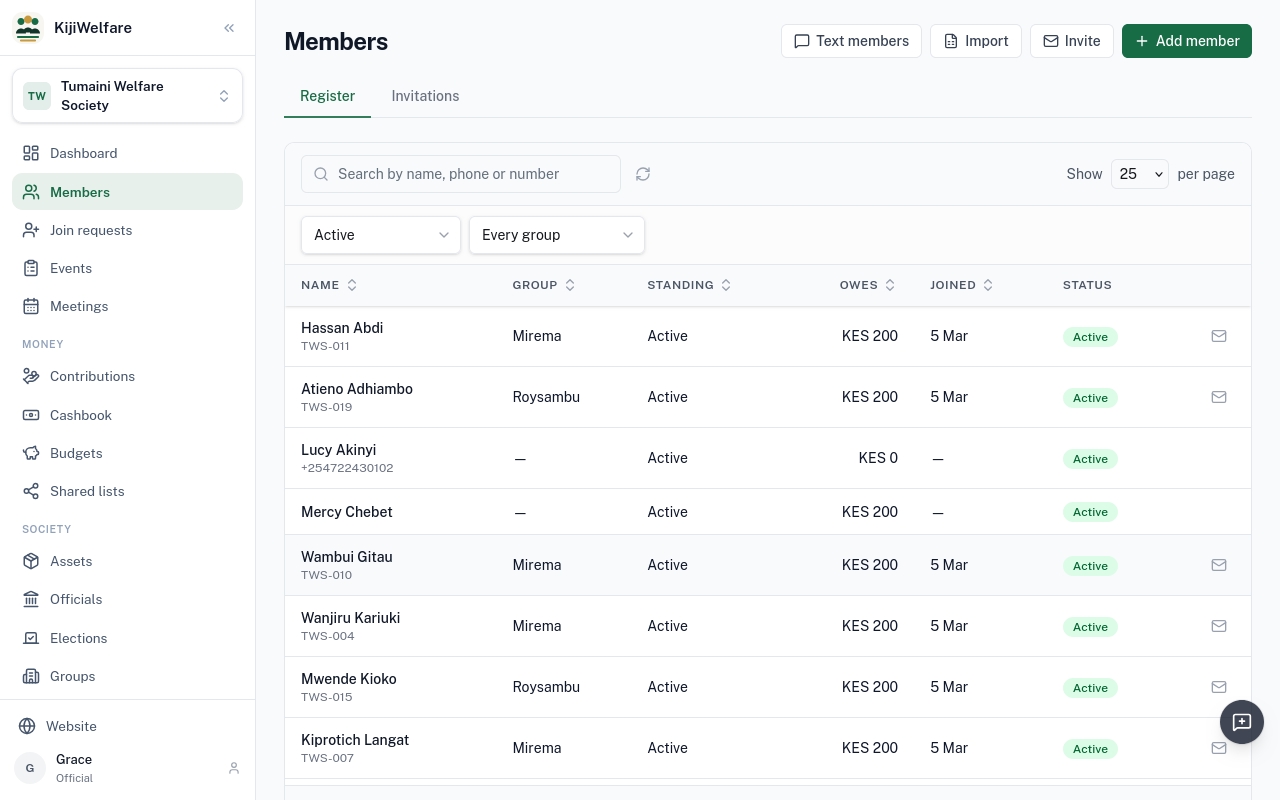
Members get the text from the society's phone. Choose Done.
Chapter 11
Accepting an invitation, your dues, and paying by M-Pesa
Lucy already has an account. Grace invited her to Tumaini, and the email's link opens this page: she is invited to Tumaini Welfare Society, as a member.
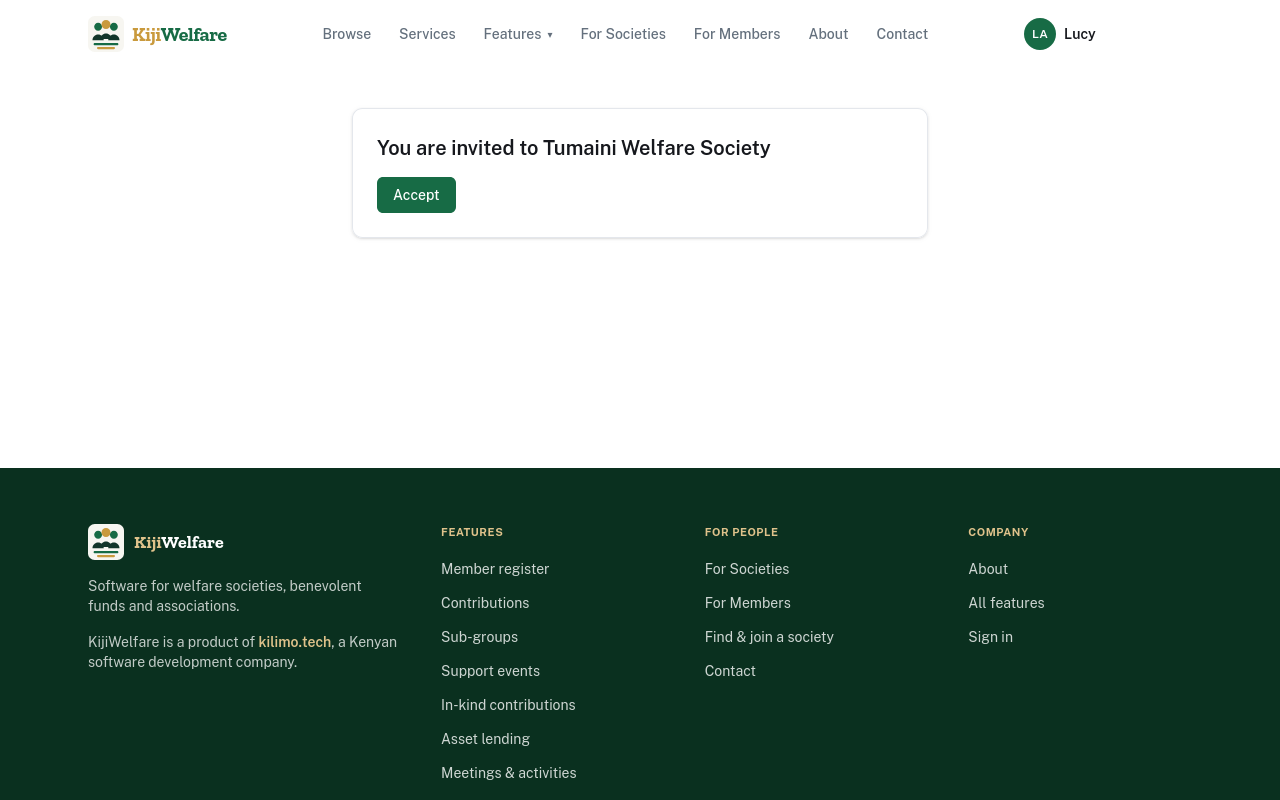
Signed in as herself, she chooses Accept.
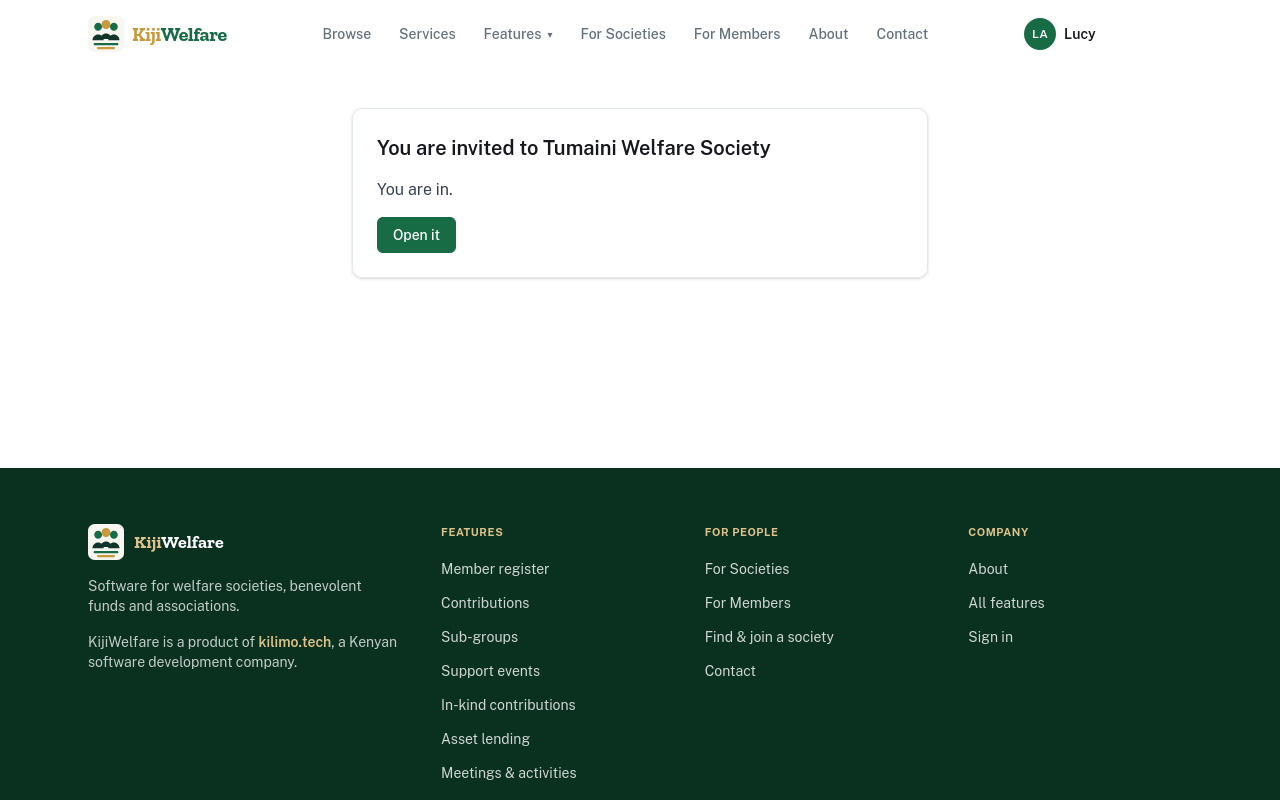
She is in. Open it takes her to the society.
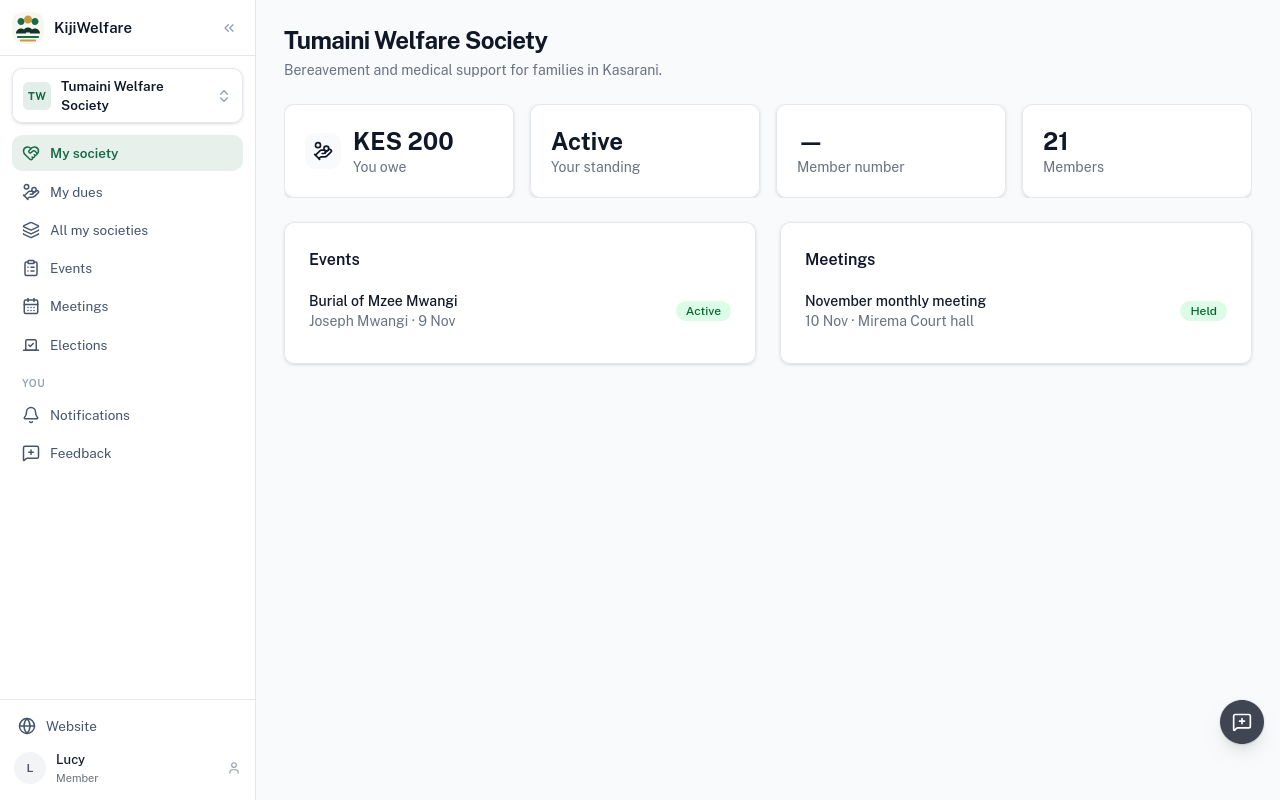
A member sees their own side: what they owe, their standing, their number, and the society's events, meetings and elections.
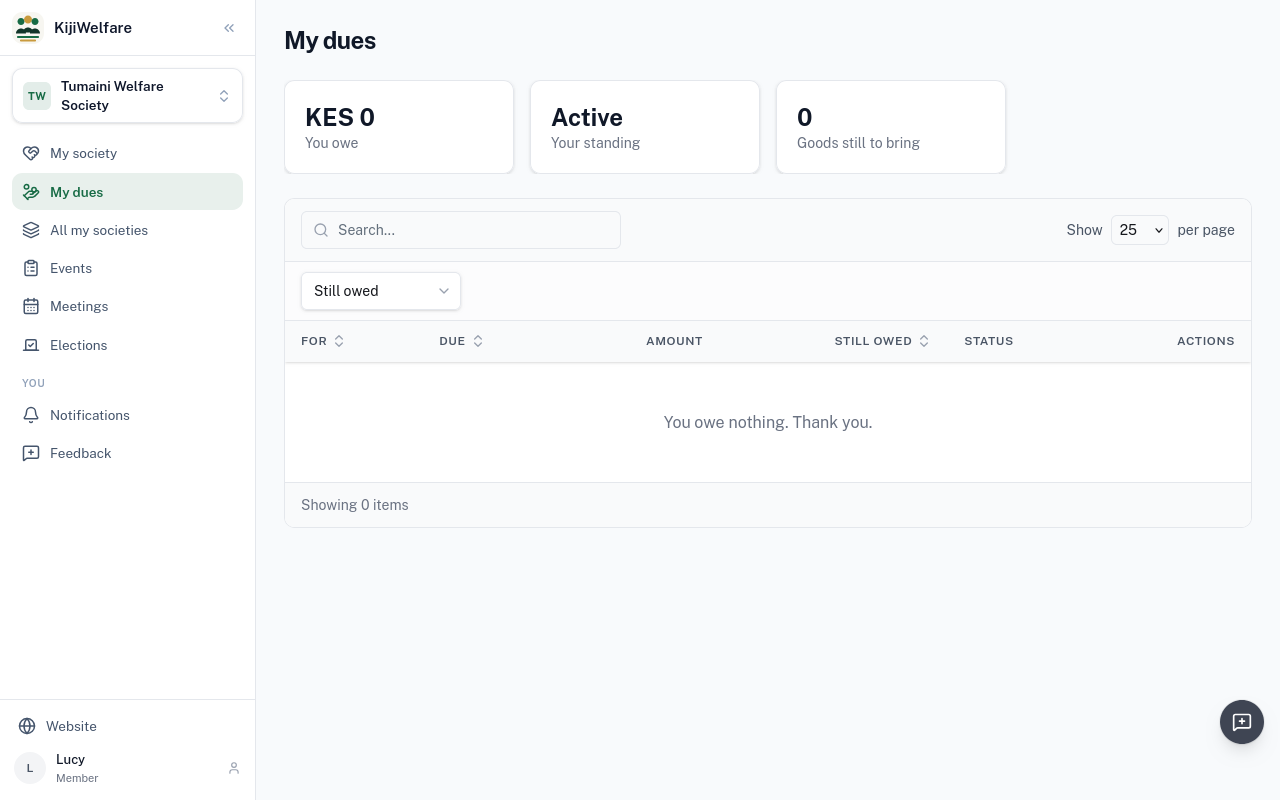
My dues lists what she owes: the society's monthly dues of 200 shillings.
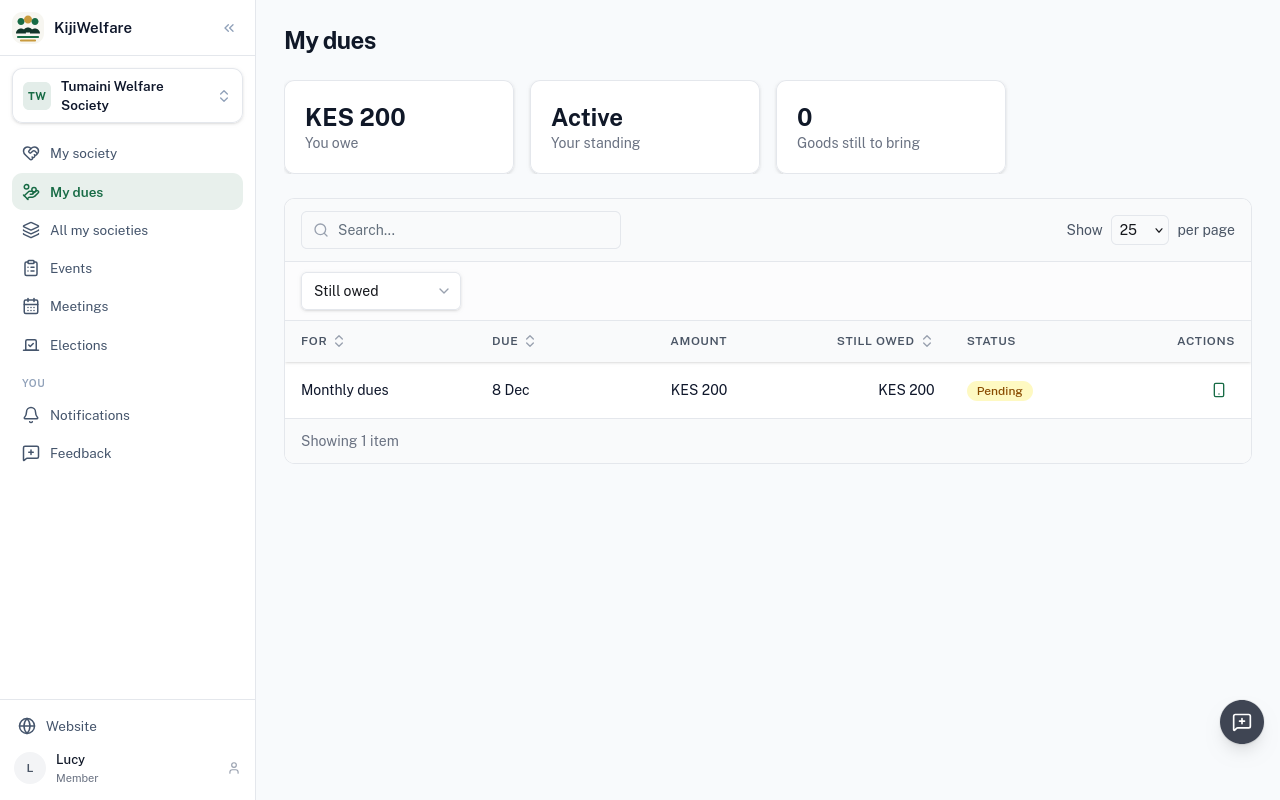
Choose Pay with M-Pesa. The amount is what she owes. She gives her M-Pesa number, and chooses Send to my phone.
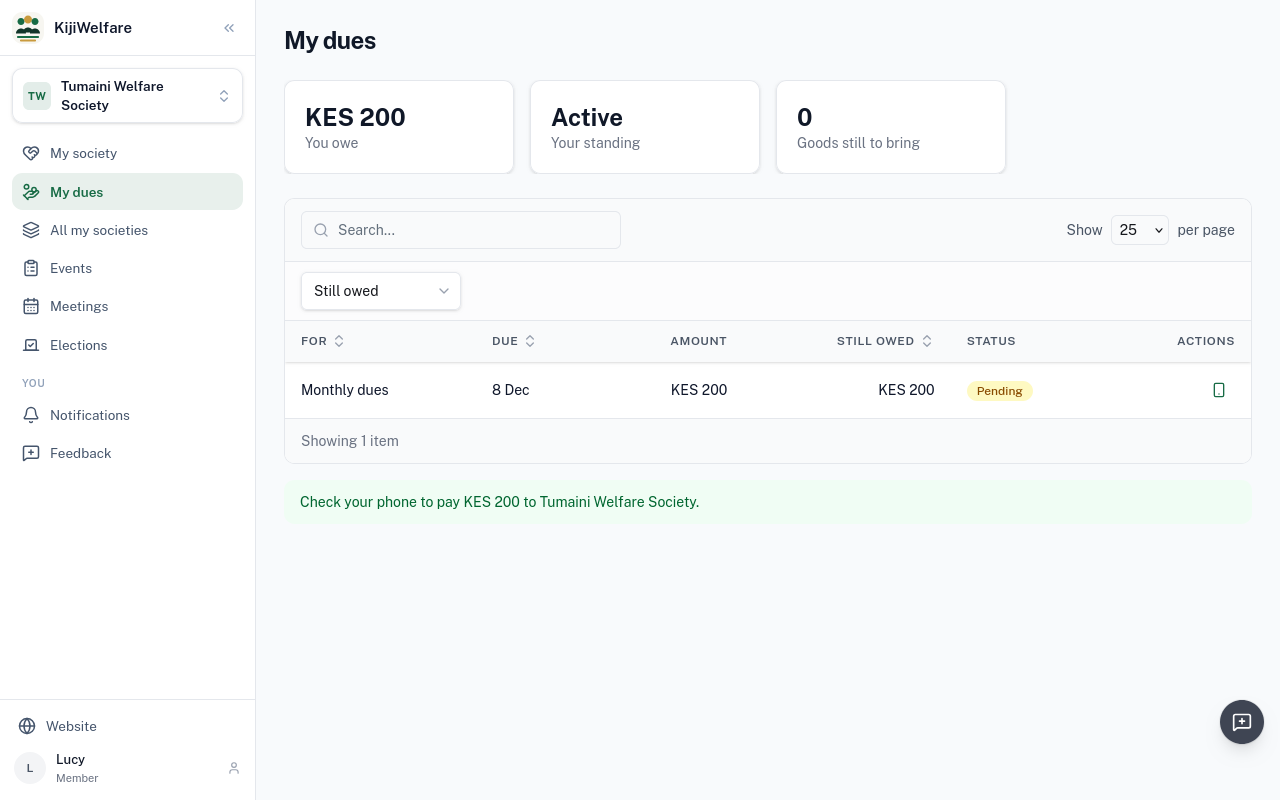
M-Pesa asks for her PIN on her phone. This society's till is a simulated one, for this guide: it answers by itself, and no money moves.
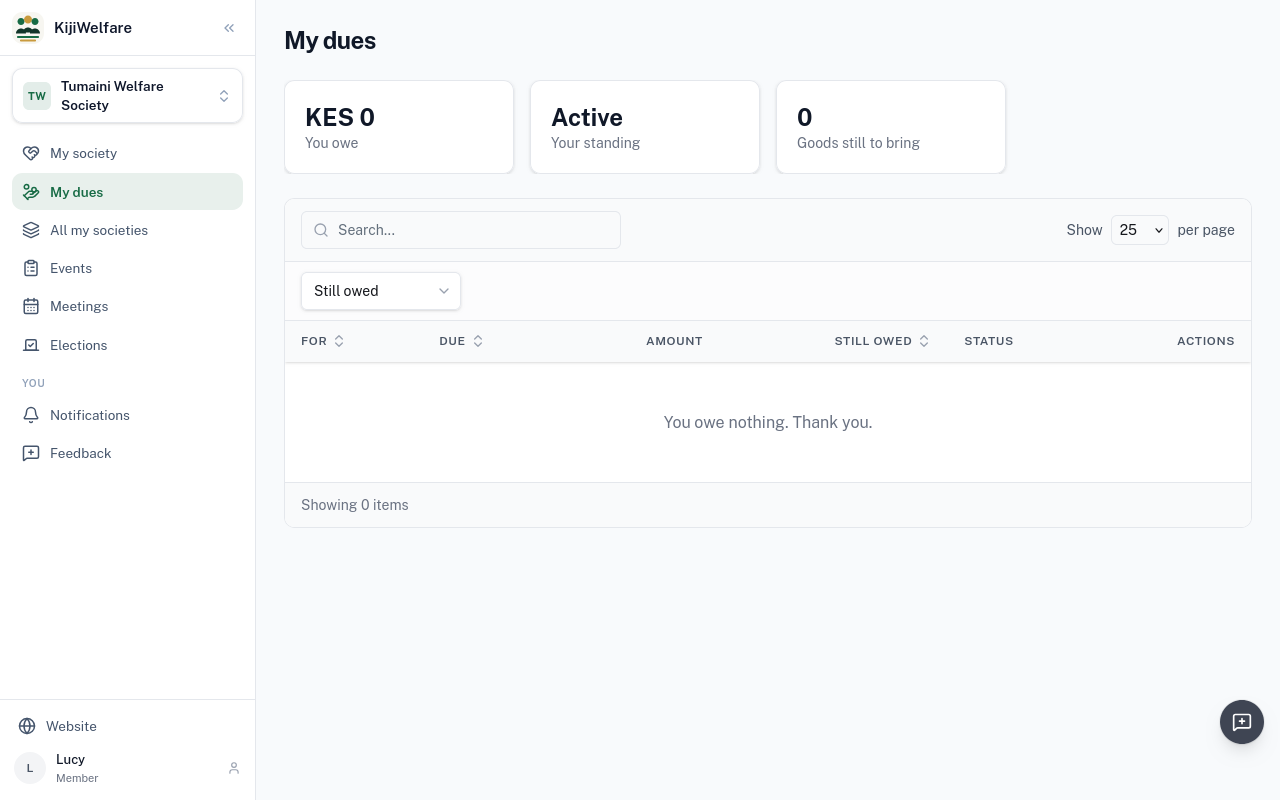
Once M-Pesa confirms, the dues are paid, and the society's treasurer sees the payment in the cashbook.